
Managing Citations
Esta página describe cómo trabajar con citas. For an overview of the workflow for courses and reading lists see Workflow. For links to all the main fulfillment documentation pages see Fulfillment.
To manage citations, you must have one of the following roles
:- Operador/Gestor de reservas de curso
- Curso Reserves Visor (read-only acceso)
- Operador/Gerente de servicios al usuario
Las citas hacen referencia a ejemplares que los estudiantes deben ver o leer para un curso. Las citas aparecen en listas de lectura; un curso puede tener múltiples listas de lectura.
Las citas pueden ser sitios web, documentos cargados o libros o artículos en formato electrónico o físico. Las citas de libros o artículos deben ofrecer los detalles necesarios para identificar al ejemplar de forma específica. Esto incluye: autor/es, fecha de publicación, título y número de páginas. También pueden utilizar identificadores únicos, como el Número Estándar Internacional de Libros (ISBN), la URL del sitio web o volúmenes específicos, artículos u otras partes identificables de una publicación periódica.
- Dado que los capítulos de libros, artículos de revistas y documentos de conferencias son partes de documentos más amplios, es posible que sus títulos sean diferentes al título del documento completo. Del mismo modo, los autores pueden ser distintos al autor o editor del documento completo. Sus citas incluyen detalles sobre las fuentes donde aparecen.
- Las citas que están enlazadas a cursos activos se publican en Primo con información sobre el curso. The following can be retrieved by a Primo search: course IDs, course names, and instructor names. For this information to be published to Primo,Course information enrichment must be selected in the Primo publishing profile. Note that it is the status of the Course that determines a Primo record having the citation to a Course; deactivating the reading lists that actually contain the record does not impact this.
- Adding or editing a citation may automatically trigger a purchase request (create a PO line); see Configuring Automatic Purchasing Requests from Citations.
- For information about Ex Libris' reading list/citation management system, see the Leganto Administration Overview.
- Las citas añadidas a través de la UI de Alma o la API de servicios web de Alma se añaden a la sección por defecto de una lista de lectura (las secciones son relevantes solo en Leganto).
- Citations of type Note(citations whose material type is set to Note) are added by instructors in Leganto. They are used to provide information to the students who are viewing the reading list and do not need to be fulfilled by the library staff.
Las citas se pueden enlazar a ejemplares del repositorio/inventario o no. Titles not linked to the repository are typically articles or videos on external websites or faculty resources that are not part of the institution's inventory.
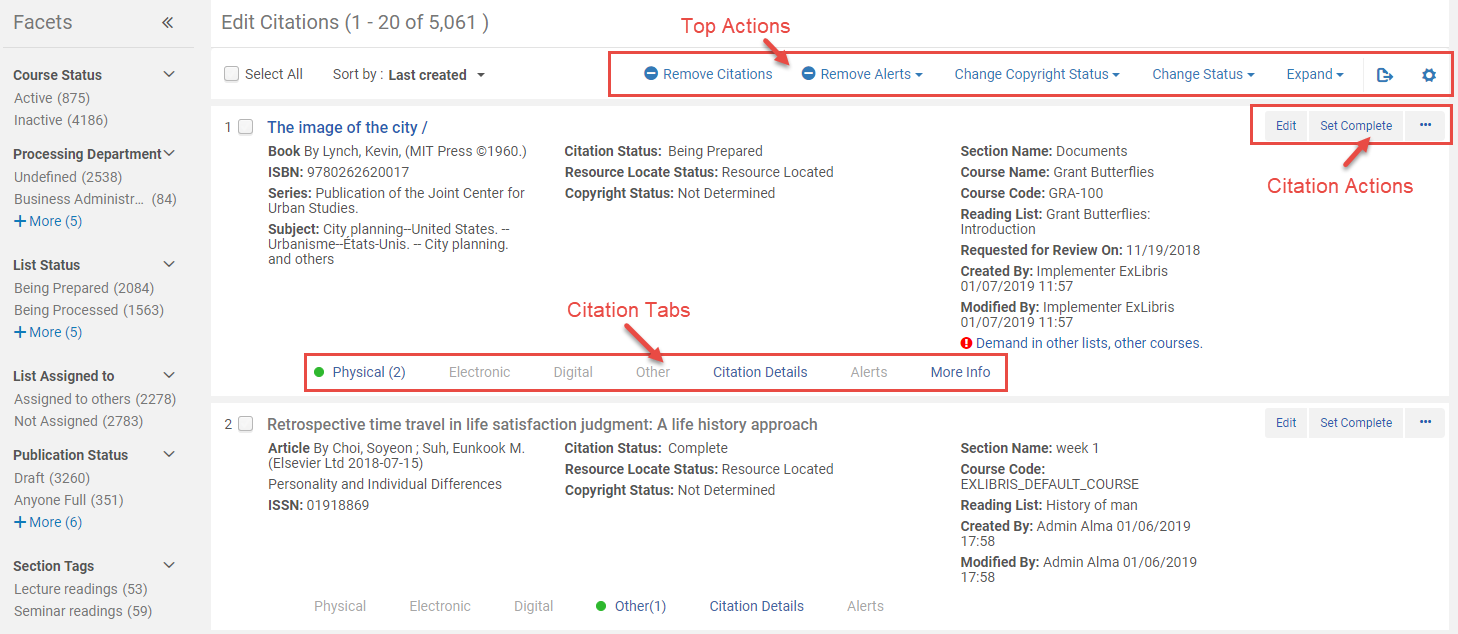
You manage reading list citations from multiple reading lists on the Edit Citations page (Fulfillment > Course Reserves > Citations), or from a single reading list on the Citations tab of the Edit Reading List page (Fulfillment > Course Reserves > Reading Lists; select the reading list or select Work on from the row actions list). Téngase en cuenta que las citas de listas de lectura archivadas no aparecen en esta página.
You can also access the Edit Citations page by searching for citations; see Searching in Alma.
You can also access the Edit Citations page with any of the citation tasks in the tasks list (see Tasks in the Task List). Cuando se accede usando la lista de tareas, una o más pestañas o filtros están preseleccionados, de acuerdo con la tarea seleccionada.
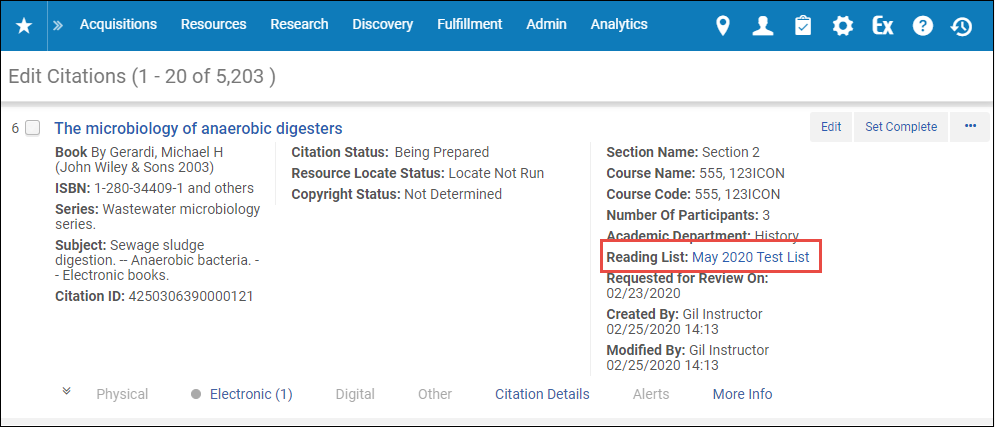
When editing citations, you can select the link following Reading List to access the Edit Reading List page. For more information about editing your reading list, see Editing Reading Lists.
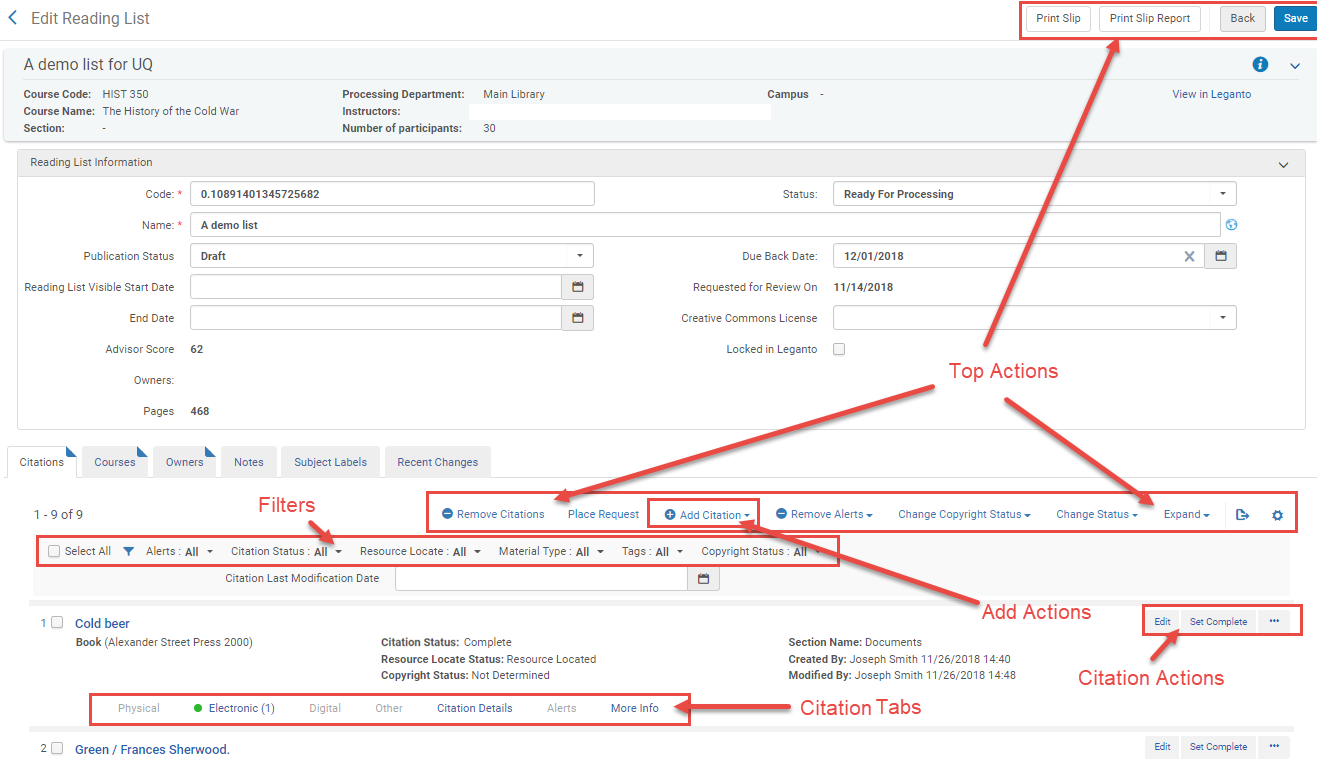
En la página Editar citas, las citas aparecen como una lista de registros en donde las citas creadas más recientemente aparecen en primer lugar. If you are using Leganto, you can select a sorting option using the Sort by filter. On the Edit Reading List page, citations appear in the order specified in the parameter reading_list_citation_order. For more information, see Configuring Other Settings. Las acciones están disponibles en varios grupos.
Debajo de cada cita aparecen pestañas de alertas, información de inventario e información adicional sobre la cita; inicialmente, estas pestañas están contraídas. Seleccionar una pestaña para expandir o contraer la información. If you want all physical, electronic, or other inventory information to appear expanded by default for all reading lists, select the relevant option for Expand. Debe seleccionarse nuevamente esta opción cada vez que inicia sesión en Alma. To view physical items and holdings, select Items in the row actions list.
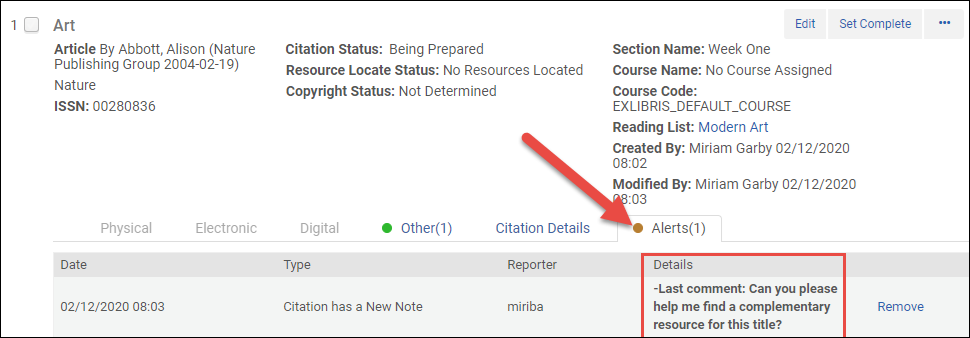
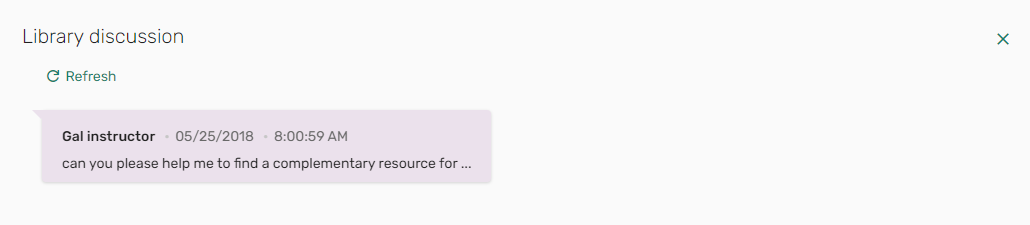
Notes left by users are shown in Details located in the Alerts tab of a citation's brief information as Last comment.
La siguiente figura muestra las notas que aparecen en la sección Detalles de la Información Breve de Citas de Alma en Alma.
The following figure shows the notes shown in the Library discussion in Leganto.
For more information about record lists, and for information about how to configure the arrangement of the fields and citation actions, see Record Lists.
Las pestañas de la cita en cada fila son:
- Physical, Electronic, Digital - See Viewing Inventory/Other Details. La pestaña físico incluye el número de clasificación del recurso físico (número de estantería).
- Other - Other methods of viewing the citation source material, which include (where relevant) OpenURL link resolver link, link to the uploaded file, or the original source or URL of the citation. Aparece un punto verde en la pestaña si existe al menos un método.
- Citation Details - Additional citation details, some of which may have originated from the repository item to which the citation is linked. See Viewing information about a citation.
- Hold By (New for August 2026) - Appears for Network Zone resources that are used in a citation.
- Alerts - Any alerts related to this citation. El número de alertas aparece en el encabezado de la pestaña. Select Delete to delete an alert, when available.
-
More Info - Additional information, including repository item title, related records, orders related to this item, requests or work orders related to this item, and a link to the courses in which this item is in demand as a citation. See Viewing information about a citation.
(Leganto solamente) Esta pestaña aún no soporta listas de lectura asociadas a múltiples cursos. If the citation is associated with a reading list that is associated with multiple courses, the value for the Courses field may be incorrect.
Acciones para realizar en esta página:
- Se puede filtrar la lista de citas a través de filtros (página Editar lista de lectura) o facetas (página Editar citas):
- Alerts - Alert type connected with the citation (see Removing alerts from citations)
- Citation Status - Citation (fulfillment) status of the citation. See Reading List and Citation Statuses.Not Complete matches any citation whose status is not Complete.
- Resource Locate - Resource locate status of the citation. See Managing a Citation's Attachment to an Inventory Item (resource locate).
- Material Type - Primary or material type of the citation
- Tags - A tag set on the citation (appears as Section Tags and Citation Tags on the Edit Citations page; see Adding Citation Tags)
Copyright Status - The copyright status of the citation (see below)
The following filter options are only available on the Edit Reading List page:
- Citation Last Modification Date (Leganto) - Enter a range of dates to match citations whose last modification is between these dates.
The following filter options are only available on the Edit Citations page. In addition, you can sort the citations on this page by last created date, last modification date, reading list name, or citation title.
- Course Status - Active or Inactive. Si se está utilizando Leganto y se han habilitado múltiples cursos para listas de lectura, el estado encuentra una cita si cualquiera de sus cursos asociados coincide con el valor seleccionado.
- Processing Department-Undefined matches any citation from a reading list that does not have an associated course.
- List Status(Leganto) - The reading list's status
- List Assigned to - The user to whom the reading list is assigned.
- Publication Status(Leganto) - The publishing status of the reading list. See Reading List and Citation Statuses.
- License Type(Leganto) - Self-declared, CLA, CCC, and so forth.
- To manage multiple (one or more) existing citations, select the checkboxes next to the desired citations, or select the Select All checkbox, and then select one of the top actions on the page.
- The citation status drop-down list - See Changing a citation's status.
- Change Status - See Changing a citation's status.
- Change Copyright Status - See Manually Managing a Citation's Copyright Status.
- Remove Alerts - See Removing alerts from citations.
- Remove Citations - See Removing citations.
The following actions are only available on the Edit Reading List page:
- Print Slip- See Printing Slips for Citations or Generating a Citation Print Slip Report.
- Print Slip Report- See Printing Slips for Citations or Generating a Citation Print Slip Report.
- Place Request- See Creating requests for citations.
- Para gestionar una única cita existente, seleccionar una de las acciones de la cita. Las acciones disponibles dependen de varios factores, tal como se describe a continuación.
- Edit- See Editing a citation.
- Resource Locate - See Managing a Citation's Attachment to an Inventory Item.
- Set Complete - See Changing a citation's status.
- Manage Fulfillment Options - See Managing Citation Fulfillment Options.
- Purchase Request - See Creating requests for citations.
- Resource Sharing Request - See Creating requests for citations.
- Portfolio List - See Viewing information about a citation.
- Items - See Viewing information about a citation.
- Remove - See Removing citations.
- Duplicate - See To add a citation by duplicating an existing citation in Adding Citations to a Reading List.
- Print Slip - See Printing Slips for Citations or Generating a Citation Print Slip Report.
- Detach from Repository - See Managing a Citation's Attachment to an Inventory Item.
- Recalculate Rules - See Automatically Managing a Citation's Copyright Status.
- Associate to DCS/Enter DCS URL/View DCS/Remove DCS/Update DCS Status - See Attaching a Citation to the CLA Digital Content Store (UK Only).
- Manage Digital Representations(Leganto only) - See Managing a Citation's Digital Representations. Appears only if the Leganto customer parameter display_digital_representations is set to false; see Configuring Digital Representation Display Options.
- Other Formats and Editions(Leganto only) - See Configuring the Display of Other Formats and Editions of Citations.
- View in Leganto(Leganto Only) - Open the citation in Leganto.
- View It- Open the citation. Disponible en la página Editar citas para las citas con acceso electrónico.
The only action available for citations of type Note are Edit and Remove. - To add a citation to a reading list on the Edit Reading List page, duplicate an existing citation or select one of the Add actions:
- Add Repository Citation adds a citation and connects it to an item in the repository
- Add Non-Repository Citation adds a citation that is not in the repository
- Add Brief adds an item to the repository, and then adds a citation that is connected to it
After making any changes on the Edit Reading List page, select Save to save the changes and return to the Reading Lists Tasks List page. No es necesario guardar los cambios realizados en la página Editar citas.
La siguiente lista muestra las tareas asociadas a la gestión de citas y ofrece más información.
| Acción | Procedimiento |
|---|---|
| Añadir una cita | See Adding Citations to a Reading List. |
|
|
| Editing a citation | Se puede editar una cita, por ejemplo, para mejorar sus metadatos.
To edit a citation, select the Edit citation action. Aparece la página Editar cita de la lista de lectura. Modify the information in the Citation tab and other tabs as required and select Save. For information on the fields in the Citation tab, see Adding Citations to a Reading List. If you selected Copyright Auditing Required and would like to navigate immediately to the Approval Requests List, select Save and manage approval, instead. If you edit any of the active fields listed in the Match by Fields table (see Configuring Citation Matching Criteria), you are prompted to perform a new resource locate. Si la cita fue previamente localizada y el nuevo proceso de localización no encuentra una coincidencia, la cita se desvincula del repositorio. If your institution is implementing Leganto, see Configuring Repository Locate Workflow for information about configuring this workflow. If the citation is detached from the repository,citation_detached_from_repository is triggered; see Configuring Default Statuses for Citations/Reading Lists) Add, edit, or delete notes in the Notes tab. For more information about this tab, see Notes Tab. Select an option in the Update Notes table action to mark notes as unread (Activate Notes) or read (Dismiss Notes). Cuando se añade una nota de tipo biblioteca, solo los otros bibliotecarios pueden ver la nota. Cuando se añade una nota de tipo instructor, los instructores también pueden ver la nota en Leganto (solo usuarios de Leganto). No se puede cambiar el tipo de nota después de crear la nota. |
|
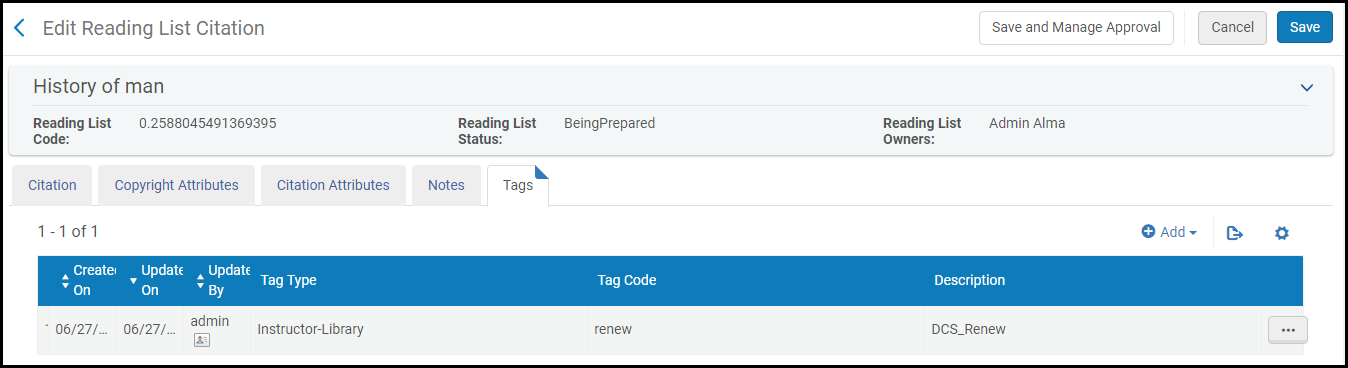
Public tags appear when a patron views the citation in Leganto (Leganto customers only).Instructor-Library tags are viewable by librarians, and, in Leganto, by instructors creating the reading list.Library-Internal tags are visible only by librarians in Alma or Leganto. Some tags are added by Leganto or Alma, are visible by librarians (and instructors in Leganto), but cannot be added, edited, or removed. En general, son resultado de una función de Leganto o Alma, por ejemplo, una integración con una agencia de derechos de autor regional. También es posible tener etiquetas no mapeadas, que son etiquetas que crea el cliente, pero que no están mapeadas a un tipo de etiqueta específica. Unmapped tags can be added via the Leganto Questions feature and can be manually removed using the Tags tab in Alma but cannot be manually added in either Alma or Leganto. To add or edit citation tags, select the Tags tab while editing a citation, add or delete tags as required, select Save, and select Go. Es puede filtrar el uso de estas etiquetas en la página Editar lista de lectura. To configure the available citation tags and their type, see Configuring Citation and Section Tags.
Después de añadir etiquetas, estas aparecen en la lista de citas en la página Editar lista de lectura. Se pueden filtrar citas por etiquetas.
|
|
| Gestionar el adjunto de una cita a un ejemplar del inventario | See Managing a Citation's Attachment to an Inventory Item. |
| Managing a citation's fulfillment options | See Managing Citation Fulfillment Options.
To see alternate edition suggestions for citations, run the Citation Alternate Suggestions job. |
| Adjuntar atributos de cita a una cita | See Attaching Citation Attributes to Citations. Also see Editing a citation above for adding tags to a citation. |
| Imprimir comprobantes para citas | See Printing Slips for Citations or Generating a Citation Print Slip Report. |
| Changing a citation's status |
Cambiar el estado de una cita no cambia el estado de la lista de lectura y vice versa. Además, el estado de una cita es diferente al estado del recurso localizado de la cita. To change citation statuses, select the citations, select the status from the drop-down to the left of the Change Status top action, and select Change Status. Alternately, to set a single citation's status to complete, select the Set Complete citation action. Alma presenta estados predefinidos que no pueden modificarse. For information on configuring additional citation statuses, see Configuring Reading List Citation Statuses. For the default list of citation statuses, see Reading List and Citation Statuses in the Leganto Administration Guide. |
| Changing a citation's copyright status | See Managing a Citation's Copyright Status. |
| Cambiar las representaciones que aparecen para una cita digital en Leganto | (Leganto only) See Managing a Citation's Digital Representations. |
|
Puede colocar solicitudes de institución en una o más citas para mover los ejemplares (de manera permanente o temporal) o para digitalizarlos. Se puede colocar una solicitud de movimiento en masa si, por ejemplo, la fecha del plazo de devolución cambia. To create a bulk request, select the citations and select the Place Request top action. The Create Request page appears (see Create Request Page). Select a request type, fill in the remaining fields (as described in Creating a Request), and select Submit. Las solicitudes son:
Se puede crear una solicitud de compra directamente desde una cita si Ex Libris ha habilitado esta función para su institución. To create a purchase request for a citation, select the Purchase Request citation action. For more information see Purchase Requests. Las bibliotecas pueden configurar lo que sucede cuando se reenlaza una solicitud de compra a un nuevo ID de MMS. When a purchase request is linked to a citation, and the purchase request is then relinked to a different MMS ID, when the parameter purchase_request_relink_citation (Configuration > Fulfillment > General > Other Settings) is set to true(default), the citation is linked to the new MMS ID. When the parameter is set to false, the citation remains linked to the original MMS ID. Si el ID de MMS original tenía un registro asociado de derechos de autor, los derechos de autor se cancelan y no se aplican al ID de MMS recientemente enlazado, y se agrega una alerta que indica que se cancelaron los derechos de autor. Se puede crear una solicitud de préstamo para compartir recursos directamente desde una cita si Ex Libris así lo ha habilitado para su institución. To create a resource sharing borrowing request for a citation: select the Resource Sharing Request citation action. Aparecerá el formulario de Solicitud de préstamo para compartir recursos. For more information see Creating a Borrowing Request. The form is prefilled with the citation information, as well as the parameter values of parameters starting with citation_rs_default_; see Other Settings. |
|
| Removing alerts from citations |
Si los ejemplares del inventario se encuentran geográficamente lejos o no se tiene acceso a las estanterías en donde están ubicados, utilizar las opciones de servicios al usuario para crear y luego visualizar solicitudes. (See Managing Citation Fulfillment Options.) For each step in the citation request workflow, an alert is generated – for example,Citation Digitization Request In Process,Citation Digitization Request Completed. You can use the Alerts filter to monitor the status of physical items that you have requested to move to reserved areas or material that you have requested in digital format. For example, you can use the Alerts filter to view only those citations whose request processing has been completed (to mark their status as Complete). También aparece una alerta si un instructor ha añadido una nota de biblioteca a la cita o ha marcado un enlace de recursos como roto en Leganto. Las posibles alertas son:
To remove alerts from citations, select the citations, select the Remove Alerts top action, select the alert type (or All), select Remove Alerts, and select Confirm in the confirmation dialog box. If you are implementing Leganto, the alerts List was published/unpublished are special, non-workflow alerts that appear only in a facet on the Reading List Tasks List page when an instructor publishes/unpublishes the reading list in Leganto. |
| Removing citations | Select the citations and select the Remove Citations top action. Select Confirm in the confirmation dialog box.
Alternately, select the Remove citation action. |

Adding Citations to a Reading List
Añadir una cita utilizando uno de los tres flujos de trabajo o al duplicar una cita existente y editar la copia.
- You can also create a citation by scanning an item and selecting the appropriate reading list in the Change Item Information tab. The item is added as a citation to the selected reading list. For details on the Change Item Information tab, see Changing Item Information.
- You can also add a citation to a reading list by selecting the Add to Reading List action in the search results (see Searching in Alma).
Adding a Citation Already in the Repository
- On the Edit Reading List page (Fulfillment > Course Reserves > Reading Lists; select the reading list) in the Citations tab, select the Add Repository Citation action. Aparece la página Búsqueda en el repositorio.
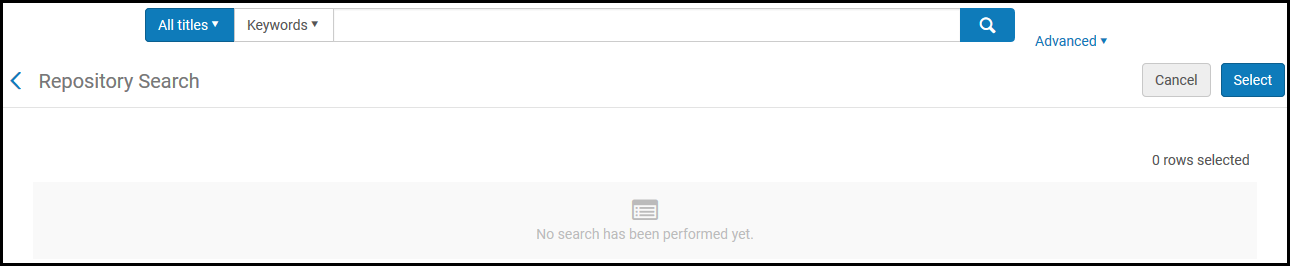
- Search for a title; see Searching in Alma. (New for August 2026) Note that the search can also be performed in the scope of the network zone.
- Select one or more titles to add and select Select. Los ejemplares se añaden como citas.
Al añadir una cita desde una búsqueda en el repositorio, solo es posible realizar una búsqueda en Todos los títulos. Para acotar los resultados de la búsqueda, utilice la opción Búsqueda avanzada.
To add copyright clearance information or to configure other citation information (see To add a citation that is not in the repository (without adding it to the repository), you must edit the citation after adding it. See Editing a Citation.
Adding a Citation Not in the Repository Without Adding it to the Repository
Non-repository citations allow you to represent items that are not part of the library's resources and therefore are listed only in Course Reserves. For more information, see Non-Repository Citations.
Dado que las citas que no son del repositorio no se publican, no aparecerán en Primo y Primo VE.
- On the Edit Reading List page (Fulfillment > Course Reserves > Reading Lists; select the reading list) in the Citations tab, select the Add Non-Repository Citation action. Aparece un cuadro de diálogo para seleccionar el tipo de cita.
-
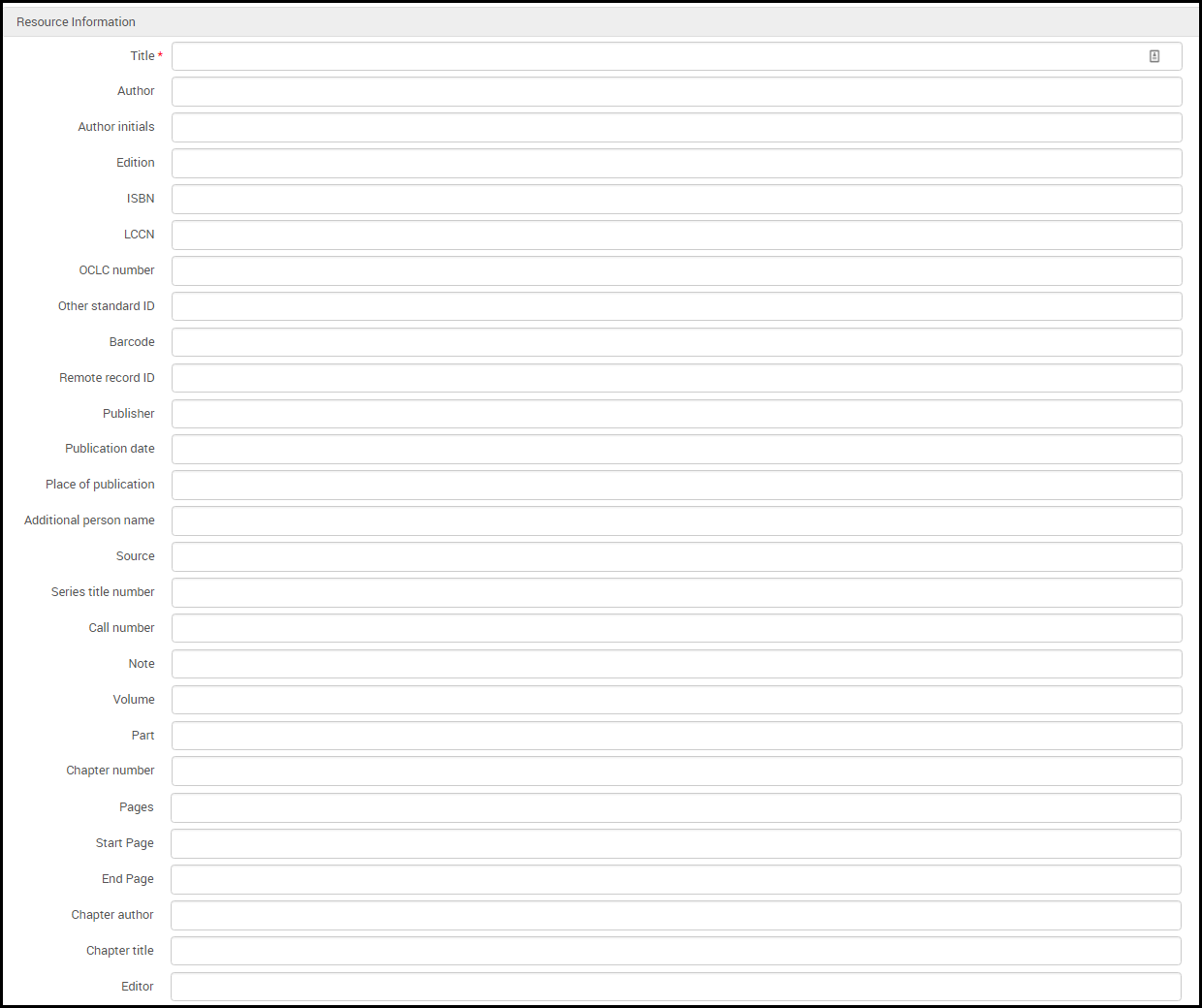
Select the type of citation (book or article) and select Choose. Aparece la página Editar cita de la lista de lectura (para citas que no son del repositorio), con los campos para el tipo de cita seleccionado (véase las siguientes imágenes).
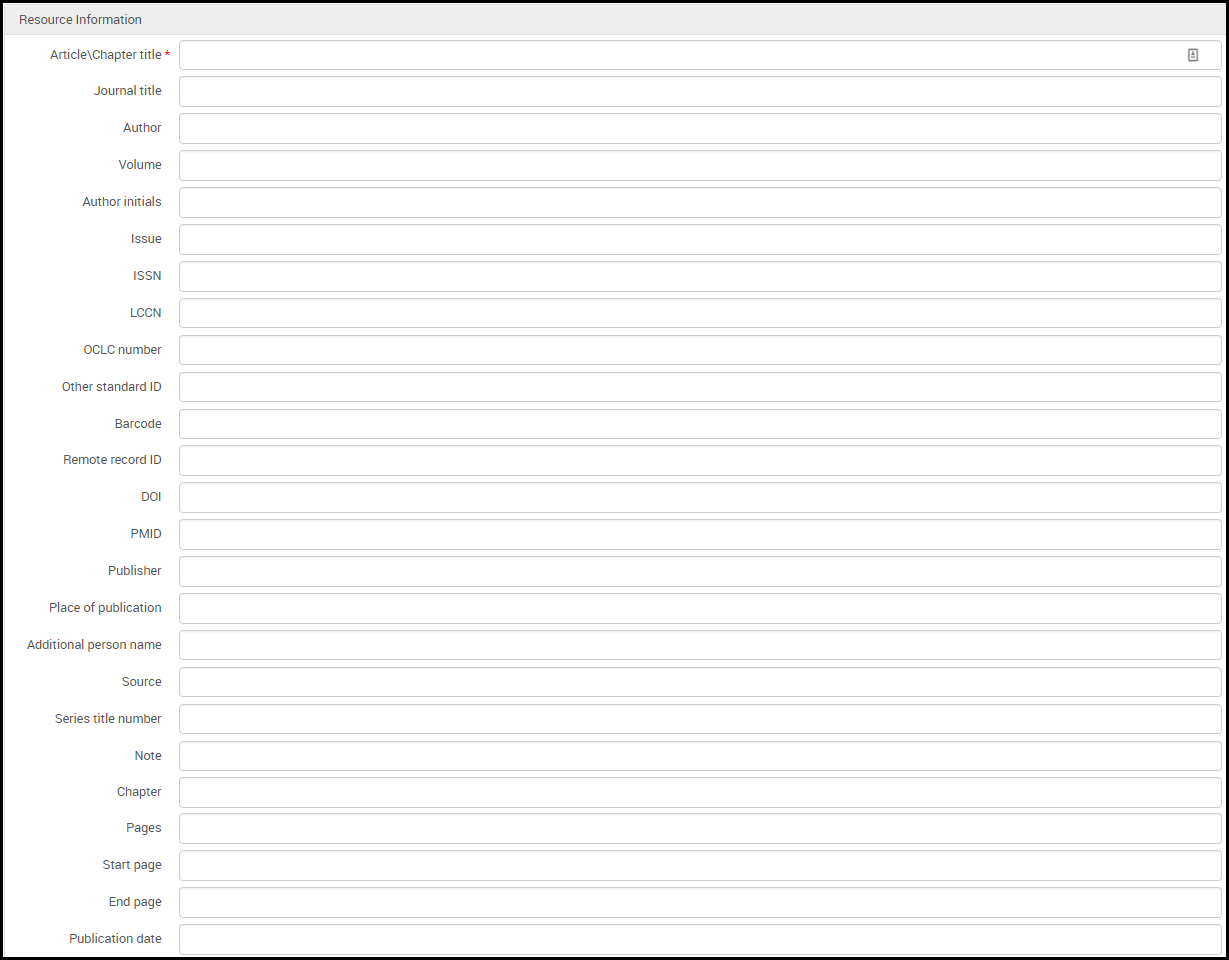
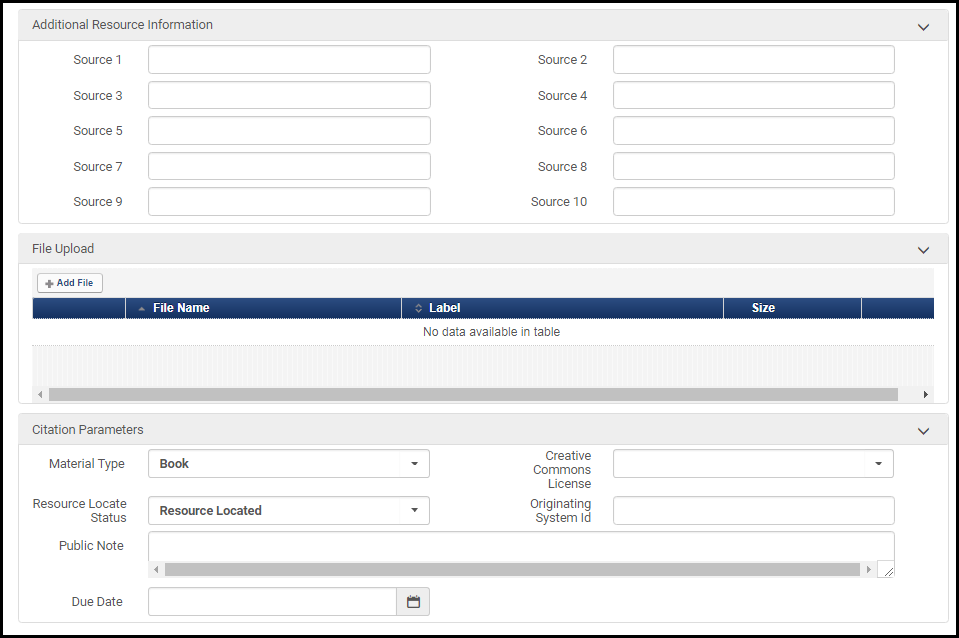
-
In the Resource Information area, enter the necessary information in the fields. A description of the fields appears in the Resource Information Fields table in Adding a New Book or Journal Article.
El número de clasificación de una cita se refiere al número de clasificación de la Biblioteca del Congreso (campo 050), que no es necesariamente el número asociado al recurso físico asociado a la cita, que es el número del estanterías.
- If you are using Leganto, then in the Additional Resource Information area, you can manually add additional sources for the citation (in addition to the source in the Resource Information area). These links appear in the Links & Availability section when viewing a citation in Leganto.
-
In the File Upload area, select a file for the citation, if relevant. Por ejemplo, una imagen en el caso de una cita digital o un PDF en el caso de un documento. Solo se puede cargar un fichero. Mientras se carga el fichero aparece una barra de progreso. To view the uploaded file, select the file name (if you are editing this page at a later time, select Download File in the row actions menu). To delete the file, select Delete in the row actions menu (if you are editing this page at a later time, select Delete in the row actions menu). En este momento, el campo etiqueta no tiene efecto.

- When a file is uploaded to a citation whose status is Complete, if the copyright clearance is not self-declared, Creative Commons, or otherwise already approved, the citation's status is reset to Being Prepared.
- El fichero puede ser de cualquier tipo. Para los bibliotecarios no hay límite de tamaño de fichero. (For the instructor file size limit in Leganto, see Configuring File Upload in Leganto.)
- Alma registra el usuario que cargó el fichero. In the File Upload area, this information is displayed under Uploaded by, showing either the username or, if the file was added by a job, the job ID.
-
In the Copyright Attributes tab (edit only):
- For more information on the Copyright Status field, see Manually Managing a Citation's Copyright Status. When using Leganto, an administrator can make the Source for Copyright field mandatory and select its default value, see copyright_source in Configuring Leganto Copyright-Related Procedures.
- Select Copyright Auditing Required to add intended usage information and have Alma manage the citation's copyright status automatically (see Automatically Managing a Citation's Copyright Status). Si está seleccionado, completar los campos adicionales que aparecen. For information on most of these fields, see staff digitization request in Creating a Request.
- In the Citation Parameters area, optionally select:
- Material Type- Select an available option. La lista se puede configurar en la tabla Tipos secundarios de cita de lista de lecturas. See Configuring Citation Material Types. This list is not the same as the one described in Configuring Physical Item Material Type Descriptions.
- If you have not already selected a copyright clearance type (self-declared, Creative Commons, and so forth), you can select a Creative Commons clearance in the Creative Commons License field. The options available in this field depend on the customer parameter copyright_region; see Configuring Other Settings. For more information about Creative Commons, see the Creative Commons website.
- In Resource Locate Status, you can manually select a resource status; see Managing a Citation's Attachment to an Inventory Item.
- In Originating System ID, you can optionally enter the ID that this resource had in a previous system if the record was migrated to Alma; see Managing a Citation's Attachment to an Inventory Item.
- Public Note(Leganto customers only; edit only) - Edit a public note that appears in Leganto, if relevant.
- Due Date- Enter the date by which students should read/view the materials.
- Select Save or Save and Manage Approval and select Go. La nueva cita aparece en la página Editar lista de lectura.
Alma verifica si un ejemplar del inventario coincide con la cita y, de ser así, la cita se enlaza automáticamente con ese ejemplar del inventario. You can select Detach from Repository to remove this attachment. See Managing a Citation's Attachment to an Inventory Item. You can turn this feature off using the reading_list_auto_locate_citation_upon_creation customer parameter; see Configuring Other Settings.
If you select Save and Manage Approval, the Approval Requests List appears. For more information, see Approving/Rejecting a Request for Digitization.
If you are editing the citation, you can also select Save and Activate Notes. See Editing a Citation.
- Optionally select the Resource locate citation action on the Edit Reading List page to locate a resource for the new citation. For more information, see Managing Citation Fulfillment Options.
Adding a Citation Not in the Repository While Adding it to the Repository
- On the Edit Reading List page (Fulfillment > Course Reserves > Reading Lists; select the reading list) in the Citations tab, select the Add Brief citation action.
-
In the dialog box that appears, select the type of citation you want to create –physical book/article or electronic book/article –and select Choose. Aparecerá la página de Catalogación rápida.
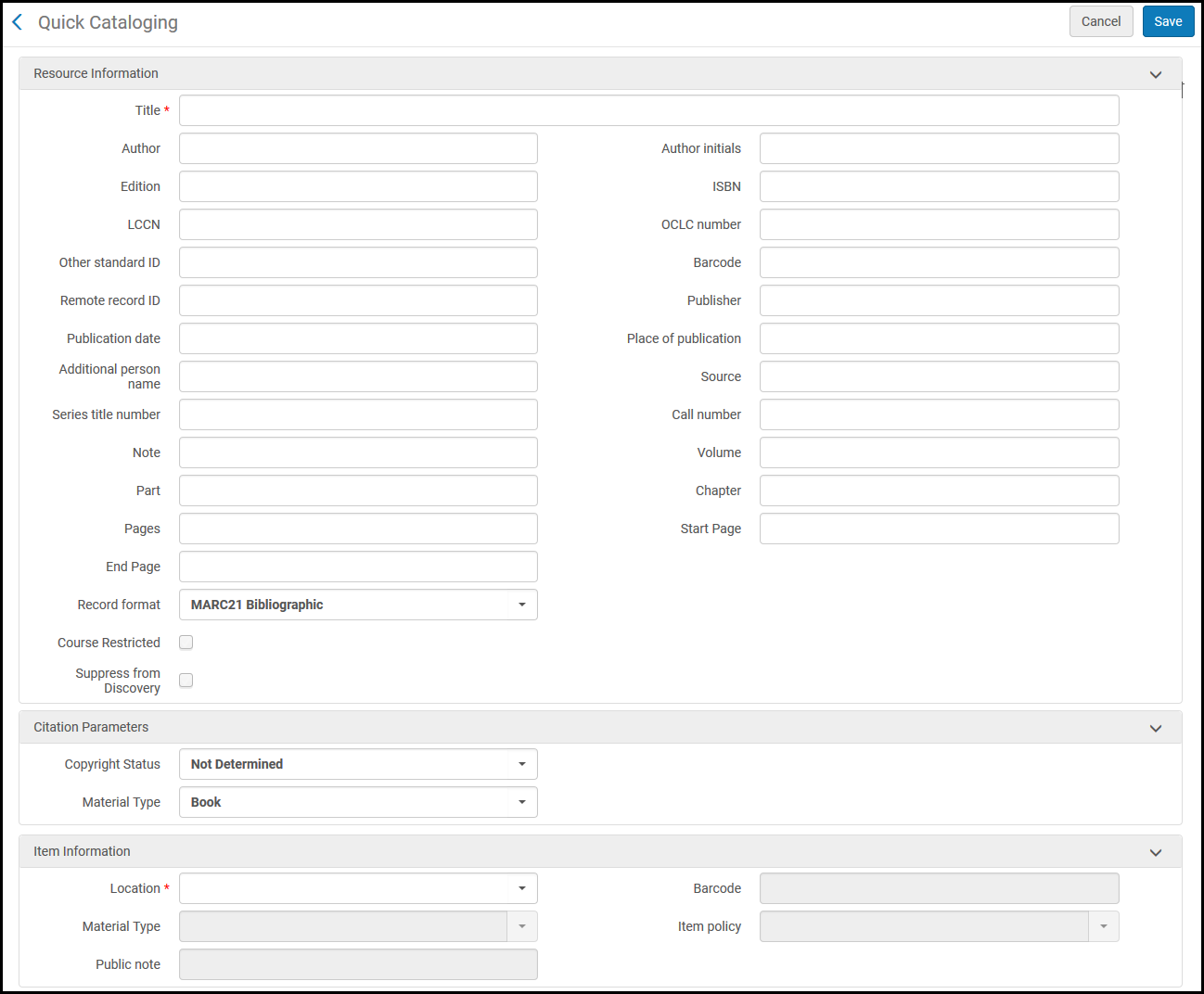
- Configure resource and item information (for information on the fields, see Adding a New Book or Journal Article). In the Citation Parameters area, optionally select the Copyright Status(for more information, see Managing a citation's copyright status in the above table) and Material Type from the available options.
- Select Save. New inventory is created, and the new citation appears in the Citations tab of the Edit Reading List page.
To add copyright clearance information or to configure other citation information (see To add a citation that is not in the repository (without adding it to the repository), you must edit the citation after adding it. See Editing a Citation.
The course_restricted_bib_data_will_be_deleted parameter (see Configuring Other Settings) determines whether the published course data created in this process is deleted (true) or suppressed (false, by default) from Primo when the course becomes inactive.
Todos los registros bibliográficos breves creados por el formulario de Catalogación rápida tienen los campos LDR y 008 "determinados por" si son físicos o electrónicos.
- Todos los materiales físicos se catalogan como libros.
- Todos los materiales electrónicos se catalogan como recursos continuos.
If you have enabled the RFID integration profile (see RFID Support), you can select Write to RFID and Save to save the new inventory to RFID.
Contributing Instructor Resources to a Reading List
Alma permite que los instructores presten sus copias personales de los ejemplares a la biblioteca para su circulación. Esto permite que la biblioteca catalogue copias que son propiedad del instructor, rastree qué instructor es propietario del ejemplar y reutilice fácilmente ejemplares anteriores en plazos posteriores.
When enabled, library staff can indicate that an item is a personal copy when creating a Brief Citation (Add Citation > Add Brief) and enter the instructor's name. Alma guardará la información sobre todas las copias que son propiedad del instructor, utilizando ubicaciones de copia personal dedicadas. Las ubicaciones de la biblioteca se crean automáticamente cuando se catalogan las copias del instructor, con una ubicación por instructor. Todos los ejemplares depositados por el instructor se crearán en la misma ubicación.

Personal copy locations indicate that the items are owned by the instructor, and also enable the library to track items that are not physically in the library at that time, but rather, in the instructor's possession. All personal copy locations and the items in them are suppressed. Cuando el instructor le presta el ejemplar a la biblioteca, el ejemplar se puede mover a una ubicación temporal que representa una ubicación de copia no personal en la biblioteca, donde circulará de conformidad con las reglas de servicios al usuario estándares. Por ejemplo, el personal de la biblioteca puede mover el ejemplar a la ubicación temporal de “Reservas del Curso”, con una fecha de vencimiento del final del plazo. The item will temporarily circulate as part of the library collection, but with the instructor's name stored as the permanent location, indicating the person to which the item should be returned at the end of the term.
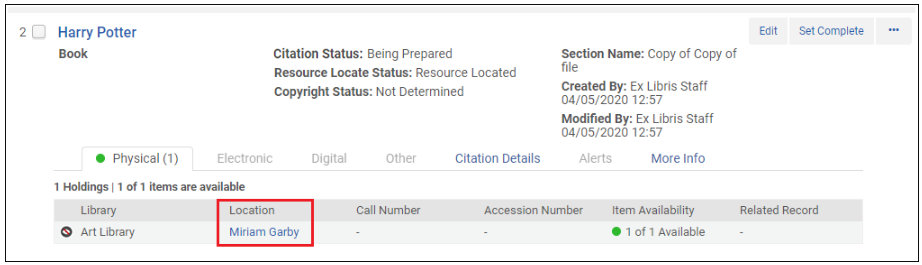
When the item is moved back to its permanent location, which is the personal copy location, it is automatically suppressed. El ejemplar se puede devolver después al instructor, pero no se necesita borrar el registro, y se puede reutilizar fácilmente en plazos posteriores siguiendo el flujo de trabajo anterior.
Para habilitar esta característica, configure los siguientes parámetros:
Personal copy library: To enable the personal_copy_library parameter (Fulfillment > General > Other Settings) you must enter a library code as the parameter value, such as MAIN. Este código corresponde a la biblioteca donde se crearán las ubicaciones de copias personales.
Personal copy fulfillment unit: To enable the personal_copy_fu parameter, you must enter a fulfillment unit code as the parameter value. Los términos de servicios al usuario para los ejemplares en las ubicaciones que sean propiedad del instructor se determinan por las reglas establecidas en esta Unidad de Servicios al Usuario. Tenga en cuenta que el flujo de trabajo previsto es que los ejemplares de una ubicación del instructor no formen parte en ese momento de la colección de la biblioteca, y que estén almacenados físicamente con el instructor.
- Open the Reading Lists Task List page (Fulfillment > Course Reserves > Reading Lists).
- Seleccione un código de cita.
- Select Add Citation and select Add Brief.
- Select Physical Book and select Choose.
- Specify all necessary fields for the item (such as Title). For more information, see Managing Physical Resources.
- In the Item Information section, specify the following fields:
- Personal copy – Select this field to enable the Personal copy of field.
- Personal copy of – Specify the instructor's name, which will be used for the item's location.
- Select Save. El ejemplar del libro está creado y se muestra en la pestaña Físico.
- Seguir con el proceso de servicios al usuario.
Adding a Citation by Duplicating an Existing Citation
On the Edit Reading List page (Fulfillment > Course Reserves > Reading Lists; select the reading list) in the Citations tab, select the Duplicate citation action. Aparece la página Editar cita de la lista de lectura. Modificar los parámetros según resulte necesario y guardar la nueva cita. See the above procedures for details.
Si se está usando Leganto, se puede añadir una cita con formato o edición diferente al de una cita existente. See Configuring the Display of Other Formats and Editions of Citations.
Managing a Citation's Attachment to an Inventory Item
Cuando se crea una cita, puede crearse adjunta a un ejemplar del inventario físico que ya existe, o puede crearse un ejemplar del inventario en el mismo momento y hacer que la cita se adjunte al nuevo ejemplar del inventario.
Como opción, se puede crear una cita sin adjunto a un ejemplar del inventario. Cuando se crea una cita sin ningún adjunto a un ejemplar del inventario, Alma intenta localizar un ejemplar del inventario que coincida. Si se encuentra un solo ejemplar, Alma adjunta automáticamente la cita al ejemplar del inventario. For more information, see Configuring Citation Matching Criteria. You can turn this feature off using the reading_list_auto_locate_citation_upon_creation customer parameter; see Configuring Other Settings.
You can configure Leganto to locate citations based on any or all the fields indicated in the Locate Citations By Fields mapping table (Fulfillment Configuration > Courses > Locate Citation By Fields), using the new resource_locate_mode field in the Other Settings table (Fulfillment Configuration > General > Other Settings).
- If you set the value of the resource_locate_mode field to "OR", then Leganto locates citations based on any of the fields in the Locate Citations By Fields mapping table.
- If you set the value of the resource_locate_mode field to "AND", then Leganto locates citations based on all the fields in the Locate Citations By Fields mapping table.
You can also configure Leganto to locate citations based on specific material types, by entering the codes for the material types into the new resource_locate_by_type field in the Other Settings table (Fulfillment Configuration > General > Other Settings), separated by commas. For more information, see Configuring Other Settings.
Localizar no funciona con los registros de la Zona de red.
When attaching a citation to an inventory item, Alma adds missing information to the citation; for more information, see Repository Fields Used to Overwrite Citation Fields in the Leganto Administration Guide. You can change how the mapping works; see Mapping Bibliographic Record Fields to Citation Fields.
- Si el artículo se encuentra en una revista en poder de la biblioteca y se desea que la información del artículo aparezca en Primo, la información debe estar en el registro del inventario adjunto a la cita (el registro MMS); la información de la cita no se publica en Primo.
- (Leganto solamente) Alma se puede configurar para que sobrescriba la información de citas añadida desde Cite It! See Configuring Repository Locate Workflow.
- Téngase en cuenta que el proceso de adjuntar una cita a un ejemplar físico en el inventario no tiene nada que ver con el resolvedor de enlaces OpenURL para un artículo electrónico, el cual encuentra enlaces a instancias externas del artículo. However, although attaching a citation to inventory is for physical items only, a citation's locate status also reflects whether the OpenURL link resolver can locate an electronic article for the citation. Se localiza una cita si Alma encuentra un recurso físico y/o electrónico para la cita. The bulk location job described in Process and Enrich Citations in Bulk also checks the link resolver for this purpose.
- Esta tarea también valida citas de URL al intentar acceder a las URL y verificar respuestas de HTTP válidas.
To remove this attachment, select the Detach from Repository citation action. Después de realizar esta acción, la cita no estará conectada a ningún inventario.
Si se desvinculó la cita de un ejemplar del inventario o si no se pudo ubicar el inventario de forma automática, se puede intentar adjuntar la cita a un ejemplar del inventario de forma manual. Para hacer esto para una sola cita, véase la información que se encuentra a continuación. To do this in bulk, see Process and Enrich Citations in Bulk.
See also Finding Alternate Resource Suggestions for Citations.
El estado de localización de recursos de una cita indica el estado de este proceso. Los posibles estados del recurso localizado son:
- Information Incomplete - Not enough information was entered to perform a resource locate.
- Locate Failed - A locate was attempted but failed to complete for some reason.
- Locate Not Run - A locate was not attempted.
- Multiple Resources Located - A locate was attempted and multiple resources were found.
- No Resource Located - A locate was attempted but no resource was found.
- Not Complete - A locate attempt is in process.
- Resource Located - A locate was attempted and a single resource was found.
If for some reason you want to set the resource locate status manually, you can do so when adding or editing the citation on the Edit Reading List Citation page; see Adding Citations to a Reading List.
On the Edit Reading List page (Fulfillment > Course Reserves > Reading Lists; select the reading list) in the Citations tab, select the Resource Locate citation action. Alma intenta ubicar el inventario que coincida con la cita y, si se encuentra una única coincidencia de inventario (cualquiera que sea el formato), Alma la adjunta automáticamente.
Si Alma no encuentra coincidencias, Alma muestra una página que permite editar los criterios de búsqueda. Si Alma encuentra múltiples coincidencias, Alma muestra una pantalla que permite seleccionar una de las coincidencias o editar sus criterios de búsqueda. For more information, see Searching in Alma.
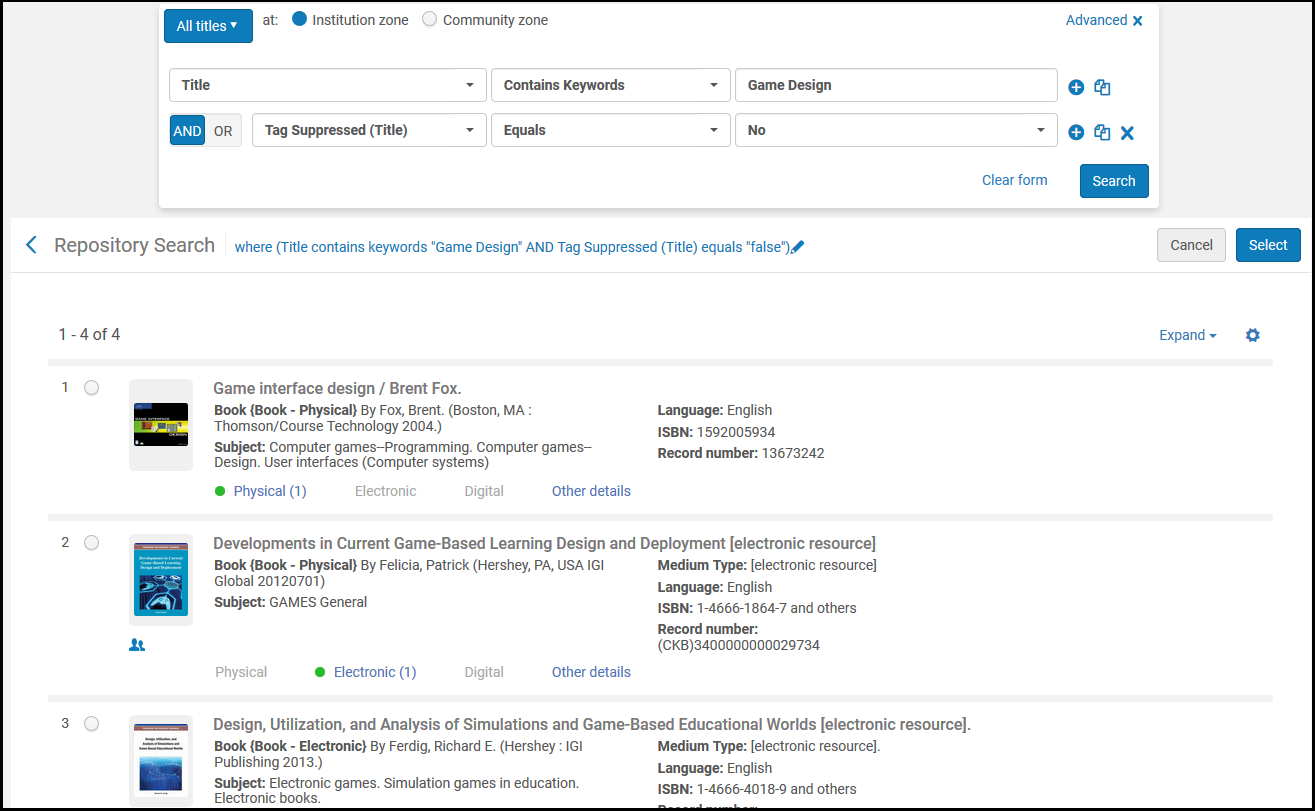
Managing Citation Fulfillment Options
To check how the citation can be made available to students, on the Edit Reading List page (Fulfillment > Course Reserves > Reading Lists; select the reading list) in the Citations tab, select the Manage Fulfillment Options citation action.
-
If the inventory items are geographically far and/or you have no access to the shelves on which they are located, use the fulfillment options to place and then view requests (see below).
In this case, for each step in the citation request workflow, an alert is generated – for example,Citation Digitization Request In Process, Citation Digitization Request Completed. You can use the Alerts filter to monitor the status of physical items that you have requested to move to reserved areas or material that you have requested in digital format.
- If the inventory items are geographically nearby and/or you have access to them, you can fetch the items from the shelves by selecting the Print slip citation action to print a slip for the specific citation. Use the Change Item Information tab to temporarily change the item location, as described in Changing Item Information.
- If the item is not in your library's inventory, or if you would like the library to purchase additional copies, consider making a purchase request by selecting the Purchase Request citation action. For more information, see Purchase Requests.
On the Edit Reading List page (Fulfillment > Course Reserves > Reading Lists; select the reading list) in the Citations tab, select the Manage Fulfillment Options citation action. The Manage Resource Options page appears with the Resource Options tab pre-selected.
El enlace está disponible solo si se especifica un recurso.
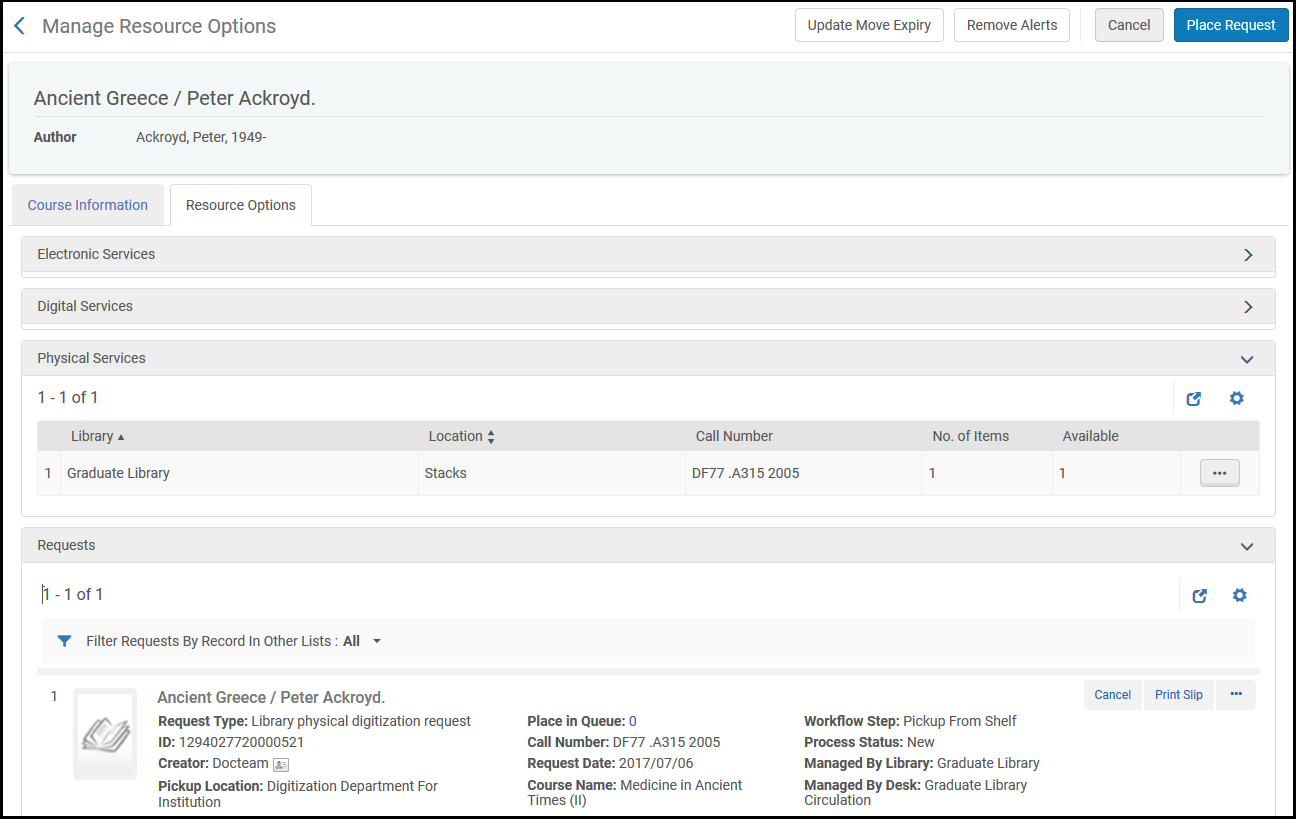
El encabezado de resumen incluye información sobre el recurso, incluido el título, autor, ISBN/ISSN, etc., así como cualquier alerta en la cita. Los siguientes campos aparecen en esta página:
| Campo | Descripción |
|---|---|
| Course Information Tab – Course Information | |
| Código de curso | |
| Sección | La sección del curso |
| Nombre del curso | |
| Número de participantes | El número de participantes en este curso |
| Nombre de la lista de lecturas | |
| Campus | |
| Demanda para cursos X con Y participantes en general | El número de participantes en todos los cursos en donde aparece esta cita |
| Course Information Tab – This Record in Other Lists – Information about the bibliographic record of the citation as it appears in other reading lists. See actions for this area below. | |
| Código de curso | Código del curso de la otra lista de lectura |
| Nombre del curso | |
| ID de la sección | La sección del curso |
| Departamento académico | |
| Departamento de procesamiento | |
| Instructor | The reading list owner, or Multiple if there are multiple owners. |
| Fecha de inicio | La fecha de inicio de este curso |
| Fecha de fin | La fecha de finalización de este curso |
| Número de participantes | El número de participantes en este curso |
| Nombre de la lista de lecturas | |
| Estado de la lista de lectura | |
| Nombre de la sección | El nombre de la sección de la lista de lectura |
| Estado de la cita | |
| Resource Options Tab – Electronic Services – Electronic fulfillment information for the citation | |
| Resource Options Tab – Digital Services – Digital fulfillment information for the citation | |
| Resource Options Tab – Physical Services – Physical fulfillment information for this citation. See actions for this area below. | |
| Resource Options Tab – Requests existing – Requests for the bibliographic record associated with this citation. Algunas solicitudes son específicas de una lista de lectura. Select the reading list from Filter Requests By Records in Other Lists filter to view only requests for that reading list. For more information about the fields and actions in this section, see Managing Requests and Work Orders. | |
Las siguientes acciones están disponibles para servicios físicos:
- View the items – Select View items in the row actions list. The List of Items page appears; see Working with the List of Items.
- Create a request – Select Request in the row actions list or select Place Request in the top actions list. The Create Request page appears (see Creating a Request). Select a request type (as described in Creating a Request) and select Submit.
- Update the item's due back date so that it matches the due back date of the reading list (when the reading list's due back date is later than that of the item) – Select Update move expiry in the row actions list, or select Update Move Expiry in the top actions list. You can also manually update a citation's due back date when adding or editing a citation; see Adding Citations to a Reading List.
If any requests are active for the resource, including any initiated by an instructor in Leganto, they appear in the Requests area. While a work order operator can approve or reject requests on the Approval Requests List page (see Approving/Rejecting a Request for Digitization), you can edit or cancel the request in this area. This area presents a record list; for more information about these lists, see Record Lists.
Las acciones disponibles para cada solicitud son:
- Cancel – Cancel the request. Se le pide que confirme con las siguientes opciones:
- Cancellation reason – Select the reason for the cancellation.
- Cancellation note – Add an optional note.
- Notify user – If you do not select this, the cancellation note and reason is stored in Alma but not sent by email to the user. Seleccione esto para enviarle al usuario una nota acerca de la cancelación.
- Keep citation's copyright information(if this was a DCS request, the field is Keep citation's DCS request) – Select this to preserve any copyright record/request/DCS request that was made simultaneous with the digitization request. Limpie esto para eliminar también el registro o la solicitud de derechos de autor. For more information on DCS requests, see Attaching a Citation to the CLA Digital Content Store (UK Only).
- Print Slip – Print the request to the default printer.
- Edit – Edit the request. No puede cambiar el tipo de solicitud.
- Update Expiry – Edit the request's expiration date.
- Mark as Missing – Mark the item associated with the request as missing.
- View Title in Search – Search in Alma for the resource title.
- View Audit Trail – See history related to the resource on the Request Processing Audit Trail page.
- Change to Electronic Digitization – Change the digitization of a physical item to digitization of an electronic item. Solo se puede cambiar cuando hay un ejemplar electrónico en el inventario que pueda satisfacer la solicitud.
- Change to Physical Digitization – Change the digitization of an electronic item to digitization of a physical item. Solo se puede cambiar cuando hay un ejemplar físico en el inventario que pueda satisfacer la solicitud.
Las siguientes acciones están disponibles para citas que también aparecen en otras listas de lectura:
- View the other reading list – Select View in the row actions list. Aparece la otra lista de lectura.
- Create a request for the other reading list – Select Place Request in the row actions list. The Create Request page appears (see Create Request Page). Select a request type (as described in Creating a Request) and select Submit.
Managing a Citation's Digital Representations (Leganto Only)
Por defecto, todas las representaciones digitales aparecen en Leganto en el caso de citas adjuntas a recursos digitales. This is because the customer parameter display_digital_representations is set to true by default; see Configuring Digital Representation Display Options. When this parameter is set to false, no representations appear unless you configure them to appear. The citation action Manage Digital Representations appears on the Edit Reading List page for these types of citations. Se debe seleccionar manualmente qué representaciones se desea que aparezcan en Leganto.
- On the Edit Reading List page (Fulfillment > Course Reserves > Reading Lists; select the reading list) in the Citations tab, select the Manage Digital Representations citation action. Aparece la página Editor de recursos digitales. For more information, see Editing Representation Metadata and Content. Cada representación aparece con una casilla de verificación.
- Select the checkboxes for the representations that you would like to appear in Leganto and select Select. Las representaciones seleccionadas aparecen en Leganto.
Attaching a Citation to the CLA Digital Content Store (UK Only)
If you are a UK customer (set copyright_region to UK, see Configuring Other Settings), and have implemented a Digital Content Store (DCS) integration profile (see Integrating with the UK's Digital Content Store (DCS)), you can manage the citation's attachment to a DCS item.
-
On the Edit Reading List page (Fulfillment > Course Reserves > Reading Lists; select the reading list) in the Citations tab, select the Associate to DCS citation action.
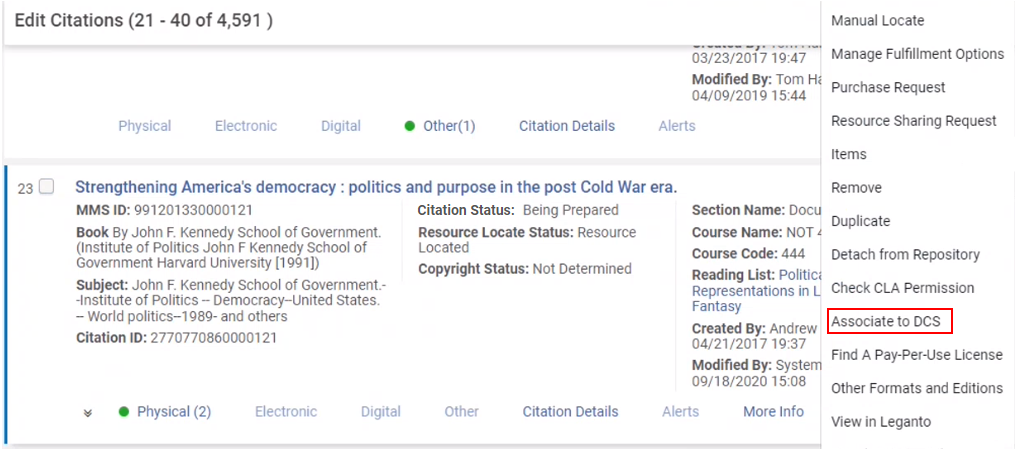
Aparece la página Búsqueda en DCS con el ejemplar que coincide o una lista de los ejemplares que coinciden.

- Si fuese necesario, utilizar una segunda búsqueda para buscar todo o parte de un autor, título, ID de ejemplar DCS (GUID) o identificador (ISBN/ISSN).
-
El siguiente paso depende de si se tiene ya una copia digital del material:
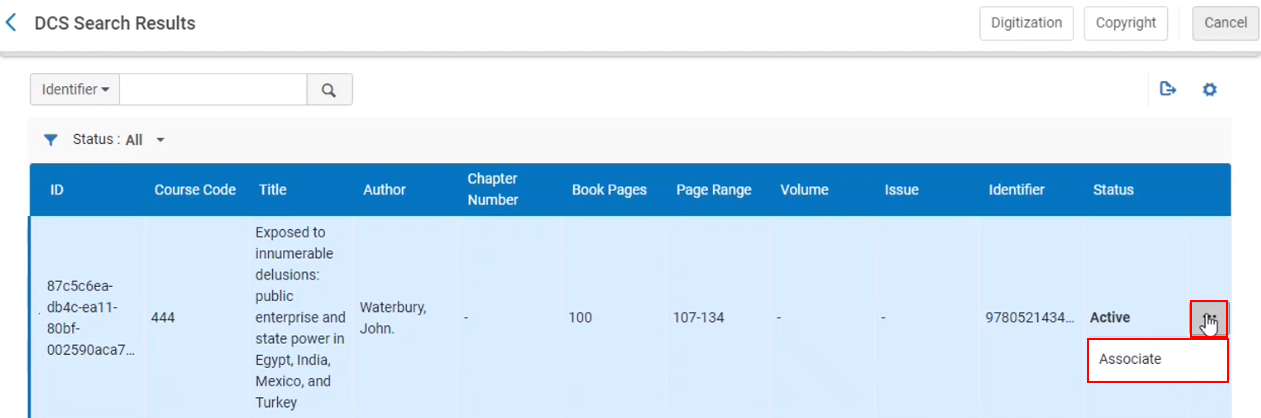
La cita se adjunta al ejemplar seleccionado y las acciones de cita adicionales aparecen disponibles.
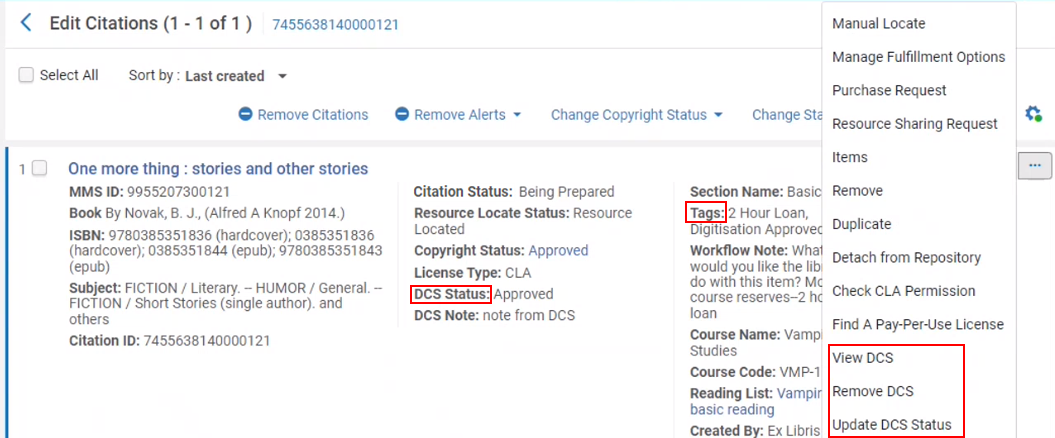
- If you have a digital copy of the material but have not uploaded it to the DCS, select Copyright and complete a copyright request (see Automatically Managing a Citation's Copyright Status). The request goes through your institution's copyright rules (see Configuring Digitization and Copyright Rules), which may automatically send the request to the DCS.
- If you do not yet have a digital copy, but the citation has a valid MMS ID, select Digitization and place a digitization request (see Creating a Request). The request goes through your institution's digitization and copyright rules (see Configuring Digitization and Copyright Rules), which may automatically send the request to the DCS. Después de obtener una copia digital, iniciar sesión en la DCS, crear o hallar la solicitud y cargar la copia digital.
- If a digital copy already exists in the DCS and is approved, find the required item and select Associate in the row actions list.
-
The Alma citation is updated with a new DCS Status field displaying the current status of the request and an internal tag to indicate the status. El estado del DCS (y la etiqueta relacionada) se actualiza automáticamente con nuevos datos de la DCS. It can be updated as frequently as every 6 hours, as configured in the DCS Synchronize job. Alternatively, you can select Update DCS Status to update the status of the request manually.
The current DCS Status options are:
- Solicitud recibida
- Solicitud en curso
- Bajo revisión
- Aprobado
- Rechazado
- Archivado
- Eliminado
- Error en la solicitud
Once the file is added to the DCS, (see steps 3a and 3b above) the status is either automatically updated the next time the DCS Synchronize job runs, or when the staff operator selects the option to update manually.
When a DCS request is approved, you can view the digital copy from Alma.
- From the Edit Reading List page (Fulfillment > Course Reserves > Reading List > select the reading list)Citations tab, select the View DCS citation action. Se abrirá el sitio web de la DCS y se mostrará el ejemplar adjunto.
- From the Edit Reading List page (Fulfillment > Course Reserves > Reading List > select the reading list)Citations tab,, select the Update DCS Status citation action. The DCS Status updates.
Cuando se aprueba una solicitud del DCS, se puede eliminar el adjunto al DCS.
- From the Edit Reading List page (Fulfillment > Course Reserves > Reading List > select the reading list)Citations tab,, select the Remove DCS citation action. La cita ya no está adjunta al ejemplar de la DCS.
Attaching Citation Attributes to Citations
To configure the available citation attributes, see Configuring Citation Attribute Types,Configuring Citation Attributes, and Mapping Citation Attributes to Citation Attributes Types.
- Edit the citation (see Editing a Citation). Aparece la página Editar cita de la lista de lectura. Select the Citations Attributes tab.
-
In the Citation Attributes section, select Add, select a citation attribute type and the citation attribute you want to map, and select Add Citation Attribute. Los valores seleccionados aparecen en una tabla.
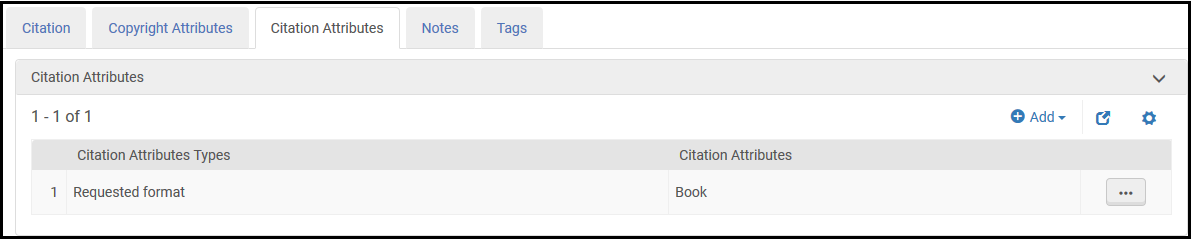
- Select Save. El atributo de cita añadido aparece en la información de la lista de lectura en la página Editar lista de lectura.
Printing Slips for Citations or Generating a Citation Print Slip Report
Si los ejemplares del inventario se encuentran geográficamente cerca o se tiene acceso a ellos, se pueden recoger los ejemplares de las estanterías al imprimir un comprobante para las citas. On the Edit Reading List page (Fulfillment > Course Reserves > Reading Lists; select the reading list) in the Citations tab:
- Select the Print Slip citation action.
- Select one or more citations and select the Print Slip top action. Se genera un comprobante de impresión para cada cita. Note that when Quick Print is enabled, selecting multiple records does not work i.e.,only the first slip is printed (see Printouts Queue).
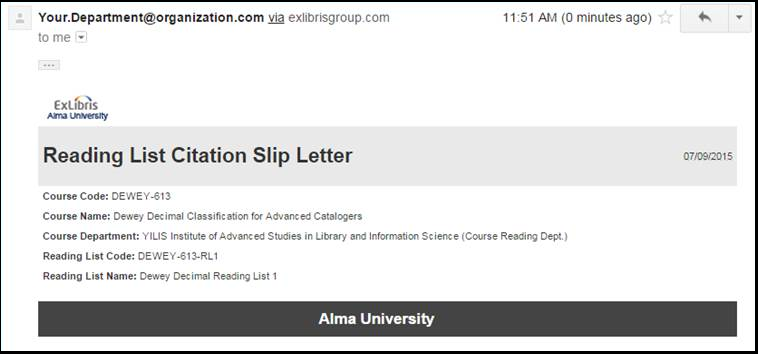
For information about the print slip, see the Ful Citation Slip Letter in Configuring Alma Letters.
You can also generate a print slip report that is sent to a printer or email address or can be downloaded to a local machine. El informe es un fichero de Excel que contiene las citas y su información, incluido el título, autor, ubicación, número de clasificación, ISBN/ISSN, edición, impresión, disponibilidad, disponibilidad electrónica y disponibilidad digital.
- On the Edit Reading List page (Fulfillment > Course Reserves > Reading Lists; select the reading list) in the Citations tab, select the citations and select the Print Slip Report top action. Aparece el cuadro de diálogo de Informe del comprobante de impresión.
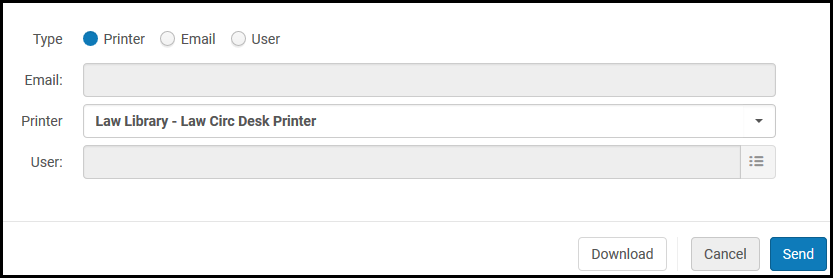
- Select whether to send the report by email (Email or User) or to a printer (Printer).
- Seleccionar el destino:
- If sending by email, enter the email address in the Email field or the Alma user in the User field. La carta de correo electrónico utilizada es la Carta de comprobante de cita completa. For more information on the letter, see Configuring Alma Letters.
- If sending to the printer, select the printer in the Printer field.
- Optionally download the report by selecting Download.
- To send the report to the selected destination, select Send.
Managing a Citation's Copyright Status
Se puede gestionar el estado de los derechos de autor manualmente o a través del sistema de aprobación de derechos de autor de Alma.
- Cuando se gestiona manualmente el estado de los derechos de autor de una cita, el estado de los derechos de autor de la cita solo tiene fines informativos (UI) y de mantenimiento de registros; excepto por lo señalado debajo, el estado de la cita no tiene efecto en el flujo de trabajo de Alma y su estado no cambia su visibilidad en Leganto o Primo. The status is managed manually if Copyright Auditing Required is not selected on the Edit Reading List Citation page, and no other copyright licensing is declared for the citation (self-declared, Creative Commons).
- When you manage a citation's copyright status using Alma's copyright approval system (select Copyright Auditing Required on the Edit Reading List Citation page), the ability to manage the copyright status manually is disabled. Las citas nuevas y las citas en las que se cambia la información de los derechos de autor se procesan a través de un proceso de autorización de derechos de autor automático (configurado utilizando las reglas de autorización de derechos de autor); si fuese necesario, las citas se envían a un operador para que las autorice de manera manual.
Los estados de derechos de autor disponibles para una cita son:
- Approved - In you are implementing Leganto, you can have Alma automatically change the citation's status when a citation's copyright status is set to Approved. See Configuring Default Statuses for Citations/Reading Lists.
- Declined
- Not Determined
- Not Required
- Required
- Self Declared - The instructor indicates that no copyright clearance is required; for example, for material written and uploaded by the instructor.
- Waiting for Approval - An approval task is waiting for manual operator intervention. When the citation has this copyright status, you can resubmit the citation for automatic approval/rejection by selecting Recalculate Rules beneath the citation on the Edit Reading List page.
- Waiting for CC - Waiting for copyright clearance. When the citation has this copyright status, you can resubmit the citation for automatic approval/rejection by selecting Recalculate Rules beneath the citation on the Edit Reading List page.
- Fair Use
Usted puede configurar el estado de los derechos de autor que es seleccionado por defecto para una nueva cita. See Configuring the Citation Default Copyright Status.
Si está usando Leganto, un instructor podrá iniciar una solicitud de derechos de autor o digitalización, autodeclarar los derechos de autor de una cita o seleccionar una licencia Creative Commons en Leganto.
Manually Managing a Citation's Copyright Status
Para gestionar derechos de autor manualmente, se puede ajustar el estado de los derechos de autor para múltiples citas en la página Editar lista de lectura, o para una sola cita en la página Editar cita de la lista de lectura mientras se edita una cita.
If you are using Leganto, also see Clearing Copyrights Through the Copyright Clearance Center (CCC).
On the Edit Reading List page (Fulfillment > Course Reserves > Reading Lists; select the reading list) in the Citations tab, select the citations, select the Change Copyright Status top action, select the status in the Change Copyright Status pop-up that appears, and select Change Copyright Status.
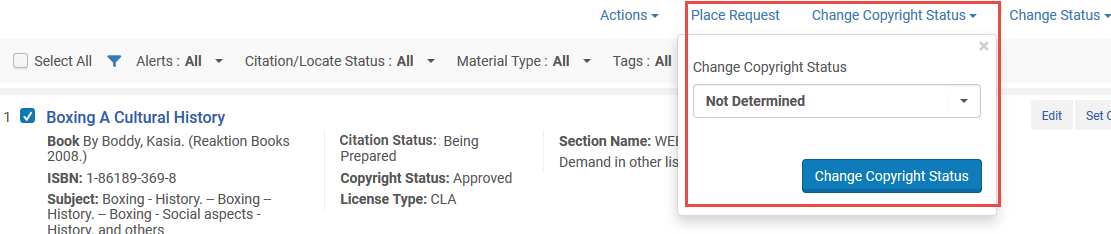
All selected citations that are not managed automatically by Alma are updated to the selected citation. Las citas seleccionadas que son gestionadas automáticamente por Alma no se ven afectadas.
Automatically Managing a Citation Copyright Status
Cuando una cita está marcada para que la gestión del estado de sus derechos de autor sea automática, los usuarios no pueden ajustar el estado de los derechos de autor de la cita de forma manual.
When editing a citation (see Editing a Citation), in the Copyright Attributes tab, select Copyright Auditing Required and enter information in the Copyright Attributes area. For information on most of these fields, see staff digitization request in Creating a Request. If you are implementing Leganto, an administrator can make the Source for Copyright field mandatory and select its default value, see copyright_source in Configuring Leganto Copyright-Related Procedures.
Alma uses digitization and copyright rules to automatically set the copyright status of a new citation (or an existing citation whose copyright attributes are changed) to Approved or Declined or to send an approval task to an operator. For more information, see Configuring Digitization and Copyright Rules. For information about approving or rejecting the requests as an operator, see Approving/Rejecting a Request for Digitization.
When a citation's copyright status is Waiting for Approval or Waiting for CC, you can resubmit the citation for automatic approval/rejection by selecting Recalculate Rules beneath the citation on the Edit Reading List page. Esto es útil, por ejemplo, cuando se cambian las reglas de digitalización y derechos de autor o cuando los atributos de derechos de autor de una cita han cambiado pero la cita no se ha reenviado automáticamente para que sea aprobada/rechazada.
Una vez que una lista de lectura se asocia a un curso, los registros de derechos de autor aprobados se pueden bloquear total o parcialmente para fines de contabilidad. Si se realizan cambios en los campos de la lista de lectura asociada a un curso, es posible que se le ofrezca actualizar la solicitud o hacer una solicitud nueva, dependiendo del plazo y del estado de la solicitud de derechos de autor existente. Si la solicitud nueva/actualizada no se aprueba automáticamente, Alma crea una tarea de aprobación para que un bibliotecario la gestione manualmente. Si se borra una cita con una solicitud de derechos de autor aprobada (por una agencia de licencias; no autodeclarada o de Creative Commons), lo que suceda con el registro dependerá de la fecha en la que se borró:
- Antes de que el curso comience - El registro de los derechos de autor se borra.
- Durante el curso - La fecha de finalización del registro de los derechos de autor cambia a la fecha en la que la cita se borra. La fecha de finalización de los derechos de autor aprobados automáticamente no se puede ajustar antes de la fecha actual.
- Después del curso - El registro de los derechos de autor se mantiene. Esto ocurre también si cambia la gestión de los derechos de autor de automática a manual.
Reusing Already Digitized Files Between Citations
Los bibliotecarios pueden buscar y copiar ficheros entre citas para evitar digitalizar ficheros que ya se han digitalizado. Select Attach Existing File from a citation's actions list.
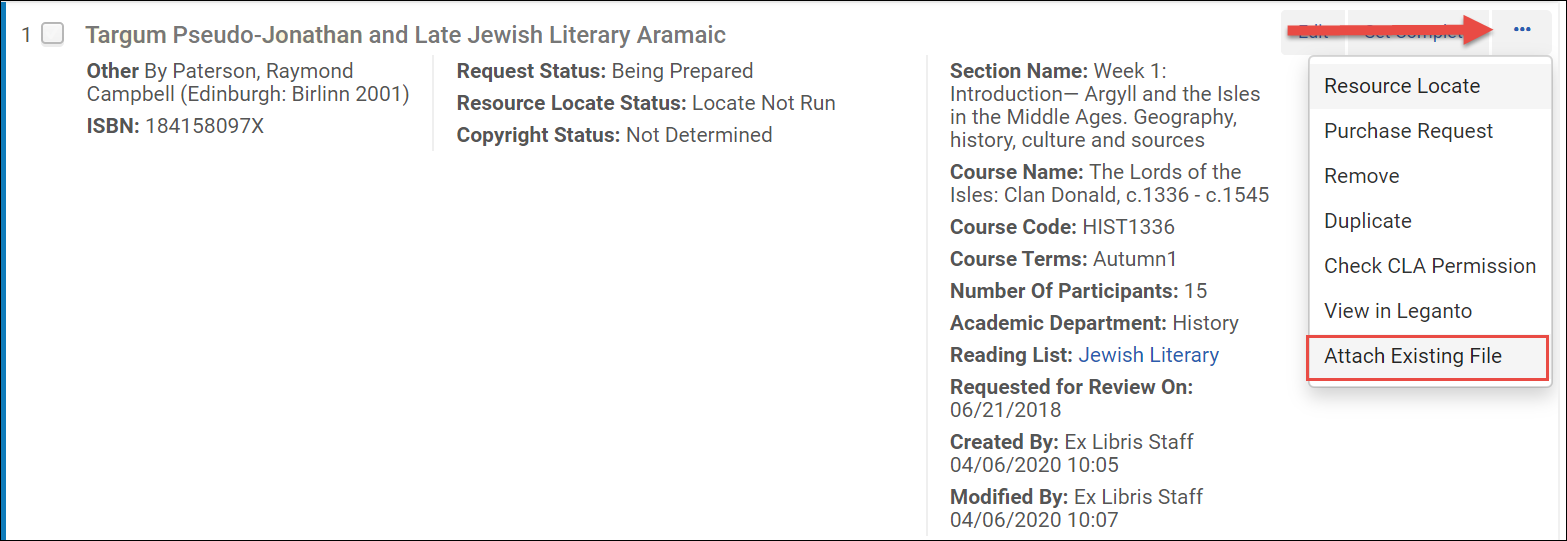
The next screen shows a result screen showing all citations with similar identifiers or titles which include an attached file.
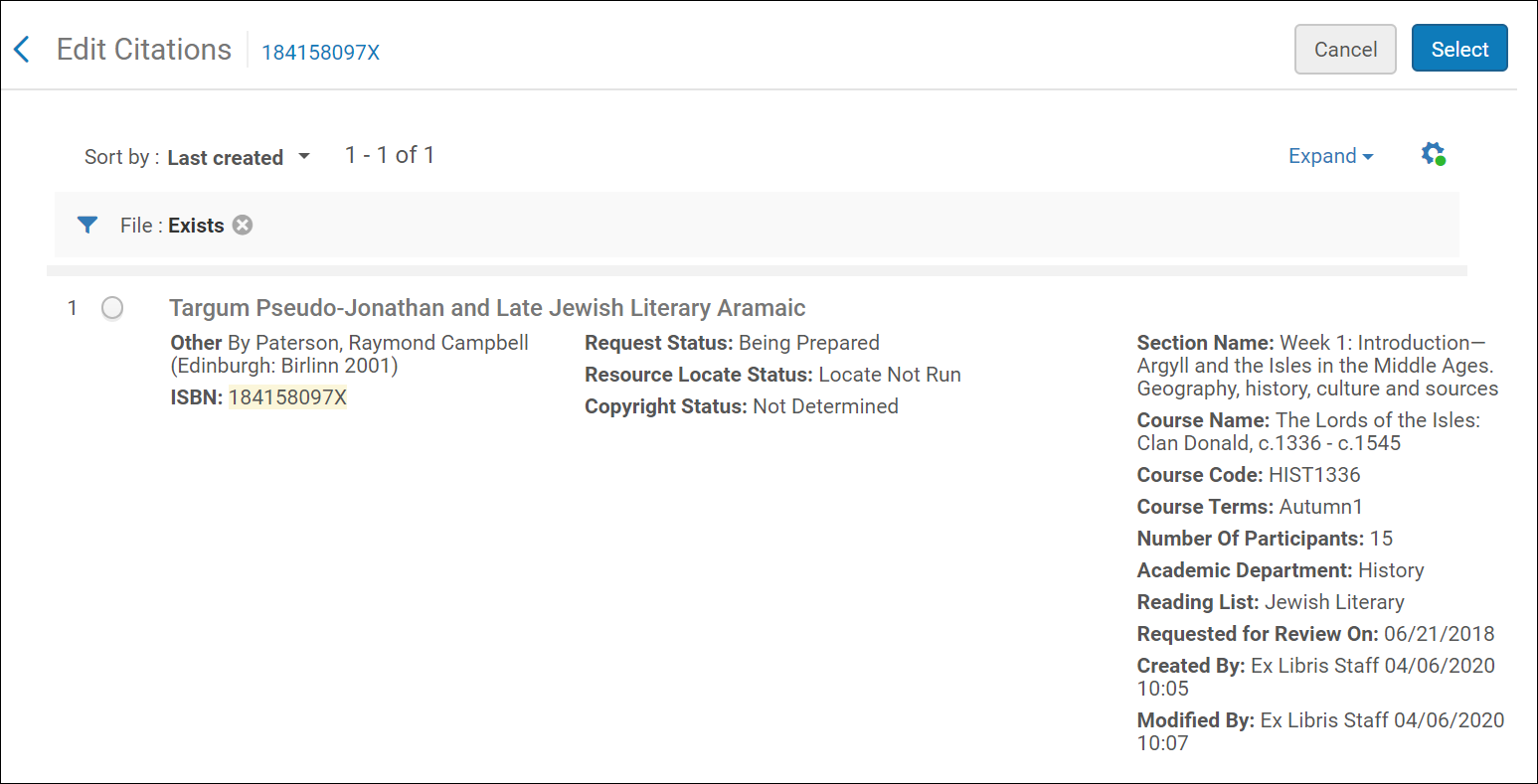
You can select a citation by selecting the radio button corresponding to the citation and clicking Select. Seleccionar una cita en esta pantalla copia y adjunta el fichero en la cita original.
Si ya existe un fichero en la cita, adjuntar un nuevo fichero reemplaza el que ya existe. Además, se cancelan las solicitudes de digitalización En progreso de la cita.
Watch the Leganto Reusing Digitized files video (0:59 min.).
Offering a Citation Replacement for an Existing Citation
Leganto admite la sustitución masiva de citas. Por ejemplo, esta característica se puede usar para reemplazar citas con ediciones más nuevas o para reemplazar citas físicas con citas electrónicas. La biblioteca puede configurar si las citas se reemplazan inmediatamente o si el reemplazo se muestra a los instructores como una sugerencia.
Citations with a Copyright Status of Approved cannot be replaced.
If your institution would like to have replacements presented to instructors as suggestions, set the parameter replacement_suggestion_auto_replace (Configuration > Leganto > Features > Leganto Features) to false. Este es el ajuste por defecto.
From the Edit Citation screen, select the citation or citations to be replaced. Then choose Suggest Replacement.
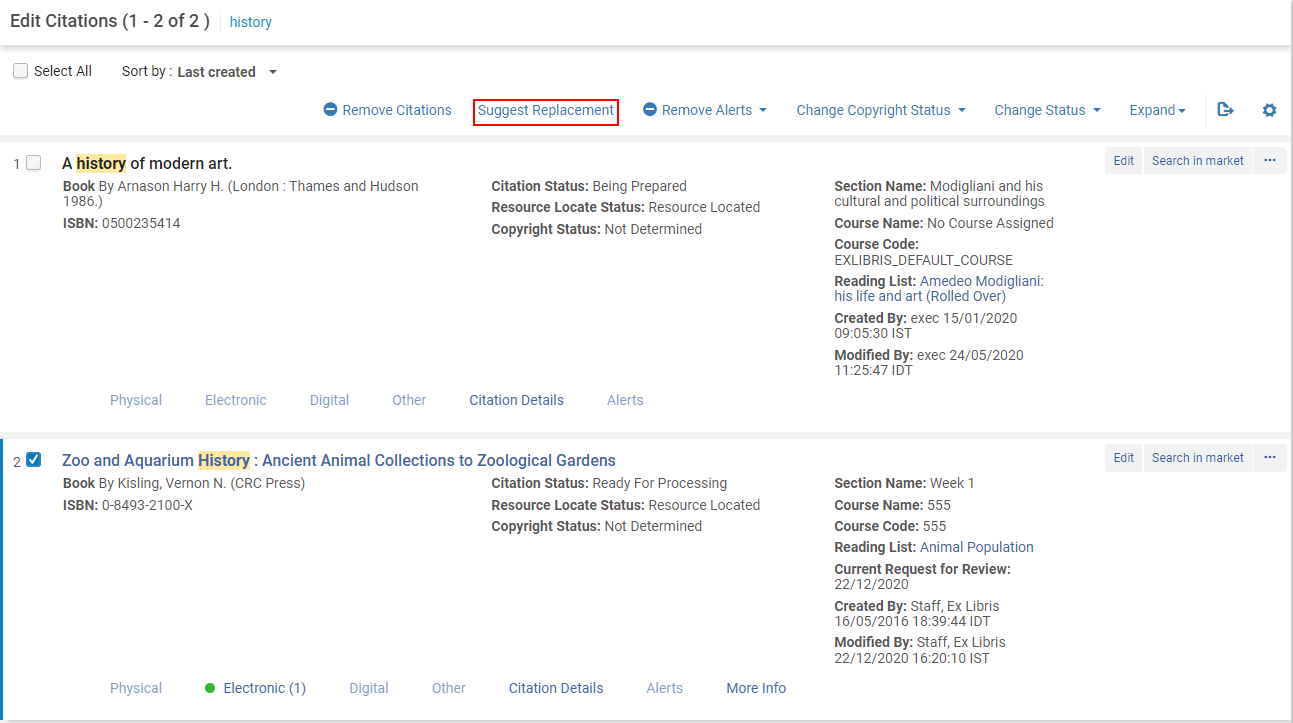
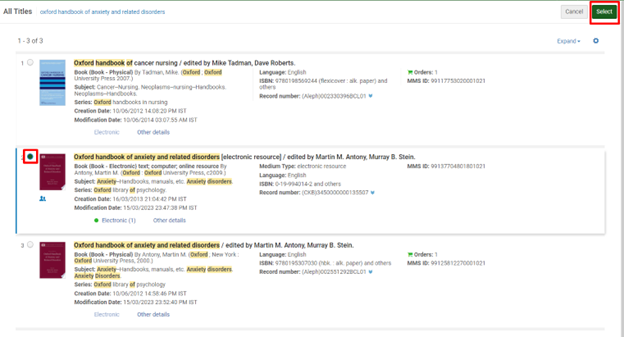
Library staff are directed to the Repository Search, where they can search for and select the new item that they want to use as the replacement.
Library staff are presented with a confirmation screen.
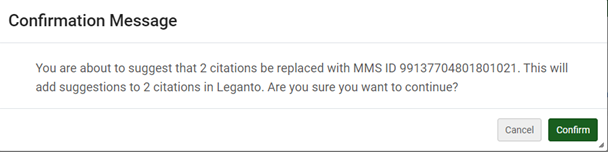
After selecting Confirm, suggestions are added to each of the citations in Leganto. Additionally, a system tag New Edition Available is added to each citation.
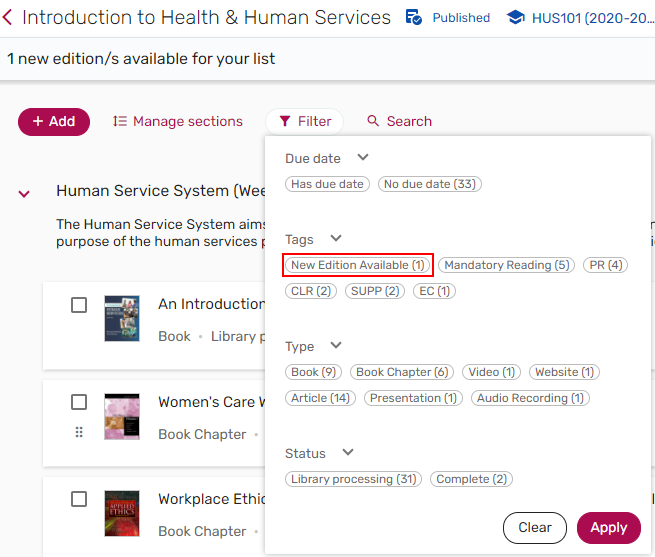
If replacement_suggestion_auto_replace(Configuration > Leganto > Features > Leganto Features) is set to false, when relevant, a banner is displayed indicating that there are new editions available for the list.
El banner solo se muestra para Bibliotecarios, Operadores de cursos de Leganto y Propietarios de listas.

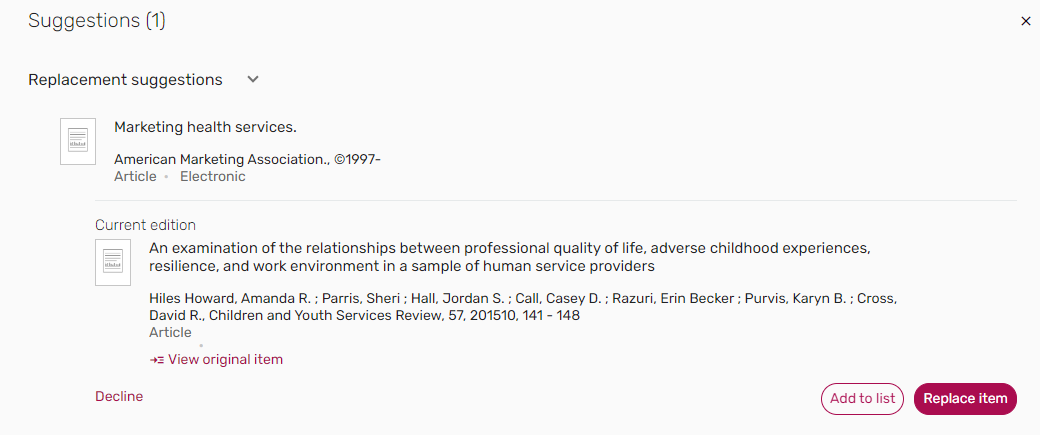
The details of the Replacement suggestions are viewable from the Suggestions pane and the Related items tab on the Full details of an item.
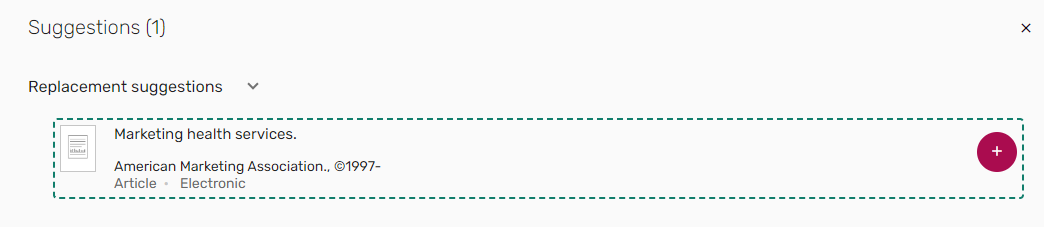
Selecting the suggested item opens the full suggestion, which includes the details of the original item and a link to the original item. From either the Suggestions pane or the Related items tab of the original item, instructors can choose to replace the item, which re-links the citation to the new MMS ID, updating the citation metadata. Se conserva otra información existente sobre la cita, incluida la información de uso, las etiquetas y las notas. The instructor can instead choose Add to list, which keeps the original item and adds the suggestion as an additional resource on the list. Alternativamente, el instructor puede optar por rechazar la sugerencia, lo que elimina la sugerencia y la etiqueta.
Alternatively, if your institution would like to have citations replaced immediately, rather than sent to instructors for approval, set the parameter replacement_suggestion_auto_replace (Configuration > Leganto > Features > Leganto Features) to true. Una vez que el personal de la biblioteca ha seleccionado un nuevo ejemplar para usarlo como reemplazo, se les presenta una pantalla de confirmación.
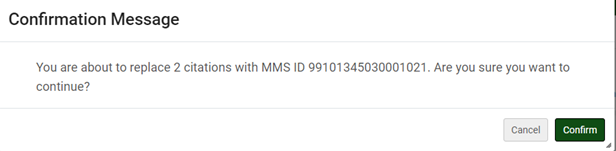
After selecting Confirm, all the citations which were selected for replacement are linked with the MMS ID of the item chosen as the replacement item. The citation metadata and inventory update, but tags, notes, and usage information are preserved.
