
Linking Users in Collaborative Networks
Configuring Linked Account Rules
- Usuario o Administrador general (para configurar reglas para cuentas de usuarios ocasionales).
Las reglas de cuenta enlazada permiten configurar un grupo al que se asignarán los usuarios ocasionales. Los usuarios ocasionales son usuarios que pertenecen a otra institución pero forman parte de la red de servicios al usuario y, por consiguiente, tienen acceso a la institución actual. (For managing users in the network zone see Centrally Managing Users in the Network Zone and also Registering Patrons.)
Watch the Walk-In Scenario in a Fulfillment Network video (4:00 mins).
You can configure an expiration date for the patron, either as an absolute date or as a date relative to the patron's expiration date in the source institution. You can also configure an absolute purge date or a purge date relative to the patron's expiration date. Las fechas de caducidad y de eliminación también se pueden configurar para que se actualicen desde la institución de origen cada vez que se actualicen los datos.
You configure linked account rules on the Linked Account Rules page (Configuration Menu > User Management > Collaborative Networks > Linked Account Rules).
Se pueden realizar las siguientes acciones en esta página:
- Add a linked account rule (see To add a linked account rules for a walk-in patron: below)
- Edit a linked account rule (select Edit from the row actions list)
- Duplicate a linked account rule (select Duplicate from the row actions list and edit the relevant fields)
- Delete a linked account rule (select Delete from the row actions list)
- Edit the default linked account rule (select Edit in the default rule section)
To add a linked account rule for a walk-in patron:
- On the Linked Account Rules page, select Add Rule. The Linked Account Rules page appears.
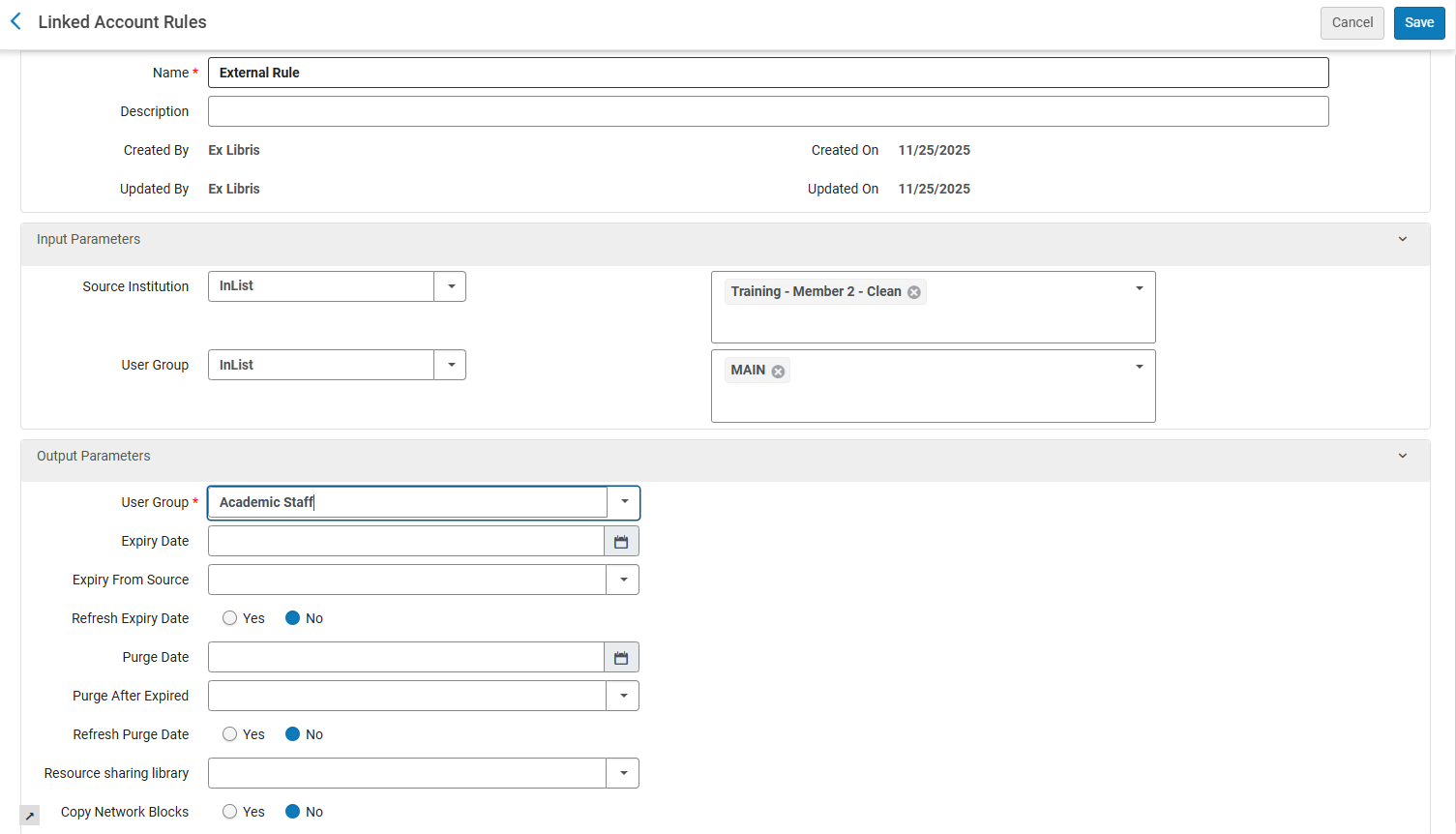
- Enter the name of the rule in the Name field.
- Enter a description of the rule in the Description field.
- In the Input Parameters section:
- Select Source Institution(the institution with which the walk-in patron is associated) and select an operator and value for the parameter. For example:Source Institution = Eastern State
The dropdown list includes institutions that are part of a collaborative network, as well as institutions that are part of a fulfillment network.
- (New for February 2026) The User Group field here refers to the user group associated with the walk-in patrons at their home institution. Seleccione un operador (p. ej., InList) y, a continuación, seleccione el grupo de usuarios correspondiente. The user groups that appear are dependent on the mapping table in Configuration > User Management > External User Group (see Configuring External User Groups).
- Select Source Institution(the institution with which the walk-in patron is associated) and select an operator and value for the parameter. For example:Source Institution = Eastern State
- In the Output Parameters section:
- Select a User Group to which the walk-in patron will be assigned.
El Grupo de usuario configurado en las Reglas de cuentas enlazadas solo se aplicará cuando se cree una nueva cuenta enlazada o al actualizar una cuenta que haya expirado. Cuando se actualiza una cuenta enlazada activa que no ha expirado, su Grupo de usuario no cambiará.
- Optionally, select an absolute or relative Expiry Date and/or Purge Date for the patron. For example, you may select Graduate Student as the User Group and a Purge Date of May 13, 2015, or you can set the date for the purge to One week after expiration in the Purge After Expired field.
- The Refresh Expiry Date and Refresh Purge Date fields define whether the expiry (account expiry, not patron role expiry) and purge dates refresh each time the linked account data is refreshed, if the Find user in other institution check box on the Patron Identification page (Fulfillment > Checkout/Check-in > Manage Patron Services) is selected. When either of these fields are set to No, the corresponding date is refreshed only when linking a new account or an account has expired. Este es el ajuste por defecto. When these fields are set to Yes, the corresponding date is recalculated each time the linked record is refreshed from the source institution.
El hecho de que la Fecha de fin de vigencia del rol de usuario no se actualice no se debería toner en cuenta al definir los términos de uso para el usuario.
- In the Resource Sharing Library field, select a resource sharing library to be assigned to any new linked user that is created when a walk-in loan is performed.
- When Copy Network Blocks is set to Yes, Alma will delete all the current network blocks that exist on the linked account and re-create them each time the linked record is refreshed. When this parameter is set to No, no blocks will be copied from the source account to the linked account. No es el valor por defecto. For more information on network blocks, see Configuring Consortial Blocks.
Se pueden utilizar sanciones de consorcio cuando las cuentas enlazadas no tengan ID de consorcio. Si se utilizan ID de consorcio, ninguna cuenta se considera primaria. Por lo tanto, no se llevan a cabo las acciones de actualización (y copia de sanciones de consorcio) de una cuenta a otra.
- Select a User Group to which the walk-in patron will be assigned.
- Select Save. La regla se añade a la lista de reglas en la página Reglas de cuenta enlazada.
Las reglas se consideran en el orden en que aparecen en la lista en esta página. La primera regla cuyos criterios cumpla el usuario ocasional se aplicará al usuario. If no rule's criteria are met, the default rule takes effect.
Configuring Restricted User Groups
- Usuario o Administrador general (para configurar grupos de usuarios restringidos).
Se pueden configurar ciertos grupos de usuarios que estén ocultos de otras instituciones en una red de servicios al usuario. When searching for a walk-in patron from a linked institution, if the patron's user group in the home institution has been configured as belonging to an unexposed group, the patron does not appear in the user search. Como resultado, el usuario no podrá recibir servicios ocasionales en las instituciones enlazadas. De esta forma, se pueden restringir efectivamente los privilegios para tomar préstamos de ciertos usuarios, tales como invitados o visitantes a la institución de origen.
To add a restricted user group:
- Go to the Configure Restricted User Groups page of the home institution (Configuration Menu > User Management > Collaborative Networks > Restricted Users).
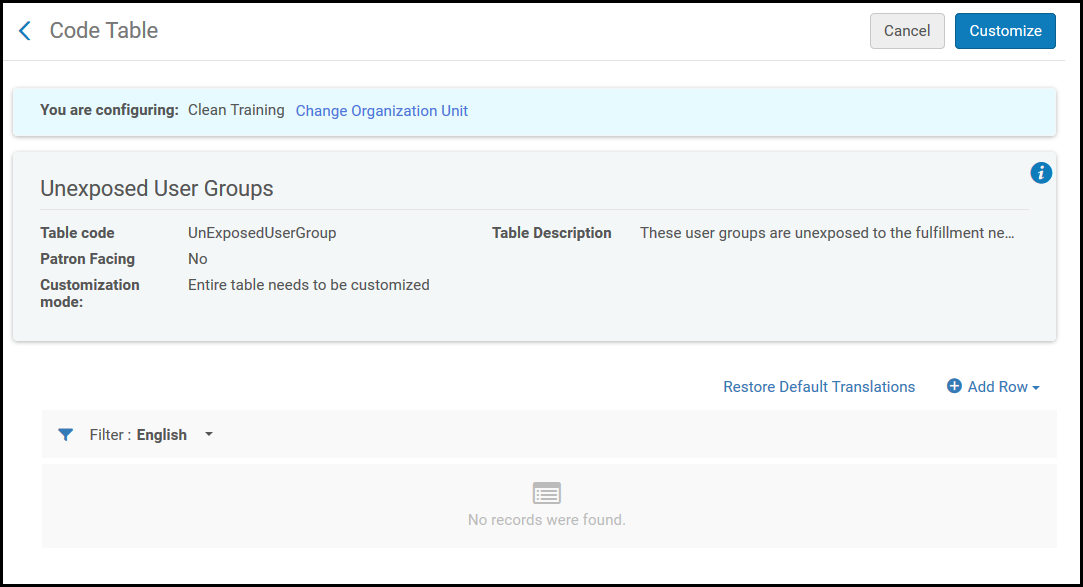
- In the Quick Add section, select the desired user group from the drop-down, add a description, and select Add Row. Repetir el procedimiento para todos los grupos de usuarios adicionales.
- Select Customize.
Configuring Linked Account Shared Fields
- Usuario o Administrador general (para configurar grupos de usuarios restringidos).
Cuando se crea un nuevo usuario de enlace, la institución de origen define qué atributos de usuario se pueden compartir con la institución de destino. Only attributes configured with Shared set to True will be copied to the new linked user. Fields that have Shared set to False will receive a blank field at the target institution. Los usuarios existentes que fueron creados con más detalles conservarán sus datos.
To configure linked account shared fields:
- Go to the Linked Account Shared Field page of the source institution (Configuration Menu > User Management > Collaborative Networks > Linked Account Shared Fields).
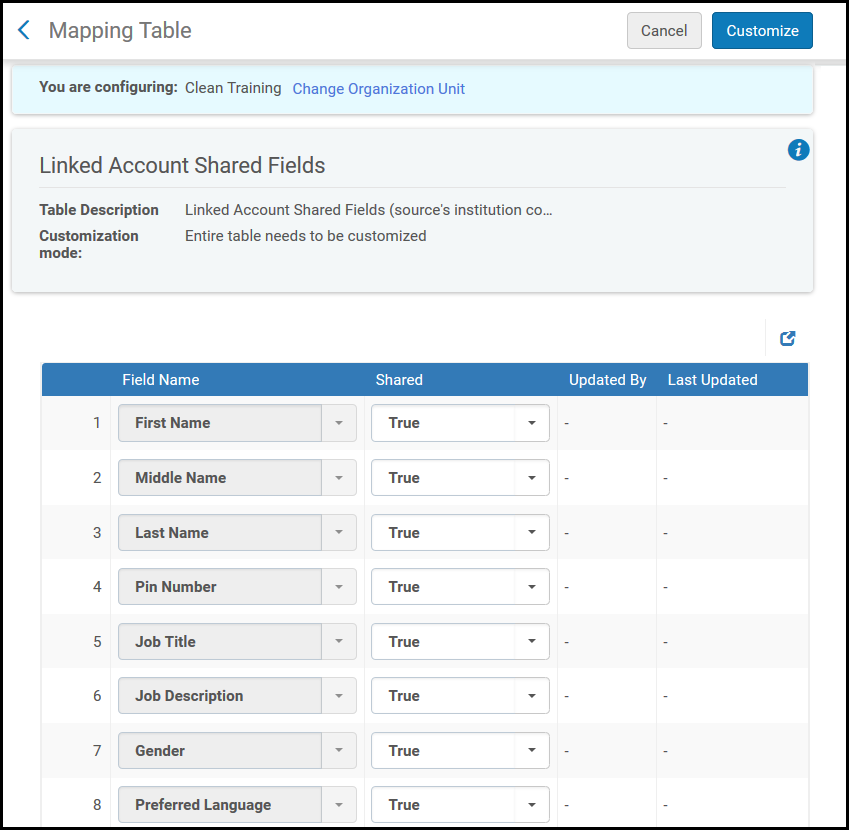
- Junto a cada nombre de campo, seleccionar el estado de compartir desde la lista desplegable.
- Select Customize.
Configuring Searchable User Identifiers
- Usuario o Administrador general (para configurar grupos de usuarios restringidos).
Una biblioteca puede limitar los servicios de las Redes de Servicios al Usuario a los usuarios a los que se les haya expedido un tipo específico de ID. Solo los usuarios con tipos específicos de ID pueden exponerse en el mecanismo de reglas de cuenta de enlace.
Searchable Identifiers define which user identifiers are searchable via the fulfillment network process for fetching patron information. Si la tabla está vacía, que es el ajuste por defecto, todos los identificadores de usuario formarán parte de la red de servicios al usuario. If a value was entered into the table, but the searched user does not have an ID of this type in the other institution, the user's information from the other institution will not be returned.
Los identificadores de usuario definidos también restringen los usuarios que su biblioteca obtiene de otras instituciones. Only users that have an ID defined in this table will have a linked account created for them when switching context in the Primo Get It tab. The defined user identifiers also restrict the users so that they can be fetched from other institutions only by using one of the configured ID types.
To configure searchable identifiers:
- Go to the Searchable Identifiers mapping table (Configuration Menu > User Management > Collaborative Networks > Searchable Identifiers).
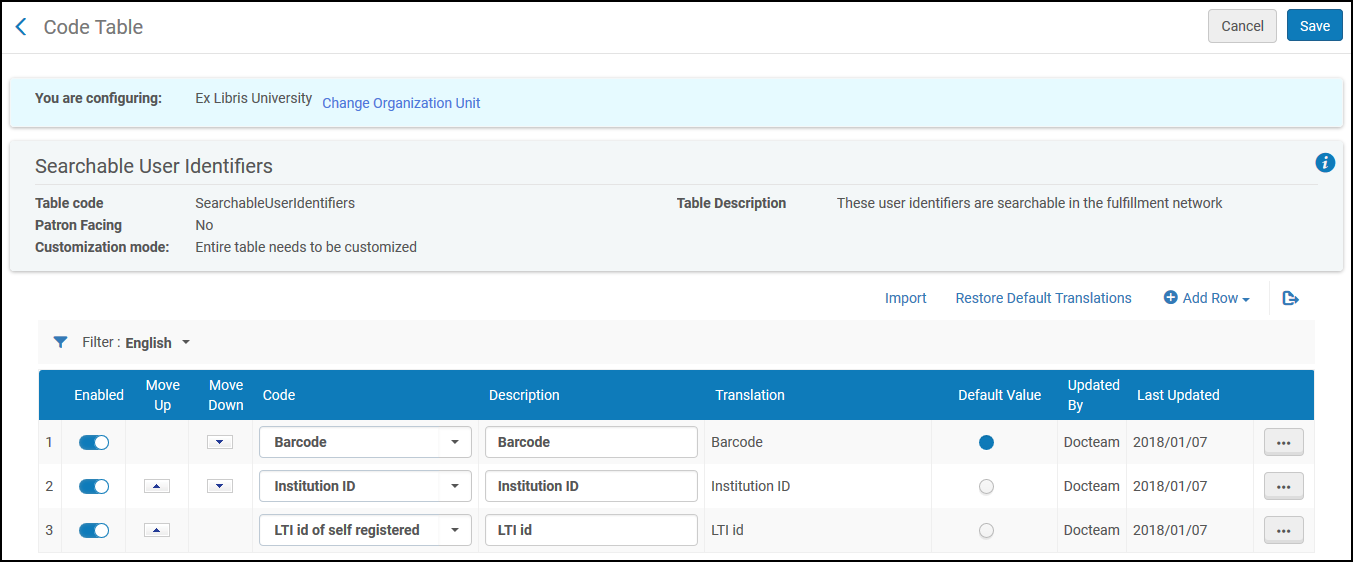
- To match users based on particular identifier fields, select Add Row.
- Seleccionar un código de identificador.
- Introducir una descripción:
For more information about the fulfillment_network_search_by_all parameter, which allows other members of the fulfillment network to search for your patrons by name, see Registering Patrons.
Shared Blocks in a Fulfillment Network
Es posible configurar una sanción que se puede copiar entre miembros de una red de servicios al usuario. For more information see Configuring User Blocks.
