
User Details Configuration
Configuring User Groups
- Administrador de usuarios
- Administrador general del sistema
Se pueden definir grupos de usuarios para asignar a los usuarios. Los grupos de usuarios son una manera de agrupar a los usuarios por tipos, como alumnos o facultad, entre otros. After defining user groups, you can assign them to users when adding or editing users (see Adding Users and Editing Users). After adding user groups, you must specify the user record types that can be associated with each user group; see Mapping User Groups to User Record Types.
If you have configured Alma to do so, then after adding a new user with a user group, Alma automatically adds role profiles and/or user registration terms of service to the user (see Configuring Role Assignment Rules and Configuring User Registration Rules).
You configure user groups on the User Groups code table (Configuration Menu > User Management > User Details > User Groups). For more information about code tables, see Code Tables. For configuring user groups on the institution level see Configuring Alma.
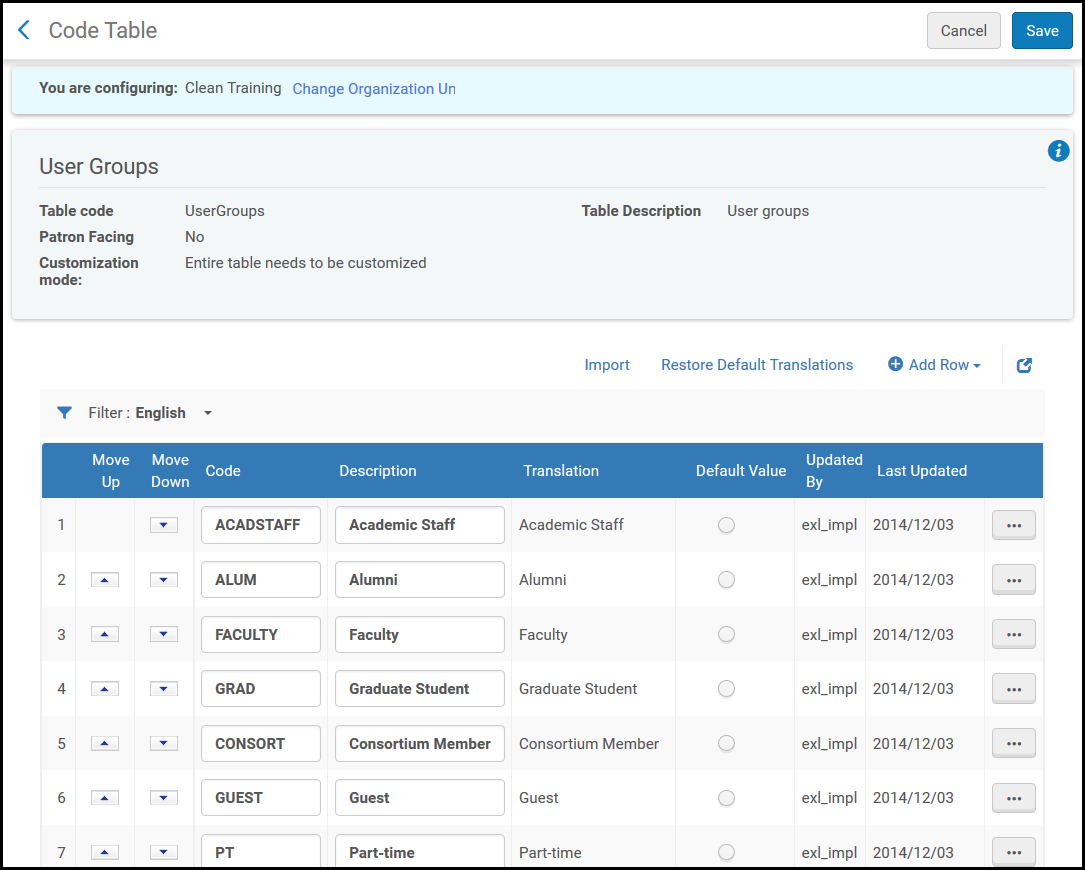
En esta página, puede añadir, editar o borrar grupos de usuarios.
- Para borrar un grupo de usuarios, primero debe borrar el mapeo del grupo a los tipos de registro de usuario antes de borrar el grupo en sí.
- If your institution is using user groups as fulfillment parameter (e.g., in Fulfillment Unit Rules,Display Logic Rules, etc.), you will need to update the rules with the new user group in order for them to take effect for users in the group.
- El reordenamiento de registros no es compatible con grupos de usuarios.
- El código Grupo de usuario no debe contener caracteres que no sean alfanuméricos.
- The Translation column is visible only when your institution has enabled languages (Configuration > General > General Configuration > Institution Languages).
Mapping User Groups to User Record Types
- Administrador de usuarios
- Administrador general del sistema
Se puede asociar grupos de usuarios a tipos de registro de usuario. When a user of a certain record type (Staff, Public, or Contact) is added or created (see Adding Users and Editing Users), only user groups associated with that record type may be selected for that user.
Los grupos de usuarios deben crearse antes de que se les asigne un tipo de registro. See Configuring User Groups.
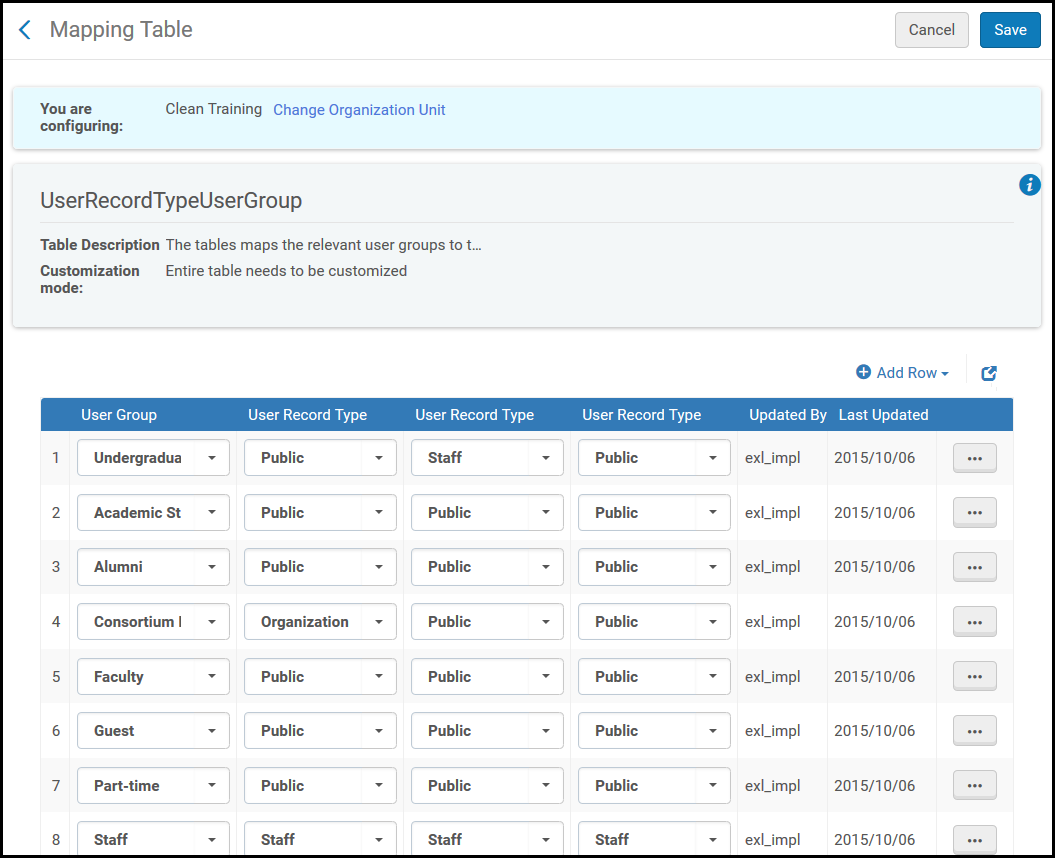
You configure the mapping from user groups to record types on the cUser Record Type User Group mapping table (Configuration > User Management > User Details > User Record Type/User Group). For more information about mapping tables, see Mapping Tables.
Se pueden añadir, editar o borrar mapeos de grupos de usuarios con tipos de registro de usuario. Para cada grupo de usuarios se pueden seleccionar hasta tres tipos de registro de usuario. Se puede seleccionar un campo vacío para cualquiera de las listas desplegables. Utilizar el mismo valor más de una vez no tiene ningún efecto (es lo mismo que utilizarlo solo una vez).
The value Organization should not be used (selecting it has no effect).
Configuring User Job Categories
- Administrador de usuarios
- Administrador general del sistema
Se puede definir grupos de usuarios para asignar a los usuarios. Las categorías de tareas de usuario son las funciones realizadas en la biblioteca por cada usuario y son una forma de agrupar usuarios por tipo, como finanzas, mesa de circulación, etc. After defining user job categories, you can assign them to users when adding or editing users (see Adding Users and Editing Users). After adding user job categories, you must specify the user record types that can be associated with each user job category; see Mapping Job Categories to User Record Types.
Si se ha configurado a Alma para hacerlo, entonces se debe añadir un nuevo usuario con una categoría de tarea. Alma automatically adds role profiles to the user (see Configuring Role Assignment Rules).
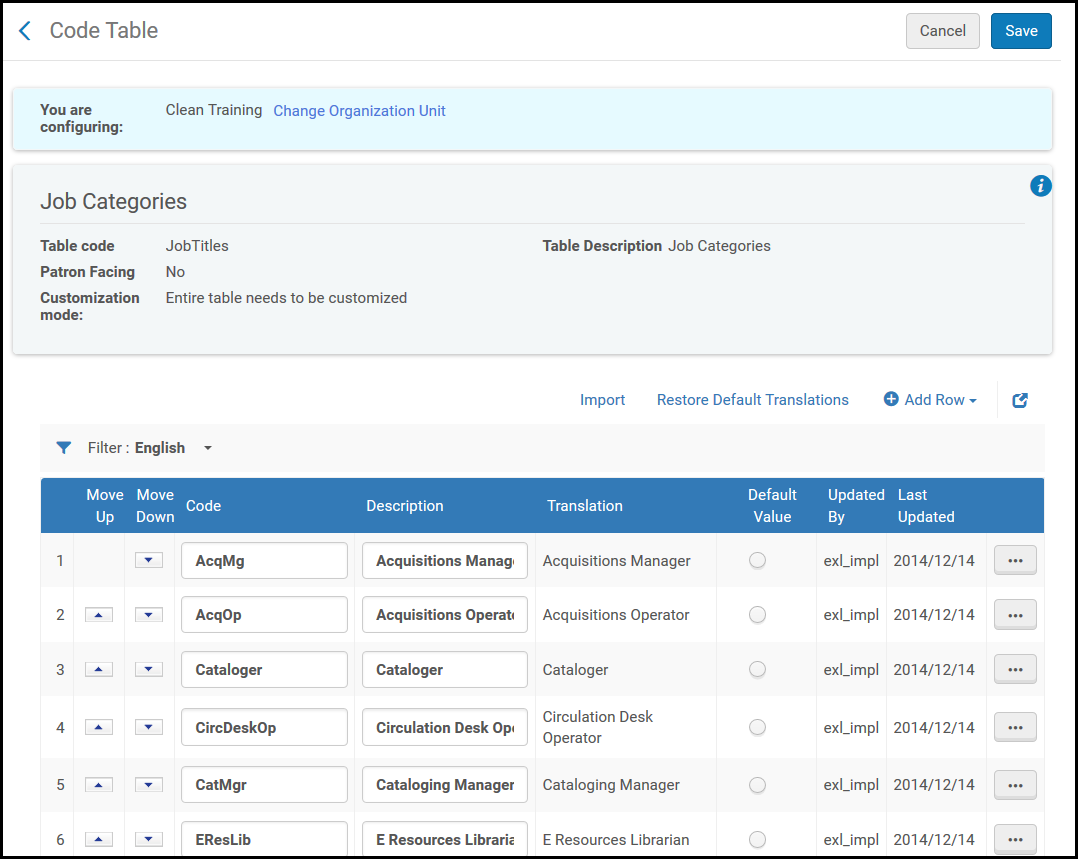
You configure user job categories on the Job Titles code table (Configuration Menu > User Management > User Details > Job Categories). For more information about code tables, see Code Tables.
Se pueden añadir, editar o borrar categorías de tareas de usuario. Es posible reordenar como han de aparecer las categorías de tareas en cualquier cuadro desplegable de la categoría de tarea y se puede seleccionar la categoría de tarea que se establecerá por defecto.
Mapping Job Categories to User Record Types
- Administrador de usuarios
- Administrador general del sistema
Se pueden asociar categorías de tareas a tipos de registro de usuario. When a user of a certain record type (Staff, Public, or Contact) is added or created (see Adding Users and Editing Users), only job categories associated with that record type may be selected for that user.
Las categorías de tareas deben crearse antes de que se les asigne un tipo de registro. See Configuring Job Categories.
You configure the mapping from job categories to user record types on the User Record Type Job Title mapping table (Configuration > User Management > User Details > User Record Type/Job Category). For more information about mapping tables, see Mapping Tables.
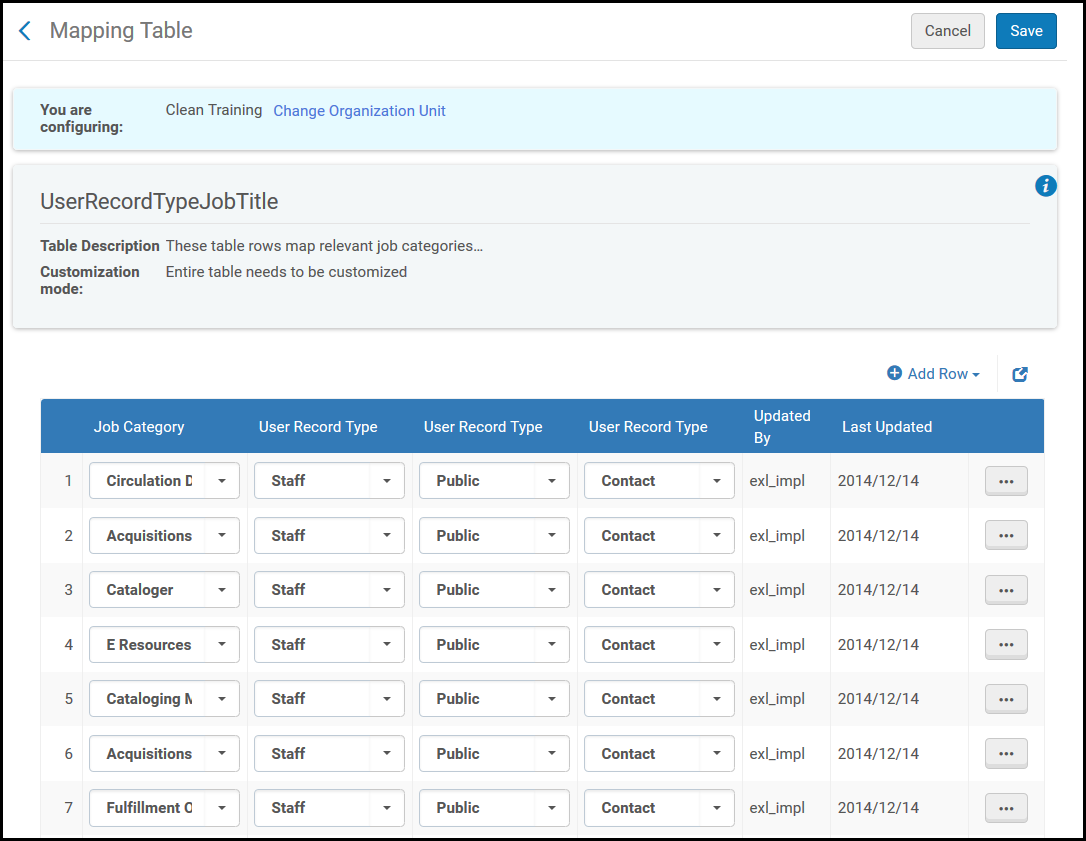
Se pueden añadir, editar o borrar mapeos de categorías de tareas con tipos de registro de usuario. Para cada categoría de tarea se pueden seleccionar hasta tres tipos de registro de usuario. Se puede seleccionar un campo vacío para cualquiera de las listas desplegables. Utilizar el mismo valor más de una vez no tiene ningún efecto (es lo mismo que utilizarlo solo una vez).
The value Organization should not be used (selecting it has no effect).
Configuring the Display of User Names
- Administrador de usuarios
- Administrador general del sistema
Puede configurar la manera en la que aparecen los nombres en Alma. Los nombres aparecen en la Página de inicio de Alma, en el menú de usuario y en otras ubicaciones.
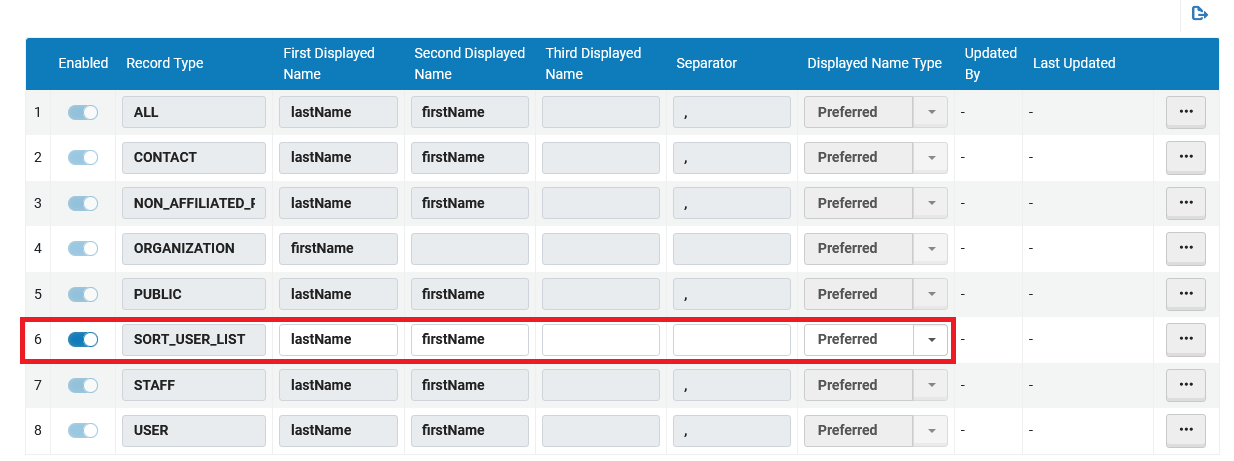
Se puede configurar la apariencia de los nombres por separado para cada tipo de registro de usuario. Para cada tipo de registro se puede configurar lo que aparecerá como primer, segundo y tercer nombre, así como el separador, en la siguiente secuencia:
Possible values for display names include firstName, lastName,middleName,userName(primary identifier),jobDescription, or userTitle(honorific) . See Adding Users. By default, the user's name appears as lastName, firstName.
You configure user name display options on the Display User Name mapping table (Configuration > User Management > User Details > User Name Display). For more information about mapping tables, see Mapping Tables.
Se puede editar cómo aparecerá el nombre de usuario para el tipo de registro contacto, público o empleados. If you disable a row, the default display name lastName, firstName is used for that record type. Para cada tipo de registro, puede seleccionar si aparecen el nombre preferido, principal o ambos nombres. Si se seleccionan ambos, el nombre preferido aparece entre paréntesis después del nombre principal.
You can also change the way names are used for sorting, for example, to sort by first+middle name and then by the last name. La configuración se puede realizar al configurar la línea SORT_USER_LIST en esta tabla.
Las filas para los tipos de registro Todos, Organización y Usuario no tienen efecto.
Configuring Statistical Categories
- Administrador de usuarios
- Administrador general del sistema
Las categorías estadísticas se pueden usar para asociar información sobre usuarios individuales, como su grupo de usuarios o nivel académico, con sus cuentas de usuario, para uso en informes o reglas de unidad de servicios al usuario.
Analytics employs statistical categories to enable you to display or filter Analytics information about users by fields other than user group and job category (which are automatically available for statistical analysis). Por ejemplo, si se desea obtener usuarios por área geográfica o por título académico.
Las categorías estadísticas también se pueden usar en reglas de unidad de servicios al usuario para asignar diversas políticas a usuarios de diferentes tipos. Por ejemplo, se pueden emplear para dar a los estudiantes graduados privilegios de préstamo más amplios que a los estudiantes que no se han titulado.
Esta sección explica cómo crear categorías estadísticas, que es un proceso de tres pasos:
- Create statistical category types- Before creating categories, define the various category types. For example: Geographical Area or Academic Degree. See step 1 below.
- Create statistical categories- For each category type, create the categories for that type. Por ejemplo, para la categoría tipo área geográfica, se podrían crear las categorías Nueva York, Boston y París, si estas fueran las ubicaciones de sus usuarios. See step 2 below.
- Map categories to types- Assign each category to its category type. - See step 3 below.
Una vez que se han creado las categorías estadísticas necesarias, se pueden asignar a los usuarios. When library-level statistics are activated for an institution, visibility of and access to statistical categories that are assigned to users is limited by the user's scope. Sin embargo, las misma categorías están definidas a nivel de institución. For additional information, see Managing User Statistics.
Si bien se pueden crear más de diez tipos de categorías, solo diez están disponibles para utilizarse en Analytics en un momento dado. For information about selecting the categories to make available, see step 4 below.
For information about using statistical categories in Analytics reports, see Users. For information about using them in fulfillment-unit rules, see Physical Fulfillment.
Creating Statistical Category Types (Step 1)
Se puede definir cualquier número de tipos de categorías. Sin embargo, solo diez de ellas estarán disponibles para su uso simultáneo en Analytics.
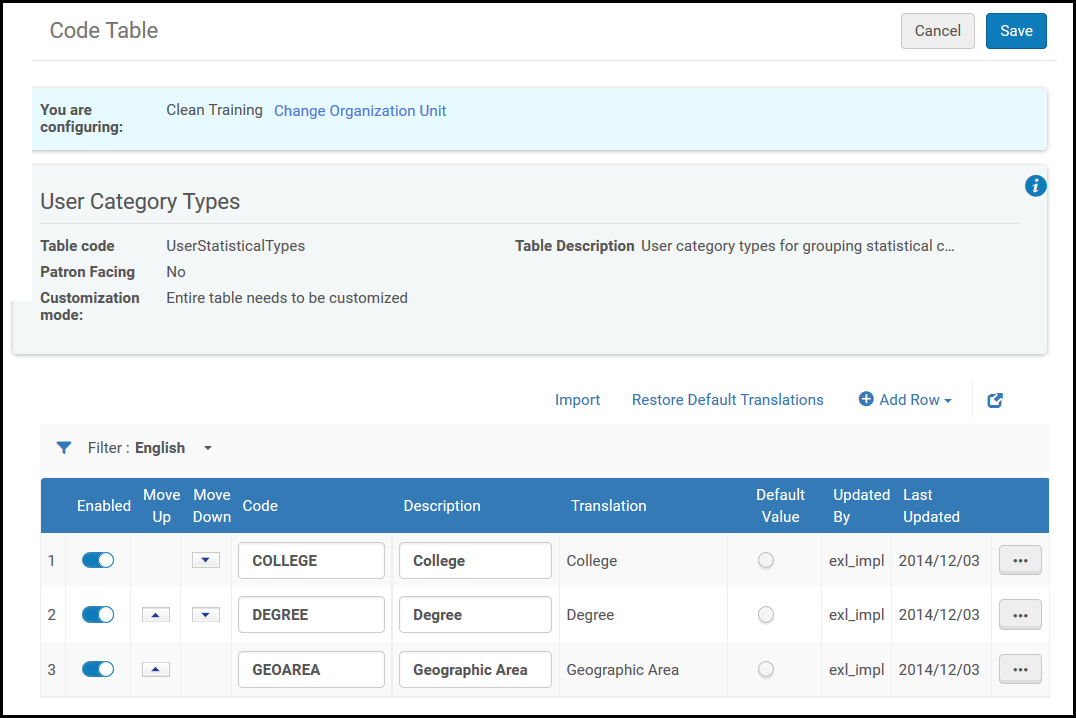
You define statistical category types on the User Category Types code table (Configuration menu > User Management > User Details > Category Types). For more information about code tables, see Code Tables. Se pueden añadir, editar o borrar tipos de categorías.
Creating Statistical Categories (Step 2)
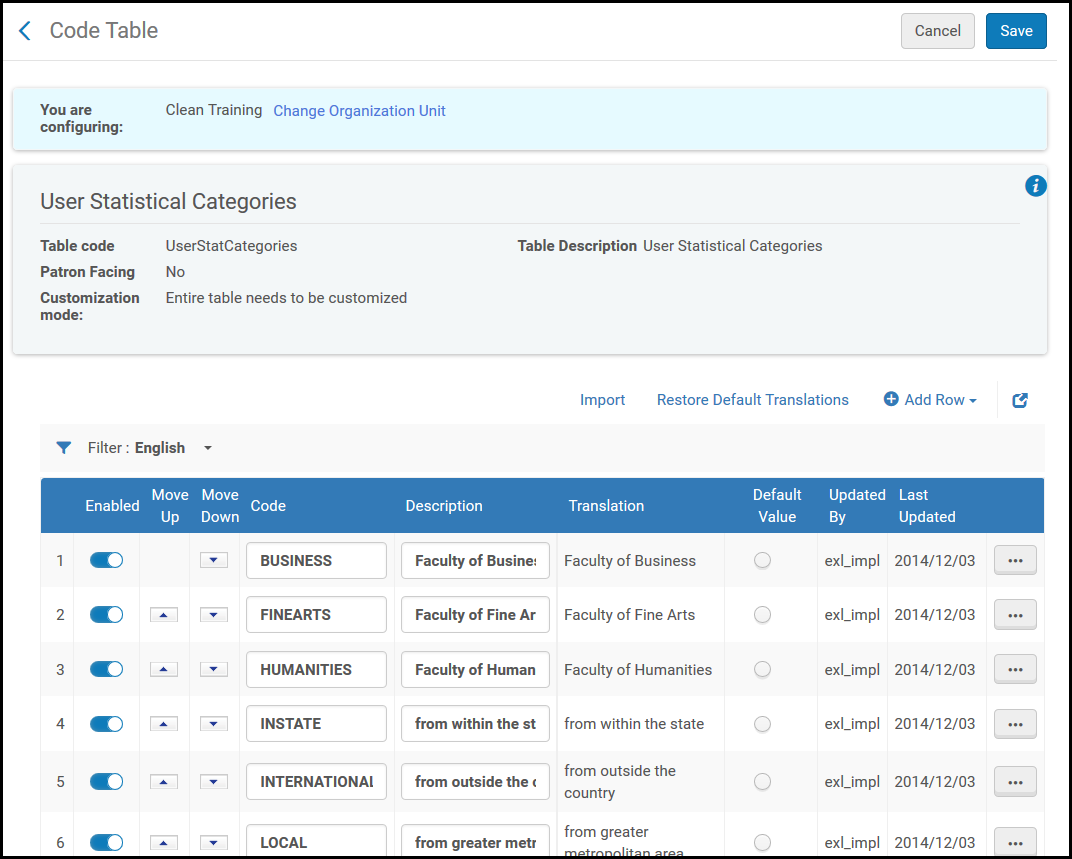
You define statistical categories on the User Statistical Categories code table (Configuration menu > User Management > User Details > Statistical Categories). For more information about code tables, see Code Tables. Se puede añadir, editar o borrar una categoría estadística.
The Statistical Categories/Types link appears on the User Management configuration page only if at least one statistical category and at least one category type are defined
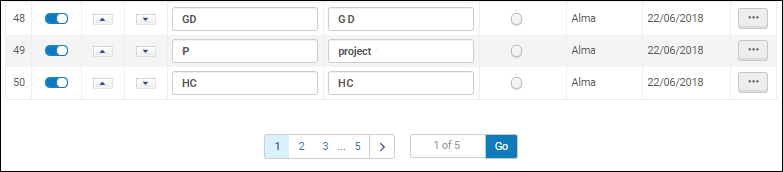
La tabla de código Categorías Estadísticas de Usuarios está paginada. Hay un máximo de 50 filas por página cuando tiene configuradas más de 50 filas de categorías estadísticas de usuarios.
Al importar categorías o tipos desde un fichero de Excel, se sobrescriben los datos existentes. For example if the existing row in Alma has the category code STAC_EXPECT_GRAD_TERM and the row in the Excel file has the code STAC_EXPECT_GRAD_TERM_1, then the row in Alma will be overwritten with STAC_EXPECT_GRAD_TERM_1.
Mapping Statistical Categories to Types (Step 3)
You map statistical categories to types on the Statistical Categories/Types mapping table (Configuration menu > User Management > User Details > Statistical Categories/Types). For more information about mapping tables, see Mapping Tables. Se puede añadir, editar o borrar mapeos y también se puede habilitarlos o desactivarlos.
A category can be mapped to only one type.
Si se mapean más de 1000 tipos a una categoría estadística, los usuarios no podrán editarla. The drop down combo box will be read-only. Para editar los tipos mapeados, los usuarios deben exportar la categoría estadística y aplicar los cambios en el Excel exportado y, a continuación, Importar el fichero. Más adelante encontrará más información sobre la exportación e importación de categorías estadísticas.
If there are more than 1000 statistical categories, see Statistical Category in the Advanced Search regarding the codes to use.
Additionally, you can use the export/import option to update multiple lines in one import action.
- In the Mapping table, export the table by selecting the Export icon.

- Añadir filas al Excel exportado según se requiera. The only columns relevant to Statistical Categories that you need to fill in are:
- Column A (Enabled) – Fill in "Yes" for the Enabled column. Tenga en cuenta que si no proporciona un valor positivo, el mapeo no se activará
- Column B (Target Code Combo Code) – Fill in the Statistical Category codes that you want to add to the mapping. Verify that they havefirstbeen added to the Statistical Categories table using the User Management Configuration menu > User Details > Statistical Categories menu.
- Column D (Source1 Combo Code) – Fill in the Category Type code that that the Statistical Category should map to. Verify that they havefirstbeen added to the Statistical Categories table using the User Management Configuration menu > User Details > Category Types menu.
The example below displays adding the Statistical Category code ‘USA' to the Category type Country (coded COU):

- When the Excel file is complete, select Import in the Mapping Table screen.
- Se le indica que cargue el fichero.
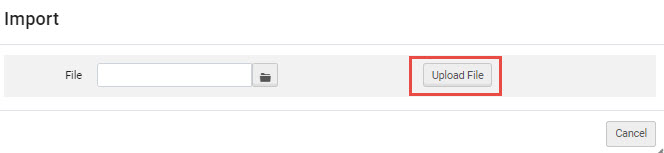 Importe el fichero Excel a la tabla de Mapeo
- Navegue en su fichero Excel. Select Upload File.
- Cuando aparezca el mensaje "Esto reemplazará todas las filas existentes. Are you sure?' confirmation message appears, select Confirm.
Selecting Statistical Category Types to Appear in Analytics (Step 4)
You can select up to ten statistical category types that you want to make available in Analytics. This is done on the Analytics User Statistics code table (Configuration menu > Analytics > General Configuration > Analytics > Analytics User Statistics). For more information about code tables, see Code Tables. Select (up to) ten types in the Description column. También se puede habilitar y desactivar una fila.
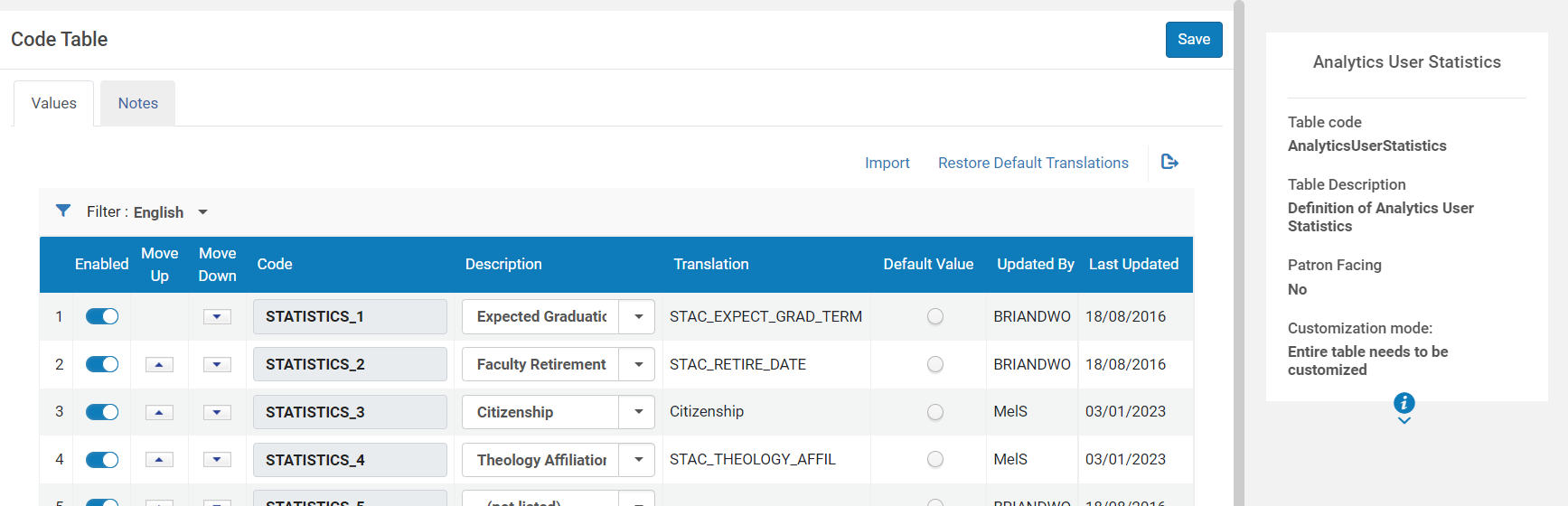
Los informes de Analytics no muestran los tipos estadísticos que están en el ámbito de una biblioteca específica. Muestran solo información para toda la institución.
Statistical Category in the Advanced Search
Al buscar en Usuarios > Categoría estadística en la búsqueda avanzada con más de 1000 categorías estadísticas, aparece una opción de autocompletar después de que el usuario escribe los 3 primeros caracteres. Si existen menos de 1000 categorías estadísticas, aparece una lista desplegable que puede gestionarse. For details, see Searching in Alma.
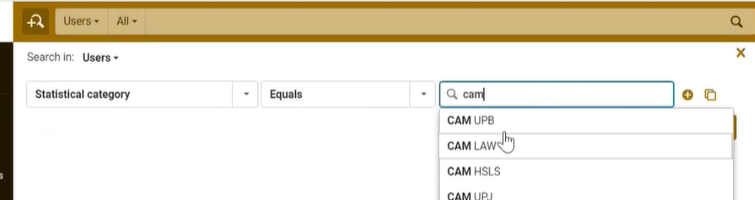
Therefore, when updating the Statistical Categories/Types mapping table (see Mapping Statistical Categories to Types (Step 3)) for more than 1000 categories, it is important to add codes that include at least 3 characters.
Configuring User Titles
- Administrador de usuarios
- Administrador general del sistema
Se pueden configurar títulos de usuario (honoríficos), como Sr. o Prof., entre otros. User titles are available when adding or editing users (see Adding Users and Editing Users). Los títulos también están disponibles para cartas e impresiones de Alma.
You configure user titles on the User Titles code table (Configuration > User Management > User Details > User Titles). For more information about code tables, see Code Tables.
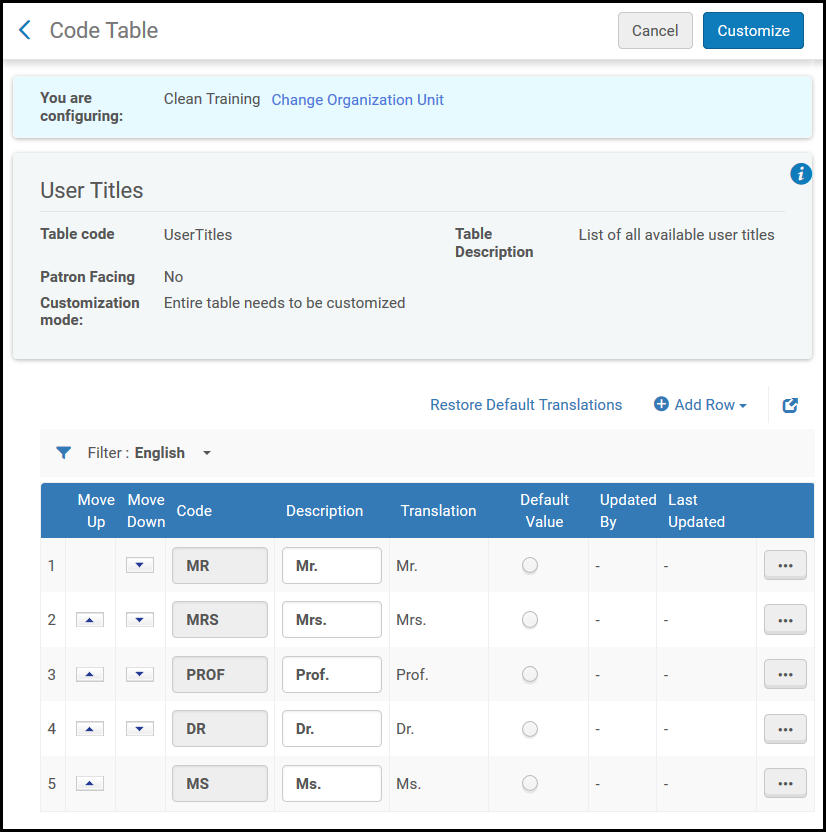
Se pueden añadir, editar o borrar títulos. Se puede seleccionar el orden en que han de aparecer en la lista desplegable y el título seleccionado por defecto.
Configuring Library Notices Opt-In
- Administrador de usuarios
- Administrador general del sistema
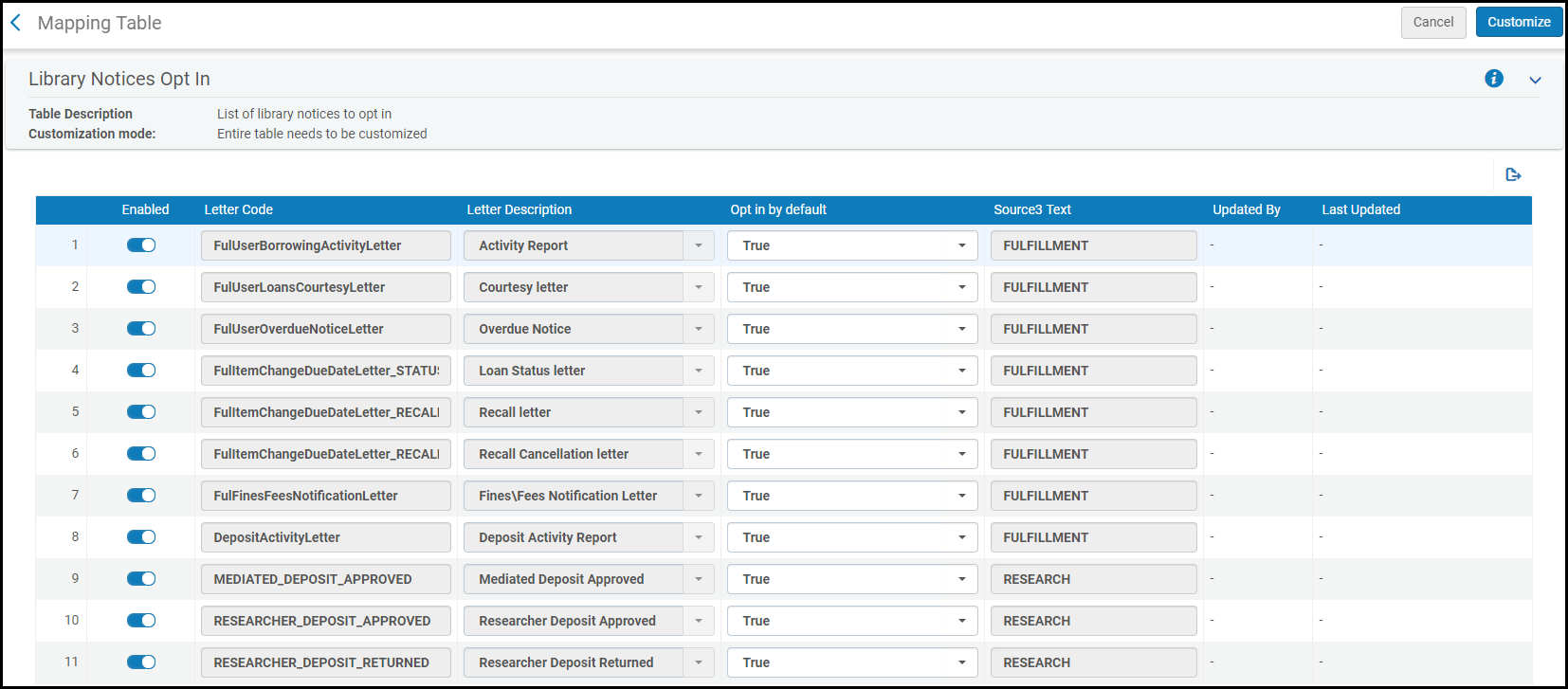
The Library Notices Opt In mapping table (Configuration > User Management > User Details > Library Notices Opt In) enables you to configure whether users can opt in/out of receiving each patron letter and whether each letter is sent by default or not to all users. For more information about mapping tables, see Mapping Tables.
For more information about Library Notices Opt-ins, see the Patron Opt Out for Selected Notices video (2:56).
Es posible habilitar/desactivar la posibilidad de exclusión de los usuarios para recibir las siguientes notificaciones: Si se desactiva, los usuarios no podrán optar por recibir/no recibir cartas para usuario. For more information about the individual letters, see Configuring Letters Overview.
- Informe de actividades – Carta de actividad de préstamos
- Carta de cortesía – Carta de cortesía
- Automatic Loans Renew Letter - Loan renew letter that is sent automatically (Configuration > Fulfillment > Fulfillment Jobs Configuration > Notify Automatic Renewals checkbox)
- Aviso de vencimiento – Carta de aviso de vencimiento
- Carta sobre estado del préstamo - Aviso de estado del préstamo enviado para un cambio de fecha de vencimiento
- Carta de solicitud de devolución – Aviso de estado del préstamo enviada para una devolución
- Carta de cancelación de solicitud de devolución - Aviso de estado del préstamo enviado para la cancelación de una devolución
- Carta de notificación de multas\cuotas - Carta de notificación de multas\cuotas completa
- Informe de actividad del depósito - Carta de actividad del depósito
- Las restantes cartas marcadas para investigadores son relevantes solo para instituciones que estén implementando Esploro.
- Do not change the text in column Source 3 Text. Este campo debería ser interno y será eliminado en una próxima versión.
Select True or False in the Opt in by default column to configure whether users are opted into/out of the letter by default.True means that users are opted in by default.
Los cambios hechos en esta tabla se aplicarán automáticamente para todos los usuarios nuevos creados a partir del cambio. Para los usuarios existentes, estos cambios solo se aplican si la lista de cartas seleccionadas del usuario no se cambió antes de personalizar la tabla. For more information, see Selected Patron Letters in the Adding Users section.
For patrons who do not want to receive certain library notifications, you can disable these notifications for individual patrons (see Selected Patron Letters in the Adding Users section) or for groups of patrons using SIS feeds or bulk user updates, according to library policies. If enabled in Primo/VE, patrons can opt in/out of receiving specific notices in My Library Card > Personal Details.
To customize the label names and translations for these letters see Configuring Display Labels for Library Notices Opt-In for Primo and Configuring Display Labels for Library Notices Opt-In for Primo VE
