
Roles and Registration Configuration
En esta página se describe cómo configurar los roles y el registro de usuarios, incluidos los perfiles de roles, las reglas de asignación y registro, la visualización de los detalles del operador, la restricción de usuarios para la edición y los informes de roles y privilegios. For working with users see Managing Users. For more information about working with roles see Managing User Roles.
The base unit of permission for viewing an item (page, option, link) or performing an action is a privilege; privileges are internally used and configured by Ex Libris. Privileges are grouped by roles. Roles are grouped by role profiles.
Configuring Role Profiles
- Administrador de usuarios
- Administrador general del sistema
A role profile is a collection of roles, grouped according to job function, that can be assigned to a user in a single action. Role profiles make it easy to add a common list of roles to a user automatically when adding a new user (by assigning the user a job category or user group for which a role-assignment rule exists; see Configuring Role Assignment Rules below) or when managing a user's roles manually (by assigning a role profile to them; see Adding Roles to Users).
Un perfil de roles no está vinculado directamente a los usuarios a los que está asignado. Más bien, es un vehículo que se utiliza para asignar una lista predefinida de roles individuales a un usuario. Si actualiza un perfil de roles, esto no afectará a ningún usuario al que ya se lo haya asignado.
You can configure role-assignment rules that automatically assign role profiles to new users (see Configuring Role Assignment Rules below).
You configure role profiles on the Profiles List page (Configuration Menu > User Management > Roles and Registration > Profiles). Existing role profiles are listed in this page under Name, with the roles associated with them listed under Included Roles. El alcance de cada rol aparece entre paréntesis después del rol.
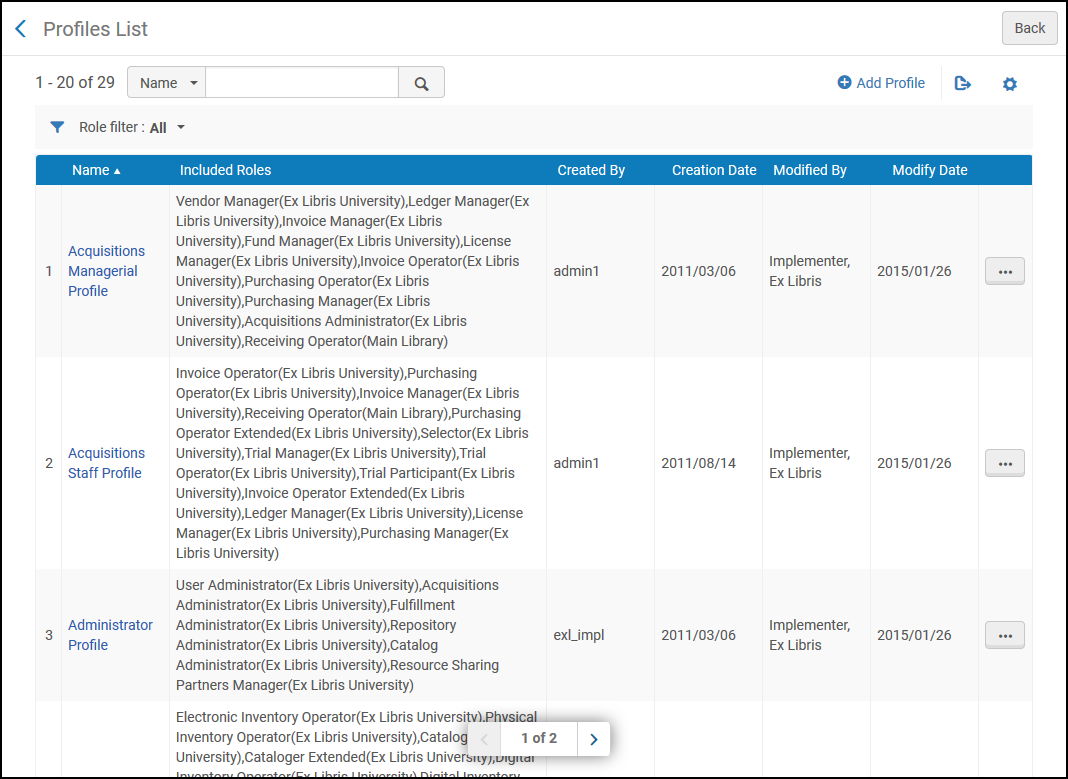
If the selected role profile does not have roles assigned to it, you can add roles as described under Adding a Role Profile.
Puede realizar las siguientes acciones con respecto a los perfiles de roles:
- Add a role profile - See Adding a Role Profile below.
- Edit a role profile - Select Edit in the row actions list and follow the instructions in Adding a Role Profile. For information about applying the changes you make to users to which the role profile was previously applied, see Updating User Accounts to Which a Role Profile Has Already Been Applied below.
- Duplicate a role profile - Select Duplicate in the row actions list and follow the instructions in Adding a Role Profile to edit the profile.
- Delete a role profile - Select Delete in the row actions list and select Confirm in the confirmation dialog box.
Adding a Role Profile
Usted agrega un perfil de roles a su sistema especificando un nombre para él y luego agregando todos los roles apropiados.
To add a role profile:
- On the Profiles List page (Configuration Menu > User Management > Roles and Registration > Profiles), select Add Profile. Aparecerá la página del Perfil. This is the first page of a two-page wizard.

- Enter a name for the role profile (required), and select Save and Continue. The Profile Roles area appears.
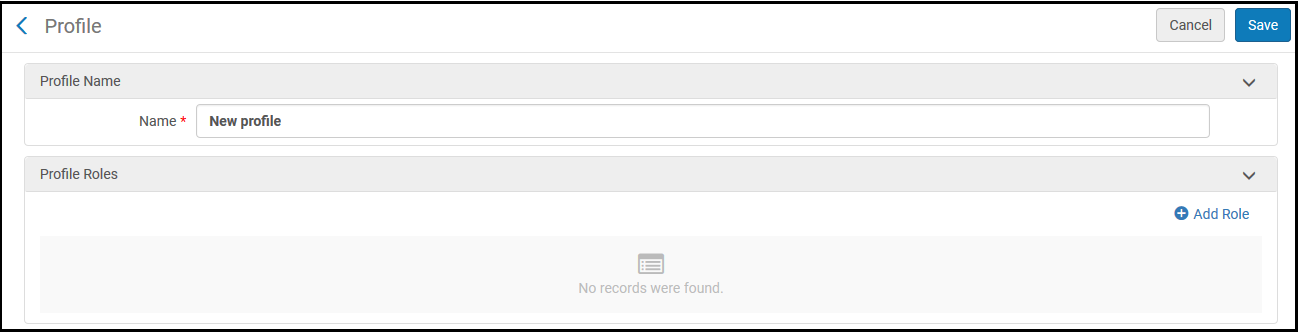
- To add roles, select Add Role. Aparecerá la página de Añadir roles nuevos. Follow the instructions in Adding Roles to Users for adding roles manually. Después de agregar los roles, estos se enumeran en el área Roles del perfil.Solo los roles que se activan en un perfil de roles cuando este se aplica a un usuario se agregan a la cuenta de ese usuario. Los roles para los que no se requiere una configuración de alcance (es decir, el alcance siempre es la institución) se activan tan pronto como se agregan. Los roles para los que se requiere un ámbito pero que aún no se ha establecido en el perfil del roles se desactivan y no se pueden activar hasta que se editen y se seleccione un ámbito. Once a scope is set for a role as required, you can activate or deactivate the role manually, under Active, by selecting the button in the role's row.
- Select Save to save the profile.
Modifying a Role Profile
Una vez que se ha creado un perfil de roles, se puede cambiar su nombre y se pueden agregar y quitar roles, según sea necesario. Estas modificaciones solo afectan directamente a las cuentas de usuario a las que se aplica el perfil de roles después de que se modifique. In order to implement them in user accounts to which they were previously applied, you must modify those user accounts, either manually, by running a job, or through the API (see Updating User Accounts to Which a Role Profile Has Already Been Applied below).
Puede modificar la cuenta de usuario manualmente de dos maneras:
- Añadiendo y eliminando roles manualmente
- Asignando el perfil de roles a la cuenta nuevamente. Sin embargo, tenga en cuenta que si hace esto, se agregarán todos los roles que se agregaron al perfil de roles después de que se aplicara previamente al usuario, pero los roles que se eliminaron del perfil de roles no se eliminarán del usuario.
To modify a role profile:
- On the Profiles List page (Configuration Menu > User Management > Roles and Registration > Profiles), in the row actions list of the role profile, select Edit. Se abre la página Perfil y muestra el nombre y el número de ID del perfil, así como la lista de roles incluidos en él.
- To add additional roles to the profile, select Add Role, and follow the instructions above for adding roles.
- To remove a role, in the row actions list, select Remove. To remove multiple roles, you can also select the checkboxes of the roles you want to remove, and then select Remove Selected.
- To edit the settings of a role, in the row actions list, select Edit. Follow the instructions in Editing Roles Assigned to Users.
- When you have finished modifying the role profile, select Save.
Updating User Accounts to Which a Role Profile Has Already Been Applied
Cada vez que se aplica un perfil de rol a una cuenta de usuario, se añade una nota general interna a la cuenta. The note includes the name and ID number of the role profile. You can find all user accounts to which a particular role profile was applied in the past (from May 2023, when this feature was introduced, onwards) by searching the user records for the name or the ID number of the role profile. También puede guardar los parámetros de búsqueda como un conjunto lógico para que pueda localizar fácilmente estas cuentas de usuario en el futuro. The logical set can also be input to the Update/Notify Users job in order to update these users' roles in accordance with the changes you have made to the role profile.
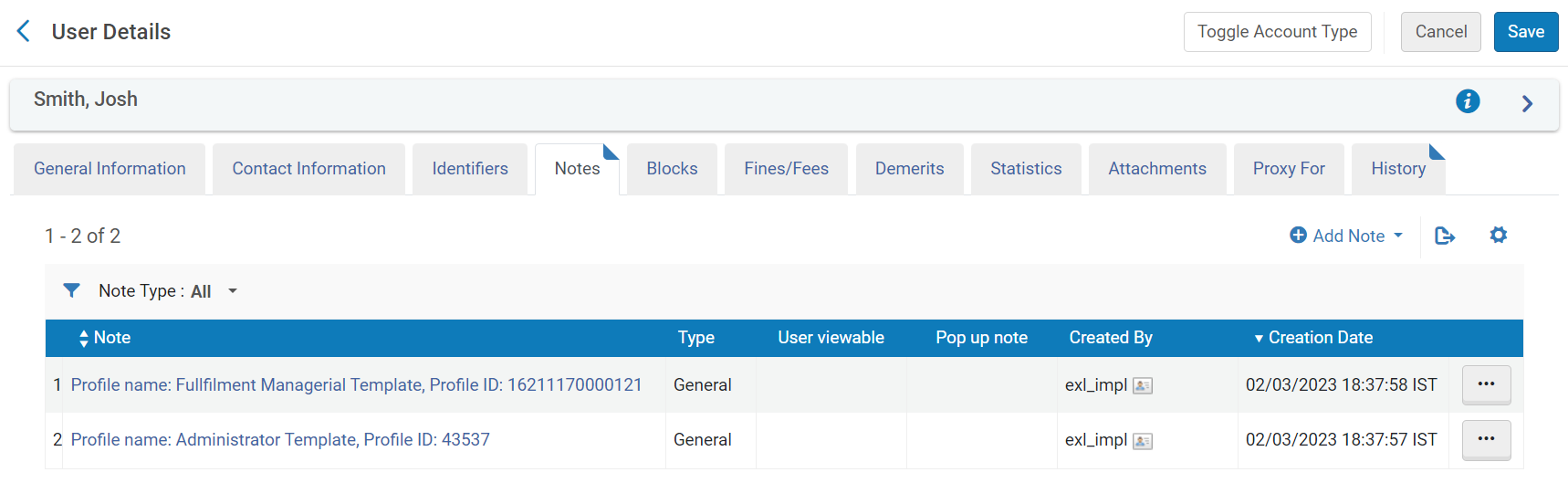
Finding User Accounts to Which a Role Profile Was Applied
Puede utilizar el mecanismo de búsqueda de Alma para encontrar las cuentas de usuario a las que se aplicó un perfil de rol en el pasado. Si lo desea, también puede guardar la consulta de búsqueda como un conjunto lógico para usar como entrada para una tarea que pueda actualizar los roles de estos usuarios.
To find the user accounts to which a role profile has previously been applied:
- On the Profiles List page (Configuration Menu > User Management > Roles and Registration > Profiles), in the row actions list of the role profile, select Edit. The Profile page opens, and displays the name and ID number of the profile, as well as the list of roles currently included in it.
- Copie el número de identificación o el nombre del perfil.
- Select Back to leave the Configuration menu and return to the main menu.
- In the Persistent Search box, select Users>All, enter the ID number or the name of the role profile in the text field , and press Enter. The Find and Manage Users page opens and displays a list of user accounts to which the role profile was assigned in the past.
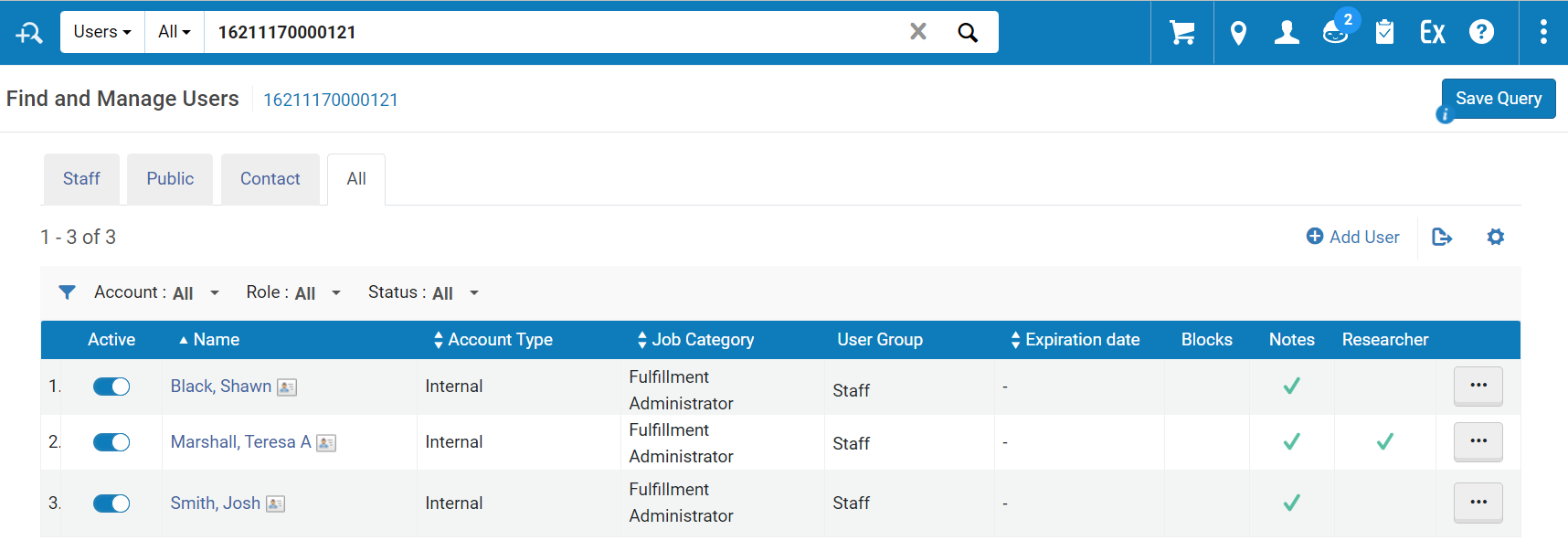
- If you want to save the search criteria as a logical set, select Save Query. In the Set Details page, enter a name for the set, modify the other fields as required, and then select Save. For additional information about sets, see Managing Search Queries and Sets.
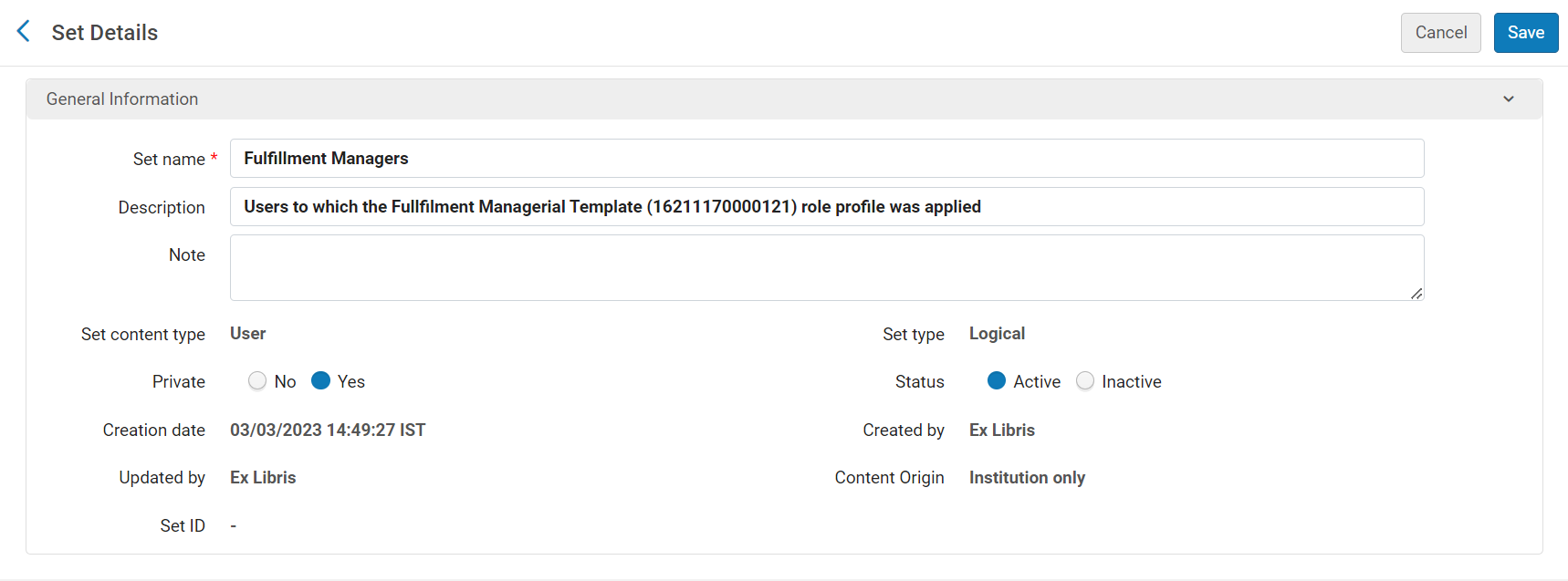
Running a Job to Update Users' Roles
Para cada rol que desee agregar o eliminar de las cuentas de usuario en el conjunto lógico, puede ejecutar la tarea Actualizar/Notificar a los usuarios. (You can actually add one role and remove one role in the same run, but to add or remove multiple roles, you must run the job multiple times.) For additional information about logical sets and running a manual job, see Managing Search Queries and Sets and Manual Jobs.
To update the roles of the user accounts in the logical set:
- In the Run a Job - Select Job to Run page (Admin > Manage Jobs and Sets > Run a Job), select the Update/Notify Users job, and then select Next.
- In the Run a Job - Select Set page, select the logical set you saved as a query (above), and then select Next.
- In the Run a Job - Enter Task parameters page, select Add role, and/or Remove role, and then select the role to add and/or the role to remove, and the scope for each role you selected. Then select Next.

- In the Run a Job - Review and Confirm page, select Submit. La tarea se ejecuta y los roles se actualizan en las cuentas de usuario.
Configuring Role Assignment Rules
- Administrador de usuarios
- Administrador general del sistema
After you define role profiles (see Adding a Role Profile), you can create rules that automatically assign role profiles to a newly added user. When a user is added (see Adding Users), if the user's information matches one of the enabled role assignment rules, the user is assigned the role profiles associated with the rule. Si se aplican varias reglas habilitadas, todas ellas se aplican al nuevo usuario. Si no hay reglas habilitadas que aplicar, se aplicará al usuario la regla predeterminada (todos los usuarios tienen esta regla automáticamente si no coincidien con cualquier otra regla). Note that the rules are applied when users are added using the Add User option in Find and Manage Users (Admin > User Management > Manage Users).
For an example of role assignment rules, watch Assign User Roles Automatically (3:05).
You configure role assignment rules on the Automatic Role Assignment rules table (Configuration Menu > User Management > Roles and Registration > Role Assignment Rules). For more information about rules tables, see Rules Tables.
Los perfiles de roles se utilizan para asignar funciones a los usuarios, pero no están en sí mismos vinculados a ellos. Los usuarios existentes no se verán afectados por las reglas configuradas recientemente. Nonetheless, whenever a role profile is applied to a user, a note is added to the user's Notes tab. This enables you to search for the users to which it was applied (using the profile name or ID), in order to implement any required changes to their roles. The automatic adding of a note can be deactivated by using the User Management menu (Configuration > User Management > Other Settings) to set the show_profile_in_user_notes parameter to false.
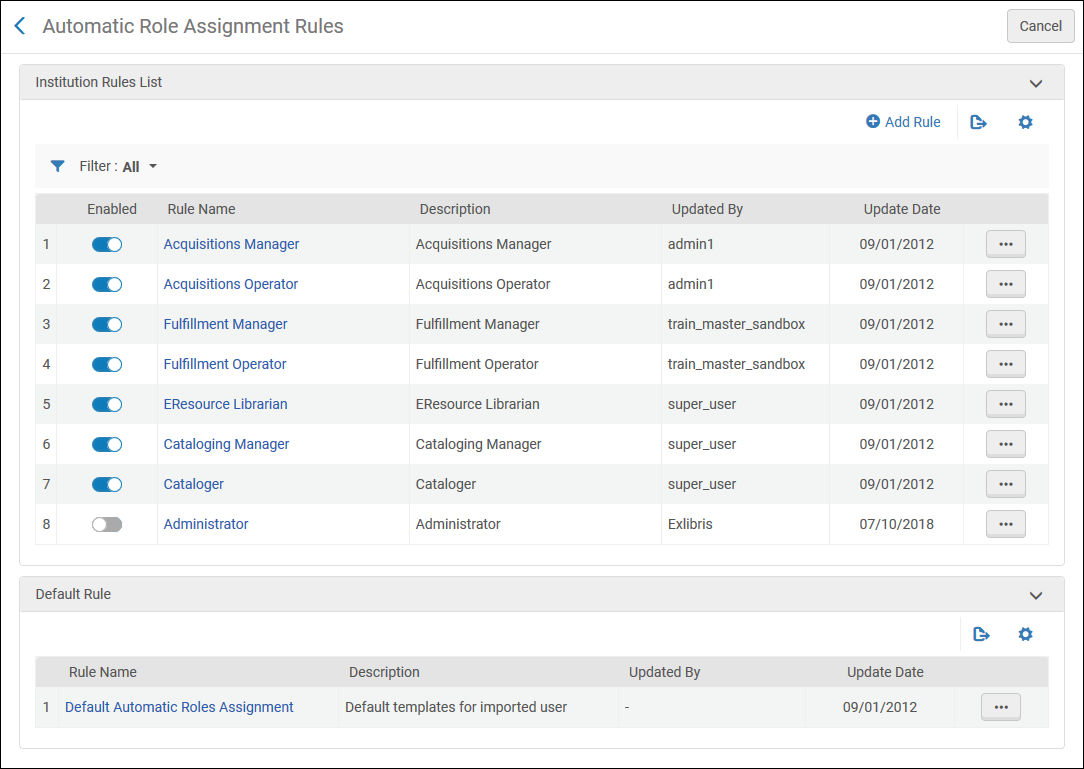
Los parámetros de entrada son:
- Birth Date - Match users born before, on, or after a specific date.
- Job Category - Match users assigned any of the selected job categories.
- Record Type - Match users of any of the selected record types (Contact, Public, or Staff).
- Status - Match active or inactive users.
- User Group - Match users assigned any of the selected user groups.
Para los parámetros de salida, seleccione los perfiles de roles para asignar a los usuarios cuyas propiedades de cuenta coincidan con los parámetros de entrada.
Configuring User Registration Rules
- Administrador de usuarios
- Administrador general del sistema
The rules are applied when users are added using the Register New User option in the Manage Patron Services page. See Registering Patrons.
After you define user registration terms of use sets (see Configuring Terms of Use), you can create rules that automatically assign a user registration terms of use to a newly added user. When a user is added (see Adding Users), if the user's group matches one of the enabled user registration rules, the user is assigned the terms of use associated with the rule. Solo se aplicará la primera regla habilitada que coincida con el nuevo usuario. Si no hay reglas habilitadas que aplicar, se aplicará al usuario la regla predeterminada (todos los usuarios tienen esta regla automáticamente si no coincidien con cualquier otra regla).
Los usuarios existentes no estarán afectados por las reglas configuradas de nuevo.
You configure user registration rules on the User Registration rules table (Configuration Menu > User Management > Roles and Registration > User Registration Rules). For more information about rules tables, see Rules Tables.
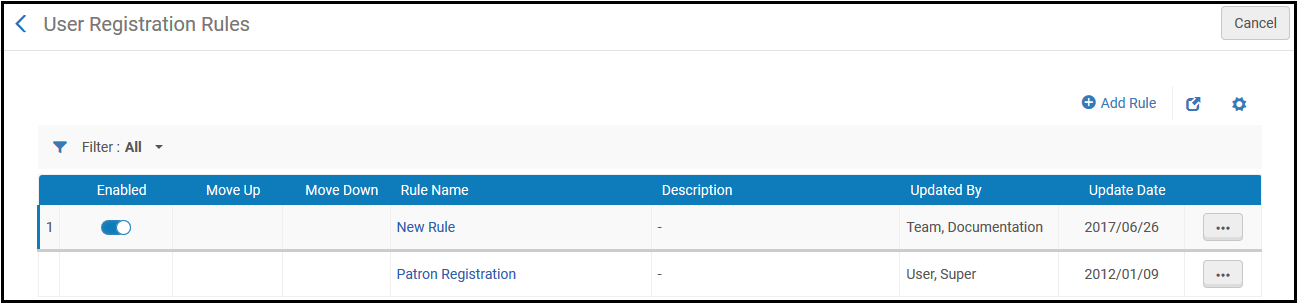
Los parámetros de entrada para las reglas son:
- User Group- Match users assigned any of the selected user groups.
- Library - The 'currently at' library if user is being registered at the circulation desk, or the owning library of the item if the patron role is being renewed at the circulation desk following a loan block.
Para parámetros de salida, seleccionar los términos de uso para asignar a los usuarios que coincidan con los parámetros de entrada.
Configuring Users' Ability to View Operator Details
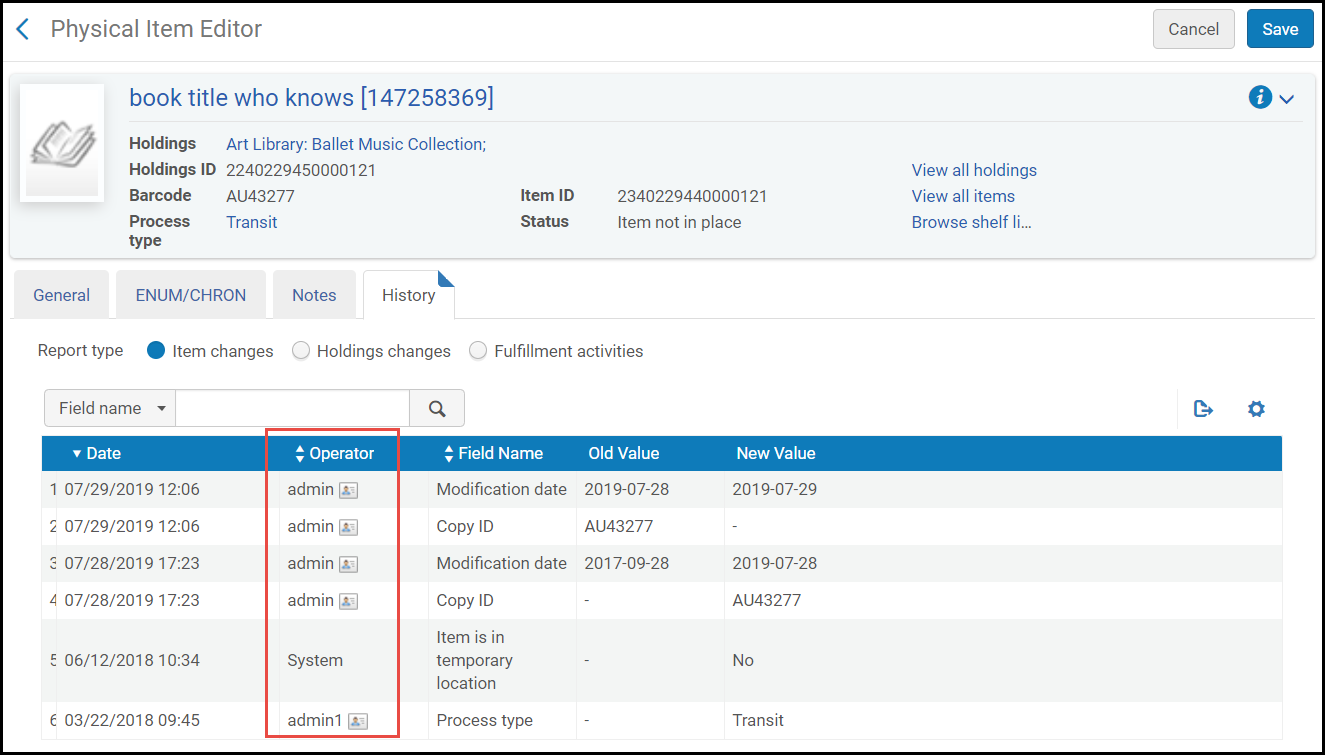
By default, an Operator column appears in the History tab (and some other tabs) on many Alma pages. Todos los usuarios con roles de gestor o administrador pueden ver esta columna (asumiendo que puedan ver la página); los usuarios que solo tienen roles de operador no pueden ver esta columna.
On the Manage Operator Details Visibility page (Configuration Menu > User Management > General > Manage Operator Details Visibility), you can configure that only the managers and administrators relevant to specific areas can view the Operator column in the pages in these areas.

To restrict users' ability to view operator details:
On the Manage Operator Details Visibility page, select Hide and select Save and Execute. When Hide is selected, the following roles can view the Operator column in the History tab on the following pages:
| Roles | Pestañas del Historial (a menos que se indique lo contrario) |
|---|---|
|
|
|
|
|
|
|
|
|
|
Roles Report
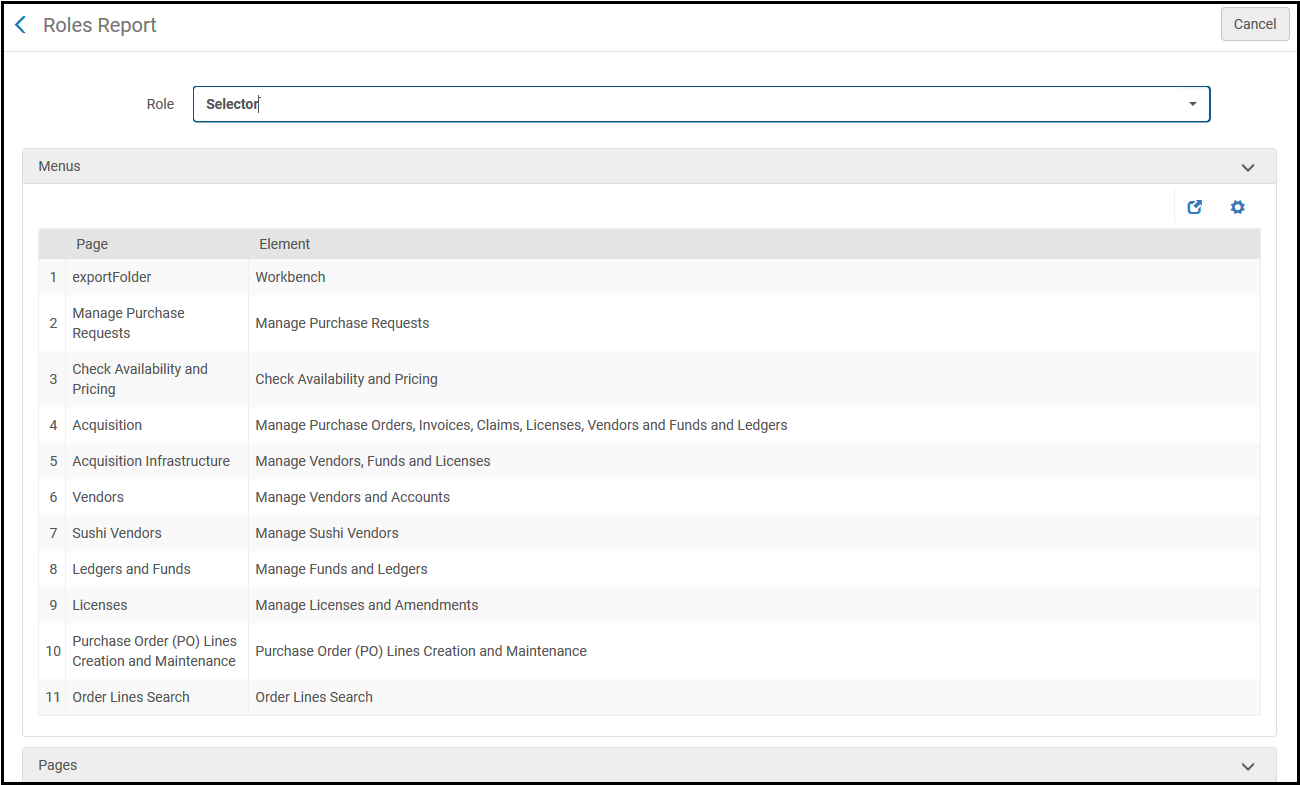
El Informe de roles proporciona una lista detallada de lo que un usuario con un rol particular puede hacer en el sistema, como los ejemplares del menú que se muestran para un usuario con un rol específico o las páginas a las que el usuario puede acceder y puede añadir, visualizar o editar información en esa página. Contactar con Ex Libris para obtener ayuda con esta página.
For a description of the various user roles and the Alma components that each user can access, see User Roles – Descriptions and Accessible Components.
View the Roles Report at Configuration Menu > User Management > Roles and Registration > Roles Report. Enter the required role from the Roles drop-down list.
Some of the roles, such as Exlibris(all),SAAS Operator, and Technical Analyst, are internal and cannot be assigned to users.
Privileges Report
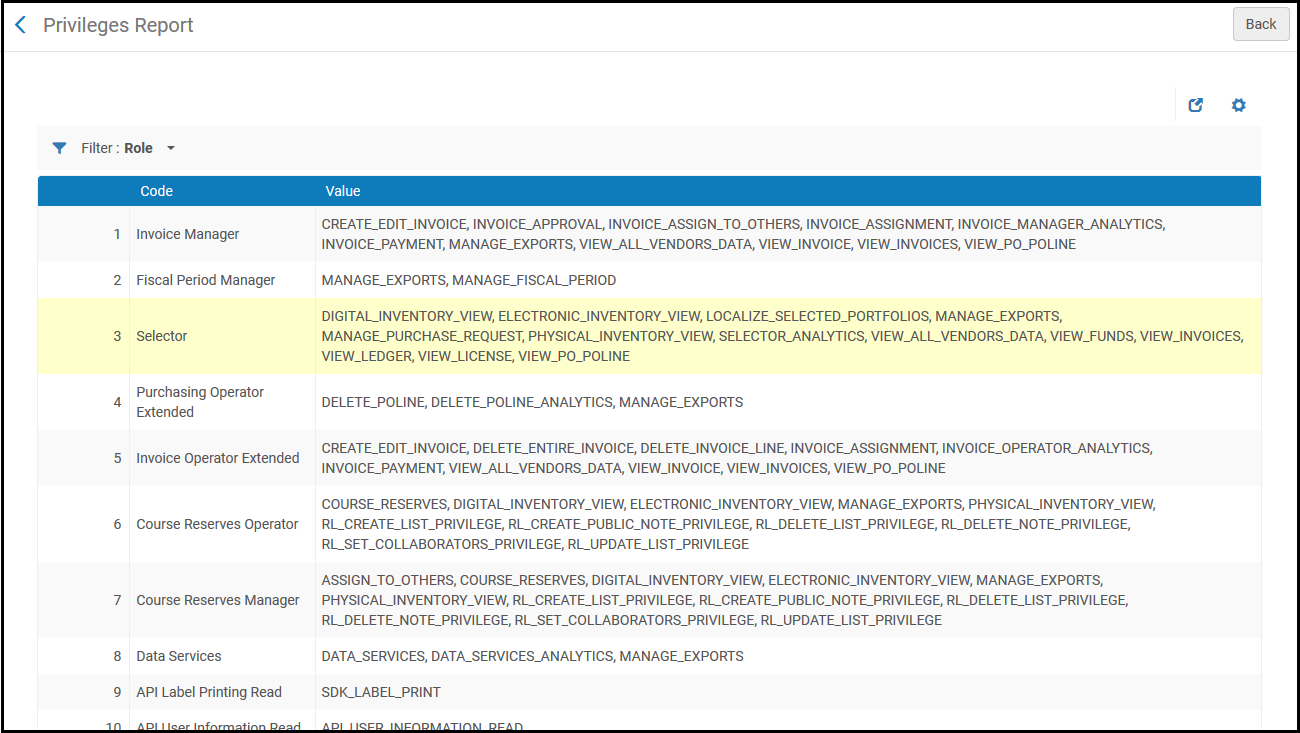
The Privileges Report (Configuration Menu > User Management > Role and Registration > Privileges Report) provides a list of the privileges associated with each role. Esta información puede ser de ayuda para comprender la funcionalidad de ciertas páginas y enlaces; desafortunadamente, no es posible proporcionar una descripción completa de cómo funciona cada privilegio, en detalle. For a description of the various user roles and the Alma components that each user can access, see User Roles – Descriptions and Accessible Components. For a list of the privileges available for each role see Role Privileges.
Se puede filtrar el informe por rol o por privilegio.
- Some roles, such as Exlibris(all),SAAS Operator, and Technical Analyst, are internal and cannot be assigned to users.
- Algunos roles se relacionan con otros productos asociados con URM, como Leganto o Esploro. Si se tiene cualquier pregunta, contactar con el departamento de atención al cliente de Ex Libris.
Restricting Users for Editing
Los siguientes roles de usuario en Alma pueden realizar cambios en las cuentas de usuario de Alma:
- Administrador general del sistema
- Administrador de usuarios
- Gestor de usuarios
- Gerente del mostrador de circulación
- Operador del mostrador de circulación
- Operador del mostrador de circulación - Limitado
- Gerente del repositorio
Sin embargo, se puede evitar que estos roles de usuario realicen cambios en cuentas de usuario específicas (por ejemplo, editar información de contacto). Este es un proceso de dos pasos:
- You define accounts as 'restricted for editing' in the Users Restricted for Editing table (Configuration Menu > User Management > Roles and Registration > Users Restricted for Editing). Si una cuenta de usuario tiene cualquiera de los roles definidos en esta tabla, o se le asigna cualquiera de los grupos de usuario indicados en esta tabla, esta cuenta se considerará 'restringida para editar'.
- For the user roles that can make changes to Alma user records (the above-listed roles), you can activate the "Can't edit restricted users" parameter. This prevents these users from making any changes to the ‘restricted for editing' accounts. See Managing User Roles.
For example: PAT_A is an account assigned a Licenses Manager role. The Licenses Manager has been defined in this Users Restricted for Editing table as ‘restricted for editing'. El usuario USER_B tiene un rol de Gerente de usuario. De esta manera, este usuario puede actualizar cuentas de usuario. Sin embargo, el rol Gerente de usuario se marca como "No se pueden editar usuarios restringidos". This user therefore cannot update PAT_A's account, but will be able to update other accounts that are not assigned the License Manager role.
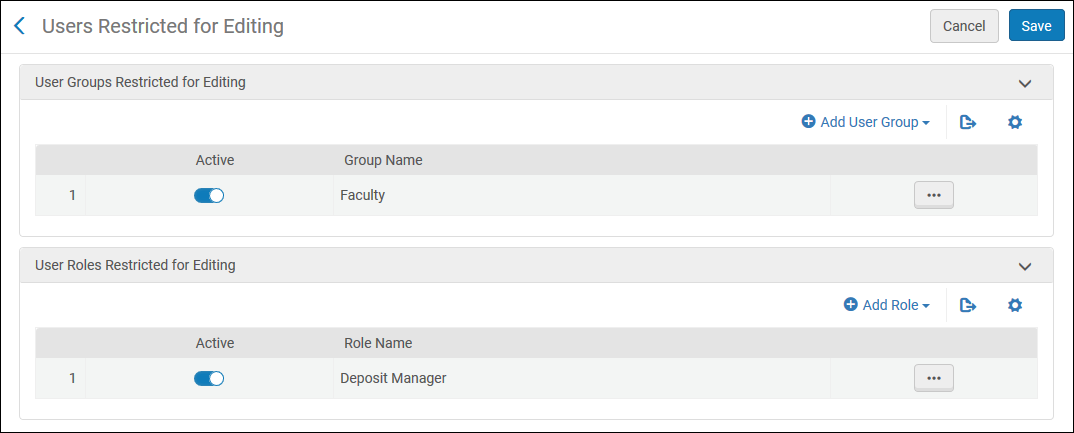
Select Add User Group or Add Role and select the user group or user role that you wish to restrict.
