
Primo Obtenerlo
Describes the Get It tab and miscellaneous configurations used to display additional information in it.
If you are working with Primo VE, see Configuring Delivery Services for Primo VE for more details.
Primo Obtenerlo (que se muestra en la página de Servicios y durante el descubrimiento de los registros Alma locales en Primo) permite que los usuarios determinen la siguiente información para cada título físico mostrado en los resultados de búsqueda:
- Las ubicaciones en dónde pueden encontrarse los títulos
- La disponibilidad del título
- Las opciones de solicitud
Se puede configurar el orden de resultados de búsqueda. See Configuring the Order of Primo Search Results.
If the user belongs to a collaborative network, additional locations and services may be viewed by selecting the More link in Primo Get It. For more information, see The More Link and Institutions Lightbox.
Dependiendo del número de ubicaciones por título, el tipo de recurso y las opciones de solicitud para el usuario conectado, Primo Obtenerlo puede mostrar información de existencias, información a nivel de ejemplar y/o información de solicitud.
- El servicio Obtenerlo puede integrarse con cualquier sistema de descubrimiento de terceros que se configure para usar un proveedor de identidad basado en SAML tanto para Alma como para la autenticación de la interfaz del descubrimiento. For detailed information, see https://developers.exlibrisgroup.com/alma/integrations/discovery.
- No se recomienda realizar búsquedas en pestañas diferentes de su buscador y solicitudes de Verlo u Obtenerlo desde una pestaña en la que no se haya realizado la última búsqueda.
Lista de existencias
Si hay múltiples existencias para un título (852 campos), el sistema muestra cada ubicación en una línea separada e incluye la siguiente información para cada entrada:
-
Biblioteca propietaria (852$b)
-
Ubicación de estantería (852 $$j)
-
Clasificación (852 $$h)
-
Accession number (852 $$p) – If it exists, the system will prefix the number with "Accession:" and omit the call number.
-
Número de copia (852 $$t) – Si existe, se debería visualizar después de la nota pública (852 $$z) solamente en la muestra de existencia individual. The copy number is prefixed with the following customizable text: Copy: .
-
Public note (852 $$z) - For more information, see Displaying Public Notes.
-
Availability information - For more information, see Filtering the Library List for Availability in Primo.
Por ejemplo:
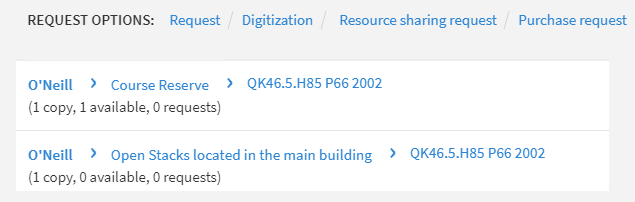 Pestaña Obtenerlo - Título de publicación no seriada con Ubicaciones Múltiples
For journal titles, the following information is also included:
-
Declaración del resumen existencias (866 $$a)
-
Public note (866 $$z) - For more information, see Displaying Public Notes.
La información de disponibilidad se omite para publicaciones seriadas.
Por ejemplo:
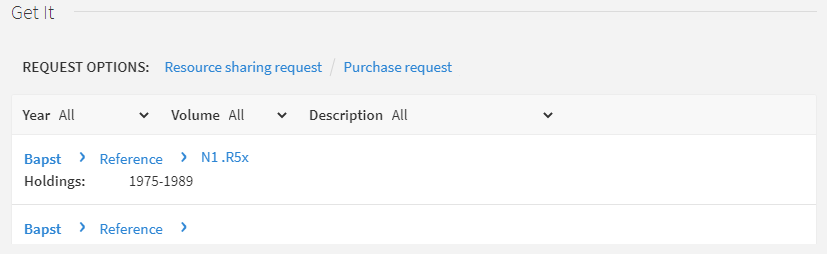
Las existencias pueden mostrarse de acuerdo a la disponibilidad o a su proximidad a la solicitud del usuario. You configure this via the Locations Ordering Profiles setting in Fulfillment Configuration (see Configuring Locations Ordering Profiles).
For information on displaying additional holdings information in the Get It tab, see Displaying Additional Holdings Information.
Configurar el ordenamiento de ejemplares físicos
La página de Lista de rutinas para ordenar permite definir el orden que se usa en la lista de ejemplares en Primo Obtenerlo. For more information, see Configuring Physical Item Sort Routines.
-
On the Physical Item Sort Routines page (Configuration Menu > Resources > General > Physical Item Sort Routines), select Edit from the row actions list in the row that contains the sort routine that you want to use in Primo Get It.
-
Select the Display Configuration tab.
-
Select the Resource management Get it results parameter and its associated Set as default parameter.
-
Select Save.
Items List
Users can view the items that are related to a specific holdings record by selecting the holdings entry in the Get It tab. After an entry has been selected, the system displays the items that are associated with the selected holdings record (up to 10 per page). Para cada ejemplar, el sistema muestra la siguiente información:
- Código de barras
- Facturado
- Policy – When a patron is signed in, the system calculates the loan terms of use that will be applied to the loan, and displays the name of the due date policy in this column. If the patron is not signed in, the system checks whether there are any terms of use rules (for that item's location, material type and item policy) that allows this item to be loaned. If so, the Loanable label is displayed. If no terms of use rule is found, then the Not Loanable label is displayed.
- Descripción – Se muestra solamente para aquellos ejemplares que tengan el Campo de descripción.
- Estado del ejemplar
- Biblioteca
- Localización
- Número de acceso
- Información de disponibilidad
- Signatura alternativa
- Nota no pública
If users want to narrow the scope of a serial's list, they may use the following filters, which contain values that are relevant to the items in the list: Year, Volume, Description.
Request Options
Primo Get It allows users to perform the following types of requests, if permitted by the user, for the selected title: Request, Digitization, and other (such as resource-sharing requests and document delivery).
Todas las opciones de solicitud aparecen como botones sobre las existencias para las publicaciones no seriadas y dentro de la lista de ejemplares para las publicaciones seriadas. Por ejemplo:
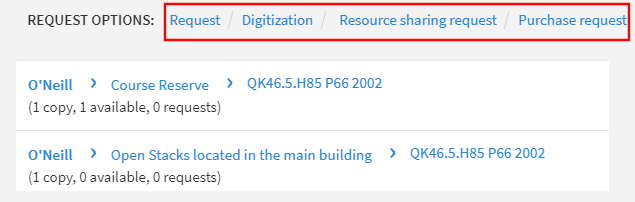
El sistema muestra las opciones de solicitud solamente si el usuario que inició la sesión es apto para pedirlas. If the user is not signed in, the system displays the following message above the list of holdings or items: Please sign in for request options.
For items temporarily located in a resource sharing library (items lent to a resource sharing partner), the Request option appears only if the following configurations have been set in Alma:
- A hold shelf is defined at the circulation desk of the resource sharing library (ensure that the Has Hold Shelf setting is selected when configuring a circulation desk; for details, see Configuring Circulation Desks).
- The resource sharing library has a Deliver To relationship with a library that has a defined hold shelf (for details, see Configuring Fulfillment Services Between Libraries Within an Institution).
The item's status is listed in Primo as: On ILL Process until <expiration date>
Para los títulos de publicación seriada, los usuarios realizan solicitudes a nivel título+descripción. Por ejemplo:
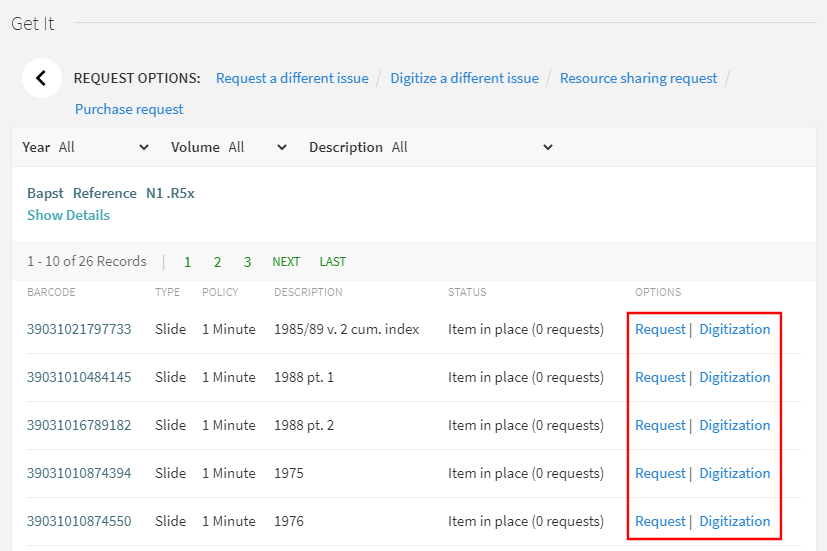
Las solicitudes desde Primo están a nivel de título. Para publicaciones seriadas, las solicitudes estarán en un nivel de título+descripción. To configure Primo to use item level requesting, contact Ex Libris support.
La información (incluidas las opciones de solicitud) que aparece en la pestaña Obtenerlo se configura totalmente en Alma. Alma permite configurar la siguiente información en la pestaña Obtenerlo:
- Ocultar opciones de solicitud – Alma permite configurar el comportamiento de las pestañas de entrega, tales como ocultar el servicio texto completo de un grupo de usuarios particular. For more information, see Configuring Display Logic Rules.
- Labels used for various display fields – see Modifying Display Labels
- Look of the Get It tab – see Branding the Delivery Tabs
- Miscellaneous information such as how to define location map links – see Configuring the Template for the Location Map Link
If a serial title has both requestable and non-requestable items and has a large number of items, all items will appear on the request form. For performance reasons, Alma stops checking for requestability as soon as a requestable item is found.
Para enviar una solicitud en el formulario de solicitud de ejemplar físico, primero se debe eliminar el enfoque de cualquier campo en el formulario y luego seleccionar el botón 'Solicitud' (o seleccionar el botón Solicitud dos veces).
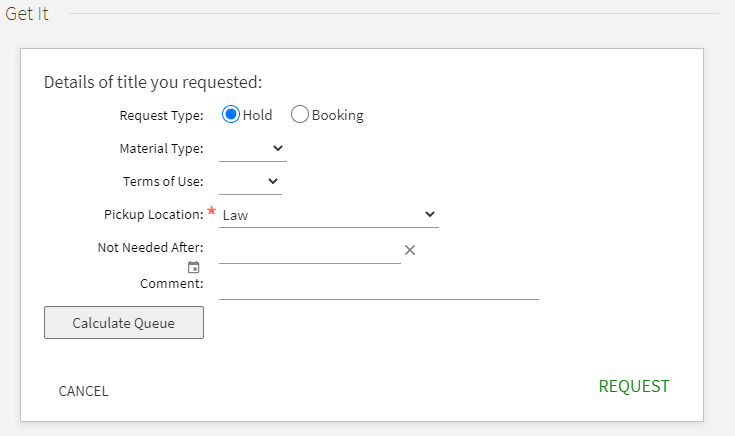
Los campos que se muestran en los formularios de solicitud de reserva, de solicitud de reserva anticipada y solicitud de digitalización se pueden configurar. See Customizing Primo Request Forms.
For information on configuring the request options, refer to Alma Fulfillment.
Requesting From Other Institutions Without a Local Linked Patron
Cuando se usa Primo a través de una red de servicios al usuario, es posible recuperar información de otras instituciones sin copiar información de usuario desde la institución original y sin crear una cuenta vinculada.
The user parameter uresolver_remote_register controls whether the other institution's holdings may be retrieved without creating a local linked patron record (see Configuring Other Settings). Los valores del parámetro son:
- Auto - An linked account will be created automatically. Este es el ajuste por defecto.
- None - There will be no option to create a linked account via the Get It page. Solamente se mostrará información de existencias.
- Manual - The Get It window will display a link to register with the other institution. Al seleccionar el enlace se abrirá el formulario de solicitud desde la fuente de la cuenta vinculada.
Seleccionar una biblioteca para una solicitud de recursos compartidos
Cuando se habilitan bibliotecas de recursos compartidos múltiples para un usuario, se puede seleccionar qué Biblioteca de intercambio de recursos se utilizará para los resultados de búsqueda de Primo.
Antes de seleccionar una biblioteca de recursos compartidos para el usuario de Primo se debe hacer lo siguiente:
- Ensure that the patron has multiple resource sharing libraries configured (see the Resource Sharing Library entry in Quick User Management Page Fields).
- Ensure that the ill_item_creation_lib_code setting on the Customer Parameters Mapping Table is set to ALL (see Configuring Other Settings).
-
Perform a search for an item in Primo and open its full display.
-
Select the Resource Sharing Request link to open the Resource Sharing Request Form.
-
In the For Library field, select the relevant resource sharing library. The libraries display according to the ill_item_creation_lib_code value in the Customer Parameters mapping table see Configuring Other Settings), and/or those for which the patron's TOU are enabled.
-
In the Delivery Information section, select a location from the Pickup/delivery location field . Especificar un lugar de recogida/entrega en el listado desplegable.
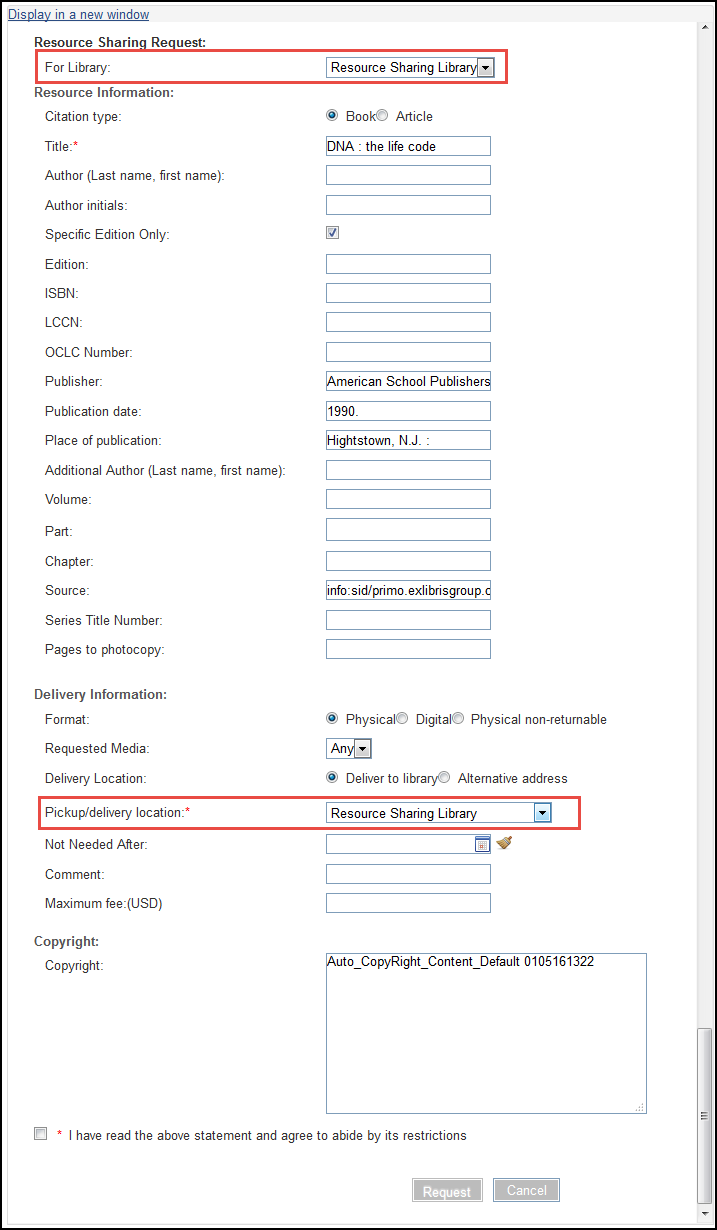 Pestaña Primo Obtenerlo – Para campos de Bibliotecas y Ubicación de Recogida/Entrega
The values in the Pickup/delivery location drop-down depend on the values selected in the For library field in the previous step. Fields to be displayed on the resource sharing request form can be configured on the Resource Sharing Form Customization page.
Displaying Real Time Item Descriptions for a Borrowing Request
Primo users can see the list of descriptions of the items they want to request. Las descripciones de los ejemplares se basan en los valores de los campos de descripción de los ejemplares que coinciden con los atributos de la solicitud, según los perfiles de localización. Alma runs a locate process on all of the rota's partners in order to populate the list of items. Esta opción está disponible cundo los socios de la ruta usan un perfil de localización de Alma. Pueden colocar su solicitud de recursos compartidos en función de una descripción específica.
When a user opens up a request form, a spinner indicator appears and a message is displayed that the system is checking for item level descriptions. Las descripciones se cargan a una lista desplegable. Cuando se cargan los valores, el campo de descripción se vuelve obligatorio. Si no hay descripciones disponibles, se muestra un mensaje de que no se encontraron descripciones a nivel del ejemplar.
This option is activated if the description field is made visible (see Customizing Primo Resource Sharing Forms).The field is disabled by default.
Mostrar notas públicas
Primo muestra las notas públicas de la siguiente manera en Primo Obtenerlo:
-
Lista de ubicaciones:
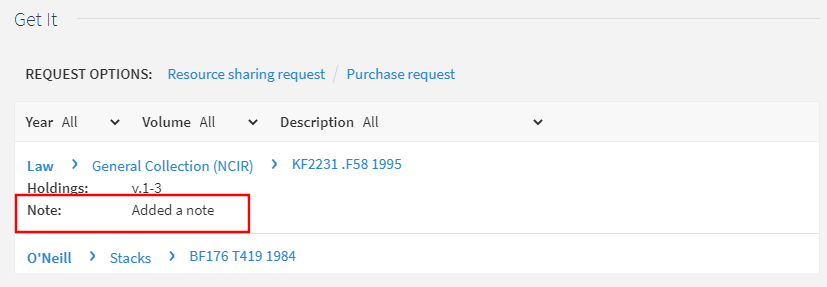 Public Notes in Get It > Locations List
-
Items list: Note that you must select Show Details to display the note.
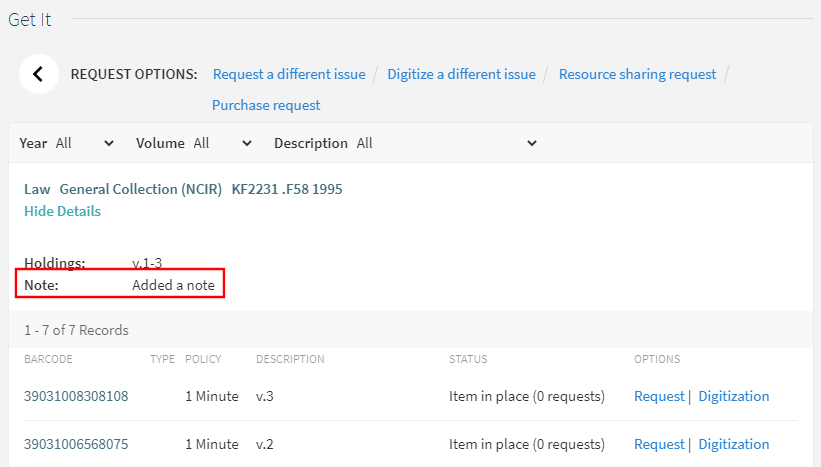 Public Notes in Get It > Items List
No se necesita ninguna configuración adicional para habilitar esta funcionalidad, pero se pueden modificar las etiquetas que se muestran en Primo.
- Administrador de servicios al usuario
- Administrador general del sistema
- On the Labels page (Configuration Menu > Fulfillment > Discovery Interface Display Logic > Labels), select Customize in the line containing the following code and modify the text in the Description field:c.uresolver.getit2.item_list.note.
- Select Customize at the bottom of the page to store the modified label in the system.
Displaying Additional Holdings Information
Alma permite mostrar información adicional sobre existencias en la pestaña Get It de Primo.
Dado que los corchetes angulares se usan en las etiquetas HTML, no aparecen en Get It. La única excepción son las clasificaciones/signaturas, en las que HTML se deshabilita para admitir corchetes angulares, que se utilizan en algunos estándares de clasificación/signaturas.
La siguiente tabla enumera los campos MARC que contienen información adicional para mostrar en Primo. Para mostrar gran parte de esta información adicional, primero se debe habilitar uno de los siguientes parámetros:
-
display_additional_holding_fields_in_getit – When set to true, additional holdings fields appear in Primo Get It. Se admiten los siguientes campos:
Subcampo Holding Subcampo Etiqueta (definida en la tabla de códigos Etiquetas de interfaz de descubrimiento) Default (parameter = false): 852 z Notas públicas: code = c.uresolver.getit2.public_notes
852 t Copia: code = c.uresolver.getit2.item_list.copy
866 (serials) a, z No muestra una etiqueta, pero la nota (subcampo z) se incluye entre comillas después de la información de las existencias del subcampo a. 867 a, z Material suplementario: code = c.uresolver.getit2.holding_list.supplementary_material
Additional (parameter = true): 868 a, z Índices: code = c.uresolver.getit2.holding_list.indexes
541 a, b, c, d Fuente de Adquisición: code = c.uresolver.getit2.holding_list.source_of_acq
561 a, 3, u Historial de Propiedad y Custodia: code = c.uresolver.getit2.holding_list.ownership
563 a, 3, u Encuadernación: code = c.uresolver.getit2.holding_list.binding
Por ejemplo, si el registro de existencias se configura de la siguiente manera:
LDR 00429cy 2200133zn 4500
004 AEU3700
005 20210321033054.0
008 961003|| | |001|||||0000000
852 01 |a MNcBCL |b LAW |c NCIR |h KF2231 |i .F58 1995 |9 1 |t 2 |z Added a note 1
866 41 |8 0 |a v.1-3 |z Added note 2
867 30 |a ca. 300 pieces |x incomplete vols. |z pub note 3
868 40 |a 1937-1942 |x complete vols. |z pub note 4
854 __ |a (*) |i (year) |o update |w a |8 1
LKR __ |a HOL |l BCL01 |b 000741068
La información de las existencias aparece como se indica a continuación:
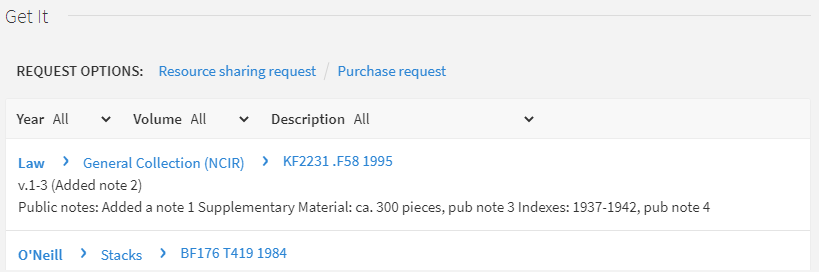 Mostrar campos de existencias adicionales
-
uresolver_enable_getit_holding_configuration – When set to true, the additional holdings fields appear in Primo Get It, but their configuration is determined by the Primo Customized Holding mapping table (Configuration Menu > Fulfillment > Discovery Interface Display Logic > Holdings Display Customization) and the Holdings Display Labels and Other code table (Configuration Menu > Fulfillment > Discovery Interface Display Logic > Holdings Display Labels). This parameter overrides the previous parameter if both are set to true.
Subcampo Holding Subcampo Label (defined in the Holdings Display Labels and Order code table) Enabled by Default 866 a, z Existencias: Sí 867 a, z Material suplementario Sí 852 z Nota: Sí 868 a, z Índices: No 541 a, b, c, d Fuente de Adquisición: No 561 a, 3, u Historial de Propiedad y Custodia: No 563 a, 3, u Encuadernación: No Por ejemplo, si el registro de existencias se configura de la siguiente manera:
LDR 00429cy 2200133zn 4500
004 AEU3700
005 20210321033054.0
008 961003|| | |001|||||0000000
852 01 |a MNcBCL |b LAW |c NCIR |h KF2231 |i .F58 1995 |9 1 |t 2 |z Added a note 1
866 41 |8 0 |a v.1-3 |z Added note 2
867 30 |a ca. 300 pieces |x incomplete vols. |z pub note 3
868 40 |a 1937-1942 |x complete vols. |z pub note 4
854 __ |a (*) |i (year) |o update |w a |8 1
LKR __ |a HOL |l BCL01 |b 000741068
La información de las existencias aparece como se indica a continuación:
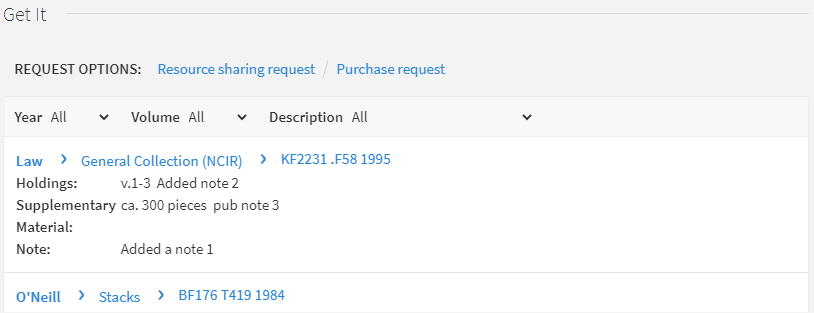 Mostrar campos de existencias adicionales
Page tags: article:topicproduct:almacontent:Documentationlang:englishPublic noteHoldings InformationGet It tabrequest optionsholdings listsort orderitems listselecting library
