
Digital Services
Configuring Viewer Services
Para configurar servicios del visor, se debe tener uno de los siguientes roles:
- Administrador general del sistema
- Administrador de servicios al usuario
You can configure the digital file viewers that may appear after selecting to view a digital file (after selecting View It on the search results page; see Link Resolver for Institutions Using Distributed Electronic Resources). For more information, see the Developer's Network documentation at https://developers.exlibrisgroup.com/alma/integrations/digital/almadigital/access. Also see the parameter delivery_service_allowed_origins in Configuring Other Settings.
La versión original de Alma admite los siguientes visores digitales:
-
Digital Viewer – Alma's default viewer uses the browser's HTML5 players, which are capable of displaying any format that is natively supported by the browser (such as low and high resolution image formats, PDF, textual, audio, and video (including HLS streaming) formats, ePub, and Microsoft Office formats. Para otros formatos, se ofrece la opción de descarga. Además, admite el despliegue de subtítulos.
Entre los servicios adicionales que ofrece el Visor digital se incluyen:
- Personalización del visor css
- Mostrar el texto completo junto al fichero
- Subtítulos para archivos de vídeo
- Acercar/alejar + rotar imágenes
For information about configuring captions, see Managing Digital Files from the Digital Representation Resource Editor.
- Universal Viewer – This is an open-source project that is deployed in Alma.This type of viewer is based on IIIF (International Image Interoperability Framework) and provides advanced capabilities for viewing high-resolution images for tiff, jpeg, and jpeg2000 formats (such as rotate and zoom-in/zoom-out actions), as well as PDFs and audio and video files. Además, el Visor Universal es compatible con los formatos .glb y .gltf. (Note that for .gltf, only files that actually contain the data are supported, not those that are just pointers to the actual file.) The Universal Viewer supports the display of captions/subtitles, zoom in / out + rotate functionality for images, and IIIF interoperability. For information about configuring captions, see Managing Digital Files from the Digital Representation Resource Editor.
- Internet Archive Book reader – This type of viewer is based on IIIF and provides capabilities for viewing images and a book-like reading experience with zoom in/out + rotate functionality for images. Además, le permite a los usuarios efectuar búsquedas de texto en ficheros digitales cuando se carga un fichero de texto completo en Alma.
You can enable, disable, edit, add and remove digital viewers on the Viewer Services page (Configuration Menu > Fulfillment > Discovery Interface Display Logic > Viewer Services).
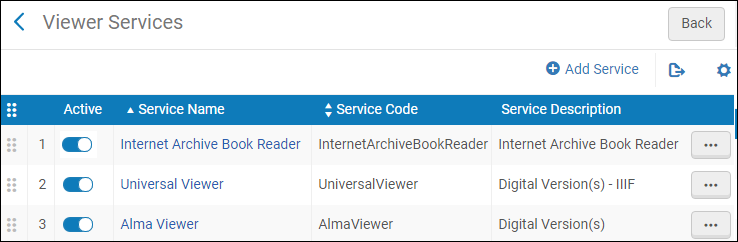
Arrastrar los servicios y volver a ordenarlos para cambiar el orden en que aparecen en la pestaña Verlo.
To add a digital viewer, select Add Service.
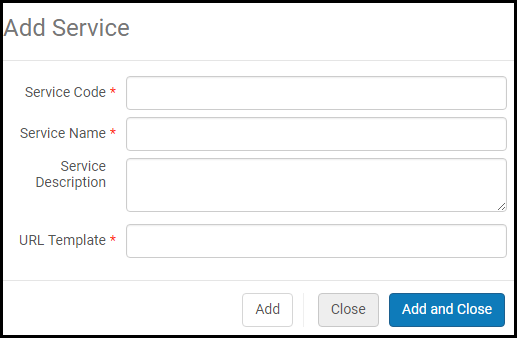
Configurar las reglas de disponibilidad del servicio para un visor
Puede configurar las reglas de disponibilidad del servicio para un visor.
-
Select Edit for a viewer and select the Service Availability Rules tab.
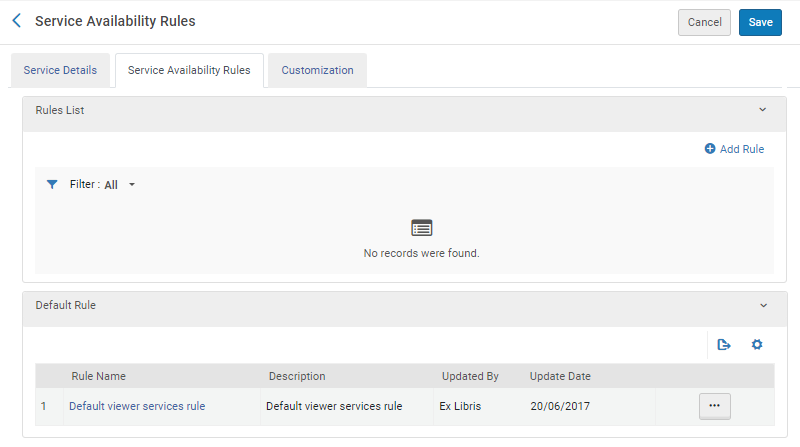
-
Select Add Rule. Aparecerá lo siguiente:
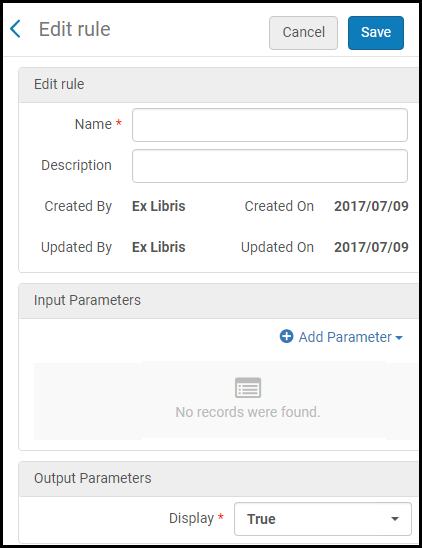
- Introducir un nombre y una descripción.
-
In the Input Parameters section, select Add Parameter. Aparecerá lo siguiente:
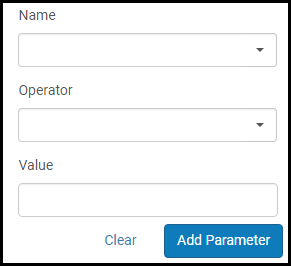
- Select a name, operator, and value, and select Add parameter.
- In the Output Parameters section, select True or False from the Display drop-down list to determine if the viewer is displayed when the rule is true or when it is false.
- Select Save.
La regla se añade a la lista de reglas de disponibilidad del servicio.
Configuring the Digital Viewer
Puede configurar el Visor digital.
Select Edit for the Digital Viewer and select the Service Details tab.
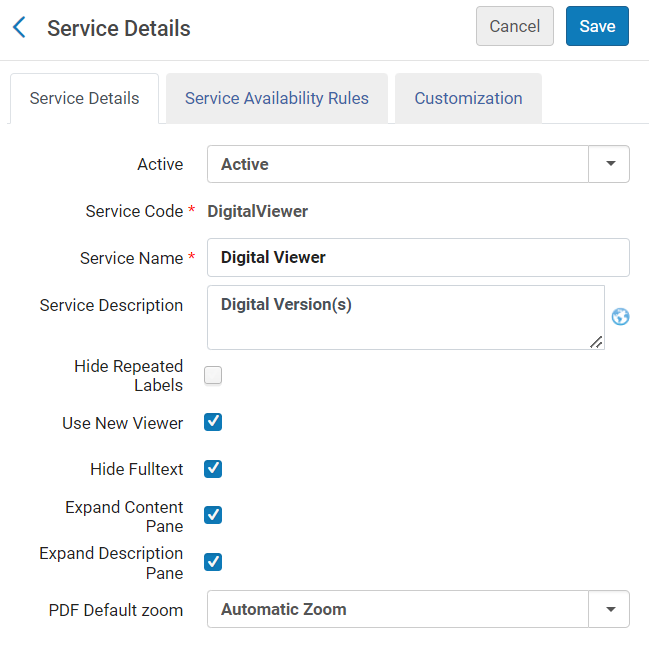
Las siguientes opciones de configuración están disponibles:
-
Ocultar Etiquetas Repetidas: mostrar etiquetas repetidas en una lista debajo de la etiqueta.
If you enter a delimiter in the Delimiter for Grouping Repeated Delivery Metadata field located at Configuration > Fulfillment > Discovery Interface Display Logic > Other Settings, this field does not appear. Para que aparezca, debe eliminar el delimitador. For more information, see Configuring Other Settings.
- Use New Viewer – display digital resources using the New Digital Viewer.
- Ocultar texto completo – Oculte el despliegue del texto completo en el nuevo Visor digital.
- Expandir el panel de contenido - borre para contraer el panel de Contenido por defecto.
-
Expandir el panel de contenido - borre para contraer el panel de Descripción por defecto.
Cuando se contraen los paneles, los botones y la etiqueta del fichero se ubican en la misma barra de herramientas.
- PDF Default Zoom – select an option from the drop-down list to set a default zoom for PDF files
Customizing the Digital Viewer Using Primo Studio
Puede personalizar el Visor digital con Primo Studio.
- Select Edit for the Digital Viewer and select the Customization tab.
- Seleccione una Vista de Primo y una ID de representación para usarla como ejemplo cuando configure el visor.
-
Select Generate Link. Aparece el enlace Abrir Primo Studio.
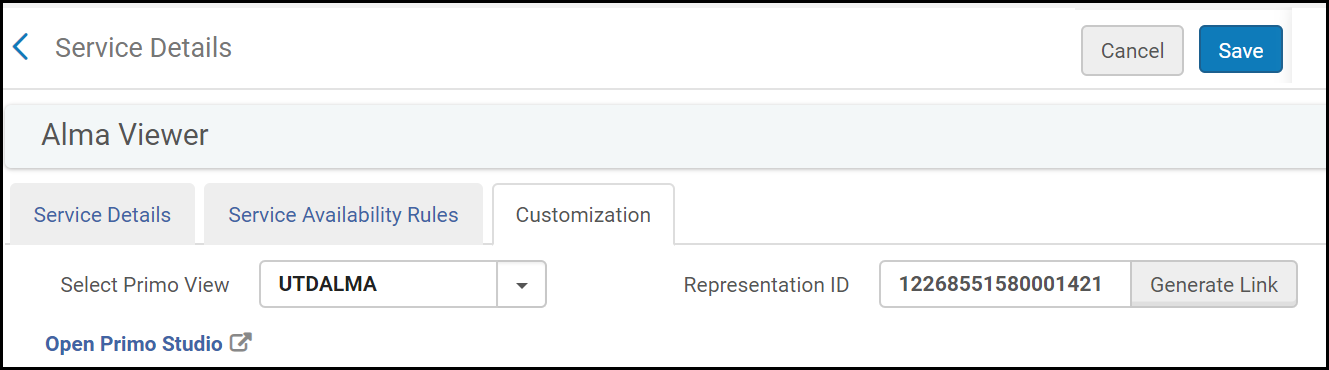
- Select Open Primo Studio to open Primo Studio and customize the viewer.
For more information on using Primo Studio, see Using Primo Studio.
Configuring the Universal Viewer to Display the Download Original File Icon
Puede configurar el visor universal para mostrar el icono Descargar fichero original.
-
Select Edit for the Universal Viewer and select the Service Details tab.
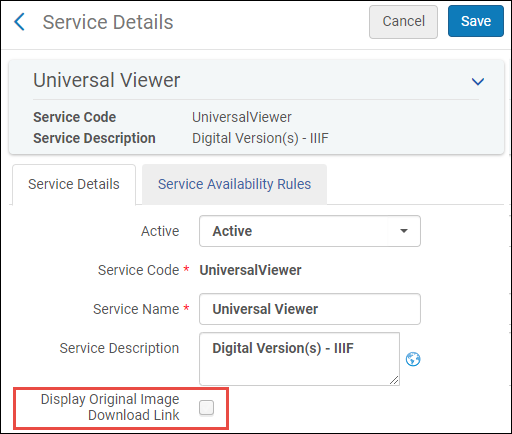
- Select the Display Original Image Download Link to display the Download Original File icon in the Universal Viewer.
Configuring the Default Display of the Internet Archive Book Reader
Puede configurar el despliegue por defecto del lector de libros del fichero de Internet.
- Select Edit for the Internet Archive Book Reader.
- From the Default Display drop-down list, select one of the following options:
- Página única
- Doble página
- Vista en miniatura
Configuring Right-to-Left Paging for the Internet Archive Book Reader
You can configure the Internet Archive Book Reader to display right-to-left paging when reading books in right-to-left languages. To configure this feature, select Paging Direction by Content Language from the Service Details tab (Configuration > Fulfillment > Discovery Interface Display Logic > Viewer Service > Internet Archive Book Reader).
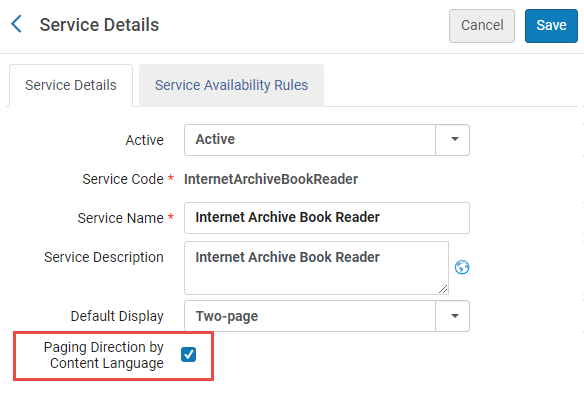
When selecting Paging Direction by Content Language, Alma checks the 008 field or the dc:language field of the bibliographic record of the book. Si el código de idioma es uno de los siguientes idiomas cuya escritura es de derecha a izquierda, el libro se muestra con paginación de derecha a izquierda:
- ara - árabe
- arc - Official Aramaic (700-300 BCE); Imperial Aramaic (700-300 BCE)
- aze - azerbaiyano
- div - Divehi; Dhivehi; Maldivian
- per - persa
- fas - persa
- hau - hausa
- heb - hebreo
- kas - kashmiri
- khw - khowar
- kur - kurdo
- pus - Pushto; Pashto
- sam - arameo samaritano
- syc - siríaco clásico
- syr - siríaco
- urd - urdu
- yid - yiddish
Configuring Other Settings
On the Other Settings page (Configuration Menu > Fulfillment > Discovery Interface Display Logic > Other Settings), additional settings are available to configure how Alma information appears in Primo and Primo VE. Dependiendo de los ajustes de su institución, es posible que aparezcan diferentes opciones.
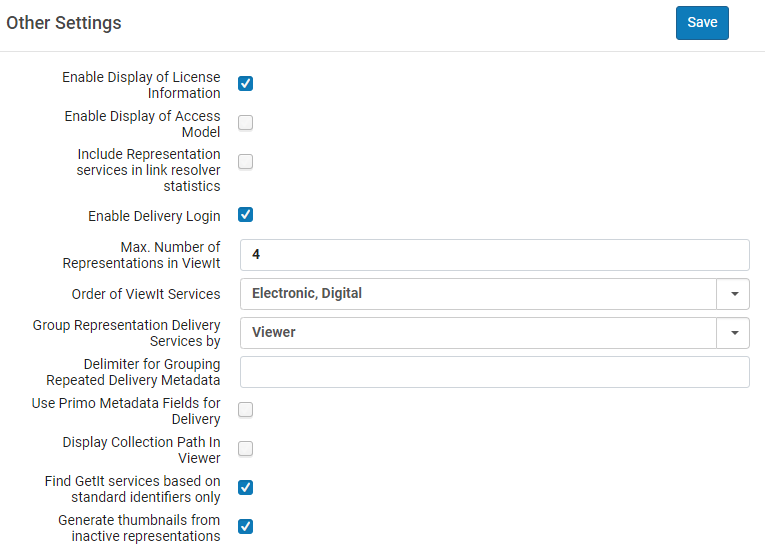
Enable Display of License Information
Alma le permite mostrar la información de la licencia de un recurso electrónico en View It. Los términos de la licencia mostrados se pueden configurar en Alma, así como las etiquetas relativas a licencias que aparezcan en View It. See Displaying License Information.
Enable Display of Access Model
To control the presentation of the access model to patrons via Alma Link Resolver, institutions can use a designated configuration. Select the checkbox Enable Display of Access Model to display in Primo and Primo VE the access model information located on the portfolio. The Enable Display of Access Model option is disabled by default. Institutions that want to control the presentation of the access model to patrons via Alma Link Resolver, need to select the Enable Display of Access Model option. See also Managing Access Models.
Include Representation Services Statistics in Analytics
The Include Representation services in link resolver statistics parameter enables you to include representation services usage in analytics link resolver statistics.
Enable Delivery Login
Se puede determinar si se muestra el enlace de inicio de sesión de entrega desde el Visor digital y desde los servicios digitales en el resolvedor de enlaces. For more information, see The Digital Viewer.
Configure Maximum Number of Representations in ViewIt/Primo
The Max. Number of Representations in View It parameter enables you to define the maximum number of digital representations that appears in View It. If there are more representations to display than the number configured here, a More... link appears. The patron can select More... to display the full list of representations available in a new browser tab.
Configure Order of View It Services
The Order of ViewIt Services parameter enables you to configure whether electronic or digital services appear first in View It. Select Electronic, Digital or Digital, Electronic.
Configure How Representations are Grouped in ViewIt/Primo
To configure how representations are grouped in View It, select an option from the Group Representation Delivery Services by drop-down list:
- Visor: las representaciones se agrupan por visor
- Representación: las representaciones se enumeran por separado con los visores disponibles para cada representación.
Configure a Delimiter for Grouping Delivery Metadata with Repeated Labels
To configure a delimiter for metadata with repeated labels in digital viewers, enter a delimiter to the Delimiter for Grouping Repeated Delivery Metadata field.
If you enter a delimiter in the Delimiter for Grouping Repeated Delivery Metadata field, the Hide Repeated Labels checkbox for the Digital Viewer in Configuration > Fulfillment > Discovery Interface Display Logic > Viewer Services > Digital Viewer does not appear. Para que aparezca, debe eliminar el delimitador. For more information, seeConfiguring Viewer Services.
Use Primo VE Metadata Fields for Delivery
Solo para clientes de Primo VE, puede configurar los campos de metadatos que aparecen en los visores de Alma con la misma página que use para configurar los campos de metadatos en Primo VE. Esto le permite mostrar en los visores de Alma la misma información descriptiva que en Primo VE. To enable this feature, select the Use Primo Metadata Fields for Delivery check box. For information on how to configure metadata for Primo VE, see Configuring the Details Service for Primo VE.
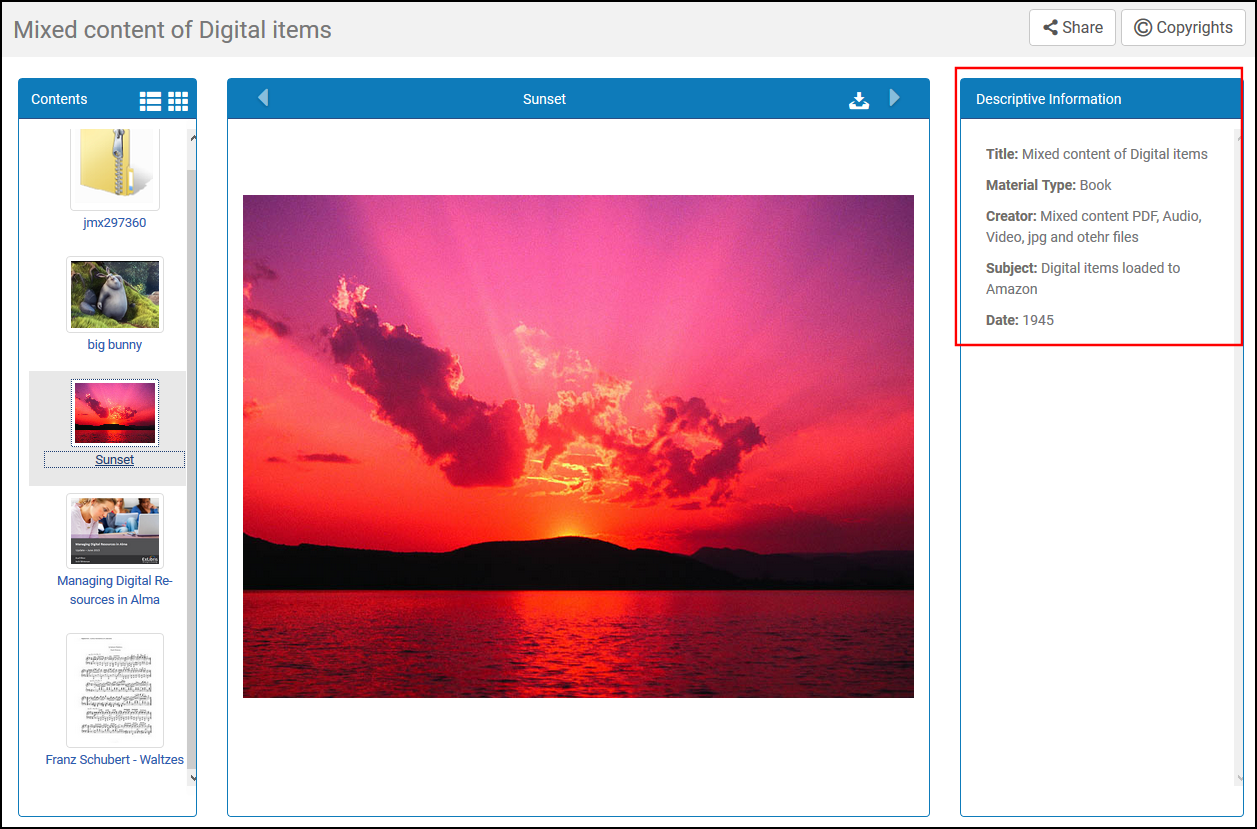
Cuando esta casilla de verificación está seleccionada, el método usado para configurar metadatos en Primo VE reemplaza al método de Alma, y se deshabilitan las siguientes opciones:
- The Delimiter for Grouping Repeated Delivery Metadata field on this page is disabled.
- The Delivery Profiles Metadata page (Configuration > Fulfillment > Delivery Profiles Metadata) is hidden. For more information on this method, see Configuring Delivery Profiles Metadata.
Display Collection Path in Viewer
Select the Display Collection Path in Viewer checkbox to display the collection path at the bottom of the Descriptive Information pane for all viewers. Selecting the path opens Primo VE's collection page in a new tab.
Esta función solo está disponible para clientes de Primo VE.
Find GetIt services based on standard identifiers only
Get It de Primo/Primo VE (se utiliza para solicitar/descubrir existencias locales físicas de Alma) usa identificadores estándar específicos. For more information see Using Standard Identifiers.
Enable Inactive Representations for Thumbnails
Select the Generate thumbnails from inactive representations checkbox if you want to enable the use of inactive representations to generate thumbnails for your records in Primo and Primo VE. Note that this refers to digital (non-remote) representations only.
Configuring the Collection Title Sorting Routine
The Collection Title Sorting Routine mapping table (Configuration Menu > Fulfillment > Discovery Interface Display Logic > Collection Title Sorting Routine) configures the sort options that display in the Sort titles by drop-down list on the Discovery tab of the Electronic Collection Editor (Resources > Manage Collections > Edit Collection > Discovery Tab). For more details, see Configuring the Default Sorting for Titles in Collections.
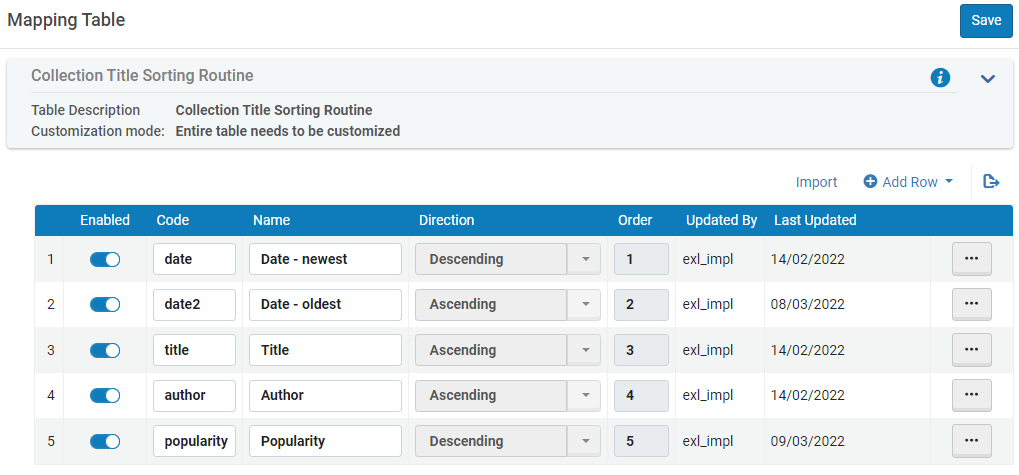
For Alma-Primo environments only, the active codes in this table must match the codes defined in Primo's Sort Fields Config mapping table (Primo Home > Advanced Configuration > All Mapping Tables > Sort Fields Config).
