
Configuring Circulation Desks
Esta página describe cómo configurar los mostradores de circulación. For links to all the main fulfillment documentation pages see Fulfillment.
Configurar mostradores de circulación
Para configurar mostradores de circulación, se debe tener uno de los siguientes roles:
- Administrador general del sistema
- Administrador de servicios al usuario
Un mostrador de circulación es el lugar donde entran o salen físicamente los ejemplares, y donde se prestan los servicios de circulación. Cada mostrador de circulación está relacionado con la biblioteca y opera en lugares particulares de esa biblioteca.
For information on Circulation Desks configuration, watch Circulation Desks (5:21 min.).
You configure circulation desks on the Circulation Desks page (Configuration Menu > Fulfillment > Library Management > Circulation Desks).
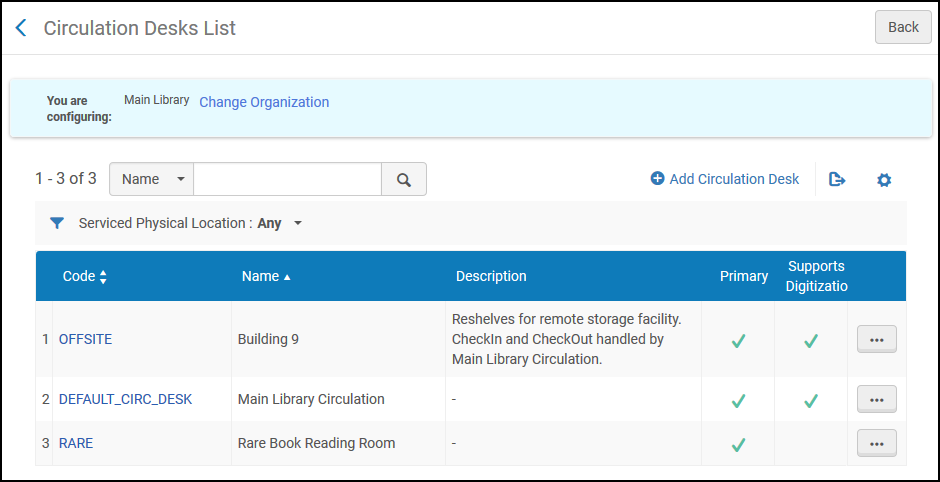
Ensure that you are within the context of the institution/library whose circulation desks you want to configure by selecting the required institution/library from the Configuring filter on the Fulfillment Configuration page.
Select the circulation desk code or name headings to sort the list alphabetically –in ascending or descending order.
Se pueden efectuar las siguientes acciones en esta página:
- Adding a circulation desk (see Adding a Circulation Desk)
- Editing a circulation desk (select Edit from the row actions list)
- Deleting a circulation desk (Delete from the row actions list)
Adding a Circulation Desk
Se puede añadir un mostrador de circulación a la biblioteca.
- Go to the Circulation Desk page (Configuration Menu > Fulfillment > Library Management > Circulation Desks).
-
Select Add Circulation Desk. Aparece la página Mostrador de circulación – Información general. Esta es la primera página en un asistente de cinco páginas.
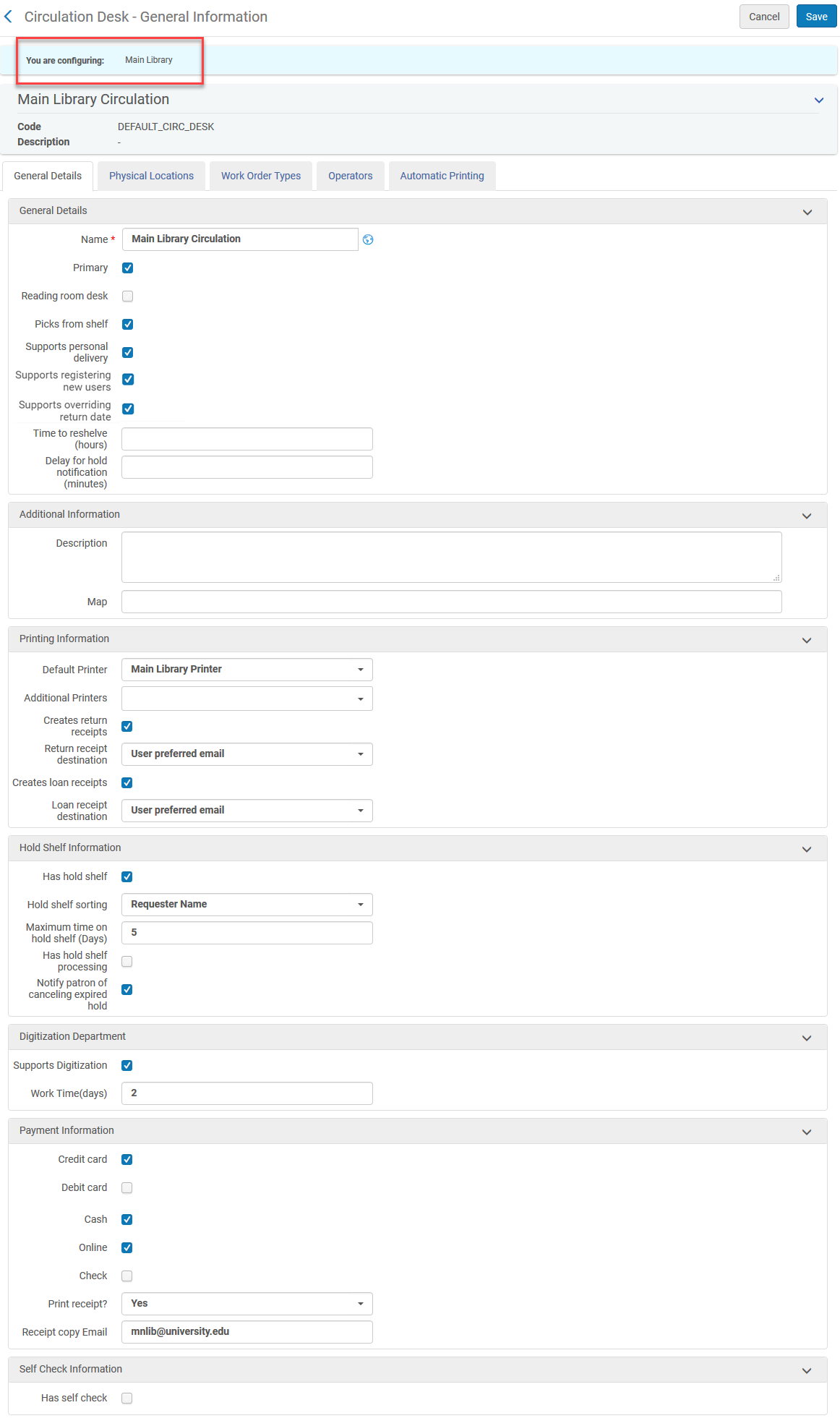
Se puede crear un nuevo mostrador de circulación creando una copia de un mostrador de circulación existente. Select Duplicate from the row actions list and modify the new circulation desk as needed.
- Introducir el nombre y código del mostrador de circulación (ambos requeridos) para el nuevo mostrador de circulación.
- Introducir la información en los campos opcionales restantes, como se describe en la siguiente tabla.
Campos Mostrador de circulación – Información general
Campo Descripción General Details: Primario Seleccionar esta casilla de verificación si el mostrador de circulación puede realizar servicios de entrada y salida para otra biblioteca. For details, see Configuring Fulfillment Relationships.
Para que la opción de solicitud se muestre en Primo, una biblioteca debe tener configurado como mínimo un mostrador primario.
Mostrador de la sala de lectura Seleccionar esta casilla de verificación si hay un mostrador de circulación en la sala de lectura. - Cuando un usuario toma prestado un recurso de una sala de lectura, no se le permite al usuario sacar el recurso de la sala de lectura.
- Cuando un usuario devuelve un recurso a una sala de lectura, el usuario debe especificar cuál es el modo de devolución:
- Final – The patron no longer requires the resource, and the resource can therefore be returned to its permanent location.
- Not final – The patron still requires the resource. The resource should therefore be stored on the reading room's hold shelf.
- Si un mostrador de circulación se encuentra en la sala de lectura, las devoluciones y los préstamos regulares (entrada/salida) no se pueden realizar en este mostrador.
- Si un mostrador de circulación se encuentra en la sala de lectura y tiene un perfil de autopréstamo, los ejemplares que se retiran a través de autopréstamo en este mostrador no se desensibilizarán.
- La funcionalidad de la sala de lectura no admite préstamos de la red de servicios al usuario; los recursos de red no se pueden devolver a las salas de lectura como "no final".
Ubicación a la que mover ejemplares Al configurar un mostrador en la sala de lectura, seleccionar una ubicación que guardará temporalmente los ejemplares dados en préstamo. El cuadro desplegable de ubicaciones se completa con la lista de ubicaciones que tienen una relación de reubicación con este mostrador. Seleccionar una ubicación es opcional; este campo está en blanco por defecto. Solo se puede seleccionar una ubicación temporal cada vez. Restaurar desde la sala de lecturas al devolver When configuring a reading room desk, if a location has been selected in the Location to move items to field, this field is added. This option defines the sequence of events that occur when a patron does a final check-in for a resource that is temporarily located in the reading room:
- When selected, Alma records the resource as being removed from the reading room and currently located at its permanent shelving location as soon as the final check-in is performed at the reading room.
- When cleared, Alma records the resource as being removed from the reading room and currently located at its permanent shelving location when it is checked in at the permanent shelving location.
If the terms of use (TOU) at the reading room differ from those at the permanent shelving location, the reading-room TOU remain in force until the location of the resource is updated. Entre otras cosas, esto puede afectar las multas y cuotas asociadas con el recurso.
Recoger de la estantería Seleccionar esta casilla de verificación para indicar que el mostrador de circulación puede recoger ejemplares de la estantería. Si esta casilla de verificación no está seleccionada, el mostrador de circulación no puede recoger ejemplares de la estantería. Por ejemplo, se puede no seleccionar esta casilla de verificación para un mostrador de circulación sin personal que proporcione compartimentos de retorno para la reubicación pero que no gestiona las solicitudes de recogida de las estanterías.
If you select the Picks from Shelf checkbox, you also need to select the Has hold shelf checkbox in any circulation desk for this library.
Para realizar una solicitud, la ubicación del ejemplar debe estar en un mostrador de circulación configurado tanto con capacidades de reubicación como con recogidas de la estantería.
Admite entrega personal Seleccionar esta casilla de verificación para indicar que el mostrador de circulación puede procesar solicitudes de entrega personal a los usuarios.
If personal delivery is configured for a patron and the desk at which the Receive action is performed does not have this checkbox selected, Alma searches for another circulation desk in the library which supports personal delivery, and the item is sent there. If no such circulation desk exists, Alma searches for a library which supports personal delivery and has a Deliver To relationship with the receiving library. Si no existe dicha biblioteca, el ejemplar se mueve a la estantería de reservas.
If the library that is the owner of the item has been configured with ‘Allow other libraries to handle personal delivery' (see Editing a Library) then receiving the item at a desk that has the ‘Supports personal delivery' attribute will process the personal delivery request even if the receiving library is not the item owner library. If the item owner library is not configured with the ‘Allow other libraries to handle personal delivery' attribute then the item is sent back to the owning library for processing the personal delivery request.
Admite el registro de nuevos usuarios Select this checkbox to indicate that the circulation desk can register new users that do not exist in Alma. If selected, the Register New User button appears in Manage Patron Services. Admite ignorar fecha de devolución Select this checkbox to have the Override return date and time option available on the Return Items page. Compatible con las alertas sonoras por sanciones
Seleccione esta casilla para activar las alertas sonoras para el mostrador de circulación actual (desactivado por defecto). This requires a sound alert to be configured in the Sounds Alert Configuration page as described in Configuring Sound Alerts.
Una vez habilitado para un mostrador de circulación, los usuarios de ese mostrador verán el icono de sonido en la barra de exploración, indicando que los sonidos están habilitados. El usuario puede desactivar las alertas sonoras seleccionando el icono de sonido. See Toggle Sound Alerts for more information.
Tiempo para reubicación (Horas)
El período de tiempo durante el que el ejemplar se considera como disponible, pero se muestra como siendo reubicado en Alma y Primo, de modo que los usuarios y bibliotecarios sepan que no deben buscarlo en la estantería. Este valor invalida la configuración a nivel de biblioteca y puede incluir decimales. Retraso para notificaciones de reserva (minutos)
Define how long Alma waits before sending a hold notification to a patron. Cuando se complete el retraso, Alma verifica si la petición sigue activa y, si es así, envía la notificación de reserva al usuario. Si el valor se rellena tanto para el mostrador de circulación como la biblioteca, se utiliza el valor del mostrador de circulación. Additional Information: Descripción Descripción textual del mostrador de circulación. Mapa No está en uso. Printing Information: Impresora por defecto The default printer that is associated with the circulation desk can be selected from the Default Printer list. Si solo se selecciona la impresora por defecto, esta es la impresora utilizada para todos los trabajos de impresión no automatizados. If more printers are selected in the Additional Printers field, each user has the option of where to print. Seleccionar una impresora de la lista desplegable.
Impresoras adicionales After the Default Printer is selected, this field is made available to select one or more additional printers that users may set for their printing. Al seleccionar una o más impresoras aquí, se mostrará una lista desplegable adicional en la ventana desplegable Actualmente en. Crea recibos de devolución Seleccionar para que los recibos de devolución se impriman automáticamente en el mostrador de circulación. Se genera la Carta del recibo de la devolución. For details on customizing the letter, see Configuring Alma Letters.
The receipt is triggered at the circulation desk only when selecting "Done" (
 ) to terminate a session with a patron.
Destino del recibo de devolución Displayed only when Creates return receipts is selected. Desde la lista desplegable, seleccionar el destino para el recibo de devolución: - User preferred email
- Circulation desk printer
If User preferred email is selected but no email exists for the user, the receipt will be printed to the printer instead.
Crear recibos de préstamo Seleccionar para que los recibos de préstamos se impriman automáticamente en el mostrador de circulación. The Loan Receipt Letter is generated. For details on customizing the letter, see Configuring Alma Letters.
The receipt is triggered at the circulation desk only when selecting "Done"(
) to terminate a session with a patron. The Creates loan receipts also affects loans from self-check machines. Como no hay sesiones en las máquinas de autopréstamo, cada acción de préstamo activa el envío del recibo.Destino de los recibos de préstamos Displayed only when Creates loan receipts is selected. Desde la lista desplegable, seleccionar el destino para el recibo de préstamos: - User preferred email
- Circulation desk printer
If User preferred email is selected but no email exists for the user, the receipt will be printed to the printer instead.Hold Shelf Information: Tiene estantería de reservas Seleccionar esta casilla de verificación si el mostrador de circulación tiene una estantería de reservas. Se muestran los siguientes campos: - Hold shelf sorting – The criteria by which hold shelf items are sorted. Seleccionar desde las siguientes opciones:
- Additional ID - This helps institutions to have a shared tracking number with the patrons. See also Configuring Fulfillment Jobs.
- Código de barras
- Hora de caducidad de la estantería de reservas
- Hora de colocación en la estantería de reservas
- Requester ID - The Primary identifier of the user who requested the item
- Requester Name - The name (Last name,First name) of the user who requested the item
- Requester Preferred Name - The preferred name (Preferred last name,Preferred first name) of the user who requested the item
- Hora de inicio de la solicitud de reserva anticipada
- Título
- Maximum time on hold shelf (Days) – The maximum number of open days that an item can stay on the hold shelf.The Fulfillment Hold Shelf Period policy (configured on the Request TOU) that is applicable for the on hold shelf item also plays a role in determining how long the item remains on the active hold shelf. Alma uses the lesser of the request's Hold Shelf Period policy and the circulation desk's Maximum time on hold shelf attribute. For example: if the circulation desk's “Maximum time on hold shelf” attribute is 3 and the request's “Hold Shelf Period” policy is 5, then the item will stay on the hold shelf for 3 days.
- Has hold shelf processing – Select to indicate that the circulation desk can store items that need to be processed before arriving at the hold shelf. Selecting this option displays the Place directly on hold shelf field in the following locations:
- Scan In Items page – Scan In Items tab (see Scanning Items)
- Scan In Items page – Change Item Information tab (see Scanning Items)
Manage Item Returns page (see Returning Items)
If you select the Has hold shelf checkbox, you also need to check the Picks from Shelf checkbox in any circulation desk for this library.
When using a self-check machine to return an item, if Has hold shelf processing is selected, the item goes directly to hold shelf processing. If Has hold shelf processing is not selected, the item is registered as returned and its status appears as Item In Place. It remains in the self-check machine's bin and must be scanned in by an operator to activate the request.
Notificar al usuario sobre cancelar las existencias vencidas Seleccionar el usuario cuando el ejemplar en la estantería de reservas está vencido. Digitization Department: Soporta digitalización Seleccionar esta casilla de verificación si el mostrador de circulación admite la digitalización. The Work time (days) field is then displayed; the value of this field indicates the number of days for which the item is unavailable (field is for informative purposes – this value is not binding). Payment Information: Tarjeta de crédito Seleccionar para indicar que el mostrador de circulación puede aceptar pagos con tarjeta de crédito. Efectivo Seleccionar para indicar que el mostrador de circulación puede aceptar pagos en efectivo. En línea Seleccionar para indicar que el mostrador de circulación puede aceptar pagos realizados en línea. Versión Seleccionar para indicar que el mostrador de circulación puede aceptar pagos con cheque. ¿Desea imprimir el recibo? Seleccionar si el mostrador de circulación puede imprimir un recibo. Correo electrónico para enviar copia del recibo Introducir la dirección de correo electrónico a la que se desea enviar los recibos. Self-Check Information: Tiene autopréstamo Seleccionar esta casilla de verificación si el mostrador de circulación les permite a los usuarios registrar y retirar recursos usando una máquina de autopréstamo sin la asistencia de un miembro del personal del mostrador de circulación. Se muestran los siguientes campos: - Perfil de integración
- Contraseña de terminal
RFID Information Dirección IP The RFID IP address of the relevant RFID reader. Esto es relevante si se usa RFID Nedap o si se usa el otro tipo de RFID con un servidor central de RFID que se comunica con el lector de RFID. Si el departamento es gestionado por un mostrador de circulación, introducir la dirección de IP aquí. If the department is not managed by a circulation desk, enter the IP address in Work Order Departments (See Adding a Department).
-
Select Next. Aparece la página Mostrador de circulación – Ubicaciones físicas. Esta es la segunda página del asistente. Utilizar esta página para especificar qué ubicaciones están en el mostrador de circulación.
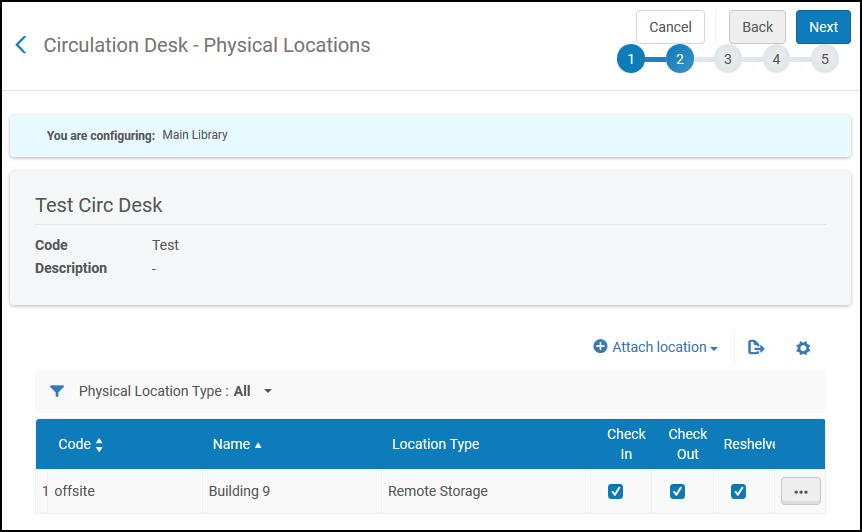
- From the Physical location type filter, select to display all locations, or only closed, open, unavailable, or remote storage locations.
- Select Attach Location. From the Physical location name drop-down list, select the name of the location to be added. Observar que una ubicación puede estar en más de un mostrador de circulación.
-
Specify the services –Check in,Check out, and/or Reshelve – that are performed by the circulation desk for the selected location.
If you do not select Check in and/or Check out, you cannot put an item belonging to this location on the hold shelf.
- Select Attach Location to add the selected location to the list of locations that are served by the circulation desk.
- Select Next. Aparece la página Mostrador de circulación – Tipos de orden de trabajo. Esta es la tercera página del asistente. Utilice esta página para definir los tipos de órdenes de trabajo para asociar con el mostrador de circulación especificado.
- Select Add Work Order. Aparece el cuadro de diálogo Añadir orden de trabajo.
- In the Work order type field, specify a work order type to be handled by the circulation desk.
- In the Work order time (days) field, enter the number of days for which you want the work order to be handled by the circulation desk.
Select Add to add the work order and enable adding another work order, or select Add and Close to add the work order and return to the Circulation Desk – Work Order Types page.
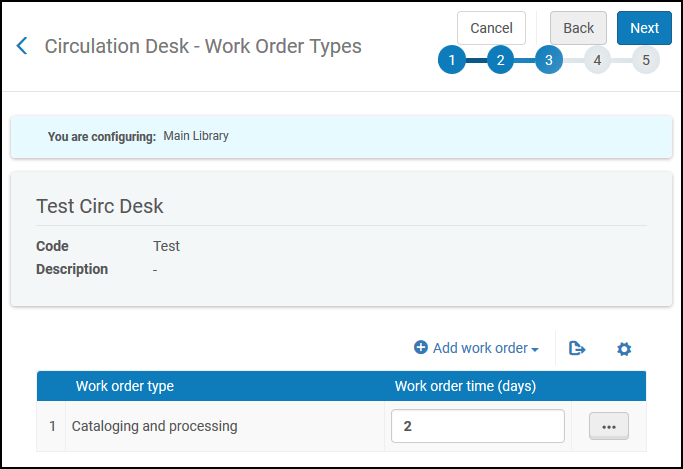
- Select Save. El mostrador de circulación sirve como un departamento de órdenes de trabajo para los tipos de órdenes de trabajo indicados.
- Select Next. Aparece la página Mostrador de circulación - Operadores. Esta es la cuarta página del asistente. Utilizar esta página para definir qué operadores tienen permiso para realizar actividades de circulación y gestionar solicitudes de usuarios en el mostrador de circulación.
- Select Add Operator. Aparece el cuadro de diálogo Añadir operador.
- Seleccionar un operador (requerido) que realiza funciones en el mostrador desde circulación.
- Specify the roles –Circulation Desk Operator,Circulation Desk Manager, and/or Requests Operator – of the operator (see Adding Roles to Users for details on operator roles).
- Select Add and Close to close the dialog box. El operador seleccionado se agregará a la lista de operadores del mostrador de circulación.
- Select Next. Aparece la página Mostrador de circulación – Impresión automática. Esta es la quinta y última página del asistente. Utilizar esta página para especificar las reglas de impresión automatizada de recibos de solicitud desde el mostrador de circulación para ejemplares que no necesitan recuperarse de la estantería. (Note that when an item is not on the shelf and its request processing starts when it is scanned in, the printing occurs at the desk at which it is scanned in.)
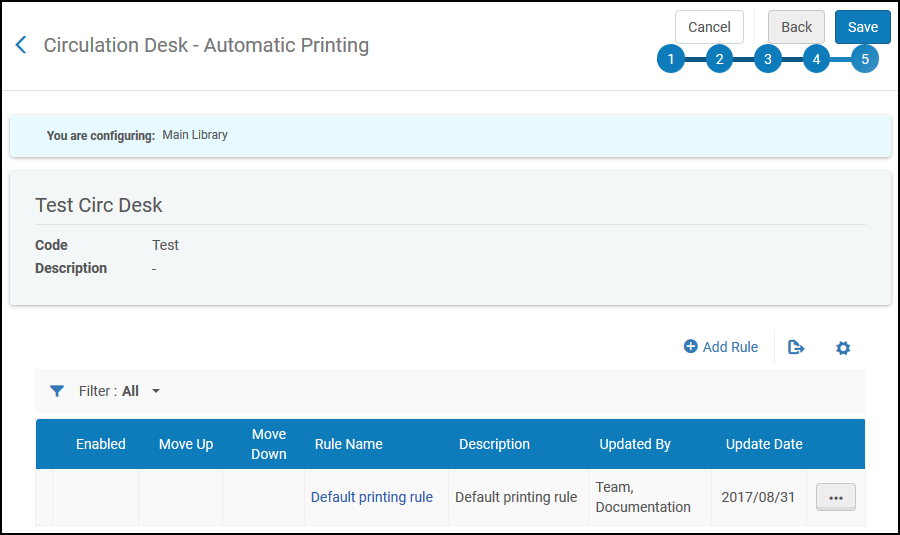
- Select Add Rule. Aparece la página Editor de reglas de impresión automática.
- Enter the Name(required) and Description(optional) of the rule you are defining.
- Specify the input parameters for the rule, by Location and/or Material Type. For example, specifying Location = Archive and Material Type=Book indicates that when the item's location is the archive and the requested material is a book, automatic printing is invoked according to the setting in the Output Parameters section.
- Select Add Parameter. La configuración de parámetros de entrada se añade a una fila en la lista de parámetros de entrada para el mostrador de circulación. Obsérvese que se deben cumplir todos los parámetros de la lista para que se pueda aplicar el parámetro de salida.
- In the Output Parameters section, select the printer to which you want to automatically print the items that satisfy the input parameters, or select No Printing to disable automatic printing for the items that satisfy the input parameters.
- Select Save on the Automatic Printing Rules Editor page to save the rule.
- Select Add Rule. Aparece la página Editor de reglas de impresión automática.
- On the Circulation Desk - Automatic Printing page, under Default Rule, select Edit. La página Editor de reglas de impresión automática muestra las reglas de impresión por defecto.
- In the Automatic Printing Rules Editor section, modify the default rule name and description if required.
- In the Output Parameters section, select the printer on which you want to automatically print the items that do not satisfy the previously defined rules, or select No printing to disable automatic printing for the items that do not satisfy the previously defined rules.
- Select Save to save your changes to the default rule.
- Select Save on the Circulation Desk – Automatic Printing page to store all the circulation desk detail information that you entered and return to the Circulation Desks page. El nuevo mostrador de circulación aparece en la lista de mostradores de circulación definidos por la biblioteca.
