
Formularios
Customizing Primo Request Forms
Para configurar los campos que se muestran en los formularios de solicitud de Primo, se debe tener uno de los siguientes roles:
- Administrador general del sistema
- Administrador de servicios al usuario
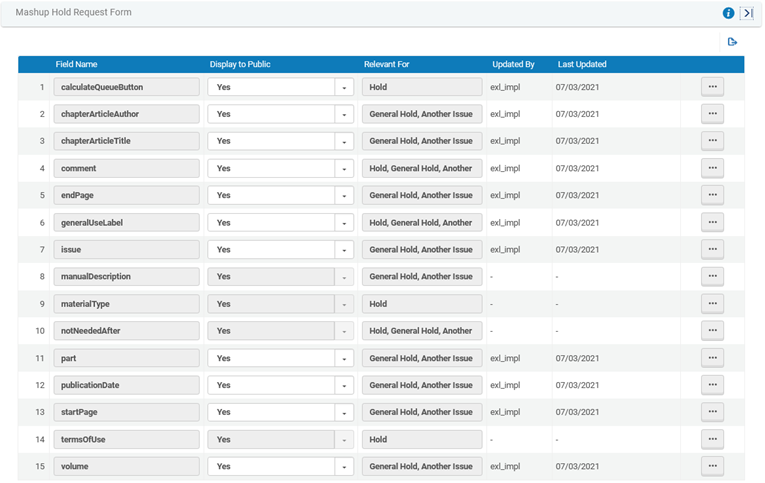
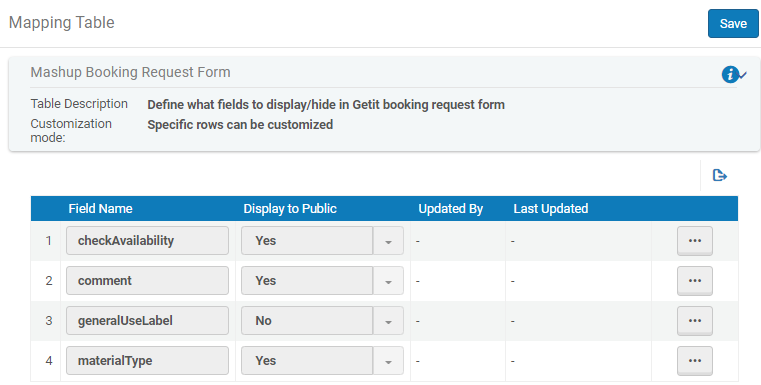
You can hide non-mandatory fields on Primo request forms: hold request, booking request, and digitization request. All fields, except the General Use Label field, are visible by default.
For the digitization request form, you can customize the default value for the Partial field using the uresolver_partial_digitization_default_value parameter on the Other Settings page and then hide it using this feature. Esto es útil, por ejemplo, para restringir las solicitudes de digitalización del usuario a solicitudes de digitalización parciales. You can also use the display_additional_digitization_attributes parameter to add more fields to the partial form (see Configuring Other Settings).
The General Use Label field enables you to add a free-text label to each request form. Cada una de las etiquetas está vacía por defecto. To configure these labels, modify the description and translation for the the following codes in the MashUpLabels code table (Configuration Menu > Fulfillment > Discovery Interface Display Logic >Labels):
- c.uresolver.request.hold.generalUseLabel
- c.uresolver.request.booking.generalUseLabel
- c.uresolver.request.digitization.generalUseLabel
For more details regarding display labels, see Configuring Service Labels in the Discovery Interface.
The Calculate Queue button is available on the Hold Request Form and the Booking Request Form to allow a Primo patron to view his or her request's place in the queue before submitting the request. The button is hidden by default but can be made visible by setting the Display to Public value to true for the calculateQueueButton.
The Item Availability option is available on the Resource Sharing Form. Cuando se selecciona el campo, se realiza una revisión en segundo plano en tiempo real cuando un usuario abre un formulario de solicitud en la pestaña Primo Obtenerlo o utilizando el formulario de solicitud en blanco para determinar si algún socio de rota tiene una copia que se pueda solicitar del recurso. La revisión funciona con otros socios o agentes y funciones de Alma con las mismas reglas que el proceso de ubicación regular. An indication is displayed as to which partners have the item available. Se muestra un aviso al usuario si una copia aparece como no disponible. If one of the partners does not have a locate profile, an error message is displayed,Availability information can't be retrieved.
The Manual Description field is a free text field which allows patrons to place a request on a physical holding with no cataloged items (“General Hold” or “General Digitization” requests), or on an uncatalogued item of a serial title (“Request a different issue” or “Digitize a different issue” requests). Alternatively, the library can expose structures description fields, which are easier for patrons to fill in and are auto-populated from openURL when available: Volume, Issue, Part, Publication Date – these fields then populate the manual description of the request in a structured way to help librarians find the requested item (for hold requests Chapter/Article Author, Chapter/Article Title, Start Page, and End Page are also mapped to Manual Description in Alma). For digitization requests, these fields have their own dedicated fields in Alma. If requesting uncatalogued items is supported in the library, it is recommended to display either the manual description or structured description fields and to configure the manual_description_or_alternative_fields discovery label accordingly.
The Relevant For column is only for information and shows which scenarios each field is "relevant for" if displayed: A regular hold/digitization request, General Hold or Digitization” requests (a request on a physical holding with no cataloged items) and/or Another Issue requests (requesting an uncatalogued item of a serial title where none of the catalogued items suit the patron's needs).
Los formularios se personalizan en las siguientes páginas:
-
Hold Request Form – Configuration Menu > Fulfillment > Discovery Interface Display Logic > Hold Request Form Customization
-
Booking Request Form – Configuration Menu > Fulfillment > Discovery Interface Display Logic > Booking Request Form Customization
-
Digitization Request Form – Configuration Menu > Fulfillment > Discovery Interface Display Logic > Digitization Request Form Customization
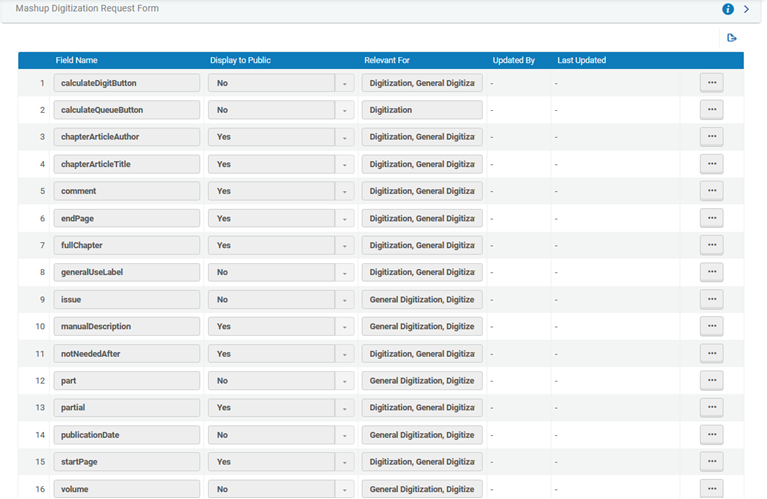 To display the following fields in partial digitization requests other than general digitization or digitize another issue, you must set the display_additional_digitization_attributes parameter to true:
- chapterArticleAuthor
- chapterArticleTitle
- Página de inicio
- final de página
For more information, see Configuring Other Settings (Fulfillment).
- Purchase Request Form – Configuration Menu > Discovery > Getit Configuration > Purchase Request
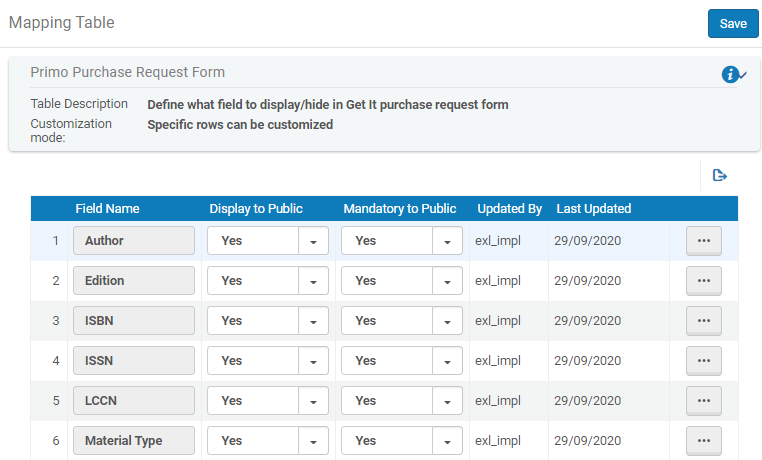 Página Personalización del formulario de solicitud de compra
-
On the relevant page (see above), for each field that you want to change, select Customize and then select the desired option from the Display to Public drop down box (No to hide the field,Yes otherwise).
Mandatory fields such as the Pickup Location field cannot be hidden.
- Select Save.
Customizing Primo Resource Sharing Forms
Para configurar los campos que se muestran en los formularios de compartir recursos de Primo, se debe tener uno de los siguientes roles:
- Administrador general del sistema
- Administrador de servicios al usuario
For more information about customizing Primo's resource sharing forms, see the Customizing Primo Resource Sharing Forms video (1:03 min.).
Se pueden ocultar campos no obligatorios en los formularios de solicitud de recursos compartidos de Primo: Todos los campos son visibles por defecto.
You must enable the rs_use_new_mashup_form parameter on the Other Settings page (see Configuring Other Settings) for the Resource Sharing Form Customization link to appear on the Fulfillment Configuration menu.
Access the Resource Sharing Form Customization page (Primo: Configuration Menu > Fulfillment > Discovery Interface Display Logic >Resource Sharing Form Customization;Primo VE: Configuration Menu > Discovery > GetIt Configuration > Resource Sharing Request).
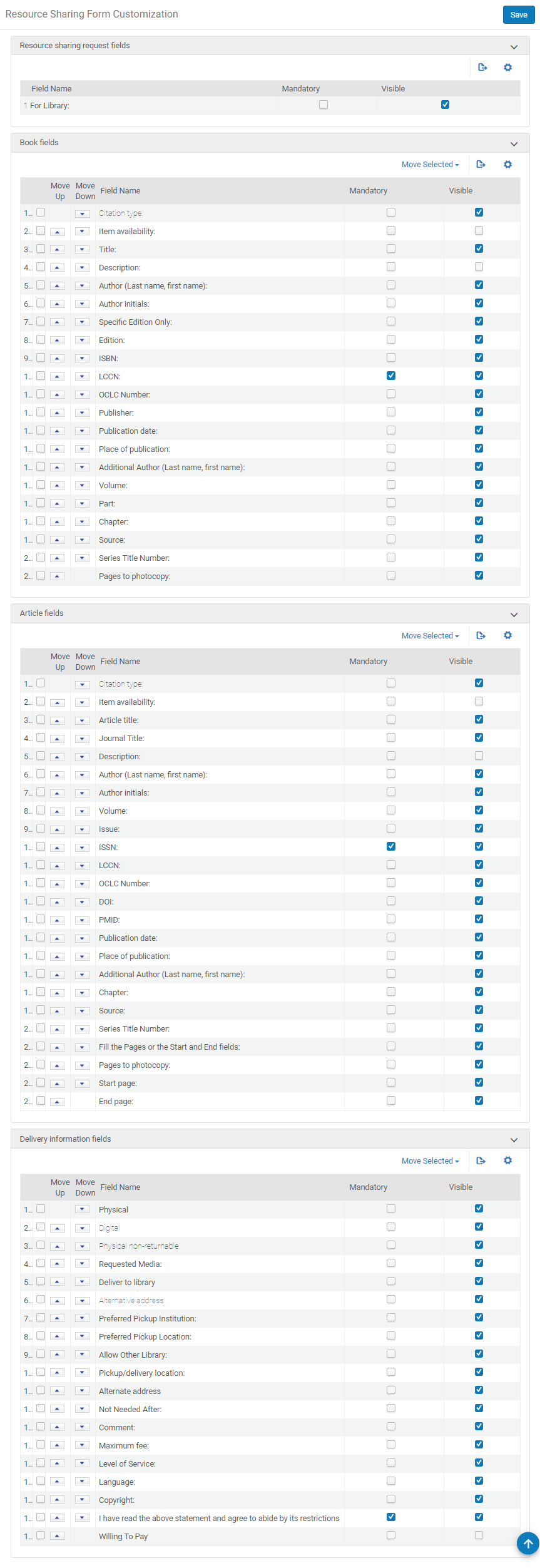
The currency in the Maximum Fee field label may be suppressed. Set the rs_add_currency_to_mashup_form customer parameter to False. For more information, see Configuring Other Settings (Fulfillment).
- Se puede configurar el orden de los campos en el formulario de solicitud, ordenando los campos en esta tabla de mapeo. Existen dos métodos para cambiar la ubicación de un campo en la lista.
- Seleccionar la flecha para subir o bajar junto al campo para moverlo hasta que el campo esté en el orden deseado.
-
Seleccionar la casilla de verificación a la izquierda de las flechas. In the drop-down box below the section, select a field name or First or Last. Select the Move Selected button. Si se elige un nombre de campo, el campo seleccionado se moverá a la posición de encima del campo en la caja desplegable.
Italicized fields in the Book fields and Article fields sections may not be moved. Italicized fields in the Delivery information fields section will move together as a group with the non-italicized field immediately above them.
The Copyright and Copyright statement fields in the Delivery information fields section must be kept together but are not programmatically restricted to move together as a group. Note that the copyright content only appears if configured previously, see Configuring a Resource Sharing Copyright Declaration.
- Select or deselect the Mandatory and Visible check boxes as desired.
- Select Save.
The default level of service is only selected in Primo when using the new form (by setting the rs_use_new_mashup_form parameter to True).
