
Configuring Rota Templates
This page describes how to configure rota templates including working with ILLiad and Reshare. For more information on resource sharing including locating items for resource sharing, working with resource sharing partners, managing borrowing and lending requests and contributing to the resource sharing directory, see Resource Sharing.
Para configurar plantillas de lista de tareas, se debe tener rol de:
- Gestor de socios de recursos compartidos
For more information about rotas, partners, and rota templates, see Requests in Alma.
Las plantillas de lista de tareas pueden ser ordenadas o no ordenadas. En una plantilla de lista de tareas ordenada, las solicitudes no cumplidas pasan al siguiente socio en la lista. En una lista de tareas no ordenada, las solicitudes se envían a los socios en un orden aleatorio.
You configure rota templates on the Rota Templates page (Fulfillment > Resource Sharing > Rota Templates):
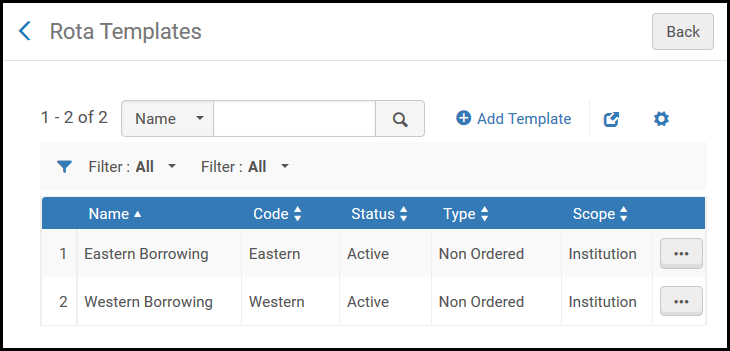
En una red colaborativa se pueden configurar plantillas de ruta en la Zona de red y distribuir los cambios a las instituciones miembro por un trabajo. For more information, see Configuring Fulfillment Information in the Network Zone.
Se pueden efectuar las siguientes acciones en esta página:
- Add a rota template (see Adding Rota Templates)
- Edit a rota template (select Edit from the row actions list)
- Duplicate a rota template (select Duplicate from the row actions list; available only when a library is selected in the Configuring filter on the Fulfillment Configuration page).
- Reorder template members (select Reorder Members from the row actions list; available for ordered templates only)
- Delete a rota template (select Remove from the row actions list)
Learn about managing rota templates on the library and institution levels in the Managing Rota Templates per Library and Institution video (6:06 min.).
Adding Rota Templates
Se puede añadir una plantilla de lista de tareas.
- On the Rota Templates page (Fulfillment > Resource Sharing > Rota Templates), select Add Template. Aparecerá la página de Información general.
- In the Code and Name fields, enter values for the template code and name, respectively.
- In the Type field, select Non Ordered or Ordered.
- Select Save and Add Members. Aparecerá la página de Miembros de plantilla.
- Browse for a partner in the Partner field (you can select multiple partners) and select Add Partners. Los socios seleccionados aparecen en la tabla en la pestaña Miembros de la plantilla.
- Para una plantilla ordenada, modificar el orden de los socios de una de las siguientes formas:
- Use the Move Up/Move Down arrows to specify the exact sequence of the partners to be displayed.
- Seleccionar socios y, en la lista desplegable de la parte inferior de la página, elegir el lugar en la lista a la que mover los socios seleccionados. Select Move Selected.
- Select Save.
ILLiad as a Supplier of Last Resort
ILLiad puede integrarse completamente con Alma en una lista de tareas entre pares como proveedor de último recurso. Si todos los socios de lista de tareas no cumplen con la solicitud, la solicitud puede transferirse automáticamente a ILLiad donde se puede intentar la solicitud con la lista de tareas administrada de ILLiad más amplia. Esto ahorrará un paso al usuario que anteriormente ha recibido un correo electrónico diciendo que la solicitud no se pudo cumplir con un enlace a ILLiad.
If the partner is defined as ILLiad in the System Type field, the Send action generates a message with the request details and the metadata of the request that is sent directly to a configured email address. ILLiad debe configurarse para cargar correos electrónicos desde esa dirección de correo electrónico y crear solicitudes internas de préstamo basadas en el contenido del correo electrónico. Los metadatos que se envían dependen de los campos que estén disponibles en la solicitud.
