
Advanced Resource Sharing Configurations
This page covers advanced resource sharing configurations including shipping cost rules, levels of service, item policy exceptions, resource languages, etc. For links to all the main fulfillment documentation pages see Fulfillment.
For a list of links to the main resource sharing online help pages, see Resource Sharing.
Para tareas de configuración adicionales relacionadas con recursos compartidos, véase:
- To set up a resource sharing library, see Configuring Parameters of a Resource Sharing Library.
- Configuring a Resource Sharing Copyright Declaration
- Configuring Resource Sharing Copyright Statuses
Configuring Temporary Item Creation Rules
Para configurar reglas de creación de ejemplar temporal se debe contar con uno de los siguientes roles:
- Administrador general del sistema
- Administrador de servicios al usuario
Una regla de creación de ejemplar temporal se aplica a una biblioteca para recursos compartidos. Una regla de creación de ejemplar temporal indica que los ejemplares que provienen de un socio específico deben ser trasladados a una ubicación específica. A continuación, configurar una regla de servicio al usuario regular que indica que, para ejemplares en la regla de creación de ejemplar temporales, se debe invocar un Término de uso específico.
For example, you configure a temporary item creation rule which indicates that items coming from partner A must be moved to location X. You then configure a regular fulfillment rule which indicates that, for items in location X(the location specified in the temporary item creation rule), Terms of Use Y is to be invoked. For details on configuring regular fulfillment rules, see Editing a Fulfillment Unit.
You configure temporary item creation rules on the Temporary Item Creation Rule page (Configuration Menu > Fulfillment > Library Management > Temporary Item Creation Rules). For more information about rules tables, see Rules Tables.
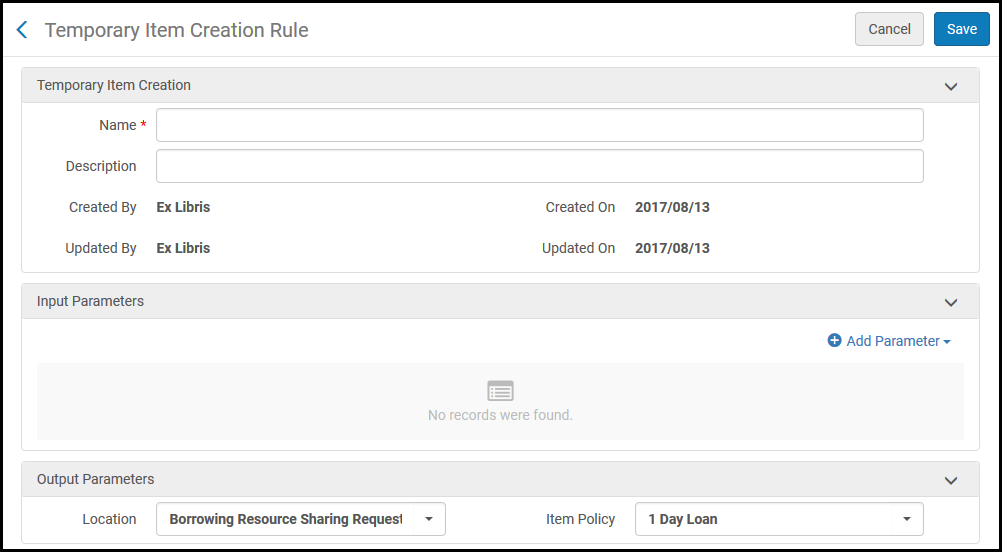
The Temporary Item Creation Rules option appears only when you are in the context of a Resource Sharing Library; select Resource Sharing Library from the Configuring filter on the Fulfillment Configuration page.
La lista de reglas de creación de ejemplar temporal muestra reglas solo para la biblioteca que está siendo configurada.
Temporary item creation rules are configured similarly to regular fulfillment rules (see Editing a Fulfillment Unit), with the following differences:
- For Input Parameters, the following values are available:
- Mostrador de circulación
Days until due date – Enables you create a rule based on the number of days from receiving an item until the item's due date.
Por ejemplo:
- Name= Days until due date
- Operator= Greater than
- Value= 15
- Socio de recursos compartidos
- For Output Parameters, specify the Location to which to move the items, and the Item Policy to invoke. Cuando se trabaja con un socio NCIP, el valor en el campo ubicación es usado como ubicación por defecto para el ejemplar temporal que es creado al recibir una solicitud de préstamo.
Configuring Shipping Cost Lender Rules
Para configurar reglas del prestador de gastos de envío se debe tener uno de los siguientes roles:
- Administrador de servicios al usuario
- Administrador general del sistema
Las reglas del prestador de gastos de envío permiten configurar las condiciones bajo las cuales se aplican los gastos de envío a las solicitudes de préstamos de recursos compartidos.
-
On the Shipping Cost – Lender Rules List page (Configuration Menu > Fulfillment > Resource Sharing > Shipping Cost Lender Rules), select Add Rule. Aparece la página Gastos de Envío - Reglas del prestador. For more information about rules tables, see Rules Tables.
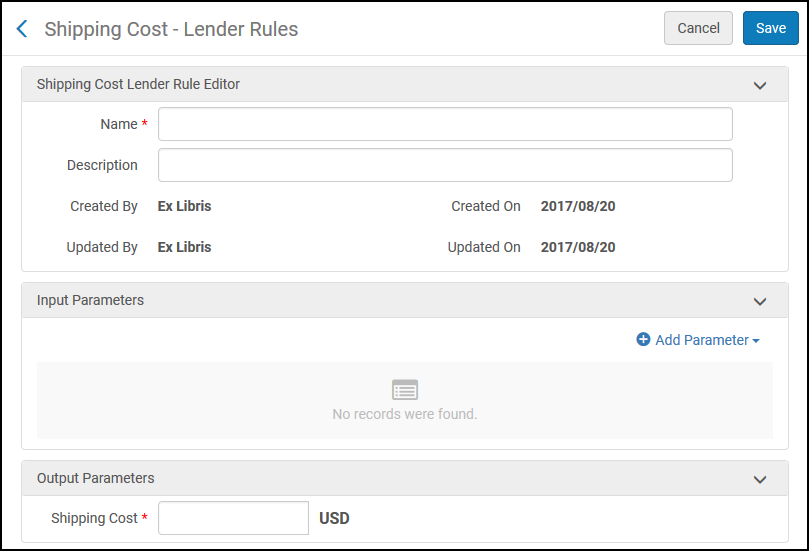
- Enter a name for the rule in the Name field.
- Configurar los parámetros de entrada y salida en los campos relevantes. Configuring a shipping cost lender rule is performed in the same manner as other rule configurations in Alma (see Configuring Automatic Loan Renewal Rules).
- Select Save. Aparece la regla de gastos de envío en la página Gastos de envío - Reglas del prestador.
Configuring Shipping Cost Borrower Rules
Para configurar las reglas del prestatario de gastos de envío se debe tener uno de los siguientes roles:
- Administrador de servicios al usuario
- Administrador general del sistema
Las reglas del prestatario de gastos de envío permiten configurar las condiciones bajo las cuales se aplican los gastos de envío a las solicitudes de préstamos de recursos compartidos. Las reglas se aplican al recibir la Solicitud de obtención en préstamo.
-
On the Shipping Cost – Borrower Rules List page (Configuration Menu > Fulfillment > Resource Sharing > Shipping Cost Borrower Rules), select Add Rule. Aparece la página Gastos de envío - Reglas del prestatario. For more information about rules tables, see Rules Tables.
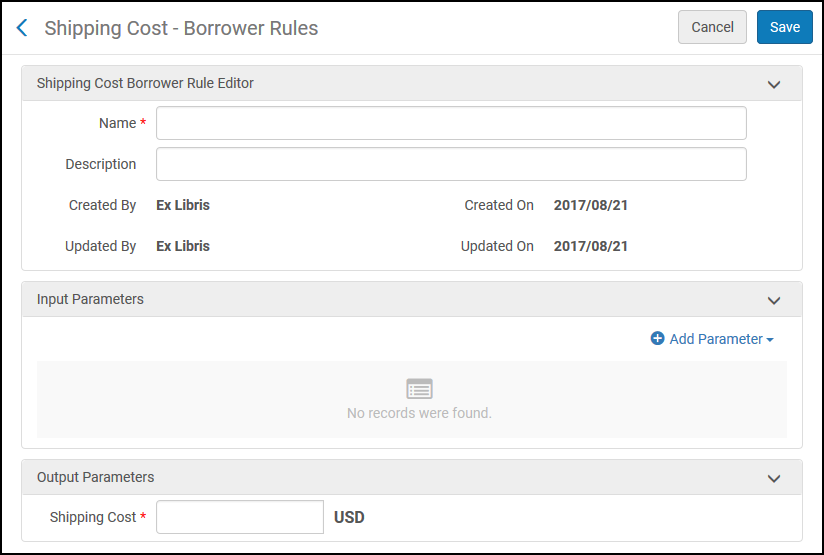
- Enter a name for the rule in the Name field.
- Configurar los parámetros de entrada y salida en los campos relevantes. Configuring a shipping cost borrower rule is performed in the same manner as other rule configurations in Alma (see Configuring Automatic Loan Renewal Rules).
- Select Save. Aparece la regla de gastos de envío en la página Gastos de envío - Reglas del prestatario.
Configuring Sending Borrowing Request Rules
Para configurar reglas para el envío de solicitudes de préstamo se debe tener uno de los siguientes roles:
- Administrador de servicios al usuario
- Administrador general del sistema
Las reglas para el envío de solicitudes de préstamo indican cuando una solicitud de préstamos se envía automáticamente. Cualquier solicitud de préstamo que coincida con una regla de envío automático es enviada automáticamente al socio activo, sin necesitar la intervención del personal.
Sending borrowing request rules appear on the Sending Borrowing Request Rules List page (Configuration Menu > Fulfillment > Resource Sharing > Sending Borrowing Request Rules). For more information about rules tables, see Rules Tables.
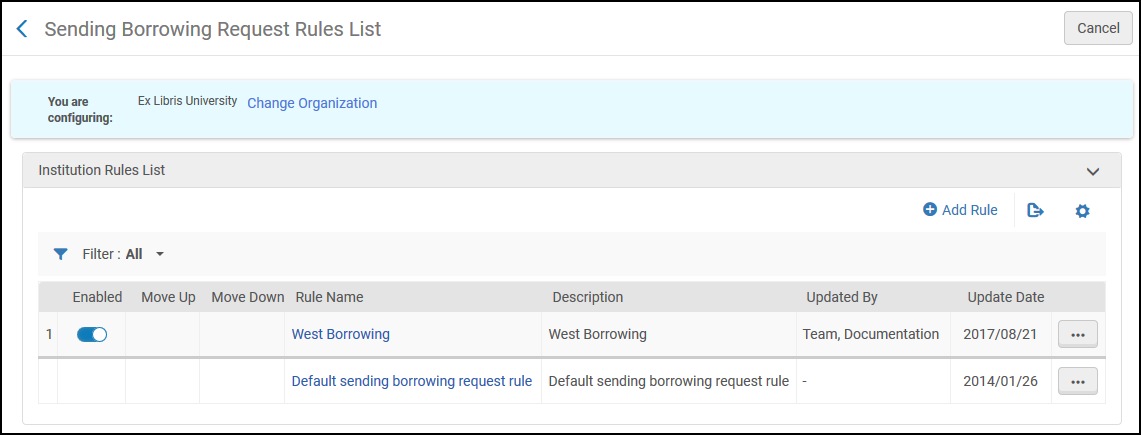
Sending borrowing request rules that have been distributed from a network is indicated by a check mark in the Network Rules List section of the page. The network_sending_rules_precedence parameter determines whether the network, institution, or library level rules are executed first. For more information, see Configuring Other Settings.
Se pueden efectuar las siguientes acciones en esta página:
- Add sending borrowing request rules (see Adding Sending Borrowing Request Rules)
- Edit sending borrowing request rules (select Edit from the row actions list)
- Duplicate sending borrowing request rules (select Duplicate from the row actions list and modify the relevant fields)
- Delete sending borrowing request rules (select Delete from the row actions list)
- Edit the Default Sending Borrowing Request Rule (select Edit from the row actions list of the default rule)
- Deshabilitar una regla de enviar solicitud de préstamo
Los envíos automáticos de reglas solo son activados siguiendo un proceso de localización manual o automático.
Adding Sending Borrowing Request Rules
Se puede añadir una regla de envío de solicitudes en préstamo.
-
On the Sending Borrowing Request Rules page (Configuration Menu > Fulfillment > Resource Sharing > Sending Borrowing Request Rules), select Add Rule. Aparece la página Lista de reglas para el envío de solicitudes de préstamo.
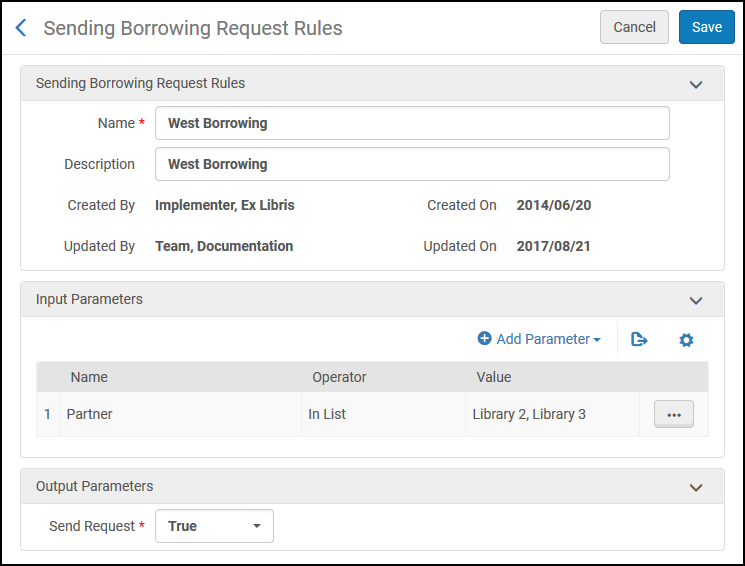
- In the Sending Borrowing Request Rules section, enter a name in the Name field.
- Configurar los parámetros de entrada en los campos relevantes. Configuring a sending borrowing request rule is done in the same manner as other rule configurations in Alma (see Configuring Automatic Loan Renewal Rules). Note that it is necessary to include a parameter (it can be a generic parameter, such as 'Partner is not empty'), or the rule will not be applied. Los parámetros de entrada son:
- Converted from Hold Request- True or False
- Missing Article Metadata Fields- Choose one or more of the metadata fields
- Missing Book Metadata Fields- Choose one or more of the metadata fields
- Partner- Choose one or more of the configured resource sharing partners
- Price- Enter a decimal amount
- Requested Format- Valid options are Digital, Physical, and Physical non-returnable
- Self Ownership- Select True or False
- User Group- Choose one or more of the configured user groups
- Configurar parámetro de salida. The only output option is Send Request, which can be set to True or False. Si el valor de entrada especificado antes se encontra en la solicitud, el parámetro de salida determina si la solicitud es enviada.
- Select Save. La regla configurada aparece en la página Lista de Reglas para el envío de solicitudes de préstamo.
Cuando se cumple con los parámetros de regla configurados para la solicitud de petición de préstamo de recursos compartidos, la solicitud es enviada automáticamente después de invocar una asignación de ruta automática.
Adding the fields: ‘Chapter Title' and ‘Chapter Author' as mandatory will automatically reject any request coming from Primo that will miss this information.
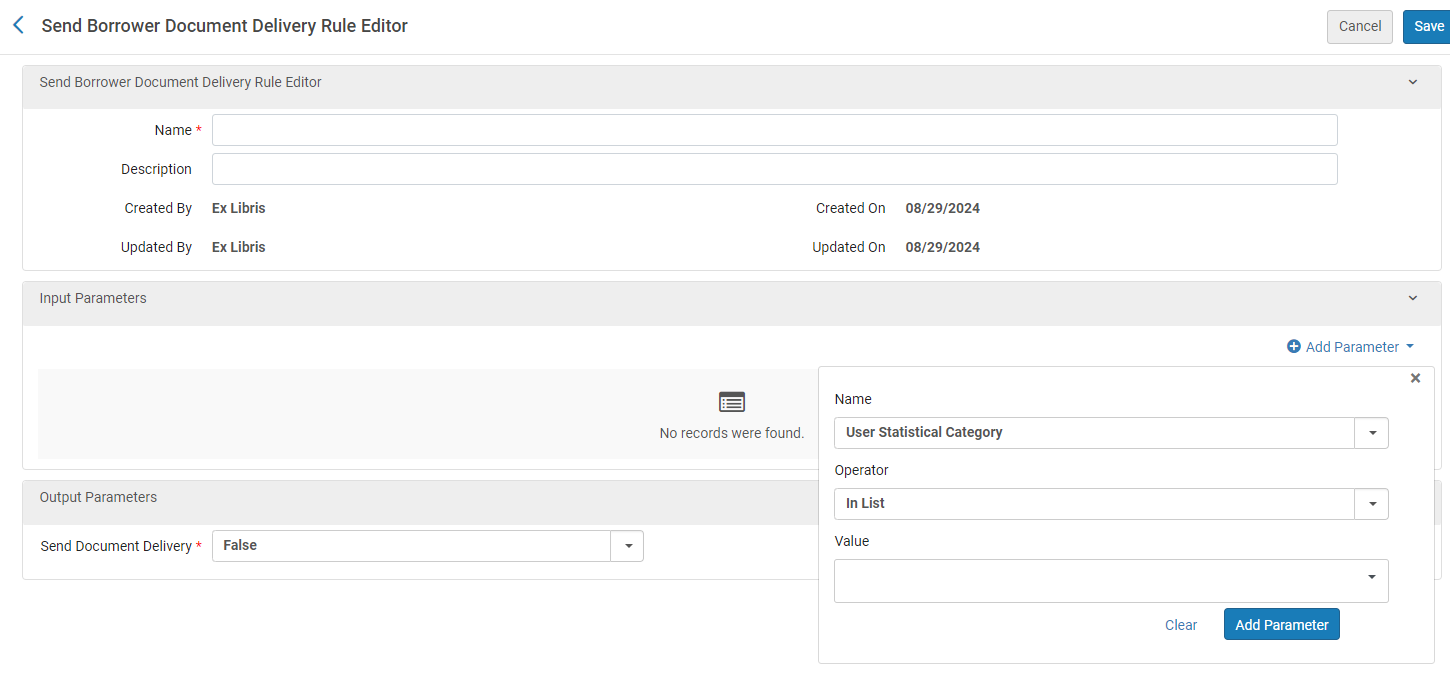
Configuring Send Borrower Document Delivery Rules
Los prestatarios pueden establecer reglas que determinen si un recurso recibido digitalmente debe compartirse automáticamente con el usuario solicitante, o esperar a que el personal de la biblioteca lo gestione antes de reenviarlo al usuario solicitante. Por ejemplo, es posible que sea necesario procesar el documento para aumentar su accesibilidad para un solicitante que requiera una mayor accesibilidad.
These rules replace the now obsolete borrower_document_delivery_send_automatically parameter.
The default value of the rules is ‘true', meaning that documents will be automatically forwarded unless a rule is configure to prevent that. These rules can be configured at Configuration > Fulfillment > Resource Sharing > Send Borrower Document Delivery Rules.
See also Peer to Peer Resource Sharing.
Configuring Additional Requested Media
Para configurar medios solicitados adicionales se debe tener uno de siguientes roles:
- Administrador general del sistema
- Administrador de servicios al usuario
Se puede ampliar la granularidad de los recursos solicitados, lo que permite habilitar una solicitud digital como un archivo de audio o video, o una solicitud física para solicitarlo, como un libro o un CD. Al especificar el formato exacto en el cual se solicita el recurso, la biblioteca de préstamo procesa la solicitud en el formato solicitado.
The options entered in this table appear when adding a borrowing or lending request, depending on the configuration in requested media definitions; see Configuring Requested Media Definitions. Also see Creating a Borrowing Request and Creating a Lending Request.
For information about expanded granularity of requested resources, see the Greater Granularity When Specifying Requested Media video (2:57 min.).
Configuring requested media is done on the Additional Requested Media Code Table page (Configuration Menu > Fulfillment > Resource Sharing > Additional Requested Media). For more information about code tables, see Code Tables.
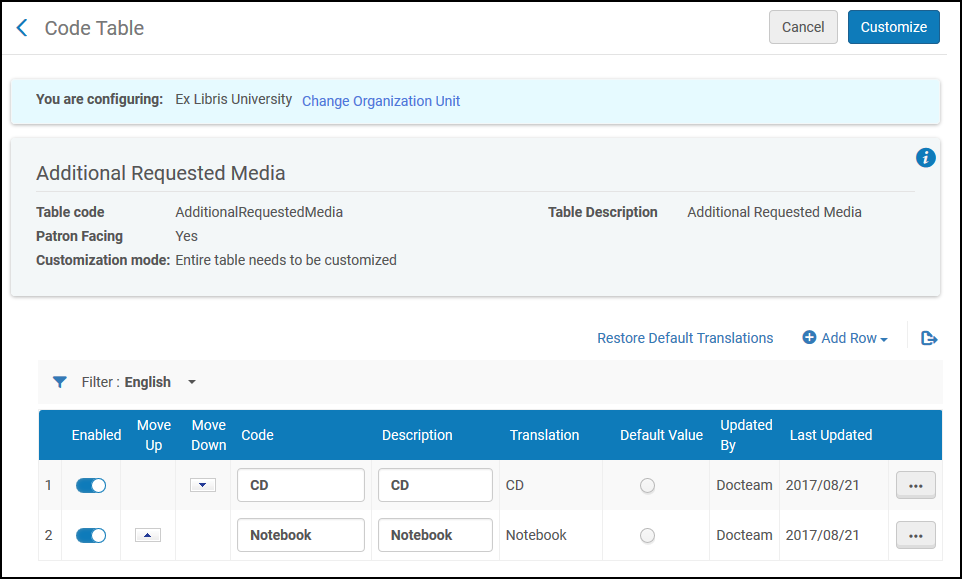
See Code Tables.
Configuring Requested Media Definitions
Para configurar definiciones de medios solicitados se debe tener uno de los roles siguientes:
- Operador de servicios al usuario
- Administrador de servicios al usuario
You can configure attributes that pertain to the requested media types configured on the Additional Requested Media Code Table page (see Configuring Additional Requested Media). Los atributos configurables indican si los tipos de medios deben estar disponibles al enviar solicitudes de petición de préstamo y/o préstamo. También se puede configurar un tipo de medio para que no esté disponible para solicitudes de petición préstamo o préstamo.
The options entered in this table appear when adding a borrowing or lending request; see Creating a Borrowing Request and Creating a Lending Request.
Configuring media type attributes is done on the Requested Media Definition Mapping Table page (Configuration Menu > Fulfillment > Resource Sharing > Requested Media Definition). For more information about mapping tables, see Mapping Tables.
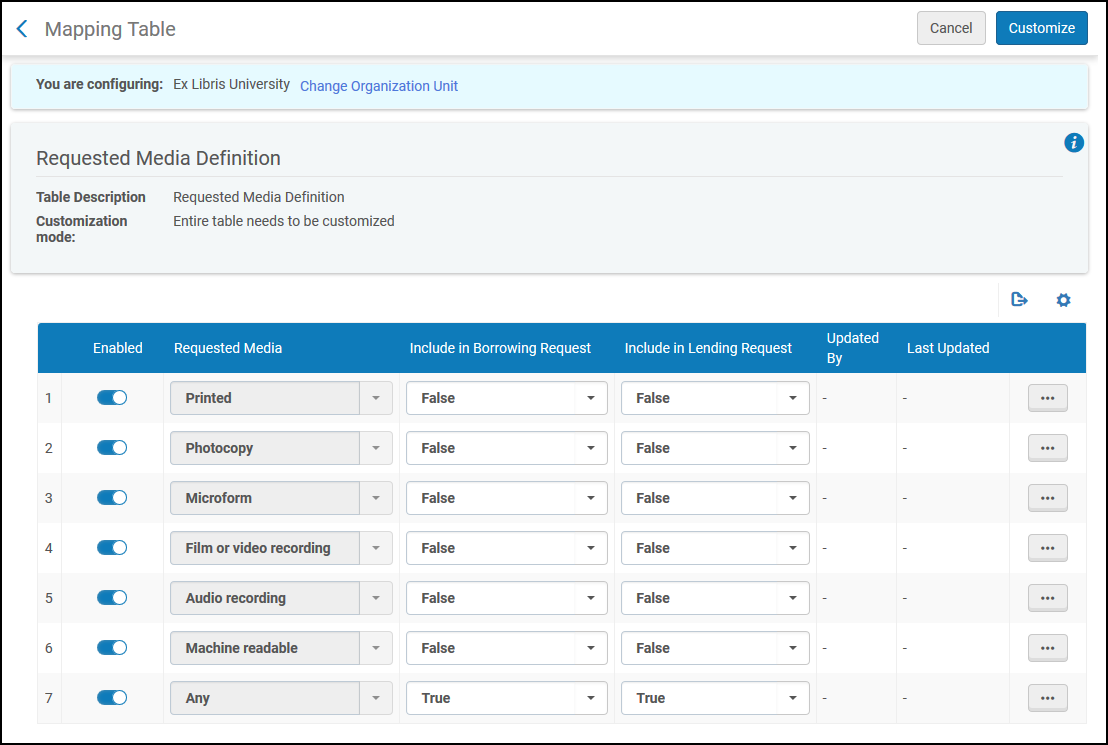
- Open the Requested Media Definition Mapping Table page (Configuration Menu > Fulfillment > Resource Sharing > Requested Media Definition). Los tipos de medios solicitados predeterminados se muestran de la siguiente manera:
- Imprimido
- Fotocopia
- Microforma
- Película o registro de vídeo
- Grabación de audio
- Legible por máquina
- Cualquiera
- In the Create a New Mapping Row section, you can add the additional media types that were configured on the Additional Requested Media Code Table page (see Configuring Additional Requested Media), as follows:
- In the Requested Media field, select a media type. Los tipos mostrados son los configurados en la página Tabla de códigos de Medios solicitados adicionales.
- In the Include in Borrowing Request field, select whether the media type is to be available when submitting resource sharing borrowing requests.
- In the Include in Lending Request field, select whether the media type is to be available when submitting resource sharing lending requests.
Select Add Row. The specified media type displays in the Mapping Table Rows table.
-
In the Mapping Table Rows table, select True or False in the Include in Borrowing Request and Include in Lending Request columns to indicate whether the specified media type is to be available when submitting borrowing requests or lending requests, respectively.
The Any media type must always be specified as True for both borrowing and lending requests.
Media types configured as True appear in the Requested Media field in the following places:
- When creating a borrowing or lending request either manually or from a search (see Resource Sharing).
- In a Ful Outgoing Email Letter, also known as a borrowing request letter, sent to a resource sharing partner when a borrowing request has an active partner of Type = Email(see Resource Sharing Requests).
- In a Ful Incoming Slip Letter, also known as a print slip letter, sent when selecting the Print Slip link for a lending request (see the relevant description in the Request Sharing Lending Requests Task List Links).
- In a Resource Sharing Shipping SlipLetter, sent when selecting the Ship Item link for a lending request, and ensuring that Automatically Print Slip = Yes on the resulting Shipping Items page (see the relevant description in the Lending Requests Task List Links table in Workflow Actions).
- Optionally, select Delete to delete a media type added from the Quick Add section. No se pueden borrar los tipos de medios predeterminados.
Configuring Levels of Service
Para configurar niveles de servicio se debe tener uno de los siguientes roles:
- Operador de servicios al usuario
- Administrador de servicios al usuario
You can configure the levels of service that are available for resource sharing requests on the Levels of Service page (Configuration Menu > Fulfillment > Resource Sharing > Levels of Service). For more information about code tables, see Code Tables. You can enable or disable the levels, and you can change the descriptions.
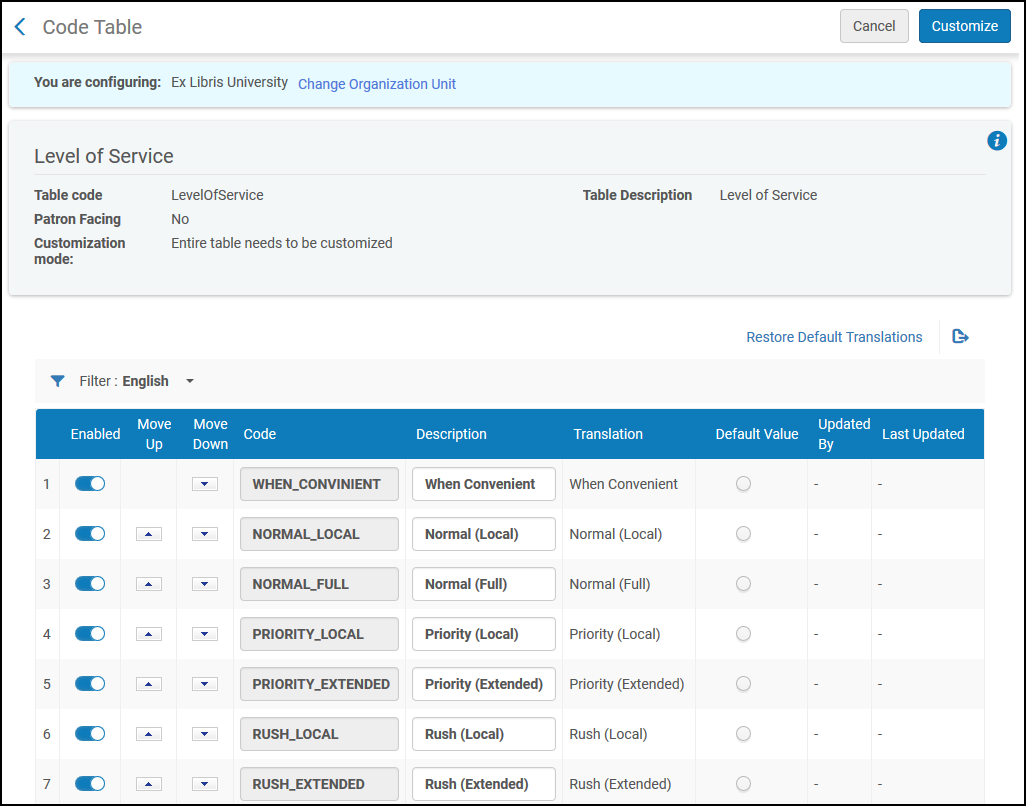
Después de configurar los niveles de servicio, se puede fijar el valor del campo en el formulario de solicitud de Primo y las peticiones de préstamo y préstamo. The field also appears on the resource sharing task lists (Creating a Borrowing Request) and when creating lending and borrowing rules (Configuring Shipping Cost Lender Rules and Configuring Shipping Cost Borrower Rules).
Mapping Alma Library Codes to External Library Codes for Libris ILL
Para configurar definiciones de medios solicitados se debe tener uno de los roles siguientes:
- Administrador general del sistema
- Administrador de servicios al usuario
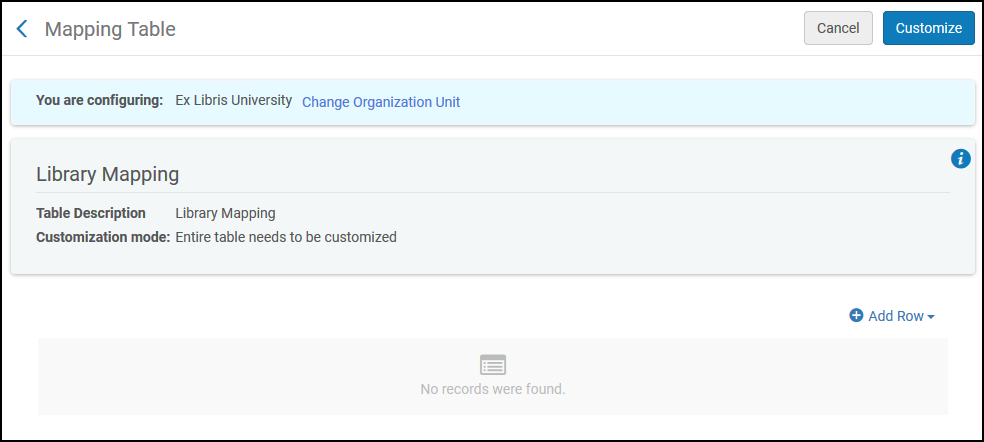
Se pueden mapear los código de Biblioteca Alma a código de biblioteca en sistemas de recursos compartidos externos. Esta tabla de mapeo puede usarse en conjunto con el perfil de integración de recursos compartidos. Esto permite a los clientes que usen Libris ILL mapear sus códigos de retiro de biblioteca a código Alma de tal forma que las solicitudes de recursos compartidos puedan ser importadas a Alma desde Libris. Access the Library mapping table (Configuration Menu > Fulfillment > Resource Sharing > Library Mapping). For more information about mapping tables, see Mapping Tables.
Introducir el código de la biblioteca externa y su correspondiente código de Biblioteca Alma.
Configuring Brief Audit Fields
Para configurar los campos de auditoría breve se debe tener una de las siguientes funciones:
- Administrador general del sistema
- Administrador de servicios al usuario
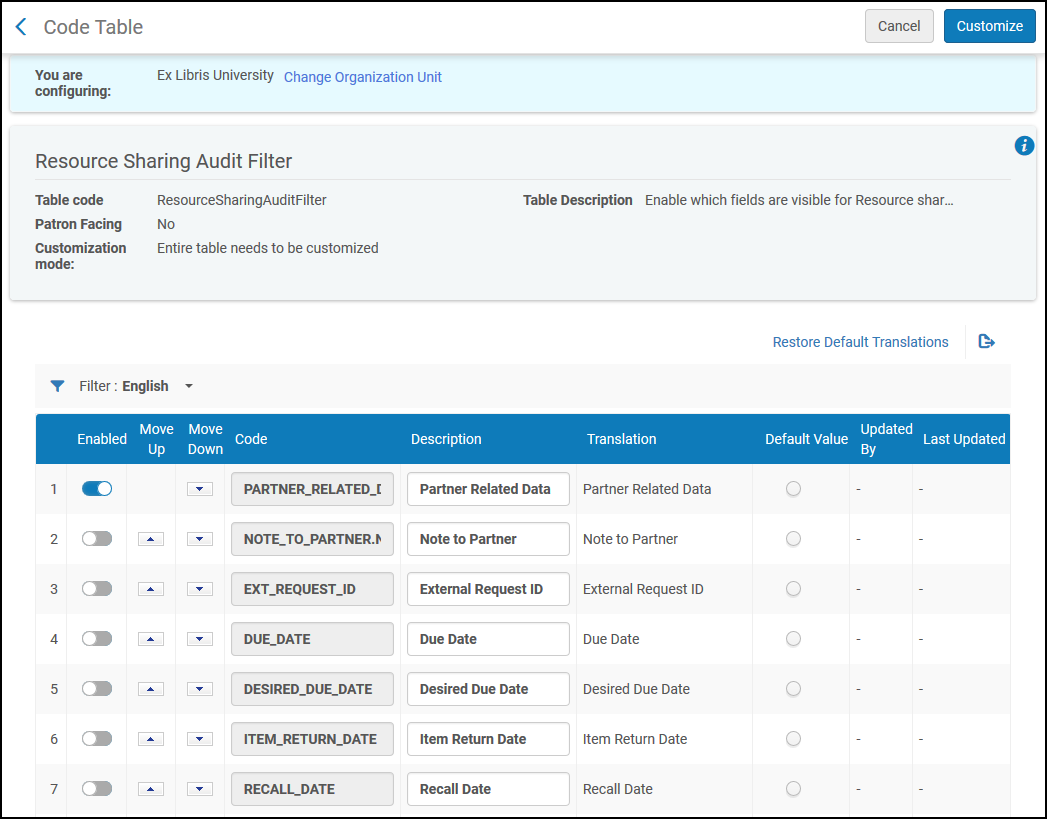
You can configure which audit lines will be visible in the resource sharing requests History tab on the Brief Audit Fields code table (Configuration Menu > Fulfillment > Resource Sharing > Brief Audit Fields). For more information about code tables, see Code Tables. Se puede permitir o deshabilitar cada campo. See Managing Resource Sharing Borrowing Requests and Managing Resource Sharing Lending Requests.
Configuring Resource Languages
Para configurar idioma de los recursos se debe tener uno de los siguientes roles:
- Administrador general del sistema
- Administrador de servicios al usuario
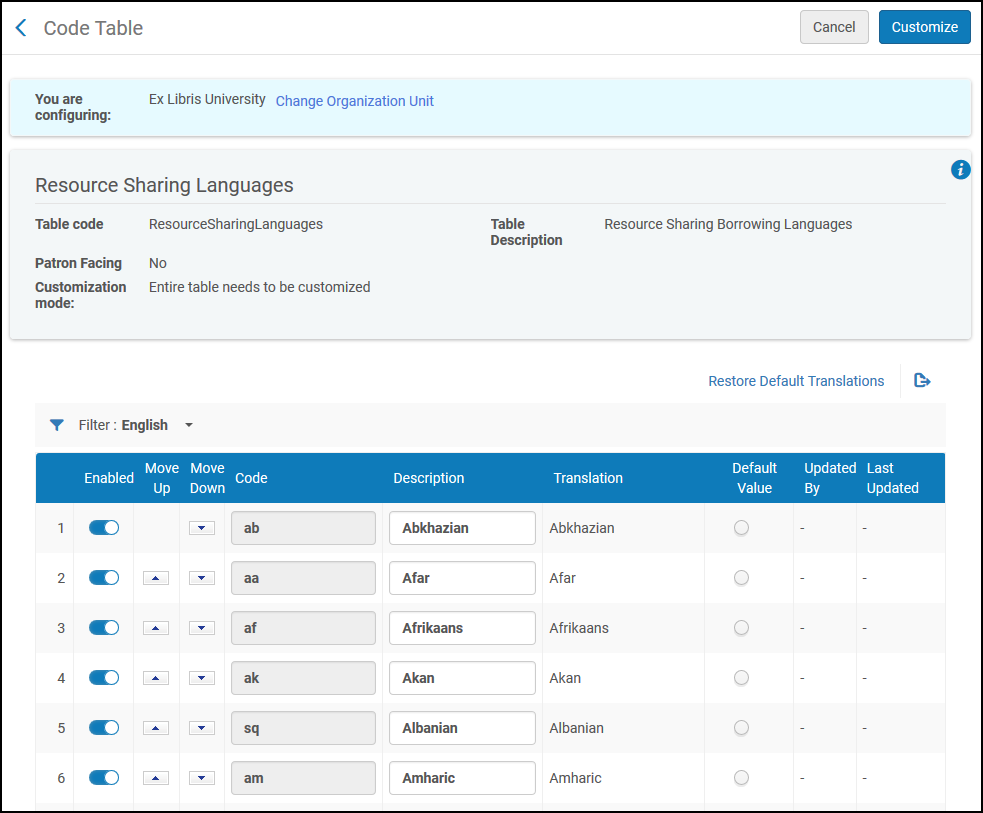
You can enable or disable languages that appear in the Language drop down in the Request Attributes section of a resource sharing request, indicating the desired language of the item being requested. See Managing Resource Sharing Borrowing Requests and Managing Resource Sharing Lending Requests.
Access the Resource Languages page (Configuration Menu > Fulfillment > Resource Sharing > Resource Languages). For more information about code tables, see Code Tables. Se puede habilitar o deshabilitar un idioma, volver a ordenar los Idiomas o editar el nombre del idioma.
Configuring Item Policy Exceptions
Para configurar excepciones de política de ejemplar se debe contar con uno de los siguientes roles:
- Administrador general del sistema
- Administrador de servicios al usuario
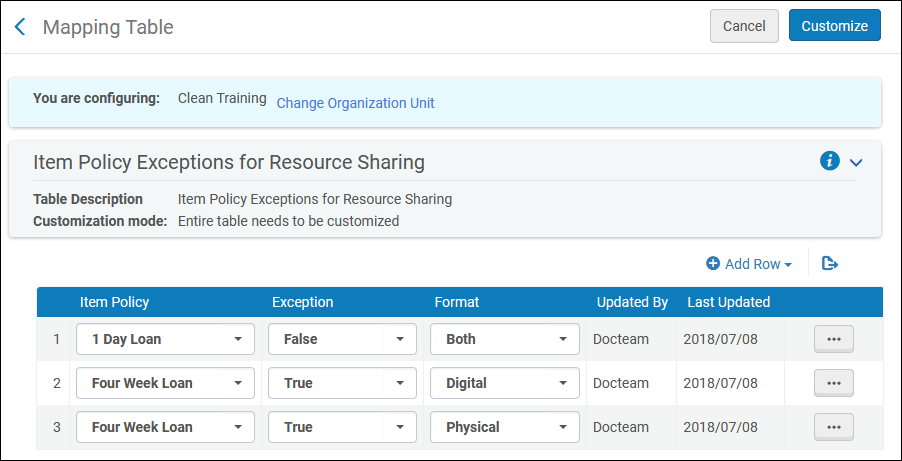
Se puede configurar una excepción a la política de ejemplar que indique que el ejemplar no debe ser enviado por una solicitud de recursos compartidos. Access the Item Policy Exceptions mapping table (Configuration Menu > Fulfillment > Resource Sharing > Item Policy Exceptions). For more information about mapping tables, see Mapping Tables. For more information about item policies, see Configuring Item Policies.
An item policy may be added with the exception set to either True or False. Setting the policy to True will create the item policy exception, which means it will be unavailable for resource sharing. Setting the item policy exception to False means that no exception will be created and the item will continue to be available for resource sharing as previously. The Format may be set to Both,Digital, or Physical. El formato es validado cuando se crea una solicitud de recursos compartidos y se selecciona validación de las excepciones de política de ejemplar.
Configuring Primo Request Form Type by Genre
Para configurar el tipo de formulario de solicitud de Primo se debe tener alguno de los roles siguientes:
- Administrador general del sistema
- Administrador de servicios al usuario
Se puede mapear el valor del genero del campo OpenURL al tipo de solicitud de recursos compartidos Primo seleccionado. Por defecto, Primo abre el formulario de solicitud con el libro seleccionado por defecto; la otra opción es artículo. Access the Request Form Type by Genre mapping table (Configuration Menu > Fulfillment > Resource Sharing > Request Form Type by Genre). For more information about mapping tables, see Mapping Tables.
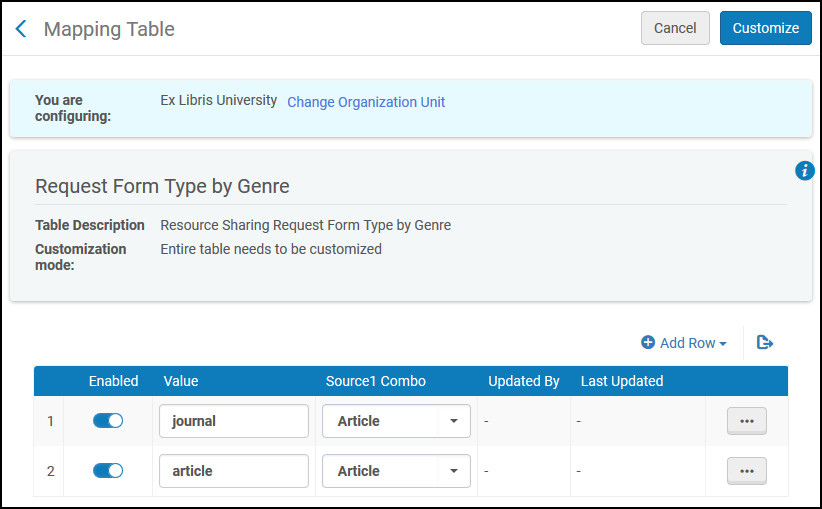
En la sección adición rápida, añadir el valor que aparece en el campo de género OpenURL. Then select either Article or Book and Add Row. Rows may be enabled or disabled by selecting on the Enabled checkmark.
Configuring Borrowing Request Statuses
Para configurar estados de solicitud de préstamo saliente se debe tener uno de los siguientes roles:
- Administrador general del sistema
- Administrador de servicios al usuario
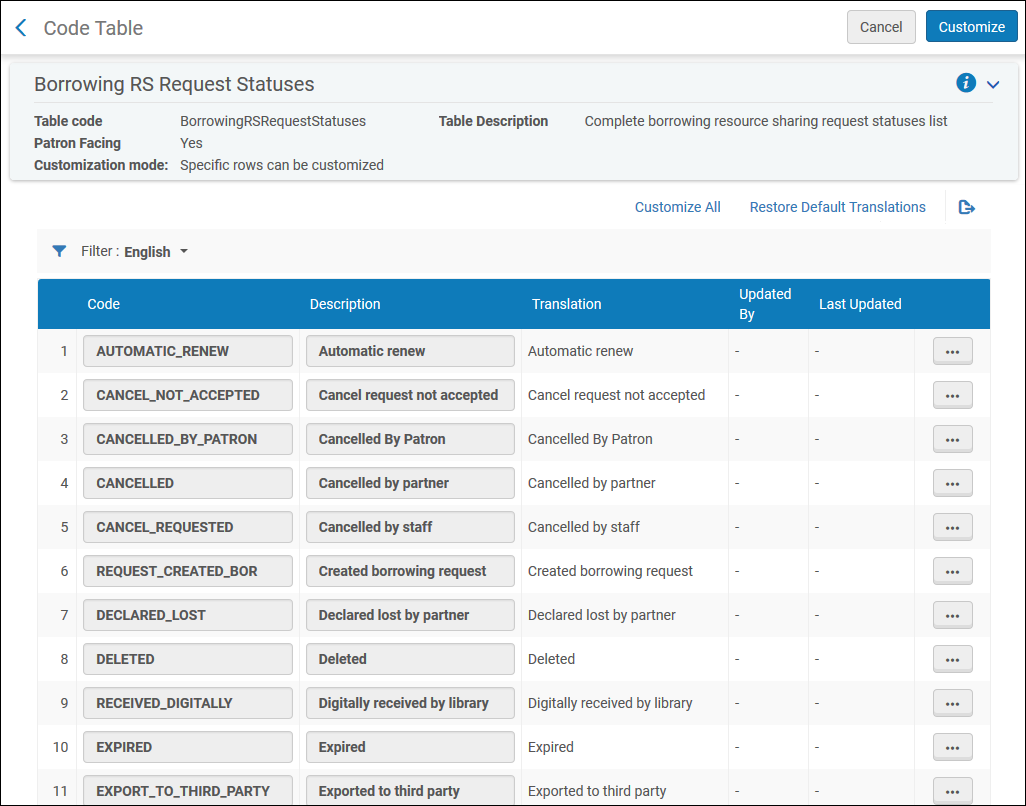
In order to customize the description and translation text of borrowing request statuses, access the Borrowing Request Statuses code table (Configuration Menu > Fulfillment > Resource Sharing > Borrowing Request Statuses). For more information about code tables, see Code Tables.
Esta página permite definir el texto de estado de la solicitud de préstamo saliente que se mostrará en Primo y en la lista de solicitudes en la página de servicios para usuarios de Alma.
Configuring Request Reject Reasons
Para configurar las razones de rechazo de la solicitud se debe tener uno de los siguientes roles:
- Administrador general del sistema
- Administrador de servicios al usuario
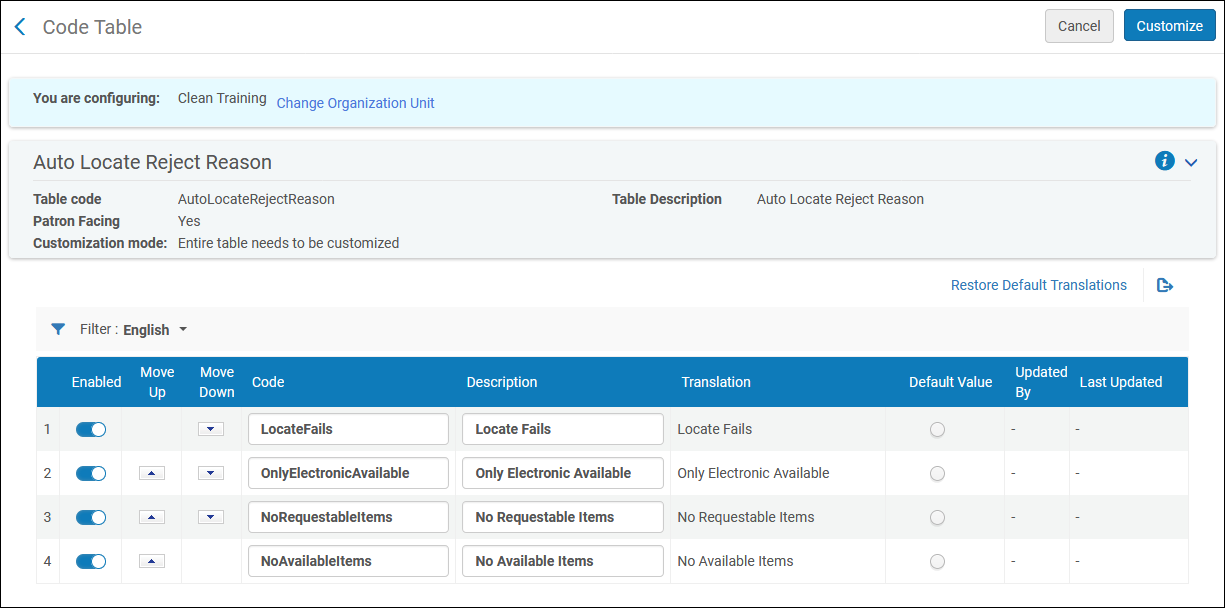
In order to customize the description and translation text of request reject reasons, access the Automatic Locate Reject Reasons code table (Configuration Menu > Fulfillment > Resource Sharing > Automatic Locate Reject Reasons). For configuring automatic location of resources and configuration of rejection requests, see Setting Up Lending Requests. For more information about code tables, see Code Tables.
Esta página permite definir el texto de rechazo de la solicitud que se mostrará en Primo y en la lista de solicitudes en la página de servicios para usuarios de Alma.
Configuring Internal Request Reject Reasons
You can configure the list of internal reject reasons for lending requests at (Configuration > Resource Sharing > Internal Reject Reasons). Esto permite a las bibliotecas registrar sus propios motivos relacionados con el flujo de trabajo y no verse limitadas por la lista externa de motivos de rechazo, que están restringidos por los protocolos.
The Internal reject reason is optional and only viewable by the lender.
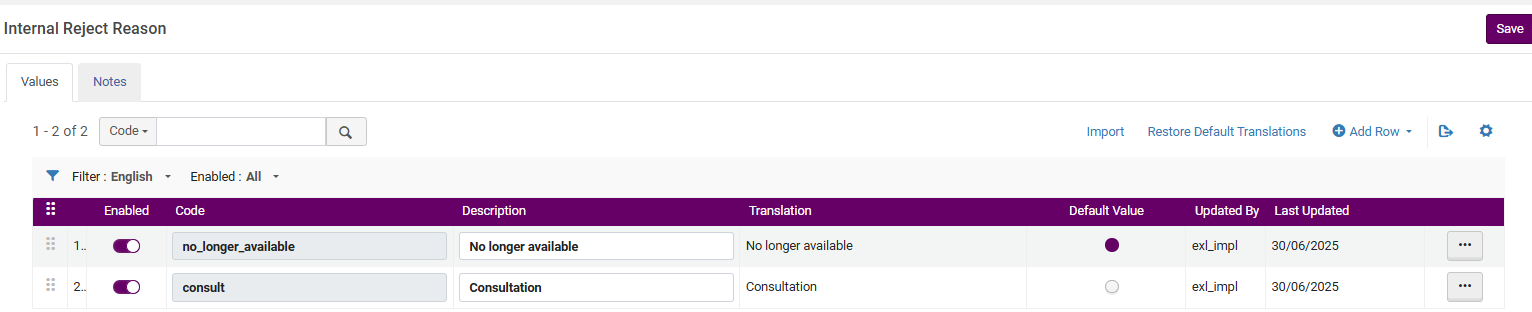
For more information, see Managing Lending Requests.
Configuring Renew Reject Reasons
Para configurar la renovación de las razones del rechazo se debe tener uno de los siguientes roles:
- Administrador general del sistema
- Administrador de servicios al usuario
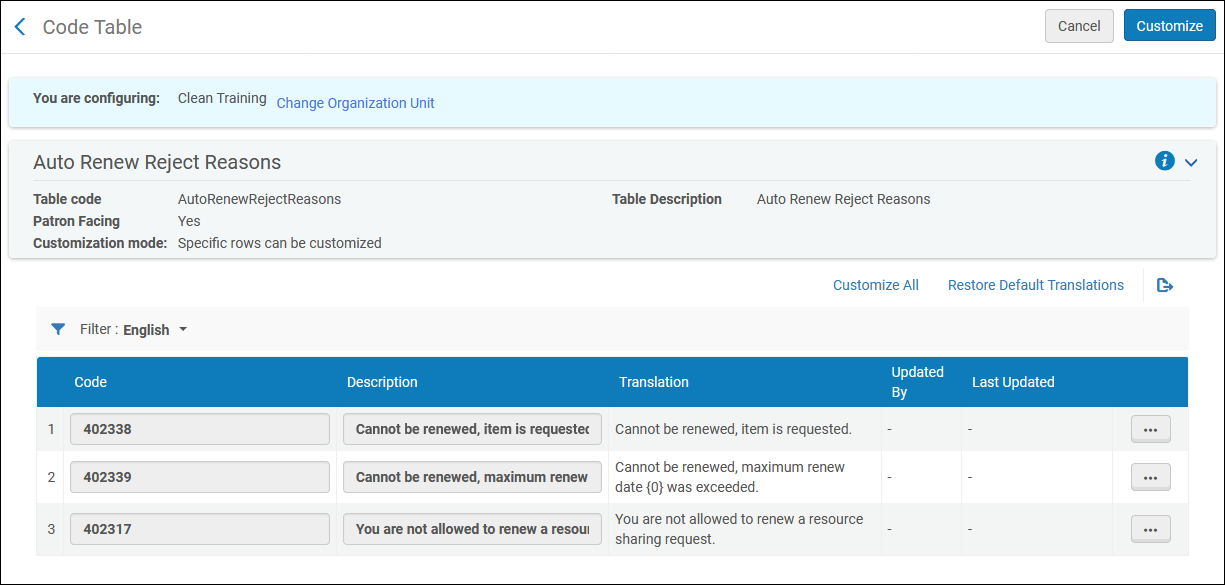
In order to customize the description and translation text of renew reject reasons, access the Automatic Renew Reject Reasons code table (Configuration Menu > Fulfillment > Resource Sharing > Automatic Renew Reject Reasons). For information on automatic renewal for Borrowing workflow profiles, see the Automatic renew step in Workflow Profile Steps. For more information about code tables, see Code Tables.
Esta página permite definir el texto de rechazo de renovación de la solicitud que se mostrará en la carta de información de préstamo completo (código: FulBorrowingInfoLetter) cuando sea enviada el usuario.
Configuring Patron Queries
The Query to Patron letter is sent to a patron when a user selects Send query to patron on the Borrowing Requests page (Fulfillment > Resource Sharing > Borrowing Requests); see Managing Resource Sharing Borrowing Requests. La carta se puede configurar para que presente múltiples versiones adecuadas para diferentes situaciones, como una pregunta sobre el ejemplar solicitado o una consulta sobre el pago de la cuota. Este tipo de carta se envía con la expectativa de que el usuario la responda.
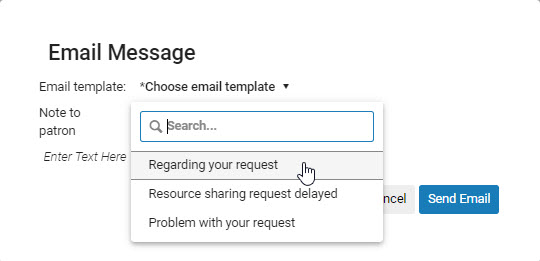
Alma provides two systems for configuring these letters in Alma: patron query templates and patron query types.
-
Sistema antiguo: las plantillas de consulta de usuario son un medio básico de configurar cartas de usuario. Se pueden introducir varias cartas y configurar los campos en las cartas. No se puede editar la estructura inicial de la carta, pero se puede editar la carta antes de enviarla, si su sistema de Alma está configurado para permitirlo.
Este sistema está obsoleto y será eliminado en una próxima versión de Alma.
- New system: Patron query types use Alma's flexible XSL-based letter-configuration system to configure the Query to Patron letter. Up to thirty versions of the Query to Patron letter can be defined in this way.
You can configure Alma to use either patron query templates or types, but not both, using the send_query_to_patron_use_xsl parameter in the Customer Parameters Mapping Table. When send_query_to_patron_use_xsl is set to true, patron query types are used; this is the default setting. For more information, see Configuring Other Settings.
Los tipos de consulta de usuario son implementados por defecto. Las plantilla de consulta de usuario están obsoletas y serán eliminadas en una futura versión de Alma.
Configuring Patron Query Templates
Para configurar las plantillas de consulta del usuario se debe tener uno de los siguientes roles:
- Administrador general del sistema
- Administrador de servicios al usuario
Patron query templates are configured on the Patron Query Templates mapping table (Configuration Menu > Fulfillment > Resource Sharing > Patron Query Templates). For more information about mapping tables, see Mapping Tables. Cada plantilla contiene una lista corta de campos que son ensamblados para crear la carta enviada al usuario. El formato inicial de la carta no es configurable pero, si esta configurado, es posible editar la carta antes de que sea enviada.
This option appears in the menu only when the send_query_to_patron_use_xsl in the Customer Parameters Mapping Table is set to false(see Configuring Other Settings). When send_query_to_patron_use_xsl is set to true, the Patron Query Types option appears instead (see Configuring Patron Query Types).
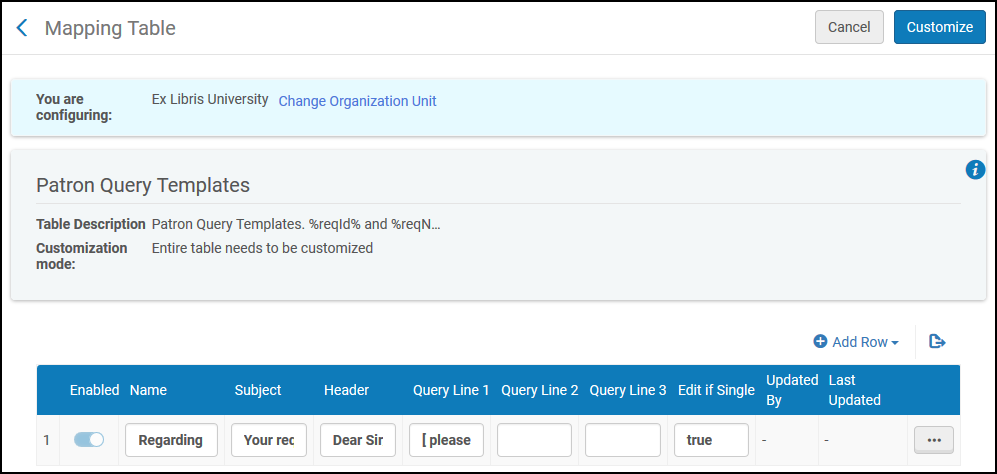
Se pueden efectuar las siguientes acciones en esta página:
- Add a patron query template (see Adding Patron Query Templates).
- Edit a patron query template (Modify the column values in the Mapping Table Rows section).
- Delete a patron query template (select Delete).
For more information about configuring patron query templates, see the ILL: Create Template for Query to Patron video (7:25 min.).
Adding Patron Query Templates
Se puede añadir una plantilla de consulta del usuario.
- Open the PatronQueryTemplates Mapping Table Page (Configuration Menu > Fulfillment > Resource Sharing > Patron Query Templates).
- Select Add Row. Enter a name for the template in the Name field.
- In the Subject field, enter a subject. You can use the variables %reqId% and %reqName%; these will be replaced with the borrowing or lending request's external ID or the patron's name, respectively.
- In the Header field, enter a header, such as “Dear Sir/Madam:”.
- Enter additional lines in Query Line 1,2, and 3. Estos campos son reemplazados en la Carta de consulta para usuario. For more information, see Example Letter Customization: Query to Patron Letter.
- In the Edit if Single field, enter True if the message will be open for editing, or False if the message will be sent directly to the patron without any opportunity for editing.
- Select Add Row. La plantilla aparece en la lista de plantillas.
- Select Customize.
The fields are assembled into a letter that is sent when a user selects Send Query to Patron on the Borrowing Requests page. See Peer-to-Peer Resource Sharing.
Configuring Patron Query Types
Para configurar los tipos de consulta al usuario se debe tener uno de los siguientes roles:
- Administrador general del sistema
- Administrador de servicios al usuario
You can configure alternative versions -patron query types- of the Query to Patron letter using the enhanced XSL Query to Patron letter. Se pueden definir hasta treinta tipos de esta carta de esta manera.
Patron query types are configured on the Patron Query Types code table (Configuration Menu > Fulfillment > Resource Sharing > Patron Query Types). For more information about code tables, see Code Tables.
This option appears in the menu only when the send_query_to_patron_use_xsl in the Customer Parameters Mapping Table is set to true(see Configuring Other Settings). When send_query_to_patron_use_xsl is set to false, the Patron Query Templates option appears instead (see Configuring Patron Query Templates). La opción Plantillas de consultas del usuario quedará obsoleta en el futuro.
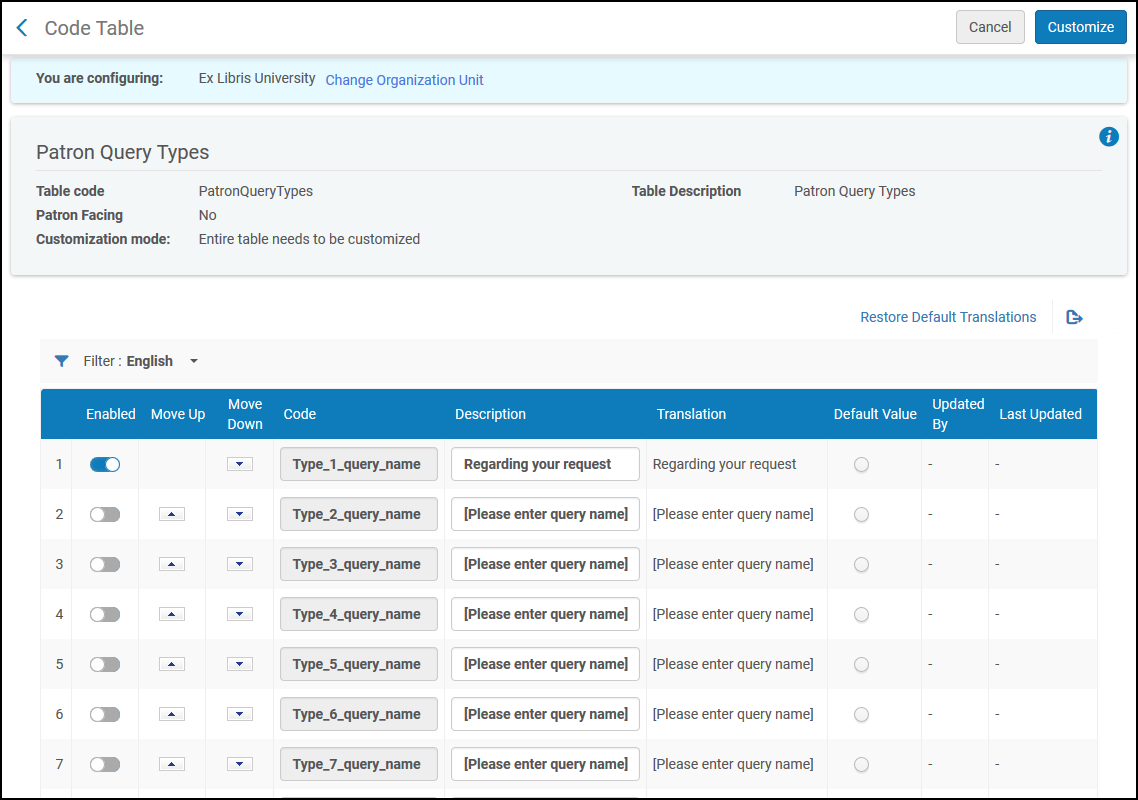
Adding a Patron Query Type
Se puede añadir un tipo de consulta al usuario al habilitar uno de ellos en la tabla de códigos y configurarlo.
- In the Patron Query Types code table (Configuration Menu > Fulfillment > Resource Sharing > Patron Query Types), enable one of the disabled patron query types.
- Modify the Description of the type you enabled. It is this Description that appears in the drop-down list of query types when Send query to patron is selected from the row actions of a Borrowing Request. El código se utiliza en el XSL de la carta para mapear el tipo de consulta con el texto que aparecerá en la carta Consulta al usuario cuando el usuario selecciona ese tipo de consulta.
- Repita los pasos de arriba para añadir tipos de consultas al usuario, según se requiera.
- Select Save when you are done.
For information about configuring the Query to Patron letter for the enabled patron query types, see Configuring Alma Letters.
La plantilla XSL por defecto solo incluye reglas para los tipos de consulta al usuario 1 y 2. Si su sistema tiene más de dos tipos definidos, debe añadir reglas para los tipos adicionales en la plantilla antes de configurarlos. Puede hacer esto al copiar una de las reglas existentes y modificar la copia, según se requiera, para cada regla adicional.
Configuring Borrowing Request Inactive Filters
Para configurar filtros inactivos de solicitudes de préstamo se debe tener uno de los siguientes roles:
- Administrador general del sistema
- Administrador de servicios al usuario
In order to filter statuses out of the Active display in the Borrowing Requests Task List, access the Borrowing Requests Inactive Filters code table (Configuration Menu > Fulfillment > Resource Sharing > Borrowing Requests Inactive Filters). For more information about code tables, see Code Tables. For information on filtering borrowing request see Filtering Borrowing Requests Using Facets.
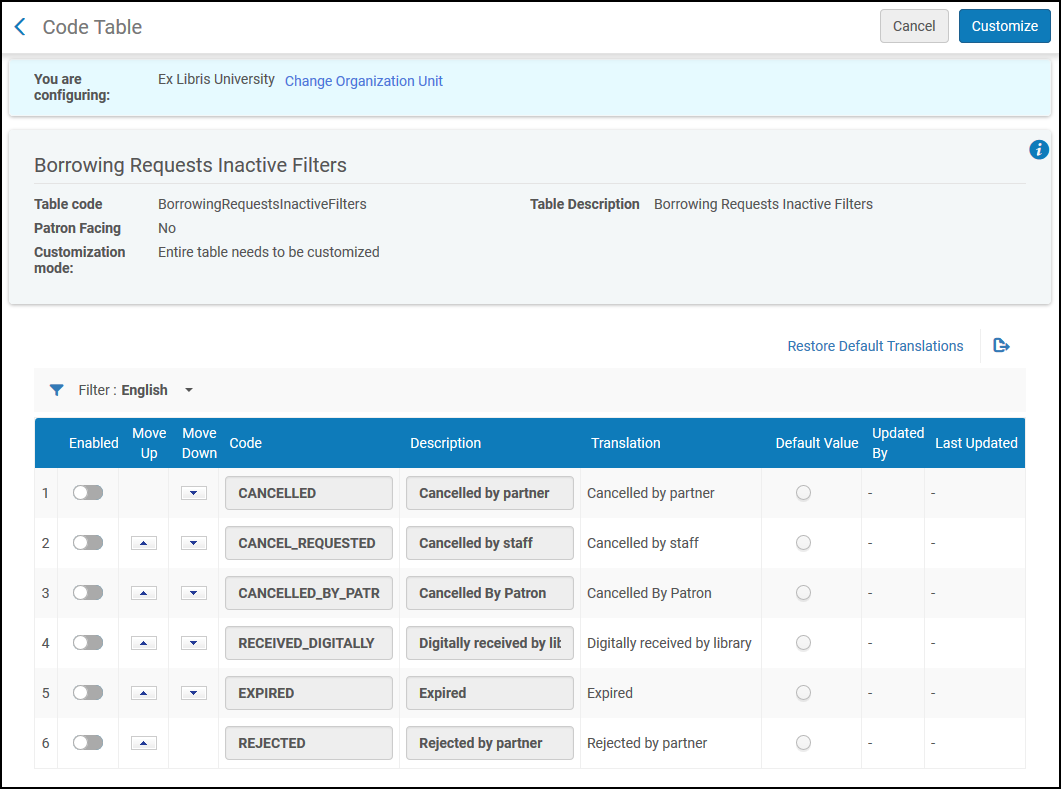
Enabling a row makes means that this status will now be considered as "Completed" instead of "Active" in the Activity status facet on the Borrowing Requests Task List. After you enable or disable statuses, contact Exlibris support and ask them to run re-indexing for the changes you made; the changes do not take effect on existing requests in the task list until re-indexing is performed.
When setting rejected requests not to display as part of the active requests, it is recommended not to set "rs_keep_rejected_request_active" to "BORROWING" or "BOTH" as this would cause active requests to not appear in the active list.
Document Delivery Link for Multiple SAML Authentication Profiles
For cases where a user has more than one SAML IDP profile in their system should configure the Document Delivery Notification Letter so the SAML link includes the idpCode for the correct SAML profile.
<!-- Do not remove Ex Libris workaround created variable to alter current SAML delivery page -->
<xsl:variable name="SAML_URL">
<xsl:value-of select="notification_data/download_url_saml" />
</xsl:variable> <xsl:variable name="DOCID">
<xsl:value-of select='substring-after($SAML_URL,"digitalDoc")'/>
</xsl:variable>
<xsl:variable name="GOOD_SAML_URL">
<xsl:value-of select='concat("https:/<Alma Host Name>/services/login?auth=SAML&idpCode=<SAML IDP Profile Code>&digitalDoc=",$DOCID)'/>
</xsl:variable>
</tr>
<tr>
<td><a>
<xsl:attribute name="href">
<xsl:value-of select="$GOOD_SAML_URL"/>
</xsl:attribute>@@for_saml_users@@@@click_here@@</a>
</td>
</tr>
<!-- GOOD_SAML_URL select ends -->
Las bibliotecas pueden incluir un enlace en el correo electrónico de la Carta de notificación de entrega de documentos que no requiera autenticación. Para facilitar la experiencia del usuario y ajustarse a las prácticas de su biblioteca, se puede acceder a las solicitudes digitales sin autenticarse previamente.
