
Editing a Borrowing Request
This page provides an overview of editing borrowing requests in Alma, including editing in the details pane or in the full request form and managing partners in the rota tab.
For more information on resource sharing including locating items for resource sharing, working with resource sharing partners, managing borrowing and lending requests and contributing to the resource sharing directory, see Resource Sharing.
Cuando aparece una solicitud de préstamo en la lista de tareas de Solicitudes de préstamo, puede ver detalles sobre ella y, si su estado actual permite la edición, puede editarla según sea necesario. If a request line has an Edit button, it is currently editable. If it has a View button instead, you can open it to view its details, but you cannot edit them.
View appears if the request status is one of the following:
- Ejemplar devuelto al socio
- Solicitud completada - La solicitud ha sido entregada o cancelada antes de llegar al estante de reservas.
- Enviado digitalmente
- Cancelado por el socio
- Cancelación solicitada
Otherwise,Edit appears.
This page only relates to requests that can currently be edited. (Editing refers to adding or modifying the parameters of a borrowing request, such as bibliographic information or information about the request. Siempre se pueden agregar notas, etiquetas y archivos adjuntos a las solicitudes).
Some of the parameters of a borrowing request can be edited in the Details pane, and some editing actions can be performed from the More actions ( ) menu in the task list. Si es necesario, puede acceder a todos los parámetros editables abriendo la solicitud en la página Solicitudes de préstamo de recursos compartidos.
For information about searching for specific borrowing requests and working with the Borrowing Requests task list, see Managing Resource Sharing Borrowing Requests.
Editing a Borrowing Request in the Details Pane
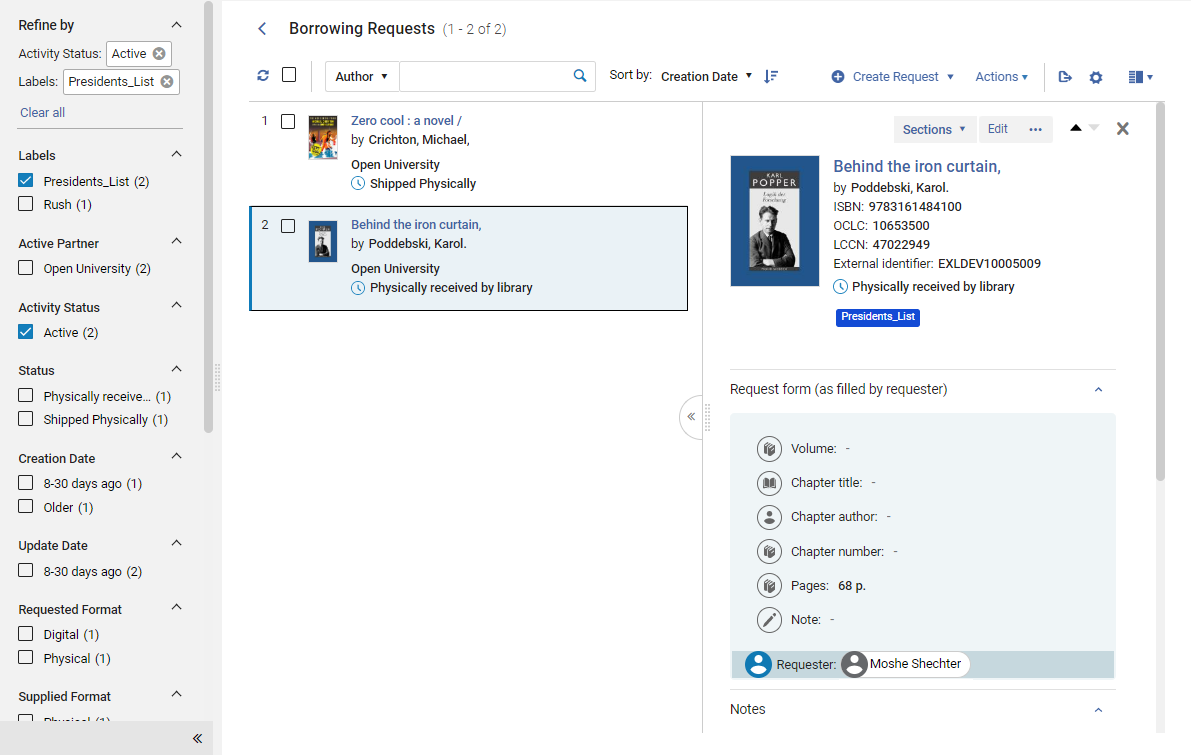
You can see many details about an existing borrowing request, and edit some parts of the request, in the Details pane.
To edit an existing borrowing request in the Details pane:
- In the Borrowing Requests page (Fulfillment > Resource Sharing > Borrowing Requests), in the task list, select the request. The Details pane opens.
- Edit any of the fields in the Request form and Request costs sections, as required. Select Save in each region after you edit the fields it contains.
Opening the Full Request Form for Editing
Puede acceder a todo el formulario de solicitud de préstamo para editarlo según sea necesario.
To edit the full borrowing request form:
- On the Borrowing Requests page (Fulfillment > Resource Sharing > Borrowing Requests), locate the request you want to edit.
- In the request's row, select Edit(or, select the row, and then, in the Details pane, select Edit). The Resource Sharing Borrowing Request page opens in a sliding panel, with the General Information tab selected.
- Modificar los campos según se necesite. For a description of the fields, see the Resource Information Fields table in Adding a New Book or Journal Article and the Borrowing-Request Attribute Field table in Creating a Borrowing Request.
- On the Rota tab, modify the list of partners in the request's rota as required. For additional information, see Managing Partners in a Request's Rota below.
- On the Parameters tab, modify parameters as needed. The parameters displayed are those selected for the partner during the partner configuration process (see Resource Sharing Partners).
-
On the Notes tab, add and edit notes as needed. For more information about this tab, see Notes Tab.
Notes can be added to all borrowing requests, including those with a status of Request Completed.
-
On the Attachments tab, add and edit attachments as needed. For more information about this tab, see Attachments Tab.
Attachments can be added to all borrowing requests, including those with a status of Request Completed.
- Select Save to save your changes and close the form.
Managing Partners in a Request's Rota Tab
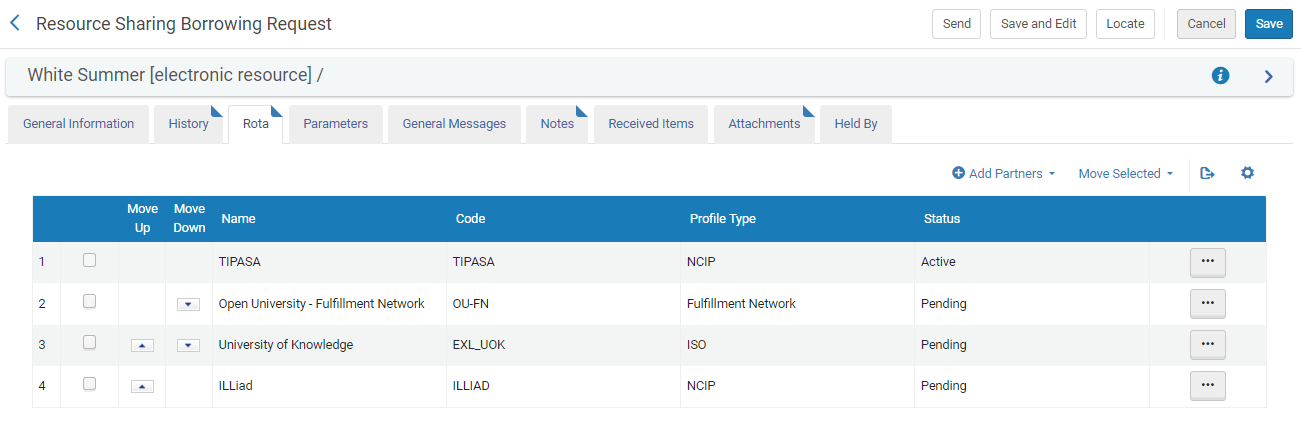
Puede modificar la lista de socios en la ruta de una solicitud de préstamo al cambiar el orden de prioridad, agregar o quitar socios específicos y cancelar o rechazar el socio activo. These actions are performed in the Rota tab of the borrowing request, in which the list of partners in the current rota is shown.
If you add an ARTEmail partner to the rota list, you may also have to add parameters for the partner in the Parameters tab.
Adding Partners to the Rota
You can manually add partners to the rota in the Rota tab.
To add partners to the rota:
- Select Add Partners. A partner-selection box opens.
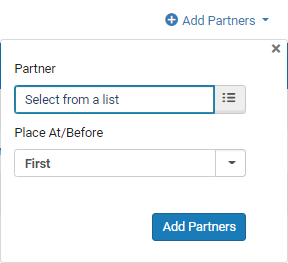
- Under Partner, select Select from a list. Se abre la página de la Lista de socios de recursos compartidos que muestra la lista de socios de recursos compartidos disponibles.
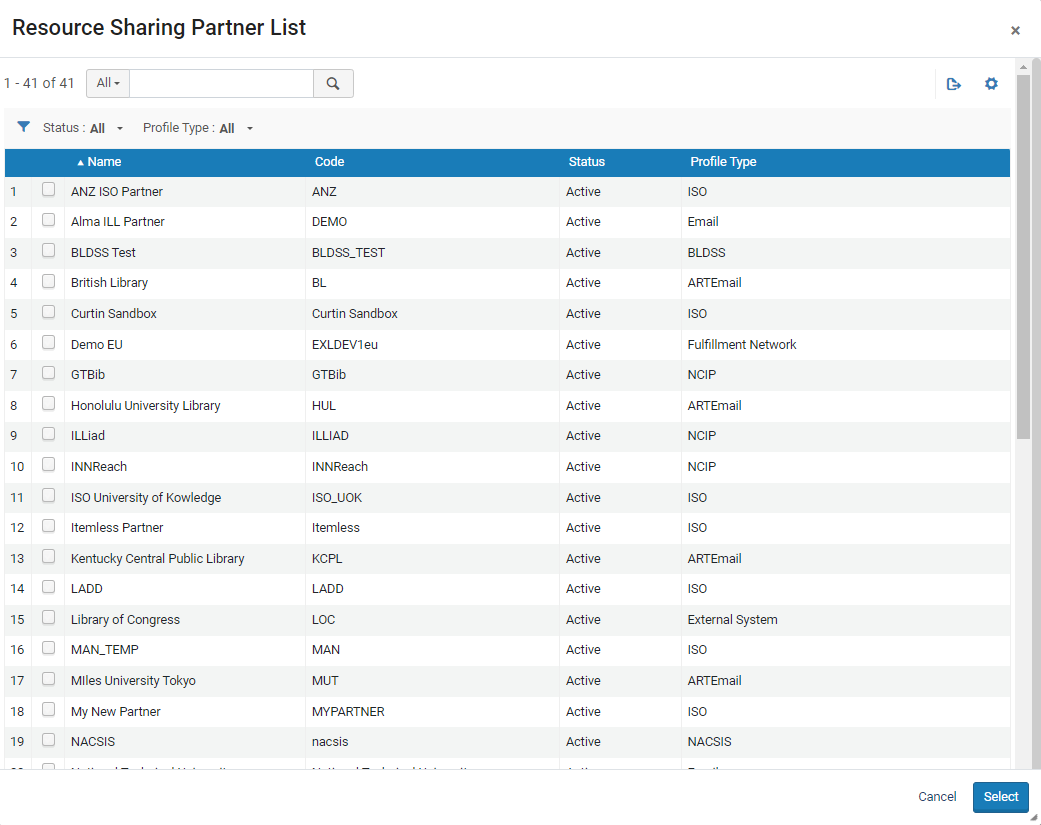
- Select the checkboxes of the partners that you want to add to the rota, and then select Select. The selected partners are added to the Partner field.
- In the Place At/Before dropdown list, select the priority level at which you want the partners to be placed in the partner list, as follows:
- First- Place the selected partners at the top of the list.
- Last- Place the selected partners at the bottom of the list.
- Partner name: Place the selected partners above this partner (whose name is already in the list).
- Select Add partners. The selected partners are added to the list in the Rota tab.
Modifying the Rota Order
You can change the order of priority of Pending partners at any time. A Pending partner can only be moved to the top of the list, replacing the Active partner, when the request is in either Created Borrowing Request or Ready to Be Sent status. Under all other circumstances, rota partners must be in Pending status to be repositioned.
Los socios se pueden mover hacia arriba y hacia abajo en la lista de forma individual o en grupos.
To move individual partners up or down in the list:
- Use las flechas Mover hacia arriba o Mover hacia abajo.
- Seleccione las casillas de verificación de los socios que desea mover.
- Select Move Selected. Se abre un recuadro de selección de ubicaciones.
- In the Place At/Before field, select the priority level at which you want the partners to be placed, as follows:
- First- Place the selected partners at the top of the list.
- Last- Place the selected partners at the bottom of the list.
- Partner name: Place the selected partners above this partner (whose name is already in the list).
- Select Move Selected. Se mueven los socios seleccionados.
Eliminating a Partner from the Rota
Se puede eliminar a un socio de la ruta de varias maneras: al borrarlo, rechazarlo o cancelarlo.
Removing a Partner from the List
Si un socio no es el socio activo actualmente, ya sea porque está pendiente o porque fue el socio activo anteriormente y canceló o rechazó la solicitud, puede borrarlo de la lista.
To delete a rota partner:
- From the row actions, select Remove for the partner.
Rejection By a Partner
Si un socio era el socio activo anteriormente pero rechazó la solicitud, se elimina de la ruta. It nonetheless remains visible in the list, with the status Rejected, unless it is manually removed.
En algunos casos, el rechazo de un socio de una solicitud de préstamo se registra automáticamente en Alma. In other cases, the active partner informs you that it is rejecting the request, and you must manually change its rota status to Rejected.
The 'Reject' action should be used only when the borrower has received a confirmation from the lender that the request has been rejected on the lender's side, for example, in a case where an email was sent from the lender, and the borrowing request needs to be manually updated regarding this. If the borrower would like to initiate a cancellation of the request, then the Cancel action should be used instead.
The active partner can also be rejected from the row actions of the borrowing request in the Borrowing Requests page (Fulfillment > Resource Sharing > Borrowing Requests), in the row actions of the request; see Managing Borrowing Requests.
To manually mark a borrowing request as Rejected in the Rota tab:
- From the row actions of the active partner, select Reject. The Reject Request box opens.
- Select a Reject reason.
- Optionally, enter an Internal note and/or a Note to partner, and select Notify user as required.
- Select OK. El socio activo es rechazado y se activa el siguiente socio en la ruta, si está disponible. If you entered a Note to partner, the note is sent to the partner. If you selected Notify user, a notification of the rejection is sent to the user.
Cancelling an Active Partner
When a partner is the active partner, you can manually cancel that partner if you do not want to borrow the requested item from it. If you do, the partner is eliminated from the rota, but remains visible in the list, with the status Cancelled, unless it is manually removed.
Partners can be cancelled only if cancellation is enabled in the partner's workflow profile. Si no, no aparece la opción en las acciones de fila del socio.
To cancel the active partner:
-
From the row actions of the active partner, select Cancel. A Request Cancellation box opens.
You can also cancel the active partner by selecting Cancel Partner from the options at the top of the page. The Cancel Partner option does not appear if the partner has not enabled cancellation in its workflow profile.
- Select a Cancellation reason.
- Optionally, enter a Cancellation note.
- Select Confirm. The active partner is cancelled, a cancellation message is sent to it, and the next partner on the rota is activated, if available.If the partner is an email partner, the Ful Cancel Email Letter is sent to the partner (see Configuring Alma Letters); if the partner is an ISO partner, an ISO message is sent.
