
Creating a Borrowing Request
Esta página proporciona una descripción general de la creación de solicitudes de préstamo en Alma, incluida la creación de solicitudes de préstamo manualmente, a partir de búsquedas o de fuentes externas, así como la visualización de recursos locales para una solicitud de préstamo y la edición de solicitudes de préstamo. For more information on resource sharing including locating items for resource sharing, working with resource sharing partners, managing borrowing and lending requests and contributing to the resource sharing directory, see Resource Sharing.
Las solicitudes de préstamo de recursos compartidos (RS) son solicitudes realizadas a través de Alma para pedir prestados libros u otros materiales de bibliotecas que no forman parte de la institución a través de préstamo interbibliotecario (ILL). Estas solicitudes se transmiten digitalmente a la biblioteca prestataria, y la mayor parte de su gestión, hasta que el recurso solicitado llega a la biblioteca prestataria, suele gestionarse de forma automática, por lo que el personal de la biblioteca solo necesita intervenir en los casos que requieren una gestión especial.
Se pueden crear nuevas solicitudes de préstamo de varias maneras. Si su institución emplea el sistema de descubrimiento de Primo, los usuarios pueden usar ese sistema para crear solicitudes de préstamo de forma independiente. En la mayoría de los casos, no es necesario que el personal de la biblioteca gestione estas solicitudes de préstamo antes de enviarlas a las bibliotecas de préstamo. For information about handling existing borrowing requests, see Managing Borrowing Requests.
Si necesita crear solicitudes de préstamo en Alma directamente, existen dos vías principales para hacerlo:
- Locating the resource through the Alma search mechanism, and creating a borrowing request from the bibliographic record (More actions
 > Resource sharing request); see Searching in Alma
- Crear una nueva solicitud en la página Solicitudes de préstamo RS, como se explica a continuación.
Una vez haya creado la nueva solicitud, podrá completar los campos relevantes según sea necesario. If the request was created from the results of a search, some of the fields are filled in by the system. Además, si un perfil de integración o ampliación está activo en su sistema, algunos campos pueden completarse automáticamente.
Creating a New Borrowing Request
Puede crear una solicitud de préstamo ingresando manualmente la información sobre el recurso o realizando una búsqueda y seleccionando el recurso de los resultados de la búsqueda. La búsqueda se puede realizar en las existencias de su institución, dentro de la red o comunidad a la que pertenece su institución o en fuentes externas, como la British Library o Library of Congress.
Manually Adding a Borrowing Request
Puede crear manualmente una solicitud de préstamo ingresando información sobre el recurso en un formulario de solicitud de préstamo en blanco.
To add a borrowing request manually:
- On the Borrowing Requests page (Fulfillment > Resource Sharing > Borrowing Requests), select Create Request > Manually and then select the type of resource –Book or Article. A blank Resource Sharing Borrowing Request form opens in a sliding panel.
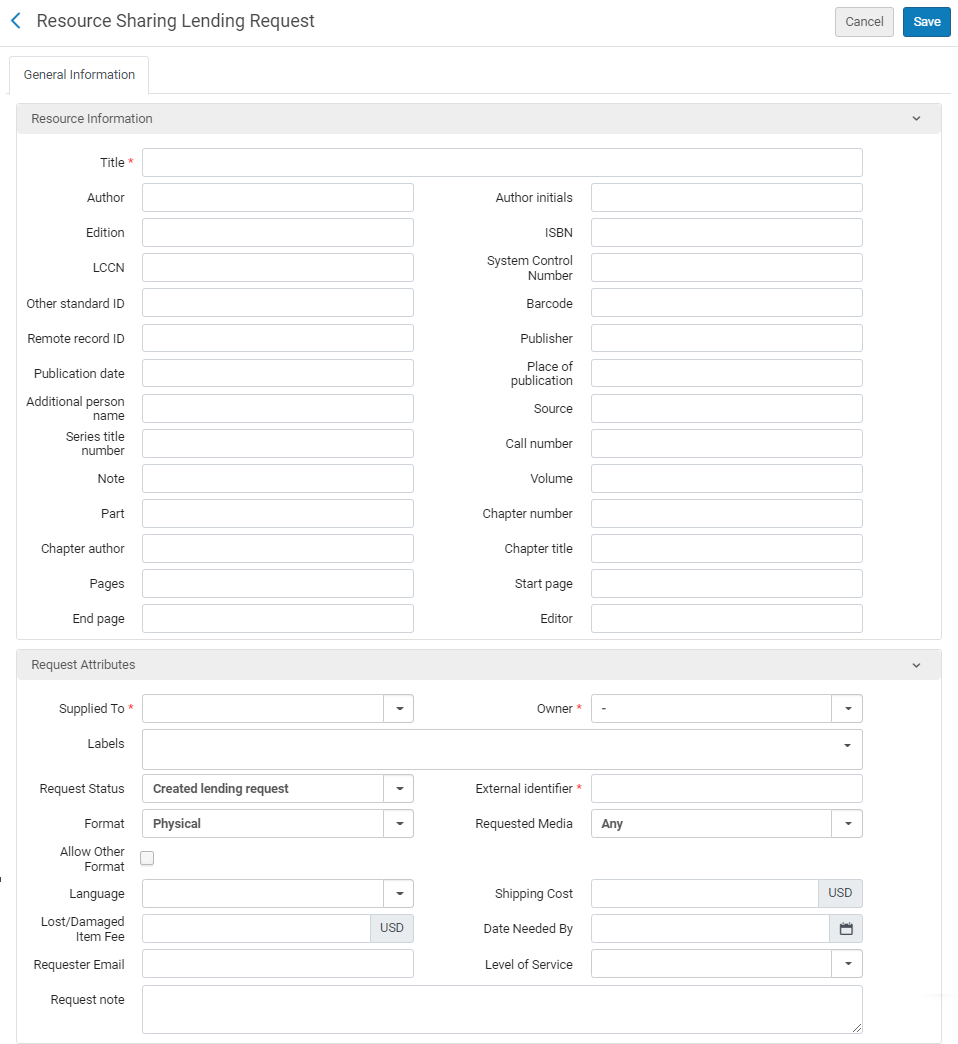 Resource Sharing Borrowing Request Page (Book)
- In the Resource Information area, enter the information in the relevant fields. For more information on these fields, see Adding a New Book or Journal Article.
If an augmentation-integration profile is active, and you fill in the PMID and/or the DOI fields, and then save the request, the following fields are auto-populated. Si los completa manualmente antes de guardar la solicitud, se sobrescriben. Tenga en cuenta que, una vez que estos campos se completan automáticamente, no se pueden editar.
- Título del Artículo\Capítulo
- Título de la revista
- Autor
- Volumen
- Fascículo
- ISSN
- Páginas
- Página inicial
- Página final
- Fecha de publicación
For articles, if the Article\Chapter title field is not filled in, the Article\Chapter title is copied from the Journal title.
- In the Request Attribute area, enter the required information in the relevant fields, as described below.
Campos de atributo de solicitudes de préstamo Campo Descripción Solo edición específica Al marcar esta casilla, el usuario indica que solo desea la edición especificada y ninguna otra.
Solicitante (Requerido) El usuario que solicita el ejemplar. When creating a request from a citation, this value is pre-filled by the citation_rs_default_requester parameter; see Configuring Other Settings.
The Owner field changes depending on the user you select here; see the note, below.
The user that is defined in this field becomes linkable (name appears in blue) in the Borrowing Requests task list. When users view the Borrowing Requests task list and select the name in the Requester field, they are directed to the user's details where they can make any necessary edits.
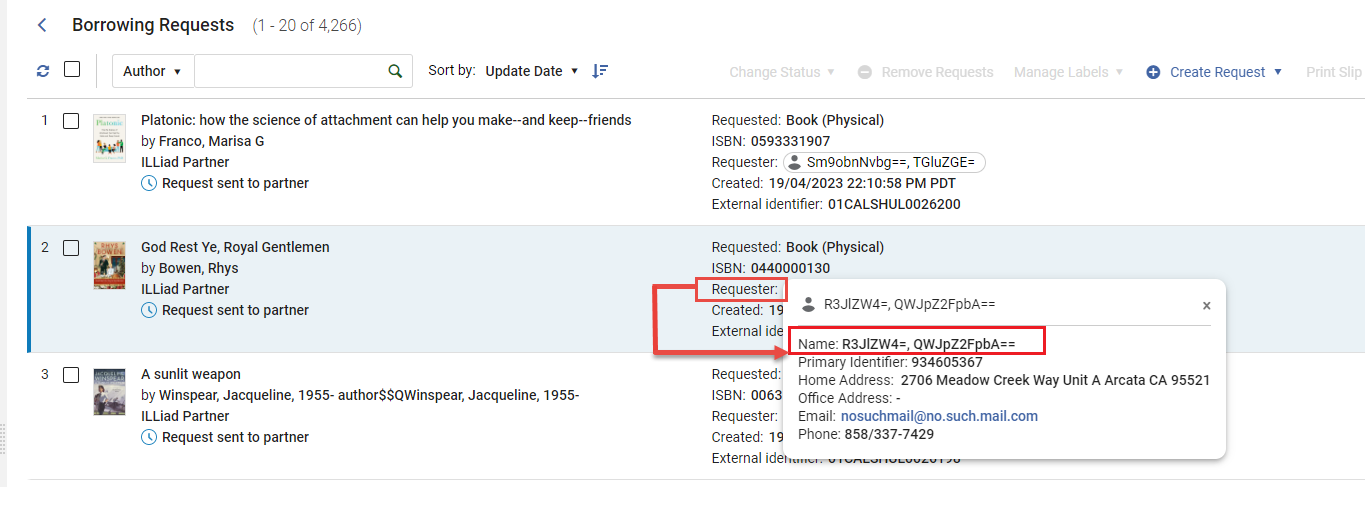
Etiquetas Agregue una o más etiquetas (identificadores de una sola palabra) a la solicitud.
Select the Labels field to see a list of existing labels. Seleccione una de las etiquetas para adjuntarla a la solicitud o comience a escribir para crear una nueva etiqueta.
For additional information about labels, see New Layout 2022.
Propietario La biblioteca de recurso compartido que es responsable de la solicitud. The displayed libraries are configured as resource sharing libraries in the General Configuration menu (see Managing an Institution and Its Libraries). - When creating a request from a citation, this value is pre-filled by the citation_rs_default_owner parameter; see Configuring Other Settings.
- Si se selecciona un solicitante asignado a una biblioteca de recursos compartidos, la biblioteca aparecerá en este campo. Si el solicitante se asigna a múltiples bibliotecas de recursos compartidos, seleccionar una de ellas. If the user is not assigned to a resource sharing library, the Owner is the value configured in ill_item_creation_lib_code(see Configuring Other Settings). To assign a resource sharing library to a user, see Quick User Management Page Fields. You can create relationships between resource sharing libraries to enable the libraries to supply items for each other (see Configuring Fulfillment Services Between Libraries Within an Institution).
Estado de la solicitud The status of the request; see Request Status. Formato solicitado Format of the requested item –Digital,Physical, or Physical non-returnable.
For more information about sending resource sharing items directly to a patron, see the Inter-Library Loans Personal Delivery video (10:51 min.).
Medio solicitado El tipo de medios en los que desea que se suministre la solicitud. The values that display in the drop-down field are those configured with a value of True on the Requested Media Definition Mapping Table page (see Configuring Requested Media Definitions). When a request is submitted with a requested media type that was added to the out-of-the-box options (see Configuring Additional Requested Media) and the request is sent to an ISO partner, the partner receives the requested media information in the Request Note field.
Permitir otro formato Determinar, si el formato solicitado no está disponible, si el usuario está dispuesto a recibir el ejemplar en otro formato. Socio The first partner configured in a request's rota (see Requests in Alma). Select Add Partners to add a partner to the request's rota, and select Add Rotas to add a rota template (group of partners). For details on adding partners, see To add partners below. For details on adding rota templates, see To add rota below. - For details on configuring partners, see Resource Sharing Partners.
- For details on configuring rota templates, see Configuring Rota Templates.
Ubicación de la creación del ejemplar Aparece solamente cuando se selecciona un socio que no es NCIP. La ubicación en la que el ejemplar temporal se ha creado. Identificador externo La cadena identificadora suministrada por el sistema externo. El identificador se envía al socio. - Cuando un socio NCIP o ISO se selecciona, se podrá introducir un valor manualmente
- Cuando un socio ARTEmail se selecciona, se generará un valor automáticamente. The format for this value is determined by the rs_external_id_prefix parameter. See Configuring Other Settings for details.
Después de crear la solicitud, se mostrará un valor identificador Interno para solicitudes de préstamo de todos los tipos de estados, incluyendo aquellos que se cancelaron o rechazaron. Cuando no hay identificador externo (como para solicitudes canceladas o rechazadas), se puede buscar una solicitud mediante el identificador interno de la solicitud.
This value corresponds to the External Identifier value when the request displays on the Resource Sharing Lending Requests Task List page (see Managing Resource Sharing Lending Requests).
Método de envío principal El método principal de envío del ejemplar: - Ariel
- Correo electrónico
- Fax
- FTP
- Odyssey
Fecha en la que se necesita Una fecha en la cual el ejemplar debe ser entregado. Si el ejemplar no se entrega para esa fecha, la solicitud se cancelará. If date needed by is enabled on RS requests, the requests will also be affected. Los clientes que desean evitar la cancelación automática de solicitudes que los usuarios ya no requieren pueden eliminar el campo del formulario de la solicitud.
Lugar de entrega Ubicación a la que se tiene que entregar el ejemplar. Aparece cuando el socio ARTEmail de la solicitud permite añadir una dirección. Elegir entre:
Deliver to library – Delivers to the library indicated in the Pickup at field.
You can create relationships between libraries to enable the libraries to deliver items to each other (see Configuring Fulfillment Relationships).
- Alternative address – Delivers to the address indicated in the Alternative address field. If the Format value is Digital, this field contains an email address. The Alternative address option displays only if rs_support_add_service is set to True on the Customer Parameters Mapping Table (see Configuring Other Settings).
Ubicación de recogida solicitada The libraries appearing in this field are configured with the Deliver to option on the Organizational Units Relations Setup page (see Configuring Fulfillment Relationships). If personal delivery is configured for the specified patron, the Personal Delivery option displays with the Home Address and/or Work Address sub-options, as configured on the patron's User Details page (see Adding User Contact Information).
When creating a request from a citation, this value is pre-filled by the citation_rs_default_requested_pickup_location parameter; see Configuring Other Settings. When pre-filled,For Reading-Room Use Only is selected by default.
Este campo es obligatorio incluso cuando se hacen solicitudes de préstamo digitales.
Solo para usar en Sala de Lectura Determinar si se restringe el acceso a la sala de lectura. When selected, the field Actual Pickup Location appears and the received item is available from the actual location. When creating a request from a citation,Actual Pickup Location is pre-filled by the citation_rs_default_actual_pickup_location parameter; see Configuring Other Settings.
See the Restricting Resource Requests to a Reading Room video (2:02 min.) for details about library-level invoices.
Coste de envío Un coste del envío para la solicitud. La divisa es la divisa por defecto de la institución. If a shipping cost borrower rule is configured, it is applied to the shipping cost of the request (see Configuring Shipping Cost Borrower Rules).
El Coste de envío se rellena con el valor enviado en el mensaje de envío del Prestador o mediante la operación de recepción en el lado del Prestatario (ejecutando las reglas).
Ejercicio fiscal La solicitud de préstamo se puede asignar a un fondo. Only funds associated with the Resource Sharing fund type are available as options to assign to a request. For more information, see Borrowing Requests Associated with Funds.
Currently, you must add the Fund-Ledger Viewer role to any operator who would like to use this feature. Esto se solucionará en una versión futura.
Solicitud de coste del usuario The patron request cost is the resource sharing request fee defined in the relevant policy (see Adding Fulfillment Policies). Se puede ignorar cambiando el valor en este punto.
La divisa es la divisa por defecto de la institución.
Cuando se introduzca un valor en este campo, y se pague después, el campo se dehabilitará para que no pueda introducir otro.
Coste de recepción para el usuario The patron receive cost is the resource sharing receive fee defined in the relevant policy (see Adding Fulfillment Policies). Se puede ignorar cambiando el valor en este punto.
La divisa es la divisa por defecto de la institución.
Cuando se introduzca un valor en este campo, y se pague después, el campo se dehabilitará para que no pueda introducir otro.
Dirección alternativa Appears only when the Delivery location value is Alternative address.
When the Format value is Physical, the available options are postal addresses. Select Use different address to display the Postal address fields and configure a new address.
When the Format value is Digital, the available options are email addresses. Select Use different email to display the Email address field and configure a new email address.
Dispuesto a pagar Si el usuario está dispuesto a pagar por el ejemplar Está de acuerdo con los términos de derechos de autor Seleccione para indicar que el usuario está de acuerdo con los términos de los derechos de autor.
Necesita información del usuario Si la información del usuario es necesaria Nota de solicitud Introducir cualquiera nota, según sea necesario.
When a request is submitted with a requested media type that was added to the out-of-the-box options (see Configuring Additional Requested Media) and the request is sent to an ISO partner, the partner receives the requested media information in this field. See also Active and Inactive Notes.
Nota del solicitante Cualquier nota especial añadida por el solicitante. Cuota máxima La multa máxima que el usuario está dispuesto a pagar. Nivel de servicio La velocidad de envío solicitada. To configure the available options, see Configuring Levels of Service. For a description of the fields' display in Primo, see Citation Linker.
- If you chose an ARTEmail partner, configure the parameters in the Parameters tab. The parameters displayed are those selected for the partner during the partner configuration process (see Resource Sharing Partners).
-
To add partners to a request's rota:
-
Select Add Partners to add individual partners to the request's rota. Se abre la página de la Lista de socios de recursos compartidos con la lista de socios de recursos compartidos disponibles.
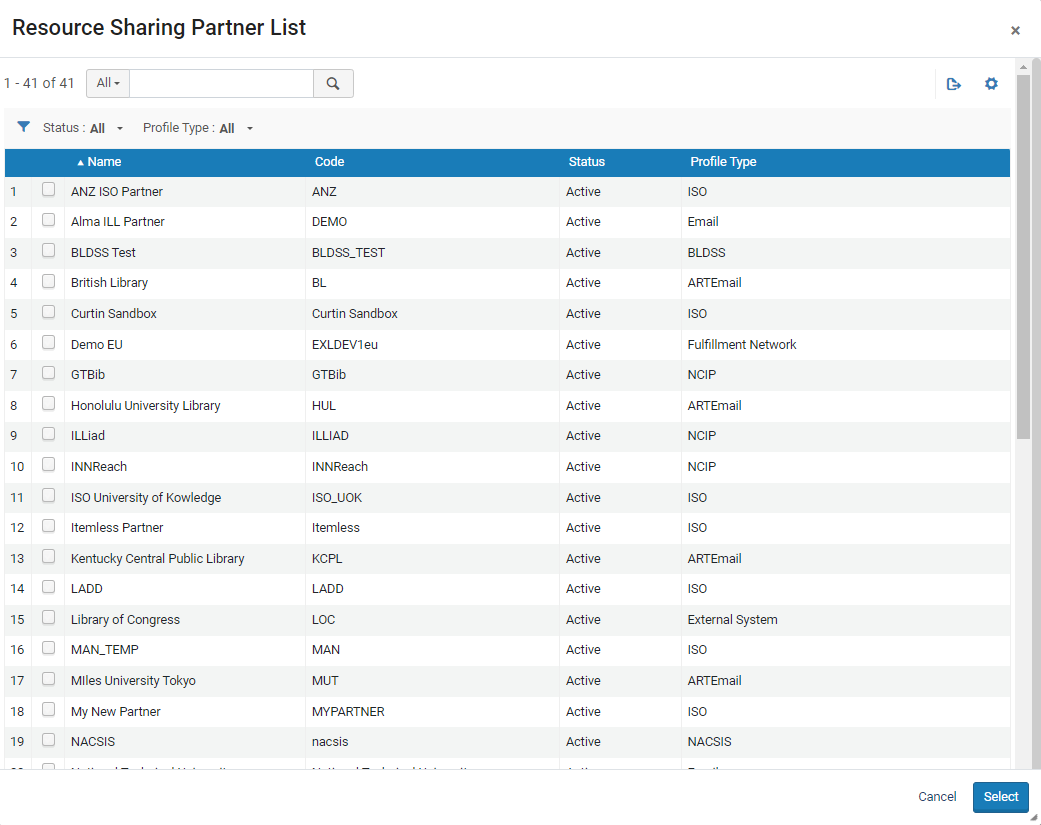
-
Select the check box of the partner(s) to add to the request's rota, and select Select.
If you select a partner with which you associated a locate profile, the request displays on the Resource Sharing Borrowing Request page with a Locate Resource link. Seleccionar el enlace para enviar una solicitud de recursos de localizar para la solicitud de préstamo. Alma searches the request's partners to verify that they have the resource. Partners that do not have the resource are removed from the request's rota. For details on associating a partner with a locate profile, see the procedure in Resource Sharing Partners.
-
- To add rota templates: You can configure rotas to be used either in the order in which they are listed (Ordered) or in a random order (Non-ordered), using Fulfillment Configuration (see Configuring Rota Templates).
Select Add Rotas to add rota templates to a request. Las Plantillas de ruta aparecerán con la lista de plantillas de rutas disponibles.
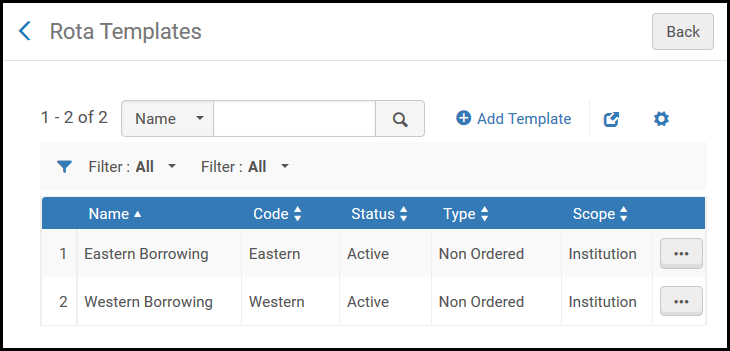
- Select the check boxes of the rota templates to add to the request, and select Select. Alma envía la solicitud a los socios individuales en la lista hasta que la solicitud se termine de ejecutar.
- Seleccionar uno de los siguientes:
- Save to save the request and close the form
- Locate to save the request, close the form, and initiate the process of locating a lender;Locate only appears if partners and/or rota are attached to the request
- Send to send a request message to the partner according to the selected parameters;Send only appears if there is an active partner to which the request can be sent, and the Automatically activate locate profile option is not selected when configuring a resource sharing library (see Configuring Parameters of a Resource Sharing Library)
- Save and Edit to save the request, keep the form open, and add tabs to it in which you can add more details to the request (see Editing a Borrowing Request)
- If a locally held resource matches the resource that you requested, a warning message appears when you try to save the resource-sharing borrowing request; see Viewing Local Resources for a Borrowing Request below.
- El ejemplar se añade al inventario en el formato de registro por defecto. Para configurar su sistema para permitir múltiples formatos de registro (como UNIMARC) o para configurar el formato por defecto, póngase en contacto con asistencia técnica de Ex Libris.
- If a borrowing request is sent to an ISO or NCIP peer-to-peer lending partner that has inactivated their resource sharing library for lending, the status of the lending request will be set to Rejected the borrower request. The borrowing request will then have its status changed to Rejected by partner. For more information on inactivating a resource sharing library, see Configuring Parameters of a Resource Sharing Library.
- By default, an expired patron can create a borrowing request. This can by changed by setting the check_for_expired_account parameter to true. For more information, see Configuring Other Settings (User Management). When a request is created for the expired patron, an override warning is displayed to the user.
When a resource sharing request is placed, the requesting patron's resource-sharing library is validated before the request can continue. If a warning message appears stating Patron does not have resource sharing privileges, and the patron's resource-sharing library is not the predefined resource-sharing library, it is recommended that you do one of the following to ensure that Alma checks the appropriate policy for the resource sharing library in use, or uses the library/institution's default terms of use:
- Configure a Resource Sharing Borrowing Request rule for the specified resource sharing library (see Configuring Fulfillment Units, Policies, and Terms of Use)
- Modify the Allow Resource Sharing Requesting Policy of the library and/or institution default terms of use (see Adding Fulfillment Policies)
To attach a rota to a request based on configured rota assignment rules, select the Recalculate Rota Assignment link to attach the rota to the request according to the configured rules. For details on configuring rules for a rota, see Configuring Rota Assignment Rules.
Adding a Borrowing Request From a Search
Puede crear una nueva tarea de préstamo RS copiando el registro bibliográfico del recurso requerido desde su institución, red o lista de repositorios comunitarios. De esta forma, puede ahorrarse el esfuerzo de escribir la información bibliográfica manualmente y asegurarse de tener la información correcta sobre el ejemplar.
To add a borrowing request from a search:
-
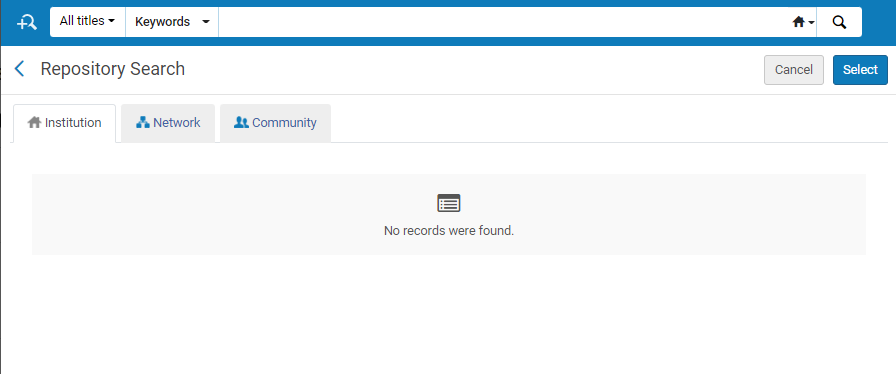
On the Borrowing Requests page (Fulfillment > Resource Sharing > Borrowing Requests), select Create Request > From Search. Se abre una página de búsqueda en el repositorio en un panel deslizante.
-
Search for the item (see Searching in Alma).
- You can select only All titles in the Find box.
- When adding a borrowing request from a search in the Network Zone, the repository search page displays the Held by field. El valor de este campo indica las ubicaciones en la red que contienen el recurso específico.
-
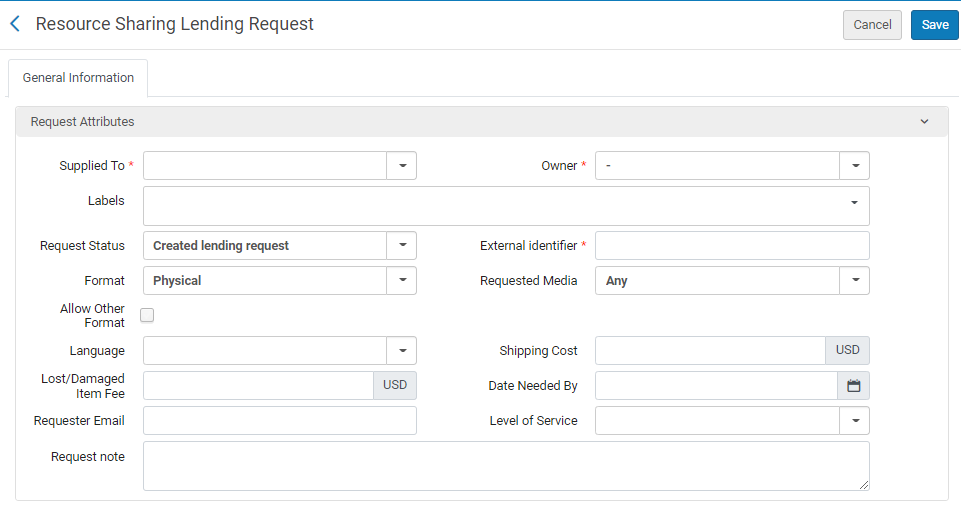
Select the checkbox of the required item, and then select Select. The Request Attributes section of the Resource Sharing Borrowing Request page opens in the sliding panel.
-
Introducir o modificar la información solicitada, según se describe en la siguiente tabla:
Campos de atributo de solicitudes de préstamo
Campo Descripción Solicitante El usuario solicitando el título. Etiquetas Agregue una o más etiquetas (identificadores de una sola palabra) a la solicitud. Select the Labels field to see a list of existing labels. Seleccione una de las etiquetas para adjuntarla a la solicitud o comience a escribir para crear una nueva etiqueta.
For additional information about labels, see New Layout 2022.
Estado de la solicitud Seleccionar el estado de la solicitud. Seleccionar de los siguiente:
- Cancelado por el personal
- Solicitud de préstamo creada
- Declarado como perdido por un socio
- Recibido en formato digital por la biblioteca
- Venció
- Obtenido de forma externa
- Devolución del prestador
- Ejemplar prestado al usuario
- Ha fallado la localización
- Localización en proceso
- Renovación de usuario mediada
- Overdue request – The request's due date arrived.
- Pendiente de aprobación
- Recibido físicamente por la biblioteca
- Listo para ser enviado
- Recuperado por el socio
- Recibido - no disponible para préstamo
- Rechazado por socio
- Solicitud de renovación no aceptada
- Renovar solicitado
- Renovado por el socio
- Informar sobre un ejemplar dañado al socio
- Informar sobre un ejemplar perdido al socio
- Solicitud aceptada
- Solicitud completada - La solicitud ha sido entregada o cancelada antes de llegar al estante de reservas.
- Solicitud enviada al socio
- Devuelto por el usuario
- Ejemplar devuelto al socio
- Enviado digitalmente
- Enviado físicamente
- Esperando respuesta de cancelación
- Se proporcionará
The value of this field is displayed as the Request Status on the Resource Sharing Borrowing Requests page.
Formato solicitado Seleccionar el formato de la solicitud: - Digital
- Físico
- Físico no retornable
Medio solicitado El tipo de medios en los que desea que se suministre la solicitud. The values that display in the drop-down field are those configured with a value of True on the Requested Media Definition Mapping Table page (see Configuring Requested Media Definitions).
When a request is submitted with a requested media type that was added to the out-of-the-box options (see Configuring Additional Requested Media) and the request is sent to an ISO partner, the partner receives the requested media information in the Request Note field.
Permitir otro formato Seleccionar la casilla para indicar que si el formato de la solicitud no está disponible, el usuario estará dispuesto a recibir el ejemplar en otro formato. Método de envío principal Seleccionar el método preferido de envío del ejemplar. Seleccionar desde las siguientes opciones: - Ariel
- Correo electrónico
- Fax
- FTP
- Odyssey
Fecha necesaria para Select the date on which the item is needed from the Calendar dialog box. Lugar de entrega Ubicación a la que el ejemplar se tiene que entregar. Se muestra cuando el socio ARTEmail en la solicitud permite añadir una dirección.
Elegir entre:
- Deliver to library – Delivers to the library indicated in the Pickup at field.
You can create relationships between libraries to enable the libraries to deliver items to each other (see Configuring Fulfillment Relationships).
- Alternative address – Delivers to the address indicated in the Alternative address field. If the Format value is Digital, this field contains an email address. The Alternative address option displays only if rs_support_add_service is set to True on the Customer Parameters Mapping Table (see Configuring Other Settings).
Ubicación de recogida solicitada Select a location for the item to be picked up. The default value is the value selected in the Default Pickup Location field on the Organization Unit Details page (see Configuring Fulfillment Relationships). The values displayed in the drop down list are the libraries that are configured with the Deliver to option on the Organizational Units Relations Setup page (see Configuring Fulfillment Relationships).
If personal delivery is configured for the specified patron, the Personal Delivery option displays with the Home Address and/or Work Address sub-options, as configured on the patron's User Details page (see Adding User Contact Information).
Nótese que este campo es obligatorio incluso cuando se hacen solicitudes de préstamo digitales.
Estado de los Derechos de autor Select a copyright status or select Calculate Copyright Status to the right of the drop-down list
Selecting Calculate Copyright Status automatically activates the digitization and copyright rules (see Configuring Digitization and Copyright Rules) and applies the calculated value to the request. El valor calculado se ignora de esta página.
Nótese que las mismas reglas de digitalización y de derechos de autor también se aplican automáticamente cuando una solicitud es realizada digitalmente y se coloca en Primo. En cualquier caso, si las reglas determinan que se necesita la aprovación manual de derechos de autor, entonces la solicitud no podrá enviarse al prestador.
This Copyrights Status option appears only if rs_borrower_copyright_management is set to True on the Customer Parameters Mapping Table (see Configuring Other Settings).
If the request is set to No copyright restriction, the request is sent with Copyright compliance set to US:CCL.
If the request is set to Copyright approved, the request is sent with Copyright compliance set to US:CCG.
A request that is set to Copyright not approved cannot be sent.
Este campo se aplica solo a solicitudes que se hagan en formato digital.
Coste de envío Introducir un coste del envío para la solicitud. La divisa que se muestra es la divisa por defecto de la institución.
If a shipping cost borrower rule is configured, it is applied to the shipping cost of the request (see Configuring Shipping Cost Borrower Rules).
Ejercicio fiscal La solicitud de préstamo se puede asignar a un fondo de adquisición. Solo los fondos de Recursos compartidos que están permitidos usar por la biblioteca de recursos compartidos activa estarán disponible como opciones. For more information, see Assigning Borrowing Requests to Funds. Dispuesto a pagar Seleccionar para indicar que el usuario está dispuesto a pagar por el ejemplar. Está de acuerdo con los términos de derechos de autor Seleccione para indicar que el usuario está de acuerdo con los términos de los derechos de autor. Necesita información del usuario Seleccionar para indicar que se necesita más información sobre el usuario. Nota de solicitud Introducir cualquier nota para la solicitud. Cuando se edite una solicitud, este campo contiene una nota para el ejemplar enviado, como enviado a Alma por el sistema de fuente NCIP en la nota de envío de mensaje NCIP. La nota de envío se muestra en el formato siguiente:
||Nota de envío||<texto de la nota de envío>||Nota de envío||
La nota de envío la utilizan los implementadores de NCIP, como el Navegador OCLC, para actualizar el sistema de la biblioteca con información adicional sobre ejemplares enviados, así como con información sobre el recurso en sí mismo, el solicitante y las ubicaciones desde las que se solicita y se recoge.
When a request is submitted with a requested media type that was added to the out-of-the-box options (see Configuring Additional Requested Media) and the request is sent to an ISO partner, the partner receives the requested media information in this field.
Cuota máxima La cuota máxima que el usuario que toma el préstamo está dispuesto a pagar por el ejemplar. - Select Add Partners to add a partner to the request's rota. See To add partners above.
- Select Add Rotas to add a rota template (group of partners). See To add rota above.
- Seleccionar uno de los siguientes:
- Locate to save the request, close the form, and initiate the process of locating a lender;Locate only appears if partners and/or rota are attached to the request
- Send to save the request, close the form, and send a message to the partner according to the selected parameters;Send appears only if there is an active partner to which the request can be sent, and the Automatically activate locate profile option is not selected when configuring a resource sharing library (see Configuring Parameters of a Resource Sharing Library)
- Save and Edit to save the request, keep the form open, and add tabs to it in which you can add more details to the request (see Editing a Borrowing Request)
- Save to save the request and close the form
If a locally held resource matches the resource that you requested, a warning message appears when you try to save the resource-sharing borrowing request; see Viewing Local Resources for a Borrowing Request below.
If a borrowing request is sent to an ISO or NCIP peer-to-peer lending partner that has inactivated their resource sharing library for lending, the status of the lending request will be set to Rejected the borrower request. The borrowing request will then have its status changed to Rejected by partner. For more information on inactivating a resource sharing library, see Configuring Parameters of a Resource Sharing Library.
Adding a Request From an External Resource
Se puede crear una solicitud de préstamo para un recurso que se ha catalogado en un sistema externo (es decir, fuera de Alma y de la institución actual). Utilizando esta función, puede utilizar registros existentes para describir el recurso necesario usando un registro de catálogo desde otra institución, en lugar de tener que escribir manualmente la descripción de la solicitud. Se pueden buscar recursos utilizando un perfil de búsqueda externa.
For more information about adding a request from an external resource, see the Creating a Borrowing Request Using External Resources video (3:41 min.).
To add a borrowing request from an external search:
-
On the Borrowing Requests page (Fulfillment > Resource Sharing > Borrowing Requests), select Create Request > From External Resource. La página de Búsqueda de recursos externos se abre en un panel deslizante.
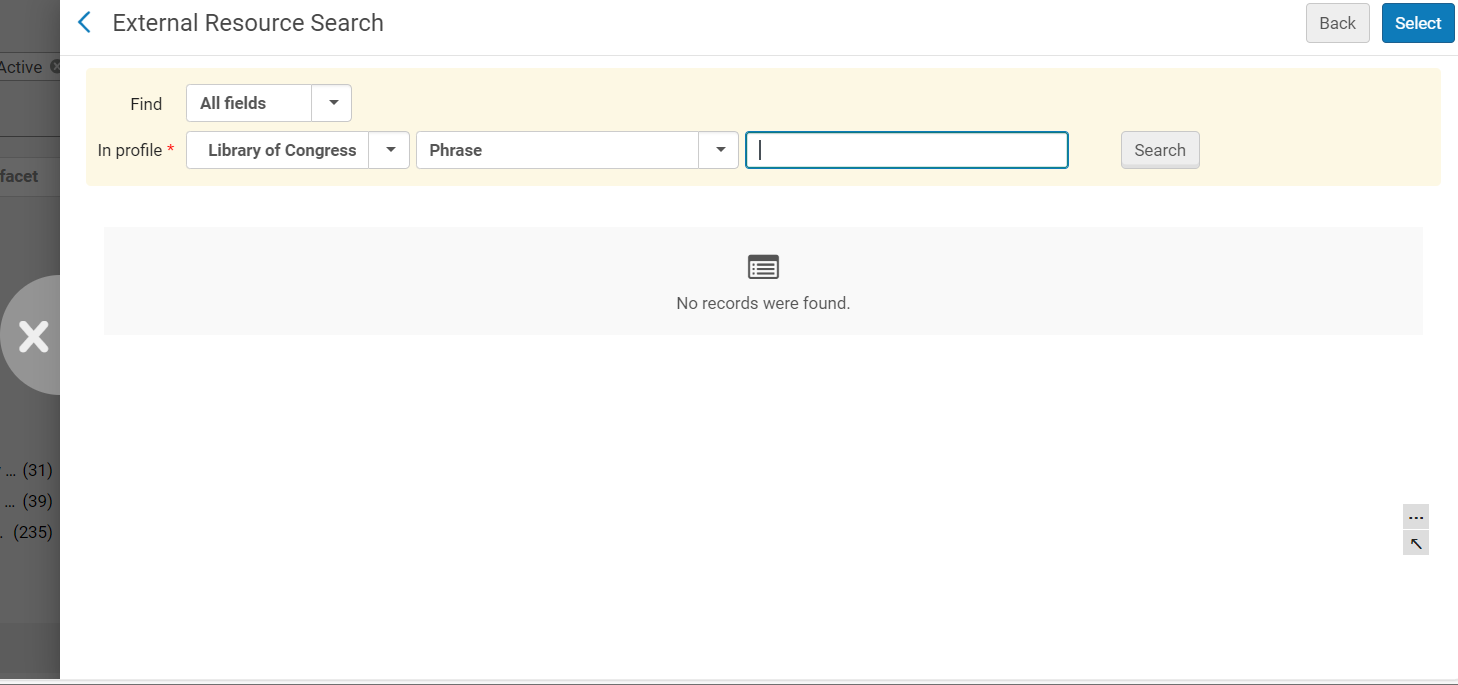
Página de Búsqueda de Recurso Externo
- In the Find field, select the fields of each catalog record to include in the search:All fields, or just ISBN or ISSN.
-
In the In profile field, select the external profile by which the criteria is to be searched.
The displayed list of profiles includes the external search profiles configured on the External Search Profile List page; see Configuring External Search Profiles.
- If you selected All fields in the Find field, in the next field, select whether you want to search for an exact phrase or keywords. Si seleccionó ISBN o ISSN, este campo no está disponible.
- Select Search. The search is performed, and the results display on the page.
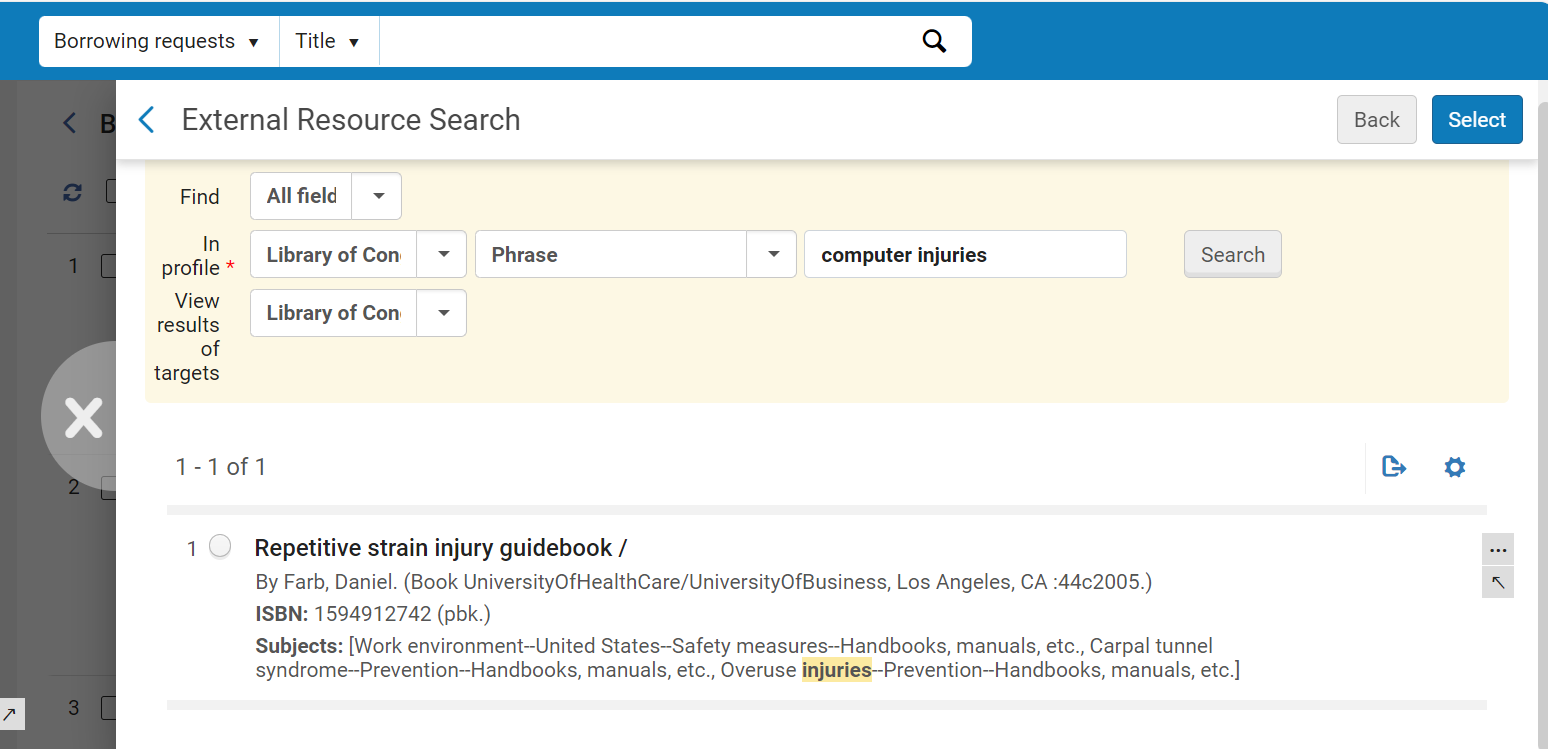 Página de Búsqueda de Recurso Externo - Resultados de la Búsqueda
- Select the resource from which you want to create a borrowing request, and then select Select. La página Solicitud de préstamo de Recursos compartidos se abre en el panel deslizante.
- Configure the fields on both the General Information and Parameters tabs, as explained above.
- Seleccionar uno de los siguientes:
- Save to save the request and close the form
- Locate to save the request, close the form, and initiate the process of locating a lender;Locate only appears if partners and/or rota are attached to the request
- Send to save the request, close the form, and send a message to the partner according to the selected parameters; Send appears only if there is an active partner to which the request can be sent, and the Automatically activate locate profile option is not selected when configuring a resource sharing library (see Configuring Parameters of a Resource Sharing Library)
- Save and Edit to save the request, keep the form open, and add tabs to it in which you can add more details to the request (see Editing a Borrowing Request)
If a locally held resource matches the resource that you requested, a warning message appears when you try to save the resource-sharing borrowing request; see Viewing Local Resources for a Borrowing Request below.
If a borrowing request is sent to an ISO or NCIP peer-to-peer lending partner that has inactivated their resource sharing library for lending, the status of the lending request will be set to Rejected the borrower request. The borrowing request will then have its status changed to Rejected by partner. For more information on inactivating a resource sharing library, see Configuring Parameters of a Resource Sharing Library.
Viewing Local Resources for a Borrowing Request
Si existen recursos locales pero está creando una solicitud de recursos compartidos en cualquier caso, aparece un mensaje de advertencia de autopropiedad cuando guarda la solicitud. Puede ver los recursos locales desde este mensaje de advertencia. Si elige hacerlo, puede decidir colocar una solicitud de reserva local en el recurso local coincidente, en cuyo caso no se crea la solicitud de préstamo de recursos compartidos que estaba creando, o crear la solicitud de préstamo en cualquier caso.
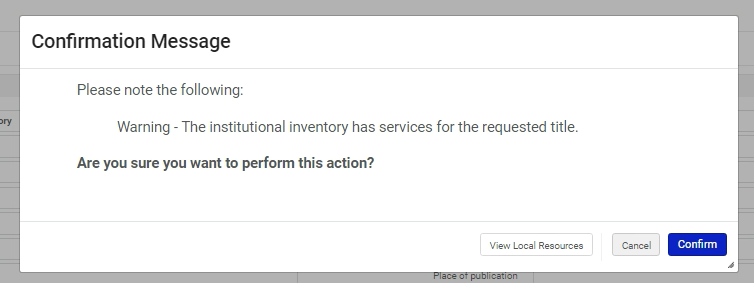
When this message appears, if you are sure you want to create the borrowing request, select Confirm. El mensaje de advertencia se cierra y se crea la solicitud. De lo contrario, haga lo siguiente:
To view matching local resources before confirming the borrowing request:
-
Select View Local Resources. Se abre una lista del recurso local.
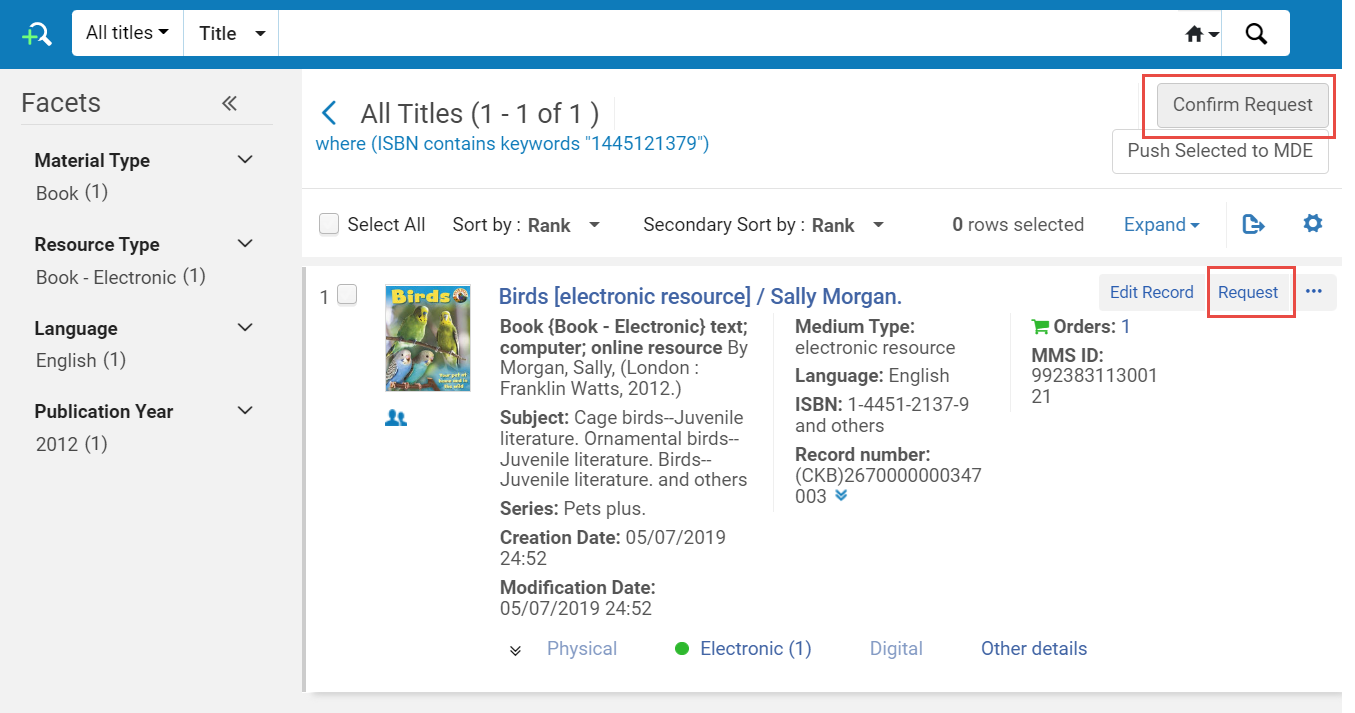
- Llévese a cabo una de las siguientes opciones:
- To abort the borrowing request and create a local hold-request instead, select Request. A Create Request form opens. Select Submit to create the local hold-request.
- To continue with the creation of the borrowing request rather than place a local hold request, select Confirm Request. Se crea la solicitud de préstamo de recursos compartidos.
