Managing Borrowing Requests
This page explains how to find specific borrowing requests in Alma that require your attention, and the various actions you can take during the management process of each borrowing request. This includes finding borrowing requests that require handling, viewing request parameters, removing requests, managing labels, etc. It also includes management of task assignment, sending queries and general messages to patrons, rejecting/resupplying requests, converting borrowing requests, managing overdue borrowed resources and printing slips in bulk.
For more information on resource sharing including locating items for resource sharing, working with resource sharing partners, working with borrowing and lending requests and contributing to the resource sharing directory, see Resource Sharing.
For information on accessing resource sharing requests in Rapido, see Managing Rapido Borrowing Requests.
Para gestionar las solicitudes de uso compartido de recursos, se debe desempeñar uno de los siguientes roles:
- Operador de servicios al usuario (en el ámbito de una biblioteca de uso compartido de recursos)
- Administrador de servicios al usuario (en el ámbito de una biblioteca de uso compartido de recursos)
You can manage the workflow of existing resource-sharing borrowing requests in the Borrowing Requests task list (Fulfillment > Resource Sharing > Borrowing Requests). Este artículo explica cómo encontrar solicitudes de préstamo específicas que requieren su atención y las diversas acciones que puede realizar durante el proceso de gestión de cada solicitud de préstamo.
En la mayoría de los sistemas, gran parte de las solicitudes de préstamo se manejan automáticamente hasta que llegan a la posible biblioteca de préstamo, pero algunas requerirán una acción manual por varias razones. Por lo general, podrá identificarlas por su estado y otras propiedades.
Finding Requests that Require Handling
You can use the facets filtering system, the sort feature, and the secondary search to help you find the tasks you need to work with. La búsqueda secundaria es una característica especial de las listas de tareas de recursos compartidos. Además, puede abrir la página Solicitudes de préstamo desde uno de los filtros predefinidos en la opción Listas de tareas del menú persistente.
Filtering Borrowing Requests Using Facets
Puede filtrar la lista de solicitudes de préstamo usando las facetas en el lado izquierdo de la página. Las facetas incluyen:
-
Labels – Labels that are attached to requests
-
Active Partner –The active partner in a request rota
-
Activity Status – Active or Completed (You can remove a specific status from the display of Active records in the task list by enabling the row in the Borrowing Requests Inactive Filters - see Configuring Borrowing Request Inactive Filters.)
-
Status – Status of the borrowing request
Los siguientes estados indican que el paso final en la solicitud se completó. Las solicitudes en estos estados pueden eliminarse.
- Cancelado por el socio
- Cancelado por el usuario
- Cancelado por el personal
- Recibido en formato digital por la biblioteca
- Venció
- Solicitud completada - Este es el estado final antes de la eliminación y puede configurarse manualmente. Si la solicitud es para un socio ISO, el socio deberá responder antes de que el estado pueda cambiar a Solicitud completada.
Los siguientes son estados no finales (en proceso) del proceso de solicitud:
- Conditional – Appears only when Conditional is enabled in the borrowing workflow profile. See Adding Workflow Profiles.
- Solicitud de préstamo creada
- Damaged communicated – Appears only when Damaged communicated is enabled in the borrowing workflow profile. See Adding Workflow Profiles.
- Declarado como perdido por un socio
- Exportado a un tercero
- Obtenido de forma externa
- Devolución del prestador
- Ejemplar prestado al usuario
- Ha fallado la localización
- Localización en proceso
- Lost communicated – Appears only when Lost communicated is enabled in the borrowing workflow profile. See Adding Workflow Profiles.
- Renovación de usuario mediada
- Solicitud vencida
- Pendiente de aprobación
- Recibido físicamente por la biblioteca
- Listo para ser enviado
- Recuperado por el socio
- Recibido - no disponible para préstamo
- Rechazado por socio
- Solicitud de renovación no aceptada
- Renovar solicitado
- Renovado por el socio
- Informar sobre ejemplar dañado al socio – Mismo significado que Daño comunicado.
- Informar sobre ejemplar perdido al socio – Mismo significado que Pérdida comunicada.
- Solicitud aceptada
- Solicitud enviada al socio
- Devuelto por el usuario
- Ejemplar devuelto al socio
- Enviado digitalmente
- Enviado físicamente
- Esperando respuesta de cancelación
- Se proporcionará
- Creation Date – Date on which the request was created. Los posibles valores son:
- Today – Requests created on the current date
- 2-3 days ago – Requests created two or three days before the current date (excluding today and yesterday)
- 4-7 days ago – Requests created 4-7 days before the current date (in other words, excluding the above three options)
- 8-30 days ago – Requests created between 8 days and a month before the current date (in other words, excluding the above four options)
- Older – Requests created more than one month before the current date
- Update Date – Date on which the request was updated. Possible values are the same as those for the Creation Date facet.
- Requested Format – The format of the requested item. Options are:Digital,Physical, and Physical non-returnable
- Supplied Format – The format in which the requested item was supplied. Options are:Digital,Physical,Physical non-returnable and Undefined
- Due Date – The date by which the item must be delivered. Possible values are the same as those for the Creation Date facet.
- Last Interest Date – The date after which the requester has indicated that they are no longer interested in the item
- Need Patron Information – Requests for which mandatory information has not been supplied by the patron
- General Messages – Requests which contain general messages of Type = Received. You can dismiss and activate general messages from the request's General Messages tab (see Sending a General Message With a Borrowin Request).
- Owning Library – The library which owns the requested resource
- Notes from Partner – The requests with notes from the lending institution
- Pickup Location – Libraries, reading rooms, and personal delivery are all included in the facet
- Level of Service – The level of service assigned to the request
- User Group – The user group of the requester
- Assignee; – The staff person to whom the request is assigned (including "Unassigned")
- Event Name – Status that is attached to the request by broker systems (such as BLDSS) that support request updates with Alma
Secondary Search
La búsqueda secundaria le permite buscar la lista de solicitudes actuales para las que cumplan ciertos criterios. For example, you could search for a particular author's name in order to find all the requests in the list related to books by that author, and hide all the other requests in the list.
Unlike the primary search feature, which is always available in the persistent search box (see Alma User Interface), the secondary search does not cancel previously selected facets.
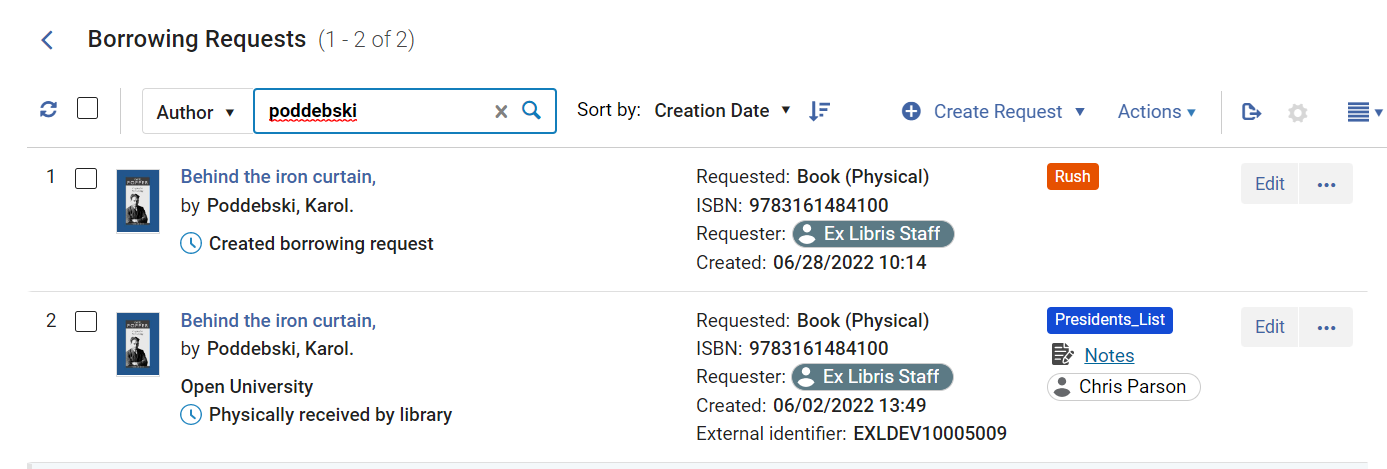
- En la parte superior de la lista de solicitudes, en los controles de búsqueda secundaria, en la lista desplegable, seleccione el campo por el que buscar.
- En el cuadro de texto, introduzca el texto que desea buscar.
- Press Enter or select
 .
The search is performed; the request list is updated as required so that only those requests that meet the search requirements appear in it.
- In the secondary-search controls, select the x.
Predefined Task-List Filters
You can select any of the following tasks in the Tasks List ( ) in the persistent menu (see Tasks in the Task List) to open the Borrowing Requests page with a preset filter:
- Solicitudes de préstamo - Nuevas - sin socio
- Solicitudes de préstamo - Vencidas
- Solicitudes de préstamo canceladas por el socio
- Solicitudes de préstamo recuperadas
- Solicitudes de préstamo devueltas por el usuario
- Solicitudes de préstamo con mensajes generales activos
- Solicitudes de préstamo con notas activas
Viewing the Parameters of a Request
Puede ver el formulario de solicitud completo de una solicitud de préstamo existente. Dependiendo de su estado, también podrá editar la solicitud. To view the form, select View or Edit(whichever appears). El formulario se abre en un panel deslizante. For additional information, see Editing a Borrowing Request.
View appears if the request status is one of the following:
- Ejemplar devuelto al socio
- Solicitud completada - La solicitud ha sido entregada o cancelada antes de llegar a la estantería de reservas.
- Enviado digitalmente
- Cancelado por el socio
- Cancelación solicitada
Otherwise,Edit appears.
Workflow Actions for Borrowing Requests
Puede gestionar las solicitudes de préstamo existentes realizando acciones en ellas, cambiando sus estados, eliminándolas de la lista de tareas y administrando sus etiquetas.
Performing an Action
You can perform actions on individual borrowing requests from the More actions menu of the request. Las opciones disponibles dependen del tipo de solicitud y su estado.
- Optionally configure the parameter check_patron_duplicate_borrowing_requests; see Configuring Other Settings.
- Seleccione la acción que desea realizar en las solicitudes seleccionadas, como se describe en la siguiente tabla:
Enlaces de la página de Solicitudes de préstamo de uso compartido de recursos
Segmentos de entrada de línea dla reserva Descripción Asignar a Assign a task to a user (see Managing Task Assignments below). Apellido(s) del usuario Cancelar la solicitud. Aparece solamente cuando: - La solicitud todavía está activa
- The request does not have a status of Loan
- La solicitud no se ha enviado
- No partner exists or the configured active partner supports the Cancel feature
When canceling a request, the request's status becomes Canceled by staff.
You can also delete requests in Primo, on the My Account tab. When doing so, the borrowing request's status becomes Canceled. Si un ejemplar está en el estante de reservas cuando se cancela en Primo:
- Se cancela la solicitud de reserva
- El ejemplar vuelve a la estantería de reservas vencidas
- The request is marked as Completed
For details on the Primo My Account tab, see My Account.
Cuando se cancela una solicitud, se envía un mensaje al usuario. The letter is Ful Cancel Request Letter (email) or Cancel Request Letter (SMS). To configure the message, see Configuring Alma Letters.
Cancelar recuperación Los prestatarios que hayan recibido la Carta electrónica de devolución de préstamos pueden cancelar dicha devolución. This reverts the due date to the original date before the recall. La opción Cancelar devolución está disponible si el perfil de flujo de trabajo de préstamo del socio solicitante tiene activa la acción Cancelar devolución.
Préstamo a usuario Marca que el usuario ha recibido un ejemplar físico no retornable y completa la solicitud. Respuesta condicional When an ISO message is sent from the lender, the borrowing request changes to Conditional status, and the Date for Reply field is displayed. When selecting this action, a window is displayed to select Yes or No in response to the condition specified by the lender. If the response is Yes, the request status changes to Sent and Date for Reply field is cleared. If the response is No, the status changes to Rejected by Partner and continues to the next partner in the rota. Dañado Send an email or message to the lender and set the status to Damaged communicated. Aparece solamente:
- Para correo electrónico (se envía el correo electrónico) o socios ISO (se envía el mensaje).
- Cuando la solicitud es recibida por la biblioteca (y no como "Físicamente no retornable") y aún no se ha devuelto al socio
- When Damaged communicated is enabled in the borrowing workflow profile. See Adding Workflow Profiles.
Duplicado Crea una nueva solicitud basada en una existente. Entonces se puede modificar la solicitud según se requiera en la página Solicitud de préstamo de uso compartido de recursos. For details on the displayed fields on this page, see the Resource Information Fields table in Adding a New Book or Journal Article and Request Attribute Field table in Creating a Borrowing Request.
Al duplicar una Solicitud de préstamo de uso compartido de recursos, los valores en los siguientes campos se copian a la nueva solicitud:
- Título
- ISSN, ISBN (campos de metadatos)
- Autor
- Solicitante
- Propietario
- Estado de la solicitud
- Formato solicitado
- Lugar de entrega
- Nota de reserva
Editar coste de envío This allows the user to update the shipping cost without opening the Details pane or the full edit form for the borrowing request. Esta opción también está disponible para solicitudes completadas. Obtenido de forma externa Envía una solicitud mediante el servicio GetItNow. See Sending a Request for a CCC GetItNow Resource. Mensaje general Send a general message with a borrowing request to a lender (see Sending a General Message With a Resource Sharing Request). Ubicar recurso Activa manualmente el proceso de ubicación del préstamo. Esta acción solo aparece si la solicitud tiene un socio o turno asignado. See Borrowing Locate Process. Perdida Send a message or email to the lender and set the status to Lost communicated. Aparece solamente: - Para correo electrónico (se envía el correo electrónico) o socios ISO (se envía el mensaje).
- Cuando la solicitud es recibida por la biblioteca (y no como "Físico no retornable") y aún no se ha devuelto al socio.
- When Lost communicated is enabled in the borrowing workflow profile. See Adding Workflow Profiles.
If the rs_use_tou_for_lost_item parameter is enabled (Configuration > Fulfillment > Other Settings) fines and fees will be added to the patron, based on the loan terms of use. See Managing Lost Loans for more information.
Solicitud de compra
Puede crear una solicitud de compra con la información de la solicitud de préstamo. Si la solicitud de préstamo está inactiva, será dirigido directamente a un forma¡ulario de solicitud de compra. Si la solicitud de préstamo está activa, se mostrará una ventana para seleccionar si cancelar la solicitud de préstamo o mantener la solicitud de préstamo activa junto con la solicitud de compra.
El campo del solicitante de la solicitud de compra se completa de la siguiente manera:
- If the resource sharing request is canceled, the field is populated with the requester from the original borrowing resource sharing request.
- Si la solicitud de recursos compartidos está inactiva o se mantiene activa, el campo del solicitante se rellena con el ID del usuario que inició sesión.
- You can also create a resource sharing request from a purchase request as described in Working with Purchase Requests.
- You need the Fulfillment Services Operator/Manager roles with relevant privileges for submitting Purchase requests. Contact Support to activate this.
Reactivar solicitud Reactivar solicitud de préstamos aparecerá cuando:
- The Operator has the Reactivate privilege in the scope of the owner of the request.
- Si existe un socio activo, debe tener el paso Reactivado en el Flujo de trabajo de préstamos.
- Status is one of: CANCELLED, REQUEST_COMPLETED, CANCELLED_BY_PATRON ,CANCEL_REQUESTED, REJECTED, EXPORT_TO_THIRD_PARTY.
Seleccione esta opción para reactivar una solicitud de recursos compartidos punto a punto completada. A temporary item is recreated using the previous barcode with the process status set to In resource sharing. La biblioteca y la ubicación del ejemplar se establecen en los mismos valores que cuando el ejemplar se creó inicialmente. Si el ejemplar aún no está prestado, se reinicia una solicitud de reserva.
When reactivating, two options appear on the confirmation window:Reactivate loan and Send general message. If no loan is initiated, the request status is Request Reactivated. Se mantiene el ID externo original de la solicitud.
Recalcular asignación de turnos To attach a rota to a request based on configured rota assignment rules, select the Recalculate Rota Assignment link to attach the rota to the request according to the configured rules (see Configuring Rota Assignment Rules). This process also performs a locate process automatically if the Automatically activate locate profile option is selected for this resource sharing library (see Configuring Parameters of a Resource Sharing Library). Asignar liberación Remove the assignment of the task and leave it unassigned (see Managing Task Assignments) below. Eliminar y recalcular la asignación de turnos Eliminar todos los socios, recalcular y crear nuevos turnos en una acción.
If request was already sent to a partner and you select this option, the partner is not removed from the rota and it remains the active partner. Sólo el resto de los turnos son eliminados.
Rellamar Recupera ejemplares enviados cuando se realiza una solicitud de reserva local para dicho recurso. La función recuperar se aplica a socios ISO y de correo electrónico. Se puede configurar qué préstamos se recuperarán primero si el recurso solicitado tiene tanto copias enviadas a un solicitante de préstamo remoto y copias prestadas a usuarios locales. The parameter that controls this choice,rs_prefer_recall_method, defaults to False(see Configuring Other Settings). Changing it to True recalls the shipped item first, rather than the locally loaned copy.
Recalls are supported if the borrowing workflow profile includes the Recall item action (see Configuring Workflow Profiles). In that case, borrowing requests display a new action, Recall.
For more information about the recalling resource sharing requests, see the Resource Sharing Request Recalls video (7:33 min.).
Eliminar línea(s) de pedido Select a receiving format and enter a temporary barcode to enable receiving the resource (see Resource Sharing Partners). If the generate_resource_sharing_temp_barcode configuration setting is set to true, the temporary barcode is displayed automatically (see Configuring Other Settings). See Receiving Items.
Rechazar Mark a request rejected by the lending institution as Rejected (see Rejecting a Borrowing Request). Reject is only visible if the workflow option Reject is enabled. Cuando se rechaza una solicitud de préstamo, se debe ingresar una razón. Las razones se transmiten a la biblioteca prestamista, de modo que se utilice un conjunto de razones en común. - En uso En préstamo
- En proceso
- Perdida
- Fuera de circulación
- Sin propietario
- En orden
- Fascículo de volumen aún no disponible
- En encuadernación
- En falta
- En estantería
- Reservado
- En malas condiciones
- El coste excede el límite
- Cambiar proveedor
- Prepago requerido
- Carece de cumplimiento de los derechos de autor
- No encontrado según lo citado
- Ubicaciones no encontradas
- En reserva
- Problema de política
- Mensajes obligatorios no compatibles
- Caducidad no admitida
- Servicios de entrega solicitados no compatibles
- El plazo de entrega preferido no es posible
Quitar Eliminar la solicitud. Appears only when the request's status is one of the following: - Ejemplar devuelto al socio
- Solicitud completada - La solicitud ha sido entregada o cancelada antes de llegar a la estantería de reservas.
- Enviado digitalmente
- Cancelado por el socio
- Cancelación solicitada
Renovar Renueva una solicitud de préstamo de uso compartido de recursos. Aparecerá un cuadro de diálogo en el que se podrá introducir una fecha límite para la solicitud y una nota opcional en los campos Nota interna y/o Nota a socio. For details on these fields, see step 3 in Rejecting a Borrowing Request. The request status is changed to Renewed by Partner. For more information, see Managing Borrowing Renewals. This option appears when Staff renewal is selected for lending requests in the Resource Sharing Lending Workflow Profile (see Configuring Workflow Profiles).
Si la solicitud se renueva, se envía un mensaje al usuario y se podría cobrar una tarifa de renovación. La carta es Carta de información de préstamos completa. To configure the message, see Configuring Alma Letters. A resource sharing renew fee is set as part of a fulfillment policy; see Adding Fulfillment Policies
For more information about requesting renewal of a borrowing request, see the ISO ILL: Request Renewal video (10:06 min.).
Renovar solicitud Renovar una solicitud de obtención de préstamo de recurso compartido bajo las siguientes condiciones:
- A Resource Sharing Lending Workflow Profile exists with Staff Renewal enabled.
- El socio no forma parte de una red de servicios al usuario.
- El ejemplar ha llegado.
- No se ha devuelto el ítem
A dialog box appears, where you enter a due date for the request and an optional note which displays in the Notes tab page of the request.
If the Resource Sharing Lending Workflow Profile has the Renewal Response and Staff Renewal options selected, the request status is changed to Renew Requested. For details on workflow profiles, see Configuring Workflow Profiles.
Si la solicitud se renueva, se envía un mensaje al usuario y se podría cobrar una tarifa de renovación. La carta es Carta de información de préstamos completa. To configure the message, see Configuring Alma Letters. A resource sharing renew fee is set as part of a fulfillment policy; see Adding Fulfillment Policies.
If Renewal Response was not selected for the workflow profile, the request is automatically renewed after selecting the Request renew link; the request's status is Renewed by partner, and the Renew link does not appear.
This option appears for requests with a Received status.
Reenviar correo electrónico al usuario En las solicitudes digitales con entrega de documentos se podrá reenviar el correo electrónico al usuario. Resupply Request
For Rapid ILL document deliveries, after a request is completed, Alma enables you to request a new copy of the original request in case it was not properly received. This action reopens the request on the borrower's side for RapidILL requests once the request is complete.
Esta acción solo se puede utilizar una vez y está disponible durante 7 días después de que el prestador envíe la solicitud.
See Resupplying a Request for more information.
Devolver Aparece cuando la solicitud es recibida por la biblioteca (y no como "Físicamente no retornable") y aún no se ha devuelto al socio. If the borrowing Workflow Profile for the partner includes the Lender check in option, the request status is changed to Returned item to partner (see Configuring Workflow Profiles). If the resource sharing material is returned at a circ desk that is not at the Resource Sharing library and needs to go in Transit to the Resource Sharing library for handling the return to the lending partner, the request will be in status Returned by patron. The Resource Sharing Return Slip Letter is printed when returning a borrowing item to the lender. For more information, see Configuring Alma Letters.
For more information about the returning items to the lender, see the ISO ILL: Lender Checked-in Message video (8:35 min.).
La reserva no puede enviarse electrónicamente sin un SAN de la biblioteca. Solo aparece cuando se configura un ARTEmail o un socio ISO. Opens the Resource Sharing Borrowing Parameters page, where you configure details to be sent to the partner (see Sending a Borrowing Request). The parameters displayed are those selected for the partner during the partner configuration process (see Resource Sharing Requests). Enviar correo electrónico a socio Utilice esta acción para enviar un correo electrónico a un socio directamente desde la solicitud de lista de tareas de préstamo. This option eases workflows, such as when a borrowing library wants to ask a question or for any type of messages such as a thank you note. Estos mensajes se guardan en la solicitud para futuras consultas.
Correspondence can be initiated using the Send email to partner action or from the Start Communication button on the Communications tab (see Communicating with Partners).
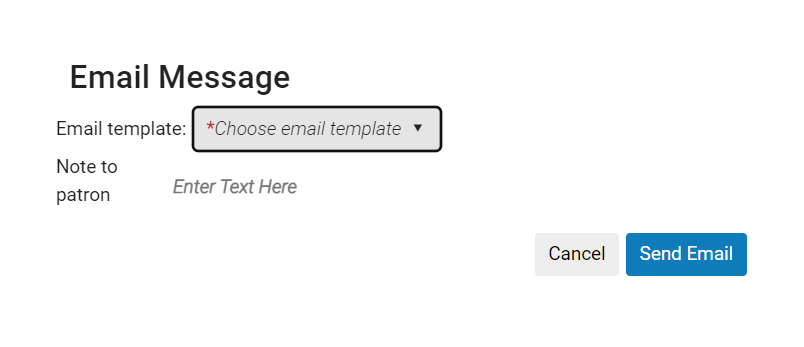
Enviar consulta al usuario Display the query types configured on the Patron Query Types Code Table page (see Configuring Patron Query Types). The Email Message dialog box appears, enabling you to select the email template you want to use for the query. The dialog box also contains a Note to Patron field for a free text note to be included on the Query to Patron letter (QueryToPatronLetter). If there is only one template type of Query to Patron, the dialog box will appear with just the Note to Patron field available for input. For additional information on this option, see Sending a Query to the Patron, below. For details on system behavior when selecting this option, see Configuring Patron Queries.
Estado de la consulta Solicitar una actualización de estado de la institución solicitante del préstamo. Esto solo se aplica a socios ISO.
The returned lender ISO status is recorded in a note. Cada estado ISO corresponde a los siguientes estados de solicitud de Alma:
- Not supplied - Rejected the borrower request, Locate failed, Expired
- Pending - Created lending request, Being processed, Will Supply, Non expiring
- In Process - Staff renewal, Renewal response
- Cancel Pending - Cancel reply
- Canceled - Canceled
- Enviado - Enviado físicamente, Enviado digitalmente
- Received - Received by partner, Renewal Accepted (Lending request that was renewed)
- Renovación pendiente - Renovación solicitada, Renovación de usuario
- Vencimiento - Vencimiento solicitud
- Devuelto - Devuelto por el socio
- Devolución - Devolución del prestador, Solicitud completada
- Solicitar devolución - Ejemplar con devolución solicitada
- Perdido - Perdido
- Desconocido - Dañado, todos los demás
Ver recursos locales Abre una búsqueda local de recursos que coincidan con el ejemplar solicitado. Si el recurso se encuentra localmente, puede agregar una solicitud de reserva local en el recurso local coincidente. Para hacer esto: - In the search results, in the item's listing, select More actions(
 ) >Request. La página Crear solicitud se abre en el panel deslizante.
- Select Submit. Se crea la solicitud de reserva local.
Ver recursos de red Abre una búsqueda en la Zona de Red de recursos que coincidan con el ejemplar solicitado. Si no se puede crear una consulta automáticamente (por ejemplo, el OCLC de búsqueda por campo no existe en la solicitud), se realizará la consulta con una única condición en la que la etiqueta suprimida equivalga a falso. See Adding Network Partners to Resource Sharing Rota.
Changing the Statuses of Requests
A medida que se procesa una solicitud de préstamo, su estado cambia automáticamente en consecuencia. También puede cambiar su estado manualmente, según sea necesario. Además, puede cambiar el estado de múltiples solicitudes en una sola acción.
When the status of a request is changed from Report lost item to partner or Report damaged item to partner to Completed, the temporary item is removed and the loan is closed.
- On the Borrowing Requests page (Fulfillment > Resource Sharing > Borrowing Requests), select the checkboxes of the requests you want to manage. The Actions options become available.
-
Select Change Status. A Change Status box opens.
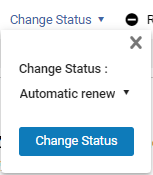
- Seleccione la lista desplegable de estados. (That is, select Automatic renew, the first option in this list.)
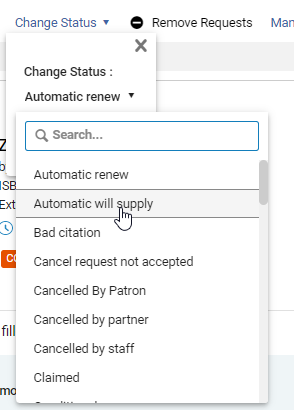
- Seleccione el estado requerido. La lista desplegable se cierra y se muestra su selección.
- Select Change Status. Se modifican los estados de las solicitudes seleccionadas.
Removing Requests
Las solicitudes de préstamo terminadas se pueden eliminar de la lista de tareas. Cuando lo están, solo se pueden ver en analytics.
Requests that are not Completed cannot be removed.
- On the Borrowing Requests page (Fulfillment > Resource Sharing > Borrowing Requests), select the checkboxes of the requests you want to remove. The Actions options become available.
- Select Remove Requests. Las solicitudes se eliminan.
Managing Labels
Labels can be attached to, or removed from, individual requests or multiple selected requests; see Searching for PO Lines and Using Facets to Refine Results.
Communicating with Partners
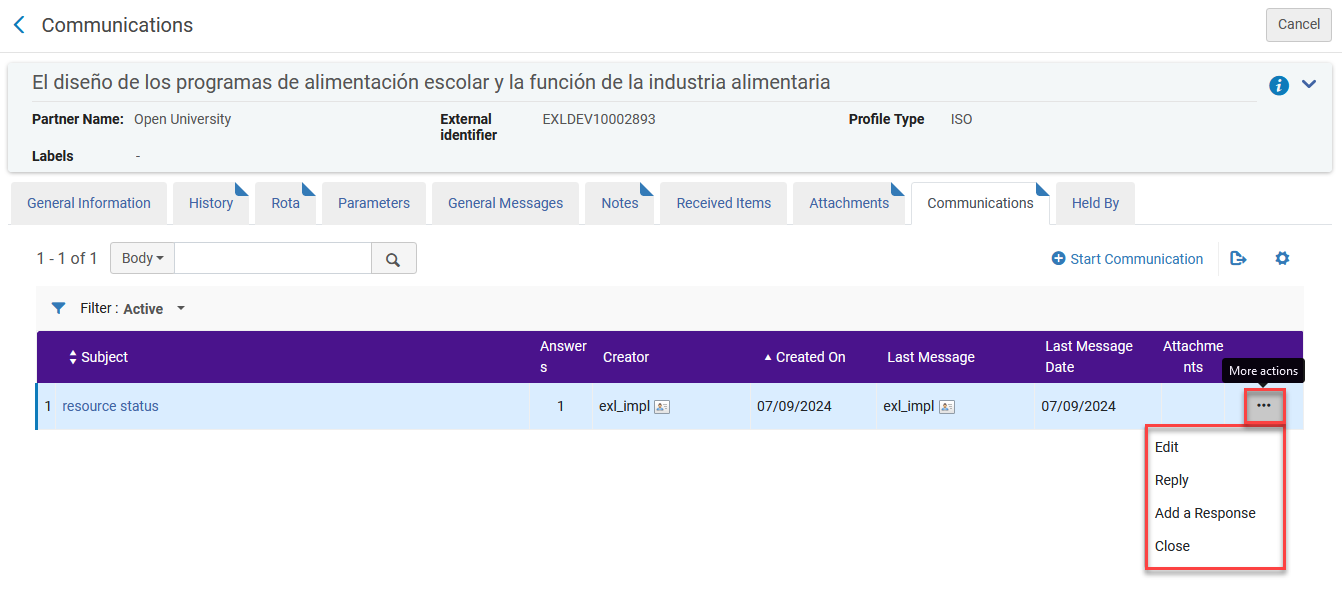
Utilice esta acción para enviar un correo electrónico a un socio directamente desde la solicitud de tareas de préstamo. This option eases workflows, such as when a borrowing library wants to ask a question or for any type of messages such as a thank you note. Estos mensajes se guardan en la solicitud para futuras consultas.
Correspondence can be initiated using the Send email to partner action or from the Start Communication button on the Communications tab.
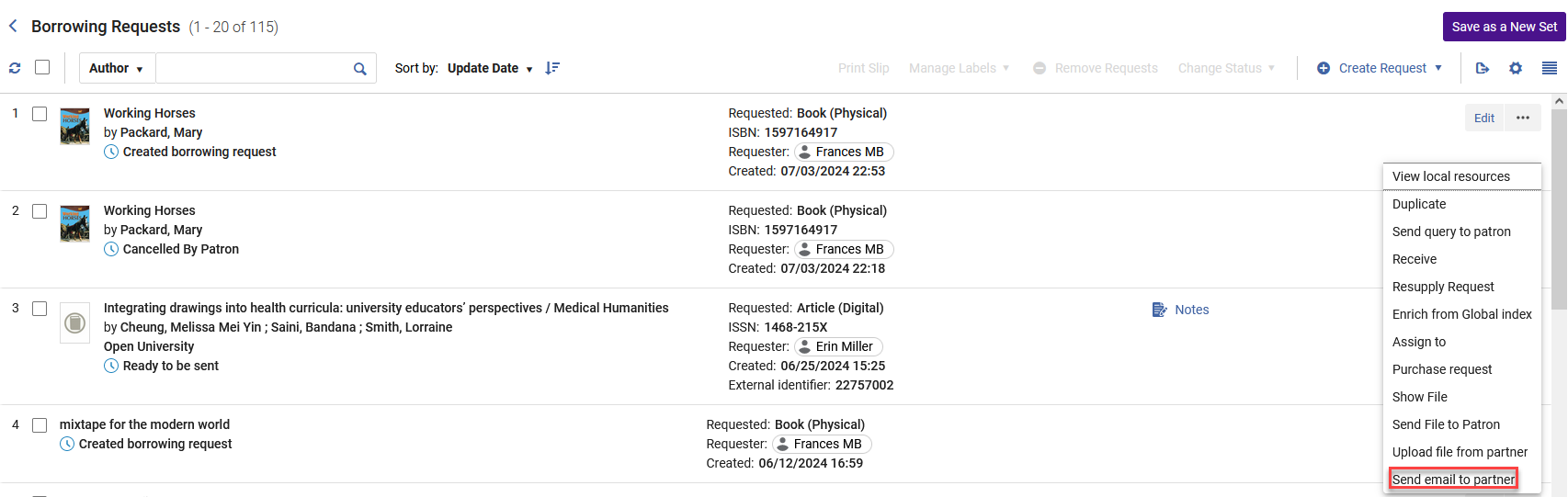
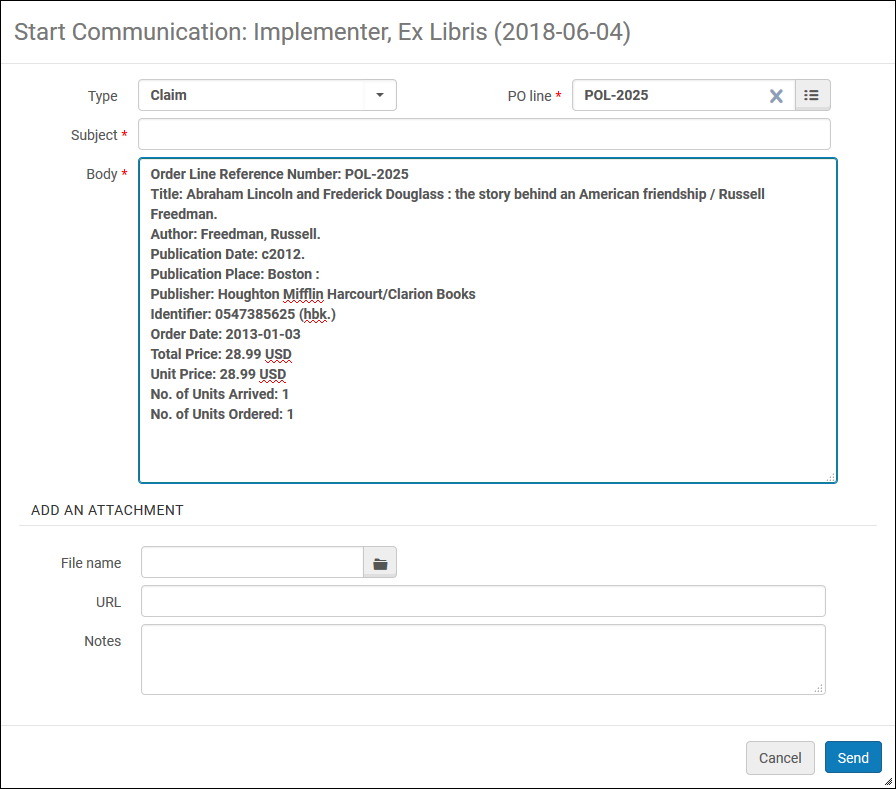
Selecting the Send email to partner action or the Start Communication button opens the Send email to partner form.
The From address is derived from the resource sharing library's preferred email shipping address. Acceptable To email addresses are the partner's preferred email shipping address or from the Rapid contact record email. Para las solicitudes entrantes de préstamo, la dirección de correo electrónico se obtiene a partir de la dirección de correo electrónico de contacto que figura en la solicitud de recursos compartidos.
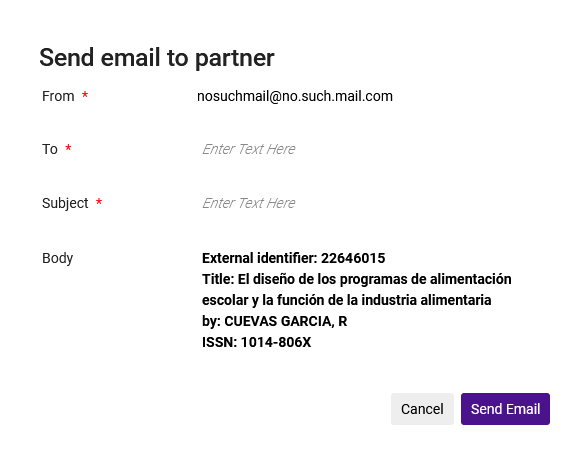
After selecting Send Email, the partner receives the Resource Sharing Conversation Letter and a Communications notification is added to request, indicating that this request contains correspondence with the partner.

The correspondence log is accessible from the Communications tab.
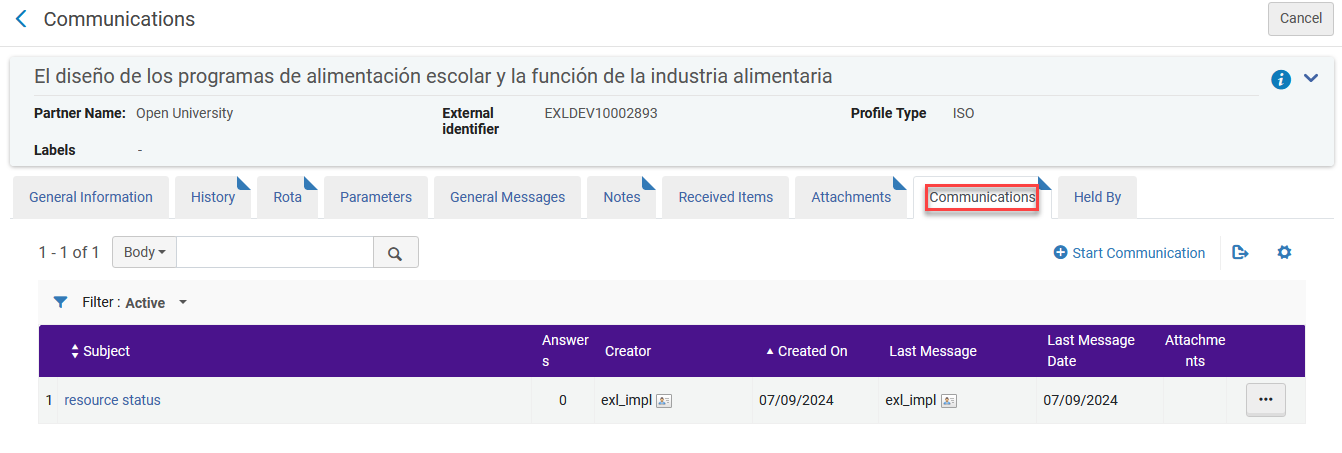
Usted puede:
- Edit a correspondence to view the full correspondence.
- Reply to a communication to send another correspondence. Each reply increases the counter in the CommunicationsAnswers column.
- Add a Response to paste the partner's response to your correspondence.
- Close the correspondence. Note: Closing the correspondence removes the Communications indicator from the request; but the correspondence remains accessible from the Communications tab under the All or Closed filters.
Managing Task Assignment
Una solicitud de préstamo se puede asignar a un usuario, ya sea que ya esté asignada a un usuario diferente o que no esté asignada actualmente. A user with the Fulfillment Services Manager role can manage all request assignments. Otros usuarios pueden estar limitados a asignar solo tareas no asignadas o reasignar tareas que les han sido asignadas.
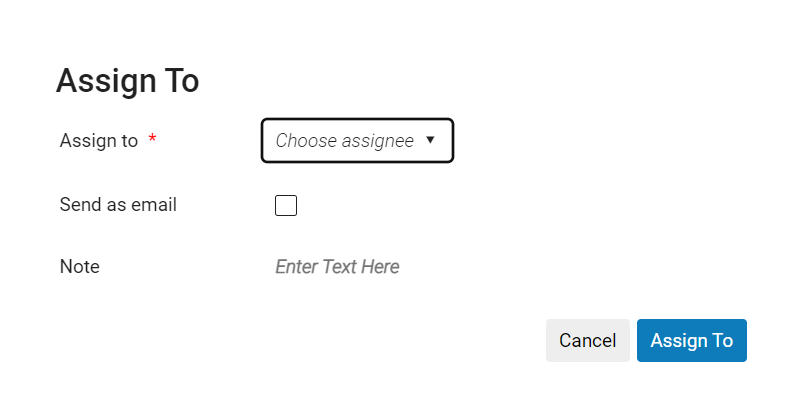
- On the Borrowing Requests page (Fulfillment > Resource Sharing > Borrowing Requests), select Assign for the relevant task. The Assign To dialog box opens.
 Asignar a
-
From the Assign to drop-down list, select an operator.
La lista de operadores incluye solo aquellos usuarios que tienen el rol de Operador de servicios al usuario.
- Select the Send as e-mail check box to notify the operator of the new assignment.
- In the Note field, enter notes, as needed. El campo está limitado a 1000 caracteres.
- Select Assign To. La solicitud se asigna al usuario seleccionado.
- On the Borrowing Requests page (Fulfillment > Resource Sharing > Borrowing Requests), select Release assign for the relevant task. La asignación se elimina y la tarea deja de estar asignada.
Sending a Query to the Patron
When you select Send query to patron from the More actions menu, depending on the configured patron-query template/type settings (see Configuring Patron Queries), the query is either sent automatically, or you are given the opportunity to select the appropriate template/type and, in certain cases, to edit the body of the message before it is sent.
When the Query Template Is Preselected
If there is only one patron-query template or type available for the current context, this template/type is automatically selected. Según la configuración de su sistema, es posible que pueda o no editar el cuerpo del mensaje.
- Select Send query to patron. An Email Message dialog box appears.
-
If you are using patron-query templates, and Edit if Single is set to true, when you select Send query to patron, the Email Message dialog box below opens. The Subject field contains the External Identifier of the request (if one exists). The Body field contains text relating to the requested resource.
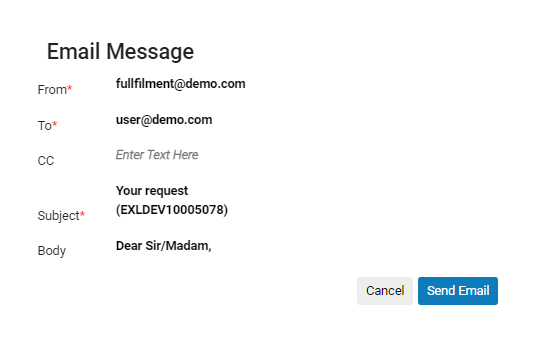
Seleccione cualquier campo para modificarlo, según sea necesario. The Body field expands when you select it, as necessary. Note that the Body field may contain text that should be modified before the message is sent, for example Query to patron: [ please enter your query here ].
When you have finished editing the message, select Send Email to send the message to the patron.
- If you are using patron-query templates, and Edit if Single is set to false, when you select Send query to patron, the query is sent immediately.
- If you are using patron-query types, when you select Send query to patron, the query is sent immediately.
When the Query Template Must Be Selected
Si hay varias plantillas o tipos de consultas de usuarios para el contexto actual, debe elegir la plantilla o el tipo que desea utilizar. Según la configuración de su sistema, es posible que pueda o no editar el cuerpo del mensaje.
- Select Send query to patron. An Email Message dialog box appears.
- Under Email template, select the template you want to use.
- Llévese a cabo una de las siguientes opciones:
- If your system uses patron-query templates, if you want to edit the contents of the message before sending it, select Open for Edit. The message opens for editing (see above). Edite el mensaje según sea necesario.
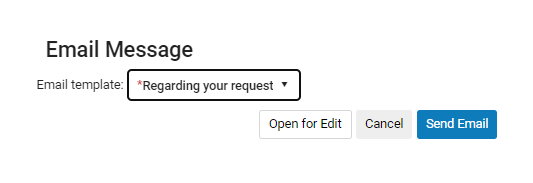
- If your system uses patron-query types, if you want to add a note to the message, under Note to patron, select Enter Text Here, and then enter the note you want to add.
- If your system uses patron-query templates, if you want to edit the contents of the message before sending it, select Open for Edit. The message opens for editing (see above). Edite el mensaje según sea necesario.
- Select Send Email. The message is sent.
Sending a General Message With a Borrowing Request
Puede enviar un mensaje general con una solicitud de préstamo. The message appears in the request's Details panel in the General messages section, as well as in its General Messages tab when you select Edit or View to open the full form of the request.
General messages sent by the lender are also visible in the Details panel and in the General Messages tab.
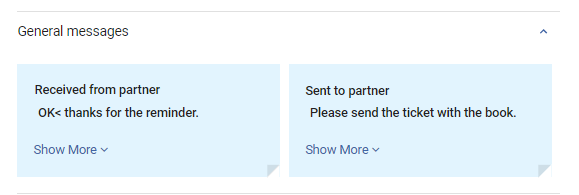
Solo se pueden enviar mensajes generales si:
- La solicitud de préstamo es una solicitud ISO, correo electrónico o NCIP-P2P.
- La solicitud de préstamo ya ha sido enviada
Additionally, there is a General Messages facet, which enables you to filter requests by those containing active general messages.
For more information about sending a general message with a resource-sharing request, see the ISO ILL: Send General Message video (2:43 min.).
- On the Borrowing Requests page (Fulfillment > Resource Sharing > Borrowing Requests), locate an ISO, email or NCIP-P2P request.
- From the More actions menu, select General Message. The General Message dialog box appears.
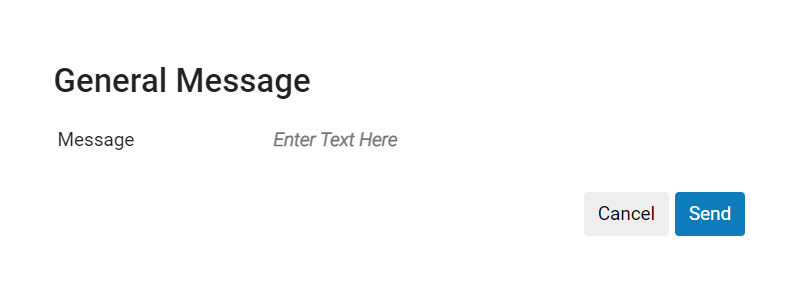
- In the Message field, enter a message
- Select Send. El mensaje se envía al prestamista. La solicitud tiene un límite de 1.000 caracteres.
Viewing Borrowing Request Actions
The History tab displays the actions taken on resource-sharing borrowing requests, such as changing the request's status or adding a shipping cost. The History tab is available on the full borrowing-request form.
The History tab may be viewed in full mode or in brief mode. Se puede configurar qué tipo de líneas se mostrarán en el modo breve.
- In the Borrowing Requests page (Fulfillment > Resource Sharing > Borrowing Requests), select Edit or View for a request (whichever is available). Se muestra la página Solicitudes de obtención de préstamo de uso compartido de recursos.
- Select the History tab. The History tab displays the list of actions performed on the borrowing request. Select Full view mode to display all records for the request. Select Brief to display only those enabled in the configuration page Brief Audit Fields (see Configuring Brief Audit Fields).
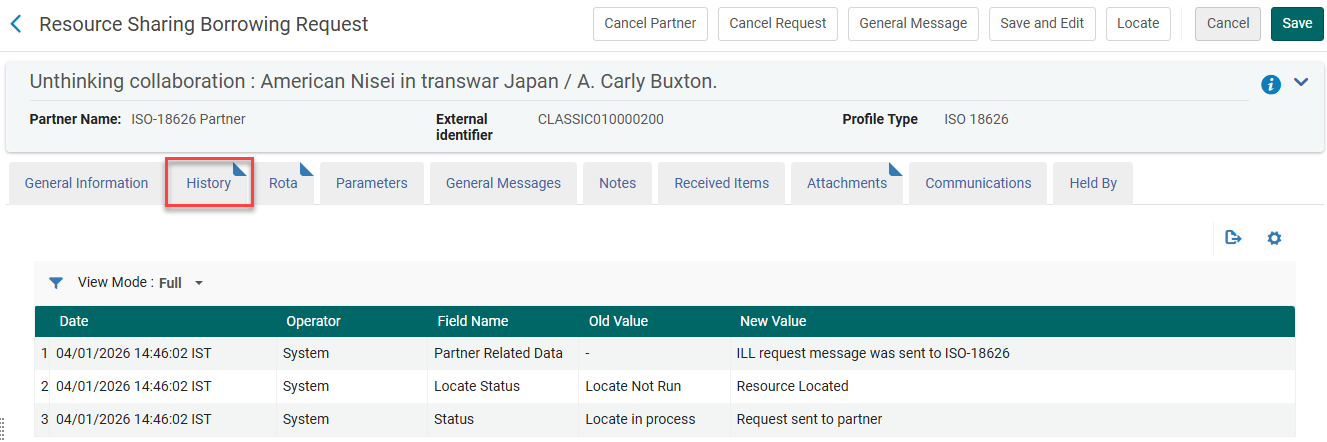
La columna Operador aparece solo para gestores y administradores. See Configuring Users' Ability to View Operator Details.
Rejecting a Borrowing Request
Se rechazan las solicitudes de préstamo que han sido rechazadas por la institución prestataria. Las solicitudes se rechazan por una serie de razones. Por ejemplo, si un ejemplar ya ha sido prestado o si no se encuentra en la biblioteca, será rechazado por la institución prestataria, por lo que se puede marcar como rechazado en la institución que solicita el préstamo. El rechazo puede ser comunicado automáticamente, dependiendo del tipo de socio.
You can manually reject a borrowing request in the Borrowing Requests page (as explained below), or in the Rota tab of the full request form (see Editing a Borrowing Request).
A lending workflow option, Reject, controls whether the manual reject action appears on the More actions menu of the request and on the Rota tab. The option is enabled by default, so that the Reject option is available. If this workflow option is disabled, the Reject action does not appear. Hiding the Reject option may be especially useful for ISO requests, where the rejection is expected to be received as a message sent by the lender.
Una vez que una solicitud es rechazada por el prestador, el siguiente socio en la lista de turnos se activa. The request may be sent to the next partner automatically, depending on the Sending Borrowing Request Rules set up by the institution.
The rs_keep_rejected_request_active customer-parameter determines if a request stays in an active status, even after it is rejected by the last partner in the rota. When the parameter is set to None, which is the default, the request will be completed and will not be visible in the active requests queue. Alma también enviará un mensaje de cancelación al usuario. When the parameter is set to Borrowing or Both, the request will remain in the active requests queue so the staff librarian will have the option to work on the request. Con este ajuste, Alma no enviará un mensaje de cancelación al usuario. Esta funcionalidad se aplica solamente a los rechazos que ocurren tras el cambio del parámetro de cliente. For more information, see Configuring Other Settings (Fulfillment).
-
On the Borrowing Requests page (Fulfillment > Resource Sharing > Borrowing Requests), in the More actions menu of the request, select Reject. The Reject Request dialog box opens.
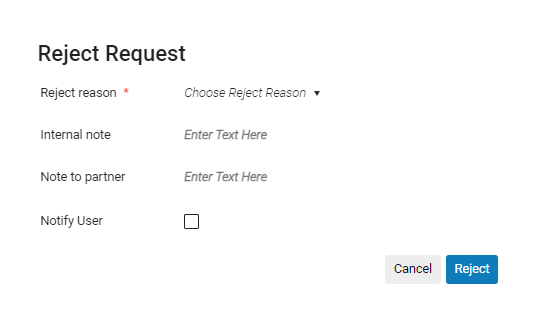
- In the Reject reason field, select a reason for the rejection.
- Optionally, add a note in either or both of the following fields: This note appears in the following format:<Name of partner><Note text>. The fields are limited to 1,000 characters.
- Internal note: A note that appears only on the borrowing side. These notes appear in the Notes tab but do not appear on the History tab, and are not sent to the peer partner. An example of such a note is: "This lender has historically been difficult to deal with."
- Note to partner: A note that is sent to the partner. These notes appear in both the Notes tab and the History tab. An example of such a note is: "Thank you for your help. Le rogamos que nos informe cuando el libro regrese de la encuadernación."
- Optionally, select Notify user to send a notification to the requesting patron informing them of the rejection.
- Select Reject. The request's citation status changes to Rejected the borrower request, and the Reject reason and Reject note are displayed in the Notes tab of the request. The Full Cancel Request Letter is also sent.
To see the Notes, History, and Rota tabs, in the Borrowing Requests page (Fulfillment > Resource Sharing > Borrowing Requests), select Edit or View for the request (whichever is available). El formulario de solicitud completo, la página Solicitud de préstamo de recursos compartidos, se abre en un panel deslizante.
Resupplying a Request
If there is a problem with a request that has been digitally supplied via Rapid ILL, you can request a new copy from the lender.
Esta acción solo se puede utilizar una vez y está disponible durante 7 días después de que el prestador envíe la solicitud.
-
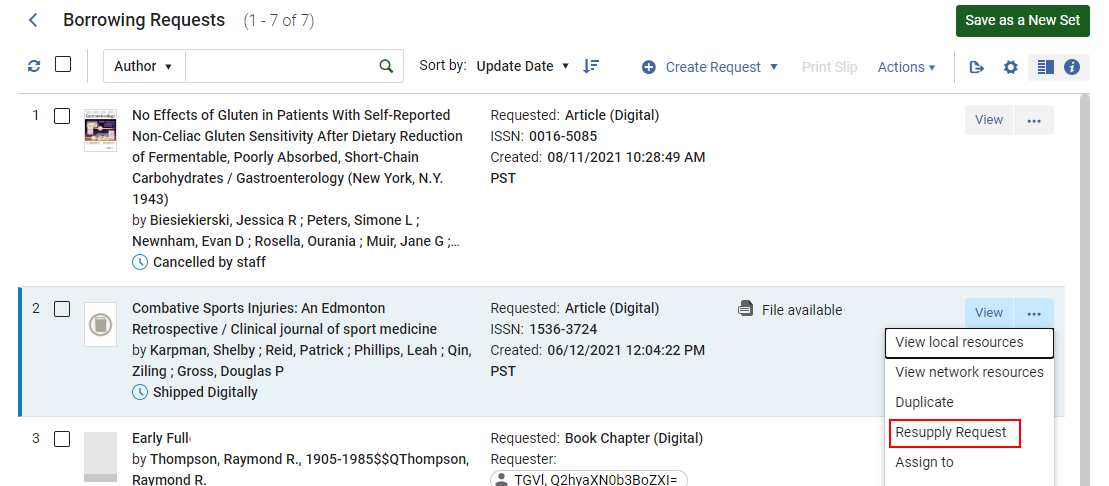
In the Borrowing Requests page, from the actions menu select Resupply Request.
- Enter a Reason for resupplying the request.
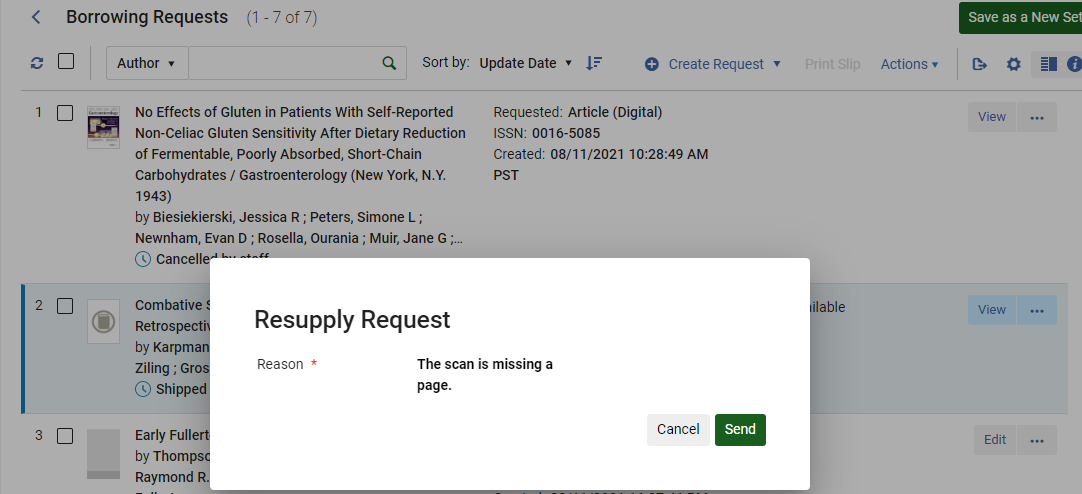
- The status updates to Request sent to partner.

- El prestamista recibe entonces una alerta y una nota para reabastecer la solicitud.
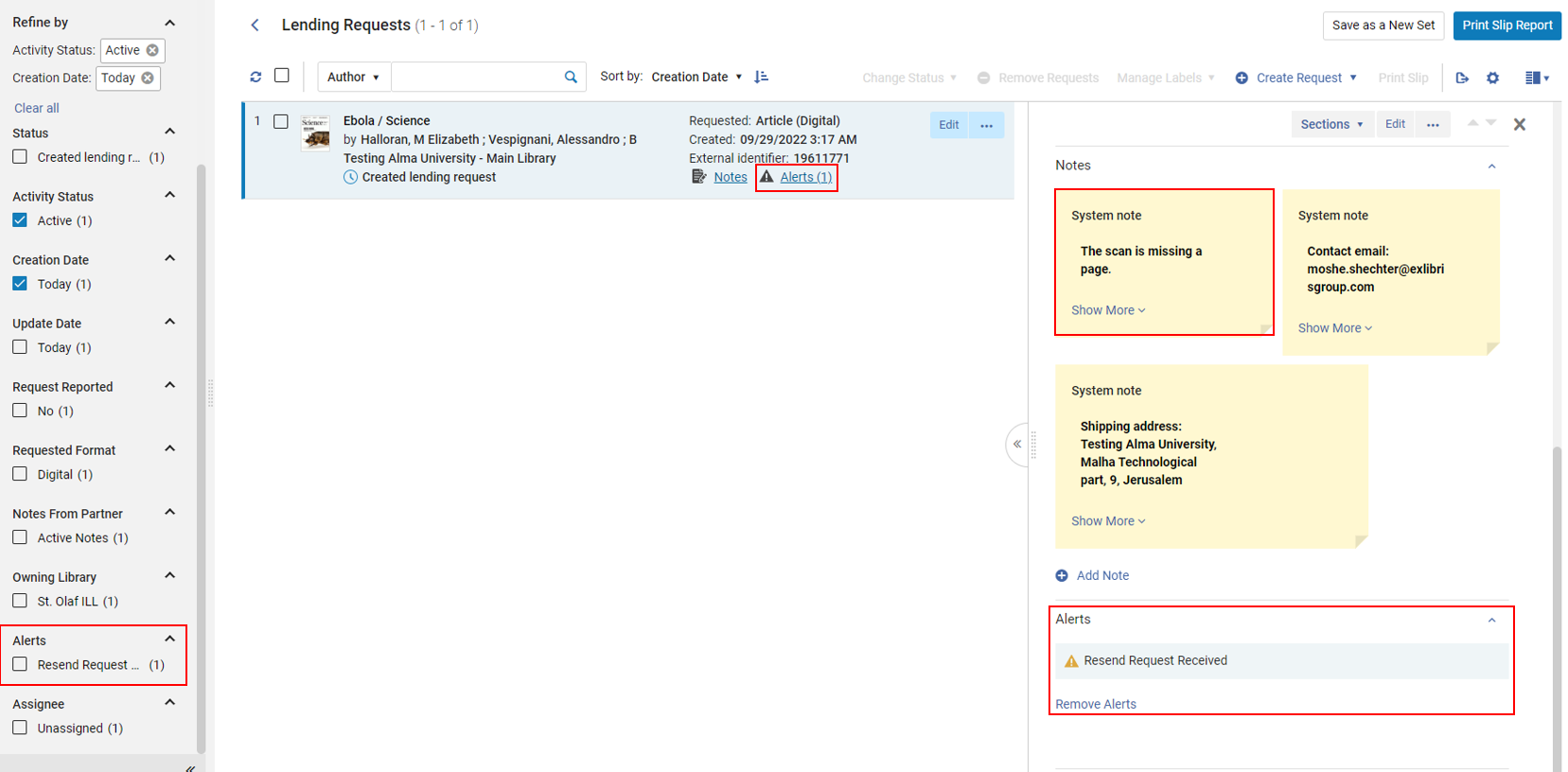
See also Resupply Request.
Converting a Borrowing Request
You can convert a request type placed by a user by using the Convert Request Type action from the available actions for the request. Esta acción está disponible para los siguientes estados:
- Solicitud creada
- Listo para enviar
- Ha fallado la localización
- Rechazado
- Reenviar
- Venció
- Devolución solicitada
- Pendiente de aprobación
- Rechazar
- Cita errónea
- Existencia local
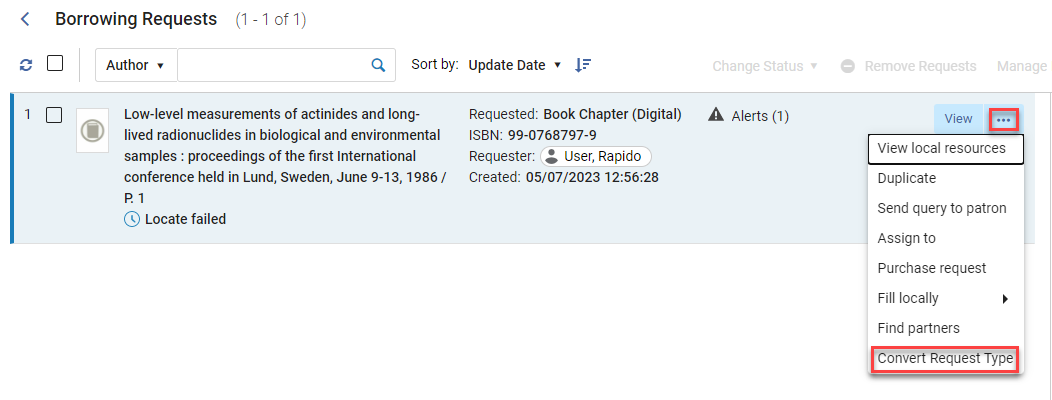
Una vez seleccionada esta acción, puede seleccionar el tipo de solicitud a la que desea convertir y añadir la información necesaria (como las páginas o los números de capítulo cuando se convierte a un capítulo de libro).
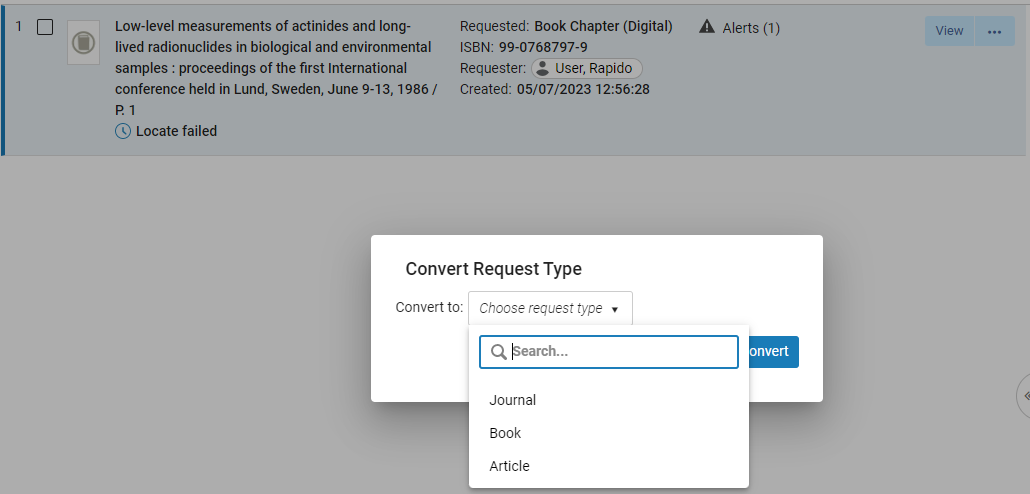
Una vez convertido, el cambio de tipo de solicitud se registra en el Historial y se recalcula el socio de solicitud de préstamo entrante.
Additionally, when converting a request type, the Owner and Requested Pickup Location fields are editable.
If the Owner only contains one option, the field is not editable.
Managing an Overdue Borrowed Resource
If Alma receives an overdue message from the lender, it automatically marks the relevant ISO borrowing request as Overdue Request. When using ISO, overdue messages are sent by the lender, and Alma automatically updates the borrower's request status based on this message. Para las solicitudes que no son ISO, es posible cambiar manualmente el estado de la solicitud a Solicitud vencida.
Printing Slips in Bulk
The Print Slip bulk action enables the library staff to reprint received or returned slips in bulk. When multiple borrowing requests are selected, selecting Print Slip reprints all the slips.
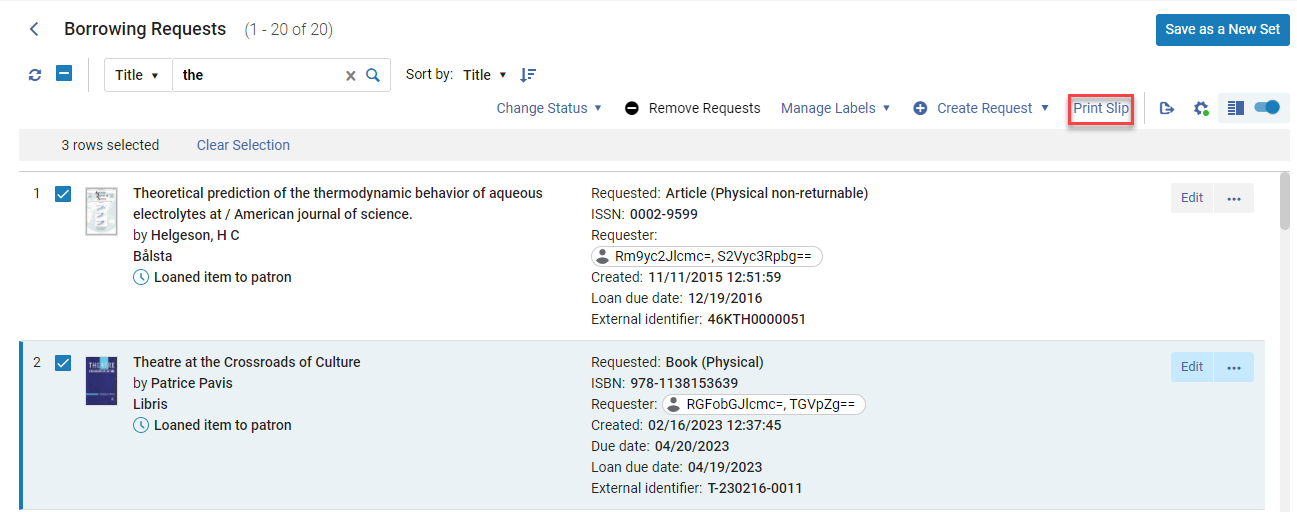
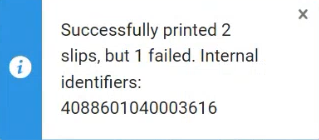
Para solicitudes que no se recibieron, no se imprime ningún comprobante. Para las solicitudes que se recibieron pero que aún no se han devuelto, se imprime la Carta comprobante de recepción de recurso compartido. Para las solicitudes que se devolvieron, se imprime la Carta comprobante de devolución de recurso compartido. When multiple items are selected, all slips that were received/returned are printed, and a message appears indicating which slips were printed successfully and which slips could not be printed.