
Managing Courses
This page describes how to manage courses including adding courses, managing reading lists, user and course enrollment information, etc. For an overview of the workflow for courses and reading lists see Workflow. For links to all the main fulfillment documentation pages see Fulfillment.
Para gestionar los cursos, se debe tener uno de los siguientes roles:
- Gestor de reservas de cursos
- Administrador de servicios al usuario
- Operador de reservas de cursos
- (New for February 2026) Course Reserves Viewer (read-only access)
Se puede importar información del curso utilizando el perfil de integración de Cargador de curso. For more information, see Configuring Course Loading. You manage courses on the Courses page (Fulfillment > Course Reserves > Courses). Al abrir esta página, se enumeran directamente todos los cursos que se hayan creado para una institución. When searching for courses using the Simple and Advanced Searches, this page displays the results.
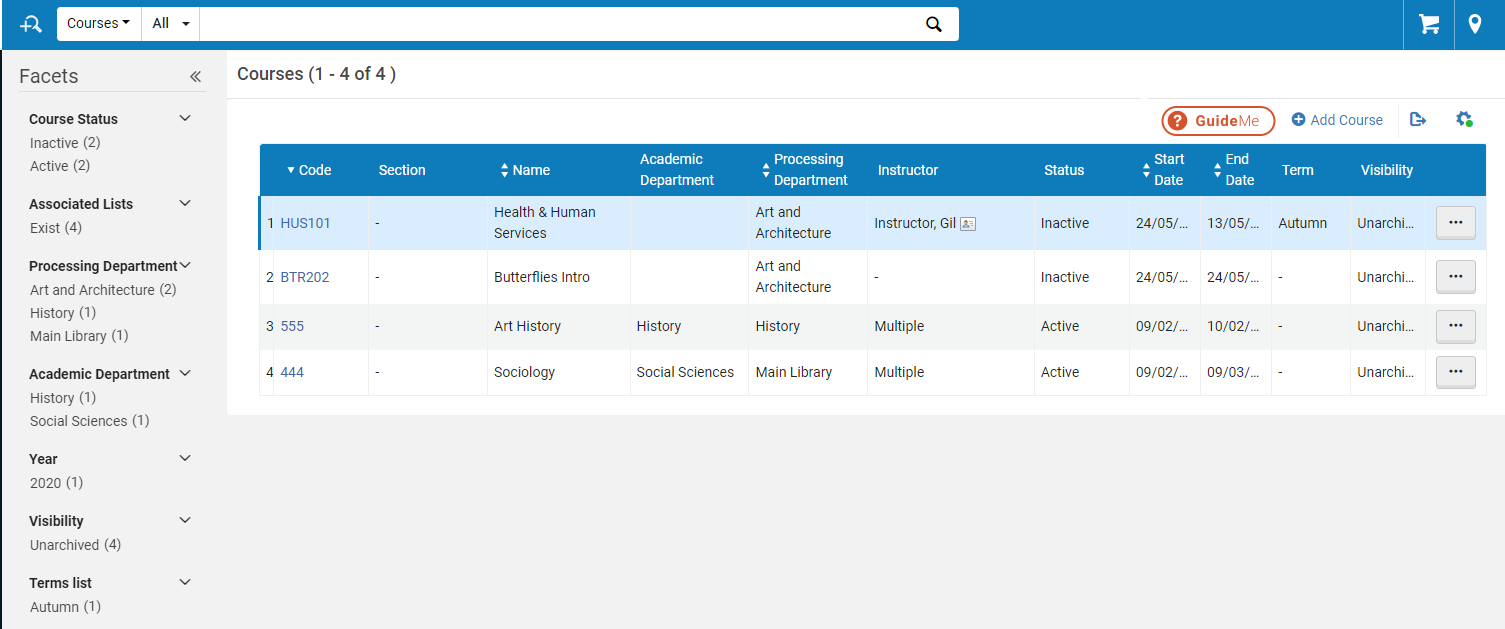
Desde esta página, puede buscar cursos en el cuadro de búsqueda situado en la parte superior de la página y filtrar sus resultados mediante la selección de las siguientes facetas:
- Estado del curso
- Listas Asociadas:
- Existen (número de cursos)
- Ninguno (número de cursos)
- Departamento de procesamiento
- Departamento académico
- Campus
- Sem.
- Visibilidad
- Lista de términos
To publish course information to Primo, see Configuring Course Reserves in Primo. To publish course information to Summon, see Enabling the Course Reserves Facets in Summon and Configuring the Course Reserves View.
Adding a Course
- Si se está utilizando Leganto, se puede habilitar a los instructores para que agreguen cursos directamente en Leganto al acceder desde un CMS; además, se puede permitir que los instructores modifiquen las fechas del curso y/o el número de participantes en Leganto. See Configuring Whether Instructors Can Create or Modify Courses.
- Se pueden agregar cursos de forma masiva utilizando el perfil de integración de carga de cursos. For more information, see Configuring Course Loading.
-
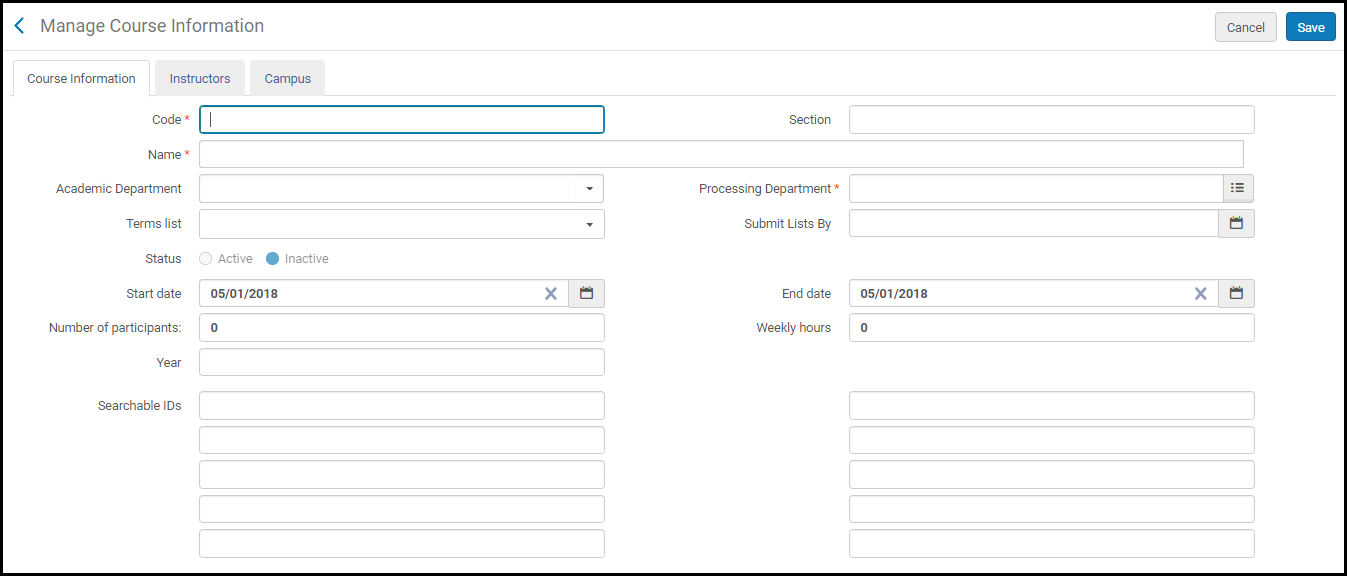
On the Courses page (Fulfillment > Course Reserves > Courses), select Add Course. La página de Gestionar información del curso se abrirá.
-
Introducir la información del curso como se requiere:
Gestionar campos de información del curso
Campo Descripción Código (requerido) La combinación de código + sección del curso debe ser única. Si no se utilizan secciones, todos los códigos de los cursos deben ser únicos. Sección Los cursos se pueden dividir en secciones para organizar de la mejor manera los recursos y las actividades para los estudiantes. Cada sección puede ser enseñada por un miembro diferente de la facultad, tener una descripción separada y contener tantos recursos como requiera el miembro de la facultad. La combinación de código + sección del curso debe ser única. Nombre (requerido) No tiene que ser único. Departamento de procesamiento (Requerido) El departamento que "gestiona" el curso. En la actualidad, este campo es solo para fines informativos. Use the quick pick list to select a department predefined by an administrator (see Configuring Processing Departments) Departamento académico El departamento académico asociado al curso. Select from a list predefined by an administrator (see Configuring Academic Departments) Lista de términos El trimestre durante el cual se enseña el curso. Select from a list predefined by an administrator (see Configuring Course Terms) Enviar listas por (solo Leganto) Una fecha que tiene como objetivo solicitar a los instructores que envíen sus listas de lectura para procesarlas con suficiente tiempo para su procesamiento antes de que comience el curso. La notificación sobre esta fecha aparece en Leganto para todas las listas de lectura asociadas con el curso. Estado El estado de curso. It is determined by the course start and end date.
This field is disabled when you are creating the course.- Active – The course is currently being taught
- Inactive – The course was taught, or will be taught, but is not currently being taught
Course data for inactive courses is not published to Primo (see the Course Restricted field in Adding a New Book or Journal Article. Also see The Format of Published Data).Fecha de inicio La fecha actual es la fecha por defecto. An administrator can set the default for this value, see default_course_start_date in Configuring Other Settings). Fecha de finalización Esta fecha no puede ser anterior a la fecha de inicio. An administrator can set the default for this value, see default_course_end_date in Configuring Other Settings). The course's end date is transferred to the course's reading lists.Número de participantes El número de alumnos que están matriculados en el curso. Este campo solo está activo si no están utilizando los campus o el número de participantes no está definido para ningún campus. En caso contrario, el valor en este campo es la suma total de participantes de todos los campus. Horas semanales El número de horas en que se imparte el curso, por semana. Sem. Curso académico del año. Búsqueda de ID ID adicionales para el curso, utilizadas para índices de búsqueda en sistemas Primo y externos. Tabs: Instructor On the Instructor tab, browse for the instructor of the course (the list consists of all Alma users), and select Add Instructor. El instructor se añade al curso. Se pueden agregar varios instructores para un curso. When there are multiple instructors for a course, the Instructor column value on the Courses page is Multiple.(Solo Leganto) De forma predeterminada, los instructores aparecen para estudiantes y usuarios invitados en Leganto en información sobre herramientas relacionadas con el curso y en un panel para leer las listas asociadas a este curso. Instructors that are configured to appear in Leganto have a green checkmark in the Display Instructor column in this tab. To configure an instructor to appear / not appear in Leganto, select Unhide/Hide in the row actions list for the instructor. See Enabling Instructor Information in Leganto.(Leganto only) Instructors arriving from the CMS are added as instructors to the relevant course if they are not already associated with the course as an instructor.Multiple instructors are listed by name in the header of the Course's Reading List page (Fulfillment > Course Reserves > Courses, select Reading List in the row actions list for a course).Campus On the Campus tab, optionally select a predefined campus, enter the number of participants for the campus, and select Add Campus. El campus se añade al curso. To configure campuses; see Configuring Campuses. Se pueden agregar varios campus para un curso. El número de participantes para todos los campus se indica como el número total de participantes del curso. Si no se define ningún campus o si no se introduce el número de participantes para ningún campus, se puede administrar manualmente el número de participantes para el curso (véase arriba).Estudiantes
(Leganto only) On the Students tab, you can view all students that are enrolled in the course, add students, and delete specific students or all students from the course.
For additional information on how to load user enrollment information, see Configuring Importing Course Enrollment Jobs.
Notas The general Notes tab enables you to add notes with general information about the course. - Select Save. El material del curso se guarda.
Modifying course statuses is handled by the Activate/Deactivate Courses job. For details, see Activate/Deactivate Courses.
- On the Courses page (Fulfillment > Course Reserves > Courses), select Duplicate in the row list actions for a course. Aparecerá la página Gestionar información del curso. For details on the displayed fields, see the Manage Course Information Fields table above.
- Modify the relevant fields as required and select Save. El nuevo curso aparece en la página de Cursos.
Editing a Course
Se pueden editar cursos de forma masiva utilizando el perfil de integración de carga de cursos. For more information, see Configuring Course Loading.
- On the Courses page, (Fulfillment > Course Reserves > Courses), select Edit in the row actions list for a course. La página de Gestionar información del curso se abrirá. If the course was rolled over from another course, a link to the original course appears in the header; for more about course rollover, see Rolling Over Courses.
- Modify the course information as required; see Adding a Course. When editing a course, you can add notes in the Notes tab (see Editing a Reading List).
- Select Save.
Contactar a soporte si no se puede localizar un curso que no se ha borrado.
Managing a Course's Reading Lists
Puede ver unas listas de lecturas recomendadas del curso o copiarlas a un curso. For details on working with reading lists, see Managing Reading Lists.
Los usuarios de Leganto también pueden reordenar cómo aparecen las listas de lecturas recomendadas en la interfaz de Leganto.
Viewing a Course's Reading Lists
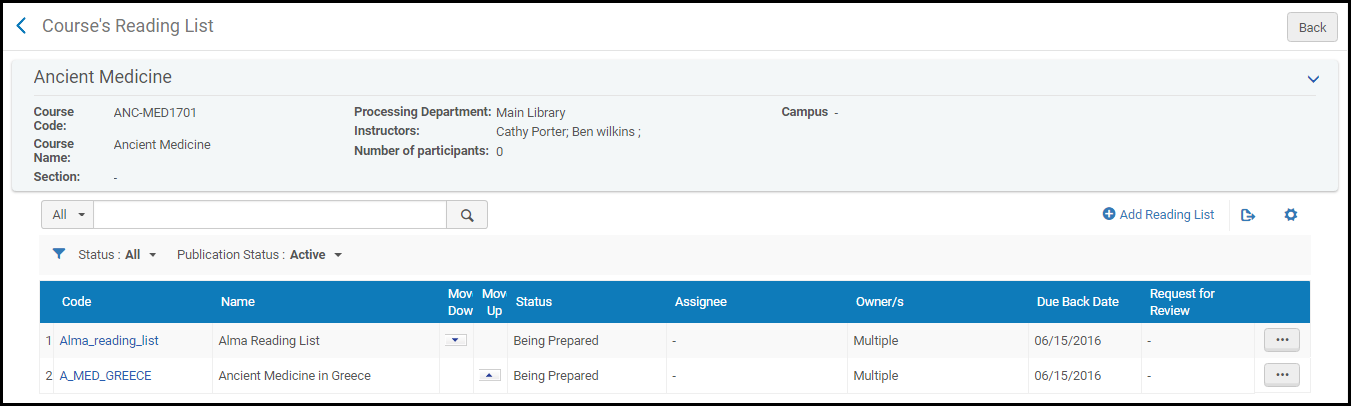
On the Courses page (Fulfillment > Course Reserves > Courses), select Reading List in the row actions list for a course. The Course's Reading List page appears. Esta página contiene las listas de lectura asociadas con el curso.
You can also reach this page from the Reading Lists Task List page (Fulfillment > Course Reserves > Reading Lists, select All Reading Lists for this Course in the row actions list for a reading list). If the reading list is associated with multiple courses, this action is not available; select a course code from the Course column to view the reading lists of that course.
Reordering a Course's Reading Lists in Leganto
To reorder how the courses appear in Leganto, select the up/down arrows in the Move Down/Move Up columns.
Copying and Adding Reading Lists to a Course
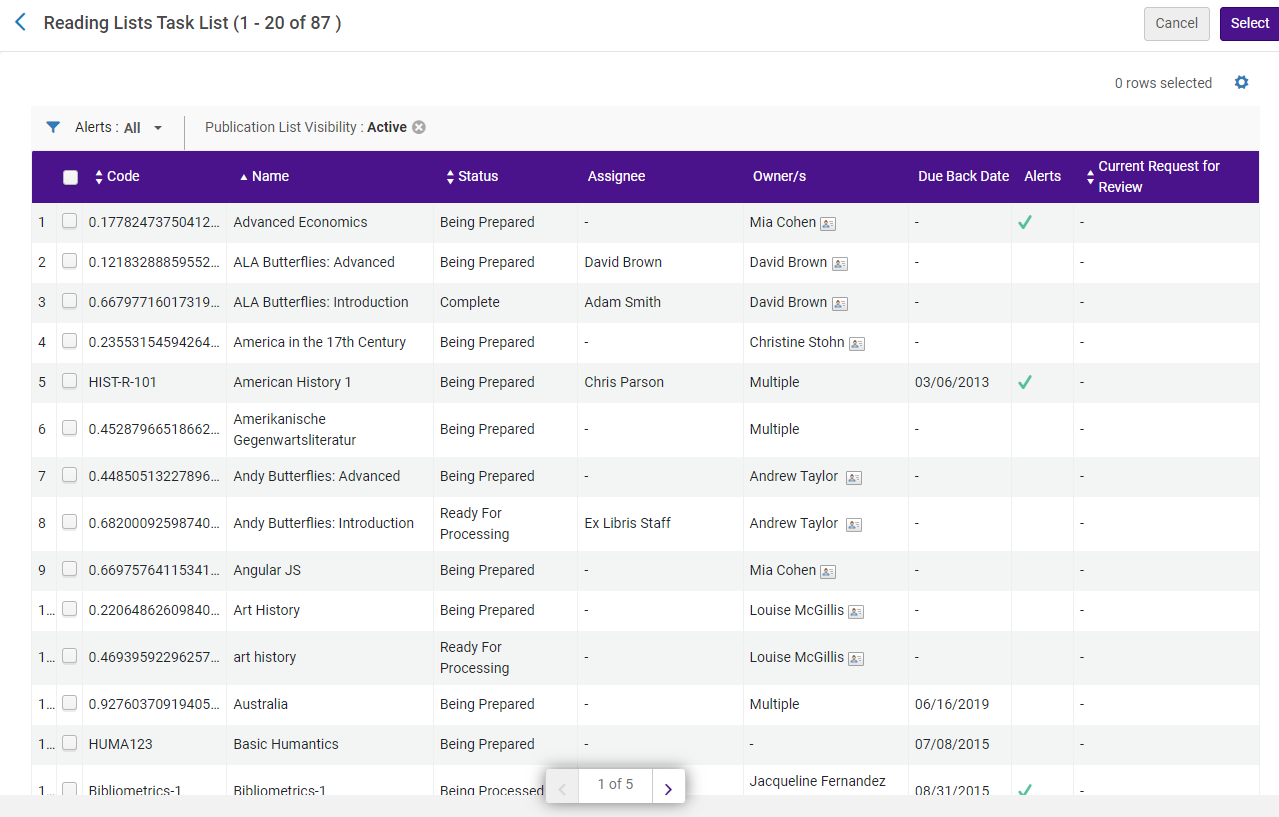
- On the Courses page (Fulfillment > Course Reserves > Courses), select Copy Reading List in the row actions list for a course. Aparece la Lista de tareas de listas de lectura.
La página Lista de tareas de listas de lectura muestra todas las listas de lecturas definidas para su institución.
-
Select the checkbox of each reading list you want to add to the course and select Select. Las listas de lectura se agregan al curso.
To view the added reading lists, select Reading List in the row actions for the course.
Managing User and Course Enrollment Information
You can import user and course enrollment information into Alma, which enables students to see all their reading lists on the Lists page without having to enter Leganto using an LTI link for each reading list. With this enhancement, you can use Alma to view student enrollment information and remove students from courses.
Importing user and course enrollment information is performed using the Course Enrollment integration profile (see Configuring Importing Course Enrollment Jobs).
To enable the management of student enrollment information in Alma, the display_course_students field has been added to the Customer Parameters mapping table (Configuration Menu > Fulfillment > General > Other Settings). When set to true, you can view enrollment information in the following tabs:
-
Students – This tab has been added to the Manage Course Information page (Fulfillment > Course Reserves > Courses) to enable you to view all students that are enrolled in a course and to delete specific students or all students from a course.
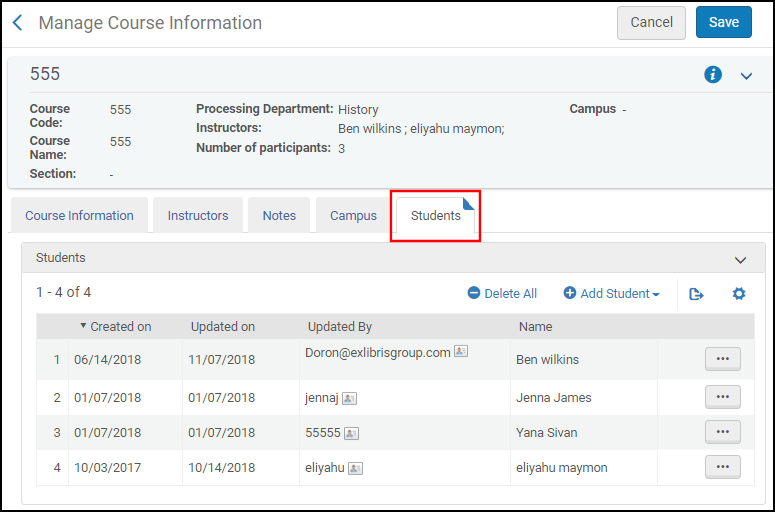
-
Courses – This tab has been added to the User Details page (Admin > User Management > Manage Users) to enable you to view all courses to which a student has enrolled and to delete specific courses or all courses to which a student has enrolled.
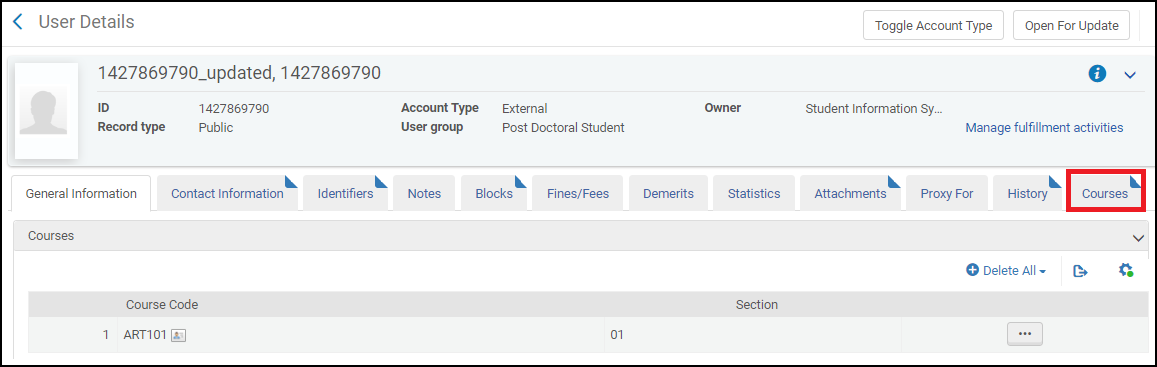
Rolling Over Courses
Si se sabe cómo asignar los códigos de los cursos del año anterior y del año nuevo, se pueden traspasar cursos, de forma masiva, de un año a otro utilizando el perfil de integración de carga de cursos. Usar las siguientes opciones de configuración para el perfil de integración:
- En el archivo de datos separados por pestañas:
- Enter all of the mandatory fields for each new course and enter ROLLOVER as the action in the Operation field.
- Enter the old course ID and section ID in the Old Course Code and Old Course Section ID fields, respectively.
- For each field whose value you want to copy, enter + in that field.
- Para copiar (o no) las listas de lectura de cursos anteriores e instructores a los nuevos cursos, asegúrese de que las opciones de traspaso estén configuradas correctamente en el perfil de integración.
- If you are using Leganto, see Leganto Course Rollover.
For more information, see Configuring Course Loading. Si se está usando Leganto, los instructores pueden ceder sus listas de lectura en forma manual.
Also see Course Rollover in Bulk via Course Loader (8:44 min.).
Deleting a Course
You can delete courses in bulk using either the course loading integration profile (see Configuring Course Loading) or the Course Bulk Update job (see Course Bulk Updates).
On the Courses page (Fulfillment > Course Reserves > Courses), select Delete in the row actions list for a course, and select Confirm in the confirmation dialog box.
Archiving a Course
Se pueden archivar cursos en Alma, lo que le permite a su biblioteca reducir la cantidad de datos que usted ve en Alma sin borrar información histórica. Archived courses are still available for reference purposes, and you can view statistical data on archived courses from Alma Analytics. Los cursos se pueden archivar y desarchivar en forma individual o masiva
Use the Archive action in the course action list to easily archive a single course. Marking a course as archived immediately filters the course from the current course list visibility, removing it from view.
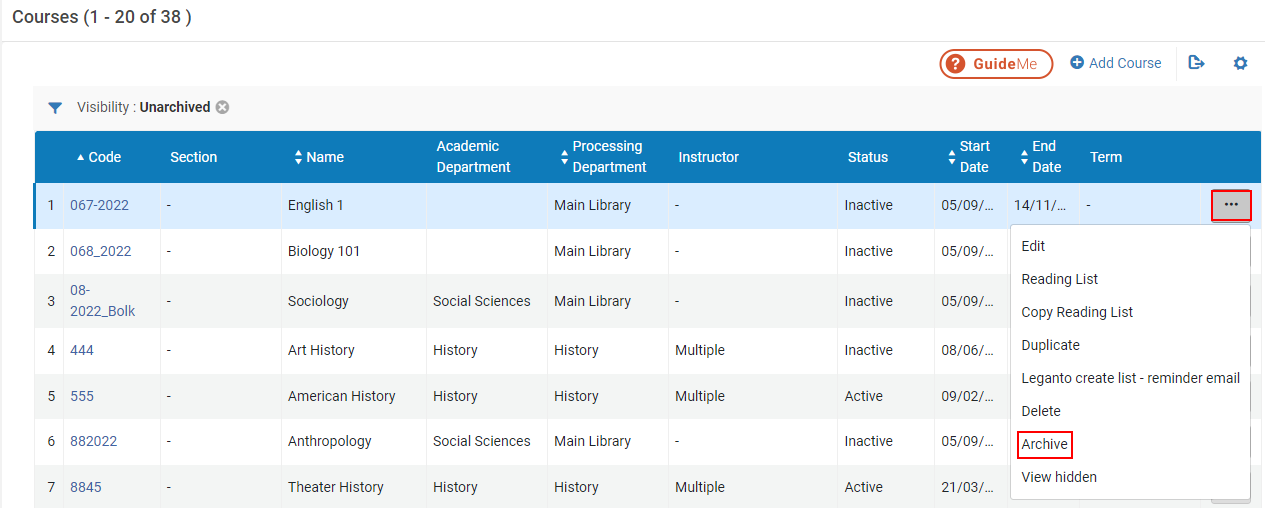
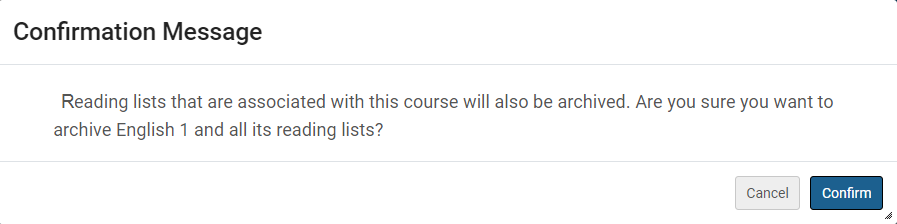
When marking a course as archived, any reading list associated with the course is also archived. Por ello, aparece un mensaje de confirmación que ratifica que todas las listas de lectura asociadas con el curso también se archivan.
Courses whose reading list is linked to additional unarchived courses cannot be archived. If you attempt to archive a course with a reading list that is linked to additional courses, you receive an error message:
This course cannot be archived because it has [number] unarchived reading lists that are linked to other courses. Debe archivar las listas de lectura o eliminar la asociación del curso, y luego intentarlo nuevamente.
When viewing an Archived course, you can use the Unarchive action to restore archived courses. The course is then restored, but the associated reading lists remain archived, and you need to unarchive them separately.
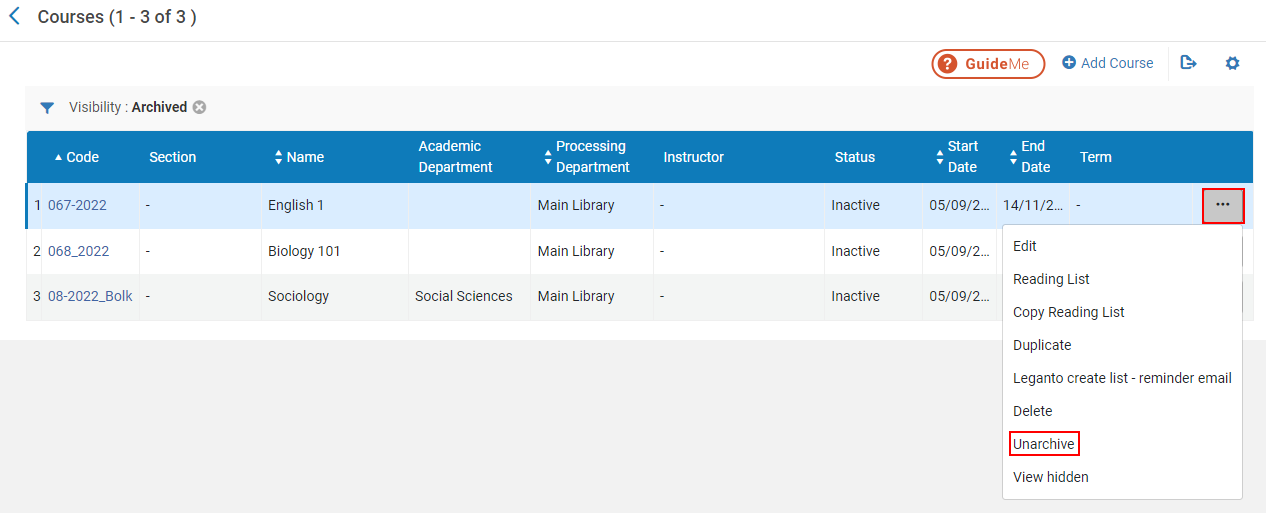
Archived Courses in Leganto
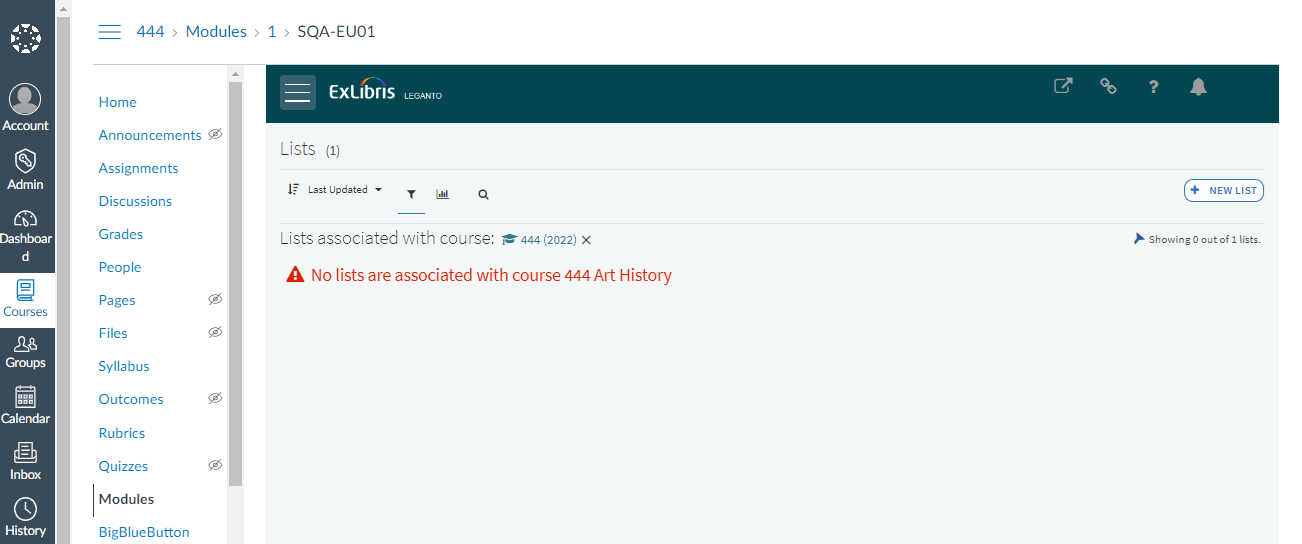
Los cursos archivados se ocultan de la vista en Leganto. When attempting to access an archived course from the Learning Management System (LMS), you receive a message that no lists are associated with the course.
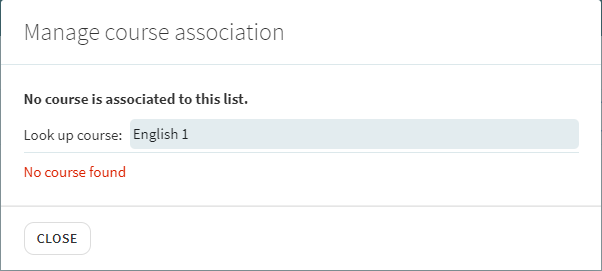
Archived courses are not included in the Manage course association and Roll Over lists in Leganto.
Course Bulk Updates
The Course Bulk Update job (Admin > Manage Jobs and Sets > Run a Job > Courses > Courses Bulk Update) enables you to perform either of the following actions on a set of courses:
- Update course information such as processing and academic department, instructors, and so forth.
- Borrar cursos que no tienen una lista de lecturas adjunta.
- Archivar/desarchivar cursos.
For details, see Course Bulk Update Job.
