
Managing Reading Lists
This page describes how to work with reading lists. For an overview of the workflow for courses and reading lists see Workflow. For links to all the main fulfillment documentation pages see Fulfillment.
To manage a course's reading list, you must have one of the following roles:
- Operador/Gerente de reservas de curso adjunto a un departamento de curso
- Curso Reserves Visor (read-only acceso)
- Operador/Gerente de Servicios al usuario adjunto a un departamento de curso
Después de agregar cursos, se puede gestionar las listas de lectura de los cursos. Una lista de lectura está en blanco hasta que le agrega contenido. Una lista de lectura típica incluye libros de texto, libros adicionales, libros con capítulos, artículos de revistas, artículos de periódicos o sitios web. Each item on the list is called a citation.
See also Managing a Course's Reading Lists for reordering or copying reading lists within or between courses. For information on citations, see Managing Citations. To publish course and reading list information to Primo, see Configuring Course Reserves in Primo.
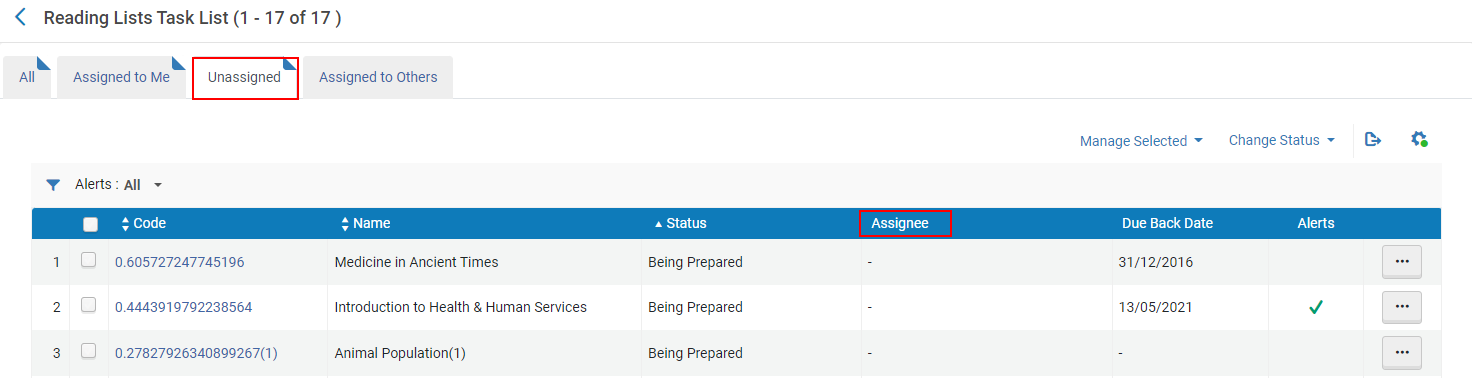
You access reading lists on the Reading Lists Task List page, either by selecting Reading list in the row actions list for a specific course on the Courses page or by navigating to Fulfillment > Course Reserves > Reading Lists. This page has Assigned and Unassigned tabs (see Assigned to Me, Unassigned, and Assigned to Others Tabs). In addition, the page has an All tab that contains all of the reading lists that appear in the other tabs. When accessing this page from the persistent menu, the default view is the Assigned to Me tab with the Processing Department filter set to your department.
For more information, see Populating Reading Lists (5:11 min.).
You can also access this page by searching for reading lists; see Searching in Alma.
You can also access this page by selecting one of the Reading List tasks in the task list (see Tasks in the Task List).
For a video on how to view reading lists in Alma and Primo, see Viewing Reading Lists (1:30 min.).
- If the task contains the words Assigned to Me, Unassigned, or Assigned to Others, then that tab is pre-selected by default. Otherwise, the All tab is pre-selected by default.
- The last part of the task name indicates a pre-selected option for the Status facet or Alert filter.
The alert List has new note only appears on the Reading List Tasks List page. Esta alerta está asociada a la lista, no a una cita específica. Todas las demás alertas están asociadas con una o más citas en la lista de lectura.
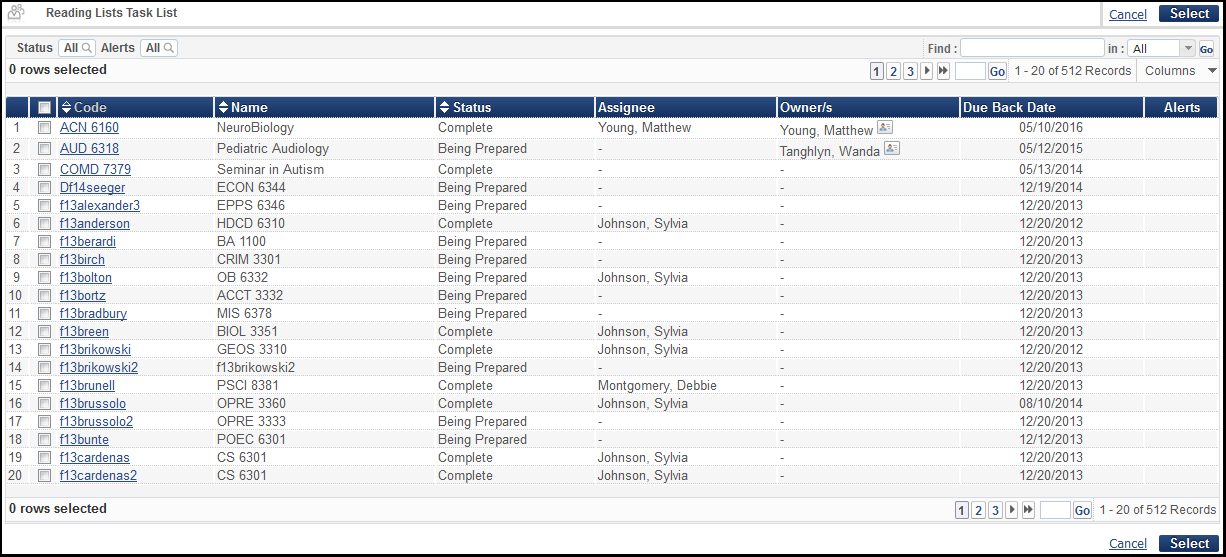
Los campos de estas páginas son los siguientes (téngase en cuenta que algunas columnas están inicialmente ocultas por defecto):
- Code - The reading list code
- Name - The reading list name
-
Status - The reading list status. For a list of predefined reading list statuses, see Reading List, Citation, and Publication Statuses in the Leganto Administration Guide. You can define other reading list statuses, see Configuring Additional Reading List Statuses.
El estado de la lista de lectura no se ve afectado si la lista de lectura se publica en Primo/Primo VE.
- Assignee - The user assigned to manage this reading list. (This column is only useful in the Assigned to Others tab.)
- Owner/s - The reading list's owners; ownership is relevant only to Leganto customers (see Configuring Reading List Ownership). If there are multiple owners, Multiple appears.
- Due Back Date - The default due back date for the citations on the reading list. Este valor se hereda del curso.
- Alerts - A checkmark appears if there is at least one alert about the reading list
- Request for Review (Leganto only) - The date that the instructor submitted the list to the library for processing
- Review Requester (Leganto only) - The name of the instructor who submitted the list to the library for processing
- Academic Department (hidden by default) - The course's academic department
- Processing Department (hidden by default) - The course's processing department
- Start Date (hidden by default) - The course's start date
- End Date (hidden by default) - The course's end date
- Course Code (hidden by default)
- Course Section (hidden by default) - The course section (not the reading list section)
- Course Terms (hidden by default)
- Publication Status(Leganto only; hidden by default) - The read list's publication status in Leganto. For a list of publication statuses, see Reading List, Citation, and Publication Statuses in the Leganto Administration Guide.
- A course must be active for links to the Primo record to be displayed.
- For Leganto customers, a list must be published links to the Primo record to be displayed.
- Para Primo VE, cuando una Lista de lectura no está publicada en Leganto, la información de curso asociada se oculta de Detalles y más en las mismas secciones del despliegue completo del registro. In addition, course information that is associated with an unpublished reading list is not searchable in Primo VE after re-indexing. For more course reserve configuration information, see Configuring the Course Information Field in the Details Service for Primo VE.
- Creation Date(hidden by default)- Reading list creation date
- Modification Date(hidden by default) - Reading list last updated date
- Advisor Score(Leganto, only; hidden by default) - The reading list's advisor score, if enabled
- Campus(hidden by default) - The course's campuses, if defined
Reading lists are managed by librarians based on personal assignment (Assigned to Me or Unassigned tabs) and not by their respective courses. To manage reading list assignments, see Releasing and Reassigning a Reading List. Téngase en cuenta que solo los administradores pueden ver y reasignar listas de lectura asignadas a otros.
Las listas de lectura pueden tener múltiples propietarios y colaboradores. La propiedad de una lista de lectura es relevante solo en Leganto. For more information, see Managing Reading List Owners and Collaborators.
Una lista de lectura puede tener múltiples secciones. Las secciones solo pueden ser gestionadas usando Leganto. Las listas de lectura creadas en Alma o utilizando la API del servicio web de Alma tienen una única sección predeterminada.
-
Las listas de lectura se pueden exportar a su sistema de gestión de cursos utilizando los servicios web de Alma. For information the relevant Alma Web services, see https://developers.exlibrisgroup.com/alma/apis/courses.
-
Si Leganto está habilitado para su institución, los instructores pueden usar Leganto para crear las listas de lectura. For more information, see the Leganto Product Overview. Después de crear las listas, los instructores las envían a la biblioteca para su procesamiento. Los bibliotecarios pueden usar la interfaz de Alma que se describe aquí para realizar cambios en las listas.
-
Las listas de lectura archivadas siguen apareciendo en Analytics. Pero las listas borradas o purgadas no.
Facetas/Filtros:
The page (depending on the tab) includes the facets Processing Department, Academic Department, Terms List, Course Year, List Assigned To, Assigned Date, Status(see Reading List and Citation Statuses), Publication Status(see Reading List and Citation Statuses), List creation date, List modification date, and Request for review, as well as the filter Alerts(see Removing alerts from citations).
The following descriptions of the possible values are true for the facets Assigned Date, List creation date, List modification date, and Request for review:
- Hoy - Solicitudes creadas en la fecha actual
- Ayer - Solicitudes creadas un día antes de la fecha actual
- Hasta hace tres días - Solicitudes creadas dos o tres días antes de la fecha actual (excluidos ayer y hoy)
- Hasta hace una semana - Solicitudes creadas entre cuatro y siete días antes de la fecha actual (excluidas las tres opciones arriba mencionadas)
- Hasta hace un mes - Solicitudes creadas entre ocho días y un mes antes de la fecha actual (excluidas las cuatro opciones arriba mencionadas)
- Más antiguas - Solicitudes creadas más de un mes antes de la fecha actual
Además, para Leganto:
-
The status Processing matches reading list that is not marked as Complete, including Inactive or Declined.
- For publication status,Published matches that are not Draft,Archived, or Deleted, and Active(which is selected by default) matches all reading lists that are not Archived or Deleted.
- The processing department Undefined matches any reading list that does not have an associated course.
- Si tiene listas de lecturas asociadas con múltiples cursos, algunos valores de facetas se cuentan una vez por cada curso, por lo que sus totales combinados pueden ser mayores que el número de listas de lecturas en la página.
Se pueden realizar las siguientes acciones en las listas de lectura de la página Listas de tareas de la lista de lectura:
- View - Select View in the row actions list. Cuando se visualiza una lista de lectura, no se puede hacer cambios en ella.
- View all reading lists of one course - Select All Reading Lists for this Course in the row actions list; see Managing a Course's Reading Lists. Si la lista de lecturas está asociada a múltiples cursos, esta acción no está disponible. You can view all reading lists associated with a course on the Courses page; see Managing a Course's Reading Lists.
- View in Leganto (Leganto only) - Select View in Leganto in the row actions list. Relevante para listas activas.
- Associate with a course or change course association - Select Associate this list with a course in the row actions list. See Editing a Reading List. Relevante para listas activas.
- Clear association with a course - Select Remove associated course in the row actions list. See Editing a Reading List. Relevante para listas activas.
- Release from being assigned to you - Select Release Assign in the row actions list on the Assigned to Me or Assigned to Others tab. See Releasing and Reassigning a Reading List. Relevante para listas activas.
- Reassign to someone else - Select Reassign in the row actions list. See Releasing and Reassigning a Reading List. Relevante para listas activas.
- Edit (work on) - Select Work On in the row actions list. See Editing a Reading List. Relevante para listas activas.
- Unarchive - Select Unarchive in the row actions list. Resets the list publication status to Draft. Relevante para listas archivadas.
- Duplicate - Select Duplicate in the row actions list. Modificar la nueva lista de lectura según sea necesario. Cuando duplica un curso en Alma a través de la Lista de tareas de las listas de lectura, el curso asociado a la lista original no aparecerá en la lista duplicada.
- Delete - Select Delete in the row actions list and select Confirm in the confirmation dialog box. Si se elimina una lista de lectura mientras el curso está activo, se cancelan todas las solicitudes de citas que se cumplieron. Las solicitudes que se cumplieron permanecen en el mostrador de circulación hasta su vencimiento. If you are using Leganto, then you can configure whether deleted reading lists are immediately purged or remain in Alma, where they can then be purged or restored (see Configuring What Happens to Deleted Lists). Si no, la lista de lectura se purga inmediatamente de Alma. No es relevante para listas eliminadas.
- Purge - Select Purge in the row actions list. Purga una lista eliminada (la elimina de Alma por completo); esta acción no se puede deshacer. Relevante para listas eliminadas.
- Restore - Select Restore in the row actions list. Restaura una lista eliminada; esta acción no se puede deshacer. Relevante para listas eliminadas.
Adding a Reading List
Se puede definir una o más listas de lectura para un curso, en función del material de la lista de lectura identificado por el instructor del curso. Cada lista de lectura es generalmente específica para un tema en particular.
-
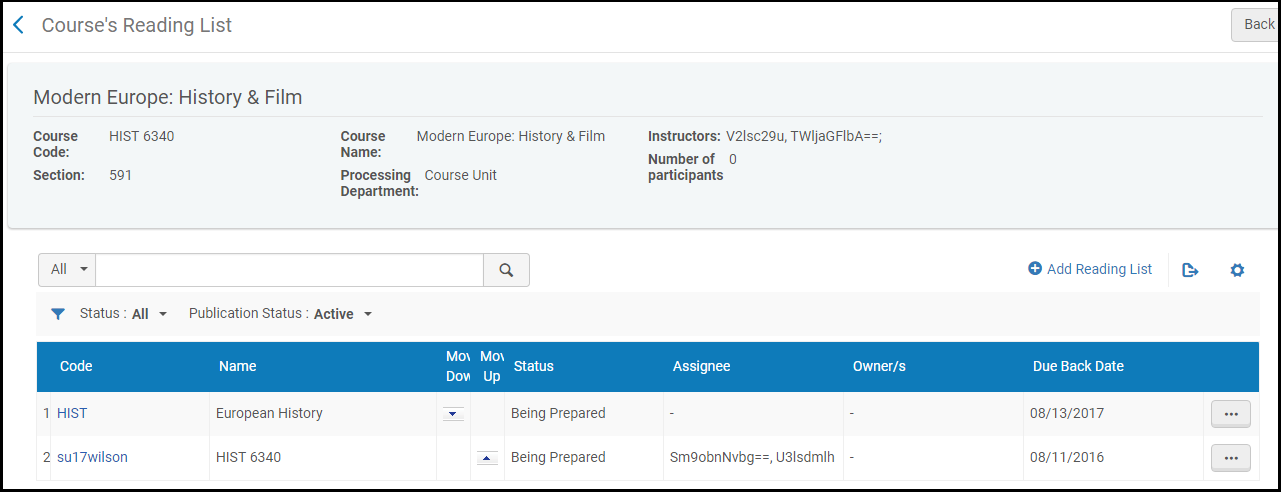
On the Courses page (Fulfillment > Course Reserves > Courses), select Reading List in the row actions list for the course to which you want to add a reading list. The Course's Reading List page appears.
-
Select Add Reading List. Aparece el cuadro de diálogo Agregar lista de lectura.
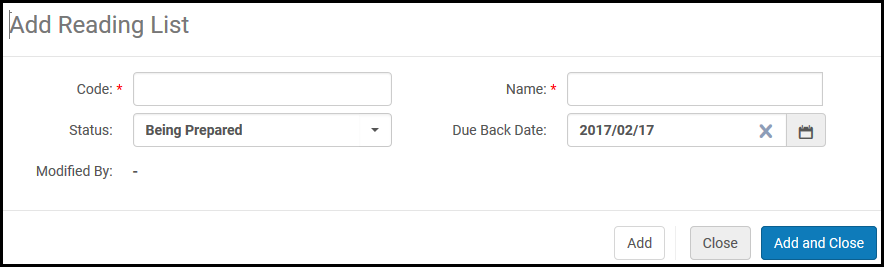
- Introduzcir la información de la lista de lectura. Una descripción de los campos configurables aparece en la siguiente tabla.
Añadir campos de lista de lectura
Campo Descripción Código (requerido) El código de lista de lectura Nombre (requerido) Nombre de la lista de lectura Estado Estado inicial de la lista de lectura For a list of predefined reading list statuses, see Reading List and Citation Statuses in the Leganto Administration Guide. You can define other reading list statuses, see Configuring Reading List Statuses. Fecha del plazo de devolución La fecha del plazo de devolución para los recursos del curso. The default date is the course's end date. For details on managing a course's due back date, see Managing Reading List Due Back Dates - Seleccionar uno de los siguientes:
- Add – Add the reading list and leave the dialog box open to configure additional reading lists.
- Add and Close – Add the reading list and close the dialog box.
- The new reading list appears in the Course's Reading List page.
Editing a Reading List
Una vez que se haya creado la lista de lectura, se puede agregar el material de lectura requerido. Puede seleccionar de entre los recursos en el repositorio o usar el sistema para sugerir y localizar un ejemplar. Luego se puede editar una lista de lectura para modificar el material en la lista.
For information about managing citations, see Managing Citations. Esta sección presenta cómo editar la información general de la lista de lectura.
- Solo se pueden editar listas de lectura que no estén asignadas o que estén asignadas a usted.
- Cuando alguien edita una lista de lectura que no estaba asignada, se le asigna. To configure this, set the rl_auto_assign parameter; see Configuring Other Settings.
- Mientras es edita una lista de lectura, la lista de lectura está bloqueada y no puede ser editada por ningún otro miembro de la biblioteca.
Una lista de lectura se puede asociar a múltiples cursos. Selecting Associate this list with a course opens the Courses tab of the Edit Reading List page. Selecting Remove associated course also opens the Courses tab of the Edit Reading List page, unless there is only one course associated with the list.
Si se dispone de Leganto, es posible habilitar o deshabilitar la posibilidad de asociar una lista de lectura con varios cursos. See Managing Multiple Courses for Reading Lists. When disabled, the workflow is slightly different: Select Associate this list with a course in the row actions list, select or search for the course to associate to the list in the dialog box, and select Change Course Association.

To remove a course association, select Remove associated course in the row actions list.
On the Reading Lists Task List page (Fulfillment > Course Reserves > Reading Lists), select the reading list or select Work on in the row actions list. The Citations tab of the Edit Reading List page appears.
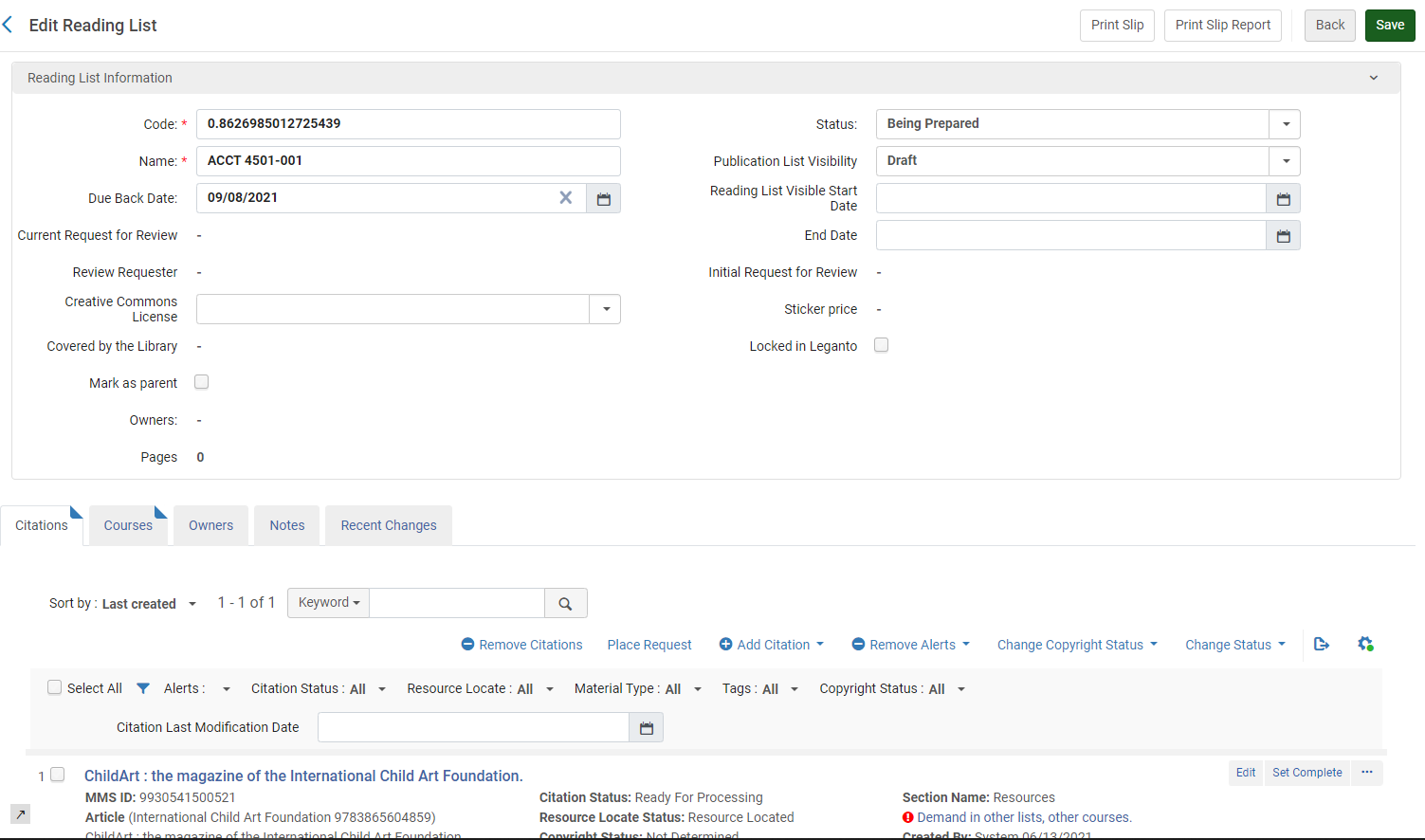
En esta página, se puede administrar la lista de lectura mediante las siguientes acciones:
- In the Reading List Information pane, you can edit the reading list parameters, including the Code,Name,Status(the reading list status), and (the default)Due Back Date. The reading list parameter fields are described in Adding a Reading List.
La suma total de todas las páginas de todas las citas aparece en este panel. El total incluye el total de páginas de cada cita que tiene páginas definidas. The total is determined from the Start Page and End Page fields in each citation; if either of these is not defined, the total is determined from the Pages field. Las citas sin páginas o cuyas páginas no pueden ser analizadas por Alma, no se incluyen en el total.
-
If your institution has Leganto enabled, you can perform the following Leganto-related tasks in the Reading List Information pane (for more information, see Leganto Administration Guide):
- The course must be active for links to the Primo record to be displayed.
- For Leganto customers, a list must be published links to the Primo record to be displayed.
- Edit the reading list's visibility (Publication Status) for Leganto (this is not the reading list status, but whether and how the list is visible to students in Leganto). The statuses are described in Reading List and Citation Statuses in the Leganto documentation.
- Select a creative commons license for the entire reading list, if your country supports this license type (see copyright_region in Configuring Other Settings). Also see Configuring the Default Creative Commons Value for a Reading List.
- Lock/unlock the list in Leganto - Select Locked in Leganto to prevent any changes to the list in Leganto. Los usuarios de Leganto todavía pueden agregar una nota privada, agregar comentarios a las citas o marcar una cita como leída. La lista puede ser desbloqueada en Alma por cualquier bibliotecario o en Leganto por el usuario que la bloqueó.
- Open this reading list in Leganto - select View in Leganto in the page header.
- Ver el puntución de Asesor de lista de lectura (no se muestra arriba) y los propietarios de la lista.
- You can change the order of the citations in the list using the Sort by field. Puede ordenar las citas por título de cita (ascendente), autor (ascendente), última modificación/creación o clasificación. Si está implementando Leganto, puede seleccionar ordenar por orden del instructor, que es el orden en que el instructor ordenó las citas.
- On the Citations tab, you can manage citations, as described in Managing Citations.
- On the Courses tab you can manage the courses associated with the reading list. (Solo Leganto) Esta pestaña no aparece si no está habilitada la función de asociar varios cursos a una lista de lectura. If you are using Leganto, see Managing Multiple Courses for Reading Lists.
- On the Owners tab, you can manage Leganto owners or collaborators (see Configuring Reading List Ownership).
- Add, edit, or delete notes in the Notes tab. For more information about this tab, see Notes Tab. Select an option in the Update Notes table action to mark notes as unread (Activate Notes) or read (Dismiss Notes). Cuando se añade una nota de tipo biblioteca, solo los otros bibliotecarios pueden ver la nota. Cuando se añade una nota de tipo instructor, los instructores también pueden ver la nota en Leganto (solo usuarios de Leganto). No se puede cambiar el tipo de nota después de crear la nota.
-
In the Subject Labels tab, you can manually add or remove subject tags to the reading list; these tags are useful primarily for Leganto customers. Los instructores pueden agregar o quitar estos temas en Leganto. Administrators can configure this list; see Configuring Reading List Subjects.
- Reading list subjects are not related to the Subject bibliographic record field of a citation.
- This tab can be disabled by Leganto customers; see Disabling Reading List Subjects.
- In the Recent Changes tab you can view changes made to the list (starting from when the list was created). For more information about these changes, see Configuring Notifications in the Leganto Administration Guide.
After modifying the Edit Reading List page as required, select Save.
Search for Citations Within a Reading List
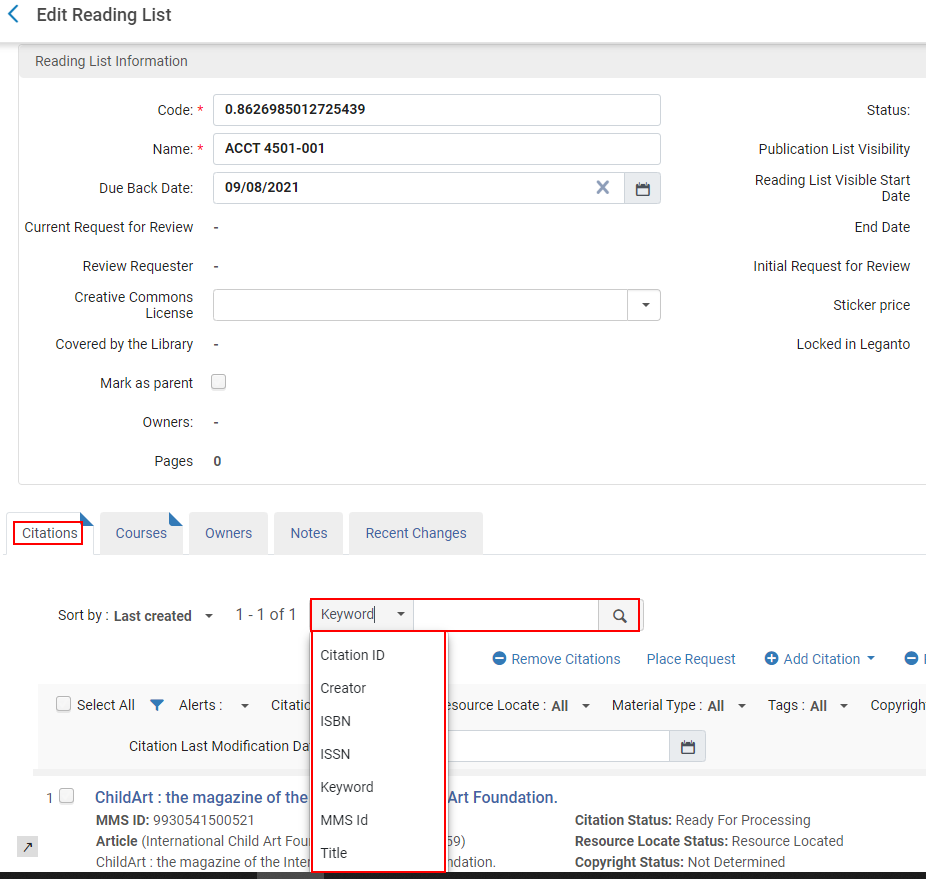
You can search for a citation within a reading list in Alma. You can search by the following criteria (for descriptions, see Managing Citations):
- Palabra clave (selección por defecto): cuando se selecciona, esta opción busca los siguientes campos de metadatos de citas para encontrar una coincidencia:
- Nombre de persona adicional, Autor, Autor del libro, Título del libro, Autor del capítulo,
- Chapter Title, Citation ID, DOI, Edition, Editor
- ISBN, ISSN, Issue, Journal Title, LCCN
- MMS ID, OCLC Number, Pages, Place of Publication, Publication Date
- Publisher, Resource Note, Source, Title, and Volume
Keyword searches for citations do not support the use of Boolean operators (such as AND or OR), and if these operators are specified, they are treated as keywords.
Cuando se especifican caracteres especiales (como guion, guion bajo, barra, etc.) como términos de búsqueda, esta devolverá resultados que incluyen y excluyen los caracteres especiales.
- ID de cita
- Creator – The citation author's name. Note: Additional person names are not included in the search.
- Encontrar
- ISSN
- Identificador MMS
- Title – Citation title
Managing Reading List Due Back Dates
An item shelved at a temporary location can be assigned a due back date either from the Change Item Information tab (see Changing Item Information) or by the bulk items update job (see Change Physical Items). However, when a reading list is attached to a course and an item is moved to a temporary location, the item's due back date is derived from the course's end date.
En el día de la fecha del plazo de devolución, una tarea automática recoge los ejemplares que se encuentran en la estantería en ubicaciones temporales y coloca una solicitud de restitución sobre ellos. Esto activa un proceso que mueve los ejemplares de vuelta a su ubicación permanente. (Obsérvese que en esta etapa, el registro descriptivo puede ser suprimido de la publicación o eliminado.)
El siguiente procedimiento describe el proceso de administración de la fecha del plazo de devolución cuando se adjunta una lista de lectura a un curso:
- The reading list's due back date is by default identical to the course's end date. The due back date can be modified in the Add Reading List dialog box. For details on the fields displayed in the Add Reading List dialog box, see the Add Reading List Fields table in Adding a Reading List.
- Citations are created in the reading list (see Managing Citations).
- If a move request is generated to temporarily move an item linked to a citation and the item moves to the specified location, the item automatically inherits the reading list's due back date and is labeled with it.
- Un tarea automática recoge todos los ejemplares movidos temporalmente y coloca una solicitud de restauración para restaurar los ejemplares a su ubicación permanente cuando llega la fecha del plazo de devolución. For details on this job, see Viewing Restore Request Jobs.
If a reading list citation is linked to an item with a due back date earlier than its own due back date, the Update move expiry action in a row actions list on the List of Items page advances the item's due back date to the due back date of the citation's reading list. See Working with the List of Items.
Por ejemplo:
- La fecha del plazo de vencimiento del Artículo A es el 1 de marzo.
- La fecha del plazo de vencimiento de la Cita B es el 1 de abril.
- La cita B está temporalmente vinculada al artículo A
When selecting Update move expiry in a row actions list on the List of Items page (see Managing Citation Fulfillment Options), the due back date of Item A updates to April 1.
Releasing and Reassigning a Reading List
Las listas de lectura se asignan a los Operadores/Gerentes de reservas de cursos o a los Operadores/Gerentes de Servicios al usuario. Usted puede liberar una lista de lectura asignada que le ha sido asignado. Esto elimina la lista de lectura de sus tareas.
Solo un administrador (Administrador de reservas de cursos o Administrador de Servicios al usuario) puede ver o reasignar una lista de lectura asignada a otra persona. Los operadores solo pueden ver y reasignar listas de lectura que no están asignadas o que están asignadas a ellos.
On the Reading Lists Task List page (Fulfillment > Course Reserves > Reading Lists), select Release assignment in a row actions list.
The reading list is moved to the Unassigned tab.
-
On the Reading Lists Task List page (Fulfillment > Course Reserves > Reading Lists), select Reassign in the row actions list for a reading list. The Assign to dialog box appears.
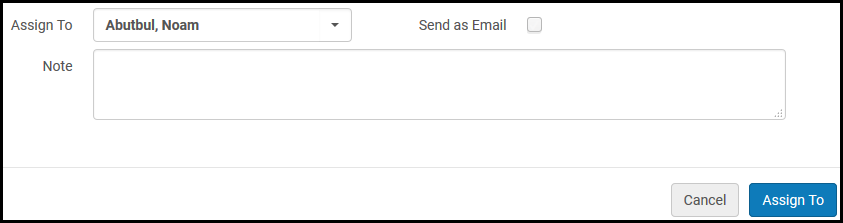
- In the Assign To drop-down list, select the user to whom you want to assign the reading list. Solo los usuarios con los roles relevantes aparecen en esta lista.
- To notify the new assignee of the reading list task assignment, select Send as e-mail.
- Opcionalmente agregar una nota al nuevo usuario.
- Select Assign To. El usuario es asignado para trabajar en la lista de lectura.
Assigning a Reading List Automatically
When a reading list is associated with a course and auto_select_list_assignee (Configuration > Fulfillment > General > Other Settings) is set to true, a processing department operator from the Configuration > Fulfillment > Courses > Processing Department > Operators tab is automatically assigned at random to a reading list. Esto aplica también a las listas que se traspasaron.
When set to false, the Assignee can only be set manually. La configuración por defecto de este parámetro es falso.
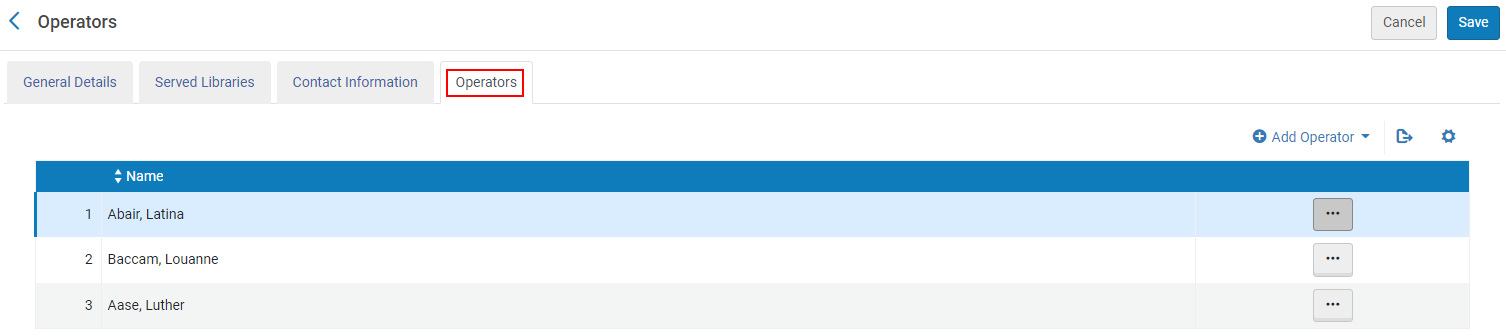
If the Operators list is blank, the list Assignee remains blank.
When multiple courses are associated with a list, the Assignee is selected from the first course that was associated with the list.
For imported reading lists, if the imported file includes an Assignee, the Assignee from the file is assigned to the reading list. If the file Assignee is blank, a random Operator is assigned.
If a course is deleted or unassociated with a list. the current Assignee remains assigned to the reading list.
Managing Reading Lists in Bulk
You can edit reading lists in bulk using the Reading List Bulk Update job. For more information, see Managing Search Queries and Sets to create a set of reading lists and then Running Manual Jobs on Defined Sets.
Also see Matching Reading List Citations to Inventory in Bulk and Rolling Over Courses.
