
Convertidores de integración XSL
Se requiere el siguiente rol para definir los convertidores XSL:
- Administrador general del sistema
When importing users to Alma from SIS systems that use other data formats than Alma, you can convert data from the source system formats to the format required by Alma.
Currently, this is possible for the following integrations (see Student Information Systems):
- Importación SIS
- Sincronización SIS
You can upload and manage XSLT converters from the Integration XSL Converters page (Configuration Menu > General > External Systems), as well as share converters in the Community Zone.
- Al cargar un fichero XSL, no hay un límite estricto de caracteres y se procesa todo el contenido.
- Al editar un fichero XSL, este debe tener 4096 caracteres o menos para que sea compatible.
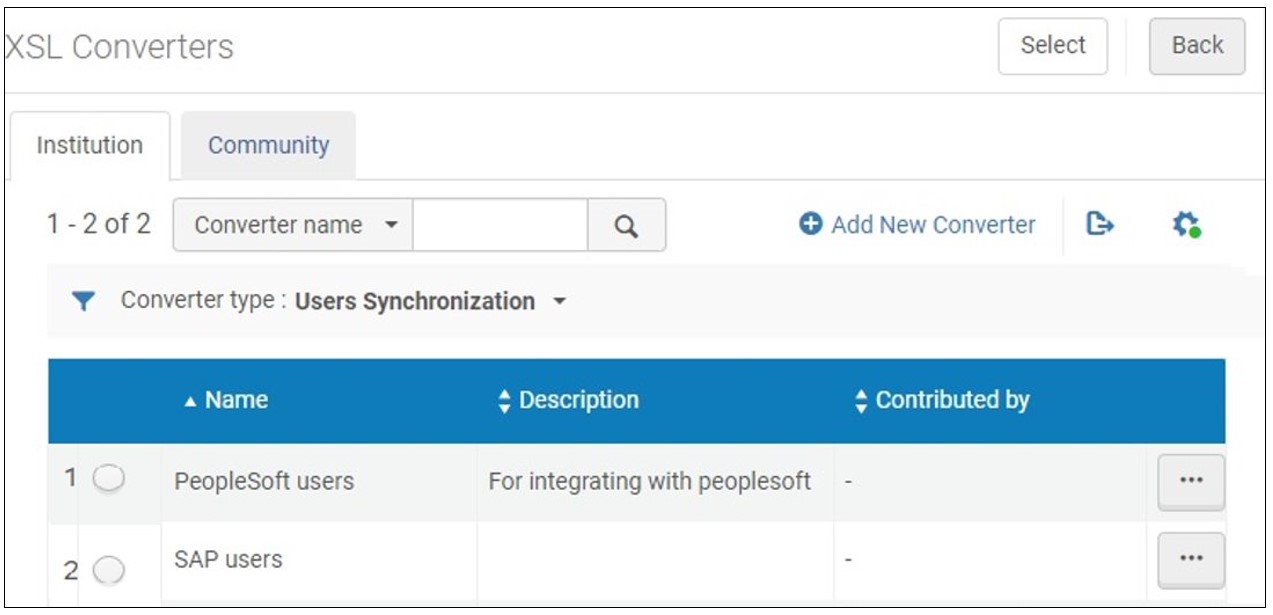
En esta página, puede realizar lo siguiente:
- Upload XSLT converters
- Editar convertidores XSLT
- Validar convertidores XSLT y revisar los resultados en un fichero de demostración
- Compartir convertidores XSLT entre instituciones
Once the XSLT converter has been defined and validated, you can apply it to Integration Profiles, see Student Information Systems.
Uploading XSLT Converters
- Open the Integration XSL Converters page (Configuration Menu > General > External Systems).
- Select Add New Converter. A dialog box opens.
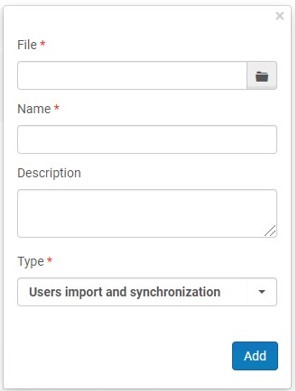
- Examine para cargar el fichero.
- Introduzca el nombre del fichero. The file must have the *xsl suffix and must have a valid XML structure.
- Seleccione el tipo. Currently, the only type that is enabled is Users import and synchronization.
Edición de Convertidores XSLT
- Open the Integration XSL Converters page (Alma Configuration > General > External Systems).
- Select a converter and click Edit in the row actions list. A screen opens where you can edit the converter.
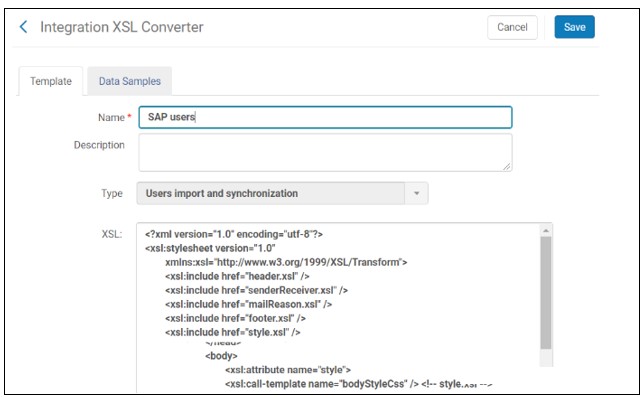
- On the Template tab, you can edit the name and description, and the raw XSL text.
- Select Save to save your changes.
Validación de Convertidores XSLT
Puede cargar un fichero de muestra para validar el convertidor con respecto al XSD relevante según el tipo de convertidor.
You can open the XML file to modify and download it.
- Open the Integration XSL Converters page (Configuration Menu > General > External Systems).
- Select a converter and select Edit in the row actions list.
- Abra la pestaña Datos de ejemplo.
- Click Upload sample (XML), then browse for the data sample file and upload it.

- To modify the XML file and download it, select Edit in the row actions list, edit the file and select Download XML.
- To preview the resulting XML file, select Preview in the row actions list, select the particular converter type
- To delete the data sample file from the list, select Delete in the row actions list.
Adición de Convertidores XSLT a la Zona de la Comunidad
Las instituciones pasan muchas horas creando convertidores XSLT. Para ahorrar tiempo y esfuerzo, los bibliotecarios pueden añadir estos convertidores a la Zona de la Comunidad, además de copiar y emplear los convertidores que hayan agregado otras instituciones en esta Zona. Cuando el convertidor se haya copiado a la institución, esta puede realizar cambios para personalizarlo según sus necesidades.
Contributed XSLT converters appear in the Community tab on the Integration XSL Converters page. Copied converters appear in the Institution tab.
The Aleph to Alma converter of integration type 'Users import and synchronization' was contributed to the Community Zone by Ex Libris.
- From the row actions, select Contribute for an XSLT converter on the Institution tab of the Integration XSL Converters page (Configuration Menu > General > External Systems). Se abre un mensaje de confirmación.
- Edite el nombre y la descripción en el mensaje, y añada una persona de contacto, según corresponda. Then select Yes in the confirmation message. Upon confirmation, the converter is copied to the list of converters in the Community tab and can be copied by any institution.
- Open the Community tab on the Integration XSL Converters page (Configuration Menu > General > External Systems).
To view the XSLT converter, select View from the row actions. Aparecen los detalles del perfil.
- Select Copy in the row actions list of the converter. El convertidor se copia a su institución y se abre el nuevo para editarlo. The converter is copied and its status is Inactive by default.
- Edite los detalles del convertidor para que coincida con sus requisitos.
- When you are done, select Save.
- Select the Institution tab to view the converter that you copied.
- Select Delete in the row actions list of the converter and select Confirm in the confirmation dialog box.
El convertidor ya no estará disponible para otras instituciones. However, it is not deleted; you can continue using it in the Institution tab. Also, if another institution already copied this converter, the deletion of your converter has no effect on their local copy.
Page tags: article:topicproduct:almacontent:Documentationlang:english
