
Webhooks
Overview and instructions for configuring a Webhooks type of integration profile.
- Administrador general del sistema
Los webhooks son devoluciones de llamada HTTP definidas por el usuario que suelen activarse por algún evento, e incluyen información sobre los resultados o el estado de ese evento.
Alma puede enviar un webhook cuando ocurre una de las siguientes situaciones:
- Una ejecución de tarea ha terminado de ejecutarse (utilizando la IU de Alma o una API).
- Se actualiza un usuario.
- Se envía una de las siguientes notificaciones:
- Carta de cancelación de solicitud
- Carta de actividad de préstamos
- Aviso de estado del préstamo
- Carta de estantería de reservas
- Una solicitud de reserva, reserva anticipada, movimiento u orden de trabajo se crea, cierra o se coloca en la estantería de reservas.
- Un préstamo se crea, devuelve o declara perdido.
- A bibliographic record is changed.
- Un ejemplar físico se cambia.
- An item from a continuous PO line was received.
For a complete list of events that trigger webhooks, see Supported Events in the Developer Network.
Para activar un webhook, Alma debe tener un Perfil de integración de webhooks configurado (véase a continuación.
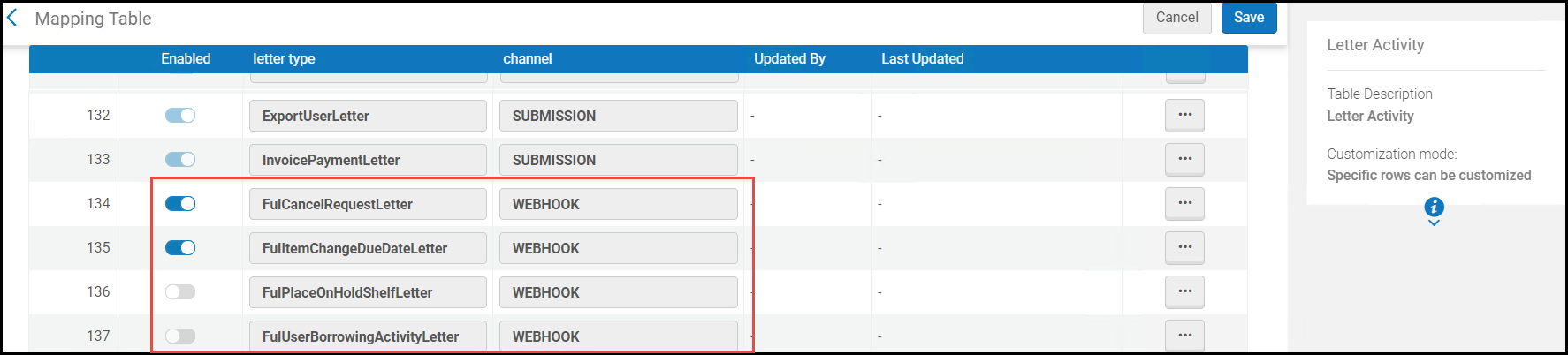
For webhooks that use notifications, as part of the integration profile creation, activate the desired webhooks in the Letter Activity code table. However, once the integration profile is created, you can activate additional webhooks or deactivate webhooks from the Letters Configuration table.
For detailed information on these webhooks, see Developer Network.
Configuring a Webhooks Integration Profile
- On the Integration Profile List page (Configuration Menu > General > External Systems > Integration Profiles), select Add Integration Profile. Se abre la primera página del asistente del perfil de integración.
- From the Integration type drop-down list, select Webhooks and enter a code and name for the profile.
- Select Next. Aparece la segunda página del asistente.
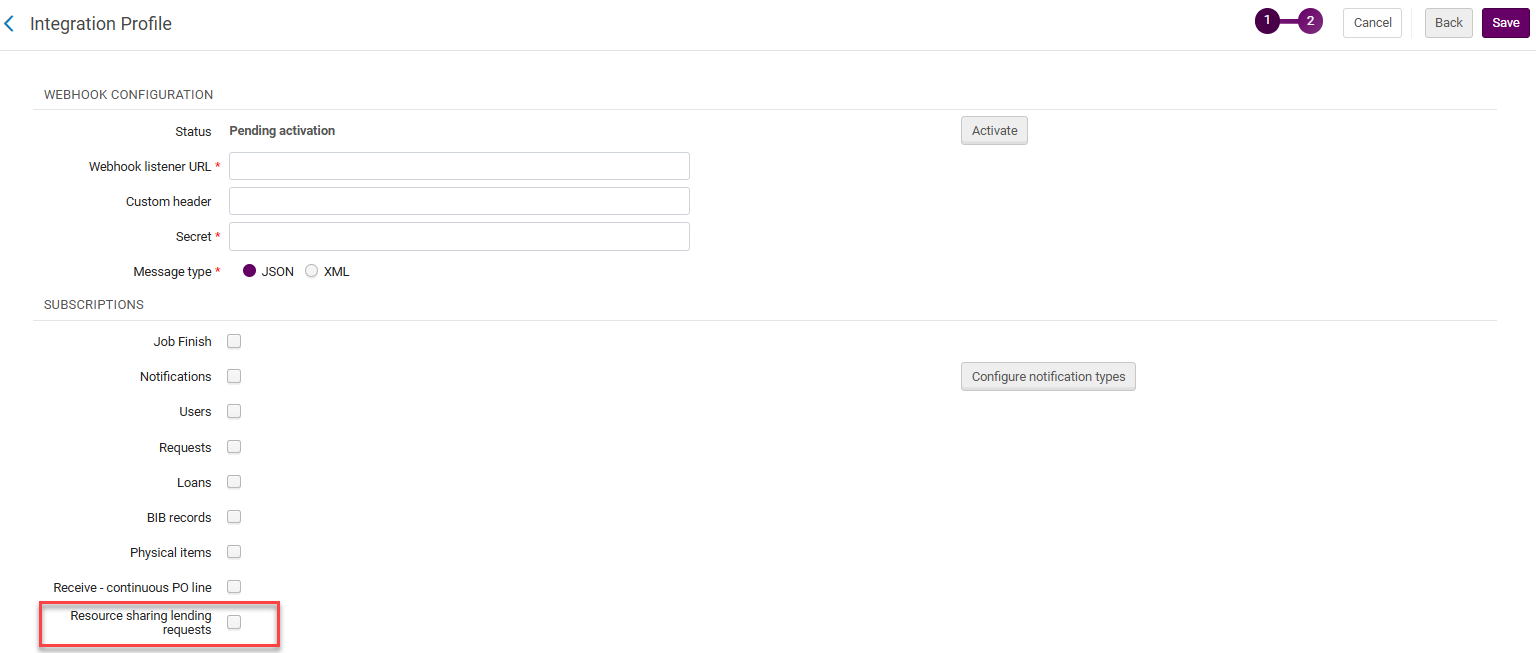 Webhook Configuration
- Select Activate to activate the webhooks integration profile. Until the profile is activated, the status reads Pending activation.
- Enter the listener URL for the Webhook Listener URL and secret code in Secret. For information on the values to be entered here, see the Security section in Webhooks.
- Select whether the message type should be XML or a JSON.
- Under Subscriptions:
- Select Job finish to send a webhook when a job run has finished running (using either the Alma UI or an API).
- Select Notifications to send a webhook when one of the notifications listed above is sent. Select Configure Notification Types to open the Letter Activity code table, and scroll to the very bottom to activate the webhooks for these notifications. The webhooks that were previously activated (either here or in the Letters Configuration table) show as activated; and the webhooks you activate here are displayed as activated in the Letters Configuration table. Select Save when you have activated the desired notifications to go back to the integration profile.
- Select Users to send a webhook when user information is updated. Incluye todos los cambios de usuario para los que se registra el historial, incluidos los cambios realizados por la tarea Usuarios. Se debe tener en cuenta que los cambios de usuario que utilizan una API no hacen que se envíe un webhook. In the User groups box, select the user groups that trigger a webhook to be sent. If no user groups are specified, a webhook is sent for all user groups.
- Select Requests to send a webhook when a hold, booking, move, digitization, or work order request is created, closed, or placed on the hold shelf.
- Select Loans to send a webhook when a loan is created, returned, or declared lost.
- Select BIB records to send a webhook when a bibliographic record is changed.
- Select Physical items to send a webhook when a physical item is changed.
- Select Receive - continuous PO line to send a webhook when a continuous PO line is received.
- Select Resource sharing lending requests to send a webhook for lending resource sharing requests.
- Select Save. El perfil que se configuró aparece en la Lista de perfiles de integración.
-
Después de que se haya definido el perfil de integración, se puede seleccionar Ver registro desde la lista de acciones de perfiles de integración. Esta opción permite ver un registro de eventos de webhook. La URL y los elementos de carga de la tabla pueden buscarse después. Puede mostrar el cuerpo de la solicitud para cada solicitud de webhook (el despliegue se trunca después de 4000 caracteres, pero el cuerpo completo de la solicitud se envía al oyente).
- Si los intentos de webhook fallan, los correos electrónicos se envían a todas las direcciones de correo electrónico estipuladas en la pestaña Información de contacto del perfil de webhook.
- In Premium Sandbox environments, the Webhook Listener URL is removed and the profiles are set to inactive. Esto se debe a que las acciones de webhook que tienen lugar en el entorno de Sandbox van a parar al servidor listener, lo mismo que los datos de producción, lo cual ocasiona que se mezclen datos de prueba y datos de producción. Si desea activar el perfil de integración en un entorno de Sandbox, proceda tal como se indica más arriba en los pasos 4 y 5.
Page tags: article:topic product:alma content:Documentation lang:english webhooks FulCancelRequestLetter FulUserBorrowingActivityLetter FulItemChangeDueDateLetter FulPlaceOnHoldShelfLetter
