
Fulfillment Networks
This page describes fulfillment networks including viewing network activity, the pickup anywhere workflow (item belonging to another institution in the fulfillment network to be picked up at yet a third institution in the fulfillment network) and Get It at other institutions. For information on automated fulfillment networks see Automated Fulfillment Network Requests (AFN). For more information on the various workflows for resource sharing, including broker and peer to peer based, managing resource sharing partners, borrowing/lending requests and contributing to the resource sharing directory, see Resource Sharing.
For working with the Managing Patron Services page (working with patrons, loans, returns, etc.) see Managing Patron Services at a Circulation Desk.
Una Rete Servizi è un gruppo di istituzioni Alma che hanno un accordo predefinito per fornire servizi Servizi agli utenti delle altre istituzioni della Rete. Gli utenti possono cercare le collezioni dei membri della Rete e richiedere direttamente le risorse dall'istituzione all'interno del gruppo. La copia richiesta può essere distribuita presso qualsiasi istituzione della Rete. Ciò riduce il coinvolgimento della biblioteca nella configurazione, nella manutenzione della lista fornitori e nella mediazione del personale su richiesta. The fulfillment network can be set up regardless of whether the fulfillment network partners work with a Network Zone.
Unlike the classic resource sharing model, in which a patron's home library serves as an intermediary in providing access to resources it does not own, fulfillment networks allow for direct interaction between patrons of one library and another library in the fulfillment network. Servizi Network fornisce supporto per i seguenti scenari:
- Prestiti senza prenotazione
- Richiesta diretta
- Restituisca ovunque nella rete
- Ritiro ovunque nella Rete
- Una tessera utente della rete in Primo
In a fulfillment network, the resource owning library is the patron's service provider. La biblioteca proprietaria della risorsa gestisce direttamente tutti gli aspetti del ciclo di prestito con l'utente della richiesta, inclusa la gestione del prestito (scaduto, smarrito, rinnovo ecc.) e il fascicolo relativo a multe/tariffe. L'utente richiede direttamente la risorsa alla biblioteca che possiede la risorsa. L'utente può richiedere che la risorsa venga ritirata presso la propria home istituzione, la biblioteca proprietaria della risorsa o un'altra biblioteca all'interno della Rete Servizi.
Potrebbe essere necessaria la configurazione di Primo se un'unica installazione PDS non è condivisa tra i membri dell'istituzione che desiderano consentire la richiesta diretta.
Una Servizi Network ha i seguenti attributi aggiuntivi:
- Tra le istituzioni della Rete vengono condivise solo informazioni limitate sugli utenti.
- The inventory of each fulfillment network member institution is discoverable by patrons of all fulfillment network members.
Watch the Fulfillment Networks Resource Sharing video series (7 sessions).
For information on configuring a fulfillment network or Pickup Anywhere/Return Anywhere, see Configuring Fulfillment Networks.
Le relazioni di servizio definiscono i servizi che una biblioteca è in grado di svolgere per un'altra biblioteca all'interno della stessa istituzione. For more information see Configuring Fulfillment Services Between Libraries Within an Institution.
Viewing and Working with the Network Activity for a Patron
L'attività di tutte le istituzioni collegate può essere visualizzata dalla pagina Servizi per gli utenti. The Network Activity tab contains the loan, request, and fines and fees balance data for the linked accounts for view purposes only. I prestiti e la richiesta Lista possono anche essere esportati.
The Network Activity tab is visible only from the patron's home institution, if the institution is part of a fulfillment network, and the staff operator has the consortialservices privilege as a part of the following roles:
- Responsabile Banco Circolazione
- Operatore banco circolazione
- Operatore banco circolazione - Limitato
- Gestore utenti
- Amministratore Utenti
If the patron is a linked user (see Require manual linked account registration), the Network Activity tab is only visible if cross consortia identifiers are enabled (see How to Setup and Test a Fulfillment Network).
Un filtro consente all'Utente di selezionare una Transazione per una specifica istituzione o per tutte le istituzioni che hanno un account collegato per questo Utente. Tutti i prestiti attivi e le richieste verranno visualizzati automaticamente senza alcuna possibilità di filtrare la visualizzazione solo per questa sessione.
Watch the Tracking Patron Resource Sharing Activities video (2:00 min.).
Accessing the Network Activity Tab for a Patron
Dalla tab Rete è possibile visualizzare l'attività di tutte le istituzioni collegate.
-
On the Patron Identification page (Fulfillment > Checkout/Checkin > Manage Patron Services), enter the patron's name in the Scan patron's ID or search for patron field and select Go. Viene visualizzata la pagina Servizi all’utente. È inoltre possibile inserire un utente delegato Utente. For more details see Selecting a Patron.
-
On the left pane select the Network Activity tab icon.
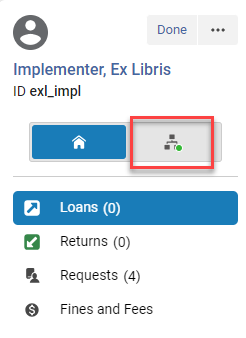
Note that a green dot on the tab indicates that actions (loans, requests, etc.) were done in the network.
-
The Network Activity tab appears with the Loans button selected.
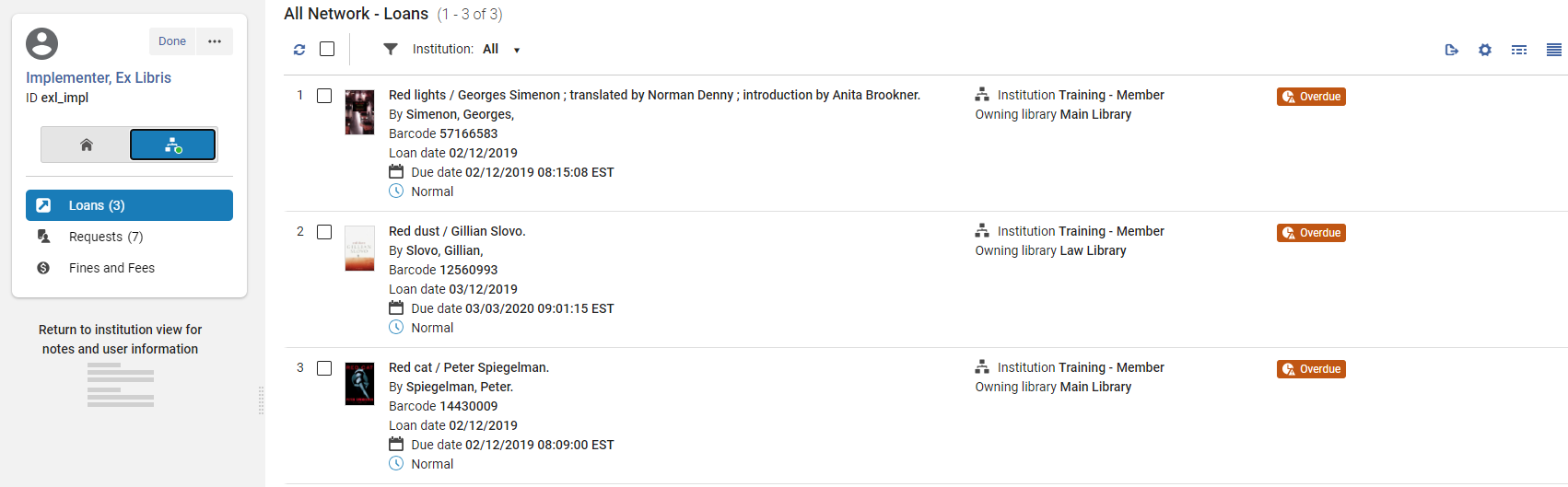 Only active tabs/activities appear, i.e., Returns are not diisplayed.
-
The user information and system notes are not displayed in the left hand pane of the Network Activity tab.
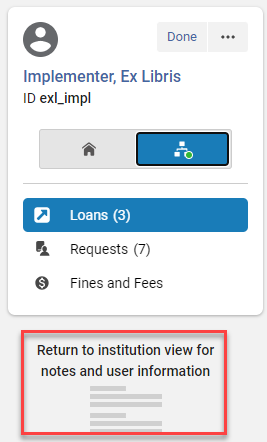
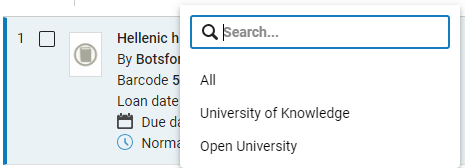
- By default, the All institutions are selected.
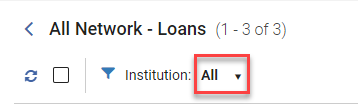
- È possibile selezionare da un elenco di istituzioni in cui l'utente ha richieste di prestito o commissioni attive. Selecting All displays all the loans, requests or fees from all institutions. This is the default.
Viewing Patron Loans in the Network Activity Tab
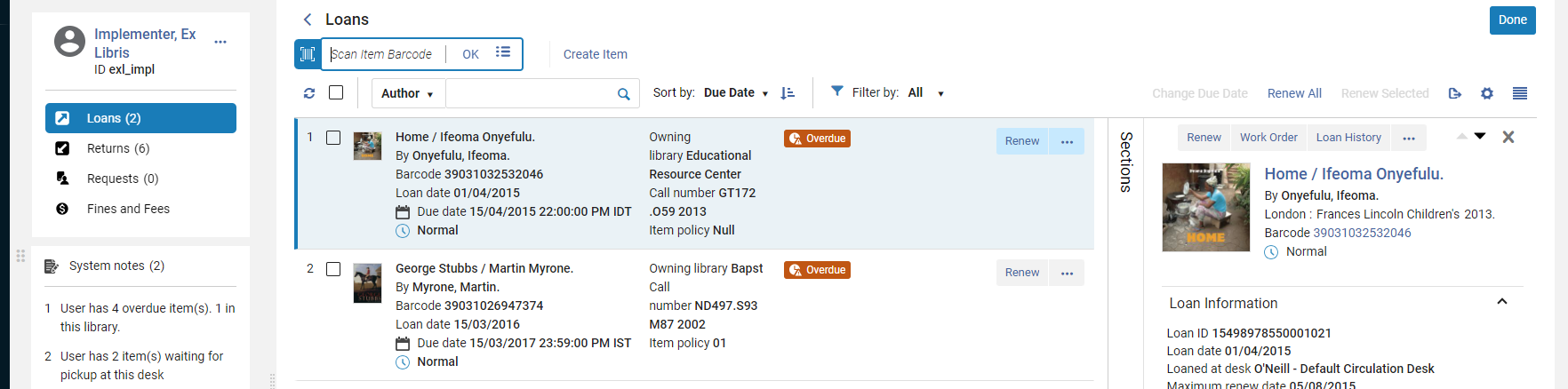
I prestiti sono selezionati di default nella Network tabscheda Attività.
-
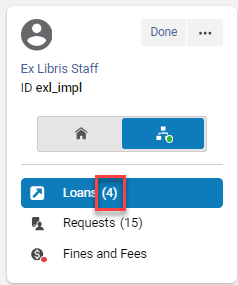
The number in the Loans button displays the number of loans in the selected institution or for All Networks if selected.
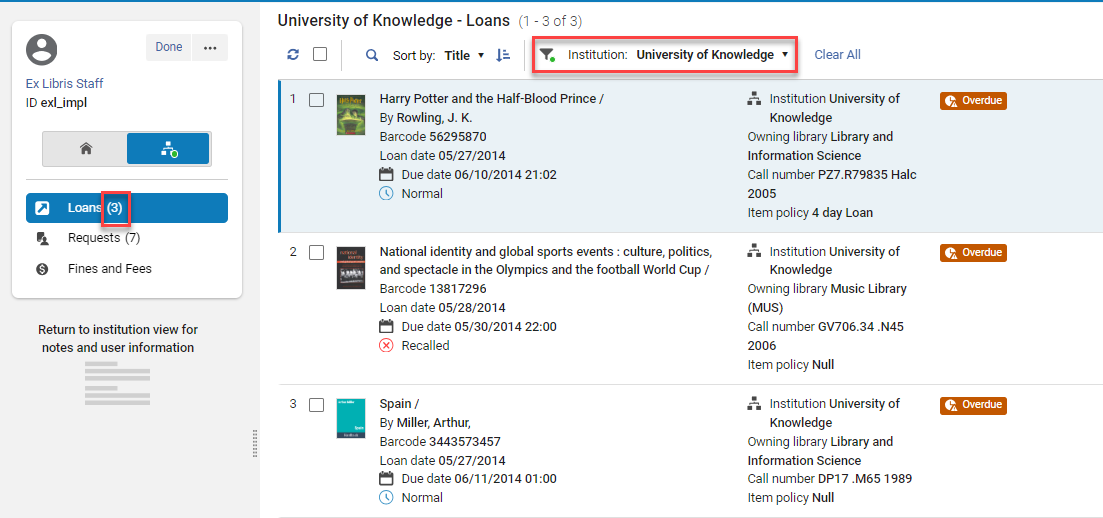
- È possibile filtrare la lista per istituzione. Quando si fa così, il CONTATORE dei prestiti nel riquadro di sinistra viene aggiornato per l'istituzione selezionata.
-
Per ogni prestito compare un campo aggiuntivo con il nome dell'istituzione.
This field is customizable in the Record Customization menu (see Customizing the Display in Alma).
- Quando si seleziona Prestiti , la barra di scansione copia non appare e non c'è l'opzione Crea copia o azioni di riga.
Viewing Patron Requests in the Network Activity Tab
Nella tab Attività Network, selezioni il pulsante richiesta per visualizzare la richiesta del patrono nei Servizi Network.
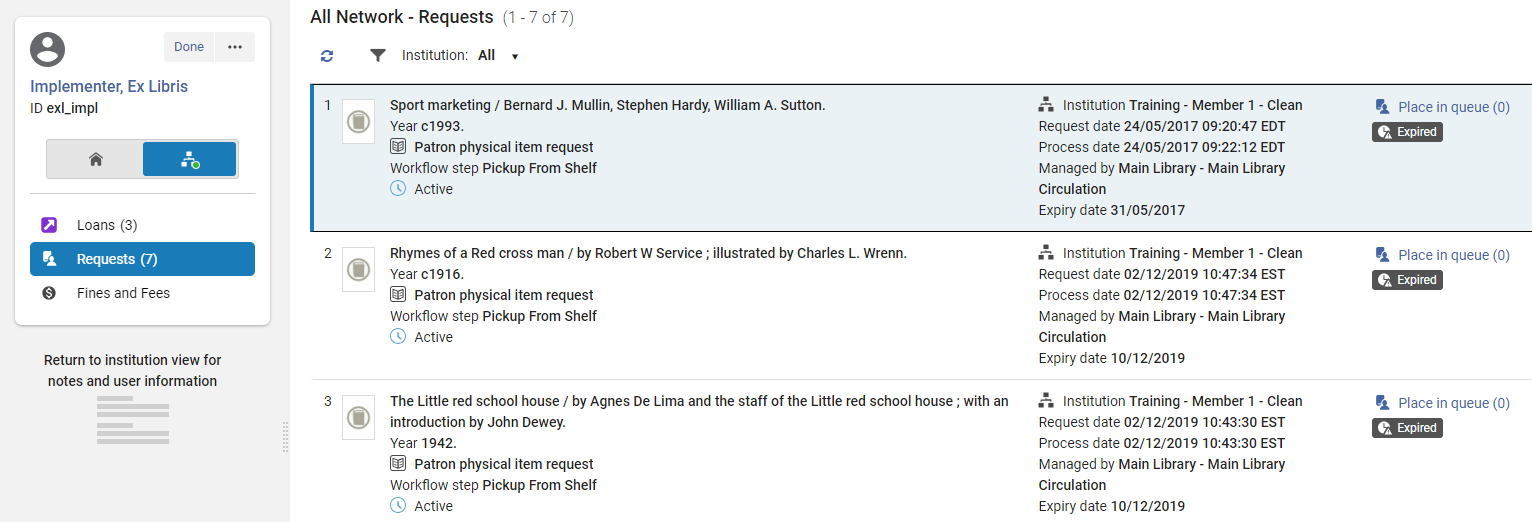
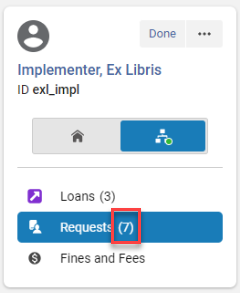
- The number in the Requests button displays the number of requests in the chosen institution or for All Networks if selected.
-
Per ogni richiesta appare un campo aggiuntivo con il nome dell'istituzione.

This field is customizable in the Record Customization menu (see Customizing the Display in Alma).
- Quando si seleziona la richiesta, non è disponibile l'opzione Crea copia né le azioni di riga.
-
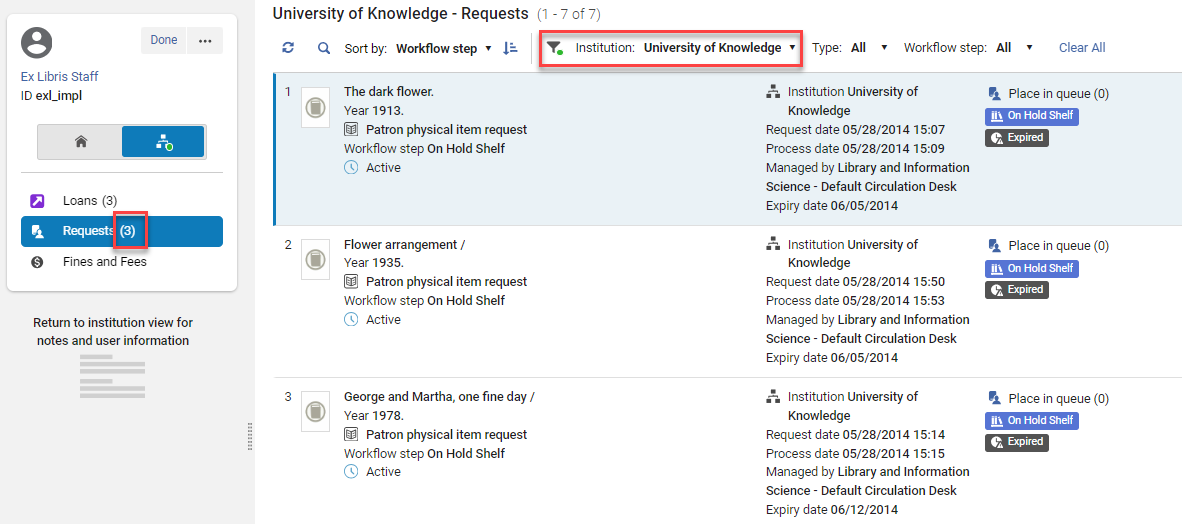
È possibile filtrare la lista per istituzione. When doing so, the counter for the requests in the left hand pane is updated for the selected institution.
Viewing Fines and Fees in the Network Activity Tab
Nella tab Attività Network, selezioni il pulsante Multe e commissioni per visualizzare le multe e le commissioni per l'utente nella rete Servizi.
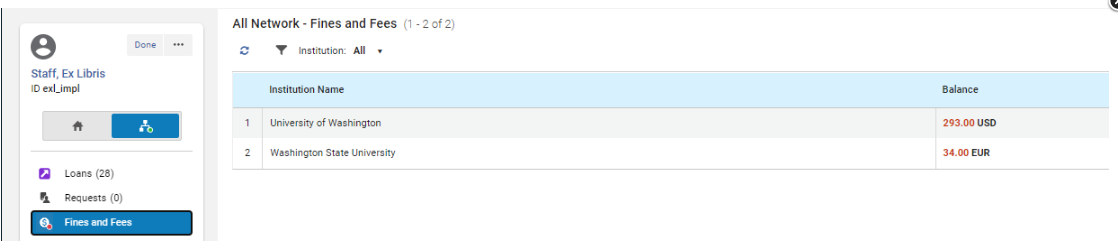
- The Fines and Fees button displays a content indicator if fines/fees exist for the patron.
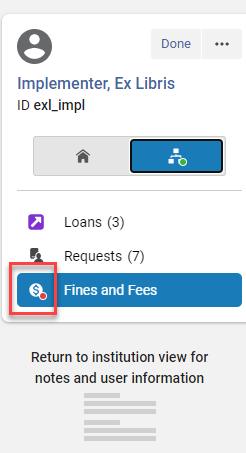
- Quando Multe e Commissioni è selezionato nella tab Attività Network, non è disponibile alcuna opzione Crea copia o azione di riga.
Customizing the Display on the Patron Network Activity Tab
For instructions on customizing the display see Customizing the Display in Alma.
La personalizzazione della tab Attività Network non influisce (e non è influenzata da) la personalizzazione della pagina principale dei Servizi per gli utenti.
Switching Between Views on the Patron Network Activity Tab
For instructions see Views.
Exporting Records from the Network Activity Tab
For instructions see Exporting Records to Excel.
Walk-in Loans
Un prestito senza appuntamento è quando un utente di un'istituzione diversa prende in prestito una copia dall'istituzione proprietaria della risorsa. For details see Registering Patrons from Other Institutions in the Fulfillment Network.
Pickup Anywhere Workflow
Creating a request within the fulfillment network, whether for pickup at a patron's home institution, the resource owning library, or another library within the fulfillment network is essentially the same process as a regular fulfillment process. Le pagine coinvolte nella creazione e nell'adempimento della richiesta restano le stesse, con solo una variazione nelle opzioni offerte nei vari elenchi a discesa e nelle caselle di controllo. The process may be just between the patron's home institution and the resource owning institution or the pickup of the requested resource may also take place at a third institution within the network. Tutto questo è gestito all'interno del flusso di lavoro standard. For information on configuring Pickup Anywhere, see Configuring Pickup Anywhere/Return Anywhere.
Requesting an Item for Pickup Anywhere in the Network
The scenario below describes the workflow where a patron from one institution in the fulfillment network requests an item belonging to another institution in the fulfillment network to be picked up at yet a third institution in the fulfillment network. Questo flusso dimostra l'azione di richiesta, prestito e restituzione tra istituzioni.
For more information about pickup anywhere in fulfillment networks, see the Enhancements to Fulfillment Network video (1:41 min.).
To request a pickup from a different institution, the patron signs in to Primo, searches for a resource, and selects from a list of institutions that have the resource available. Il cliente seleziona dalla lista delle istituzioni autorizzate al ritiro e invia la richiesta.

Le informazioni dell'Utente e della richiesta di risorsa vengono copiate alla biblioteca che possiede la risorsa. Staff operators at that library see the requested pickup library in their task lists and pick slips.
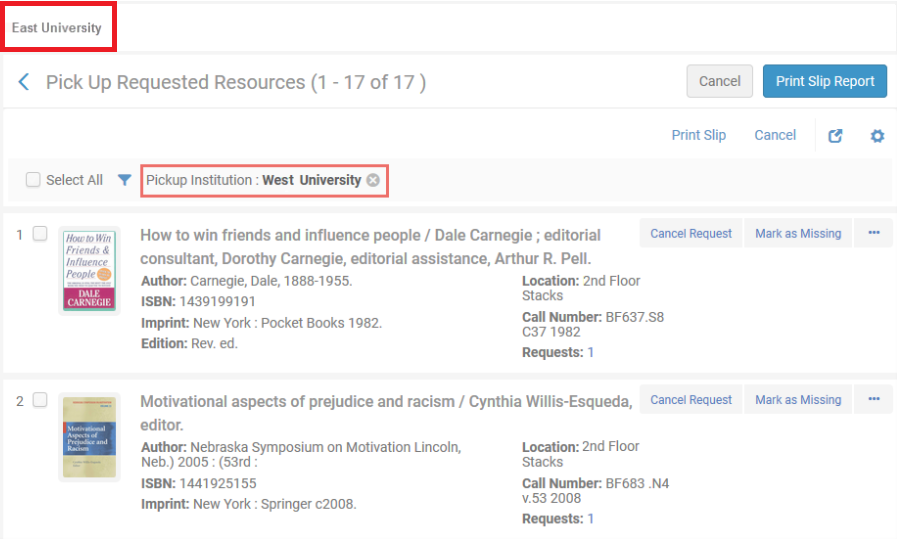

La copia viene scansionata dall'istituzione che possiede la risorsa, viene indicata la destinazione del ritiro e la copia viene messa in transito dall'istituzione che possiede la risorsa all'istituzione di ritiro.
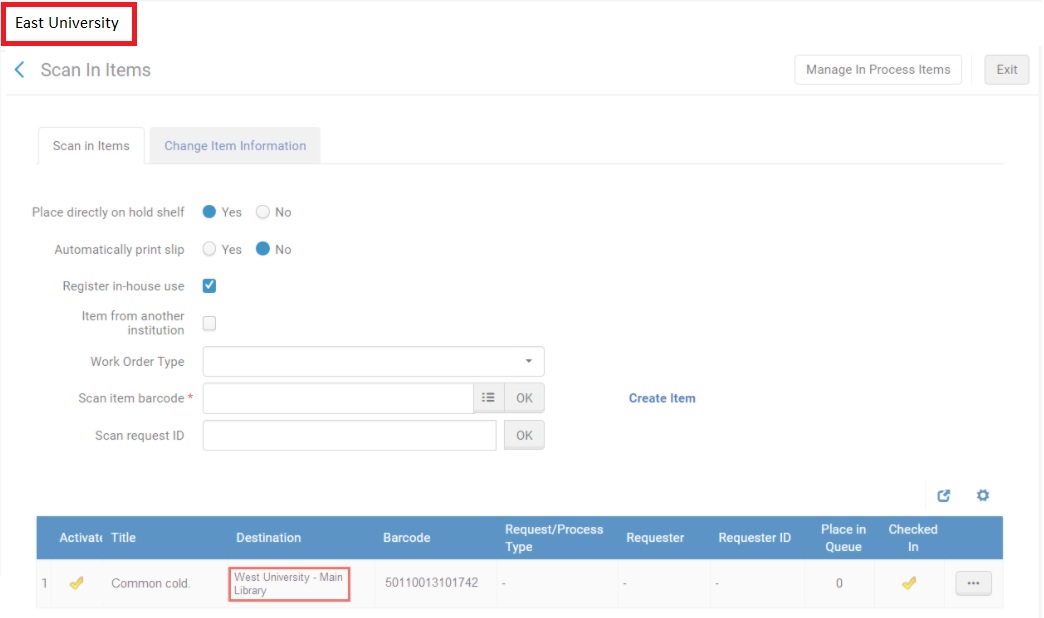
La copia viene ricevuta e scansionata presso l'istituzione di ritiro con l'istituzione proprietaria selezionata.
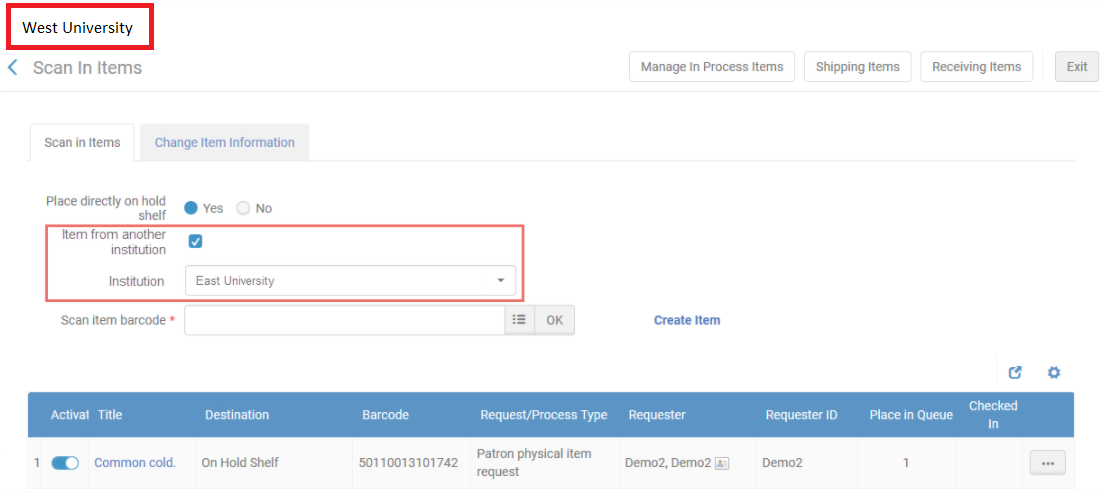
Le informazioni sull'Utente del patrono vengono recuperate automaticamente dall'istituzione di ritiro e il patrono viene informato che la sua richiesta è disponibile per il ritiro. Quando si presta la copia all'utente, il personale operatore al Luogo di ritiro Banco di circolazione seleziona l'istituzione proprietaria nella pagina Servizi all'utente e registra il prestito della copia all'utente. Il resto del ciclo di vita del prestito è un processo standard.

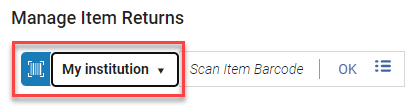
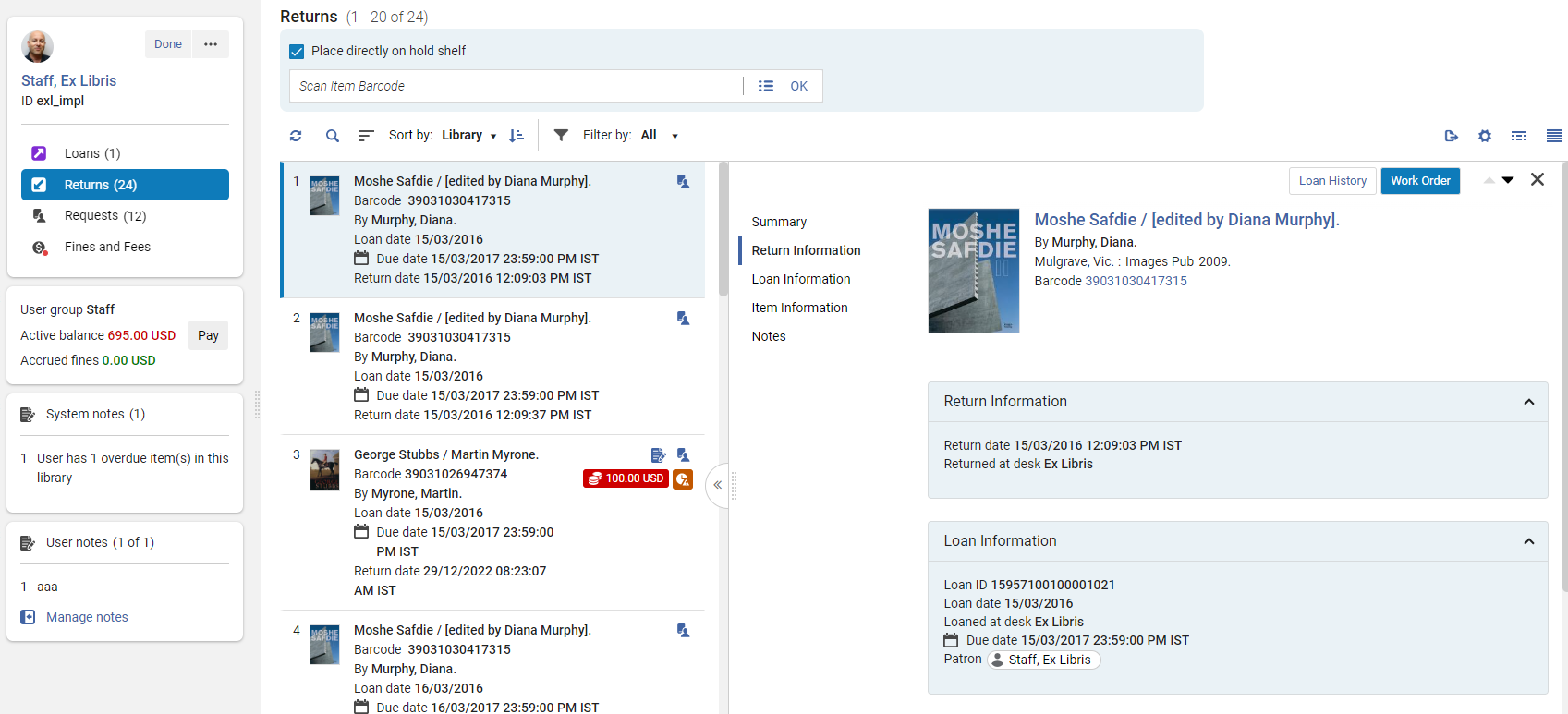
When the patron returns the resource to the pickup institution, the item is scanned as usual with the resource owning institution selected on the Manage Item Returns page. L'interfaccia Gestione resi delle copie indica che il passaggio successivo per la copia è il transito verso la sua istituzione proprietaria.
Get It at Other Institutions
La visualizzazione dell'inventario Network può essere basata su una Network Zone condivisa a cui partecipano tutte le istituzioni, oppure su una rete di scoperta che non utilizza una Network Zone. See Overview of Collaborative Networks with Primo VE for more information on the shared discovery options.
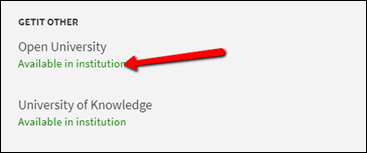
When the institution is part of a network, Primo will expose the discovered record's inventory at the patron's institution, as well as at other institutions of the network. The home institution's inventory and the network institutions' inventory are displayed in separate sections, as shown below.
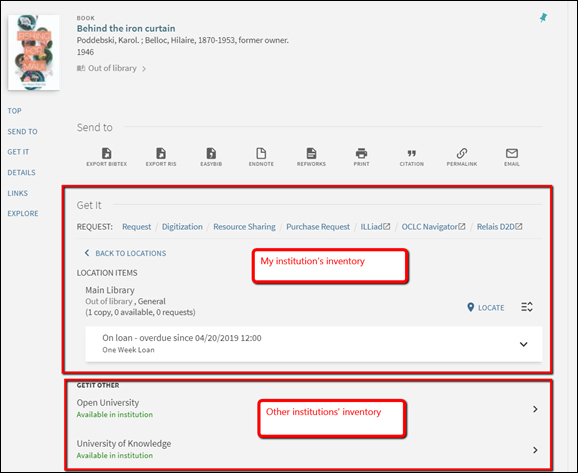
Other institutions' inventory may be displayed without allowing the patron to directly request the other institutions' resources. Ad esempio, se l'istituzione implementa una condivisione delle risorse o una rete servizi automatizzata, le richieste di rete vengono effettuate tramite il collegamento di condivisione delle risorse.
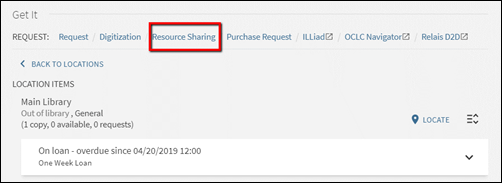
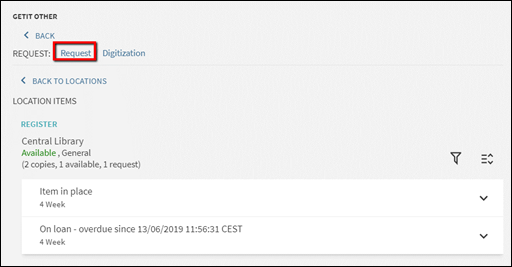
Alternatively, the institution may allow the patrons to navigate into the other network members' inventory information and directly place a request.
Di seguito sono riportati alcuni dei tipi di servizio che un'istituzione può impostare per la richiesta di rete.
Expose other institutions' availability only
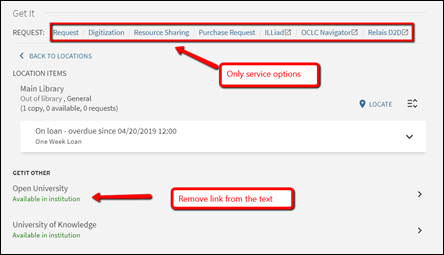
In questo modello l'istituzione home può decidere di esporre solo le informazioni su quale istituzione detiene copie disponibili della risorsa scoperta. The institution may decide not to allow the patrons to further navigate into every institution's holdings information. Questo ha il vantaggio di consentire una minore navigazione nella pagina di visualizzazione completa, riducendo al minimo la potenziale confusione che più opzioni potrebbero causare. Con questa configurazione i patroni vedranno solo se l'istituzione possiede o meno copie disponibili e utilizzeranno sempre lo stesso link Richiesta di Condivisione Risorse per la richiesta. Il link per il testo Disponibile in istituzione può essere disattivato. Please consult Primo configuration guides for achieving this type of set up.
Expose other institutions' holdings
In this model the home institution may decide to expose, in addition to information about which institution holds available copies of the discovered resource, also where the inventory is found, but not allow directly requesting the remote institutions' items. This would be a classic setup where the institutions allow patrons of one another to walk into each other's library and use the on shelf items, but require that the requesting be done only using the Resource Sharing option from the local inventory display.
As is shown below, in this setup the Available in institution text does allow navigating into the network institutions' inventory, but the remote institution's Get It information is shown without the patron being automatically logged into that institution. Questo provoca quanto segue:
- Il comando remoto Get It non ha opzioni di richiesta.
-
The loanability information is either loanable or not loanable, and is calculated using the same procedures that are used for determining potential loanability when the patron is not logged in.
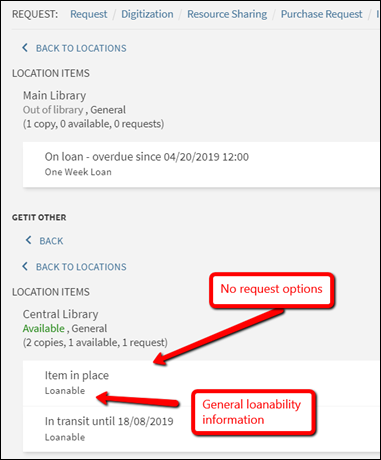
This is achieved by setting the uresolver_remote_register parameter to None in the Configuration Menu > Fulfillment > Other Settings page. Si noti che questo parametro ha effetto per l'istituzione remota (i.e). non l'istituzione home del patrono).

Allow directly requesting other institutions' holdings
L'istituzione può decidere di esporre non solo quale istituzione detiene copie disponibili della risorsa scoperta e dove si trova l'Inventario, ma anche consentire di inserire direttamente una richiesta sulla copia remota. Questa sarebbe una configurazione standard quando l'istituzione non utilizza una condivisione delle risorse o una rotazione automatica basata sulla rete dei servizi, ma piuttosto consente agli utenti di trovare direttamente copie di altre istituzioni e di richiederle direttamente.
Require manual linked account registration
It is possible to set Alma so that when the patron chooses to display a remote institution's Get It information, the default view will be as for a non-logged user. Alma non creerà automaticamente un account collegato presso l'istituzione remota e pertanto non visualizzerà termini di utilizzo dettagliati né mostrerà un'opzione di richiesta. A ‘Register' option will allow the patron to explicitly request to create a linked account.
Questo tipo di configurazione può essere effettuato in Ordine per garantire che gli account collegati vengano creati solo quando l'utente ne fa esplicita richiesta. Ciò potrebbe soddisfare considerazioni sulla privacy e impedire la creazione di più account collegati, a meno che il cliente non voglia realmente creare una richiesta locale.
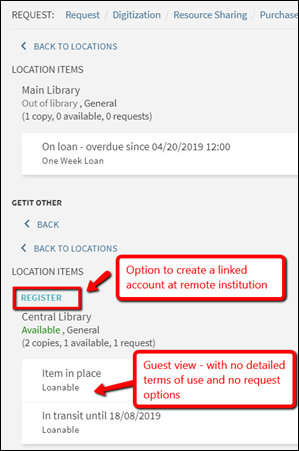
Using the ‘Register' option creates the linked account and reloads the remote Get It information with detailed terms of use and with request options, after having created the linked account.
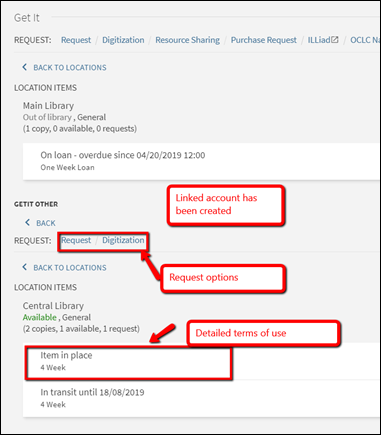
To do this, set the uresolver_remote_register parameter to Manual in the Configuration Menu > Fulfillment > Other Settings page. Si noti che questo parametro influisce sull'istituzione remota (i.e). non l'istituzione home del patrono).
Allow automatic linked account registration
Set the uresolver_remote_register parameter to Auto to skip the Register step and always automatically create the linked account at the remote institution. Questa configurazione semplifica il processo di richiesta ed evita la necessità di registrarsi manualmente prima di ottenere le opzioni di richiesta, ma potrebbe comportare la creazione di più account collegati in ogni istituzione in cui il cliente ha navigato per visualizzare le opzioni di richiesta.
