
Configuring Libraries
This page describes how to configure libraries for fulfillment including services between libraries in an institution, transit time rules, resource sharing, etc. For links to all the main fulfillment documentation pages see Fulfillment.
Configurazione dei servizi di Fulfillment tra biblioteche all'interno di un'Istituzione
Per configurare le relazioni Servizi, è necessario disporre di uno dei seguenti ruoli:
- Amministratore di Sistema Generale
- Amministratore Servizi
Watch the Managing Libraries and Locations video (6 min.).
Fulfillment relationships define the services that one library is able to perform for another library within the same institution. For general information on working with fulfillment networks see Fulfillment Networks.
You configure fulfillment relationships on the Organizational Units Relationships Setup page (Configuration Menu > General > Libraries > Relationships).
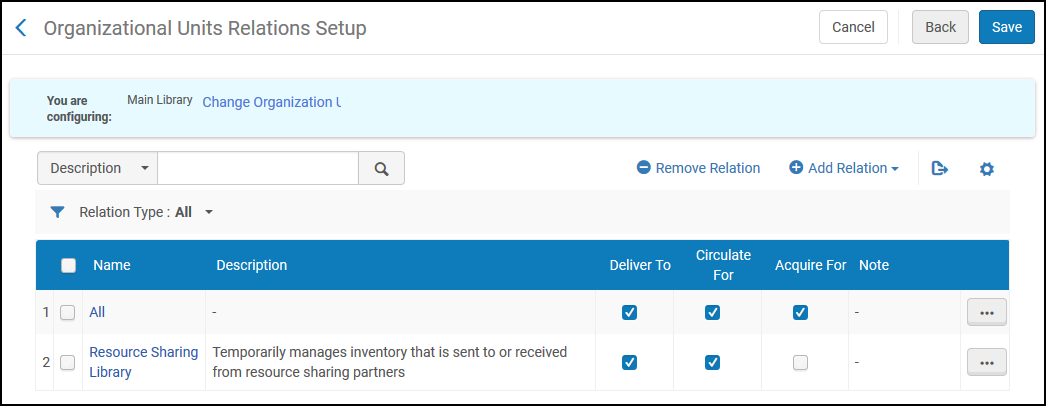
Assicurati di essere nel contesto dell'istituzione/biblioteca di cui desideri configurare le relazioni selezionando l'istituzione/biblioteca richiesta dal filtro Configurazione nella pagina Configurazione Servizi.
In questa pagina è possibile eseguire le seguenti azioni:
- Adding Organizational Unit Relationships (see Adding Organizational Unit Relationships)
- Editing Organizational Unit Relationships (select Edit from the row actions list)
- Eliminazione delle relazioni tra unità organizzative (selezionare Elimina dall'elenco delle azioni di riga)
Adding Library Relationships
Puoi aggiungere relazioni tra le unità organizzative.
-
On the Organizational Units Relationships Setup page (Configuration Menu > General > Libraries > Relationships), select Add Relation. Viene visualizzata la finestra di dialogo Aggiungi relazione biblioteca.
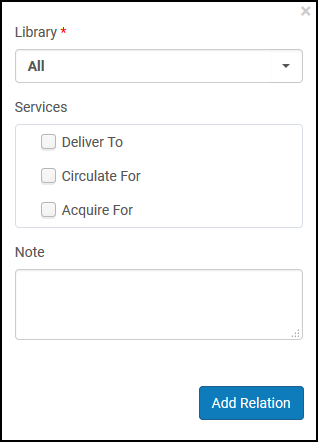 Se si seleziona TUTTO nell'elenco a discesa biblioteca durante la creazione della relazione, questa selezione si applica solo al momento della creazione della relazione.
- Dall'elenco a discesa biblioteca, selezioni quale biblioteca riceverà i servizi dalla biblioteca che sta configurando.
- Seleziona i servizi che la biblioteca che stai configurando può fornire alla biblioteca selezionata sopra:
- Acquire for(available on both the library and institution levels) – The library that you are configuring is able to acquire items for the specified library. Ciò significa che è possibile creare una linea d'ordine con la biblioteca che si sta configurando come Proprietario della Linea d'ordine, e la copia ordinata può essere per la biblioteca specificata.
- Circulate for(available on the library level only) – The library that you are configuring is able to check in and check out items for the specified library. Se questa opzione non viene scelta e un prestito o una restituzione viene tentato da un'altra biblioteca, potrebbe essere applicato un blocco sull'azione. For more information on block preferences, see Configuring Block Preferences.
- Deliver to(available on the library level only) – The library that you are configuring is able to deliver requested items to the specified library.
- Supply from(available on the library level only) – The library that you are configuring is able to supply items to the resource sharing library. The libraries for which you configure a Supply from relationship display in the Availability information for lending requests on the Resource Sharing Lending Requests Task List page (see Managing Resource Sharing Lending Requests), and on the Manage Resource Options page when managing fulfillment options for a request (see Managing Fulfillment Options).
Selezionando Tutto per una qualsiasi di queste opzioni di servizio, si indica che la biblioteca/istituzione configurata può fornire il servizio a tutte le biblioteche o ricevere il servizio da tutte le biblioteche dell'istituzione. If All is selected for a service but an individual library has a different value, the library's selection will take precedence.
- Selezioni Aggiungi e chiudi per chiudere la finestra di dialogo. La relazione che avete definito è elencata sotto Relazioni biblioteca nella pagina di configurazione delle relazioni delle unità organizzative.
Configuring Transit Time Rules
Per configurare le regole del tempo di transito, devi avere uno dei seguenti ruoli:
- Amministratore di Sistema Generale
- Amministratore Servizi
Transit-time rules enable Alma to calculate expected delivery times for fulfillment requests. Quando viene ricevuta una copia richiesta, le regole dei Servizi tempo di transito vengono verificate per determinare il tempo di transito previsto in base alla localizzazione della biblioteca della copia richiesta, al luogo di ritiro e, in alcuni casi, al tipo di materiale della copia (ad esempio, spostare una copia di grandi dimensioni da una biblioteca all'altra potrebbe richiedere più tempo rispetto allo spostamento di una copia di dimensioni medie). Alma uses the transit-time rules to find the copy of the requested item that can be expected to arrive at the required pickup location the soonest (see also Pickup at Shelf and How does Alma 'choose' the copy that will fulfill a request?).
Esiste una regola default sul tempo di transito che definisce il tempo di accesso quando nessuna delle regole sul tempo di transito è soddisfatta. Questa regola default può essere modificata, ma inizialmente è impostata su un tempo di accesso di 12 ore. Quando si definisce una nuova regola di tempo di transito, è possibile testare la regola calcolando l'orario di arrivo stimato (ETA) per uno scenario in cui la regola viene applicata. Per maggiori dettagli, vedere Per calcolare il tempo di arrivo stimato di una risorsa qui sotto.
Ogni regola del tempo di transito può essere abilitata o disattivata. Per default, ogni nuova regola è abilitata.
See the following Knowledge Article regarding a scenario in which transit rules will not be considered:Alma Requesting is randomly choosing unavailable items instead of available items
You configure transit-time rules from the Transit Time Rules page (Configuration Menu > Fulfillment > Library Management > Transit Time).
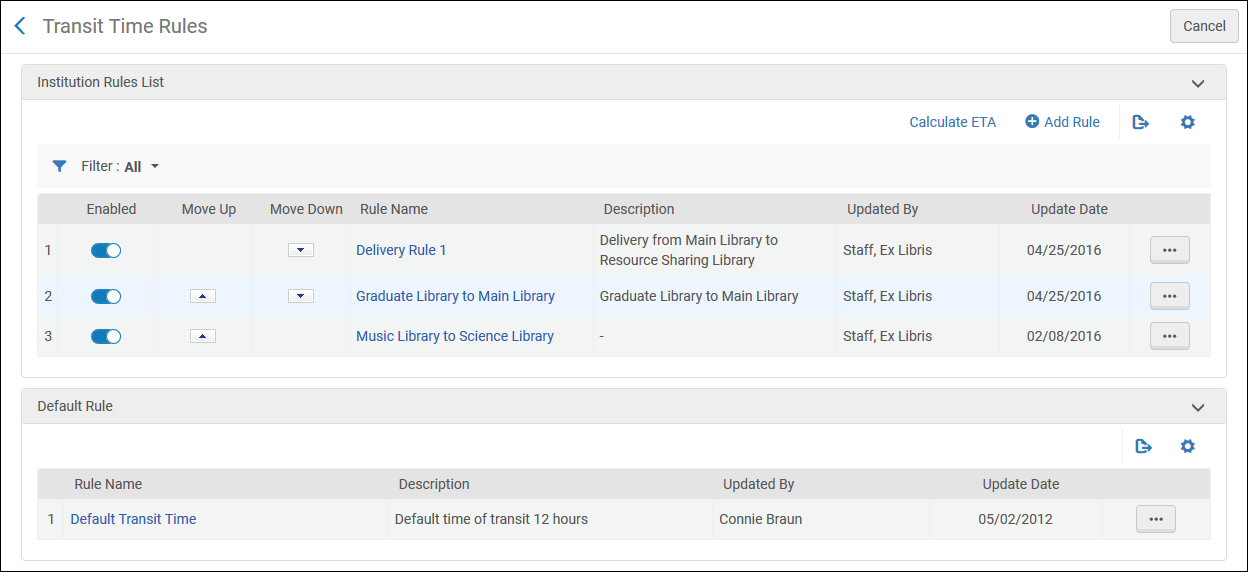
Le regole del tempo di transito possono essere configurate solo a livello di istituzione. Selezioni l'istituzione richiesta dal filtro Configuring nella pagina Configurazione Servizi.
In questa pagina è possibile eseguire le seguenti azioni:
- Adding a transit-time rule (see Adding a Transit Time Rule)
- Editing a transit-time rule (select Edit from the row actions list)
- Eliminazione di una regola di tempo di transito (selezionare Elimina dalle azioni della riga Lista)
- Editing the default transit-time rule (select Edit from the row actions list for the default rule)
- Abilitazione o disabilitazione della regola del tempo di transito
- Spostare le regole del tempo di transito verso l'alto o verso il basso nell'ordine di preferenza. L'ordine delle regole all'interno della lista delle regole è significativo perché Alma applica la prima regola (abilitata) i cui parametri di input sono soddisfatti.
- Calculating the ETA for a Resource (see Calculating the Estimated Time of Arrival For a Resource)
Adding a Transit Time Rule
È possibile aggiungere una nuova regola del tempo di transito, che può essere abilitata o disabilitata. Per default, ogni nuova regola è abilitata.
The calculated delivery time gives an estimate of when a requested item will arrive at the pickup location. This estimate can have an effect on how and when the service is provided to the requesting patron. In alcuni casi, l'utente potrebbe non essere interessato al Servizio dopo un determinato orario o data. In tal caso, tempi di accesso più lunghi possono eliminare del tutto alcune opzioni di servizi.
Anche il Tipo di materiale della copia fisica richiesta e la Localizzazione di biblioteca di origine (From) di una copia possono limitare gli scenari di servizi disponibili per una determinata richiesta, poiché anch'essi possono influire sulla velocità dello spostamento.
-
On the Transit Time Rules page (Configuration Menu > Fulfillment > Library Management > Transit Time), select Add Rule. Viene visualizzata la pagina Editor delle regole del tempo di transito.
Se desidera creare una copia di una regola di tempo di transito esistente, selezioni Duplica dal menu Azione della riga. Una volta che hai copiato la regola, puoi modificarla secondo le tue necessità.
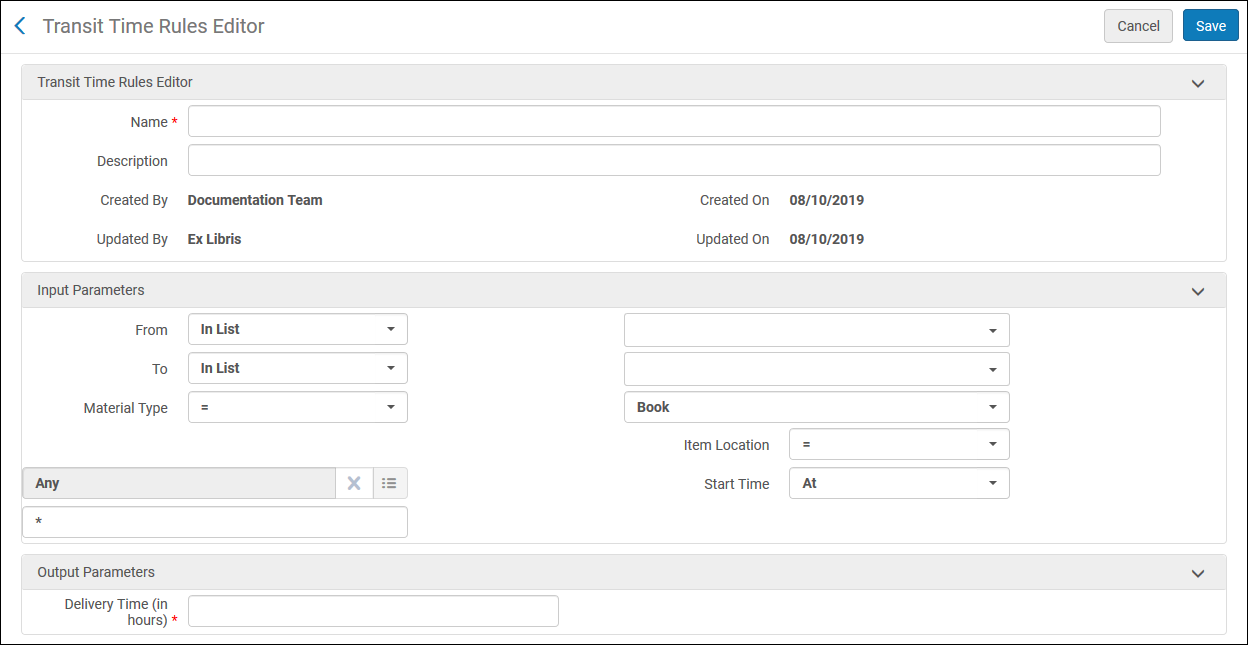
- Nella sezione Editor delle Regole tempo di transito,Editor specifichi un nome (obbligatorio) e una descrizione (facoltativa) per la nuova regola.
- In the Input Parameters section, specify an operator and enter values for the following parameters:
From – The source organization unit –that is, the library or institution from which the item will be transferred.
Puoi aggiungere diverse destinazioni da includere nella regola premendo Ctrl sulla tua tastiera mentre selezioni i valori pertinenti.
To – The destination –that is, the library to which the item will be delivered. The To drop-down list includes only those libraries that have a Deliver to relationship with the source location. For details on fulfillment relationships, see Configuring Fulfillment Relationships.
Nella sezione Parametri di Output:
- tempo di accesso (in ore) - Tempo necessario per consegnare la copia quando vengono soddisfatti i parametri di input specificati.
- Item location – Select the physical location inside the source location from which the item will be transferred.
Start time – Enter the time of day at which items are dispatched from the source location to the specified destination. For example, if it takes longer to move around items in the morning than in the afternoon, then you can have a rule with ‘Start Time After 12:00' and another with 'Start Time Before 12:00'.
Selezionando questa casella di controllo si avranno le seguenti conseguenze: Ritiro allo scaffale Therefore, when the system calculates the closest copy that can be used to fulfill a request (see Pickup at Shelf) it uses a rule with no start time, i.e. the Start Time is set to 'At *'.
- Nella sezione Parametri di Output:
- Delivery time (in hours) - Time that it will take to deliver the item when the specified input parameters are fulfilled.
- Use for Hold Request Pickup Calculation – Select this checkbox for the rule to be considered for selecting the best copy to fulfill a request (see Pickup at Shelf). The checkbox is displayed only when the From and To library fields are configured, and the Material Type field is set to Any. Se più risorse hanno una regola sul tempo di transito, viene selezionata la risorsa con il tempo di transito più breve. (New for February 2026) When this checkbox is selected, the Do not use for Transit Time Calculation checkbox appears. Selecting this checkbox has the following implications:
- The rule is only used for calculating the selected item for fulfilling the request (see Pickup at Shelf), and not for calculating an estimate of when a requested item will arrive at the pickup location
- The From field is configurable at the location level.
When a hold request is created, and the resource to fulfill the request is not available in the selected pickup location, Alma matches resources to the request using additional parameters, as follows:
- Alma attempts to locate resources belonging to another library on the same campus as the pickup location.
If no resources are found on the same campus, multiple resources exist in different locations on the campus, or no campuses have been defined, Alma checks the Transit Time Rules for which the Use for Hold Request Pickup Calculation checkbox has been selected. If a rule exists for this resource and the Use for Hold Request Pickup Calculation checkbox is selected, Alma chooses this resource.
- If multiple resources have a transit-time rule, then the resource with the shortest transit time is selected.
From and To libraries are the only input parameters in the transit-time rule that are considered for the location calculation.
- Seleziona Salva. The rule you defined is listed at the bottom of the list of rules on the Transit Times Rules page.
Calculating the Estimated Time of Arrival For a Resource
You can calculate the ETA of a resource that is to be transferred from one location to another. È possibile Set regole di relazione tra biblioteca, Servizio e Banco di circolazione in modo che non sia necessario il transito per la rimessa in scaffale tra alcune biblioteca. Ciò riduce lo sforzo di lavoro ridondante evitando di mettere automaticamente le copie in transito per la ricollocazione a scaffale quando le biblioteche sono vicine tra loro. If none of the defined transit-time rules is satisfied, the default transit-time rule is applied. Calculating the ETA is useful in testing the rules that have been defined.
-
On the Transit Time Rules page (Configuration Menu > Fulfillment > Library Management > Transit Time), select Calculate ETA. The Calculate ETA page appears.
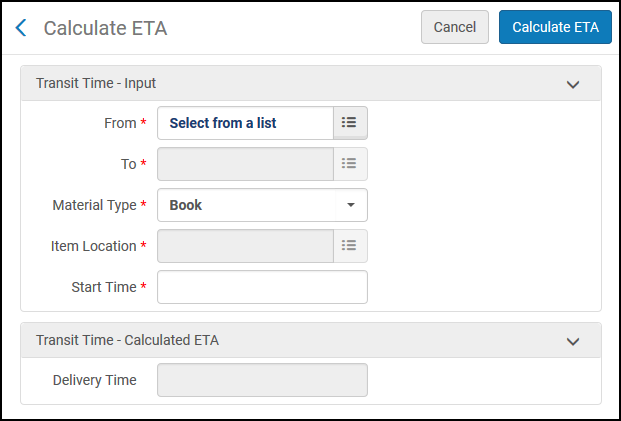
- Le regole di Ricolloca a scaffale senza transito possono essere configurate solo a livello di istituzione. Selezioni l'istituzione richiesta dal filtro Configuring nella pagina Configurazione Servizi. See step 3 in Adding a Transit Time Rule for details on the input parameters.
- Select Calculate ETA. The calculated ETA is displayed in the Delivery time field.
Configuring Reshelve-Without-Transit Rules
To configure reshelve-without-transit rules, you must have one of the following roles:
- Amministratore di Sistema Generale
- Amministratore Servizi
You can set relation rules between libraries, departments and circulation desks so that transit for reshelving will not be required between certain libraries. This reduces redundant work effort by not automatically putting items in transit for reshelving when the libraries are close to each other. This does not affect other transit types, such as hold shelf, work order, and processing. For more detailed information and an example of this functionality, see Transit for Reshelving Rules and “No Transit".
The default rule has no input parameter and an output parameter set to false to put all items into transit when reshelving.
Ogni regola può essere abilitata o disattivata. Per default, ogni nuova regola è abilitata.
You configure reshelve-without-transit rules from the Reshelve Without Transit Rules page (Configuration Menu > Fulfillment > Library Management > Reshelve Without Transit Rules).
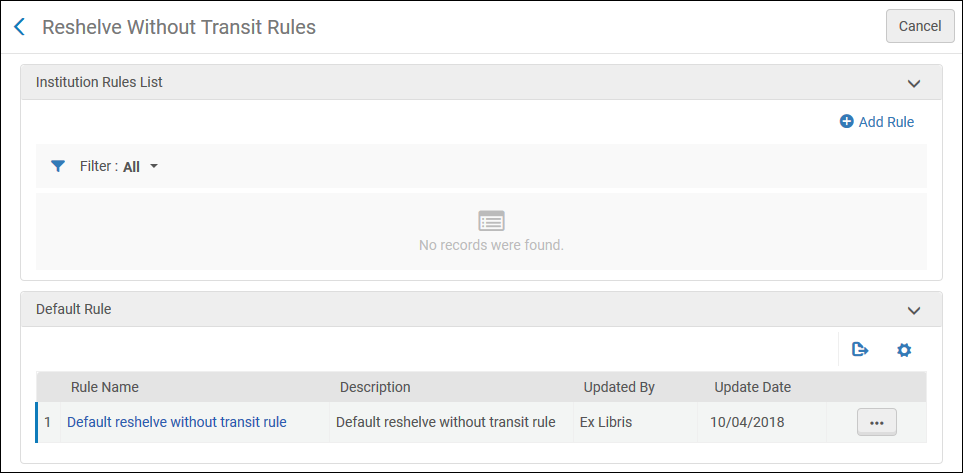
Reshelve-without-transit rules can be configured at the institution level only. Tempo per ricollocare una copia sullo scaffale (ore) – Specificare il periodo di tempo in ore (o frazioni di ore, ad esempio 10,5) concesso per ricollocare una copia sullo scaffale dopo che è stata restituita.
In questa pagina è possibile eseguire le seguenti azioni:
- Adding a reshelve-without-transit rule (see Adding a Reshelve-Without-Transit Rule)
- Editing a reshelve-without-transit rule (select Edit from the row actions list)
- Quando una copia viene scansionata in una localizzazione di biblioteca diversa dalla biblioteca proprietaria, Alma verifica queste regole. Se non esiste alcuna relazione di transito tra la localizzazione di biblioteca corrente della copia e la sua destinazione, la copia viene impostata su In transito.
- Editing the default reshelve-without-transit rule (select Edit from the row actions list for the default rule)
- Enabling or disabling a reshelve-without-transit rule
- Moving reshelve-without-transit rules up or down in order of preference. L'ordine delle regole all'interno della lista delle regole è significativo perché Alma applica la prima regola (abilitata) i cui parametri di input sono soddisfatti.
Adding a Reshelve-Without-Transit Rule
You can add a new reshelve-without-transit rule, which can be either enabled or disabled. Per default, ogni nuova regola è abilitata.
-
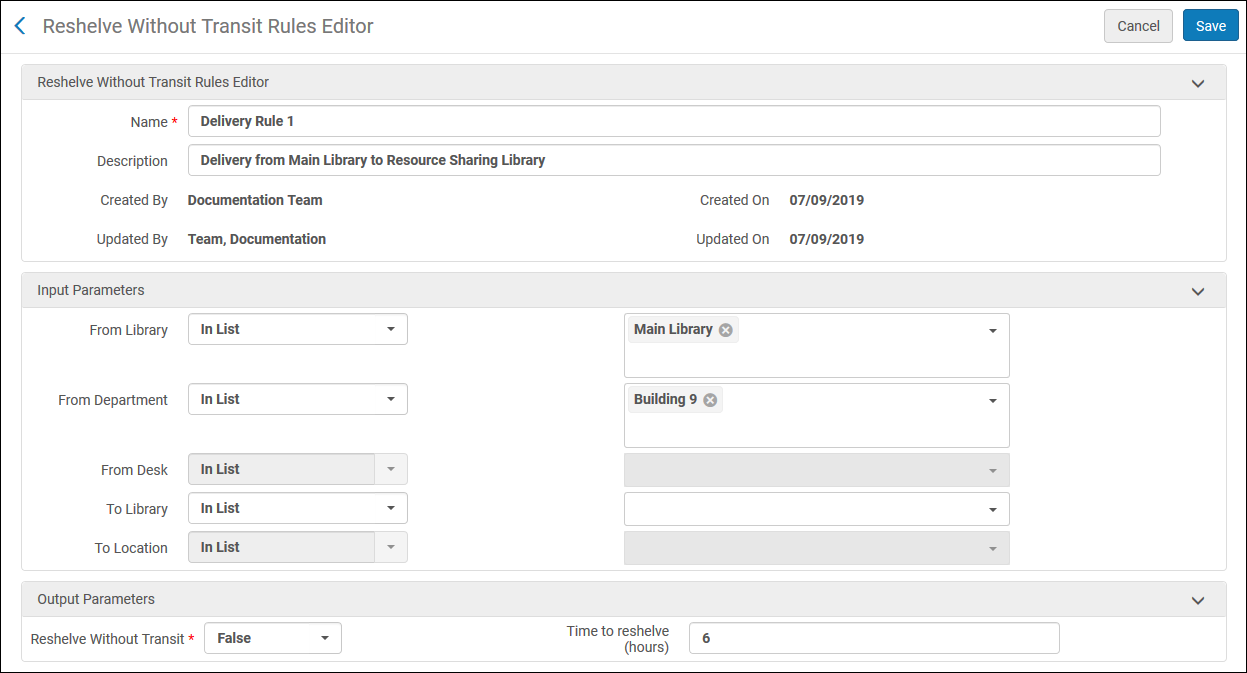
On the Transit Time Rules page (Configuration Menu > Fulfillment > Library Management > Reshelve Without Transit Rules), select Add Rule. The Reshelve Without Transit Rules Editor page appears.
If you want to create a copy of an existing reshelve-without-transit rule, select Duplicate from the row actions menu. Una volta che hai copiato la regola, puoi modificarla secondo le tue necessità.
-
In the Reshelve Without Transit Rules Editor section, specify a name (required) and description (optional) for the new rule.
- Le regole di utilizzo del contenitore della macchina self-check possono essere configurate solo a livello di istituzione. Selezioni l'istituzione richiesta dal filtro Configuring nella pagina Configurazione Servizi. For all of the input parameters, multiple selections may be chosen:
- From Library – The source –that is, the library from which the item is sent. Select the operator (In List or Not In List) and one or more libraries of this institution.
- From Department- Select the operator (In List or Not In List) and the department. If one library is selected in From Library, all departments within that library are displayed. If no libraries are selected in From Library, all departments in the institution are displayed. If two or more libraries are selected in From Library, the field is disabled and no departments can be chosen.
- From Desk- Select the operator (In List or Not In List) and the desk. If one library is selected in From Library, all circulation desks within that library are displayed. If two or more libraries are selected in From Library, the field is disabled and no desks can be chosen.
- To Library – The destination – that is, the library to which the item is delivered. Select the operator (In List or Not In List) and one or more libraries of this institution.
- To Location – This field is disabled by default. If a single library is selected in the To Library field, select the operator (In List or Not In List) and one or more locations of the selected library.
- Nella sezione Parametro Output, specificare i seguenti parametri:
- Reshelve Without Transit – Select True to set the rule to reshelve an item without transit when the specified input parameters are fulfilled. Select False for all items to reshelve with transit.
Time to reshelve (hours) – Specify the period of time in hours (or portions of hours, such as 10.5) that is allotted to place an item back on the shelf after it has been returned. During this time, Alma and Primo will indicate to patrons and librarians that the status of the item is available and awaiting reshelving. La biblioteca all'interno dell'istituzione dove si desidera ricollocare a scaffale la copia.
Watch the Reshelving Items Time video (2:07 min.).
- Seleziona Salva. The rule you defined is listed at the bottom of the list of rules on the Reshelve Without Transit Rules page.
When an item is scanned in to a location other than its owning library, Alma checks these rules. If there is no transit relation between the current location of the item and its destination, the item is set to In Transit. Selezionare Aggiungi parametro.
Configuring Parameters of a Resource Sharing Library
Ripeta i due passaggi precedenti per aggiungere tutti i parametri richiesti per la regola.
- Amministratore di Sistema Generale
Le biblioteche all'interno di un'istituzione o di un campus possono essere configurate per avere relazioni che consentono agli utenti di effettuare la restituzione o il prestito delle Risorse (bibliografiche) in un'altra Localizzazione di biblioteca, inviare copie avanti e indietro o acquistare copie per conto reciproco. Se una Biblioteca è configurata per fare questo per le Biblioteche di altre istituzioni (e non solo all'interno dell'istituzione), è nota come Biblioteca dei Servizi Interbibliotecari.
See Configuring Parameters of a Resource Sharing Library for more information.
See Adding a Library for more information about configuring libraries.
Configuring SIP2 Bin Rules
- Amministratore di Sistema Generale
- Amministratore Servizi
You can configure rules that determine the sort bin for each item returned via a SIP2 (self-check) machine.SIP2 is the Standard Interchange Protocol v2, which provides a standard interface between a library's automated circulation system and a self-check machine. The sort bin is a field in the protocol that determines into which bin (a physical bucket inside the SIP2 machine) that a returned item is placed.. È possibile impostare il campo secondo regole basate su vari valori, come la biblioteca di destinazione e il numero di collocazione.
For more information on self-check machines, see https://developers.exlibrisgroup.com/alma/integrations/selfcheck.
You configure rules for self-check machine bin usage from the SIP2 Bin Configuration Rules page (Configuration Menu > Fulfillment > Library Management > SIP2 Bin Configuration).
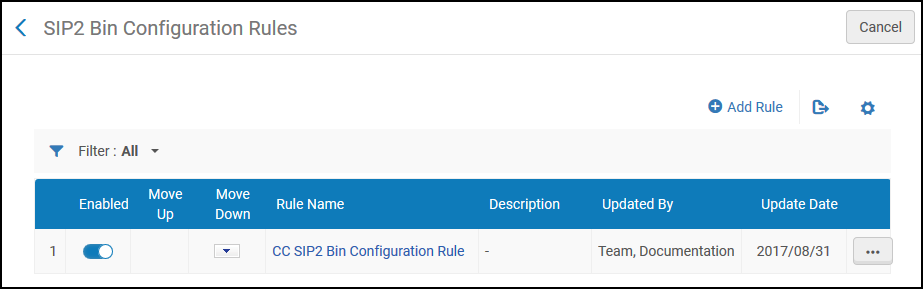
Le regole di utilizzo del contenitore delle macchine self-check possono essere configurate solo a livello di istituzione. Selezioni l'istituzione richiesta dal filtro Configuring nella pagina Configurazione Servizi.
In questa pagina è possibile eseguire le seguenti azioni:
- Adding a SIP2 bin configuration rule (see Adding a SIP2 Bin Configuration Rule)
- Editing a SIP2 bin configuration rule (select Edit from the row actions list)
- Eliminazione di una regola di configurazione del contenitore SIP2 (selezionare Elimina dalle azioni della riga Lista)
- Abilitazione o disabilitazione della regola di configurazione del bin SIP2
Adding a SIP2 Bin Configuration Rule
È possibile aggiungere una regola di configurazione del contenitore SIP2.
-
On the SIP2 Bin Configuration Rules page (Configuration Menu > Fulfillment > Library Management > SIP2 Bin Configuration), select Add Rule. Viene visualizzata la pagina Configurazione SIP2 Bin.
Se desidera creare una copia di una regola di configurazione SIP2 bin, selezioni Duplica dall'elenco delle azioni di riga. Una volta che hai copiato la regola, puoi modificarla secondo le tue necessità.
- Nella sezione superiore Parametri di input, immetta un nome e una descrizione della regola di configurazione SIP2 Bin.
-
In the lower Input Parameters section, specify the components of the input parameter (Name,Operator, and Value). A set of input parameters may look like this:
Destination Library=ArtLibrary.I valori disponibili nel campo Nome (ovvero i criteri che determinano quando la regola di configurazione SIP2 Bin deve entrare in vigore) e i rispettivi valori sono descritti nella tabella seguente:
Regola di configurazione SIP2 Bin – Valori dei parametri di input
Nome Valore Destinazione biblioteca La biblioteca nell'istituzione. For details on adding a library, see Configuring the Institution and Its Libraries. Banco Circolazione di destinazione Il Banco di Circolazione. For details on configuring circulation desks, see Configuring Circulation Desks. Destinazione punto di servizio The departments within the institution, such as work-order departments and digitization departments. For details on configuring work order departments, see Configuring Work Order Departments. Da numero di collocazione The call number from which you specify the rule to take effect when the item's call number is numerically greater than the indicated value. È richiesto Indica se la risorsa è stata richiesta (Sì o No). Lexicographical From call number The call number from which you specify the rule to take effect when the item's call number is lexicographically (in other words, alphabetically) greater than the indicated value. For example, 2 > 10 > 1 in lexicographic order. Lexicographical A collocazione The call number from which you specify the rule to take effect when the item's call number is lexicographically (in other words, alphabetically) less than the indicated value. For example, 1 < 10 < 2 in lexicographic order. Reshelf copia localizzazione della biblioteca La biblioteca all'interno dell'istituzione dove si desidera ricollocare a scaffale la copia. For details on adding a library, see Configuring Libraries. Banco Circolazione self-check Il Banco di circolazione presso il quale si desidera effettuare l'Autocontrollo. For details on associating a self-check machine with a circulation desk, see Self-Check Machines. Il numero di collocazione The call number from which you specify the rule to take effect when the item's call number is numerically less than the indicated value.
The logic of the Lexicographical From call number and Lexicographical To call number parameters is:
- First, try to compare the call number against the rule value as numbers. If this fails e.g., the call number/rule contains non-digit characters, then:
- Extract only the numeric parts from the strings (removing all non-digit and non-dot characters) and compare those as numbers. If this fails as well e.g., no numeric characters are included, then:
- Compare values as strings, regardless of the call number type.
- Selezionare Aggiungi parametro. Il set di parametri di input viene aggiunto alla lista di parametri per la regola di configurazione del SIP2 Bin.
-
Ripeta i due passaggi precedenti per aggiungere tutti i parametri richiesti per la regola.
Affinché la regola venga applicata, tutti i parametri di input devono essere soddisfatti.
- Nella sezione Parametri di output, inserisca un numero di contenitore – il numero del contenitore in cui la macchina Self-Check deve posizionare la copia. Assicurarsi che il numero qui corrisponda al numero di un contenitore configurato sulla macchina SIP2.
- Selezioni Salva per memorizzare la nuova regola. La regola viene visualizzata nella pagina delle Regole di configurazione del contenitore SIP2.
- Se ha definito più di una regola, usi le frecce Sposta su e Sposta giù per impostare l'ordine delle regole. L'ordine delle regole è importante, poiché il sistema applicherà la prima (e solo la prima) regola appropriata e abilitata.
