
請求書の作成
このページでは、請求書を自動的に (EDI から)、ファイルから、PO から、または手動で作成する方法と、クローズされた請求書の請求明細行を編集する方法について説明します。また、VAT の計算や発生モード会計の操作に関する説明 (実行例を含む) も含まれています。For an overview of the end to end invoice workflow with links to relevant sections for details see Invoicing Workflow.For an overview of working with acquisitions in Alma, including links to relevant sections such as Working with Orders/PO Lines, Renewals, Configuration, etc., see Introduction to Acquisitions.
請求書は、次のいずれかの方法で作成されます:
- Importing an EDI invoice file sent by a vendor, either automatically or manually (see Invoices Created Automatically from EDI and Creating an Invoice From a File, below)
- Importing an Excel invoice file (see Creating an Invoice From a File below)
- Using a PO or manually (see Creating an Invoice From a PO or Manually below)
To allow repeated invoice numbers from the same vendor, set the customer parameter invoice_not_unique to true; see Configuring Other Settings (Acquisitions).
Invoices Created Automatically from EDI
電子データ交換(EDI)は、機関とベンダー間の自動通信方式です。EDI対応ベンダーによって指定されたFTPディレクトリに配置されたEDI請求書ファイルは、Almaによって自動的にロードおよび解析され、請求書は、この情報からAlmaで生成されます。
When a vendor account is configured to support the creation of invoices by importing EDI messages, the Incoming checkbox is selected on the EDI Information tab of the Vendor Details page.For more information, see Electronic Data Interchange (EDI).
An EDI invoice sent by a vendor may contain other charges apart from the "Regular" charge amounts.これらの料金には、税金やその他の費用が含まれ、請求書レベルまたは請求書行レベルのいずれかである可能性があります。EDI請求書の税金料金は、税金とラベル付けされ、AlmaではVATとして処理されます。EDI請求書の非税金料金は、ALC+Cとラベル付けされ、Almaでは追加料金として処理されます。
税金の取り扱い
EDI 請求書に表示される税金は、1 つの値に合計して別の「調整」行として請求書に表示するか、購入した各アイテムの「通常」行に按分して含めることができます。Which way this is done depends on whether VAT expended from fund is selected in the EDI settings of the vendor, in the EDI Information tab of the Vendor Details page.For more information, see Electronic Data Interchange (EDI).
When an invoice is created via EDI, and the Use VAT Code option is selected in the EDI Information tab of the Vendor Details page (see Electronic Data Interchange (EDI)), if a VAT code is included in the EDI code of the invoice, it is also included in the invoice in Alma.
追加料金の取り扱い
All invoice-level additional charges that come from an EDI invoice file are summed to one value and appear in the Overhead amount field in Alma, in the Summary tab of the Invoice Details page.In addition, a note is added to the Alma invoice for each of the charges.
Depending on the value of the invoice_split_additional_charges customer parameter, an invoice's line-level additional charges can either be summed into a single "Overhead" invoice line (false) or itemized as separate invoice lines (true).(The value of this parameter is set in Configuration Menu > Acquisitions > General > Other Settings; see Configuring Other Settings (Acquisitions).) When additional charges are itemized for invoice lines, each additional charge belonging to an invoice line is numbered as a sub-line.For example, if invoice line #1 has two additional charges:
-
ALC+C++++BI::28:Binding Charges'
-
ALC+C++++DL::28:Freight Charges'
Almaにロードされた請求書には、「1.1 Binding」と「1.2 Delivery」という2つの追加の請求書明細があり、それぞれに関連する金額がリストされます。(The total amount of line number 1 will be reduced by these amounts.) This also allows each additional charge to have its tax listed separately.
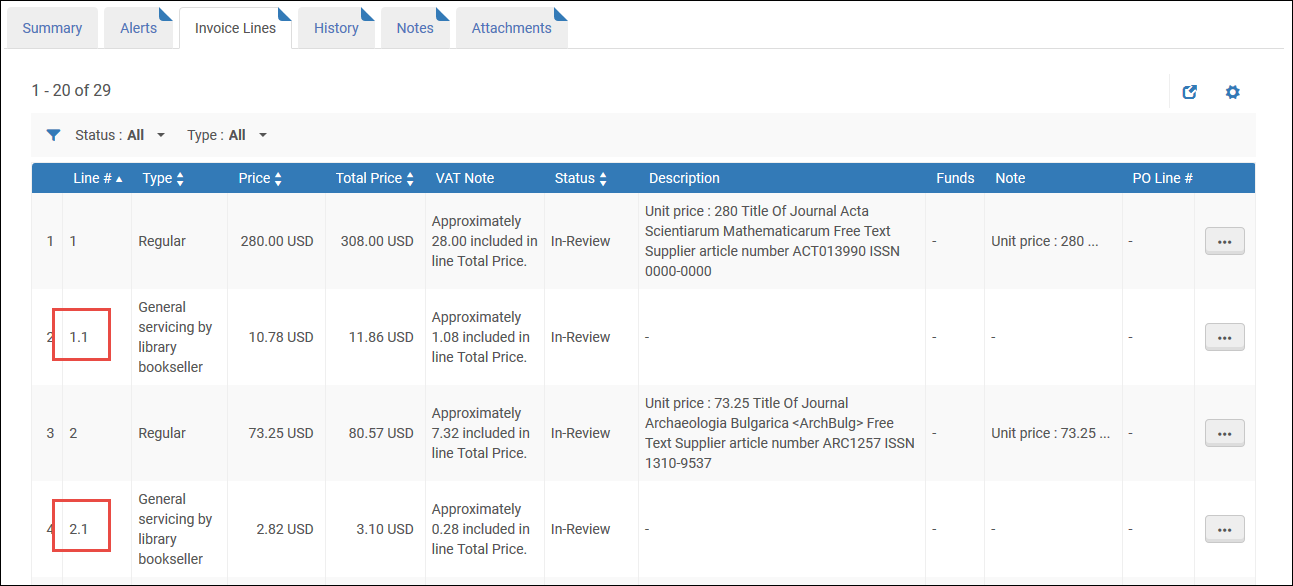
Even when line-level additional charges are itemized, only charge types that appear in the Invoice Line Types code table (Configuration menu > Acquisitions > Invoices > Invoice Line Types) are listed individually.(This table is only available when the value of the invoice_split_additional_charges customer parameter is set to true.) Charge types that do not appear in the table are summed in the "Overhead" line.For more information on the invoice_split_additional_charges customer parameter, see Configuring Other Settings (Acquisitions).
Creating an Invoice from a File
- インボイスマネージャー
- 請求書オペレータ
- インボイスオペレーター拡張機能
請求書が作成された直後に資料の受け取りを処理するには、次の役職も必要です:
- 受領オペレーター
請求書作成プロセスを選択ページでファイルからが選択されている場合、Excelファイルをインポートすることで請求書を作成することができます。
- インポートされた請求書は機関に関連付けられています
- To allow repeated invoice numbers from the same vendor, set the customer parameter invoice_not_unique to true; see Configuring Other Settings (Acquisitions).
- There is no way to select accrual mode (see Accrual Mode and Working With Accrual Accounting) for invoices created from a file.
- When an invoice is created from an Excel file, users have the option to use the VAT Code, if it exists, by selecting the Use VAT Code option in the EDI Information tab of the Vendor Details page (see Electronic Data Interchange (EDI)).このチェックボックスは、Excelからの請求書作成プロセスでも使用されます。
- A new system job that creates the invoices from the input Excel file was added in the May 2025 release.Excelファイルから作成された請求書については、その日以降、ファイルを読み込んだユーザーではなく、システムジョブであるため、請求書の作成者は「System」となります。
- XMLからの請求書の作成は、以下の規格の電子明細書に対応しています:
- イタリア規格(FatturaPA)
- (New for February) German standard (XRechnung)
- AlmaXML
- 請求書作成プロセスを選択ページで、ファイルからを選択します(受入 > 受領と請求書発行 > 請求書を作成)。
- 次を選択します。ファイルから請求書ページが表示されます:
 [ファイルから請求書]ページ
- ベンダーフィールドで、ベンダーを選択します。
- In the File Type field, select either EDI, XML or Excel.
- ファイルをアップロードフィールドで、アップロードするローカルシステム上のファイルを選択します。
- 必要に応じて、エクセル例をダウンロードを選択し、ファイルが正しいフォーマットに従っていることを確認するために、Excelの例を表示します。
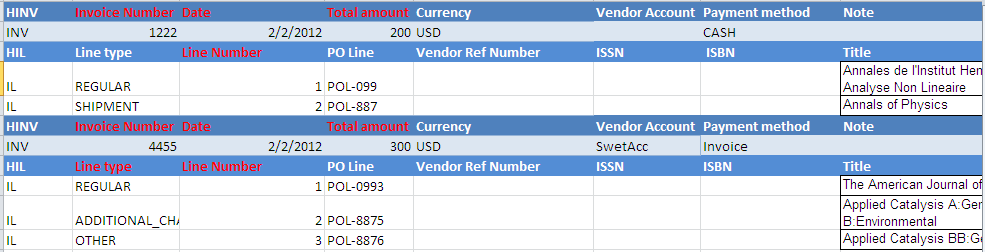 請求書のスプレッドシートの例
- Excelの例をコピーして、請求書のテンプレートとして使用できます。
- You can also view an Excel example here:Excel File for Invoice Creation Sample YLK.xlsx This example is also referred to in a detailed scenario in the following document:Creating multiple invoices with multiple invoice lines via an Excel file.docx.
- For details on entering the information into the Excel file, see Instructions for Entering Data into the Excel File.
- 請求書作成のアップロードと実行ジョブを参照してください。ファイルから請求書ページに、ジョブが成功したかどうかを示すメッセージが表示されます。ファイルが正常に読み込まれると、スタッフは電子メール通知を受け取ります。
- ジョブのステータスを表示する作業の監視を選択します。完了タブが選択された状態で、作業の監視ページが表示されます。The job is either EDI – Load Files <vendor name>(for an EDI invoice) or Invoice - Create From Spreadsheet(for an Excel invoice).For details on the Monitor Jobs page, see Viewing Completed Jobs.
Instructions for Entering Data into the Excel File
-
赤い列は必須フィールドを示します。
-
使用できる日付形式は MM/dd/YYYY のみです。
-
最初の列には行コード タイプが必要です。
HINV = ヘッダー請求書
-
All types in this row must have the same name (Invoice Number, Date, Total Amount...).
-
The mandatory fields are Invoice Number, Date, and Total Amount.
INV= 請求書
-
HINV 行の後に続く必要があります。
-
HINV 行ごとに INV 行は 1 つだけ存在できます。
HIL= HEADER INVOICE LINE
The mandatory fields are Line type and Line Number.これは INV 行の後に続く必要があります。
IL = 請求書明細
-
すべてのコード タイプは、「明細タイプ」や「レポート コード」などのコード テーブル値である必要があります。
-
「ファンドとパーセント」列には、パーセントの有無にかかわらずファンド コード、または 100% を意味する CQfund のみを含めることができます。
-
The fund percentage must be within round parentheses "(00)" with a number of up to 100, for example: AQfund(40) and the next fund rowBQfund(60).
-
レポート コード: レポート コード、セカンダリ レポート コード、および三次レポート コードのみがサポートされています。Use the code rather than the 'description'.
-
価格セルにはコンマを含めないでください。
Creating an Invoice From a PO or Manually
- インボイスマネージャー
- 請求書オペレータ
- インボイスオペレーター拡張機能
- 受領オペレーター
EDIを使用して、または注文した資料の受領時に請求書を作成しない場合は、注文書の詳細を使用して注文書から、または請求書の詳細を手動で入力して、請求書を作成できます。注文書から請求書を作成するとき、請求明細書価格として完全な注文明細価格を持つ注文書の各注文明細に対して1つの請求明細書が作成されます(完全に負債取消)。
発生主義会計が有効になっている場合、請求書のチェックボックスを使用して資金を追加/変更する機能は使用できません。
- [請求書作成プロセスを選択]ページ(受入 > 領収と請求 > 請求書を作成)で、注文書からまたは手動を選択します。
- 請求書作成後、直ちに資料の受取処理を行いたい場合は、受取処理を行うチェックボックスを選択してください。
- 注文書からを選択した場合:発生主義会計注文の場合、請求書は1回限りの注文に対してのみ作成できます。見越会計の操作を参照してください。
- 次へを選択します。請求書作成ウィザードの2ページ目である注文書を選択ページが開きます。

[注文書を選択]ページ - Enter or select a PO in the Select PO quick pick list.選択リストには有効な発注書のみが表示されます。オートコンプリートは、閉じた注文も見つけることができます。You can search on the following options:
- 追加発注明細(POL)レファレンス
- 全て
- ERP番号
- 組織ユニット説明
- 予算コード
- 予算名
- アイテム識別子
- 発注明細(POL)
- タイトル
- 発注書(PO) #
- ベンダーコード
- ベンダー請求書番号
- ベンダー名Searching by Title is unavailable when "All" is selected for the search criteria.
- [保存]を選択します。[請求書の詳細]ページの[請求明細書]タブが表示され、注文書の各注文明細の請求明細書が表示されます。請求明細書フィールドが自動的に入力され、必要に応じて編集できます。
- Invoicing is not required for PO lines with acquisition methods Gift,Depository,Technical, or Exchange.
- 行番号フィールドの値はリンクで、選択すると、請求明細書の請求明細書の詳細ページが開きます。
- 注文明細番号フィールドの値はリンクで、選択すると、注文明細の注文明細の概要ページが開きます。
- 資金列の値は、資金へのリンクです。資金名を選択して、その資金の請求書に関連する取引を表示します。
- 保存を選択します。レビュー中請求書ページが表示され、レビュー中の請求書が表示されます。
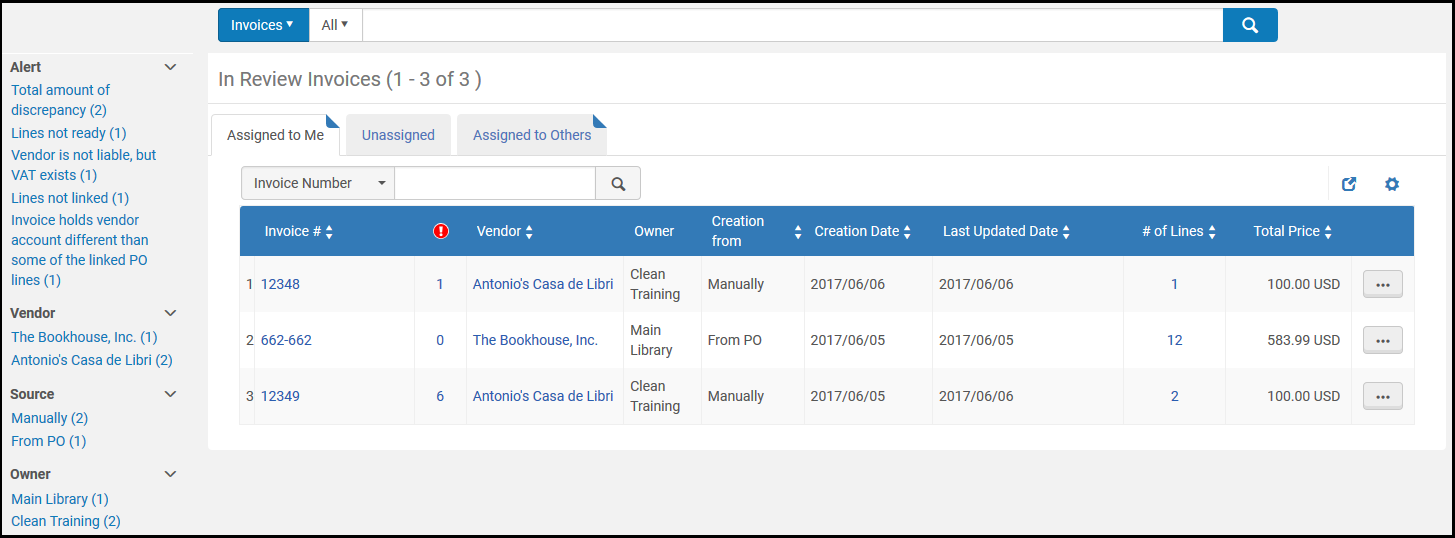
[レビュー中の請求書]ページ ステップ2で受取処理チェックボックスを選択した場合、発注明細リストページの保存と保存して続行ボタンが保存して受取へ移動ボタンに変わります。保存して受領へ移動を選択して、新規資料を受領ページを開き、新しい資料を受領します。Ensure that you are at a Receiving Department (see Library/Desk Selector in The Persistent Menu), and that there are PO lines in the invoice that are not fully received.
- 次へを選択します。請求書作成ウィザードの2ページ目である注文書を選択ページが開きます。
- 手動を選択した場合:
- 次を選択します。請求書作成ウィザードの2ページ目である[請求書の詳細]ページが表示されます。
- 次の表の説明に従って、必要な情報を入力します。
Invoice Details Page Fields セクション フィールド 説明 請求書詳細 請求書番号(必須) ベンダーの請求書番号(キーボードで入力した文字や記号を含められます;最大長100文字)。番号は特定のベンダーに固有のものではありません。To allow repeated invoice numbers from the same vendor, set the customer parameter invoice_not_unique to true; see Configuring Other Settings (Acquisitions). 請求書の日付(必須) カレンダーダイアログボックスからの請求書日付。 請求書の期日 支払期日。 ベンダー(必須) 請求書の発行先のベンダー。 ベンダーを選択すると、所有者と通貨単位のリスト(合計金額)がフィルターされ、そのベンダーでサポートされているもののみが表示されます。ベンダーアカウント この請求書のベンダーアカウント。 合計金額(必須) The total invoice amount, including shipping (otherwise pro-rated additional charges are miscalculated).通貨を選択します。(リストは管理者によって事前定義されており、選択したベンダーに応じて制限されます。For more information, see Configuring Currencies.) クレジットを示すために、負の金額(数字の前に-記号を付けて)を入力できます。その後、ユーザーに払い戻しが行われます。ベンダー連絡窓口 The contact person at the vendor handling this invoice. 支払方法 請求書の支払い方法。利用可能な支払い方法は次のとおりです: - 経理部署 - AlmaがERPに接続されている場合に使用します。この支払い方法を選択すると、支払いセクションの前払いチェックボックスが無効になり、選択できなくなります(下記の支払いを参照)
- 現金
- クレジットカード
- 添付ファイル
- 預金口座
- 前払い
- 特別支払い
- 銀行振込
請求書リファレンス番号 レポートの請求書グループ化を有効にするための請求書のレファレンス番号。 所有者(必須) 請求書を機関または図書館に関連付けます。ドロップダウンボックスで使用できる機関や図書館は、範囲によって異なります。 See the Support for Library-Level Invoicing video (3:23 min) for details about library-level invoices.所有図書館を選択すると、ベンダーのリストがフィルタリングされ、その図書館で利用可能なベンダーのみが表示されます。また、この図書館が所有する発注明細のみを、この請求書の請求明細書に追加することができます。追加料金 Use Pro rata すべての請求明細書に次の追加料金をプロラタします: - 送料額
- 保険金額
- 経費合計
- 割引額
- 施設で有効になっている追加の料金タイプと金額。See Configuring Invoice Line Types.複数の追加明細タイプを有効にした場合、明細追加料金ドロップダウンから明細タイプのいずれかを選択するたびに、別の追加料金ドロップダウンが表示されます。最大5タイプの追加明細を追加できます。
比例分配を使用を選択しなかった場合、それぞれ追加料金は、個々の請求明細書として表示されます。This option is selected by default if the invoice_use_pro_rata setting is set to True(see Configuring Other Settings).この請求書にVATが入力され、ベンダーがVATの支払い義務を負い、機関に政府のベンダーが関連付けられている場合、この税に対して別の請求書が作成され、この請求書にリンクされます。リンクされた請求書にはVATのみが含まれます。For details on configuring liability for tax and a governmental vendor, see step 2 and step 5 in To add a vendor and vendor account.See also How Alma Handles VAT Payments.After this invoice is paid/exported, the governmental invoice is also paid/exported and appears on the Find Invoices page with the name <invoice number>_RT, where <invoice number> is this invoice's number and _RT stands for Report Tax (the governmental invoice).VAT 税金を報告 使用税(VAT)を報告します。 This field appears only if a governmental vendor is linked to the invoice's vendor.このフィールドを選択すると、VAT%と金額フィールドは無効になり、これらのフィールドのいずれかの値が0に戻ります。VATコード 事前に設定されたVAT割合を請求書に割り当てるVATコード。Appears only when VAT codes are configured (see Configuring VAT Codes).[金額の更新]を選択して、選択したVATコードを請求書に適用します。 請求明細書あたりのVAT 請求書行レベルでVATの設定を有効にします(注文明細を編集することで処理できます)。このオプションを選択すると、請求書レベルでVATの設定に関連するこのセクションの他のフィールドが無効になります。 This option appears only if the invoice_allow_vat_in_line_level parameter is set to true in Acquisitions Configuration (see Configuring Other Settings).VAT% 請求書の合計金額のVAT% - 税込み、税抜き、またはライン税抜き。When the VAT code is not filled in the VAT % field is disabled.When the VAT code is filled in the VAT % field displays the VAT % which corresponds to the VAT Code.
For details on configuring the VAT fields, see VAT Calculation – Example.For details on configuring VAT codes, see Configuring VAT Codes.
VATタイプ 選択: - 税込:請求書の合計金額にはVATが含まれます。
- 税抜き:VATは請求書の合計金額の上に追加されます。
- ライン税抜き:請求書の合計金額にはVATが含まれます(税込と同様)が、VATの金額は請求明細書行の合計値の外で計算され、個々の請求明細行には反映されません。
金額 請求書に支払うVATの金額 - 税込、税抜、またはライン税抜。値が追加されると、VATパーセンテージが自動的に計算され、 VAT%フィールドに表示されます。 When a VAT Code is configured and the VAT code field appears, this field is disabled and fills automatically when the VAT code is selected (based on the VAT code's percentage and the invoice's total amount).For details on configuring VAT codes, see Configuring VAT Codes.資金から使用済み Whether the VAT amount is to be expended from the invoice line's fund. VAT金額が別の資金から消費されることを示すためにクリアします(調整請求明細書タイプ)。ベンダー税(現地通貨) 関連する場合、VATは現地通貨で請求され、請求書自体は外貨であるということを示す注記を入力します。このフィールドは情報提供のみを目的としています。 明示的比率(請求書の通貨が少なくとも1つの元帳の通貨と異なる場合に表示されます) You can specify a fixed exchange rate for the invoice amount to the currency used in the fund.デフォルトでは、Almaは請求書日付で指定された日付の為替レートに基づいて取引の値を計算します。 外国通貨 固定為替レートを設定する通貨(資金の通貨)。 明確な比率 請求書金額に使用する為替レート。 例えば:- 請求書通貨は米ドルです
- 資金通貨はユーロです
- 明示的比率は1.5
10USドルの請求明細書を追加し、それをEUR資金に添付すると、資金は10 x 1.5 = 15 EURの取引を表示します。追加を選択して、請求書に為替レートを追加します。ERPによって、閉じられている、または支払い待ち請求書に対して支払いが行われる場合、明示的比率セクションで指定されたレートよりも良い場合、ERPレートが使用されます。明示的な比率には、小数点以下6桁まで含めることができます。The explicit ratio is exported to the ERP system when the Use xsd format setting is enabled in General configuration (see Import/Synchronize/Export User Blocks/Export Users Fields).Learn more about this feature in the Explicit Currency Conversion Ratio for Invoices video (10:32 mins).支払い 先払い 選択した支払方法が経理部署以外のオプションの場合のみ有効です。先払いを選択すると、支払いセクションに追加のフィールドが表示されます。詳細については、次の手順を参照してください。 内部コピー 文書または追跡目的で請求書をAlmaに読み込むかどうか。請求書はERP財務システムに送信されず、前払いとしてマークされません。内部コピーを選択すると、支払いセクションに追加のフィールドが表示されます。詳細については、次の手順を参照してください。 - 前払いまたは内部資料チェックボックスを選択した場合は、次の表の説明に従って必要な情報を入力してください:
追加の先払い支払いフィールド フィールド 説明 ERPへエクスポート 通知のために、請求書をエンタープライズリソースプランニング(ERP)システムに送信します。 This field is displayed only when the exportPrepaidInv parameter is set to True(see Configuring Other Settings).このフィールドが表示されない場合は、受入管理者に連絡してください。内部コピーを選択した場合、このフィールドは選択できず、請求書をERPにエクスポートできません。支払い状況 関連する支払い状況: - 支払未了
- 支払済
支払日 支払いの日付。デフォルトでは現在の日付が選択されています。 支払識別子 ERPシステムからの外部レファレンス番号。請求書が支払われたことを示すために使用されます。 外部システムとの統合がない場合は、このフィールドに請求書または小切手番号を入力できます。支払額(必須) 支払われた最終金額(為替レートなどが考慮された後)。このフィールドの右側のフィールドで、金額の通貨を選択することもできます。 このフィールドに負の数を入力すると、クレジット額が示されます。 - 保存して請求明細書を作成を選択します。請求書の詳細ページの請求明細書タブが表示され、請求明細書を請求書に追加できます。ステップ2で受取処理チェックボックスを選択した場合、発注明細リストページの保存と保存して続行ボタンが保存して受取へ移動ボタンに変わります。保存して受領へ移動を選択して、新規資料を受領ページを開き、新しい資料を受領します。Ensure that you are at a Receiving Department; see The Persistent Menu.
- 資金を割り当てる請求明細書の行アクションリストで編集を選択します(請求明細書を追加するための次のステップを参照)。[請求明細書の詳細]ページが表示されます。閉じた注文明細を請求書に含めることができます。閉じた注文明細を見つけるには、注文明細フィールドの横にあるクイックピックリンクを選択し、フィルターをすべてに設定します。
- 各請求書行の横にあるチェックボックスを選択して、資金を追加します。選択した資金を追加/置換アクションを選択し、請求明細書を割り当てる資金を選択します。資金を追加を選択します。資金は、資金調達セクションに表示されます。The Add/Replace Selected Fund option is not available when Accrual Accounting is enabled.Note that when Alma tries to create expenditure, the following occurs:
- Almaは資金に行き、解消すべき負債があるかどうかを確認します。
- Alma then checks what the available balance would be if the disencumbrance is created.The disencumbrance creation is dependent upon expenditure creation.Disencumbrance will be for the same amount as the Expenditure.
- 利用可能残高が十分ではない場合(予想される債務を差し引いた後の支出より少ない場合)、Almaは超過支出パラメータ定義をチェックします( 資金 > ルールセクション)。For more information, see the Change Funds in Invoice Lines video (1:16 mins).
- 必要に応じて他の情報を変更し、保存を選択します。請求明細書情報が保存され、関連する資金に対する負債(負債額までの金額)と支出取引の両方が登録されます。請求明細書と注文明細で異なる資金を使用する場合、注文明細資金に対して負債取消取引が作成され、請求明細書資金に対して支出取引が作成されることに注意してください。請求書に複数の資金がある場合、すべての資金が表に表示されます。不足している場合や情報が不完全な場合は、続行する前に確認を求められます。If any required information is missing or incomplete, you are not permitted to continue.
- [請求明細書]リストページから請求書に追加する追加の請求明細については、ステップeからステップfを繰り返します。
- 手動で請求書に請求明細書を追加する場合:Almaが追加する各請求明細書を確認し、支払準備済みまたはレビュー中ステータスを表示します。請求書は、請求明細書の全てが支払準備済みステータスの場合にのみ、ワークフローの次のステップに移動することができます。請求明細書の必須情報が欠落している場合、ステータスはレビュー中になります。請求明細書のリストから、請求明細書を編集または削除できます:削除オプションは、インボイスオペレータ(拡張)の役職を持っている場合にのみ有効になります。
- 請求明細書を追加を選択します。[請求明細書を追加]ダイアログボックスが表示されます。[請求明細書を追加]ダイアログボックスの一部のフィールドは、特定のタイプの注文明細が選択された場合にのみ表示されます。詳細については、注文書から、または手動で請求書を作成で請求明細書を追加ダイアログボックスフィールドテーブルのフィールドの説明を参照してください。
- 次の表の説明に従って、ダイアログボックスに必要な情報を入力します。
[請求明細書を追加]ダイアログボックスのフィールド フィールド 説明 タイプ 作成する請求明細書のタイプ: - 正規
- その他
- 送料
- 保険
- 割引
- 経費
- 機関で有効になっている追加のタイプ。See Configuring Invoice Line Types.
割引が値から差し引かれます。負の数を使用できます。これは、割引のあるアイテムを返すときに役立ちます(返された割引が値に追加されます)。請求書を(ステップbを参照)作成したときに比例分配を選択した場合、追加料金は、すべての請求明細書に対して日割り計算され、正規とその他タイプのみが利用可能です。比例分配を選択しなかった場合、追加料金は、特定の請求明細書に割り当てられません。明細番号 請求明細番号。 注文明細 請求明細書にリンクする注文明細。[請求明細書の追加]ダイアログボックスのフィールドは、選択した注文明細のタイプ(単発または継続)に応じて更新されます。 The amount that was previously encumbered in the PO line's funds is disencumbered when the invoice line is added.タイトル 選択した注文明細のタイトル。 注文明細料金 選択した注文明細の価格。この値が1より小さい場合、先頭に0を入力します。例えば、.44ではなく0.44。価格は、発注明細で選択された通貨です。 ERP番号
Invoices that hold invoice lines associated with PO lines and ERP numbers have the ERP number indicated on the invoice line.This information is also available within the PO line section when exporting an invoice (see Exporting an Invoice to XM). 完全に請求済み(単発の注文明細のみ) 注文明細が完全に請求されているかどうか。これにより、すべての負債額に対して負債取消取引が作成されます。See Invoice Status in Manually Creating a PO Line. 購読日付の重複を確認します(継続注文明細のみ) 購読日付が他の行の日付と重複しているかどうかをAlmaがチェックするかどうか。 このオプションを選択し、重複する購読が検出された場合、請求明細書の作成時にアラートメッセージが表示されます。- The Check subscription date overlap tool is only meant to be used with editing prior purchase orders.
- Almaは、同じ注文書にリンクされているすべての請求明細書の重複をチェックします。
- Almaは、既に保存されている情報(他の請求書の請求明細書、および請求書を編集している場合はこの請求書から以前に追加された請求明細書)のみをチェックできます。現在追加している請求明細書は、現在追加している他の請求明細書との重複についてチェックされません。請求明細書リスト(下記の請求書/請求明細書番号リストを参照)を使用して、保存する前に重複を確認します。
- Users need to use the Invoice/Invoice line number list to manually check for subscription overlaps when creating a purchase order line, and not editing one.
追加情報(継続注文明細のみ) 必要に応じて、注記。購読開始日と購読終了日フィールドが空の場合、必須です Accrual mode (continuous PO lines only) 発生主義会計を実施する機関において、ある会計期間から別の会計期間への請求書支出の発生を可能にするかどうか。 Appears only when acquisition_accrual_mode=true in the CustomerParameters Mapping Table (see Configuring Other Settings).発注明細フィールドで継続発注明細が選択されると、このチェックボックスが選択されます。For details on working with accrual accounting, see Working With Accrual Accounting.注文明細購読開始日(継続注文明細のみ) 注文明細の購読開始日。 注文明細現在までの購読(継続注文明細のみ) 注文明細の現在までの購読。 購読開始日(継続注文明細のみ) 請求明細書がカバーされる日付。購読日の重複チェックが選択されている場合は必須です。 現在までの購読(継続注文明細のみ) 請求明細書の終了日。購読日の重複チェックが選択されている場合は必須です。 請求書/請求書明細番号リスト For continuous PO lines, this list includes the last five regular invoice lines with this PO line and the dates associated with each invoice line.
ユーザーは、請求書/請求書明細番号リストを使用して、購入発注明細を編集するのではなく、作成するときに購読重複を手動で確認する必要があります。
料金 請求明細書の価格と通貨。この明細の請求書に記載されている請求額を入力します。この値が1より小さい場合、先頭に0を入力します。例えば、.44ではなく0.44。 価格注記 請求明細書の詳細、請求明細書リスト、およびExcelエクスポートに表示されるフリーテキストの注記。 残りの負債を解除する 請求書の支払い後に残っている負債額を解除するために、負債取消取引を作成するかどうか。継続注文明細が選択されている場合にのみ表示されます。 請求書が支払われた後、複数の資金に負債額が存在する場合、負債額が残っている資金ごとに負債取消取引が作成されます。このオプションは、請求明細書の合計価格が注文明細の価格よりも低い場合にのみ選択できます。請求明細書が編集可能な状態にあるときはいつでも変更できます。請求書を手動で作成する場合でも注文書から作成する場合でもこのフィールドが表示されますが、注文書から請求書を作成する場合、残りの負債は自動的に解除されます。Selecting this field is only applicable when creating an invoice manually and when the field "Accrual mode" is not ticked.数量 請求明細書の数量。このフィールドには、請求されたアイテムの数が記録されますが、その値は計算に影響しません。 リポーティングコード第2レポーティングコード第3レポーティングコード第1、第2、第3レポートコード - 事前定義されたドロップダウンリストから選択します。For more information on these codes, see Configuring Reporting Codes. VAT注記 VATに関する情報を表示する読み取り専用フィールド。ここに表示されるテキストは、[請求書の詳細]ページの[請求明細書]タブの[VAT注記]列に表示されます。 注記 請求明細書に関連付けたい注記。 追加情報 追加する説明情報(オプション)。請求明細書に追加の範囲情報を提供します。請求明細書が連続注文明細に接続されている場合にのみ表示されます。 VATコード 事前に設定されたVAT割合を請求明細書に割り当てるVATコード。Displayed only when VAT codes are configured (see Configuring VAT Codes). 金額の更新 選択したVATコードを請求明細書に呼び出すかどうか。Displayed only when VAT codes are configured (see Configuring VAT Codes). VAT% VATである請求明細書価格の割合。Appears only when VAT per invoice line is selected on the Invoice Details page (see the Invoice Details Page Fields table in Creating an Invoice from a PO or Manually).値が追加されると、VAT金額が自動的に計算され、金額フィールドに表示されます。 When VAT codes are configured, this field is disabled (see Configuring VAT Codes).金額 請求明細書で支払うVATの金額。Displayed only when VAT per invoice line is selected on the Invoice Details page (see the Invoice Details Page Fields table in Creating an Invoice from a PO or Manually).値が追加されると、VAT割合が自動的に計算され、VAT%フィールドに表示されます。 When VAT codes are configured, this field is disabled (see Configuring VAT Codes).資金情報 - 資金を追加を選択します。以下の資金情報を入力し、資金を追加を選択して請求明細書に資金を追加します。 資金 資金の名前請求明細書が保存されると、選択されたすべての資金に対して、負債額(注文明細負債額)と支出取引の両方が作成されます。 負債取消は、注文明細資金についてのみ作成され、負債取消ごとに1つの負債のみが作成されます(支出ごとには作成されません)。The disencumbrance date is set to five milliseconds before the encumbrance date, so that they appear together in the fund's transactions list.If an amount other than 100% of an invoice line's total is allocated to funds, select Redistribute Lines to re-allocate the fund amount percentages, based on each fund's respective amount relative to the new total amount.請求明細書と注文明細が異なる資金を使用する場合、注文明細資金に対して負債取消取引が作成され、請求明細書資金に対して支出取引が作成されます。残高がマイナス(またはゼロ)の資金は、「過払いを許可する」ルールが設定されており、かつ超過支出限度に達していない場合にのみ表示されます。For details on the fields used for configuring rules, see Ledger Rules.パーセント 資金フィールドで選択した資金の配分割合。If an amount other than 100% of an invoice line's total is allocated to funds, select Redistribute Lines to re-allocate the fund amount percentages, based on each fund's respective amount relative to the new total amount. - 現在の請求明細書を追加するには追加を選択し、別の請求明細書を追加するにはダイアログボックスを開いたままにし、あるいは請求明細書を追加してダイアログボックスを閉じるには追加して閉じるを選択します。請求明細書が[請求明細書リスト]ページに追加されます。
- 編集 - 行アクションリストで編集を選択して明細を編集します。[請求明細書の詳細]ページが表示され、ここで請求明細書情報を編集できます。[請求明細書の詳細]ページで、請求明細書に関連付けた注文明細の詳細を表示することもできます。このページで必要に応じて請求明細書を編集したら、保存を選択します。[請求明細書]リストページに戻り、編集した請求明細書を表示できます。
- 削除 – 行アクションリストで削除を選択し、確認ダイアログボックスで確認を選択して、請求明細書を削除します。請求書を削除すると、対応する支出が削除され、負債額が再計算されます。To remove the disencumbrance (when removing the only invoice associated with the PO line), manually set the PO line's Invoice Status to Partially Invoiced(see Manually Creating a PO Line).
- 請求明細書を追加を選択します。[請求明細書を追加]ダイアログボックスが表示されます。
- アラートタブで、保存されたとき、システムが請求書用に生成した可能性のあるすべてのアラートを表示します。必要に応じて、アラートに基づいて請求書を適宜編集します。生成される可能性のあるアラートは次のとおりです:
- 一部の請求明細書の準備ができていません - 保存された請求書の1つ以上の請求明細書に情報がありません
- 一部の請求明細書が注文明細にリンクされていません - 1つ以上の請求明細書が注文明細にリンクされていません
- The invoice total amount entered is different than the calculated total net invoice.Note that the "Some Invoice Lines are not ready" alert does not block the invoice from being approved and can be ignored (see Understanding invoice alert "Some Invoice lines are not ready" ).
- 請求書の注記タブで、注記を追加、更新、または削除します。For details, see Notes Tab.
- In the History tab, you can view changes made to the invoice or any invoice line fields, including the date and time of the change, the user who made the change, the invoice line number (for invoice lines), and the old and new values.For more information about invoice line audit history, see the Invoice Line Audit History video (0:49 mins).
- 請求明細書履歴を表示するには、履歴タイプフィールドの請求明細書の変更を選択します。
- 請求書の履歴を表示するには、履歴タイプフィールドで請求書の変更を選択します。
- For more information about this tab, see History Tab.
- 添付ファイルタブで、請求書の添付ファイルを追加、更新、または削除します。For details, see Attachments Tab.
- 次のボタンのいずれかを選択します:
- ステップ2で受取チェックボックスを選択しなかった場合は、次の操作が可能です:
- 保存 – 入力した請求書情報が保存され、請求書は[請求書の確認]ページに移動します。ここで、請求書を確認および編集できます。請求書は、請求ワークフローの次の段階に進みません。
- 保存して続行 – 入力した請求書情報が保存され、請求書は請求ワークフローの次の段階に進み、そこで自動的に処理されます。For more information on the invoicing workflow, see Invoicing Workflow.
- ステップ2で受取処理チェックボックスを選択した場合は、次の操作が可能です:
- Save and Go to Receiving – The invoice information you entered is saved (and remains in review), and the Receive New Material page opens, enabling you to receive the new material (see Receiving Material).
- ステップ2で受取チェックボックスを選択しなかった場合は、次の操作が可能です:
VATの計算 - 例
次の例は、VAT関連フィールドの動作を示しています。
この例では、請求書の合計金額が100ドルであると想定しています。請求書には2つの請求明細書が含まれています。1つは40ドル、もう1つは60ドルです。
With no VAT, the invoice's Summary tab shows a Total Amount of 100.Total Invoice Lines Amount is 100, which is the sum of the invoice lines (40 + 60).VAT金額は0です。
請求書明細タブには、各明細の価格が表示されます。これは各明細の総額と同じもので、VAT注記列にコメントは表示されません。
ここで、VAT%を10と入力すると仮定します。
- 税込が選択されている場合(合計金額にVATが含まれます)、これは、VATが各請求明細書の合計値に既に反映されていることを示します。VAT額は、$9.09(100- 100/1.1 = 9.09)として設定されています。The invoice's Summary tab shows a Total Amount of 100.Total Invoice Lines Amount is 100, which is the sum of the invoice lines (40 + 60).VAT額は9.09です。The Invoice Lines tab displays the Price of each line, which is the same as the Total Price of each line.その明細について計算されたVAT金額を示すコメントが、VAT注記列に表示されます。
- 請求明細書 1 – 価格= $40(36.36 + 3.64(VAT))
- If Expended from fund is selected: All $40 is expended from the invoice line's fund, and the VAT note displays $3.64 included in the line's total price.
- If Expended from fund is not selected: $36.36 is expended from the invoice line's fund, and $3.64 is included in the VAT Adjustment line (a total of $9.09 is taken from both lines).
- 請求明細書 2 – 価格= $60(54.55 + 5.45(VAT))
- If Expended from fund is selected: All $60 is expended from the invoice line's fund, and the VAT note displays $5.45 included in the line's total price.
- If Expended from fund is not selected: $54.55 is expended from the invoice line's fund, and $5.45 is included in the VAT Adjustment line (a total of $9.09 is taken from both lines).
- 請求明細書 1 – 価格= $40(36.36 + 3.64(VAT))
- 税抜を選択した場合、請求書の合計金額にVATは含まれません。VATは各請求明細書に追加されますが、請求書の合計金額には反映されません。VAT額が10ドル($100の10%)として設定されています。The invoice's Summary tab shows a Total Amount of 100.Total Invoice Lines Amount is 110, which is the sum of the invoice lines (44 + 66).VAT額は10です。請求書明細タブには、各明細の価格が表示されます。これは各明細の総額より少なく、VATを含むものです。その明細について計算されたVAT金額を示すコメントが、VAT注記列に表示されます。
- 請求書行1 – 価格 – $40 + 4(VAT)= $44
- If Expended from fund is selected: All $44 is expended from the invoice line's fund, and the VAT note displays $4.00 included in the line's total price.
- If Expended from fund is not selected: $40 is expended from the line's fund, and $4 is included in the VAT Adjustment line (an adjustment of $10 is taken from both lines).
- 請求明細書 2 –価格 – $60 + 6(VAT)= $66
- If Expended from fund is selected: All $66 is expended from the invoice line's fund, and the VAT note displays $6.00 included in the line's total price.
- If Expended from fund is not selected: $60 is expended from the line's fund, and $6 is included in the VAT Adjustment line (an adjustment of $10 is taken from both lines).
- 請求書行1 – 価格 – $40 + 4(VAT)= $44
- If Line Exclusive is selected, the invoice's total amount includes the VAT (similar to Inclusive), but the invoice line's prices do not.The VAT Amount is calculated against the invoice's Total Value.この例では、これは請求明細書の実際の合計+ VATを反映していません。VAT額は、$9.09(100 - 100 / 1.1 = 9.09)として設定されていて、正しいです。The invoice's Summary tab shows a Total Amount of 100.You should adjust the values of the invoice lines or the Total Amount, since Total Amount does not accurately reflect the total value of the invoice lines + VAT.Total Invoice Lines Amount is 110, which is the sum of the invoice lines + VAT (44 + 66).VAT額は9.09です。110に合計金額を調整した場合、VAT額は正しく10として表示されます請求明細書タブは、税抜が選択されている場合と同じです(上記参照)。
- 請求明細書 1 – 価格= $40+ 4(VAT))= $44
- If Expended from fund is selected: All $44 is expended from the invoice line's fund, and the VAT note displays $4 included in the line's total price.
- If Expended from fund is not selected: $40 is expended from the line's fund, and $4 is included in the VAT Adjustment line (an adjustment of $10 is taken from both lines).
- 請求書行2 – 価格= 60ドル+ 6(VAT))= 66ドル
- If Expended from fund is selected: All $66 is expended from the invoice line's fund, and the VAT note displays $6 included in the line's total price.
- If Expended from fund is not selected: $60 is expended from the line's fund, and $6 is included in the VAT Adjustment line (an adjustment of $10 is taken from both lines).
- 請求明細書 1 – 価格= $40+ 4(VAT))= $44
Working With Accrual Accounting
発生主義会計を実施している機関では、ある会計期間から別の会計期間に請求書支出を発生させることができます。
発生主義会計を使用しない場合、請求書が2つの異なる会計期間に重なると、請求額全体が現在の会計期間、つまり現在のカレンダー日付が含まれる会計期間に起因します。Almaで発生モードが有効になっている場合、請求書の金額は、 日付からの購読が含まれている会計期間から始まるすべての有効な会計期間に分散されます。
例えば:
- Almaでは、2014年1月1日から2014年12月31日までのFY - 2014という会計期間が設定されています。
- Almaでは、2015年1月1日から2015年12月31日までのFY - 2015というもう1つの会計期間が設定されています。
請求書は、2014年6月1日から2015年5月31日までの会計期間を対象としています。This means that 54.55% of the invoice's fiscal period is in FY – 2014, and 45.45% of the invoice's fiscal period is in FY – 2015.
- If Accrual Mode is disabled: All of the invoice's charges are attributed to the current fiscal year (FY – 2014), regardless of the invoice's Subscription from date value.
- If Accrual Mode is enabled: The invoice's charges are distributed proportionally between FY – 2014 and FY – 2015.
- 発生主義会計が適切に機能するためには、過去および将来のすべての会計期間を定義し、資金が有効で取引を受け入れることができる必要があります。If a future fiscal year is not active in Alma (or if the fund does not exist), the invoices' expenditures are attributed to the latest active fiscal period in Alma that is covered by the invoice.In the above example, if FY – 2015 was not active, all of the invoice's expenditures would be attributed to FY – 2014, even if accrual mode is enabled.
- 購読開始日が、以前、現在、または次の会計期間の一部でない場合、資金が発生モードでは有効でないというエラーを受け取ります。
- When accrual accounting is enabled, the option to Add/Replace Selected Fund in the Invoice Lines List is not available.
- When accrual accounting is enabled, using the Release remaining encumbrance checkbox in an invoice line is not available.
発生主義会計は支出にのみ有効であり、債務には影響しません。
To enable working with accrual accounting, ensure that the parameter acquisition_accrual_mode is enabled (see Configuring Other Settings).
- Ensure that acquisition_accrual_mode is enabled (see Configuring Other Settings).
- Ensure that you have rolled over the ledger and the required fund from the first fiscal year to all required fiscal years (see Rolling Over Legders).会計期間の開始(終了)の前(または後)に支出取引を受け入れるように資金を設定します。To do this, ensure that you have selected a value (such as 365) in the Expenditures prior to fiscal period (days) field in the Rules section of the Summary Details page for the specified fund (see the table Ledger Rules in Adding a Legder).For Alma to automatically distribute the amounts to the funds in each fiscal year (see below),all funds in the different fiscal years must have the same fund code.(金額を手動で割り当てる場合、資金コードは重要ではありません。)
- 請求書の詳細ページで請求書を作成するため、関連するフィールドを設定します(受入 > 受領と請求書発行、手動を選択して次選択します)。
- 保存して請求明細書を作成を選択します。[請求書の詳細]ページの[請求明細書]タブが表示されます。
- 請求明細書を追加を選択します。[請求書行の追加]ダイアログボックスが開きます。
- 注文明細フィールドで、継続注文明細を選択します。ダイアログボックスが更新され、未収モードのチェックボックスがオンになります。
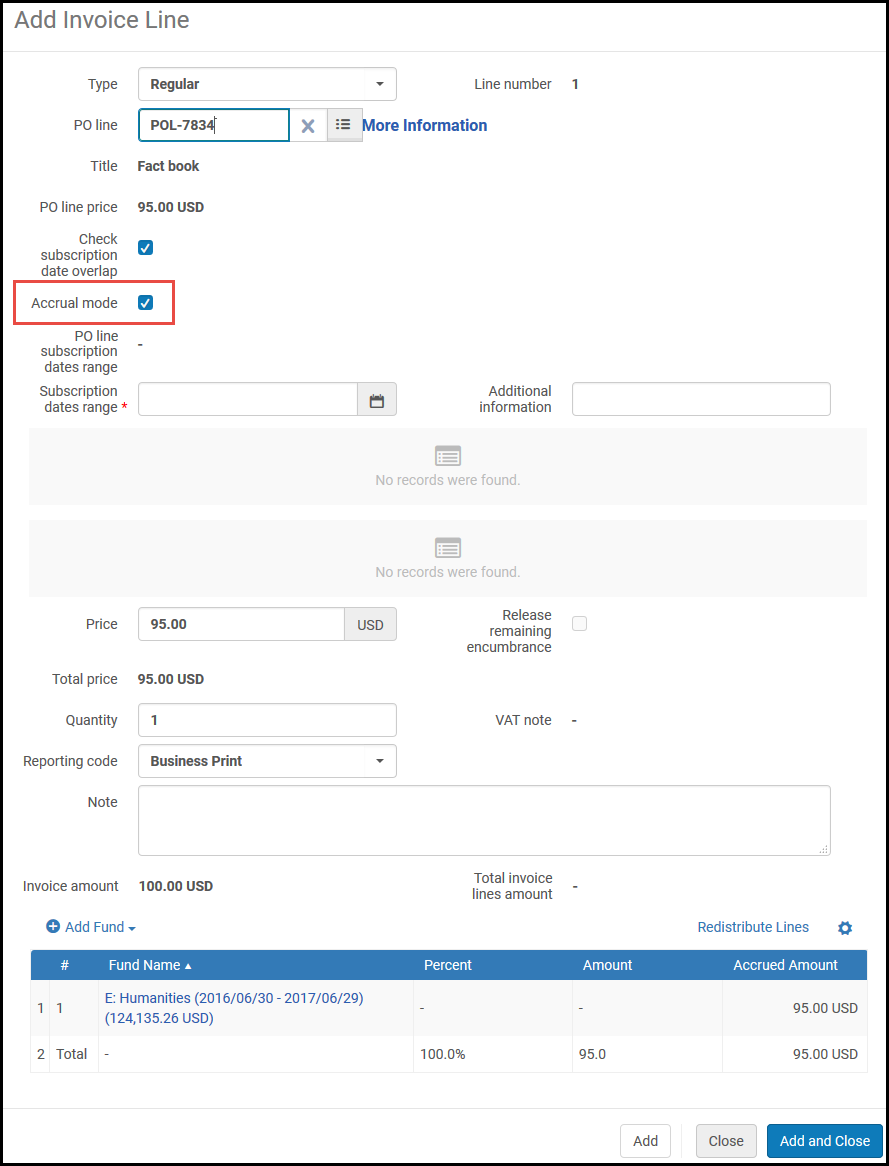
「請求明細書を追加する」ダイアログボックス — 未収モードチェックボックス 通常、資金は注文明細から事前に入力されています。資金を削除するには、発生モードをクリアし、資金を削除して、見越モードを再選択します。 - サブスクリプションの日付範囲で、請求明細の開始日と終了日をそれぞれ選択します。関連する会計期間の支出の内訳が表示されます。
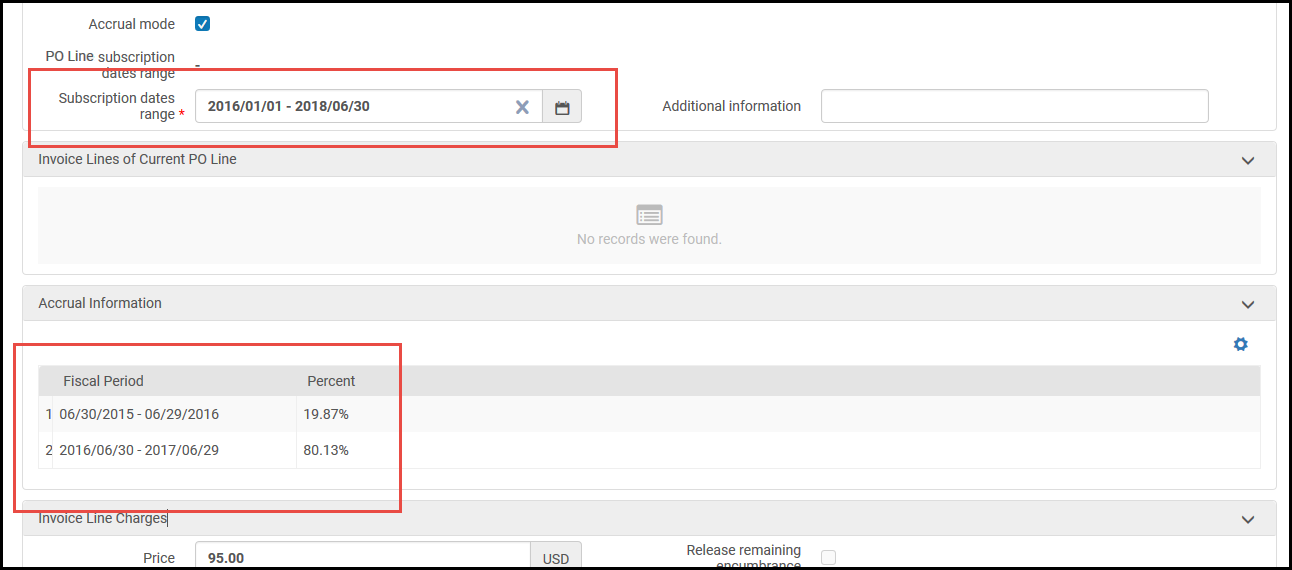
[請求明細書の追加]ダイアログボックス - 会計期間の分布 The above figure presents an example where 19.87% of the invoice line's expenditures fall in the fiscal period ending 06/29/2016, and 80.13% of the invoice line's expenditures fall in the fiscal period ending 06/29/2017. - 資金を追加を選択し、資金を追加して関連情報を入力します。
- 会計期間の開始(終了)の前(または後)に支出取引を受け入れるように資金を設定する必要があります。Ensure that you have selected a value (such as 365) in the Expenditures prior to fiscal period (days) field in the Rules section of the Summary Details page for the specified fund (see the table Ledger Rules in Adding a Ledger).
- Almaが各会計年度の資金に金額を自動的に分配するには、請求書に必要な各会計年度に一致する資金(同じ資金コードを持つ)を持つ資金を選択します。資金がない会計年度がある場合、最新の会計年度に関連付けられている資金に請求書の残りの残高が割り当てられます。例えば、請求書を3年間、1年目は10%、2年目は60%、3年目は30%に拡大したいが、選択した資金は最初の2会計年度にしか存在しない場合、最初の年の資金は10%をカバーし、2年目の資金は90%をカバーします。
- あるいあは、必要な資金を追加し、必要に応じて各資金に金額を手動で割り当てることもできます。
- 資金を追加を選択します。表示された割合に従って、上記のステップ7で説明されているように、未払額列に未収金額が表示されます。
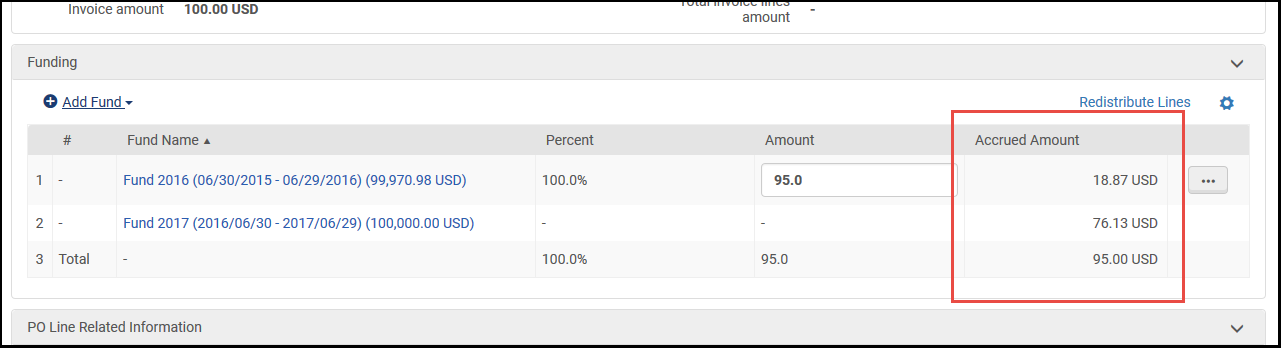
[請求明細書の追加]ダイアログボックス – 未払金額 The fund that covers the Fiscal Period in the Subscription from date is called the Baseline Fund.Delete appears next to this fund only.削除を選択すると、この資金の対象となる未払額が両方とも削除されます。 - 未収モードを無効にするには、未収モードチェックボックスをオフにします。The amounts then exist independently in the invoice line, and Delete appears next to each.また、未払額ヘッダーが金額に変わります。
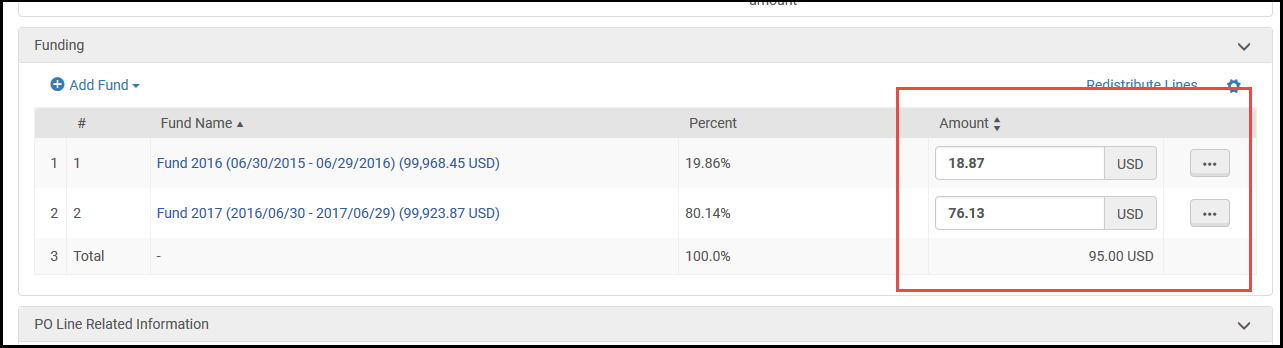
発生モード無効 - 追加して閉じるを選択します。
Editing the Invoice Lines of Closed Invoices
クローズした請求書の明細行のほとんどのフィールドは、変更できません。ただし、デフォルトでは、請求書がクローズされている場合でも、次の請求書明細フィールドを編集できます。
- Subscription dates range (unless Accrual mode is enabled; see Creating Invoices)
- 追加情報
- 購読日付の重複を確認
- 価格メモ
- メモ
- レポートコード1-5
- In the persistent search box, search for the invoice (see Searching for Invoices).The invoice appears in the Find Invoices page.
- In the row actions of the invoice, select Edit.[請求書の詳細]ページが開きます。
- 請求書の行タブで、編集する行の行アクションから編集を選択します。[請求明細書の詳細]ページが開きます。
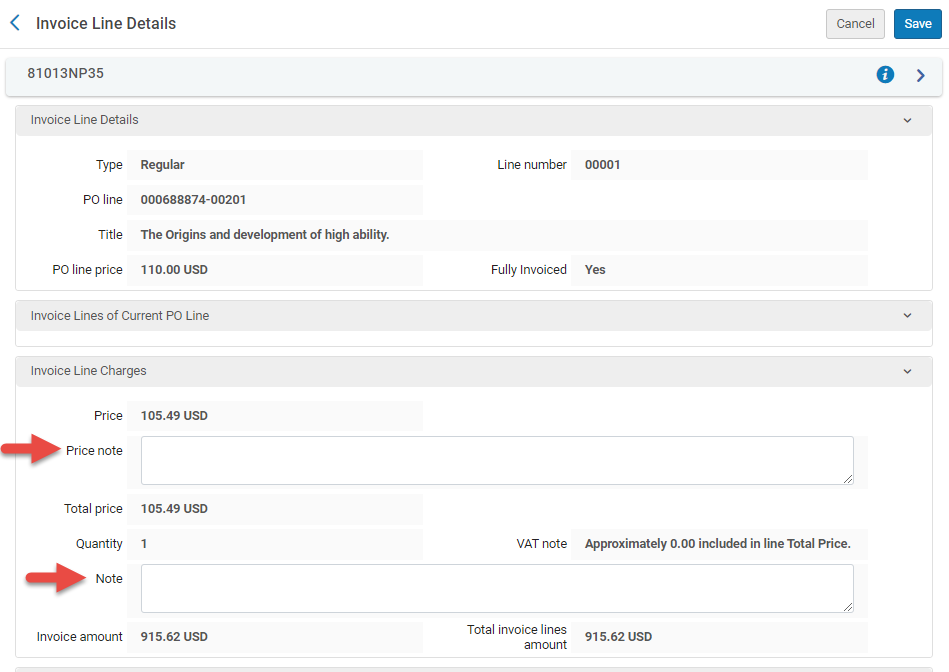
請求明細行の詳細ページの編集可能なフィールド
- 必要に応じて編集可能なフィールドを編集します。
- 保存を選択して、変更を保存します。
The editable fields of invoice lines in closed invoices can also be edited via the API (except for Reporting Codes 4 and 5).For additional information, see Invoices in the Developer Network.
The option to edit fields of invoice lines that are in closed invoices can be disabled in an institution.このオプションが無効になっている場合、クローズした請求書の請求明細行の行アクションには、編集オプションの代わりに表示オプションが含まれています。
- In the Mapping Table at Configuration menu > Acquisitions > General > Other Settings, set the allow_edit_closed_invoice_line Customer Parameter to false.
キャンセルされた注文への請求書の追加
-
PO ラインを再開します。
-
請求書にPOラインを添付してください。
-
再度、POラインをキャンセルしてください。。
Page tags: article:topicproduct:almacontent:DocumentationInvoice Lineinvoice line typelang:englishinvoice statuscreate invoiceimport invoiceSelect Invoice Creation ProcessInvoice DetailsIn Review Invoicesinvoice numberpayment methoduse pro ratareport VATreport taxVAT codeVAT typeexplicit ratiopayment statusVAT calculationExpended from FundLine Exclusiveaccrual accountingaccrual mode
