
更新の処理
このページでは、Almaで更新を処理する方法について説明します。For the renewal workflow see Renewal Workflow.For information on the overall purchasing workflow see Purchasing Workflow.For an overview of working with acquisitions in Alma, including links to relevant sections such as Infrastructure, Invoicing, Configuration, etc., see Introduction to Acquisitions.
- 購入オペレーター
- 購入マネージャー
自動または手動更新用にマークされた注文明細はいつでも編集できます。ただし、これらの注文明細のベンダーまたは受入方法を編集することはできません。更新日を編集することで、手動更新用に指定された注文明細を更新することもできます。
You access and edit PO lines that are marked for renewal in the PO Lines task list (Acquisitions > Purchase Order Lines > All PO Lines).You can find the PO lines in this category by using the facets to filter the list for the following Workflow Steps(see Searching for PO Lines):
- Waiting for Manual Renewal – PO lines that must be renewed manually, and have reached the date at which they can be renewed
- 定期的な更新 – 自動的に更新される注文明細、および手動で更新する必要があるが現在手動更新を待機中になっていない注文明細
注文明細情報の編集 - 更新
PO lines that are marked for renewal can be edited to correct incorrect information, to add missing information, or to manually perform a renewal, in the Details pane.For information about the fields of a PO line, see Manually Creating a PO Line.For information about working with the Details pane, see New Layout 2022.
自分に割り当てられている注文明細はどれでも編集できます。If a PO line is assigned to another user, you can view it but you cannot edit it.Purchasing Operators and Managers can edit unassigned PO lines, but users without either of these roles cannot.For information about changing the user assignment of a PO line, see Available Actions, below.
- 編集モードに入るには、次のいずれかを実行します。
- In the task list, select the Edit button (
 ).
- If the Details pane is opened, select the Edit button (
 ) that appears at the top of the pane.
- In the task list, select the Edit button (
- In the Details pane, edit the fields as required.
- When you have finished editing the PO line, select Save in its row actions.行った変更はタスクに保存されます。If you edited the Renewal date of a PO line that was waiting for manual renewal, the subscription is also renewed for the period ending on the new Renewal date, and a notification is sent to the vendor.
更新設定の編集
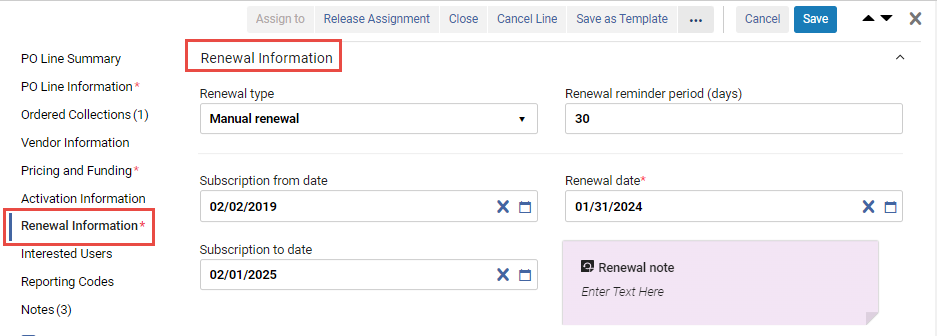
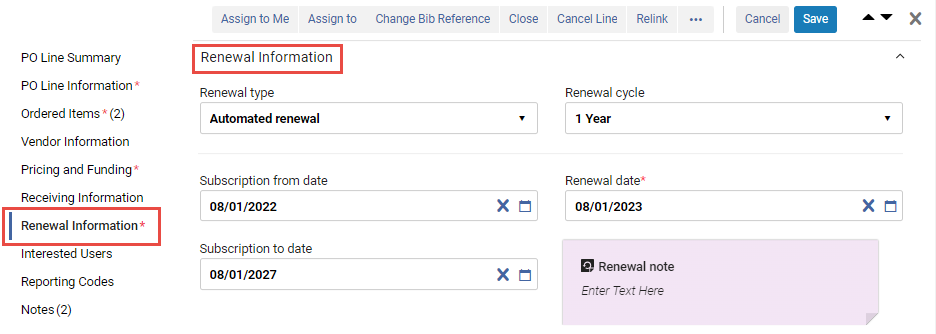
継続注文明細の更新設定は、[詳細] ペインの [更新情報] セクションで表示および編集できます。For information about these fields, see Manually Creating a PO Line.For information about performing a manual renewal, see Managing Manual Renewals, below.
実行可能なアクション
次のアクションは、更新用にマークされた注文明細の行アクションで使用できます (すべてのアクションがすべての注文明細で使用できるわけではありません)。
- 自分に割り当てる – 注文明細を自分に割り当てます。
- Assign to – Open a dialog box in which you can assign the PO line to another user.(必要な役職を持っていない場合、このオプションは表示されません。)
- リリースの割り当て – 自分に割り当てられている注文明細については、割り当てを解除し、注文明細を未割り当てのままにします。
- Relink – Change the bibliographic record to which the PO line is linked (see Relinking PO Lines).
- Cancel Line— The PO line is not renewed and is cancelled.A dialog box appears, requesting a reason for the cancellation and, if vendor notification is configured, a cancellation notification is sent to the vendor (see Cancelling PO Lines).注文明細をキャンセルすると、資金に不履行が生じることに注意してください。
- Change Bib Reference – Change the bibliographic record of the PO line.See Changing Bibliographic Reference.
- Save – Save the changes you made to the PO line.
- 保存して評価をリクエスト - 入力した情報が保存され、トライアルがリクエストされます。Use this option if the PO line is assigned to you but you do not have the Trial Operator/Trial Manager role.The PO line's status changes to Under Evaluation and the PO line moves to the Manage Trials page with the status Requested, where the Trial Operator/Trial Manager can access it and continue with the evaluation workflow (see Evaluation Workflow).このオプションは、目録を作成する電子注文明細でのみ使用できます。
- トライアルの保存と開始 – 入力した情報が保存され、トライアルが開始されます。トライアルオペレーター/トライアルマネージャーの役割があり、注文明細が割り当てられていて、トライアルを開始する場合は、このオプションを使用します。The PO line's status changes to Under Evaluation and the Trial Details page opens (continue with the evaluation workflow at step 3).このオプションは、目録を作成する電子注文明細でのみ使用できます。
- Change Vendor - See Changing Vendors - Renewals.
- クローズ – 注文明細は閉じています。Select Confirm in the confirmation dialog box to close the PO line (see Closing PO Lines).
- Save as Template – Save the current settings as a template; see Managing PO Line Templates.
- Change Expected Date – For items in claim, enter a new expected receipt date or expected activation date that was received from the vendor.See Processing Claims.
- Download EDI File – For EDI vendors, download the PO that contains the PO line as an EDI file.EDIファイルは、注文の現在のデータに基づいてアドホックに作成されます。See Packaging PO Lines into a PO.
手動更新の管理
継続注文明細の場合、注文明細の詳細に更新情報セクションが含まれます。You can see and edit this information for the selected PO line in the Details pane.
手動更新を待っている注文明細の検索
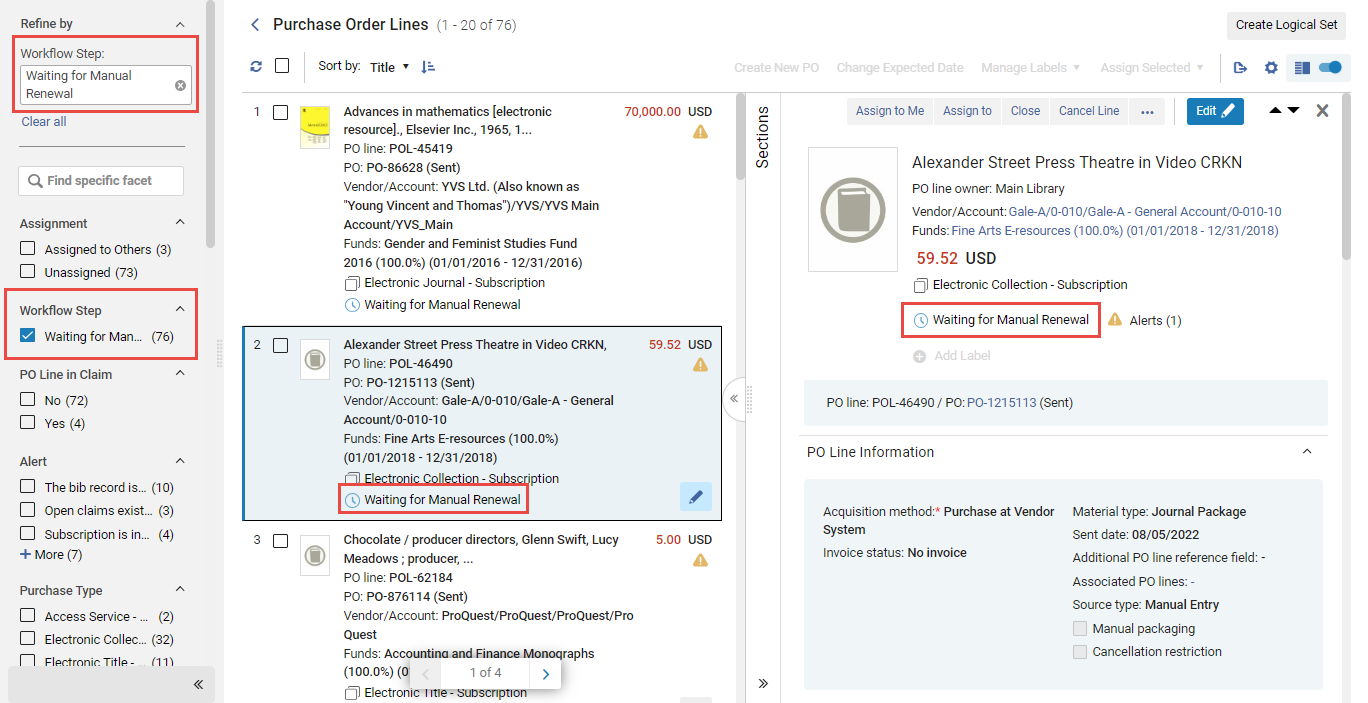
When the PO Line - Renewal job runs, the Workflow Steps of the PO Lines that are due for manual renewal are changed to Waiting for Manual Renewal.A list of PO lines that currently require manual renewal can be opened by filtering the list of PO lines in the task list to only show those that are in this Workflow Step.タスク リストを開いているときであればどの時点でも、このフィルターをオンにしてタスク リストを開くことや、ファセットからフィルターをオンにすることが可能です。
- Navigate to Acquisitions > Purchase Order Lines > Renew.
- In the persistent menu, in the Tasks list, select Order Lines > Renew(see Tasks in the Task List).
- 「ファセット」の「ワークフローステップ」で、「手動更新を待機中」を選択します。(For additional information about working with the facets, see New Layout 2022.)
手動更新の実行
If a PO line is marked marked for manual renewal, when the renewal date arrives, its Workflow Step is changed to Waiting for Manual Renewal.You can then manually update the renewal date and any other fields in the Renewal Information section of the PO line's Details pane that require modification.
The fund and price are taken from the previous year if a PO Line Rollover was done (see Fiscal Period Closure).ただし、必要に応じて値を手動で編集できます。
- In the PO Line list, in the Details pane of the PO line, in the Renewal Information section, modify the Renewal date of the PO line to the last date of the next subscription period.
- [保存]を選択します。The subscription is renewed for the period ending on the new Renewal date.When this date minus the renewal reminder is a future date, the Workflow Step of the PO line is once again set to Recurring Renewal, and a notification is sent to the vendor.
See Renewal Workflow for an overview of the process.
定期購入のキャンセル
If a PO line is marked for manual renewal and you do not want to renew it, you can cancel it as described in Available Actions.
ベンダーの変更 - 更新
注文明細を更新するときに、注文明細の送信先のベンダーを変更できます。ベンダーを変更すると、注文明細が閉じられ、新しい明細が作成されます。
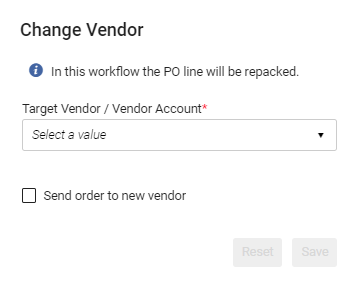
- After you have completed editing the PO line (see Editing PO Line Information – Renewals), select Change Vendor.[ベンダーの変更] ダイアログ ボックスが表示されます。
 「ベンダーの変更」ダイアログ・ボックス
- 対象のベンダー/アカウントを選択し、
- 新しい注文をターゲットベンダーに送信する場合は、[新しいベンダーに注文を送信] を選択します。
-
[保存]を選択します。以下が発生します。
- 現在の注文明細は閉じています。
- 新しい対象ベンダー/アカウントの新規の注文明細が作成されます。
- 新規の注文明細は、閉じた注文明細の目録に関連付けられます。
- 新規の注文明細はレビュー中ステータスに設定され、オペレーターは新しい対象ベンダーと通信した情報に従って、新しい情報で新規の注文明細を更新できます。
Vendor Controlled Renewals
To save duplication of work by simultaneously renewing the vendor subscription and the matching continuous PO line in Alma, you can enable a vendor to automatically update a PO line once the subscription is renewed on the vendor side.At this time, the option is available for ProQuest (RenewMe) and EBSCO (EBSCONET) renewable subscriptions.
To enable this functionality for ProQuest renewable subscriptions, please contact ProQuest RenewMe customer support at:e-renewals@proquest.com.
To enable this functionality for EBSCONET renewable subscriptions, please contact the EBSCO Integration support team at ils-ediservices@ebsco.com.
- APIキーを生成します。To do so, see the Developer Network.
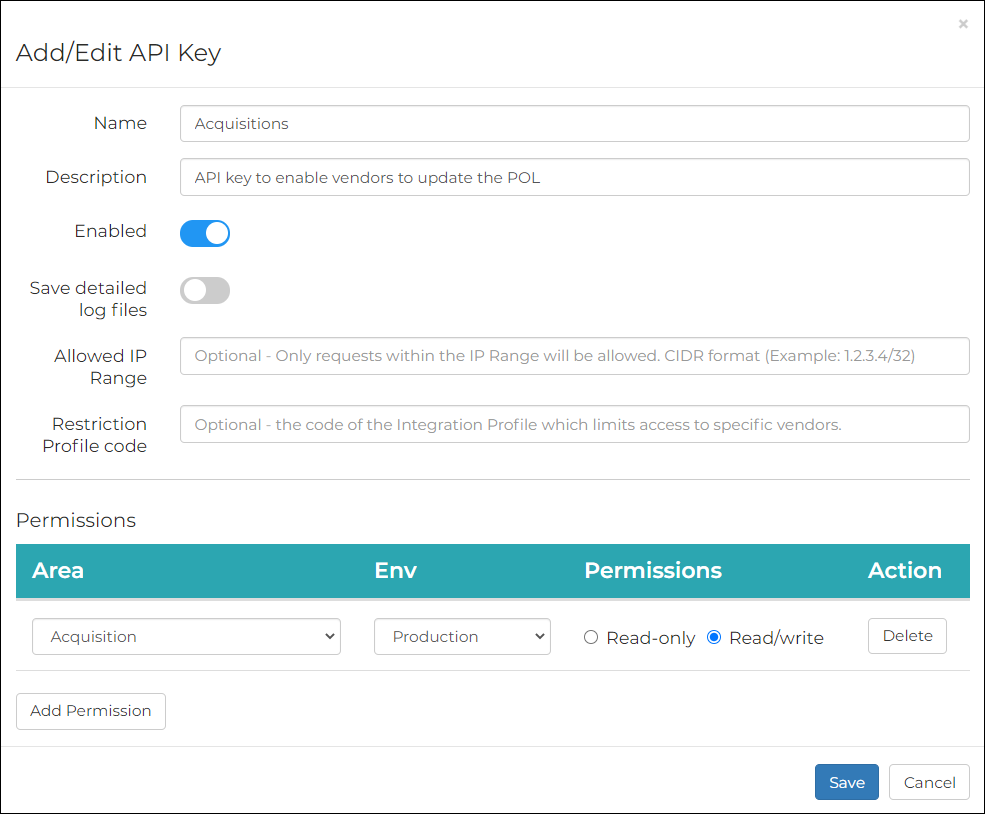 APIキーの追加または編集
- ベンダーにAPIキーを提供して、ベンダーがAlmaの注文明細を更新できるようにします。
- For ProQuest, send the API key to e-renewals@proquest.com.
- For EBSCONET, enter the API key within the designated field while setting up the EBSCONET ILS integration profile see more instructions here.
- 更新プロセスが完了すると、一致するAlma注文明細が自動的に更新されます:
- 料金
- (次回)更新日
- 更新メモ - ベンダーから送信された更新情報が入力されます。
- After the functionality is enabled by ProQuest RenewMe customer support, go to Acquisitions > Vendors > [select Edit from the row actions of the vendor] > Vendor Details > System Integration.
- Select the Renew at Vendor System checkbox.
- システムタイプを選択します。
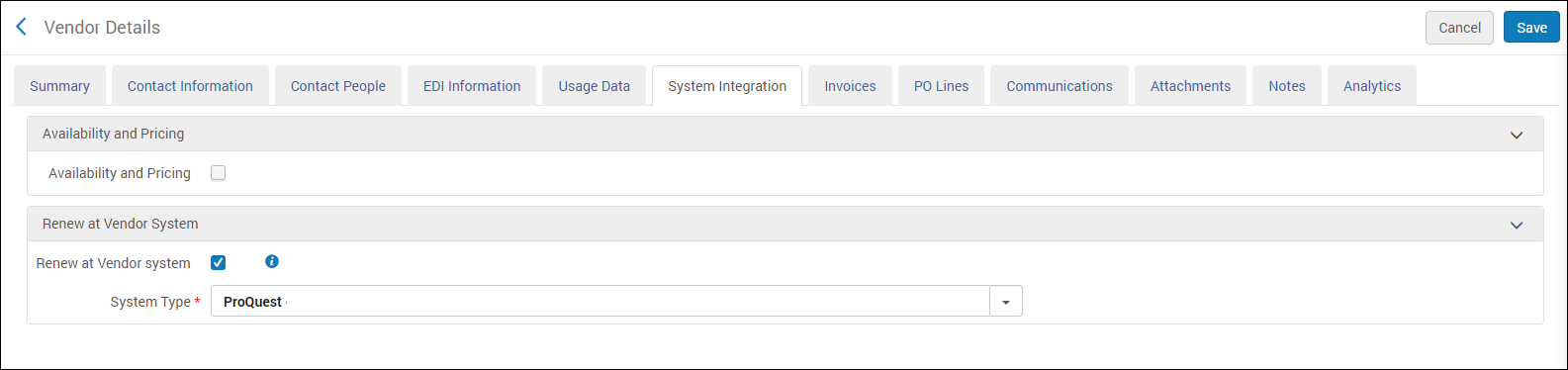 ベンダーの詳細 > システム統合
- [保存]を選択します。From this point onward, a Renew at vendor system button is added to the Purchase Order Line Details page of all continuous PO lines associated with the vendor.
When you select this button, a ProQuest RenewMe form which includes the Alma PO line number opens (in a separate browser tab).続行を選択し、RenewMeの支払いページに進みます。For more information on how to renew the subscription in ProQuest, see the RenewMe program site.
更新プロセスが完了すると、一致するAlma注文明細が自動的に更新されます:- 料金
- (次回)更新日
- Renewal Note - populated with the renewal information sent by the vendor.
This process can also be launched from the vendor's email notification, which is sent to your institution periodically.
一致する注文明細の番号をベンダーの更新フォームに含める必要があります。注文明細番号が欠落している場合、注文明細はAlmaでは更新されません。
If you are adding a new subscription on the vendor platform, and a new matching PO line in Alma, you must contact the vendor and give them the PO line number to associate with the subscription.
Page tags: article:topicproduct:almacontent:Documentationlang:englishRenewal DatePO Lines to Renewrenew PO linechange PO line vendoredit PO line renewalrenewal cyclemanual renewalrenewal reminder
