
注文明細のレビューと管理
This page describes how to review and manage PO lines, including the PO review workflow, editing PO lines in review or in the PO lines task list, bulk actions for PO lines, etc. For a list of links to pages with instructions for purchasing in Alma including creating PO lines, renewals, working with vendors, etc., see Purchasing.For information on the overall purchasing workflow see Purchasing Workflow.For an overview of working with acquisitions in Alma, including links to relevant sections such as Infrastructure, Invoicing, Configuration, etc., see Introduction to Acquisitions.
- 購入オペレーター
- 購入マネジャー
- 購入オペレーター拡張機能
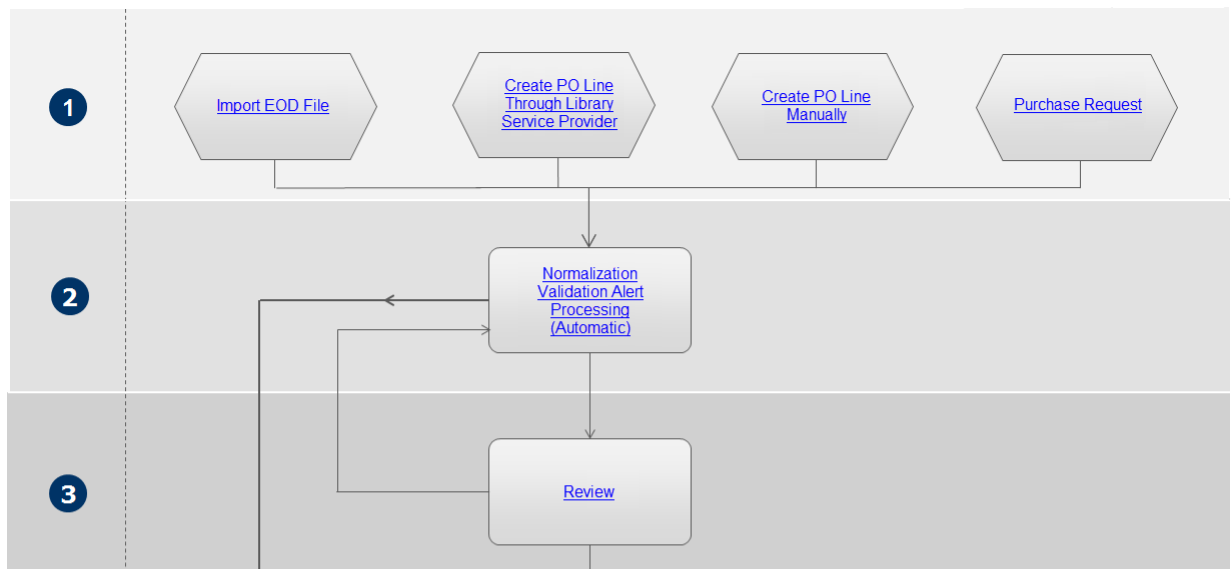
注文明細レビューワークフロー
データの問題(不完全/欠落または無効な情報など)またはアラート(購入レビュールールの結果)がある場合、レビュー用に注文明細が送信されます。そのため、図書館スタッフは注意する必要があります。
Viewing the PO Lines that Require Review
レビューが必要な注文明細は、[注文明細] ページで確認できます。
購入オペレーターは、他のユーザーに割り当てられた注文明細を表示できますが、注文明細を編集したり、アクションを実行したりすることはできません。
- In the Purchase Order Lines page (Acquisitions > Purchase Order Lines > All PO Lines), in the Facets panel, under Workflow Step, select In Review.
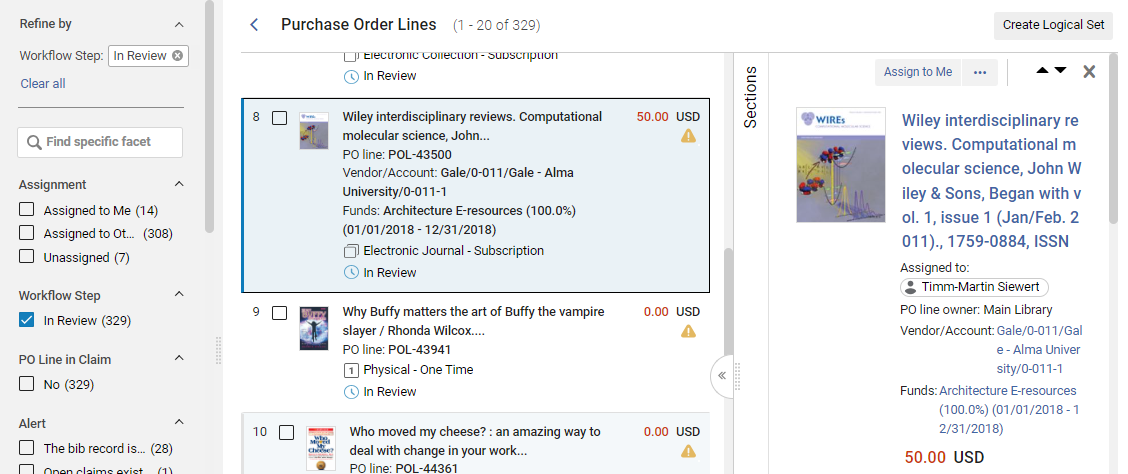
ファセットを使用してリストをフィルタリングすると、特定の注文明細を見つけることができます。In particular, you may want to use the Assignment and Assigned User facets to filter the list based on the users to which the PO lines are assigned (see Using Facets to Refine Search Results).
You can also use the following shortcut to set the facets up so that you only see the PO lines that require review and are assigned to you:
- In the main menu, select Acquisitions > Purchase Order Lines > Review (PO Line).
Once this page appears, you can still refine the results further with the facets (see Using Facets to Refine Search Results).
Editing a PO Line In Review
レビュー中の注文明細は、詳細ペインで編集して、間違った情報を修正したり、不足している情報を追加したりできます。For editing PO lines in the task list see Editing PO Line Information.For information about the fields of a PO line, see Manually Creating a PO Line.For information about working with the Details pane, see New Layout 2022.
自分に割り当てられている注文明細はどれでも編集できます。If a PO line is assigned to another user, you can view it but you cannot edit it.Purchasing Operators and Managers can edit unassigned PO lines, but users without either of these roles cannot.For information about changing the user assignment of a PO line, see Other Available Actions, below.以下は、レビュー中の注文明細の編集に関する説明です。For editing a PO line in general see see Editing PO Line Information.
- 編集モードに入るには、次のいずれかを実行します。
- In the task list, select the Edit button (
 ).
- If the Details pane is opened, select the Edit button (
 ) that appears at the top of the pane.
- In the task list, select the Edit button (
- In the Details pane, edit the fields as required.
- When you have finished editing the PO line, select Save and Continue in its row actions.The PO line returns to step 2 in the workflow, where it is revalidated (it is not normalized at this time).If the PO line is still invalid, it is once again sent for review.すべてのデータの問題が解決された場合、注文明細はワークフローのパッケージングステップに進みます(ワークフローのステップ4を参照)。
注文明細を確認するときにその他の利用可能なアクション
レビュー中の注文明細の性質に応じて、次のオプションの一部またはすべてがその行アクションでも使用できます。
- Assign to Me, Assign to, or Release assignment – A PO line that is unassigned can be assigned to yourself or to another user.A PO line that is currently assigned to a user can be reassigned to a different user, or it can have its assignment released, meaning that the PO line is no longer assigned to any specific user (see Assigned to Me, Unassigned, Assigned to Others).A PO line that is reassigned while it is in review remains in review until its issues are rectified.
- Change Bib Reference – Enables you to link the PO line to a different bibliographic record (see Closing, Reopening, and Relinking PO Lines - New Layout).
- Cancel Line – When a PO line in review is canceled, its Workflow Step changes from In Review to Cancelled, but its is not removed from Alma.キャンセルされた注文明細は、永続検索ボックスを使用するか、ワークフローステップでキャンセルファセットを選択することで検索できます。For more information on canceling PO lines, see Closing, Reopening, and Relinking PO Lines - New Layout.
- Order Now – Move the PO line to the normalization and validation stage (see step 2) of the purchasing workflow in preparation for its being packaged (see step 4) and sent.For more information on packaging PO lines, see Packaging PO Lines into a PO.If you select Order Now, you receive an Order Now message after the order is sent for processing.ベンダーは注文リストレターの形式で注文を受け取ります。For information on these letters, see Configuring Alma Letters.
- 延期 – レビュー中の注文明細は、理由にかかわらず延期できます。延期された注文明細は、再アクティブ化される (通常の購入ワークフローのステップ 2 に戻る)、注文される (今すぐ注文オプションを使用する)、またはキャンセルされるまで、現在の状態で凍結されます。For more information, see Deferring PO Lines - New Layout.
- Save and Start a Trial or Save and Request Evaluation – When a trial is requested or started for a PO line, it is automatically sent to the review task list.どちらのアクションを実行する場合でも、注文明細が自分に割り当てられている必要があります。If you have the Trial Operator/Manager role, you can start the trial (Save and Start a Trial).Otherwise, you can request that a trial be started (Save and Request Evaluation).For more information on trials, see Evaluations and Trials.
- Delete – Deletes the PO line, as well as any transactions and inventory resources related to the PO line (see Closing, Reopening, and Relinking PO Lines - New Layout).注文明細を削除するには、購入オペレータ-(拡張)の役割を持っている必要があります。
- Save as Template – Saves some of the PO line's settings as a template that can be applied when new PO lines are created.For additional information, see Creating and Managing PO Line Templates.
- 通貨の変更–パッケージ化されたPO lineの通貨を変更します。For more information see Change Currency in PO Lines.
注文明細タスクリストを開く
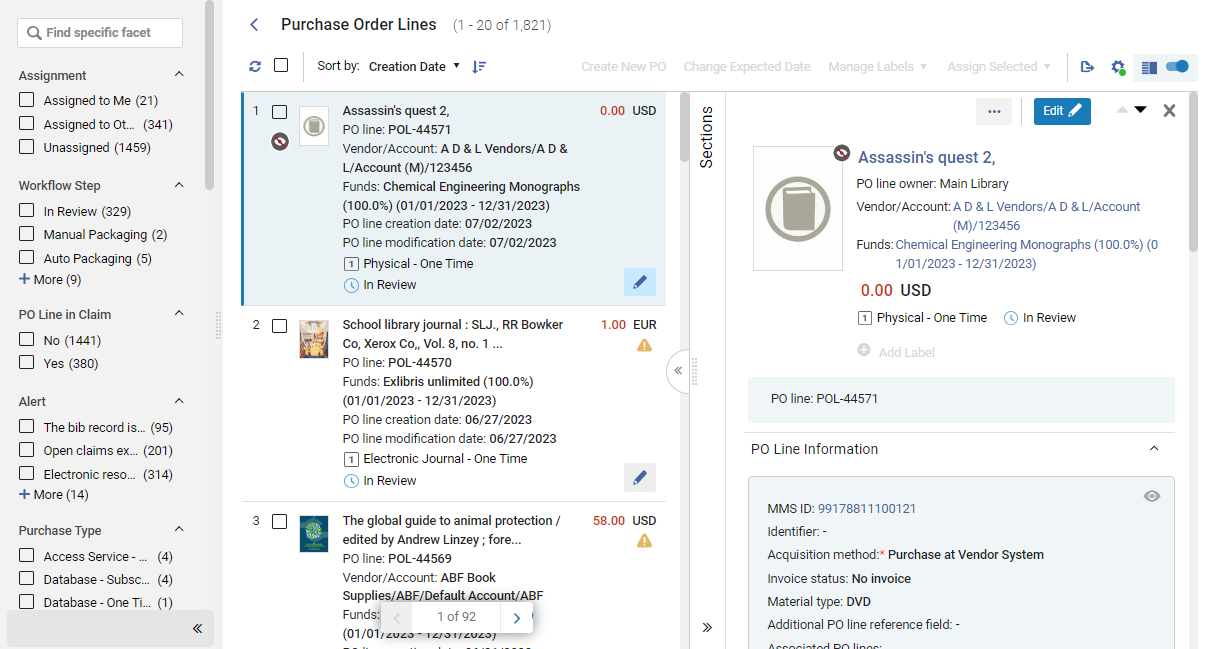
注文明細タスク リストには、さまざまな方法でアクセスできます。
- Navigate to Acquisitions > Purchase Order Lines > All PO Lines to open the task list with all the PO lines that exist included in it.You can then filter the list using the facets to locate the PO lines you want to work with; see Searching for PO Lines.
- In the persistent search bar, search for Order lines that meet certain conditions; see Searching for PO Lines.
- Select one of the pre-filtered options under Acquisitions > Purchase Order Lines:
- Review (PO Line) – Open the PO line task list with the Assigned to Me and In Review facets pre-selected.
- パッケージ化 – 事前に選択された手動パッケージ化 ファセットで注文明細タスク リストを開きます。
- Claim – Open the PO line task list with the PO Line in Claim facet category set to Yes.
- Renew – Open the PO line task list with the Waiting for Manual Renewal facet pre-selected.
- Review Deferred – Open the PO line task list with the Assigned to Me and Deferred facets pre-selected.
- In the persistent menu bar, select the Tasks icon, and then, in the Tasks list, select one of the following pre-filtered options:
- パッケージ化 – 事前に選択された手動パッケージ化 ファセットで注文明細タスク リストを開きます。
- Review (PO line) - assigned to you – Open the PO line task list with the Assigned to Me and In Review facets pre-selected.
- Review (PO line) - unassigned – Open the PO line task list with the Unassigned and In Review facets pre-selected.
- Renew – Open the PO line task list with the Waiting for Manual Renewal facet pre-selected.
- Claim – Open the PO line task list with the PO Line in Claim facet category set to Yes.
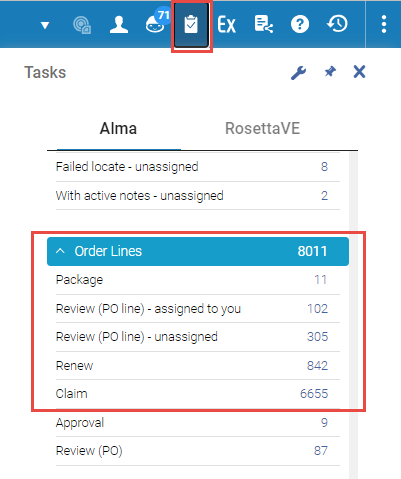
Regardless of how you open it, once the PO line task list is open, you can further sort it and change the facet settings as necessary to find the PO lines that you are looking for; see Searching for PO Lines.
注文明細を検索
For information about searching for PO lines and refining the search results using the facets, see Searching for PO Lines.
注文明細情報を編集
You can edit PO lines in the PO line task list, in the Details pane.For editing PO lines in review see Editing a PO Line in Review.For information about the sections and fields that appear in the Details pane, see Manually Creating a PO Line.You cannot edit a PO line if it is assigned to someone else.While you are editing a PO line, the PO line is locked and cannot be edited by other library staff.
注文明細は、注文明細ワークフローのどの段階でも編集できますが、ワークフローの段階/パッケージステータスによっては、特定のフィールドを編集できない場合があります。例えば:
-
受入方法は、注文明細がレビュー中ステータスのときにのみ編集できます。
-
Currency,Location, and Material supplier are editable only if the PO line has not yet been packaged.
- Locate the PO line in the PO line task list, as explained under Opening the PO Line Task List, above.
- Ensure the PO line is not currently assigned to someone else.
- Select Edit(in the task list or the Edit buttonat the top of the Details pane) to switch to Edit mode.詳細ペインの情報が編集可能になります。
- 必要に応じて情報を編集します。
- 保存を選択します。変更が保存されます。
For PO lines in review the process is quite similar apart from how to save and continue the process.For details see Editing a PO Line in Review.
注文明細の更新は、材料タイプなどの関連在庫に反映されます。
電子注文明細に関連付けられたリソースの交換
When you are editing an electronic PO line (Collection or Portfolio), you can detach the existing resource from the PO line and replace it with another electronic resource.This enables you to avoid having to delete a PO line if it was associated with the wrong electronic resource.
この操作はどのタイプの電子リソースでも利用できますが、置換するリソースは元のリソースと同じタイプである必要があります。For example, if the currently selected resource is Electronic Portfolio, only another Electronic Portfolio can be selected as the new resource.
置換するリソースが属するゾーンは、機関ゾーン、コミュニティ ゾーン、ネットワーク ゾーンのいずれでも可能です。An indication of the zone with which the resource is associated appears in the Ordered Portfolios section of the electronic PO line's Details pane, with color coding indicating whether the resource is available or not (see Manually Creating a PO Line).
The Replace Resource function can be used to handle purchasing and activation of electronic resources that are handled by a Network Zone (see Handling Electronic Resources that Are Managed in a Network Zone, below).
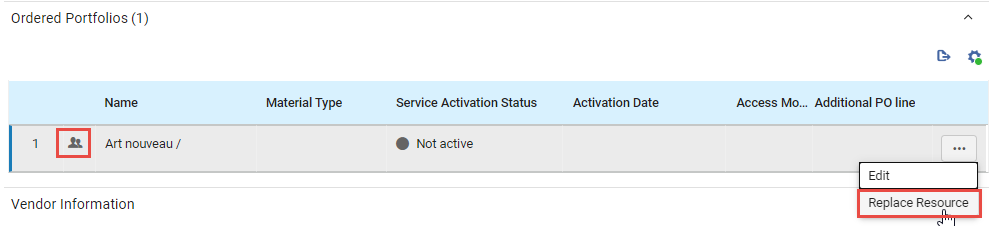
リソースを置換する
You can change the resource associated with an electronic PO line.If the resource being replaced is associated with a different bibliographic record from the new resource, the PO line will be associated with the new bibliographic record.
- Select Edit to switch to Edit mode.
- 注文済みポートフォリオセクションのポートフォリオの行アクションで、リソースの置換を選択します。The Electronic Portfolios page opens in a sliding panel, with the persistent search bar at the top.
置換されるリソースが別の書誌レコードに関連付けられている場合、その書誌レコードをリポジトリに保持するか削除するかを尋ねるメッセージが表示される場合があります。この問題が発生した場合は、いずれかのオプションを選択し、 [保存] を選択します。
If you choose to delete the resource, when Alma performs the resource replacement for the PO line, it also checks whether the bibliographic record of the original resource has any other inventory associated with it.If it does not have any other inventory, it is deleted.You will only see this prompt if the pol_handle_bib_record_without_inventory customer parameter is set to MANUAL.For additional information about this parameter, see Configuring Other Settings (Acquisitions).
- In the persistent search bar, search for the portfolio you want to order instead of the current portfolio.
- When you have located the resource, select the button beside its number in the list of search results.
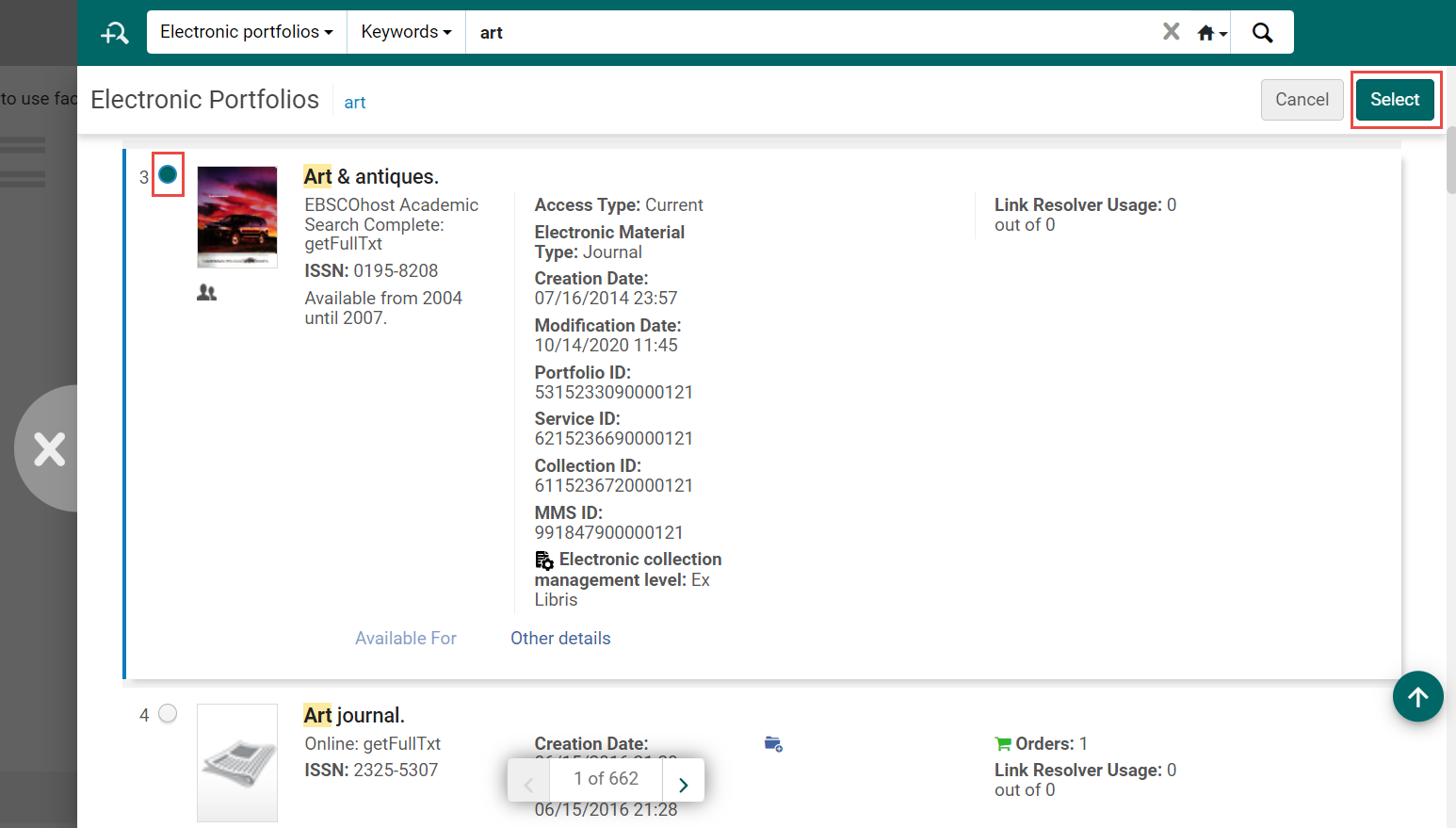
- Select the Select button.スライド パネルが閉じ、選択したポートフォリオが注文明細の前のポートフォリオに置き換わります。
- [保存] を選択して注文明細の変更を保存します。
ネットワークゾーンで管理される電子リソースの取り扱い
Institutions that are part of a Network Zone whose electronic resources are managed by the Network Zone (although the institution's purchases are handled locally) can perform the following steps to purchase and activate an electronic resource:
- 電子リソースに関連付けられたローカル注文明細を作成します。
- 注文をベンダーに送信します。
- Once the resource is available, ask the network institution to enable the electronic resource in the Network Zone and make it Available for them.
- [リソースの置換] 機能を使用して、現在注文明細に関連付けられているリソースを、利用可能になったネットワーク ゾーン リソースに置換します。
注文明細にライセンスがなく、ネットワークゾーンリソースにライセンスがある場合、ネットワークゾーンライセンスは注文明細に関連付けられます。注文明細にライセンスがあり、ネットワークゾーンリソースにもライセンスがある場合、ネットワークゾーンライセンスは注文明細に関連付けられません。
Performing Global Changes on Selected PO Lines
PO lineタスクリストに同時に表示される選択したPO lineに対して、特定のアクションを一括で実行できます。These actions can be selected in the Bulk Actions menu (see New Layout 2022), which becomes available when one or more PO lines are selected in the task list.
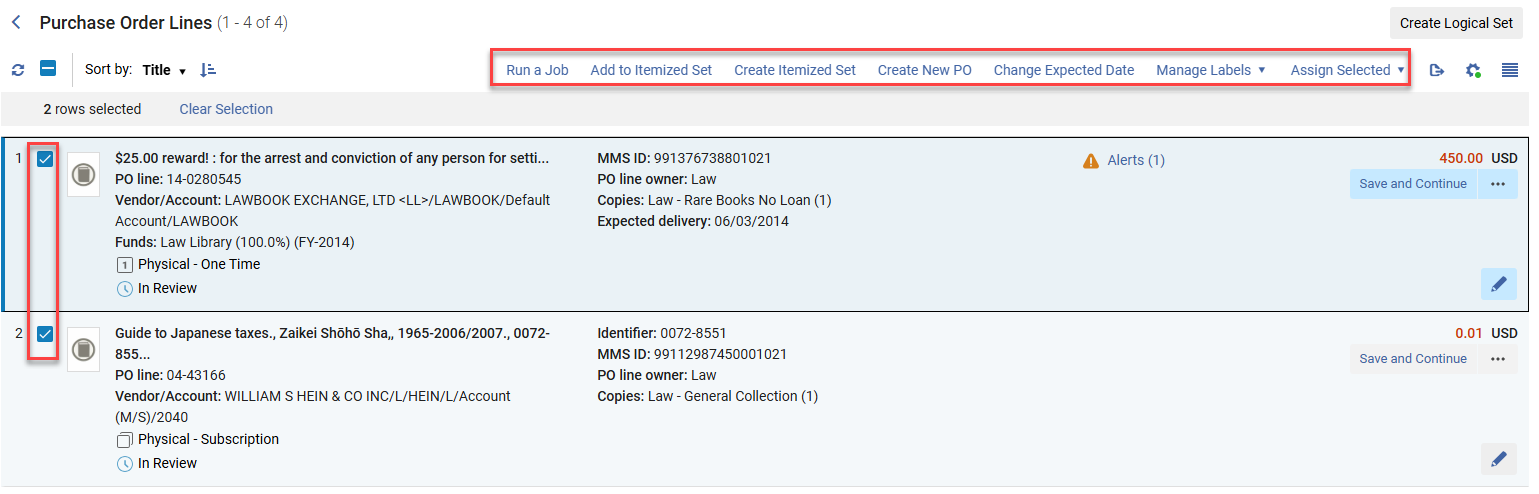
- 注文明細のチェックボックスを選択します。
If the task list that is currently open has more than one page, you can select PO lines from multiple pages.
実行可能なアクションは次のとおりです。
- Run a Job – Run a job on selected PO lines; see Manual Jobs.
- Add to Itemized Set – Add selected PO lines to itemized sets; see Managing Search Queries and Sets.
- Create Itemized Set – Create an itemized set from selected PO lines; see Managing Search Queries and Sets.
- Create New PO – Package the selected PO lines into a purchase order; see Packaging PO Lines into a PO.
- Change Expected Date – Update the expected dates of PO lines that are in claim; see Processing Claims.
- Manage Labels – Add labels to or remove labels from the selected PO lines; see New Layout 2022.
- Assign Selected – Assign the selected PO lines to yourself or to another user, or release the assignment of the selected PO lines that are currently assigned to you: In the dialog box, select the required option, and then select Assign to selected.
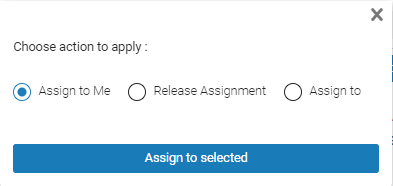 Choosing the Assignment Action for the Selected PO Lines
「選択項目を割り当てる」アクションを実行すると、成功数と失敗数などの結果を示す情報がページの上部に表示されます。
注文明細セットでグローバル変更を実行
- 購入オペレーター
- 購入マネージャー
- 発注・受入オペレーター
- 一般システム管理者
To change a list of PO lines, you must first create a PO line set; see Managing Search Queries and Sets.
次のいずれかのジョブを実行します:
- 注文明細ワークフローを更新 - ワークフローにおける特定の段階へ注文明細を移動します
- 注文明細取引を更新 - 資金間で注文明細の割り当てを変更します
- 注文明細情報を更新 - 注文明細情報を指定された条件に従って更新します
- 注文明細情報の更新 - 詳細 - 注文が作成され、ベンダーに送信された後に注文明細属性を変更します。
- Change PO Lines Status – Choose a status (Cancel,Close, or Delete) to which to change a set of PO lines
- 注文明細に興味のあるユーザーを更新 – 一連の注文明細に対して定義された関心のあるユーザーのリストを更新します。
For more information about these jobs, and manually running jobs in general, see Manual Jobs.
Communicating with Vendors
- 購入オペレーター
- 購入マネージャー
- ベンダーマネージャー
[注文明細の詳細] ペインの [通信] セクションから注文明細のベンダーと通信できます。このセクションでは、スライド パネルで [通信] ページが開きます。通信は、次のいずれかで設定されます:
- ベンダーに新しいメールを送信
- ベンダーからの回答を手動で入力する (電子メールで受信した場合でも)
- ベンダーへの返信の送信
Communications handled by this page are primarily manual – the user manually enters a message and sends it, and manually enters any responses received from the vendor.例外はクレーム通知であり、システムの設定によっては、Almaによって自動的に送信される場合があります。こうした場合には、通信ページに表示される通信履歴に表示されます。
The communication options described in this section are also available in the Communications tab of the vendor record (Acquisitions > Acquisitions Infrastructure > [Select Edit in the vendor's row actions] > Communications).For additional information, see Managing Vendors.
- Search for a PO line (see Searching for PO Lines - New Layout).When it is displayed in the task list, select it.The PO line opens in the Details pane.
- 注文明細の [セクション] メニューで、 [通信] を選択します。[通信] ページがスライド パネルで開き、この注文明細に関してベンダーとすでに行われた通信のリストが表示されます。Each item in the list is a conversation that consists of one or more emails.
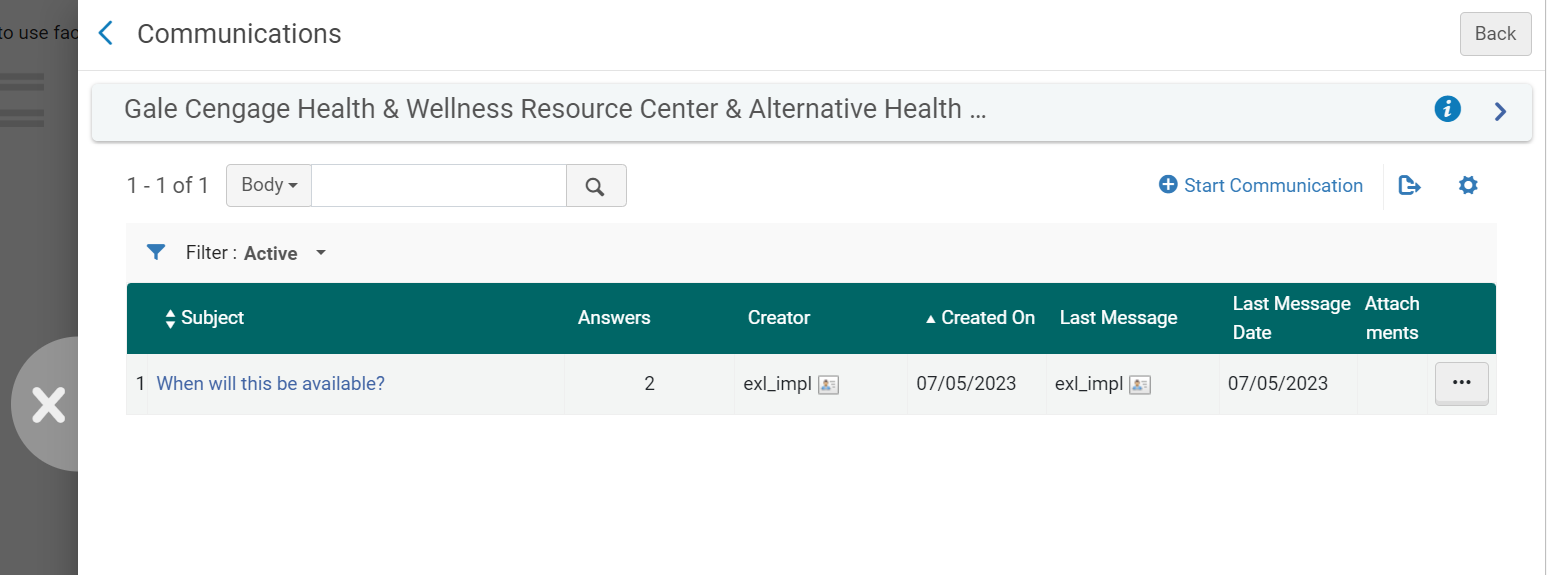
ベンダーとの新しい通信の開始
A new communication with a vendor is an email letter based on the Conversation Letter that is sent to the vendor.The letter is sent to the preferred email of the vendor (unless it is a claim letter – see Claim Communication, below).優先メールが利用できない場合、注文メールが使用されます。To customize this letter, see Configuring Alma Letters.
電子メールの本文には、注文明細に関する次の情報が、利用可能なら自動的に入力されます。
- 発注明細レファレンス番号
- 図書館コード
- 図書館名
- タイトル
- 著者
- 出版日
- 出版地
- 発行者
- [識別子]
- 発注日
- 総額
- 単価
- 到着済ユニットの番号
- 発注済ユニットの番号
必要に応じて、この情報を手動で編集し、レターの本文にテキストを追加できます。
注文明細では、ベンダーとの通信を開始する前にベンダーを選択する必要がありますが、保存する必要はありません。
- [通信] ページで、通信を開始するを選択します。The Start Communication dialog box opens.The Body of the letter is automatically populated with information concerning the PO line.
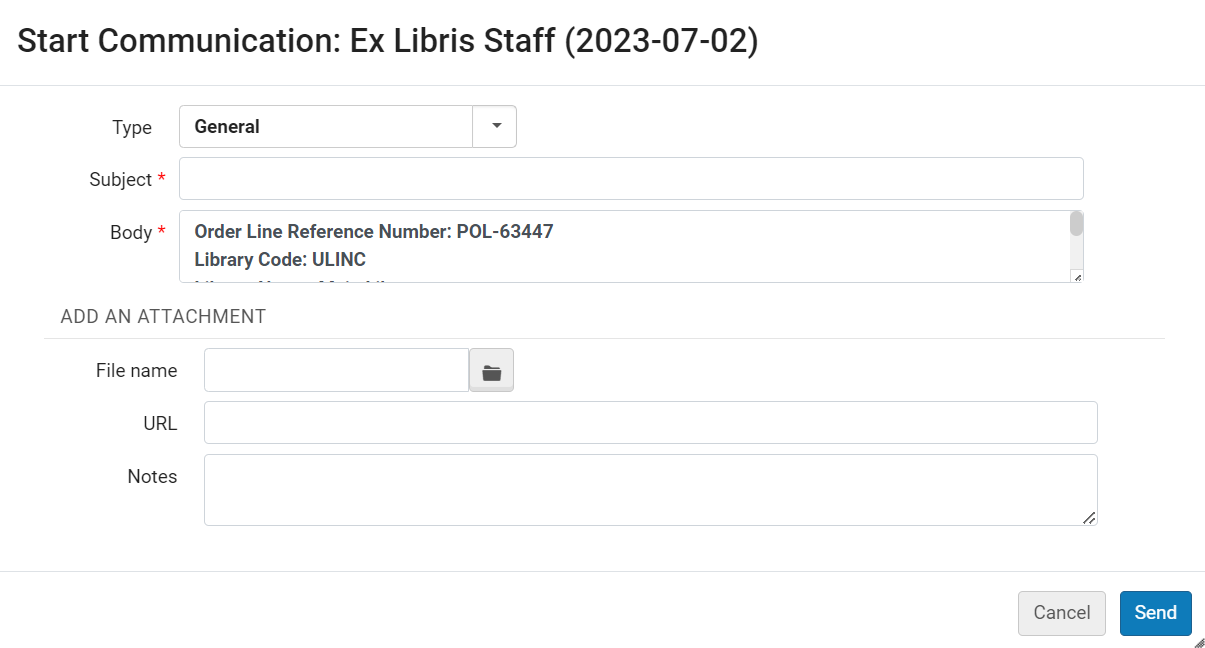 Start Communication Dialog Box
- [タイプ] で、次のいずれかを選択します。
- General – A general message, which is sent to the vendor's preferred email address.
- クレーム – 手動クレームレター。When this is selected, details about the last item received are added to the Body of the letter, and the letter is sent to the vendor's claim address rather than their preferred address, if one is available.
- Incident – A message used to report an issue with the order from the vendor.
- 「件名」フィールドに、電子メールの件名を入力します。件名フィールドに、注文番号または注文明細番号、あるいはその両方を入力することが推奨されます。任意のテキストを入力できますが、注文番号や注文明細番号を含む件名により、ベンダーとの通信が明確になります。この件名により、[通信] ページのリスト内でこの対話が識別されます (対話内の後のメッセージで変更された場合でも)。
- 「本文」フィールドに電子メールのテキストを入力し、必要に応じて自動的に挿入された注文明細情報を変更します。
- 電子メールに添付ファイルを送信する場合は、 [ファイル名] でファイルを選択します。
- 必要に応じて、関連するURLと注記を追加します(レターXMLではなく添付ファイルに含めます)。
- 送信を選択します。電子メールがベンダーに送信され、通信のリストに表示されます。
電子メールにベンダーの回答を入力
通信に対するベンダーの回答は通信タブに自動的に記録されないため、手動で入力する必要があります。次の手順では、電子メールに対するベンダーの回答を入力する方法について説明します。
- 通信ページで、次のオプションのいずれかを選択します:
- 回答を入力する対話を選択します。対話の履歴は、[通信メッセージ] ページに表示されます。回答を追加を選択します。
- 行アクションリストで回答を追加を選択します。
[回答の追加] ダイアログ ボックスが開きます。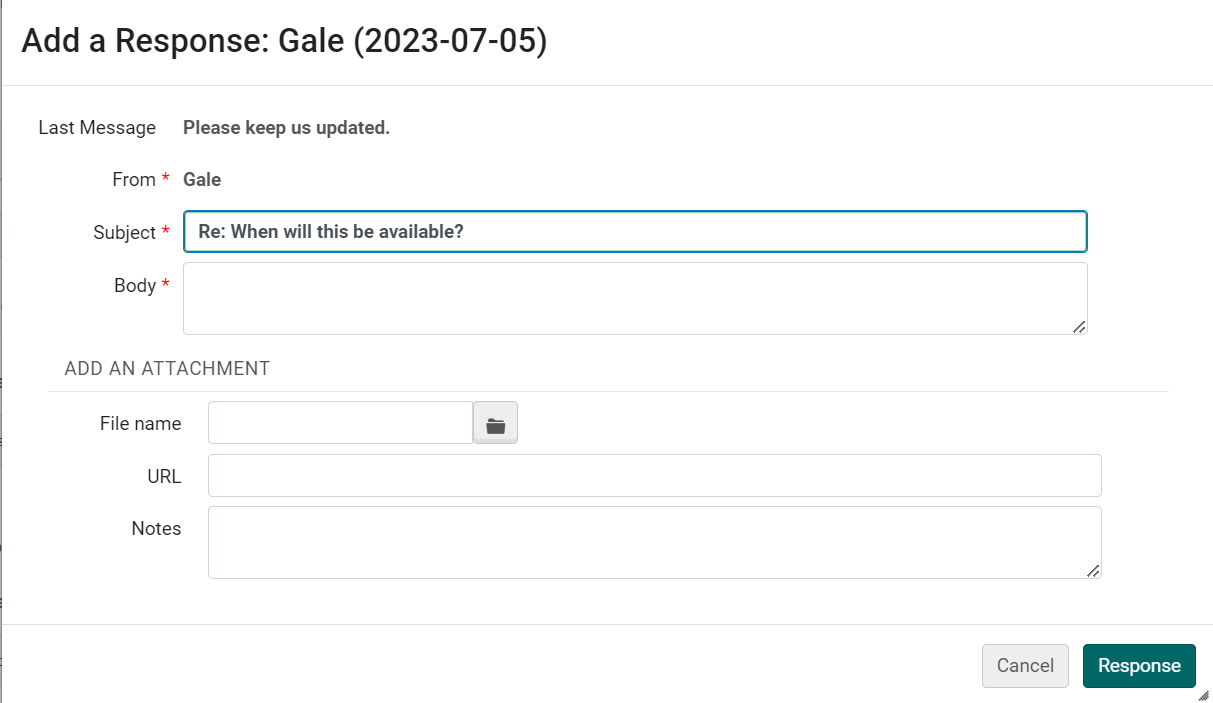 回答を追加するダイアログボックス
- 本文テキストボックスに、ベンダーからの回答を入力します。
- 電子メールに添付ファイルを受信した場合は、ファイル システムに保存してください。次に、 [ファイル名] でファイルを選択してアップロードします。
- 必要に応じて、関連する URL とメモを追加します。
- 回答を選択します。ベンダーからの電子メール回答はAlmaに保存されます。
ベンダーのメールに返信する
ベンダーの電子メールへの返信など、追加の電子メールを送信することで、ベンダーとの対話を続けることができます。The bodies of these emails include the text from previous messages, and carry the Subject line over from the first message.
- [通信] ページの対話の行アクション、または [通信メッセージ] ページの [メッセージ] タブで、 [返信] を選択します。The Reply dialog box opens.
- [本文] にメッセージのテキストを入力します。
- 必要に応じて、ファイルを添付したり、URL やメモを追加したりできます。
- 送信を選択します。The email is sent to the vendor and added to the messages in the Messages tab of the Communication Messages page.
通信への添付ファイルの管理
[通信メッセージ] ページでは、通信への既存の添付ファイルのプロパティの表示と変更、添付ファイルのダウンロード、追加の添付ファイルの追加、および既存の添付ファイルの削除を添付ファイルタブで行うことができます。
- [添付ファイルの追加] を選択します。
- From the row actions of the attachment, select the relevant option:Edit,Download, or Delete.
通信を削除する
対話内の個々のメールを削除することはできませんが、関連性がなくなった対話全体を通信のリストから削除することはできます。
- [通信] ページの対話のアクションの行で、 [閉じる] を選択します。
クレームの通信
For additional information about claim handling, see Processing Claims.
クレームを処理する際、Almaは次のすべての条件が満たされている場合、ベンダーに電子メール通知メッセージを自動的に送信します。
- The auto_claim parameter (for one-time physical PO lines) or the auto_claim_co parameter (for continuous physical PO lines) is set to Y(see Configuring Other Settings).
- The email PO Line Claims letter is enabled (see Enabling/Disabling Letters).
- ベンダーのメールアドレスが設定されています。
- One day has elapsed since the Expected Receipt Date + Claiming grace period of a PO line (see Processing Claims) and the material has not been delivered by the vendor.
上記の条件が満たされている限り、物的注文明細のメッセージがベンダーに自動的に送信されます。単一のアイテムについて、メッセージがベンダーに複数回送信される場合があります。For more information, see Processing Claims.送信されたすべてのメッセージは、個別の対話として [通信] ページのリストに表示されます。
If the customer parameter is not set to Automatic, you can, if required, manually send an email to the vendor; see Initiating a New Communication with a Vendor, above.
- If the vendor is configured for EDI claims (see Electronic Data Interchange (EDI)) and the EDI PO Line Claims letter is enabled, automatic claims are sent using EDI for all PO line types (see Processing Claims) as long as the above conditions are met.EDIを使用して送信されたクレームは、このタブには表示されません。EDIを使用してベンダーから受入されているクレームへの回答は、注記タブに表示されます。
- このタブからクレームを手動で送信する場合、ベンダーがEDIクレームについて設定されているかどうかに関係なく、クレームは電子メールで送信されます。
- クレーム通知が電子メールでベンダーに送信される際に、組織単位 (所有図書館) にクレーム回答電子メール アドレスが定義されている場合は、このアドレスがクレーム通知電子メールの差出人アドレスで使用されます。To use the From address in the PO Line Claim Letter, and not the library's email address, remove the Claim response email address from the organization's email addresses (see Configuring Institution/Library Contact Information) and edit the email address settings under Contact Information, clearing the Claim response option).For information on configuring the letter, see Configuring Alma Letters.
- 注文書が電子メールでベンダーに送信される際に、組織単位 (所有図書館) に注文回答電子メール アドレスが定義されている場合は、この電子メールが電子メールの差出人アドレスで使用されます。
注文明細テンプレートの作成と管理
注文明細テンプレートは、新しい注文明細に適用できる注文明細設定の保存セットです。これにより、毎回これらの設定を入力する必要がないため、注文明細を作成する時間を節約できます。テンプレートを保存するときに、POが閲覧モード(編集モードではない)で表示されている場合は、既存のテンプレートの削除を選択できます。テンプレートは、パブリックまたはプライベートとして保存できます。テンプレートを読み込むとき、プライベートテンプレートとすべてのパブリックテンプレートから選択できます。
注文明細テンプレートに保存されるフィールド
注文明細の次のフィールドは、テンプレートの一部として保存されます。
- 注文明細情報セクション:
- 入手方法
- 資料タイプ(冊子アイテム)
- 手動パッケージング(物的および電子アイテム)
- キャンセル制限メモ
- ラベル
- Ordered Items or Holdings for Ordered Items section (physical items):
- アイテム数
- 図書館
- 場所
- アイテムポリシー
- ベンダー情報セクション:
- データプロバイダ
- アクティベーション予定日 - 注文後の日数または日付 (電子アイテム)
- ベンダー向けメモ
- 価格と資金セクション:
- 総価格(冊子アイテム)
- アイテムの数に応じて正価を更新(物理的アイテム)
- 予算(冊子および電子アイテム)テンプレートの一部として予算を保存する場合、Almaは予算コードを保存します。テンプレートから読み込む場合、Almaは常に現在の会計期間から予算を読み込みます。
- 情報受入セクション (冊子アイテム):
- 急ぎ
- 受入メモ
- 受入中の製本
- 受入中のルーティング
- 有効化情報セクション (電子アイテム)::
- 急ぎ
- メモを有効化
- ライセンス
- 更新情報セクション(継続アイテム):
- 更新日
- 更新リマインダー期間(日)
- Reporting Codes:
- All the reporting codes from 1st reporting code through to 5th reporting code.
注文明細テンプレートの追加または更新
任意の注文明細をテンプレートとして保存できます。Only the template owner or an Acquisitions Administrator can update a PO line template.
- If the PO line is not currently visible, locate the PO line in the PO Line Task List (see Searching for PO Lines - New Layout).
- In the row actions of the PO line (in either its row in the task list, or in the Details pane, if the PO line is open there), select Save as template.[テンプレートとして保存]ダイアログボックスが開きます。
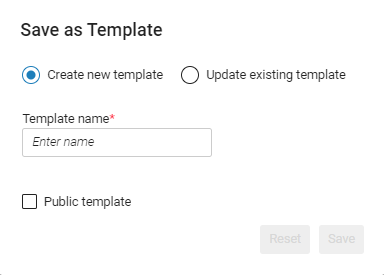 「テンプレートとして保存」ダイアログ・ボックス
- 以下のうち一つを実行して下さい:
- To save a new template based on the settings of the current PO line: Select Create new template, and then, under Template name, enter a name for a template.
- 既存のテンプレートを現在の注文明細の設定で置き換えるには: [既存のテンプレートを更新] を選択し、[テンプレートの選択] でテンプレートを検索して選択します。
- テンプレート名には、セミコロン (;)、カンマ (,)、スラッシュ (/)、またはその他の特殊文字 (!、$など) を含めることはできません。
- ダイアログ ボックスで行った選択をすべて削除し、最初に [テンプレートとして保存] を選択したときの初期状態に戻すには、 [リセット] を選択します。
- If you are creating a new template and you want to share the template with other users in your institution, select Public template.A public template can be used by everyone, but only the template owner or an Acquisitions Administrator can edit or delete it.
- [保存]を選択します。
注文明細テンプレートの削除
The template owner or an Acquisitions Administrator can delete a PO line template.
To delete a PO line template, the PO line must be in View mode - the Delete button does not appear in Edit mode, i.e., you cannot delete a PO line template when editing a PO.
- リスト内の任意の注文明細の行アクションで、テンプレートとして保存を選択します。[テンプレートとして保存]ダイアログボックスが開きます。
- [既存のテンプレートを更新] を選択します。
- [テンプレートの選択] で、テンプレートを検索して選択します。
- [削除] を選択し、選択を確認します。テンプレートが保存されます。
Page tags: article:topicproduct:almacontent:Documentationlang:englishreview PO linesedit PO line
