
Digitization Processing
Approving/Rejecting a Request for Digitization
デジタル化リクエストを承認するのは、次の役職でなければなりません。
- フルフィルメントサービスマネージャー
This page describes how to work with digital files including the basic workflow, delivering digitized items to patrons, attaching digitized items to send to a patron, etc. It also describes the managing of digitization using the Actions menu for cancelling requests, changing physical requests to electronic and vice versa, using View it for the Alma Link Resolver, etc. For a full overview of the requests workflow starting from the different ways a request can enter into the Alma system through to scanning and final processing, see Resource Requests Workflow.
For links to all the main fulfillment documentation pages see Fulfillment.
アイテムのデジタル化を管理するのは、次の役職でなければなりません。
- ワークオーダーオペレータ
- フルフィルメントサービスマネージャー
A patron or staff member can request the creation of a digital file for any physical or electronic item (see Creating a Request).
Physical items are transferred from their library location to the digitization department (see Configuring Digitization Departments), where they are scanned and digital files are created.電子アイテムは、リポジトリに配置してデジタルフォーマットで保存することによりデジタル化されます。
デジタルファイルは、次のいずれかに配送されます。
- 機関–デジタルファイルは、リポジトリの一部として機関によって所有および管理されます。ファイルへのアクセスは、アクセス権によって制御されます。
- ユーザー–ユーザーは、電子ファイルでデジタルファイルまたはデジタルファイルへのリンクを受入します。
アイテム全体、アイテム内の章、ページレンジ、記事のデジタル化をリクエストできます。
For more information, see Digitization Request (2:13 min.).
Digitization Department Workflow for a Physical Item
以下は、アイテムがデジタル化のためにリクエストされた後の典型的なデジタル化部署のワークフローを示す図です。アイテムのデジタル化部署門への到着から始まり、デジタルファイルの作成、デジタルファイルの配送までになります。
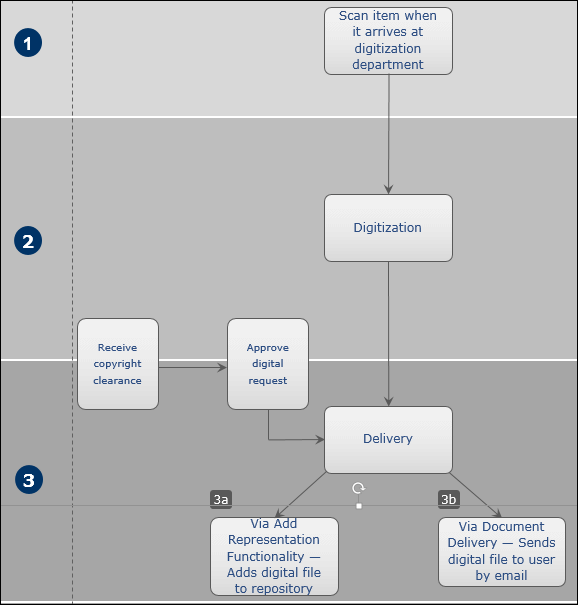
以下は、このワークフローにおけるステップの詳細な説明です(図内の番号に対応しています)。
-
The workflow commences when the requested physical item arrives at the digitization department and its barcode is scanned (see Scanning Items).The item acquires the status Digitization.For information on requests to digitize physical items, see Creating a Request.
Upon arrival of the physical item, the digitization request is sent for review to determine whether there are elements that require special attention based on the review rules preconfigured by an administrator (see Configuring Digitization and Copyright Rules).これらには以下が含まれます:
- 著作権クリアランス-必要に応じて、図書館は著作権で保護されたコンテンツを再利用するために著作権ライセンスを受入します(たとえば、著作権クリアランスセンターサービスから)。
- 承認–リクエストは承認され、デジタル化プロセスが続行されます。
- 拒否–リクエストは拒否されます。拒否の理由が説明されます。
- デジタル化リクエストの承認は、デジタル化ワークフローのどの時点でも行うことができますが、配送段階の前に行う必要があります。For details on approving/rejecting a request, see Approving/Rejecting a Request for Digitization.
- リクエストが承認されるまで、依頼者への通知は保留されます。
- The item is digitized (see Digitizing Items).
- The request proceeds to the delivery stage (see Delivery of Digitized Items).配送は、次のいずれかの方法で処理されます。
- By the Add Digital Representation functionality (see Adding a Representation).Primoアプリケーションでデジタルファイルを検索できます。
- By the Document Delivery – Attachment – An email is sent to the requesting patron with the digital file as an attachment (see Attaching Digitized Items to Be Sent to a Patron).
- By the Document Delivery – Link – An email is sent to the requesting patron with a link to download the digital file (see Attaching Digitized Items to Be Sent to a Patron).
The delivery method is defined by preset rules (see Configuring Digitization and Copyright Rules).
For more information, see Digitization Requests Flow.
Approving/Rejecting a Request for Digitization
デジタル化リクエストを承認するのは、次の役職でなければなりません。
- フルフィルメントサービスマネージャー
You must approve or reject digitization requests when digitization and copyright rules determine that approval is required (see Configuring Digitization and Copyright Rules) or when a copyright approval task is specifically requested, such as for a citation (see Adding Citations to a Reading List).
デジタル化リクエストは、デジタル化ワークフローのどの時点でも承認できますが、承認が得られるまで配送を完了できません。
You approve or reject digitization requests on the Approval Requests List page (Fulfillment > Resource Requests > Approval Requests List).You can also view this page by selecting the task Requests - Digitization - need approval in the Tasks List in the persistent menu ( see Tasks in the Tasks List) or after selecting Save and Manage Approval on the Edit Reading List Citation page (see Managing Citations).
To filter citations by relevance, use the Creation date filter.表示されるデフォルトの範囲は、最新年のリクエストです。
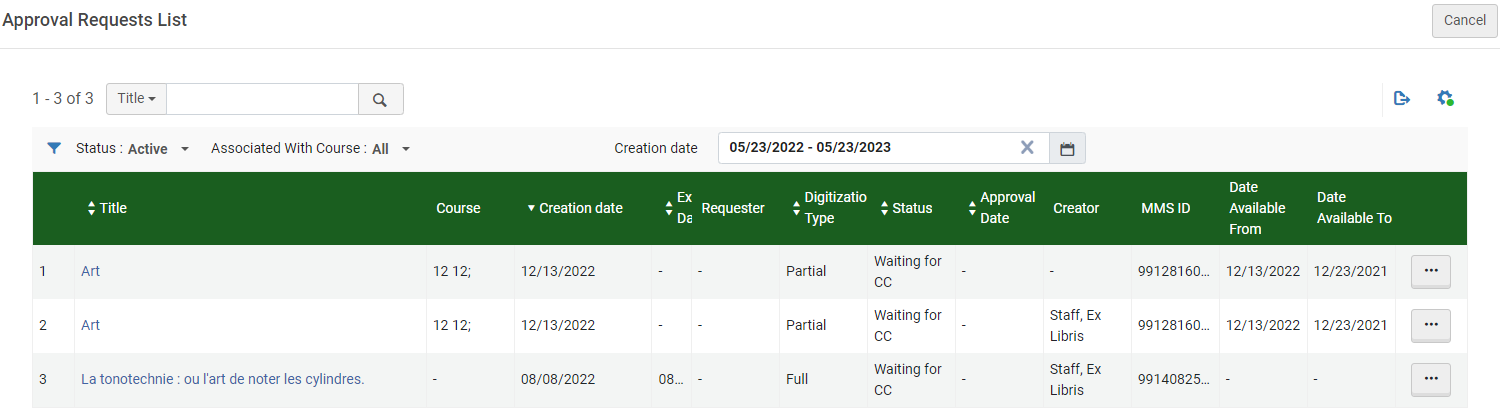
このページで次のアクションを実行できます。
-
Filter the requests- In addition to the Status and Associated With Course filters, you can select Filter by this Record from the row actions list in a request row to view only requests for that record, including all other requests for the same MMS ID, ISBN (ISBN/10 or ISBN/13 are both returned), or ISSN/Volume/Issue.後者の場合、発行はないが同じISSNと巻のアイテム、または巻がなく同じISSNのアイテムがないアイテムも返されます。
When entering this page after selecting Save and Manage Approval on the Edit Reading List Citation page,Filter by this Record is selected by default.
- Update the request's expiration date - Select Update Expiry from the row actions list to open the Update Expiration Date dialog box.Change the request expiration date and select Save.このアクションは、リクエストにすでに有効期限が設定されている場合にのみ可能です。
- Approve or reject the request - See below.
-
View relevant digitization and copyright rule - To view the digitization and copyright rule that resulted in this request requiring manual approval (instead of being automatically approved or rejected), select View Rule from the row actions list.このリクエストの手動承認をトリガーしたルールに関する情報を含む、デジタル化ワークフローの設定ページの読み取り専用バージョンが表示されます。
For a video on how to find and monitor requests, as well as how to fulfill them, see Digitization Request Management (4:24 min.).
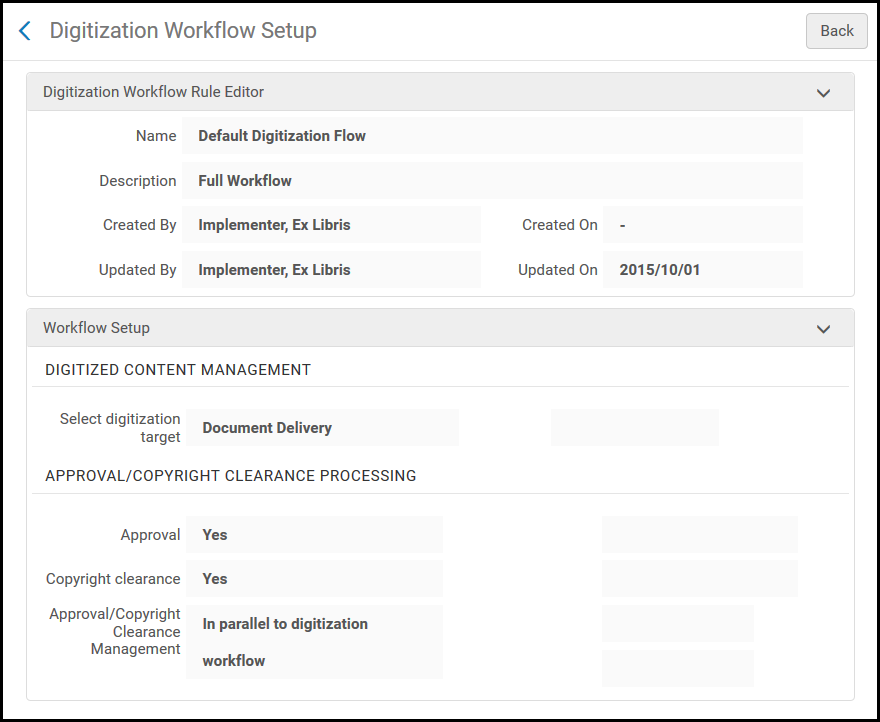
To approve/reject a request for digitization:
- On the Approval Requests List page, select View or Work on from the row actions list of the item you want to approve.The Approval Requests List page appears, displaying details of the item.
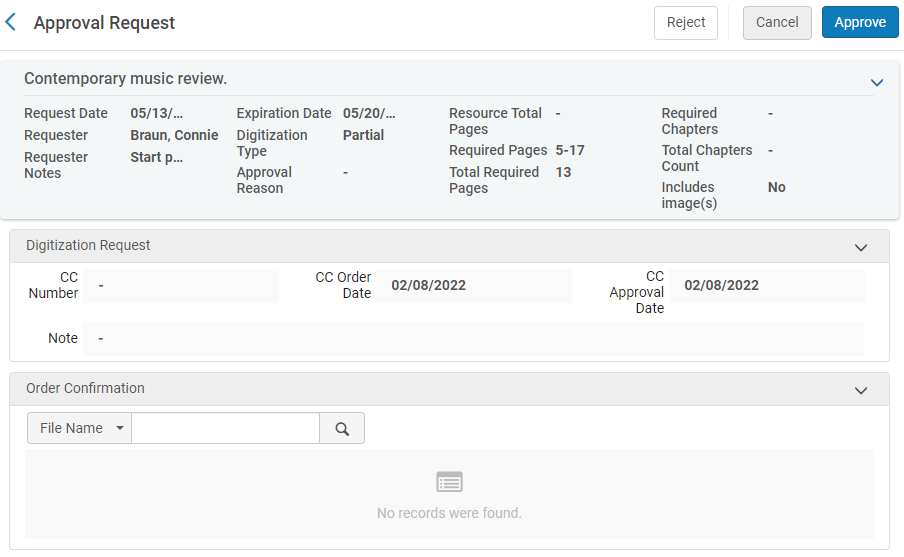
- If you selected Work On, you can modify the necessary fields, as described in the following table:
承認リクエストフィールド
セクション 名前 説明 デジタル処理リクエスト
These fields are mandatory if the request requires copyright clearance.
CC番号 著作権クリアランスセンター番号。この数字は、図書館が著作権で保護されたコンテンツを使用するライセンスを持っていることを示しています。 CC発注日 著作権クリアランスが発注された日付 CC承認日 著作権クリアランスが承認された日付 ノート ユーザーメモ Order Confirmation
(not mandatory)オプションで、図書館は[注文確認]セクションに著作権確認(CCC確認など)を添付できます。 Note that if you select Cancel after adding an attachment, the attachment remains and can be worked on later.付属物をアップロードしたら、付属物の行で[アクション]を選択して次のことを行えます。
- 編集–別のファイルのアップロードを含む付属物の編集
- 削除–付属物を削除
- ダウンロード–ファイルをダウンロード
- デジタル化リクエストを承認または拒否する場合:
- 承認を選択して、デジタル化リクエストを承認します。[リクエストを承認]ページで、理由ドロップダウンリストから理由を選択し、ノートフィールドにノートを入力して、送信を選択します。理由のリストは次のとおりです。
- 自動
- ライセンスごとの対象範囲
- クリエイティブ共通
- 直接許可取得
- 法的例外
- オープンアクセス
- その他
- 絶版
- 事前プリント
- プライマリライセンス
- 自己宣言
- 拒否を選択して、リクエストを拒否します。[リクエストを拒否]ページで、理由ドロップダウンリストから理由を選択し、ノートフィールドにノートを入力して、送信を選択します。The approver's decisions are saved for the digital file.理由のリストは次のとおりです。
- その他
- 管理者による拒否
- CCCによる拒否
リクエストが拒否された場合、デジタルファイルは作成されず、リクエストが拒否されたことが依頼者に通知されます。The rejection email only sends 254 characters in the body of the email, but you can manually enter more.
- 承認を選択して、デジタル化リクエストを承認します。[リクエストを承認]ページで、理由ドロップダウンリストから理由を選択し、ノートフィールドにノートを入力して、送信を選択します。理由のリストは次のとおりです。
Digitizing Items
To start the digitization process, ensure that you are at the digitization department that currently holds the item; see Library/Desk Selector in The Persistent Menu.
Digitization is configured on the In Process Items page (Fulfillment > Resource Requests > Manage In Process Items).You can also view this page by selecting one of the following tasks the Tasks List in the persistent menu ( see Tasks in the Tasks List):
- アイテム - 保証金
- アイテム - デジタル化
- アイテム - 文書配信
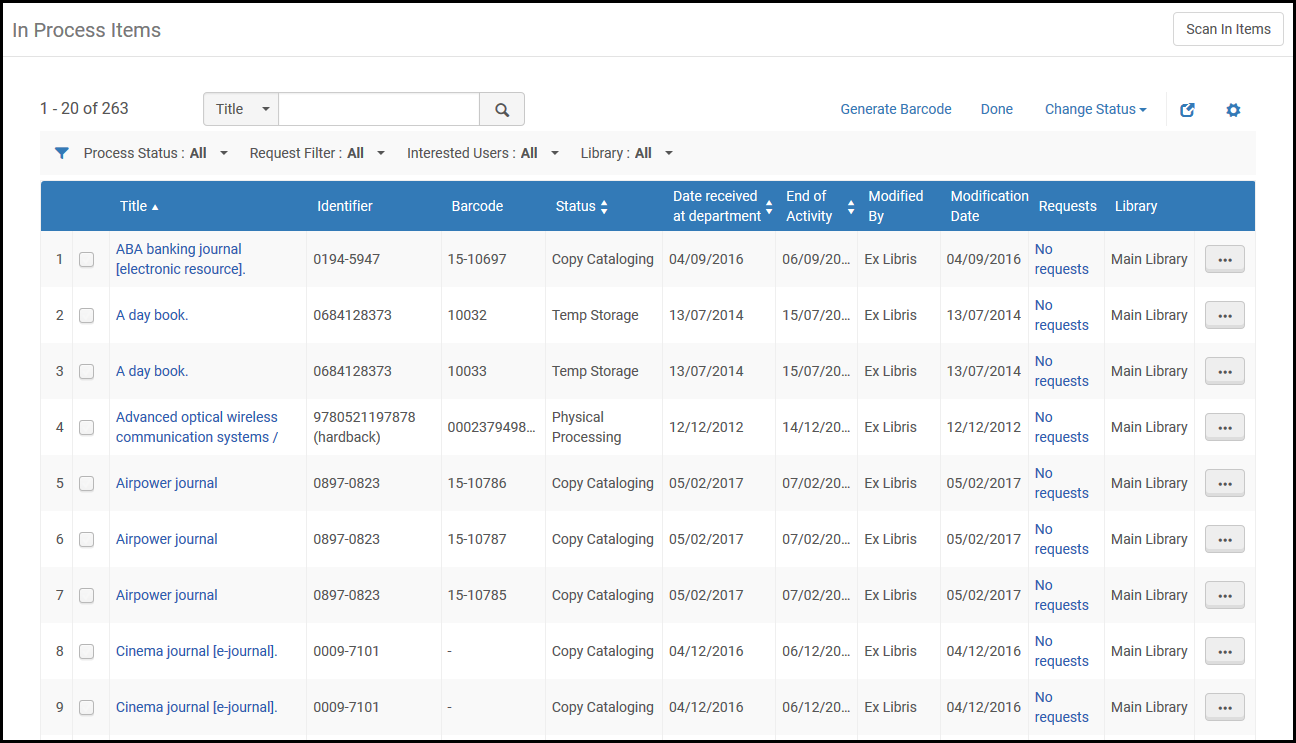
The In Process Items page can also be accessed on the Scan In Items page (Fulfillment > Resource Requests > Scan In Items) by selecting Manage In Process Items.For details on the Scan In Items page, see Scanning Items.
[処理中のアイテム]ページには、ユーザーやスタッフのデジタル化リクエストが表示されます。リクエストのタイプがステータス列に表示されます。
To digitize physical items:
-
[処理中のアイテム]ページで、ステータスがデジタル化のアイテムを見つけます。
An item has this status after: a) it has a digitization request attached to it and b) it is then scanned in at the digitization department.
- アイテムの行のアクションから次のステップを選択します。The status changes to Digital Inventory or Document Delivery depending on the digitization configuration (see Configuring Digitization and Copyright Rules).
次のステップは、現在のステータスがデジタル化の場合にのみ表示されます。
For details on delivery of digitized items, see Delivery of Digitized Items.
デジタル化を処理するとき、または別の発行リクエストをデジタル化するときに、アイテムを作成する必要はありません。ただし、アイテムが作成されてリクエストに添付されていない場合、デジタル化料金(アイテムに応じて適用されます)などの利用規約は適用されません。
料金は次のように適用されます。
- If the request is attached to an item, use the item's terms of use, as is currently done in the digitization task list.
- If the request is attached to a holding with items, use the first item that has an is digitizable = true policy.アイテムをデジタル化できない場合、デジタル化の利用規約は料金を含めて関係ありません。
- アイテムが存在しない一般的なデジタル化リクエストの場合、オペレーターがアイテムを作成してリクエストに添付しない限り、デジタル化料金は追加されません。
Delivering Digitized Items to the Patron
After digitizing items (see Digitizing Items), you send the digital file to the requester or add it to the inventory of the institution.Before performing digitization delivery, ensure that you are at a digitization department; see Library/Desk Selector in The Persistent Menu.
Almaを介してファイルを配信しておらず、代わりにファイルを外部に配信している場合は、リクエストをキャンセルすることで、タスクリストからリクエストを削除できます。この場合、ユーザーに通知するチェックボックスをオフにします。
Delivery of digitized items is configured on the In Process Items page (Fulfillment > Resource Requests > Manage In Process Items).
The In Process Items page can also be accessed on the Scan In Items page (Fulfillment > Resource Requests > Scan In Items) by selecting Go To Manage Department Items.For details on the Scan In Items page, see Scanning Items.
以下に説明するように、デジタル化されたアイテムをユーザーに届ける方法は2つあります。ドキュメント配信ページを使用する2 番目の方法は、別の合理化されたフローである点に、注意してください。
Delivering Digitized Items Using the Task List
Delivery of digitized items is configured on the In Process Items page (Fulfillment > Resource Requests > Manage In Process Items).
For items with a status of Digital Inventory, select Add digital inventory from the row actions list to open the Representation Details page (see Adding a Representation).
「文書配信」ステータスのアイテムは、デジタル化と著作権のルールがどのように構成されているかに応じて、Eメールの添付ファイルまたはリンクとして送信される場合があります。
-
For items waiting for an attachment-based document delivery, select Attach documents from the row actions list to open the Attachments page and attach digitized items to be sent as attachments to the requesting patron (see Attaching Digitized Items To Be Sent To a Patron).
-
For items waiting for a link-based document delivery, select Upload documents from the row actions list to upload digitized items to be sent as links to the requesting patron (see Attaching Digitized Items To Be Sent To a Patron).
For more information on links in Alma document delivery, see the More Information About Digitization Requests - Document Delivery Using Links video (12:23 min.).
[付属物]ページで、リクエストユーザーに送信するドキュメントを添付します。[処理中のアイテム]ページでアイテムの行アクションから[ドキュメントの添付]を選択すると、付属物ページが表示されます。
- 付属物を追加するには、 ファイル名フィールドでブラウズを選択し、ファイルを選択します。Add a URL and/or note, if required, and select AddAttachment.付属物は、[付属物]タブの付属物のリストに表示されます。
- To edit an attachment, select Edit from the row actions list for the attachment that you want to update, modify the File name,URL, and Notes fields as required, and select Save Attachment.
- 付属物を削除するには、削除する付属物の行アクションリストから削除を選択し、確認メッセージポップアップウィンドウで確認を選択します。
- ファイルをダウンロードするには、ダウンロードするファイルの行アクションリストからダウンロードを選択し、ファイルの保存先フォルダーを指定して、OKを選択します。
- Click Refresh to see the upload status of your file.
- Click Done to complete the digitization process.
デジタル化リクエストに承認が必要な場合、リクエストが承認されると、以下に説明する通知Eメールが送信されます。
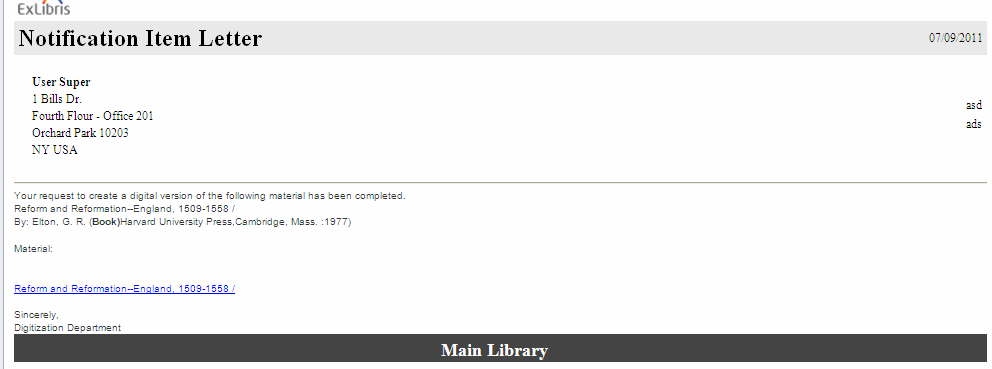
- 配送方法がドキュメントの添付-付属物の場合、ユーザーはEメールの付属物としてデジタルファイルを受入します。An example of the Ful Digitization Notification Item letter follows.
-
配送方法がドキュメントの添付-リンクの場合、ユーザーはファイルをEメールでダウンロードするためのリンクを受入します。この方法を使用すると、Eメールのサイズが小さくなり、1回のリクエストでより多くのデジタルリソースを簡単に扱えるようになります。An example of the Document Delivery Notification Letter follows.
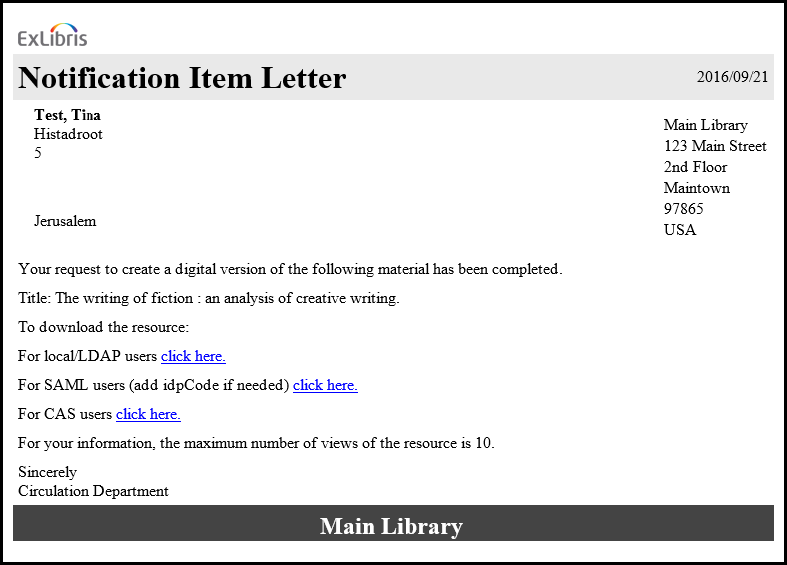
図書館管理者は、機関に関連するログインオプション(ローカル/ LDAP、SAML、またはCAS)のみが対象となるようにEメールを設定する必要があります。When selecting the relevant select here link, the patron will first be required to log in using the standard Alma/Primo credentials.ログインに成功すると、利用者はドキュメントストレージフォルダに保存されているデジタル化されたファイルにアクセスできます。アクセスは、デジタル化と著作権ルールで設定された回数に制限されることに注意してください。設定された日数が経過するとファイルがストレージから自動的に削除されます。この値は、document_delivery_cleanup_daysパラメータで定義されています。See Configuring Other Settings.
-
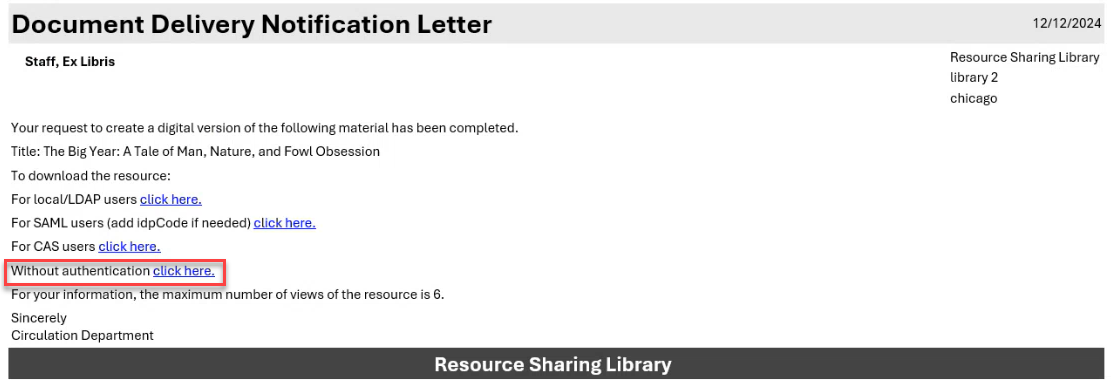
図書館は、認証を必要としないリンクをドキュメントデリバリー通知書のEメールに含めることができます。Digital requests that are not subject to copyright restrictions can be accessed without first authenticating.このリンクは、ローカル (借り手側) とリモート (貸し手側) の両方で管理されるリソースへのアクセスを提供できます。
When the parameter rs_no_authentication_document_delivery(Configuration > Fulfillment > General > Other Settings) is set to true(default false), and the label without_authentication(Configuration > General > Letters > Letters Configuration > Document Delivery Notification Letter) is enabled, the Without authentication link is included in the Document Delivery Notification Letter and does not require user authentication when opening the link.
- 配送方法がデジタル・インベントリ(表現)である場合、デジタルファイルはリポジトリで物理資料と同じタイトルで利用できるようになり、ユーザーがリクエストできるようになります。
The file size limit is 25 MB for both link and attachment digitization requests.A message appears if the total digital file size limit has been reached.デジタル化資料をメール添付で送信する場合は、メールに関連する追加の制約が適用される可能性があります。
Delivering Digitized Items Using the Document Delivery Page
An alternative, streamlined flow allows you to upload and deliver from anywhere.このプロセスには、次の役職を持つユーザーがアクセスできます。
- フルフィルメントサービスオペレータ
- フルフィルメントサービスマネージャー
- リクエストオペレータ
- 貸出・返却受付マネージャー
- 貸出・返却受付オペレータ
- 貸出・返却受付オペレータ – 限定
- ワークオーダーオペレータ
All digital documents can be delivered on the Document Delivery page (Fulfillment > Resource Requests > Deliver Digital Documents) without needing to work through the complete Pick from Shelf workflow.このプロセスは、表現の追加には適用されません。After entering the request ID, you can view the item's information (in the summary tab), and add as many files as necessary and up to one URL.Once the files are added and you select Done, Alma verifies the sending parameters based on the digitization rules in Digitization and Copyright Rules, and sends an email to the patron.If there is an attachment and you have selected a file over 25MB, a warning is displayed.If the files are supplied to the patron using a link, there is not a file size limit.一時的なシステムファイルを添付ファイルとして追加することはできません。If Shipping Terms of Use were configured for the library, then you can select the relevant option from the Shipping Terms of Use drop down list (see Configuring Shipping Terms of Use).利用規約は、ISOベースのピアツーピア通信が使用されている場合は「Shipped」メッセージに、パートナーのタイプがEメールの場合はEメールに記載されます。
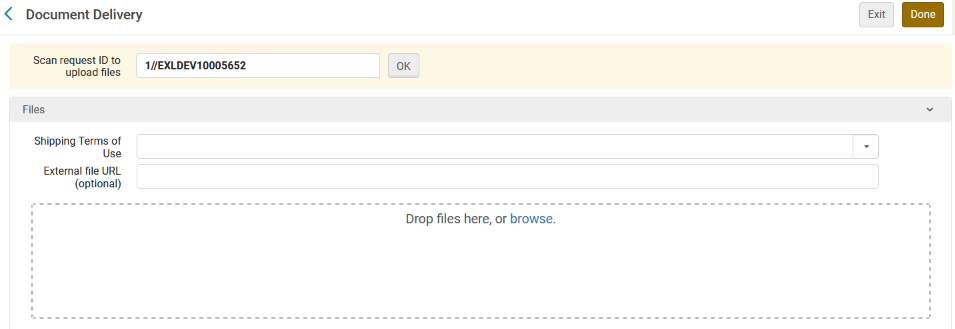
An Alma borrower that receives the Shipped message with a communicated terms of use will notice a note about the terms of use attached to the borrower request.デジタルコンテンツは、Rapid ILL経由またはリンクAlma経由で共有された場合でも、ユーザーに自動的に転送されません。逆に、ユーザーがファイルにアクセスできるようにするにはスタッフの仲介が必要になります。
To configure the digital shipping terms of use see Configuring Digital Shipping Terms of Use.For receiving of digitally sent requests in peer to peer resource sharing see Peer to Peer Resource Sharing.
Managing the Digitization Requests for Actions
アクションメニューの次のオプションから選択することもできます。
- Edit – The In Process Items: Request Management page appears.
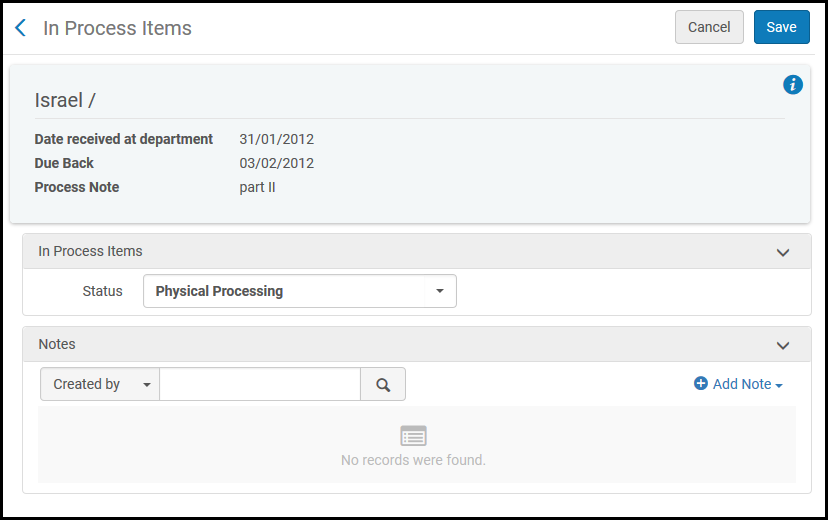 処理中のアイテム:リクエスト管理ページ
- 必要に応じて、ステータスフィールドで、ドロップダウンリストからステータスを選択します。ノートを表示または追加することもできます。
- ノートを追加するには、ノートを追加を選択してノートを入力します。ノートは、ページ上のノートのリストに表示されます。
- ノートを編集するには、アップデートするノートの行アクションリストから編集を選択し、[ノートの編集]ページでノートを変更して、保存を選択します。
- ノートを削除するには、削除するノートの行アクションリストから削除を選択し、[確認メッセージ]ポップアップウィンドウで確認を選択します。
- To locate a note in the list of notes, enter the text for which you want to search in the Find box and select the field –Created by,Updated by, or Note – in which you want to search for this text.
- Cancel request – The Confirm Request Cancellation page appears.
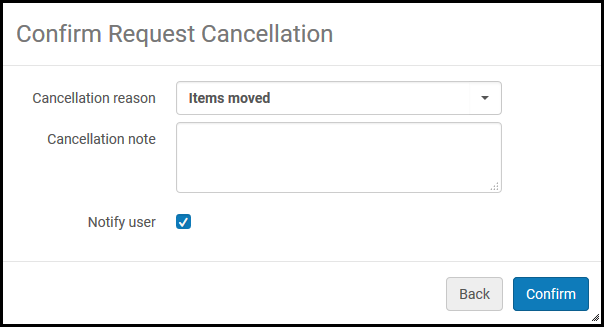 リクエストキャンセルの確認ページ
- キャンセル理由フィールドで、ドロップダウンリストからキャンセルの理由を選択します。キャンセルの理由をカスタマイズするには、Ex Librisサポートにお問い合わせください。
- キャンセルノートフィールドに、必要に応じてキャンセルに関するノートを追加します。
- キャンセルの通知をユーザーに送信するには、[ユーザーに通知]チェックボックスをオンにします。
- [確認]を選択してください。
- 「電子デジタル化に変更」– 物理リソースのデジタル化のリクエストから、電子リソースのデジタル化のリクエストに変更します。目録にリクエストを満たすことができる電子アイテムがある場合にのみ変更できます。
- 物理的なデジタル化に変更– 電子リソースのデジタル化のリクエストから、物理リソースのデジタル化のリクエストに変更します。目録にリクエストを満たすことができる冊子アイテムがある場合にのみ変更できます。
- 見る– UResolver画面(Almaリンクリゾルバ)ページが表示され、アイテムのリソースが表示されます。このオプションは、アイテムに電子デジタル化設定がされている場合にのみ表示されます。
Attaching Digitized Items to Be Sent to a Patron
[付属物]ページで、リクエストユーザーに送信するドキュメントを添付します。The Attachments page is visible when you select Attach Documents from the row actions for an item on the In Process Items page.
- To add an attachment, select Browse in the File name field and select a file.Add a URL and/or note, if required, and select AddAttachment.付属物は、[付属物]タブの付属物のリストに表示されます。
- To edit an attachment, select Edit from the row actions list for the attachment that you want to update, modify the File name,URL, and Notes fields as required, and select Save Attachment.
- To delete an attachment, select Delete from the row actions list for the attachment that you want to delete and select Confirm in the Confirmation Message pop-up window.
- To download a file, select Download from the row actions list for the file that you want to download, specify the folder to which you want to save the file, and select OK.
- Click Refresh to see the upload status of your file.
- Click Done to complete the digitization process.
デジタル化リクエストに承認が必要な場合、リクエストが承認されると、以下に説明する通知Eメールが送信されます。
-
If the delivery method is Attach Documents - Attachment, the patron receives the digital file as an email attachment.An example of the Ful Digitization Notification Item letter follows.
- If the delivery method is Attach Documents - Link, the patron receives a link to download the file in an email.この方法を使用すると、Eメールのサイズが小さくなり、1回のリクエストでより多くのデジタルリソースを簡単に扱えるようになります。An example of the Document Delivery Notification Letter follows.通知レター - 文書リンク
図書館管理者は、機関に関連するログインオプション(ローカル/ LDAP、SAML、またはCAS)のみが対象となるようにEメールを設定する必要があります。
When selecting in the relevant select here link, the patron will first be required to log in using the standard Alma/Primo credentials.ログインに成功すると、ユーザーはドキュメントストレージフォルダに保存されているデジタル化されたファイルにアクセスできます。アクセスは、デジタル化と著作権ルールで設定された回数に制限されることに注意してください。設定された日数が経過するとファイルがストレージから自動的に削除されます。This value is defined in the document_delivery_cleanup_days parameter.See Configuring Other Settings.
- If the delivery method is Digital Inventory (representation), the digital file is made available in the repository under the same title (items attached to the same bib record) as the physical item, and can then be requested by a patron.
For both link digitization requests and attachment digitization requests, the file size limit is 25 MB.デジタルファイルサイズの合計が制限に達すると、メッセージが表示されます。デジタル化された資料がEメールの付属物として送信される場合、追加でEメール関連の制約が適用される場合があります。
