
機関からのリクエストの作成
アイテムレベルのリクエスト、タイトルレベルのリクエスト、ワークオーダーリクエスト、一般取り置きリクエスト、非目録化逐次刊行物アイテムリクエストなど、機関内のユーザーに対してリクエストを作成できます。
This page describes how operators can create requests in the institution, including physical, electronic, work order requests, digitization requests, etc. It also includes information on converting a hold request to a resource sharing request, creating requests for non-cataloged serial items, supporting personal delivery for requests, etc. For a detailed overview of the different types of requests, the pages in Alma from which requests can be accessed, the request queue, resource sharing requests and request jobs see Requests in Alma.
For a full overview of the requests workflow starting from the different ways a request can enter into the Alma system through to scanning and final processing, see Resource Requests Workflow.
For links to all the main fulfillment documentation pages see Fulfillment.
リクエスト作成の概要
An operator creates a request by searching for titles or items in the institution (see Searching in Alma), and then creating a request for a title or item as described on this page.You can also move requests from one circulation desk to another using the Transfer Requests option (see Transfer Requests).
The type of request that you can create, and its limitations, depend on whether the title/item is physical or electronic, whether the titles have holdings and if these are monograph or serial, the policies of the item (see Configuring Item Policies), the fulfillment unit that services the request (see Configuring Policies), and the institution (see Configuring Terms of Use).
For more information on requests, see Requests in Alma.
Creating a Request
リクエストを作成するのは、次のいずれかの役職でなければなりません:
- リクエストオペレータ
- フルフィルメントサービスオペレータ
For information on creating digitized request, see Digitized Fulfillment (3:49 min).This also include information on checking if a digitization request exists, and how to upload a file to a citation if needed.
After locating a specific title or item in the institution's repository, you can create a request for it.
すでに貸出中の書誌レコードに属する資料を、その資料を借りているユーザーに対してリクエストすることができます。To do so, ensure that the enable_request_during_loan_for_different_policy value is true in the Customer Parameters Mapping Table (see Configuring Other Settings).If the items do not have different policies, you cannot place the request for the second item belonging to the same bibliographic record.
送信されたリクエストに対してAlmaによって自動的に更新されるフィールド
送信されたリクエストについては、以下のフィールドが自動更新されます:
「ワークフローステップ」、「プロセス日」および「管理者」フィールドは、リクエストがアクティブ化された場合にのみ割り当てられます。リクエストがキューに残っている場合、これらのフィールドは割り当てられません。
-
Workflow step – The workflow step is updated according to the information that was entered for the user configuration and patron privileges - see Resource Request Workflow.
- Process date – The date that the workflow step was activated.
- Status – Alma assigns the Active status.
- Request date – The current date.
-
Managed by – The library and circulation desk that are processing (managing) the current workflow step.This field indicates to which desk the request's action is currently assigned.その意味は現在のアクションによって異なります。例:
- リクエストがまだアクティブでない場合(キューにあり、アイテムが利用可能になるのを待機中)、管理部門はありません。
- リクエストが棚からの選択リストにある場合、管理部門がデスクに割り当てられます。
- リクエストが転送中の場合、管理部門はリクエストが最後にスキャンされ、転送が開始されたデスクになります。
- リクエストが保留棚にある場合、管理部門は保留棚のデスクです。
- Expiry date – The date on which the request expires
- Place in queue – The number of requests for the item (see Handling Processes and Requests)
利用者がリクエストを送信すると、Almaはリクエストされたアイテムを確認し、リクエスト可能かどうかを判断します。If a title level request is placed, then all of the title's items are checked.アイテムレベルのリクエストがあった場合は、その特定のアイテムがチェックされます。
リクエストを受け付けることができないアイテムが1つ以上ある場合、Almaはブロックされた理由を記載したメッセージを表示します:
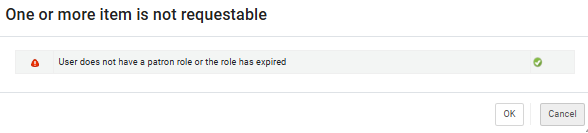
必要な権限を持っている場合、ブロックを上書きできる可能性があります。
If you see the One or more item is not requestable message, it means that some or all items under this title are blocked from being requested by the selected patron.
一部のアイテムのみがブロックされている場合、タイトルはリクエスト可能であり、「OK」を選択するとリクエストを送信できるようになります。リクエストフォームには、利用可能なリクエストオプションが表示されます。これらは、リクエスト可能なアイテムのみに基づいて計算されオプションです。
すべてのアイテムがブロックされている場合、リクエストを送信することはできません。「OK」を選択すると、送信できないリクエストフォームが開きます。
If you have the Override Blocks privilege, you will see an Override button.このボタンを使用すると、ブロックが上書きされます。リクエストフォームには、そのタイトルのすべてのアイテムから算出された利用可能なリクエストオプションが表示されます。これには、通常はリクエスト対象外となるアイテムも含まれます。
Creating Requests for Physical Titles or Items
アイテムレベルのリクエストと、アイテムが1つだけのタイトルレベルのリクエストの場合、リクエストされたアイテムを利用不可としてマークするようにAlmaを設定できます。リクエストされている資料は、資料利用不可としてマークされ、処理ステータスはリクエスト済みとなります。In such cases, if you release or cancel the request, the item's Status becomes Item in Place.この機能を有効にするには、Ex Librisサポートにお問い合わせください。
この機能の目的は、アイテムにリクエストが送信されるとアイテムを使用不可としてマークし、アイテムをリクエストにバインドしたり、それ以上のリクエストを防止したりしないことです。Activating this mapping table does not prevent additional requests to be placed once a request exists on a physical item.
You can also place a request on both the title and item level from the PO line (see Manually Creating a PO Line).
To create a request for a physical title/item:
If you select a serial item, the Description field is displayed, enabling you to select the exact issue.The option All appears if some of the items were not labeled with an Enum or Chron.すべてを選択すると、すべてのアイテム(説明のないものも含む)が表示されます。
- Search for a physical title/item (see Searching in Alma).
- In the search results, select Request from the row actions list.リクエストの作成ページが表示されます。
- The Request type drop-down list is automatically filled per the last request.必要に応じて別のタイプを選択してください。
- 以下の様々なリクエストタイプの説明に従って、情報を入力します。
- 一般取り置きリクエスト - アイテムを含まない取り置きのリクエストを行った場合にのみ表示されます。For details on creating a general hold request, see Creating a General Hold Request.次のフィールドが表示されます:
- 所蔵–アイテムの所蔵を選択します。See Creating a Non-Cataloged Serial Item Request.
- 手動説明–説明を入力します。See Creating a Non-Cataloged Serial Item Request.
- General Digitization Request- Appears only when placing a request for a holding that contains no items.For details on creating a general digitization request, see Creating a General Digitization Request.
- Booking request- Reserve resources for a patron during a specified time frame.For prerequisites and conditions for creating booking requests, see Creating Booking Requests.
- リクエストの作成:
- リクエスタ – ユーザーを検索または選択します。
- Override Booking Policies – Ignore the following booking policies: future limit, maximum allowed booking length, and back-to-back bookings by the same user.
- Note – This field is limited to 1000 characters.
- Date Range – The date range for the request.将来の日付のみを入力できます。
- Pickup At – Destination for pickup.This field includes the locations specified by the Pick Up Location policy defined in the Request Terms of Use.ドロップダウンリストのオプションは、ロケーション名に応じてアルファベット順に表示されます。Changing the pickup location of a request that is already on the hold shelf requires the rescanning in of the item in order to trigger the process for moving the item to the changed pickup location.
- 追加リクエスト属性:
- Material Type – Select the desired material type from the available types.
- リクエストの作成:
- Move permanently/temporarily – Permanently or temporarily change the location of a physical title or item.タイトルを移動すると、タイトルに関連付けられているすべてのアイテムが移動します。
- リクエストの作成:
- Note – This field is limited to 1000 characters.
- To – Select a library from the drop-down list.
- 追加リクエスト属性:
- Destination Locations – Where to deliver the copies.
- Call Number Type – Select from the drop-down list.See also call_number_type in Configuring Other Settings.
- Call Number – Enter the call number.
- Item Policy – The item's override policy for loan rules.For more information, see Configuring Item Policies.
- Manual Priority – Manually override the automatically calculated priority.See Request Priority for details.
- Due Back – When the items are due back.一時的に移動するアイテムについてのみ、表示されます。
- リクエストの作成:
- Patron digitization request – Create a digital copy (in full or in part) of a physical/electronic title or item on behalf of a patron.デジタル化リクエストでは、アイテムをデジタル化部署に移動するための一時的な移動のリクエストを生成します。デジタル化後、アイテムを恒久的なロケーションに返却する別のリクエストが生成されます。
- リクエストの作成:
- リクエスタ – ユーザーを検索または選択します。
- Note – This field is limited to 1000 characters.
- Partial Digitization – Select to indicate that the request is for only part of the item, not the entire item.このチェックボックスを選択すると、巻号や号数などの追加情報を入力するために、フィールドが表示されます。
- Managing Department – Select a digitization department.リクエストを管理できる部門が1つだけの場合、管理部門には自動的にその部門が入力されます。Primoからリクエストを送信する場合、ユーザーは管理部門を選択しません。In this case, Alma selects the department at the library for the requested item.(New for February 2026) If a library has multiple digitization departments, Alma automatically selects one that is a circulation desk and has a reshelf relation with the item's location.
Calculate Digitization Fee – Show the digitization fee that applies to this request, if any has been configured.これにより、リクエストに料金がかかることはありません。リクエストが完了または承認されると、手数料が適用されます。リクエストのフルフィルメントで使用される可能性のある手数料ポリシーが異なるアイテムがあれば、デジタル化が完了すると手数料計算が変更される場合があります。
For more information about configuring and using digitization request fees, see the Digitization Request Fees video (4:02 min).
- Copyright Declaration Signed by Patron – Select this checkbox to indicate that the patron selected his or her agreement with the copyright when submitting the request.
- 追加リクエスト属性:
- Material Type – Select the desired material type from the available types.
- Date Needed By – Select the date by which the request is needed.
- Manual Priority – Manually override the automatically calculated priority.See Request Priority for details.
- リクエストの作成:
- Patron physical item request – Create a request to loan a physical title or item to a patron.
- リクエストの作成:
- リクエスタ – ユーザーを検索または選択します。
- Note – This field is limited to 1000 characters.
- Pickup At – Destination for pickup.This field includes the locations specified by the Pick Up Location policy defined in the Request Terms of Use.ドロップダウンリストのオプションは、ロケーション名に応じてアルファベット順に表示されます。
Override On Shelf Request Policy – Override the configured fulfillment policy that determines where you can pick up resources.これにより、受け取りロケーションをリクエストできます。Changing the pickup location of a request that is already on the hold shelf requires the rescanning in of the item in order to trigger the process for moving the item to the changed pickup location.
The Override On Shelf Request Policy button is only displayed and enabled for users with role of Fulfillment Services Manager.
- タイトルレベルのリクエストを充足できる利用可能なコピーが複数ある場合、Almaは次の基準に基づいて適切なアイテムを選択します:
- The selected copy is one of the available ones.
- An item whose location is the same as the request's pickup location receives the highest priority to fulfill the request.You can enable a physical item request to be delivered to a user's home or office.詳細については、個別配送リクエストの作成を参照してください。
- デフォルトでは、リモートストレージファシリティアイテムは、リクエストのフルフィルメントにおいて最も低い優先度となります。こういった場合、他のアイテムが見つからない場合にのみ、リモートストレージアイテムにリクエストが登録されます。You can configure remote storage locations to take priority over non-remote storage locations by selecting the Prefer over other locations setting when configuring remote storage locations (see Adding a Remote Storage Facility).
- リクエストに対して同じロケーションにある複数のアイテムが見つかった場合、アイテムはランダムに選択されます。
- 追加リクエスト属性:
- Material Type – Select the desired material type from the available types.
- Date Needed By – Select the date by which the request is needed.
- Loan Period – The amount of time the user has before having to return the item.
- Manual Priority – Manually override the automatically calculated priority.See Request Priority for details.
- リクエストの作成:
- 一般取り置きリクエスト - アイテムを含まない取り置きのリクエストを行った場合にのみ表示されます。For details on creating a general hold request, see Creating a General Hold Request.次のフィールドが表示されます:
- Staff digitization request – Create a digital copy (in full or in part) of a physical title or item on behalf of a staff member.デジタル化リクエストでは、アイテムをデジタル化部署に移動するための一時的な移動のリクエストを生成します。デジタル化後、アイテムを恒久的なロケーションに返却する別のリクエストが生成されます。
- リクエストの作成:
- Note – This field is limited to 1000 characters.
- Partial Digitization – Select to indicate that the request is for only part of the item, not the entire item.このチェックボックスを選択すると、巻号や号数などの追加情報を入力するためのフィールドが表示されます。
- Managing Department – Select a digitization department.リクエストを管理できる部門が1つだけの場合、管理部門には自動的にその部門が入力されます。
- Copyright Attributes: These fields are used to record intended usage information.If copyright approval is required by the digitization rules, an approval task appears on the Approval Requests List page; see Digitization Processing.
- 巻–リクエストの巻。
- Issue – Issue for the request.
- 学生の数 – デジタル化された資料を使用している学生の数。
- Number of Copies for Students – The number of copies per student.
- Number of Copies per Staf – The number of copies per staff member.
- リソースページ総数–リクエストされたアイテムのページの総数。
- Required Chapters – Chapter numbers needed for the request.これは、デジタル化部署がスキャンする必要のある章を記録するためのフリーテキストです。The required chapters need to be separated by a comma or insert a range of chapters (1,2,5 or 1-3 or 1,3,5-6).If you use the Total Copyright Number of Chapters parameter in the Digitization and copyrights rules, this field must be populated.
- Total Chapters Count – Total number of chapters that are required.これは数値フィールドです。It is automatically filled after populating the Required Chapters field.
- Required Pages – Two sets of fields for From and To pages that are digitized.
- Total Required Pages – This field is prefilled automatically.
- Copyright Percentage – This field is prefilled automatically.
- Includes image(s) – Whether the pages to digitize include images.
- 利用開始日/利用終了日 – 資料を利用できる日付範囲。
- メモ 1/メモ 2/メモ 3–個人的なメモ (ある場合)。
- 追加リクエスト属性:
- Material Type – Select the desired material type from the available types.
- Date Needed By – Select the date by which the request is needed.
- Manual Priority – Manually override the automatically calculated priority.See Request Priority for details.
- リクエストの作成:
-
送信を選択します。The request is created with a unique identification number and processed (see Resource Requests).完了したリクエストは、次の情報とともに「リソースリクエストのモニタ」ページに表示されます。
- ワークフローステップ:取り置き棚から得る
- 手続きのステータス:新規
- 図書館による管理:目録が配置されている図書館
- 受付で管理:目録が配置されている貸出・返却受付
ユーザーは、取り置き棚処理のステータスが完了になった後に、取り置き棚からアイテムを受け取る準備ができたという通知を受け取ります。See Managing the Hold Shelf for details.For details on the resource request workflow, see Resource Requests Workflow.For a digitization request, the request appears on the In Process Items page (see Digitizing Items).For more information, see Digitization Processing.
電子タイトルのリクエストの作成
電子的にアクセス可能な記事、書籍の章などに基づいて、デジタル・ファイルを作成したいことがあります。たとえば、図書館にアクセスできないユーザーにサービスを提供する場合などです。
To create a request for an electronic title:
- Search for an electronic title (see Searching in Alma).
- 検索結果で、行のアクションリストから文書配送を選択します。リクエストの作成ページが表示されます。
- From the Request type drop-down list select the type of request and fill in the information as described for the various request types below.
- 「ユーザーの電子アイテムリクエスト」 – ユーザーに代わって、電子アイテムのデジタルコピー(全部または一部)を作成します。
- リクエストの作成:
- リクエスタ – ユーザーを検索または選択します。
- デジタル化箇所 - 部分デジタル化チェックボックスの下にあるフィールドに加えて、情報を新たに入力するためのフリーテキスト・フィールドです。
- Partial Digitization - Select to indicate that the request is for only part of the item, not the entire item.このチェックボックスを選択すると、巻号や号数などの追加情報を入力するためのフィールドを表示します。
- Managing Department - Select a digitization department.リクエストを管理できる部門が1つだけの場合、管理部門には自動的にその部門が入力されます。
- 追加リクエスト属性:
- Date Needed By – Select the date by which the request is needed.
- リクエストの作成:
- Staff electronic digitization request – Create a digital copy (in full or in part) of an electronic item on behalf of a staff member.
- リクエストの作成:
- Note – This field is limited to 1000 characters.
- Partial Digitization – Select to indicate that the request is for only part of the item, not the entire item.このチェックボックスを選択すると、巻号や号数などの追加情報を入力するためのフィールドを表示します。
- Managing Department – Select a digitization department.リクエストを管理できる部門が1つだけの場合、管理部門には自動的にその部門が入力されます。
- Copyright Attributes: These fields are used to record intended usage information.If copyright approval is required by the digitization rules, an approval task appears on the Approval Requests List page; see Digitization Processing.
- 巻–リクエストの巻。
- Issue – Issue for the request.
- 学生の数 – デジタル化された資料を使用している学生の数。
- Number of Copies for Students – The number of copies per student.
- Number of Copies per Staff – The number of copies per staff member.
- リソースページ総数–リクエストされたアイテムのページの総数。
- Required Chapters – Chapter numbers needed for the request.これは、デジタル化部署がスキャンする必要のある章を記録するためのフリーテキストです。The required chapters need to be separated by a comma or insert a range of chapters (1,2,5 or 1-3 or 1,3,5-6).If you use the Total Copyright Number of Chapters parameter in the Digitization and copyrights rules, this field must be populated.
- Total Chapters Count – Total number of chapters that are required.これは数値フィールドです。
- Required Pages – Two sets of fields for From and To pages that are digitized.
- Total Required Pages – This field is prefilled automatically.
- Copyright Percentage – This field is prefilled automatically.
- Includes image(s) – Whether the pages to digitize include images.
- 利用開始日/利用終了日 – 資料を利用できる日付範囲。
- メモ 1/メモ 2/メモ 3–個人的なメモ (ある場合)。
- 追加リクエスト属性:
- Date Needed By – Select the date by which the request is needed.
- リクエストの作成:
- 「ユーザーの電子アイテムリクエスト」 – ユーザーに代わって、電子アイテムのデジタルコピー(全部または一部)を作成します。
-
送信を選択します。The request is created with a unique identification number and processed (see Resource Requests).完了したリクエストは、次の情報とともに「リソースリクエストのモニタ」ページに表示されます。
- ワークフローステップ:取り置き棚から得る
- 手続きのステータス:新規
- 部門別管理: 電子アイテムが置かれている部門
For a digitization request, the request appears on the In Process Items page (see Digitizing Items).For more information, see Digitization Processing.
長期デジタル貸与リクエストの作成
スタッフは、顧客に代わって長期デジタル 貸与を通じてデジタル表現にアクセスするリクエストを作成できます。For more information, see Long Term Digital Loans.
Creating a Work Order Request
リクエストを作成するのは、次の役職でなければなりません。
- フルフィルメントサービスオペレータ
- 貸出カウンターの担当/責任者
- リクエストオペレータ
ワークオーダーは、冊子アイテムでプロセスを実行する必要があることを示します。Work order types are created on the Work Order Types page, accessible from the General Configuration menu (see Configuring Work Order Types).
You can monitor the progress of work orders on the Resource Request Monitoring page (Fulfillment > Resource Requests > Monitor Requests & Item Processes).
To create a work order request:
- From a physical item search (see Searching in Alma), select Work Order from the row actions list.ワークオーダーオプションは、冊子アイテムを検索する場合にのみ表示されます。[アイテムを処理中にする]ページが開きます。
-
プロセスタイプのドロップダウンリストで、ワークオーダーを選択します。
The displayed work orders are created on the Work Order Types page, accessible from the General Configuration menu (see Configuring Work Order Types).
- 取り置き棚から選ばないフィールドで:
- 取り置き棚の上のアイテムのワークオーダーを作成したい場合は、取り置き棚から選ばないを選択しないでください。
- すでに貸出・返却受付に存在するアイテムのワークオーダーを作成したい場合は、取り置き棚から選ばないを選択します。These items do not appear on the Pick Up Requested Resources page (Fulfillment > Resource Requests > Pick From Shelf).
- 必要に応じて、ノートフィールドにノートを入力します。これにより、作業指示リクエストにメモが直接追加されます。For adding notes to work orders in process, see Adding a Note to a Work Order in Process).
- 管理部署フィールドからワークオーダーの宛先を選択します。このフィールドのオプションは、選択したワークオーダータイプに関連付けられた部署です。
- 送信を選択してワークオーダーを選択します。
次のいずれかの方法でワークオーダーを作成することもできます。
- Scan an item's barcode on the Scan In Items page when scanning an item, and select Work Order from the row actions list to open the Create Request page.上記の手順のステップ2からステップ6に従ってください。
- Scan an item at a work order department (you must be at a work order department; see Library/Desk Selector in The Persistent Menu).You then select the item's status in the Set status to field.For details on creating item statuses, see Adding a Work Order Type Status.
- Select Work Order from the row actions list for an item on the List of Items page, which appears when selecting Items for a physical titles search result.For details on the List of Items page, see Working with the List of Items.
To create a work order for a set of physical items, define and run the Create Physical Item Work Orders job.
For details on scanning items, see Scanning Items.
For an in-depth overview of work orders, see Physical Inventory - Defining and managing work orders in Alma.
Creating a General Hold Request
一般取り置きリクエストを作成するのは、次の役職でなければなりません。
- フルフィルメントサービスオペレータ
- リクエストオペレータ
一般取り置きリクエストは、アイテムのない取り置きをリクエストすると作成されます。アイテムがAlmaに追加/挿入されると、リクエストしているユーザーが受け取るまで取り置き棚に置かれます。
エンドユーザーの一般的な保留要求オプションを防止または変更し、[取得]タブのラベルをカスタマイズするには、それぞれ次の構成を実行します。
- Add rules for general hold requests on the Discovery Interface Display Logic page (Configuration Menu > Fulfillment > Discovery Interface Display Logic > Display Logic Rules).For more information, see Configuring Display Logic Rules.
- Customize the label for the c.uresolver.getit2.request.noItems parameter on the Discovery Interface Labels Code Table page (Configuration Menu > Discovery > Display Configuration > Labels) or AlmaRequestAnyItem under Request options Labels in Primo VE.For more information, see Configuring Labels.
To create a general hold request:
- Search for a title and locate a result that has a holding but no items.
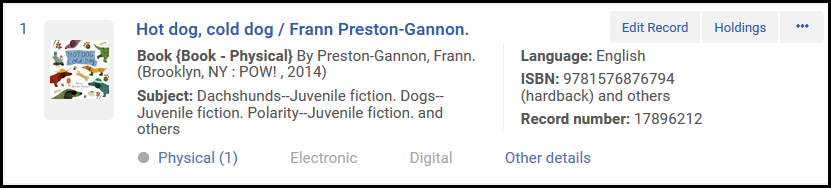
- リクエストを選択します。リクエストの作成ページが表示されます。
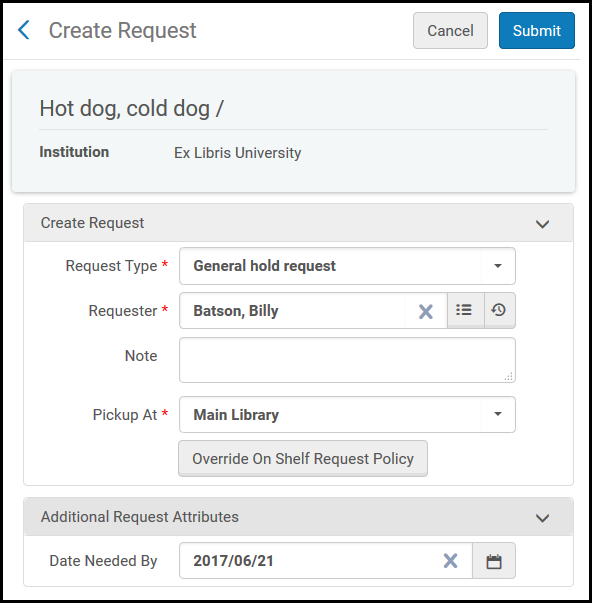
- リクエスト/プロセスタイプフィールドで、一般取り置きリクエストを選択します。ページが更新されます。
- 依頼者フィールドでは、アイテムをリクエストしているユーザーを選択します。For multi-part records, there is a mandatory "Holdings" field.One of the following fields needs to be filled; Chapter/Article Title, Chapter/Article Author, From, To, Volume, Issue, Part, Publication Date, Manual Description
- 受け取り場所フィールドで、資料が利用可能になったときに受け取る場所を選択します。これは、取り置きリクエストが行われた場所です。
-
If the record you are requesting is serial and the holdings record includes a summary field, you'll need to enter information on the specific issue required.これは、説明フィールド(巻、号、パート、章/記事のタイトルなど)の1つまたは手動の説明に入力することで実行できます。
-
In the Additional Request Attributes section, you can select Date Needed By for a date by which the item is needed (if the request is not fulfilled by that time, it is canceled).
このセクションは必須ではありません。
-
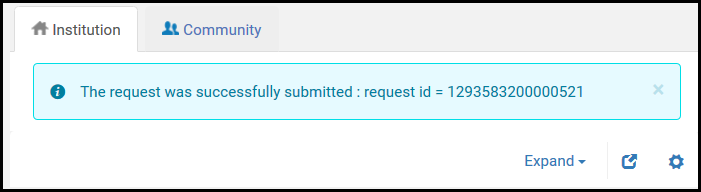
送信を選択します。ページの上部に、リクエストが正常に送信されたことを示す確認メッセージが表示されます。
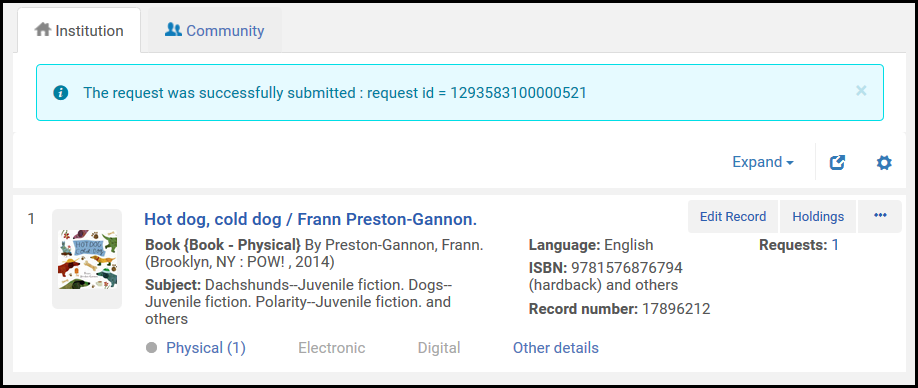
On the Resource Request Monitoring page (Fulfillment > Resource Requests > Monitor Requests & Item Processes), search for the request using the request ID displayed with the confirmation message.次の値を持つリクエストが表示されます。
- ワークフローステップ = 取り置き棚から得る
- リクエストタイプ = 一般取り置きリクエスト
If you've entered descriptive fields, they appear as part of the manual description, to help librarians locate the required issue.このセクションは必須ではありません。
- 次のようにアイテムを作成し、Almaにスキャンします。
- Ensure your location is the library that is managing the hold request (specified in the Managed by: value on the Resource Request Monitoring page; see Library/Desk Selector in The Persistent Menu).
- On the Scan In Items page (Fulfillment > Resource Requests > Scan In Items) select Create Item.[所蔵タイプの選択]ダイアログボックスが表示されます。
- 既存を選択し、選択を選択します。The Quick Cataloging page appears.
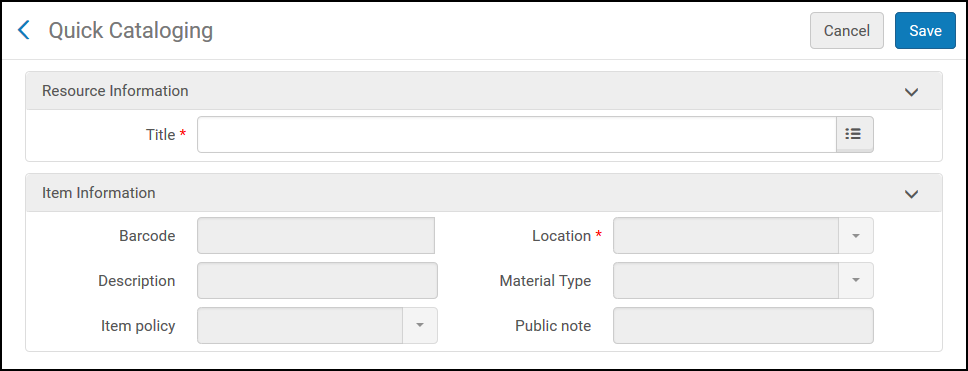
タイトルフィールドで、一般取り置きリクエストを作成したタイトルを検索します。新しいアイテムをリンクするタイトルを選択し、関連するアイテム情報を入力します。
図書館およびロケーションフィールドには、アイテムが取り置き棚に置かれる図書館/ロケーションが自動的に入力されます。The barcode in step 9b is to be used.
- [保存]を選択します。アイテムが作成されます。
The item is placed on the hold shelf of the specified library (if our location is indeed that library - otherwise the item is created with a transit request to the pickup library), and the item's Destination value on the Scan In Items page is On Hold Shelf.要求された所蔵がシリーズ刊行物である場合、既存の要求を実行できる可能性があることを示すポップアップが表示されます。図書館員は、行のアクションで[リクエストに添付]を選択することで、新しいアイテムをリクエストに添付することができます(アイテムがリクエストを満たす場合のみ)。
受入技術サービスのワークオーダーが作成されます。
The work order creation mentioned above is not always the case since the general hold request has many variances depending on the workflow selected.
Creating a General Digitization Request
一般デジタル化リクエストを作成するのは、次の役職でなければなりません。
- フルフィルメントサービスオペレータ
- リクエストオペレータ
一般デジタル化リクエストは、アイテムのない所蔵をリクエストすると作成されます。When the item is added/inserted into Alma, the request is set to Pickup from Shelf status.一致するコピーが検出されスキャンされると、リクエストはデジタル化リクエストの通常のフローに従います。
For information on placing requests on issues that haven't been cataloged yet, see requesting non-cataloged serial items.
エンドユーザーの一般的な取り置きリクエストオプションを防止または変更し、[取得]タブのラベルをカスタマイズするには、それぞれ次の設定を実行します。
- Add rules for general digitization requests on the Discovery Interface Display Logic page (Configuration Menu > Fulfillment > Discovery Interface Display Logic > Display Logic Rules).For more information, see Configuring Display Logic Rules.
- Customize the label for the c.uresolver.getit2.digitize.noItems parameter on the Discovery Interface Labels Code Table page (Configuration Menu > Fulfillment > Discovery Interface Display Logic > Labels)or AlmaGeneralDigitization under Request options Labels in Primo VE.For more information, see Configuring Labels.
To create a general digitization request:
- Search for a title and locate a result that has a holding but no items.

- リクエストを選択します。リクエストの作成ページが表示されます。
- リクエスト/プロセスタイプフィールドで、一般デジタル化リクエストを選択します。ページが更新されます。
- 依頼者フィールドでは、アイテムをリクエストしているユーザーを選択します。
- デジタル化する部分フィールドでは、デジタル化する特定のセクションを入力します。
- If the record you are requesting is serial, you'll need to enter information on the specific issue required.これは、説明フィールド(巻、号、パートなど)の1つまたは手動の説明に入力することで実行できます。
- 管理部門フィールド欄では、デジタル化を担当する部門/カウンターを選択します。
- In the Additional Request Attributes section, you can select Date Needed By to enter a date by which the item is needed (if the request is not fulfilled by then, it is canceled).
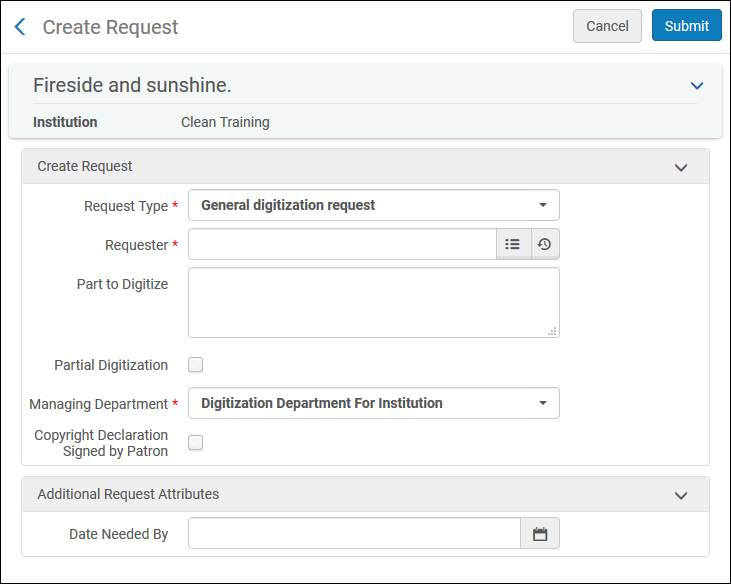
- 送信を選択します。A confirmation message appears at the top of the page, indicating that the request was successfully submitted.
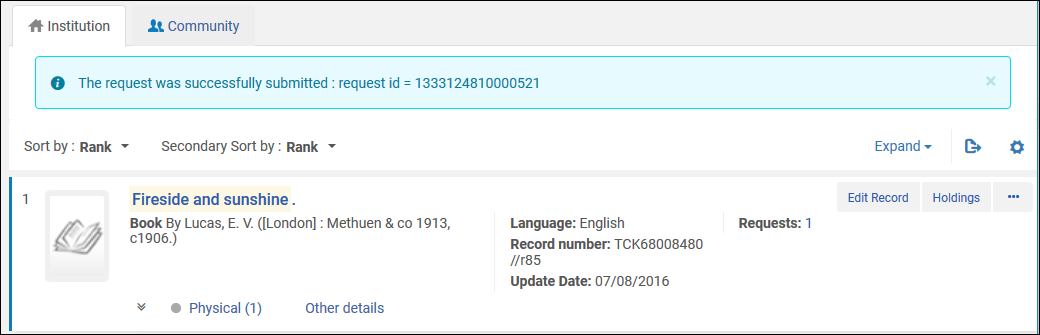
- On the Resource Request Monitoring page (Fulfillment > Resource Requests > Monitor Requests & Item Processes), search for the request using the request ID displayed with the confirmation message.次の値を持つリクエストが表示されます。
- ワークフローステップ = 取り置き棚から得る
- リクエストタイプ = 一般デジタル化リクエスト
手動で説明、巻、号、部、または刊行日を入力した場合、それらは説明の一部として表示されるので、図書館員が必要な号を見つけるのに役立ちます。
- Fulfill the request: The general digitization request can be fulfilled in two ways (For more information, see:Digitizing Items):
- デジタルドキュメントの配信ページを使用することで、アルマでカタログを作成せずにファイルをアップロードして送信することができます。
- アイテムを作成してAlmaにスキャンし、リクエストに添付して、デスク/部門でデジタル化リクエストを処理するには、次のようにします。
- Ensure your location is the library that is managing the digitization request (specified in the Managed by: value on the Resource Request Monitoring page; see Library/Desk Selector in The Persistent Menu).
- On the Scan In Items page (Fulfillment > Resource Requests > Scan In Items), enter a barcode in the Scan item barcode field and select Create Item.[所蔵タイプの選択]ダイアログボックスが表示されます。
- 既存を選択し、選択を選択します。[クイック目録ページ]が表示されます。Select the title to which the new item should be linked, and fill in the relevant item information.
タイトルフィールドで、一般デジタル化リクエストを作成したタイトルを検索します。
図書館およびロケーションフィールドには、アイテムが取り置き棚に置かれる図書館/ロケーションが自動的に入力されます。
- 保存を選択します。アイテムが作成されます。
資料はデジタル化部門に送られ、デジタル化リクエストのフルフィルメントに向けた標準ワークフローが有効になります。要求された所蔵がシリーズ刊行物である場合、既存の要求を実行できる可能性があることを示すポップアップが表示されます。The librarian can attach the new item to the request by selecting Attach to request in the row actions.
(New for February 2026) You can assign a digitization priority level to a location (seeConfiguring Physical Locations).
取り置きリクエストからリソースシェアリクエストへの自動変換
ポリシーと利用規約を設定して自動変換を許可するのは、次のいずれかの役職でなければなりません。
- 一般システム管理者
- フルフィルメント管理者
ユーザーにより良いサービスを提供するために、フルフィルメントされていない取り置きおよびユーザーの電子化リクエストは、リソースシェアリクエストに変換される場合があります。If the request has Automatically Convert to Resource Sharing set to true, and the request is going to be canceled due to execution of either of the jobs, Requests - Handle Expiration Step or Requests - Recalculate After Inventory Update, the request is converted.
変換する前に、次の検証が行われます:
- 受取場所は、図書館または個別配送です(貸出・返却受付ではありません)。
- リソースシェア図書館に受け取りロケーションとの配送先関係がある。
- リソースシェア図書館にデフォルトのロケーションがある。
- 必要期限は過去のものではない。
これらのいずれかがtrueでない場合、リクエストは変換されません。
取り置きリクエストがリソースシェアリクエストに変換されると、リソースシェアリクエストへの変換の理由がキャンセルレターとしてユーザーに送信されます。キャンセル理由リソースシェアリクエストへの変換により既存のリクエストがキャンセルされます。
新しいリクエストのステータスは貸出リクエスト作成済みです。
To set a policy for converting:
- On the Terms of Use and Policies table (Configuration Menu > Fulfillment > Physical Fulfillment > Terms of Use and Policies), select Add a Terms of Use.
- Select Request and select Next.
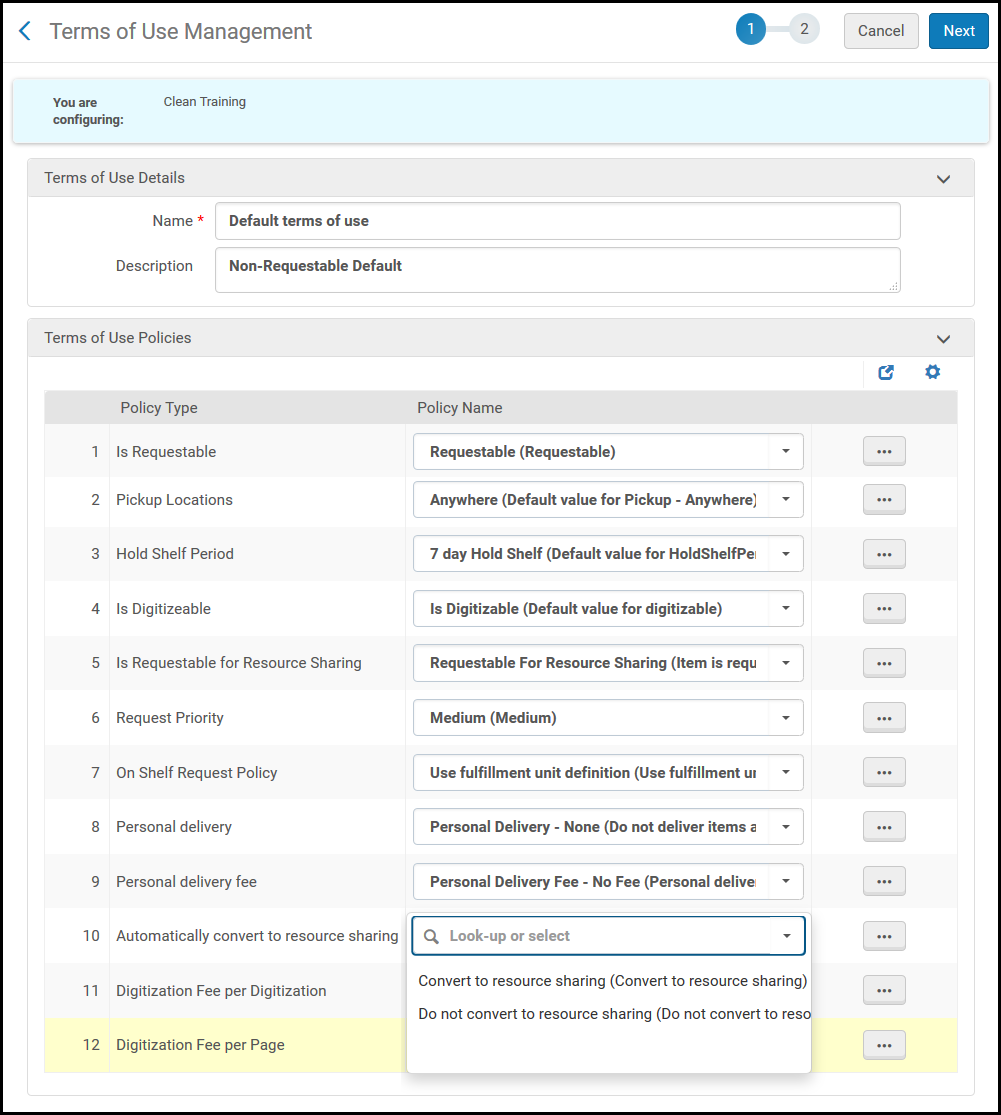
- リソースシェアに自動変換の横のドロップダウンボックスから、リソースシェアに変換を選択し、次へを選択します。
- このポリシーの設定を確認し、保存を選択します。
ポリシーは、上記ジョブのいずれかがアクティブであり、リクエストを満たす既存の一致する冊子目録が期限切れのため取り置きリクエストをキャンセルする必要があると判断した場合にのみ有効になります。
リクエストからリソースシェアリクエストへの手動変換
You can manually convert a request to a resource sharing request from the search results - see Handling Processes and Requests for more information.You can also manually convert a request to a resource sharing request from the Pick Up Requested Resources and Resource Request Monitoring pages - see Pages for Managing Requests for more information.
Creating a Request for a Non-Cataloged Serial Item
非目録化逐次刊行物アイテムリクエストを作成するのは、次のいずれかの役職でなければなりません。
- フルフィルメントサービスオペレーター フルフィルメント管理者
- リクエストオペレータ
図書館に逐次刊行物アイテムが存在するが、まだAlmaに目録化されていない場合でも、アイテムリクエストを作成できます。アイテムをリポジトリに追加した後、アイテムをリクエストに添付できます。
リクエストを作成するとき、説明を手動で追加する必要があります。アイテムをリポジトリに追加するときは、同じ説明を使用する必要があります。
To create a request for a non-cataloged serial item when there are no items in the inventory:
- Search for a physical title or item of a serial item that is not in the inventory (see Searching in Alma).
- 行のアクションリストからリクエストを選択します。リクエストの作成ページが表示されます。
- In the Request Type field, select General hold request.
- 依頼者フィールドで、リクエストしているユーザーを選択します。
- 所蔵フィールドで、アイテムの所蔵を選択します。
- In the Manual Description field or one of the descriptive fields (volume, issue, part, etc.), enter a description for the request to identify the specific issue required.
- 送信を選択します。A confirmation message appears on the search results page.
To create a request for a non-cataloged serial item when there are items in the inventory:
- Search for a physical title or item of a serial item that is in the inventory (see Searching in Alma).
- 行のアクションリストからリクエストを選択します。リクエストの作成ページが表示されます。
- リクエストタイプフィールドにおいて、予約以外のリクエストまたはプロセスタイプを選択します。The page refreshes.
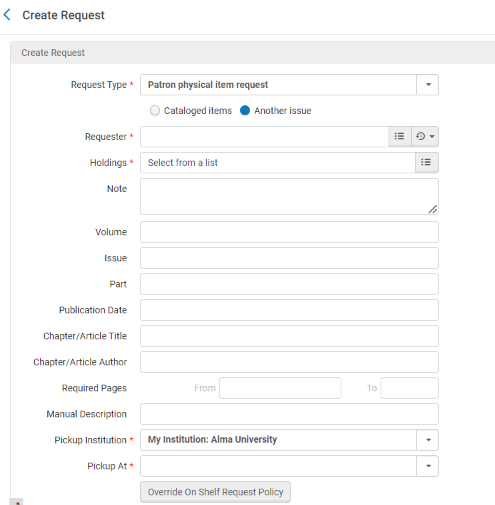
- Under the Request Type field, select Another issue.Note that for Primo VE, the Request other issue button only displays when an item is requestable.Alma randomly picks an item to evaluate for this purpose, since Alma assumes that all items are equally requestable or non-requestable.
- 依頼者フィールドで、リクエストしているユーザーを選択します。
- 所蔵フィールドで、アイテムの所蔵を選択します。
- In the Manual Description field or one of the descriptive fields (volume, issue, part, etc.), enter a description for the request to identify the specific issue required.
- 送信を選択します。A confirmation message appears on the search results page.
To create an item and attach it to a request:
If a cataloged item is found that fits the request, it can be scanned in and attached to the request.When an item from the requested holdings is scanned in, the operator is notified that there are requests it may fulfill and can view the request and attach it to the item.
It is also possible to fulfill the request without scanning/adding an item, by uploading a file and sending it using the Deliver Digital Documents page (For more information, see:Digitizing Items).
必要なアイテムがまだカタログ化されていない場合は、Almaに追加できます。
- On the Scan In Items Page (Fulfillment > Resource Requests > Scan In Items), select Create Item and select Existing in the resulting dialog box.[クイック目録ページ]が表示されます。
- タイトルフィールドで、関連するタイトルをブラウズします。The Library and Location fields enable you to select the existing holdings of the title.
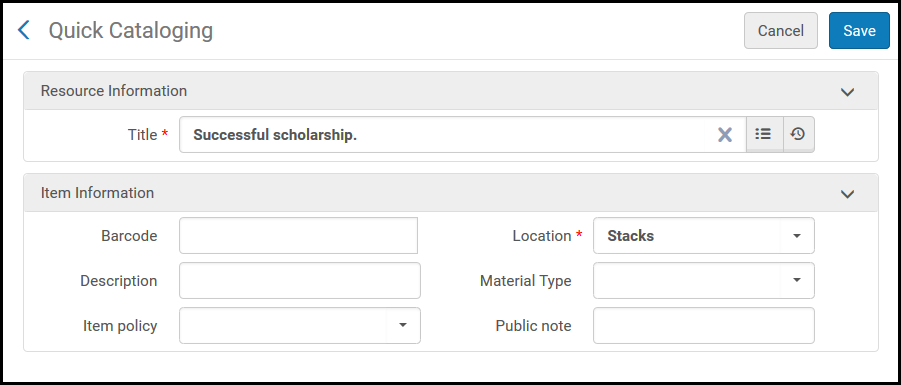
- バーコードフィールドに、アイテムのバーコードを入力します。
- In the Description field, enter the description of the issue you're cataloging.
- Optionally add a material type, item policy, and/or public note (see Configuring Item Display for Primo VE).
-
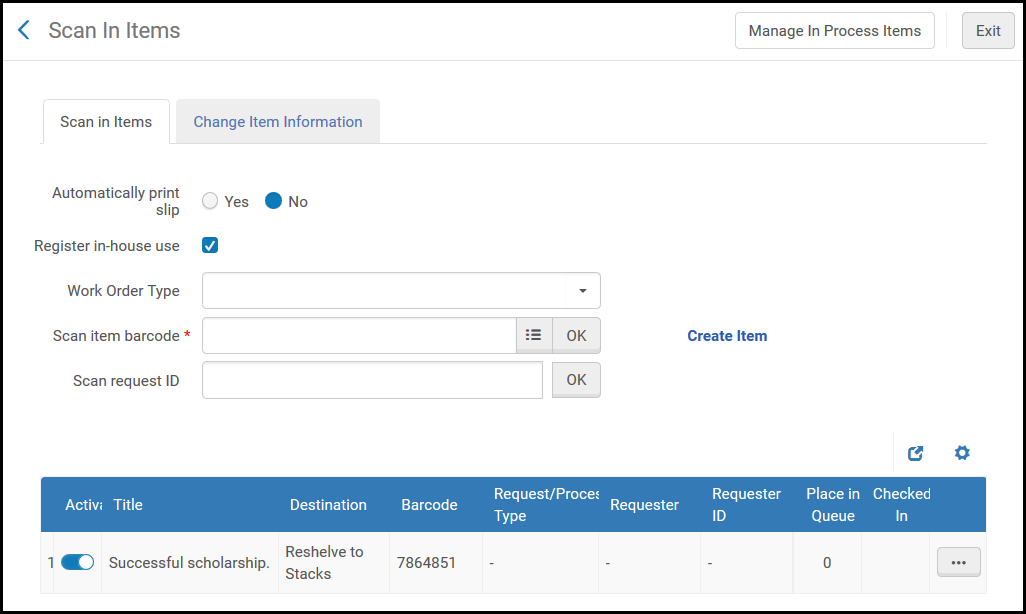
[保存]を選択します。アイテムが[アイテムをスキャンする]ページに表示されます。
受入技術サービスのワークオーダーが作成されます。新しい書誌レコードを作成する場合にのみ作成されることに注意してください。
- 冊子タイトル検索結果のアイテムを選択すると表示されるアイテムのリストページで、アイテムの行のアクションリストからワークオーダーを選択します。For details on the List of Items page, see Working with the List of Items.
- 行のアクションリストからリクエストに添付を選択します。A dialog box appears, where you select the request's title to attach.
- タイトルのチェックボックスを選択し、添付を選択します。[アイテムをスキャンする]ページに、スキャンしたアイテムが表示されます。The item's destination (for Patron physical item requests) is the request destination (the item's pickup location).
Supporting Personal Delivery for Requests
リクエストの個別配送をサポートするようにAlmaを設定するのは、次のいずれかの役職でなければなりません。
- 一般システム管理者
- フルフィルメント管理者
Almaでは、リクエストされた冊子アイテムをユーザーのホームまたはオフィスの住所に個別配送できます。When an item is scanned in at a desk that can fulfill such a request (according to the configuration detailed below), the item is automatically checked out to the patron, and a Ful Personal Delivery Letter as well as a Loan Receipt Letter are sent to the patron.ローンがアクティブ化されなかった場合(たとえば、ユーザーブロックが原因で)、アイテムは代わりに取置き棚に保持されます。
個別配送は、フルフィルメントネットワーク経由ではリクエストできません。
To enable and use this functionality, the Fulfillment Unit rules must be configured in addition to TOUs (see Configuring Physical Fulfillment).
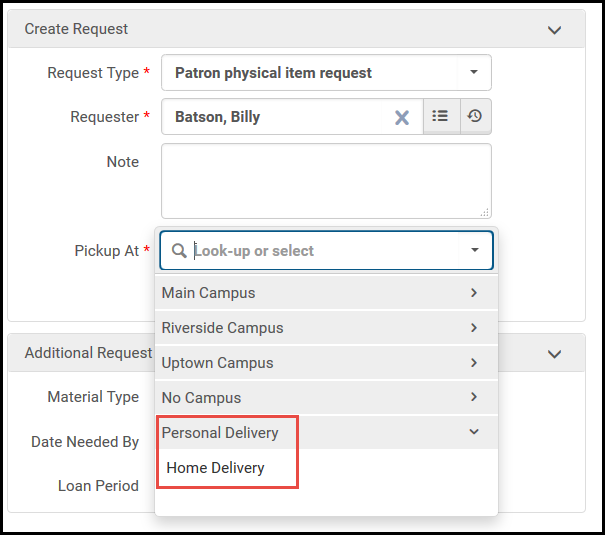
この機能を有効にして使用するには、次を設定する必要があります。
- 手渡しサポートのオプションは、アイテムを貸し出すことができる(場所のチェックアウトを実行できる)貸出・返却受付デスクで構成する必要があります。この貸出・返却受付デスクには、チェックアウトに失敗した場合にアイテムを保持するための取置き棚も必要です。For more information, see Adding a Circulation Desk.貸出・返却カウンターが複数ある場合は、いずれかのカウンターでランダムに受け取りリストが作成されます。
- 個別配送リクエストポリシーを利用規約に添付して、アイテムの個別配送を許可する必要があります。また、配送料を含めるように個別配送料リクエストポリシーを設定することができます。For more information, see Configuring Terms of Use.
- ホーム/オフィスへの配送を妨げるユーザーブロックがないようにしてください。ユーザーのブロックがある場合、アイテムは取り置き棚に送られます。ブロックが解除されると、ユーザーは取り置き棚からアイテムを受け取ることができます。
- Addresses with types Home or Office must be configured in the requesting user's User Details record.For more information, see Managing User Contact Information.In addition, the institution can configure additional address types for personal delivery locations.For more information, see Configuring Additional Personal Delivery Locations.
- 資料が別の図書館のカウンターでスキャンされた場合、図書館は他の図書館が手渡しを処理できるようにする必要があります。これには、スキャンする図書館が手渡しを処理する機能を備えており(手渡しできるメインの貸出・返却カウンターがあること)、資料の所有者との関係があることも必要になります。See Editing a Library.
個別配送リクエストを満たすために棚から取り出されたアイテムは、個別配送をサポートするように設定されたデスクに通過されます。アイテムがスキャンされる受付が個別配送をサポートしていない場合、アイテムは個別配送をサポートするアイテム所有図書館内の受付に振替されます。
For more information about configuring home/office personal delivery, see the Home and Office Delivery video (7:52 min).
