
リソースリクエストのモニタ
リクエストとワークオーダーは、[リソースリクエストのモニタ]ページから管理できます。
This page describes how to view the list of requests including filtering them and general handling/management such as editing or cancelling requests, updating the expiry date, printing a call slip, etc. For the requests workflow starting from the different ways a request can enter into the Alma system through to scanning and final processing, see Resource Requests Workflow.
For links to all the main fulfillment documentation pages see Fulfillment.
リクエストを管理するのは、次のいずれかの役職でなければなりません。
- フルフィルメントサービスオペレータ – 図書館デスクに対するリクエストを表示
- リクエストオペレータ–受付に割り当てられているリクエストを表示
Requests and work orders that have been created and are pending or completed can be viewed and handled on the Resource Request Monitoring page (Fulfillment > Resource Requests > Monitor Requests & Item Processes).If you use the persistent search box to search for requests (see Searching in Alma), the results are also presented in this page.The page provides updated information on the various types of resource requests, and their progression within Alma.You can filter the list of requests, as explained below.You can also perform actions on individual requests from their row actions.For more information on requests, see Requests in Alma.
For more information, see Filling and Monitoring Physical Item Requests (1:41 min).
- When searching for a request in the persistent search box by Request ID, requests are located according to their ID value.
- 外部識別子の値でリクエストを検索することはできません。The External Identifier value of requests corresponds to their Internal Identifier value on the Resource Sharing Borrowing Requests page (see Managing Resource Sharing Borrowing Requests).
- For information on searching using special characters/diacritics, see Searching for Special Characters.
- For information on reports about completed requests, see Requests.
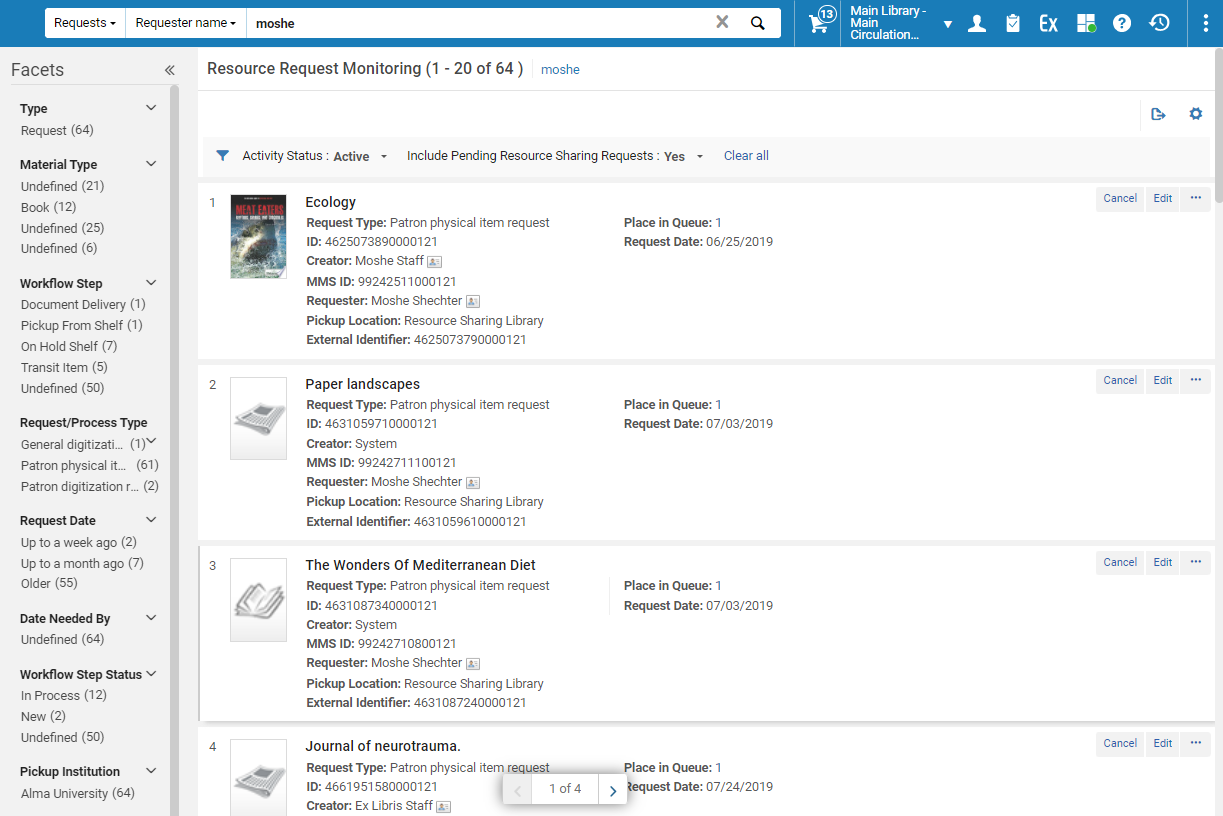
リクエストのリストのフィルタリング
アクティビティステータス「有効」、「完了」、および「すべて」でフィルタリングできます (有効なリクエストと完了したリクエストの両方が表示されます)。
現在、処理中に拒否されたリクエストは、リソースリクエストの監視では確認できません。これらのリクエストは、Analytics でフィルター「アクティブなリクエストフラグ」 = YES および「リクエストステータス」 = 拒否を使用して見つけることができます。このようなケースをクリアするには、商品のバーコードをスキャンする必要があります。これによりリクエストが完了し、その後、アクティビティステータスが「完了」または「すべて」としてリソースリクエストモニタリングで確認できるようになります。
使用可能なファセットは次のとおりです。
| ファセット | 説明 |
|---|---|
| タイプ | リクエストタイプ。プロセス(In Process)またはリクエスト(Request)のいずれか。 |
| 資料タイプ | リクエストで指定された資料タイプ。オプションは次のとおりです。オーディオブック、オーディオカセット、ブック、CD、フラッシュカード、製本発行、発行、DVD、その他。 |
| ワークフローステップ | 現在のアクティビティの名前。Options are: Await Approval, Deposit Item, Digital Inventory, Digitization, Digitize Item, Document Delivery, Hold Shelf Processing, In Process, On Hold Shelf, Pickup FromShelf,Requested, Transit Item, Undefined, and waiting for Remote. |
| リクエスト/プロセスタイプ | リクエスト/プロセスのタイプです。オプションは次のとおりです:
Requests :Booking Request,Patron Electronic Digitization Request,General Hold Request,Library Electronic Digitization Request,Patron Physical Item Request,Patron Digitization Request, as well as any configured work order type requests (see Configuring Work Order Types). Processes:Binding,Move Permanently,Move Temporarily,Ship Digitally,Ship Digitally From Electronic,Ship Physically,Restore Item,Transit forReshelving,Long Term Digital Loan Request, as well as any configured work order type process (see Configuring Work Order Types). |
| リクエスト日 | アクティブなリクエストのみ。リクエストが発行された日付。オプションは次のとおりです。
|
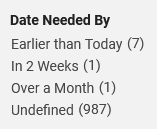
| 必要期限 | アイテムが必要になる日付です。Options are: Earlier Than Today, In 2 Weeks, Over a Month, and Undefined.
The facet for Date Needed By enables users to filter for requests according to a date specified by the patron on the request or indication when the resource is needed by.This enables users to filter for requests where the needed-by date is;Earlier Than Today(past), In the Next Two Weeks, in Over a Month from now, or was Undefined by the patron.
|
| ワークフロー段階ステータス |
現在のプロセスのステータス。Options are: New, Temp Storage, In Process, Physical Processing, Copy Cataloging, and Finish, and any configured work order type statuses (see Adding a Work Order Type Status). 処理中のワークフロー ステップ ステータスは、アイテムが取り置き棚に置かれる準備として取り置き棚処理中であることを示します。If a request is canceled while the item is In Process, the item is transferred to the expired hold shelf (see Managing Expired Hold Shelf Items). |
| 受け取り機関 | アイテムの受け取りがリクエストされた受け取り機関。 |
| 受け取りロケーション: | アイテムの受け取りがリクエストされる図書館。Options are the institution's libraries and any configured work order departments (see Configuring Work Order Departments).ホーム/オフィスへの配送リクエストは、ホーム配送およびオフィス配送ファセットによって示されます。 |
| 所有者 | アイテムがリクエストに関連付けられている図書館。アイテムがスキャンされて取り置き棚に置かれるようリクエストされると、所蔵図書館が表示されます。Before the item is scanned in, the request owner will show as Undefined.これは、タイトルレベルのリクエストとアイテムレベルのリクエストの両方に当てはまります。 |
プロセスとリクエストの処理
To navigate processes and requests:
- Navigate to the Resource Request Monitoring page (Fulfillment > Resource Requests > Monitor Requests & Item Processes)
- 該当のリクエストされたアイテムのアクションメニューで、次のいずれかのオプションを選択します:
- 監査証跡を表示 - 監査証跡処理リクエストページを開きます。このページには、リクエストされたアイテムに対して実行されたアクションのリストが表示されます。リクエスト処理の監査証跡ページで、アクション列に表示される値は次のとおりです。
- 取り置き棚
- 取り置き棚処理中
- 処理中
- デジタル化されたアイテム
- 保証金アイテム
- ドキュメント配送
- 棚から取得
- 承認待ち
- 通過アイテム
- リモートストレージ待機中
- 編集–「リクエストの作成」ページを開いて、リクエストを編集します。See Creating a Work Order Request.
- キャンセル-リクエストをキャンセルします。開いた [リクエストのキャンセルの確認] ページで、次の操作を行います。
- キャンセル理由ドロップダウンリストから、キャンセルの理由を選択します。For additional information about the options in this list and information about customizing the list for your institution, see Configuring Request Cancellation Reasons.
- メモの下で、必要に応じてキャンセルメモを入力します。
- To send a cancellation notification to the requester, select Notify user.送信される通知レターは、Fulキャンセルリクエストレターです。For information about configuring the notification, see Configuring Alma Letters.
- [確認]を選択してください。
- Update Expiry – Update the expiry date for the request (see the description in Pickup at Shelf).
- 行方不明としてマーク-リクエストされたアイテムを行方不明としてアップデートします。表示される「行方不明としてマーク」ページではいを選択します。
- View Title In Search – Display the title in the context of the repository search screen.
- スリップの印刷–リクエストされたアイテムの貸出依頼書を印刷します。予約リクエストの場合、このオプションは、現在の日付がリクエストの開始時間と終了時間の間にある場合にのみ表示されます。The print slip uses the Ful Resource Request Slip Letter.See Pickup at Shelf.
- Move to Task List- Display the page representing the workflow step of the request.For instance, if this request's workflow step is currently On Hold Shelf, display the Active Hold Shelf Items page.ワークフローステップが次のいずれかである場合、このオプションは表示されません。
- TransitItem
- AwaitApproval
- CommunicatingWithRemoteStorage
- HoldShelfProcessing
- WaitingForRemoteStorage
- Convert to Resource Sharing – Convert the request to a resource sharing borrowing request.単一のリクエストに集約された複数のリクエストがある場合、これらのリクエストはすべてこのアクションで変換されます。For more information about converting hold requests to resource sharing borrowing requests, see the Automatic Conversion of Hold Requests to Resource Sharing Requests video (6:07 min).
このオプションは以下に関連します:
- The request is a Hold or General Hold request (request for holding without item)
- The workflow step is Not Activated, Pickup-From Shelf, or Waiting for Remote Storage.[ストレージに送信されたリクエスト] ワークフロー ステップを含むアイテムには、[リソースシェアに変換] オプションが表示されません。
- ユーザーには、フルフィルメント サービス マネージャー/オペレーターの役割があります。この権限を持つ役職は、機関レベル範囲内である必要があることに注意してください。
- リクエストの必要期限が過ぎていない。
- リクエストされた受け取りロケーションは、リソースシェアリクエストでサポートされている。
- リクエストされた受け取りロケーションは図書館であり、ホーム配送またはリモート機関ではない。
- 監査証跡を表示 - 監査証跡処理リクエストページを開きます。このページには、リクエストされたアイテムに対して実行されたアクションのリストが表示されます。
アイテムが複数のリクエストを受入すると、そのアイテムはタスクリストに一度だけリスト表示されますが、アイテムのリクエスト数は待ちフィールドに表示されます。印刷されたスリップの数は、リクエストの数と同じです。For more information, see The Request Queue.待ち:リンクの値は、次のように、列内のリクエストのロケーションを示します。
- 0 – このリクエストより前のリクエストは列にありません。リクエストはアクティブです。アイテムが棚からピックアップされているか、取り置き棚にあります。
- <other number> –列内のアイテムに対するリクエストの数(これを含む)。たとえば、待ち = 3の場合、このリクエストはシステムによって処理されるラインの3番目です。このリクエストよりも前のリクエストは、より高い優先度を付けられているか、同じ優先度でこのリクエストよりも前に配置されたものです。
リクエストを満たすことができるアイテムが複数あり、それぞれが異なる列を持っている場合、最も長い列の値が表示されます(つまり、表示される数は、最も利用しにくいアイテムに基づいています)。リクエストが受入されたオーダーに従ってリクエストが満たされるシナリオと、リクエストの優先度に従って満たされるシナリオがあります。For details, see Request Priority.
複数のアイテムを含むリソースシェア取寄せリクエストは、各アイテムを個別にリスト表示します。対照的に、Primoマイアカウントリクエストリストには、リクエストごとに1つのラアインアイテムのみが表示されます。これは、リクエストを満たすために配送されたアイテムの数に関係なく、Primoはリソースシェアリクエストのみを表示し、Almaは棚上または通過中のすべてのアイテムをオペレータに表示するためです。For more information, see Resource Sharing Requests with Multiple Items.
