
書架で受け取り
リクエストオペレータは、スタックからアイテムを受け取りするときに、[リクエストされたリソースの受け取り]ページを使用します。
This page describes how to pick up an item from its location in the stacks including printing a call slip, updating the expiry date, converting to resource sharing and bulk actions such as cancelling or printing call slips for all items.For the requests workflow starting from the different ways a request can enter into the Alma system through to scanning and final processing, see Resource Requests Workflow.For links to all the main fulfillment documentation pages see Fulfillment.
スタック内のロケーションからアイテムを取得するのは、次の役職でなければなりません。
- リクエストオペレータ
To convert a request to be a resource-sharing borrowing request, you must have the following role:
-
フルフィルメントサービス管理者(Ex Librisは、フルフィルメントサービスオペレータおよび/またはリクエストオペレータの役職に対してもこれを有効にできます。)
役職はリソースシェア図書館の範囲内にある必要があります。
概要
ピックアップとは、スタッフが図書館の書棚から物的アイテムを収集することを指します。If an item is picked up because of a request by a patron, the item is then transferred to the hold shelf (see Managing the Hold Shelf).
取り置きリクエストが作成されたものの、そのリクエストを実行するためのリソースが、選択した受け取り図書館で利用できない場合、Almaは以下の追加パラメータを使用してリクエストにリソースを照合します:
- 受け取りロケーションと同じキャンパスにある別の図書館に属するリソースの探知を試みます。
- 同じキャンパスにリソースが見つからない場合、あるいはキャンパス内の異なるロケーションに複数のリソースが存在する場合、またはキャンパスが定義されていない場合は、通過時間ルールをチェックし、希望の受け取りロケーションに最も近いコピーを見つけます。リソースのルールが存在しており、取り置きリクエスト受け取り計算使用のチェックボックスがオンになっている場合、Almaは設定された通過時間を使用し、希望な受け取りロケーションに最も近い利用可能なコピーを見つけます。See Adding a Transit Time Rule.
- If more than one resource has a transit-time rule, then the resource with the shortest transit time is selected.(New for February 2026) The transit time can be configured at the location level.
- 貸出・返却カウンターが複数ある場合は、いずれかのカウンターでランダムに受け取りリストが作成されます。
このセクションでは、スタックから資料をピックアップするときにリクエストオペレータが使用できるタスクオプションについて説明します。
Learn how to export a list of pickup from shelf items in the Export List of Pick from Shelf Items video (2:23 min).
取り置きリスト情報
次の情報がアイテムの受け取りリストに表示されます。
- ISBNまたはISSN
- 版
- 説明
- インプリント–発行ロケーション、発行者、発行日
- 著者
- 開始時間
- 終了時間
If there are items to be picked up from a shelf in the stacks, a Requests Operator's Tasks list on the Alma home page contains a Requests - pick up from shelf task, which links to the Pick Up from Shelf page.
棚でアイテムを受け取るには:
To pick up items at the shelf:
-
On the Pick Up Requested Resources page (Fulfillment > Resource Requests > Pick From Shelf), in the list of current requests, identify the requested items you need to pick up.
The Pick From Shelf option appears only when you are at a circulation desk; see Library/Desk Selector in The Persistent Menu.
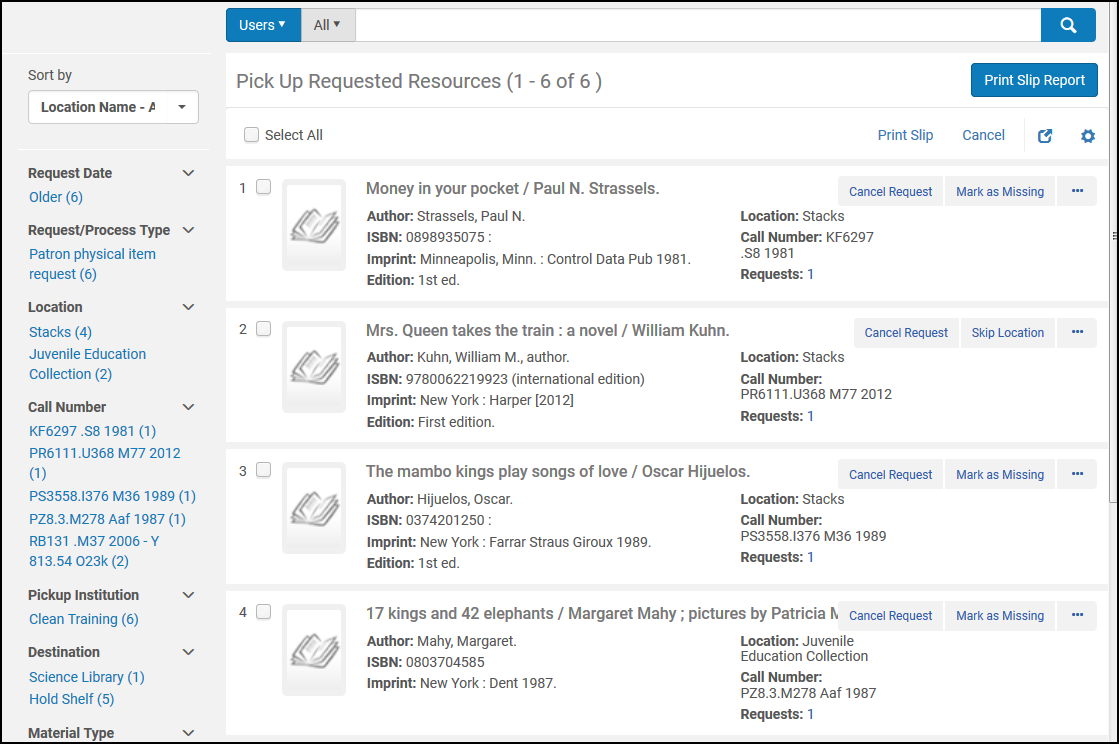
To filter the list so that you can find requests from your location or that meet other criteria, use the facets on the left side of the page.表示されるファセットは、リクエストの特性によって異なります。利用可能なファセットは次のとおりです。
- リクエスト日–リクエストが行われた日付
- Request/Process Type – The request type
- ロケーション–リクエストアイテムが保管されるロケーション
- 請求番号–アイテムの請求番号
- 受け取り機関-ユーザーがアイテムを受け取る機関、またはアイテムの移動先の機関
- 宛先–ユーザーがアイテムを受け取るロケーションまたはアイテムの移動先
- 資料タイプ–リクエストされた資料タイプ
- 印刷されたリクエスト-スリップが印刷されたリクエスト
- Request Reported – Requests which are included in a Slip Report (that is,Print Slip Report was selected for these requests)
-
次のオプションから選択します:
- Print slip – Prints a call slip for the item that can subsequently be attached to the item by the Requests Operator.複数のアイテムを選択した場合は、すべてのスリップを1つのPDFに集約して印刷します。In a notification that appears, select Quick Printing if you would like to open the printing window immediately when the letter is generated, overriding the Print dialog.From there you can send the created PDF to a designated printer or save it to a file.
Then the item's barcode is scanned (see Scanning Items), and the call slip is placed with the item.スリップを印刷ドロップダウンリストからスリップを印刷を選択し、実行を選択することもできます。印刷スリップオプションでは、Fulリソースリクエストスリップレターが使用されます。For more information, see Configuring Alma Letters.棚からアイテムを取り出す場合に印刷されるスリップは、アイテムを取り置き棚に置くときに再利用できます。ただし、このオプションを選択することにより、必要に応じて追加のスリップを印刷することを選択できます(元のスリップが紛失した場合など)。
- スリップリポートの印刷 – 取得する必要のあるリソースの詳細なリストを含むXMLまたはExcelリポートを作成します。リクエストごとに個別の貸出依頼書を印刷する代わりに使用できます。リポートは、プリンターに送信したり、ユーザーにEメールで送信したり、画面に表示したりできます。Eメールのレターは、Ful受け取り印刷スリップリポートレターです。Since the Excel report is sent as an attachment to the email, sending the Print Slip Report to a printer will only print the email - the functionality to send the Excel report itself to the printer is unavailable.This link opens the following dialog box, which allows you to specify the format type of the report and the report's destination:
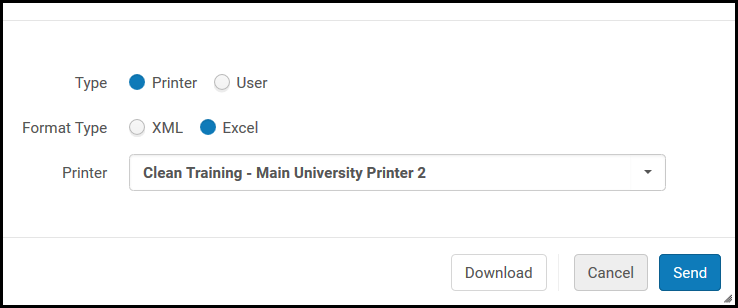
For title requests submitted using Alma/Primo, barcodes from all titles –both preferred and non-preferred –are included in the print slip report.
タイプフィールドで次の宛先タイプのいずれかを選択し、送信を選択します。
- プリンター– Excelリポートは、プリンタードロップダウンリストから選択したプリンターの宛先に送信されます。
- ユーザー–リポートは、ユーザーフィールドで指定されたユーザーのEメールアドレスに送信される印刷スリップリポートレターに添付されます。For more information on customizing the Print Slip Report Letter, see Configuring Alma Letters.
- 画面でリポートを表示する場合は、送信ではなくダウンロードを選択します。
- Edit – Opens the Create Request page, where you can edit the request (see Creating a Request).
- リクエストのキャンセル-リクエストをキャンセルします。開いた [リクエストのキャンセルの確認] ページで、次の操作を行います。
- キャンセル理由ドロップダウンリストから、キャンセルの理由を選択します。For additional information about the options in this list, as well as information about customizing the list for your institution, see Configuring Request Cancellation Reasons.
- メモの下で、必要に応じてキャンセルメモを入力します。
- To send a cancellation notification to the patron, select Notify user.送信される通知レターは、Fulキャンセルリクエストレターです。For information about configuring the notification, see Configuring Alma Letters.
- [確認]を選択してください。
- 有効期限のアップデート-リクエストの有効期限を変更します。有効期限ボックスを選択し、新しい日付を選択して、保存を選択します。
有効期限が過ぎ、アイテムが棚からピックアップされない場合、そのアイテムは行方不明としてマークされます。The Requests - Handle Expiration Step job tries to locate the item at another location, and if it cannot, it cancels the request for the item.To manually change the item's missing status, you can toggle the item status from Item not in place to Item in place on the List of Items page (see Working with the List of Items).
-
ロケーションをスキップ-リクエストは現在のロケーションから非アクティブ化され、別のロケーションで処理を試みます。
「ロケーションをスキップ」はMMSレコード間では機能しません。
- ロケーションの手動スキップ-ロケーションのスキップアクションが利用可能な場合(リクエストが以前に割り当てられたことがない少なくとも1つの他のロケーションでリクエストを満たすことができる場合)、ロケーションのスキップアクションに加えてロケーションの手動スキップアクションが表示されるようになりました。手動のアクションは、リクエストが満たされる代わりのロケーションのリストを提案し、次のオーダーでソートされます。
- Holdings in remote storage with the Prefer Over Other Locations check box selected (see Adding a Remote Storage Facility).
- 所有図書館がリクエストされた受け取り図書館と一致する所蔵。
- 同じキャンパスの所蔵。
- リクエストを満たすことはできるが、このキャンパスにない他のすべての所蔵、またはキャンパスが定義されていない場合、受け取りロケーション図書館と所蔵ロケーション図書館間の通過時間ルールが定義されている場合、ルールが取り置きリクエスト受け取り計算をサポートしている場合、受け取りロケーションまでの通過時間でソートされます。
- 他のロケーションより優先するチェックボックスがオンになっていないリモートストレージの所蔵。
- ロケーションのスキップアクションによって以前に割り当てられ、変更された所蔵。
-
ロケーションをスキップアクションを使用すると、同じロジックが自動的に適用され、上記の並べ替え方法に従って最初のロケーションが自動的に選択されます。
-
Mark as Missing – This action marks all items under the holding as missing.
-
Convert to Resource Sharing – Convert the request to a resource sharing borrowing request.単一のリクエストに集約された複数のリクエストがある場合、これらのリクエストはすべてこのアクションで変換されます。
次の場合、このアクションは成功します。
- リクエストが、取り置きまたは一般取り置きリクエスト(アイテムなしで取り置きするリクエスト)である。
- The workflow step is Not Activated,Pickup-From Shelf, or Waiting for Remote Storage.
-
ユーザーにはフルフィルメントサービス管理者の役割があります(Ex Librisでは、フルフィルメントサービスオペレータの役割に対してもこの機能を有効化できます)。
役職はリソースシェア図書館の範囲内にある必要があります。
- リクエストの必要期限が過ぎていない。
- リクエストされた受け取りロケーションは、リソースシェアリクエストでサポートされている。
- 検索でタイトルを表示-アイテムのリポジトリ検索を開きます。
- Print slip – Prints a call slip for the item that can subsequently be attached to the item by the Requests Operator.複数のアイテムを選択した場合は、すべてのスリップを1つのPDFに集約して印刷します。In a notification that appears, select Quick Printing if you would like to open the printing window immediately when the letter is generated, overriding the Print dialog.From there you can send the created PDF to a designated printer or save it to a file.
すべてのアイテムをキャンセルする
To cancel or print call slips for all of the items:
- [すべて選択]を選択します。
- [実行] ドロップダウン リストから [キャンセル] または [伝票の印刷] を選択します。
- [実行] を選択します。
すべてのアイテムの貸出依頼書を印刷する
To cancel or print call slips for all of the items:
- [すべて選択]を選択します。
- [実行] ドロップダウン リストから [キャンセル] または [伝票の印刷] を選択します。
- [実行] を選択します。
アイテムは、請求番号またはロケーション名でソートできます。The Sort by drop-down box shows the options for sorting by call number and location name in either ascending or descending sequences.
If one or more request notes exist, they are displayed aggregated together with a "|" (pipe symbol) in between each request.Only notes for active requests that are being picked by the current circulation desk whose status is "pickup from shelf" are displayed.The notes of the active request are presented in the Pick Up Requested Resources page in no specific order.リクエストキューのリンクをクリックすると、すべてのリクエストがリクエストのメモを表示する新しい列とともに表示されます。
Watch the Request Notes in Pick from Shelf List video (0:48 min.).
