
Allowing Usernames and a Forgotten Password Link in ExpressCheck
Your library can allow patrons to sign in to Polaris ExpressCheck using a username instead of a barcode. Additionally, your library can provide a link for patrons to receive an email message to reset their passwords.
Important:
The settings described here also apply to Polaris PowerPAC.
To allow usernames and a forgotten password link
-
In Polaris Administration (staff client), go to Administration > Explorer > System.
-
Open the Profiles folder, and select the PAC tab.
-
Double-click Patron Access options.
The Patron Access Options dialog appears.
-
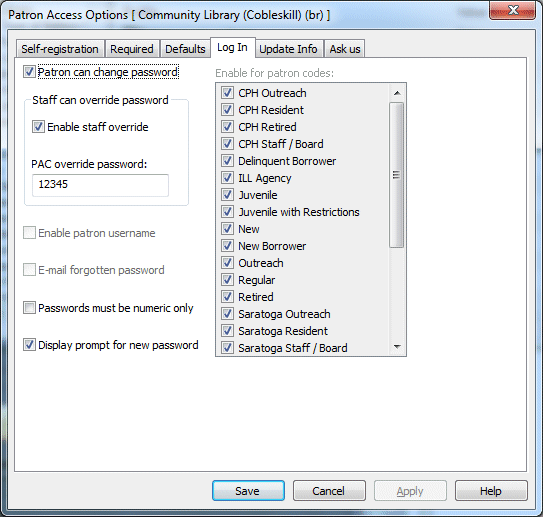
Select the Log In tab.
-
To allow patrons to set up and change usernames, select Enable patron username.
When this option is enabled, patrons can enter their username instead of a barcode when signing in to use PAC and ExpressCheck. For more information about patron usernames, see “Setting Patron Access Options - Overview” in the Polaris staff client help.
Note:
When patrons manually enter a username or barcode, they must also enter their password. -
To allow patrons to reset their passwords, select E-mail forgotten password.
When this option is selected, the PAC and ExpressCheck sign-in pages include a Forgot password? link. Patrons can select the link to receive an email containing a time-sensitive link to reset their passwords. The email is sent to both the primary and alternate email addresses in the patron record. If the patron record contains no email address, the system displays an error message.
Note:
Patrons must contact the library if they forget both their username and password. -
Select Apply to apply your settings and continue working with Patron Access options, or select Save to save your settings and close the dialog.
-
Select File > Save.
Related Information
- For more information about patron usernames, passwords, and other patron access options in PAC, see “Set patron password and username options” in the Polaris staff client help.
