
Setting ExpressCheck Circulation Blocks
You can set circulation blocks related to patron records, item records, and material types that apply specifically to Polaris ExpressCheck circulation transactions. You can set these circulation blocks at the system, library, or branch level.
To set circulation blocks for ExpressCheck
-
From the Home Page in Polaris System Administration (web-based), select Settings and Tables.
The Settings and Tables page appears. The system displays the Settings tab by default.
-
Using the tabs on the left-hand side, select an organization level (System, Library, or Branch).
-
If applicable, select a library or branch.
-
In the Search box, search for "Polaris ExpressCheck".
-
Set the blocking conditions as follows:
 Patron Blocks
-
Locate Polaris ExpressCheck: Patron blocks in the search results, and select Configure.
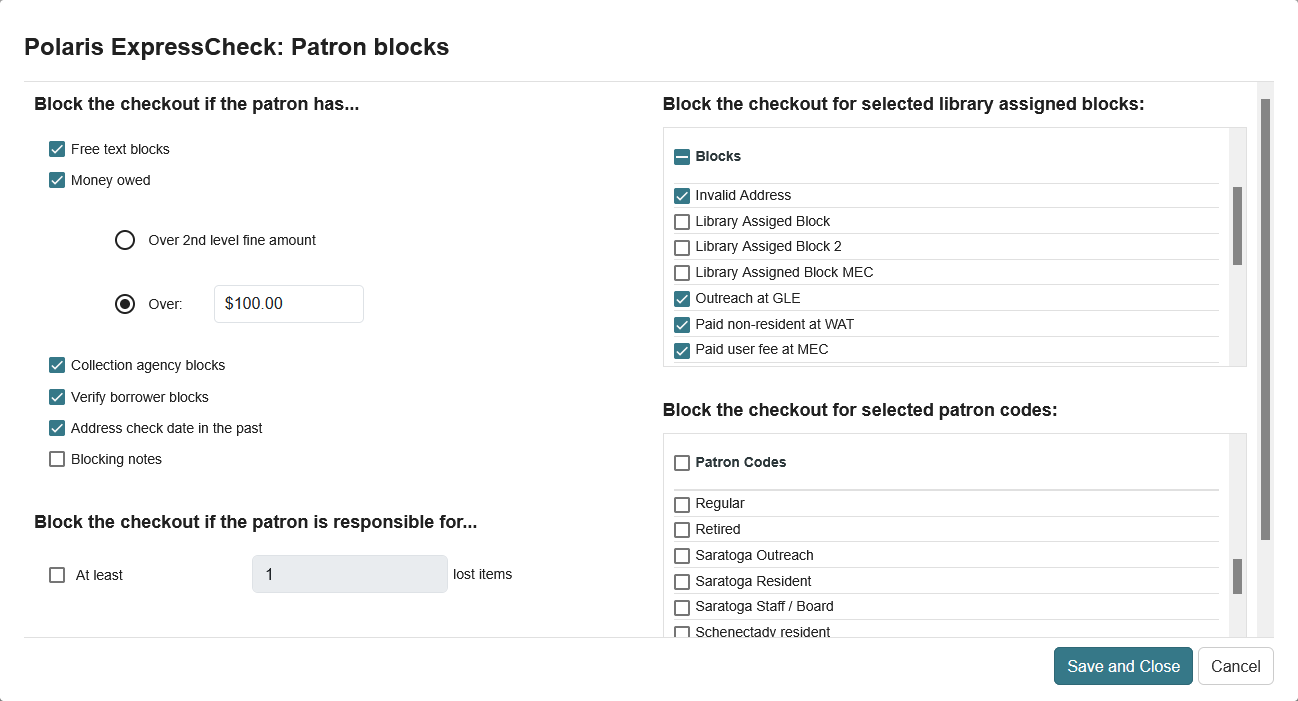
The Polaris ExpressCheck: Patron blocks dialog appears.
-
Select the conditions related to patron records that will prevent patrons from checking out or renewing items at the ExpressCheck station:
-
Free text blocks — Blocks transactions by patrons whose records contain free-text blocks.
-
Money owed — Blocks transactions by patrons whose total charges are greater than a specified amount. If you select Money owed, select Over 2nd level fine amount, or select Over and enter the threshold amount.
Note:
The second level fine amount is the value designated for the patron’s registered branch in the Patron/Material Type Loan Limit Blocks table. For more information about this table, search for “Defining Circ and Request Limit Blocks” in the Polaris staff client help. -
Collection agency blocks — Blocks transactions by patrons whose accounts have been sent to a collection agency.
-
Verify borrower blocks — Blocks transactions by patrons whose records require staff to verify the patron’s identity.
Note:
If you select this option and allow patrons to renew their registrations through ExpressCheck (see Setting Account and Circulation Options for ExpressCheck), a patron who renews a registration is allowed to check out during that session, but is blocked from further checkouts until the verify borrower block is resolved. The same patron is blocked immediately at staff-assisted checkout until the block is resolved. For more information about verify borrower (Verify Patron) blocks, see “Resolve a Verify Patron block” in the Polaris staff client help. -
Address check date in the past — Blocks transactions by patrons whose records require staff to verify the patron’s address.
-
Blocking notes — Blocks transactions by patrons who have a blocking note on their patron record. Blocked patrons see the message "Please contact a librarian for assistance" when they tap View Blocks on the checkout screen.
-
At least .... lost items — Blocks transactions by patrons who have one or more lost items. If you select this option, set the number of lost items that activates the block.
-
Not registered at this branch — Blocks transactions by patrons who are not registered at the branch that the workstation is associated with. If you select this option, a message appears and access is denied when patrons registered at a different branch scan their cards.
-
Library-assigned blocks — Select any library-assigned blocks on a patron record that will prevent a patron from doing self-check transactions.
Note:
The options available in this list are those defined in the Patron Blocks table for the organization. If a new library-assigned block is added to the Patron Blocks table, the block is automatically added to the list and is available for selection. For more information about the Patron Blocks table, see “Defining Circ and Request Limit Blocks” in the Polaris staff client help. -
Patron codes — Select the patron codes that will be prevented from doing ExpressCheck transactions.
-
-
Select Save and Close.
Item Blocks
-
Locate Polaris ExpressCheck: Item blocks in the search results, and select Configure.
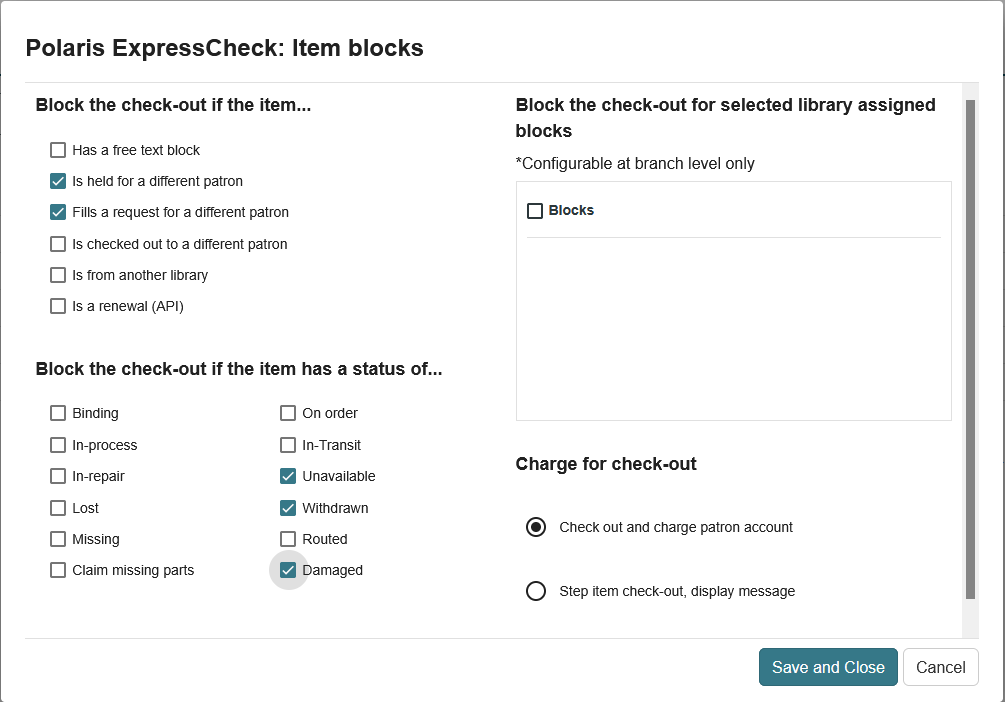
The Polaris ExpressCheck: Item blocks dialog appears.
-
Select the conditions related to item records that will prevent checkout and renewal transactions at the ExpressCheck station:
-
Has a free text block — Prevents an item with a free-text block from being checked out or renewed at the self-check station.
-
Is held for a different patron — Prevents an item from being checked out if the item has a status of Held or Transferred for a patron other than the circulating patron. (If you permit the checkout, the previous request is reactivated.)
Note:
If patrons check out items on hold for themselves, the requests are cleared. -
Fills a request for a different patron — Prevents an item from being checked out if the item fills a hold request for a patron other than the circulating patron. (If you permit the checkout, the request is maintained as is.)
-
Is checked out to a different patron — Prevents an item from being checked out if the item is already checked out to a patron other than the circulating patron.
-
Is from another library — Prevents an item from being checked out if the item’s Assigned Branch is different from the branch the ExpressCheck station is associated with.
-
Is a renewal (API) — This setting does not apply to ExpressCheck; it only applies to the Polaris API checkout endpoint.
- Circulation status — Select the status descriptions, such as Binding or Lost, that will prevent an item from being checked out or renewed at the ExpressCheck station.
Note - On Order Items:
If your library uses Polaris Acquisitions, you might want to block items with the status On Order, because the on-order item records might be linked to purchase order or invoice line items. When circulation is blocked, the items can be processed in Acquisitions to be sure the item records are ready for circulation.Note - Lost Items:
If you allow items that have been declared lost to be checked out, your settings for normal checkout in the Patron Services setting Lost item recovery apply to the checkout. See “Setting Lost Item Recovery Defaults” in the Polaris staff client help. -
Library-assigned blocks — Select any library-assigned blocks on an item record that will prevent the item from being checked out or renewed at the ExpressCheck station.
Note:
You can select the library-assigned blocks related to items at the branch level only. The options available in this list are those defined in the Item Block Descriptions table for the branch. If a new block is added to the Item Block Descriptions table, the block is automatically added to the list and is available for selection. For more information about the Item Block Descriptions table, see “Defining Circ and Request Limit Blocks” in the Polaris staff client help. -
Charge for checkout — When an item’s assigned branch has set charges for checkout and/or renewal on this type of item, these settings determine whether the transaction can take place at the ExpressCheck workstation. Select Check out and charge the patron account to allow the transaction. Select Stop item check-out, display message to block the transaction and direct the patron to the circulation desk. For more information about checkout and renewal charges, see “Charging for Checkout and Renewal” in the Polaris staff client help.
-
-
Select Save and Close.
-
-
(Optional) Restrict the circulation of specific material types in ExpressCheck.
Related information
- Blocking if associated records are blocked — Checkout and renewal from ExpressCheck might be blocked for a patron if an associated patron has exceeded the second level fine amount as determined by the governing library for patron blocks or if the associated patron has exceeded the maximum overdue limit as determined by the governing library for patron blocks. For more information about setting up blocking relationships, see “Patron Associations” in the Polaris staff client help.
