
Language Editor
Language Editor in Polaris System Administration (web-based) allows you to manage English and other licensed language strings across different parts of Polaris. Users can use Language Editor in the Polaris System Administration (web-based) to:
-
Load strings for each selected language at the system, library, or branch level.
-
Search for strings by specific string ID or by string content.
-
Filter the list to show only customized strings.
-
Edit strings using the Update string dialog.
-
Create custom string values.
-
Identify inherited string values during editing to determine the appropriate level for changes.
This section covers the following topics:
-
Load Strings in Language Editor in Polaris System Administration (web-based)
-
Edit Strings in Language Editor in Polaris System Administration (web-based)
Load Strings in Language Editor in Polaris System Administration (web-based)
To load strings in Language Editor in Polaris System Administration (web-based)
-
On the Home page, select Language Editor.
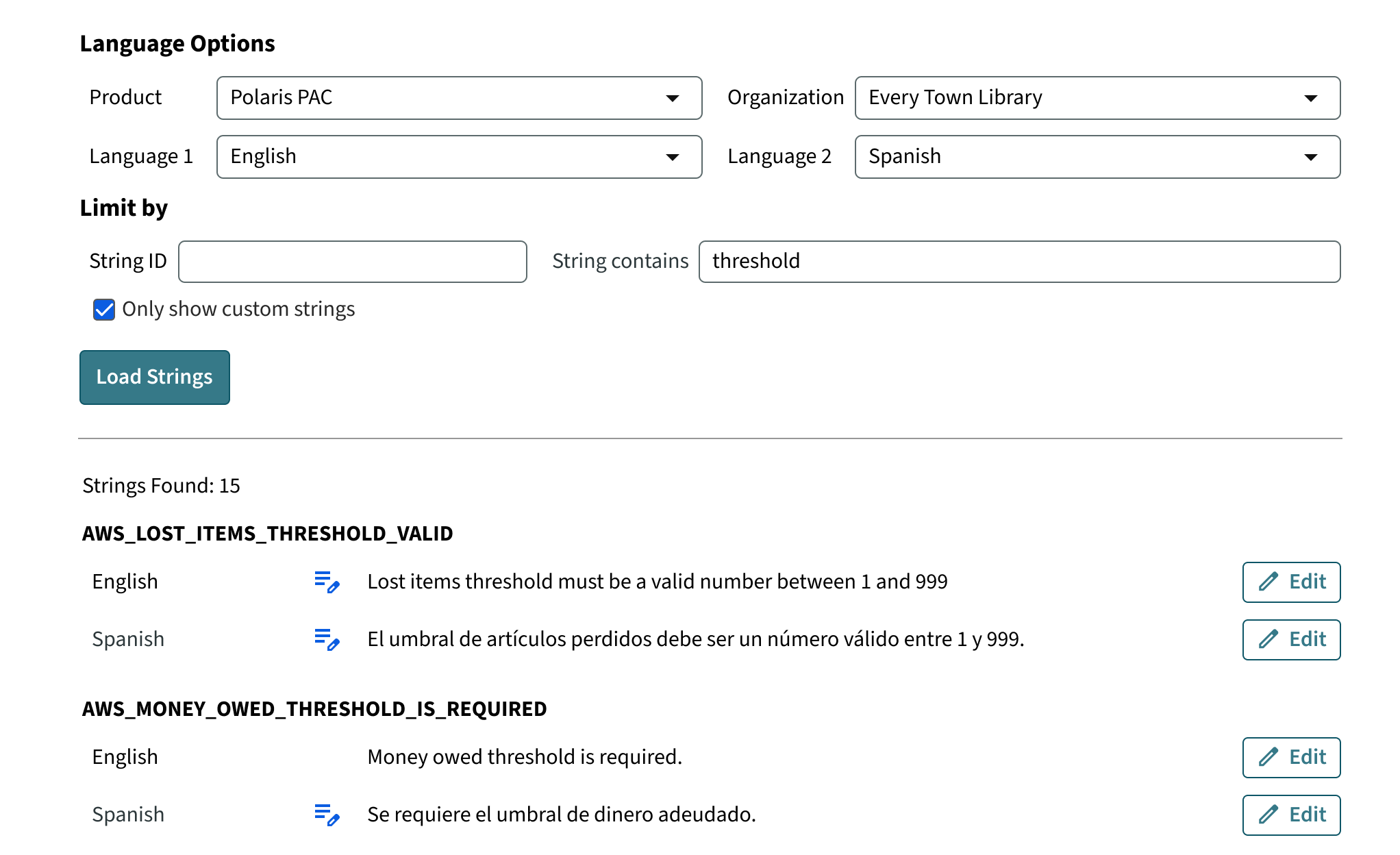
The Language Editor page appears.
-
Select the following:
-
Product - From the dropdown you can select the product you want to load the strings for.
-
Organization - You can select the organization at the system, system, library, or branch level from the dropdown. If you have the permission enabled for specific organizations, only those oganizations will be available.
-
Language 1 - Select the language for the strings you want to load.
-
Language 2 - (Optional) Select the second language for the strings you want to load.
-
Specific string ID - (Optional) Enter the ID of the specific string you want to load.
-
String contains - (Optional) Enter the content of the strings you want to load.
-
Load only custom strings - Select the checkbox if you want to load only custom strings.
-
-
Select Load Strings.
The list of the strings appears. Each row displays:
-
Language 1 and Language 2 (if previously selected)
-
String identifier
-
Indicator if the string is custom
To edit a string, select the Edit button on the right side of the string row.
-
Edit Strings in Language Editor in Polaris System Administration (web-based)
To edit a string in Language Editor in Polaris System Administration (web-based)
-
On the Home page, select Language Editor.
The Language Editor page appears.
-
Select the values for the strings you want to load and select Load Strings.
The list of the strings appears.
-
Select the Edit button on the right side of the string row.
-
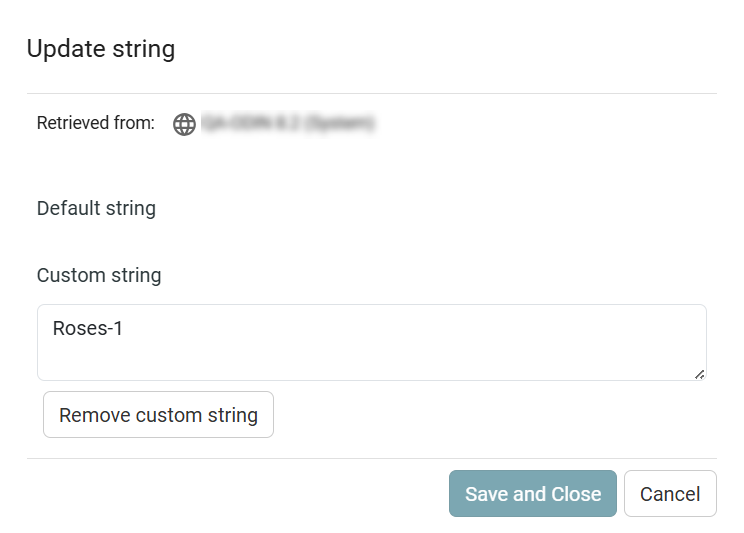
The Update string dialog appears, displaying the default string and its custom strings (when applicable).
-
When the strings is default only, and there are no custom strings, select Add custom string and enter the custom string in the field.
-
When the default string has custom strings defined, select the Custom string field to edit the custom string. Inherited custom string field indicates that a custom string was inherited form a higher level organization, so you can determine the appropriate level for changes.
-
When you want to remove a custom string, select Remove custom string button.
-
-
Select Save and Close to save the changes.
