
Creating Field Selectors for Matching Normalized Coverage Data
This procedure describes creating a field selector for a match data test. A title meta tag from an OpenURL can be matched against normalized title data in the coverage database.
To create a field selector for a match test against normalized coverage database data:
- Access the WebBridge Management menu by either:
- entering http://your_library_[domain]/webbridge/edit in the browser address window
- choosing Admin | WB Edit in an application
The WebBridge Management menu displays: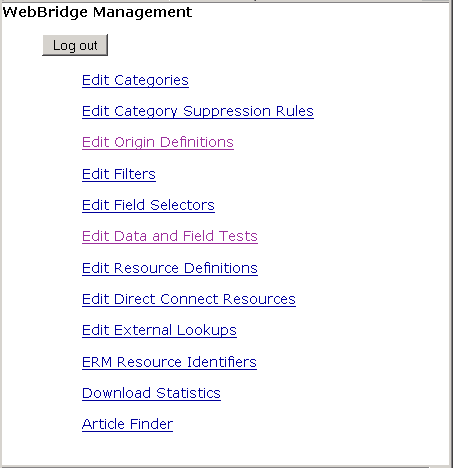
NOTE
Only one user can be logged in to the WebBridge Management menu's edit function. Other users can access the menus in View Only Mode.
If there is no activity by a login within the timeout period, the user is automatically logged out.
- Choose Edit Field Selectors.
The WebBridge Management - Field Selectors menu displays: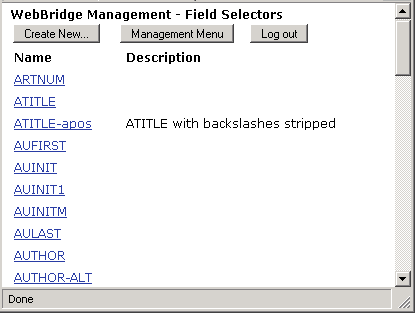
- Choose Create New.... The next page of the WebBridge Management - Field Selectors menu displays:
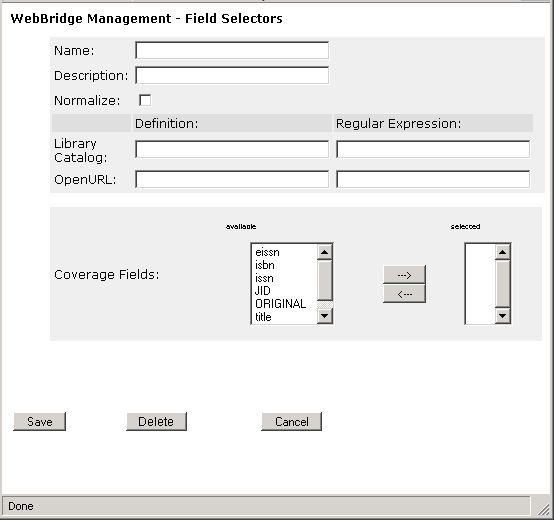
- Enter a name in the Name text box.
The name can be a maximum of 64 characters. - To distinguish field selectors with the same or similar names, enter a description in the Description text box. Descriptions are optional.
In the Definiton text box for OpenURL, enter a title OpenURL meta tag (up to a maximum of 255 characters).
The Definiton text box for OpenURL accepts a pipe-delimited list of meta tags. For example, you can enter:
rft.atitle|atitle - Choose a title field in Coverage Fields by moving it from the available to selected column.
The OpenURL meta tag value will be matched against data from the chosen coverage field. - Select the Normalize check box.
The OpenURL meta tag value will be matched against data from the chosen coverage field that has been normalized according to system index rules.
