Release Date: August 2, 2023
Set Kiosk Display to a Higher Level
Vega Staff Admins have a new configuration option to configure a kiosk to display at a higher hierarchy level. This feature allows libraries that choose to display item availability at a shelf location level to create a kiosk based on a branch location level. Note that this feature cannot be combined with Kiosks that are scoped to only show materials from one location.
If the Kiosk location is not at the same level as the Display as Item Location:
-
The availability statement displays the Kiosk location, if an item is available at the Kiosk location; otherwise, it displays the Kiosk-level location of an available item at a non-Kiosk location.
-
The first call number and shelf location are displayed for an available item or holdings at the kiosk location; otherwise, it displays first call number and shelf location of an available item at a non-Kiosk location.
-
The locations list displays all the Kiosk display level locations that have items and their availability status.
-
The item display level (the list of locations linked on the work) is not affected by changing the kiosk location level and will still display the item display level you chose in the location hierarchy settings.
If the kiosk location is not set to a branch location, then Vega will be unable to sort the preferred locations to the top of the location drawer as it does in other scenarios.
Grid View Global and Site Settings
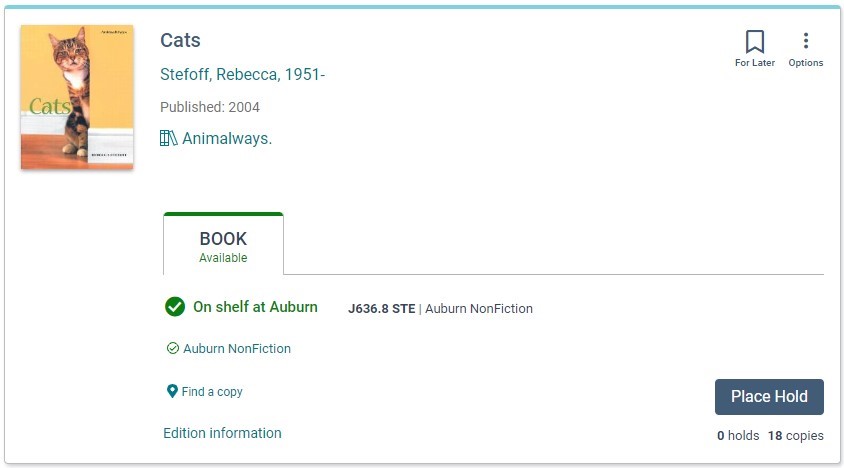
Vega Staff Admins have new configuration tools to control the Grid View display globally or override for a specific site configuration.
Global Setting
Cog > Interface configurations > Experience Settings
-
Disable grid layout
-
Enable grid layout
-
Enable grid layout and make it the default view (coming soon!)
Site Configuration
Cog > Library defaults > Site Configuration > Edit > Interface configurations > Experience Settings
-
If the global setting is enabled, you will see the Global Setting toggle switched to On, and the display options will be disabled.
-
To override the global setting, change the Global Setting toggle to Off. This will enable the Search Result Display Options and you can change the option.
BUG FIXES
Home Page Cover Carousel
A problem was fixed where selecting the number of items to display was not respected. This has been updated to a dropdown to choose 6, 12, 18, or 24 item covers.
Home Page Showcase Group
A problem was fixed where selecting Collage Panels was preventing the Preview and Published page from loading.
VEGA RESOURCES AND REMINDERS
Individual 880 Fields
Contact support if you want your individual 880 fields turned on. Please note that this feature is not fully released until the author names are displayed.
Find a Copy and Translation Files
We have investigated why "Find a copy" was not showing as expected at the August 20 Strategic Partner meeting. Upon closer inspection, the examples provided did have updated translations files. If you prefer "Find a copy", you can change the "viewAllLocations" string value from the Cog menu > Localization settings > Manage translations.
Home Page Video
Watch our 8 minute training video for tips on creating your Home Page. This has been added to the other videos available on the Vega Resources page.
Release Date: August 16, 2023
Grid View Covers
When a cover is missing, the grid view will match the generated covers from the list view.
Performance Improvements
Your home page will load faster with the release of back-end improvements.
Event Timing
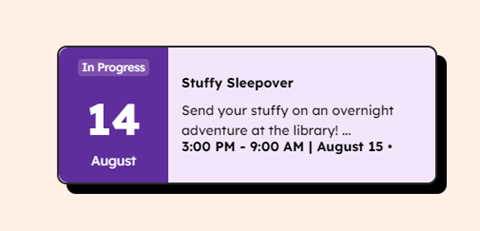
During the scheduled event time, a tag will appear to show that the event is "In Progress".
Events that end on a different date are indicated with the start and end times. For example, if an event starts on November 18, but ends on November 19, the time displays as 11:30 PM - 12:30 AM | Nov 19.
Events That Have Ended
When an event is over, it automatically is removed from the published page. From the home page builder, expired events follow these rules:
-
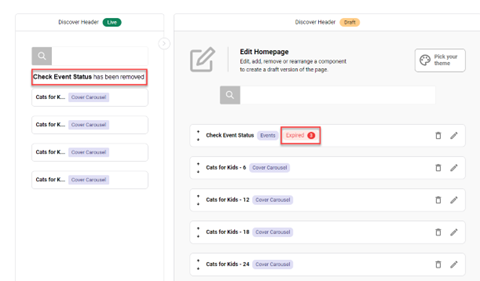
If all the events in a showcase component have ended, the component row is removed from the “Live” side of the staff configuration builder.
-
If all the events in a showcase component have ended, the component row remains on the “Draft” side with an expired tag.
-
There is a tag that tells you how many events in a component row have expired.
-
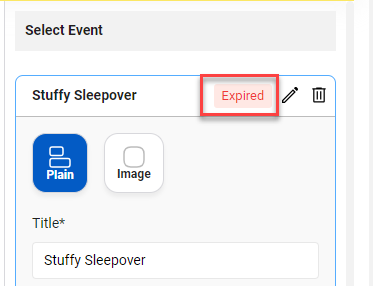
Expired events can be edited and republished with new dates and times.
-
On the published page visible to patrons, an “In Progress” tag will appear during the event time.
BUG FIXES
Fix for Patron Data Display when Vega has a custom domain
A problem was fixed where some patron account data was not displaying in Vega Discover sites that had been configured with a custom domain.
Improved Facet Response for Advanced and * Searches
Improvements were made to facet loading response when navigating to the Advanced Search and when doing * searches that load all Vega content.
Staff Setting Call Number Displayed On Results Save Button
A missing Save button was added to the Call Number Displayed on Results setting in the Vega Staff Admin settings.
Home Page Cover Carousel
A problem was fixed where the cover carousel would only display up to 10 covers. This has been corrected and selecting 24 covers will display 24 covers from the showcase.
Home Page Empty Draft
As a follow up to the July home page issues, the home page will copy the live page if the draft content is lost for any reason.
Release Date: August 30, 2023
Unroll Serial and Monograph Textual Works
This change requires post deployment index updates that will be run for by Innovative. This change may not be visible in your Vega Discover site for up to a week.
Bib instances with LDR/06 'a' or 'm' (AND) LDR/07 'b', 'i', or 's' will now be assigned work.type = serial. Bibs with the work.type = serial designation are only permitted to roll up with other bibs with the work.type = serial designation.
Please note that a Book material tab and a Serial material tab can still appear in the same Work Level rollup in the following scenarios when an instance has a material type of Book or Serial but the LDR data doesn't match this material type.
A Book material tab and a Serial material tab can still appear in the same rollup if...
-
A 'Serial' material type bib has LDR/07 that is not 'b', 'i', or 's'.
A 'Book' material type bib has LDR/07 'b', 'i', or 's'.
880 Agents display Can Now Be Requested
This change requires that customers reach out to support to request the feature. A post deployment index will be run to update your Author data before we can enable this feature.
For libraries that have Alternate Agent/Author data in their MARC records, Vega can now index and display this data. Alternate Series data will be added in a future release with other series features.
Kiosk Level Selection for Sierra Libraries that display Shelf Locations
Please note that the Level Selector is now available for all Vega Customers at the Kiosk Level. If you are a Sierra Library that displays the Shelf Level for Locations in Vega Discover then you can now set up a Kiosk URL for your branches that will display call numbers and availability for the materials at all shelves belonging to the selected branch. Creating this kiosk will still display availability at the shelf level as configured for your library.
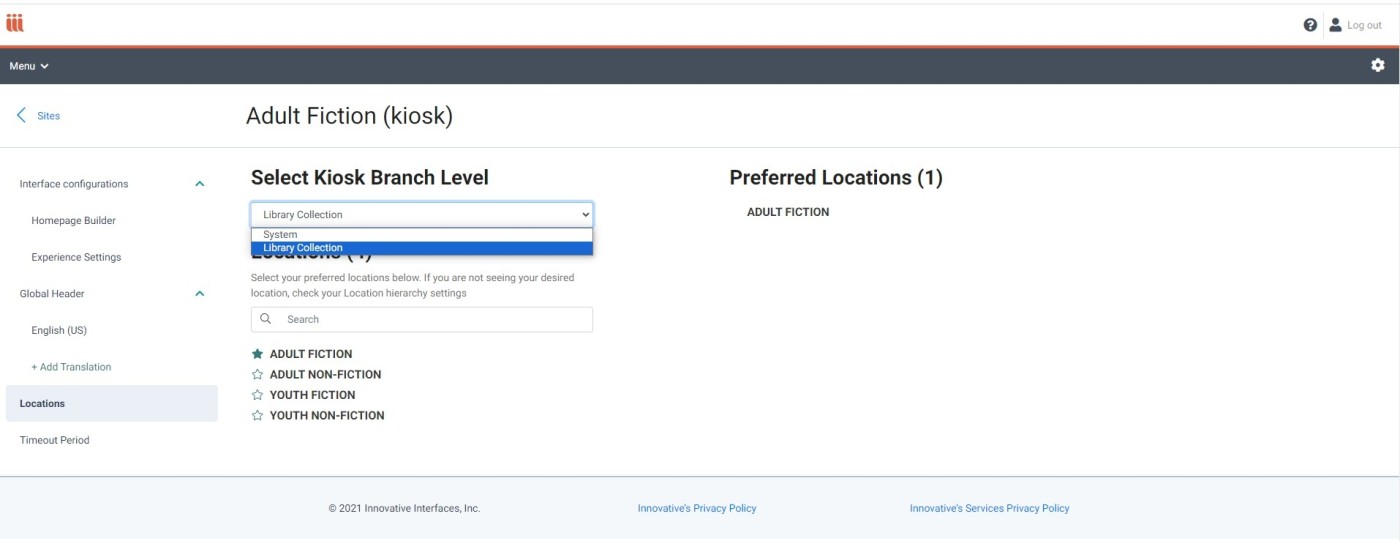
To create a Kiosk as a library that uses Shelf Level display, login to the Vega Admin and click the cog icon in the upper right. Under Library Defaults select Site Configuration. Click Add New Site , enter a name for your new Kiosk and select Kiosk. Add a domain name which will be the URL linking to your new Kiosk Site that can be configured on library use computers and kiosk software. Add the new site. In the Locations configuration for your new Kiosk. Select a branch level for your Kiosk, then select the location of the kiosk branch. Customize your kiosk as desired with other settings and use the new kiosk url for inhouse computers at the selected branch.
Grid View Global Settings
The work has been completed to enable the grid layout and make it the default. As part of that work, your Global Setting has been applied to all your kiosk and collections sites. If a configured site needs a different layout, you can turn off the Global Setting at the Site Configuration level.
Global Setting
Cog > Interface configurations > Experience Settings
-
Disable grid layout
-
Enable grid layout
-
Enable grid layout and make it the default view
Site Configuration
Cog > Library defaults > Site Configuration > Edit > Interface configurations > Experience Settings
-
If the global setting is enabled, you will see the Global Setting toggle switched to On, and the display options will be disabled.
To override the global setting, change the Global Setting toggle to Off. This will enable the Search Result Display Options and you can change the option.
BUG FIXES
Additional Fix for Missing titles in Vega Discover
Some larger library systems were experiencing a problem where some titles were not able to be found in Vega Discover due to very extensive work level rollups covering more than 300 instances. This problem has been fixed by extending the instance limit to 1000. Additional work will be done in the near future to apply a more permanent fix.
Some browsers unable to display holds and other patron data when user is using custom domain
A problem was fixed for libraries using custom domains where some patron data was unable to be displayed due to the custom domain when using Firefox.
Slow Loading of Extractions Page
The Record Extractions page was updated with pagination for every 50 jobs to decrease loading time of the extractions logs.
Published Home Pages Show an Empty Draft Page
If draft content is lost for any reason, the draft panel will default to the published version.
Editing a Home Page Component Moves it to the Bottom of the List
This problem was re-introduced in a recent release and has been resolved.
Help Hover
The help hover for the kids home page was inadvertently included in today's release. You'll see it when:
-
Hovering on the right side of the home page
-
Hovering on the right side of the grid view
-
Hovering under the item cover on the details page
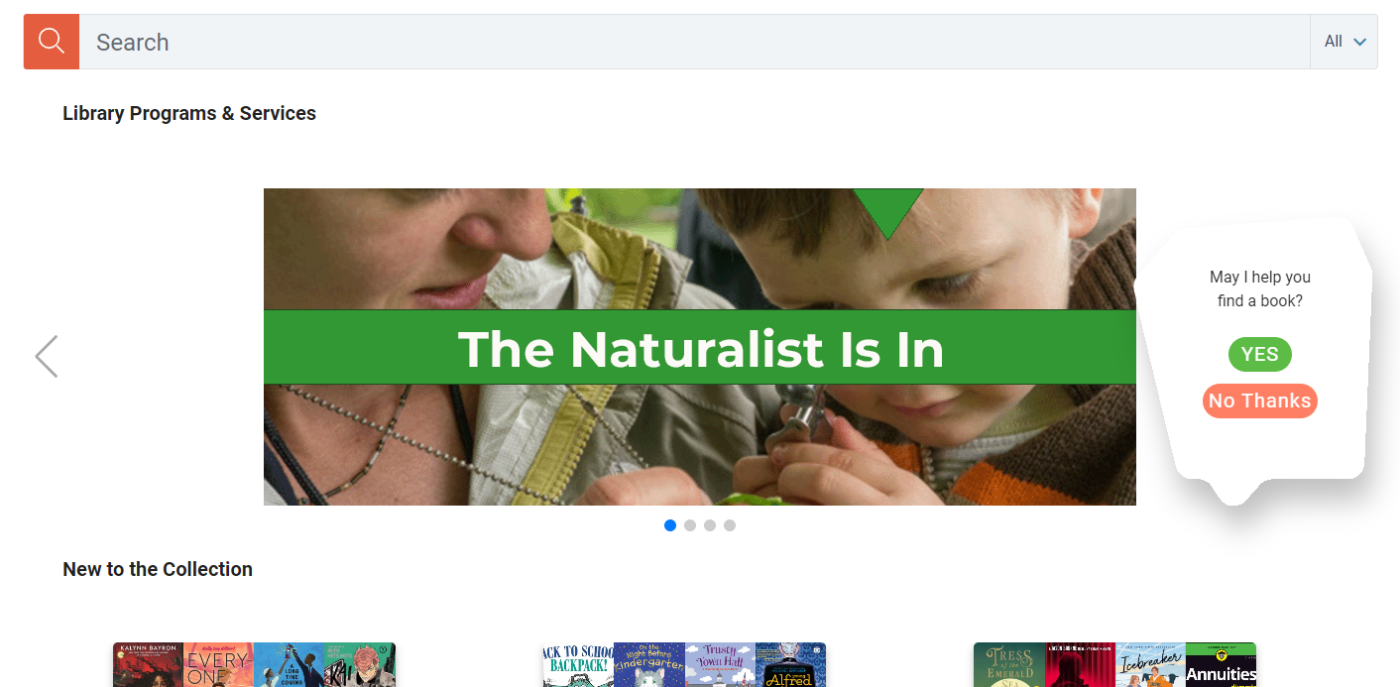
Patrons can click "No Thanks" to close the help bubble. The help hover will be removed with the next scheduled release.