
Procesar renovaciones
Esta página describe cómo procesar renovaciones en Alma. For the renewal workflow see Renewal Workflow. For information on the overall purchasing workflow see Purchasing Workflow. For an overview of working with acquisitions in Alma, including links to relevant sections such as Infrastructure, Invoicing, Configuration, etc., see Introduction to Acquisitions.
- Operador de compras
- Gerente de compras
Puede editar las líneas de orden de compra marcadas para renovación automática o manual en cualquier momento. Sin embargo, no puede editar los proveedores o métodos de adquisición de estas líneas de orden de compra. También puede renovar las líneas de orden de compra que están destinadas a la renovación manual al editar su fecha de renovación.
You access and edit PO lines that are marked for renewal in the PO Lines task list (Acquisitions > Purchase Order Lines > All PO Lines). You can find the PO lines in this category by using the facets to filter the list for the following Workflow Steps(see Searching for PO Lines):
- Waiting for Manual Renewal – PO lines that must be renewed manually, and have reached the date at which they can be renewed
- Recurring Renewal – PO lines that renew automatically, and PO lines that must be renewed manually, but are not currently Waiting for Manual Renewal
Editar información de línea de orden de compra – Renovaciones.
PO lines that are marked for renewal can be edited to correct incorrect information, to add missing information, or to manually perform a renewal, in the Details pane. For information about the fields of a PO line, see Manually Creating a PO Line. For information about working with the Details pane, see New Layout 2022.
Puede editar cualquier línea de orden de compra que esté asignada a usted. Si una línea de orden de compra está asignada a otro usuario, podrá verla pero no editarla. Los operadores y administradores de compras pueden editar líneas de orden de compra sin asignar, pero los usuarios sin estos roles no. For information about changing the user assignment of a PO line, see Available Actions, below.
- Ejecute alguna de las acciones siguientes para entrar en modo de edición:
- In the task list, select the Edit button (
 ).
- If the Details pane is opened, select the Edit button (
 ) that appears at the top of the pane.
- In the task list, select the Edit button (
- In the Details pane, edit the fields as required.
- When you have finished editing the PO line, select Save in its row actions. Los cambios que realizó se guardan. If you edited the Renewal date of a PO line that was waiting for manual renewal, the subscription is also renewed for the period ending on the new Renewal date, and a notification is sent to the vendor.
Editar ajustes de renovación
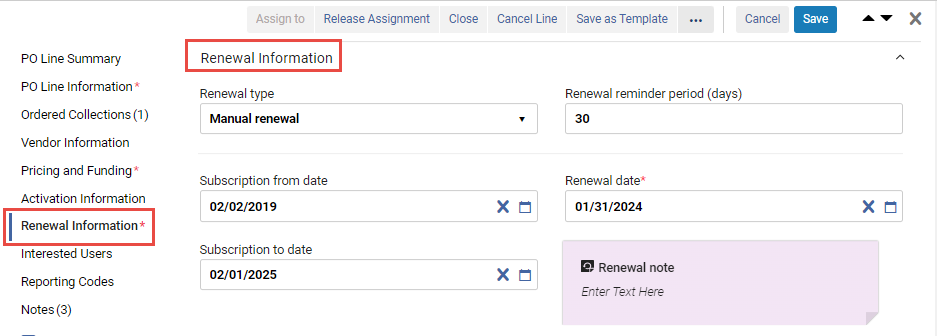
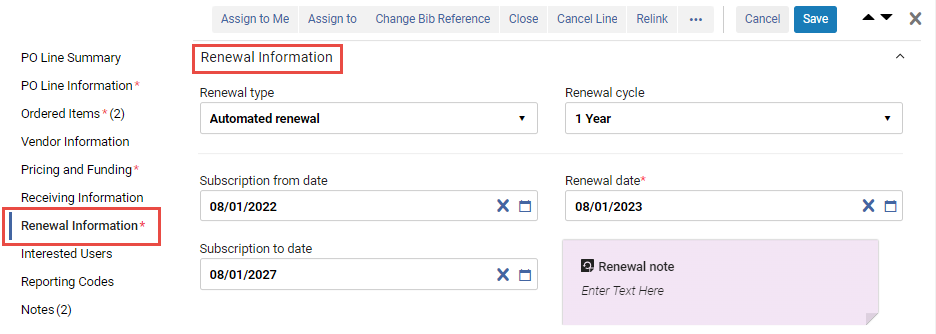
Renewal settings for continuous PO lines can be viewed and edited in the Renewal Information section of the Details pane. For information about these fields, see Manually Creating a PO Line. For information about performing a manual renewal, see Managing Manual Renewals, below.
Acciones disponibles
Las siguientes acciones están disponibles en las acciones de fila de las líneas de orden de compra marcadas para renovación (no todas las acciones están disponibles para todas las líneas de orden de compra):
- Assign to Me – Assign the PO line to yourself.
- Assign to – Open a dialog box in which you can assign the PO line to another user. (Si no cuenta con los roles necesarios, no verá esta opción).
- Release Assignment – For PO lines that are assigned to you, release the assignment and leave the PO line unassigned.
- Relink – Change the bibliographic record to which the PO line is linked (see Relinking PO Lines).
- Cancel Line— The PO line is not renewed and is cancelled. A dialog box appears, requesting a reason for the cancellation and, if vendor notification is configured, a cancellation notification is sent to the vendor (see Cancelling PO Lines). Tenga en cuenta que cancelar la línea de la orden de compra crea una liberación del fondo.
- Change Bib Reference – Change the bibliographic record of the PO line. See Changing Bibliographic Reference.
- Save – Save the changes you made to the PO line.
- Save and Request Evaluation – The information you entered is saved and a trial is requested. Use this option if the PO line is assigned to you but you do not have the Trial Operator/Trial Manager role. The PO line's status changes to Under Evaluation and the PO line moves to the Manage Trials page with the status Requested, where the Trial Operator/Trial Manager can access it and continue with the evaluation workflow (see Evaluation Workflow). Esta opción solo se encuentra disponible para líneas de orden de compra electrónicas que crean inventario.
- Save and Start Trial – The information you entered is saved and a trial is started. Se debe utilizar esta opción si se tiene el rol de Operador de pruebas/Gerente de pruebas, le ha sido asignada la Línea de orden de compra y desea iniciar la prueba. The PO line's status changes to Under Evaluation and the Trial Details page opens (continue with the evaluation workflow at step 3). Esta opción solo se encuentra disponible para líneas de orden de compra electrónicas que crean inventario.
- Change Vendor - See Changing Vendors - Renewals.
- Close – The PO line is closed. Select Confirm in the confirmation dialog box to close the PO line (see Closing PO Lines).
- Save as Template – Save the current settings as a template; see Managing PO Line Templates.
- Change Expected Date – For items in claim, enter a new expected receipt date or expected activation date that was received from the vendor. See Processing Claims.
- Download EDI File – For EDI vendors, download the PO that contains the PO line as an EDI file. El fichero EDI es creado ad hoc en base a los datos actuales de la orden. See Packaging PO Lines into a PO.
Gestionar renovaciones manuales
For continuous PO lines, a Renewal Information section is included in the PO line details. You can see and edit this information for the selected PO line in the Details pane.
Localizar líneas de orden de compra que están esperando renovación manual
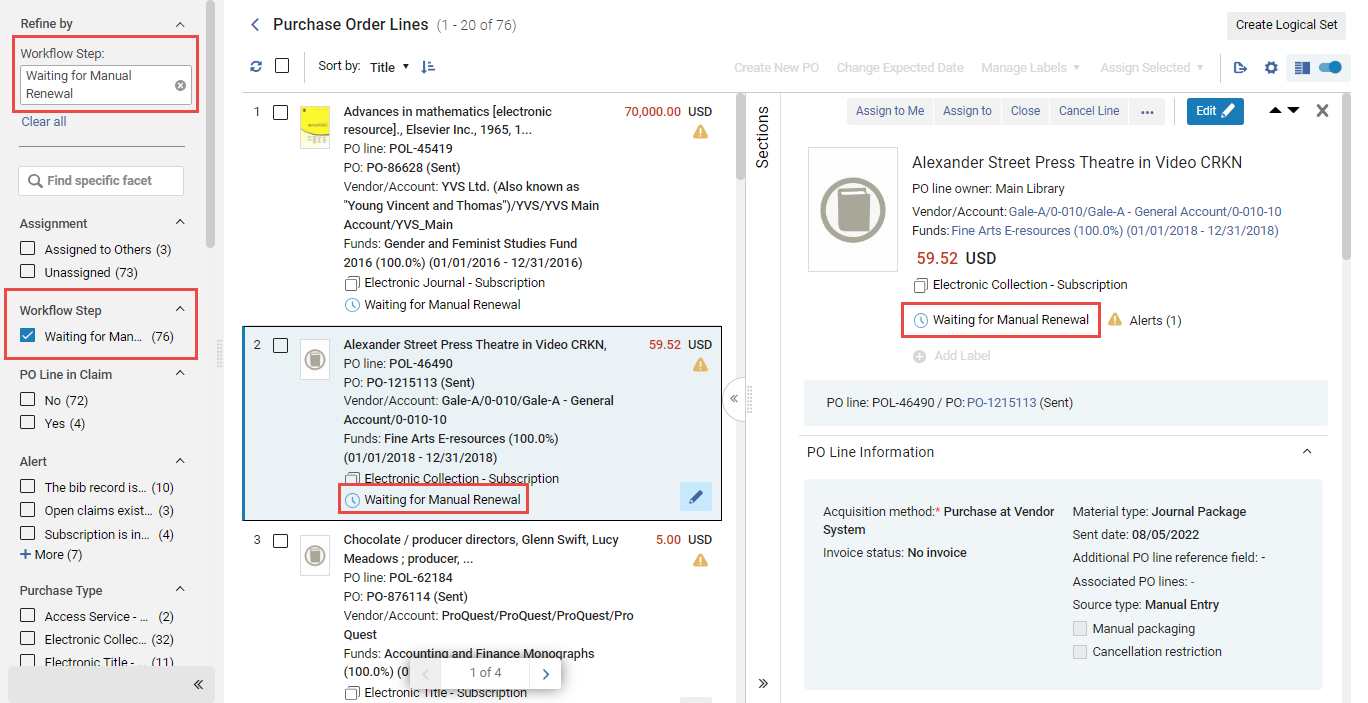
When the PO Line - Renewal job runs, the Workflow Steps of the PO Lines that are due for manual renewal are changed to Waiting for Manual Renewal. Se puede abrir una lista de líneas de orden de compra que actualmente requieren renovación manual filtrando la lista de líneas de orden de compra en la lista de tareas para mostrar solo las que están en este Paso del flujo de trabajo. Puede abrir la lista de tareas con este filtro activado, o activar el filtro desde las facetas en cualquier momento que la lista de tareas esté abierta.
- Navigate to Acquisitions > Purchase Order Lines > Renew.
- In the persistent menu, in the Tasks list, select Order Lines > Renew(see Tasks in the Task List).
- In the Facets, under Workflow Step, select Waiting for Manual Renewal. (For additional information about working with the facets, see New Layout 2022.)
Realizar una renovación manual
If a PO line is marked marked for manual renewal, when the renewal date arrives, its Workflow Step is changed to Waiting for Manual Renewal. You can then manually update the renewal date and any other fields in the Renewal Information section of the PO line's Details pane that require modification.
The fund and price are taken from the previous year if a PO Line Rollover was done (see Fiscal Period Closure). Sin embargo, puede editar el valor manualmente si es necesario.
- In the PO Line list, in the Details pane of the PO line, in the Renewal Information section, modify the Renewal date of the PO line to the last date of the next subscription period.
- Select Save. The subscription is renewed for the period ending on the new Renewal date. When this date minus the renewal reminder is a future date, the Workflow Step of the PO line is once again set to Recurring Renewal, and a notification is sent to the vendor.
See Renewal Workflow for an overview of the process.
Cancelar una suscripción
If a PO line is marked for manual renewal and you do not want to renew it, you can cancel it as described in Available Actions.
Cambiar Proveedor – Renovaciones
Puede cambiar el proveedor al que se le envía la línea de orden de compra cuando la misma se renueve. Cambiar el proveedor cierra la línea de orden de compra y crea una nueva.
- After you have completed editing the PO line (see Editing PO Line Information – Renewals), select Change Vendor. The Change Vendor dialog box appears:
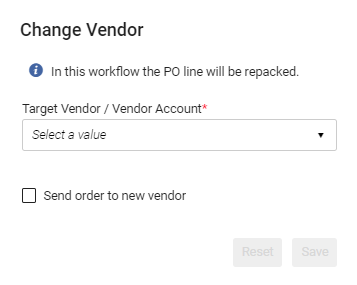 Cuadro de diálogo Cambiar proveedor
- Seleccione el proveedor/cuenta de destino,
- If you want to send the new order to the target vendor, select Send order to new vendor.
-
Select Save. Ocurre lo siguiente:
- La línea de orden de compra actual queda cerrada.
- Se crea una nueva línea de orden de compra para el nuevo proveedor/cuenta objetivo.
- La nueva línea de orden de compra queda asociada al inventario de la línea de orden de compra cerrada.
- La nueva línea de orden de compra pasa al estado En revisión desde el cual el operador puede actualizar la nueva línea de orden de compra con los datos más recientes, según la información proporcionada por el nuevo proveedor objetivo.
Vendor Controlled Renewals
To save duplication of work by simultaneously renewing the vendor subscription and the matching continuous PO line in Alma, you can enable a vendor to automatically update a PO line once the subscription is renewed on the vendor side. At this time, the option is available for ProQuest (RenewMe) and EBSCO (EBSCONET) renewable subscriptions.
To enable this functionality for ProQuest renewable subscriptions, please contact ProQuest RenewMe customer support at:e-renewals@proquest.com.
To enable this functionality for EBSCONET renewable subscriptions, please contact the EBSCO Integration support team at ils-ediservices@ebsco.com.
- Genere la clave API. To do so, see the Developer Network.
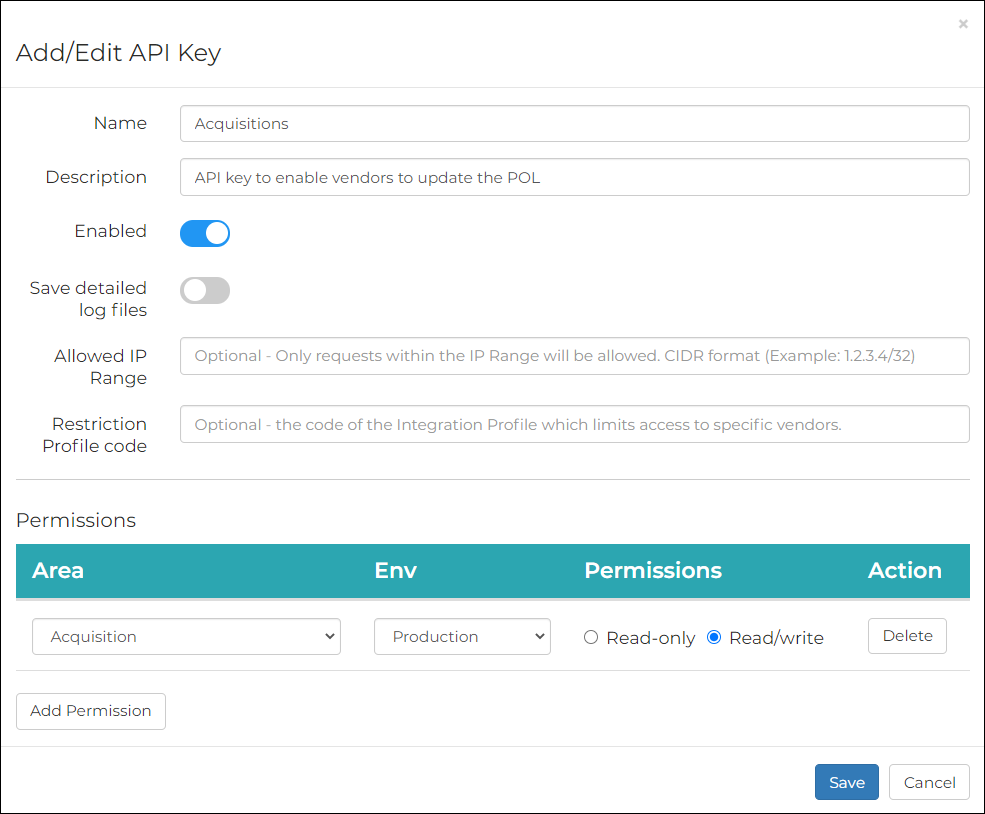 Añadir/Editar clave API
- Suministre al proveedor su clave API para permitirle realizar actualizaciones en la línea de la orden de compra en Alma.
- For ProQuest, send the API key to e-renewals@proquest.com.
- For EBSCONET, enter the API key within the designated field while setting up the EBSCONET ILS integration profile see more instructions here.
- Cuando el proceso de renovación termina, la línea de orden de compra correspondiente de Alma se actualiza automáticamente con:
- Detalles del título
- (Siguiente) Fecha de renovación
- Nota de renovación - Rellenada con la información de renovación enviada por el proveedor.
- After the functionality is enabled by ProQuest RenewMe customer support, go to Acquisitions > Vendors > [select Edit from the row actions of the vendor] > Vendor Details > System Integration.
- Select the Renew at Vendor System checkbox.
- Select the System Type.
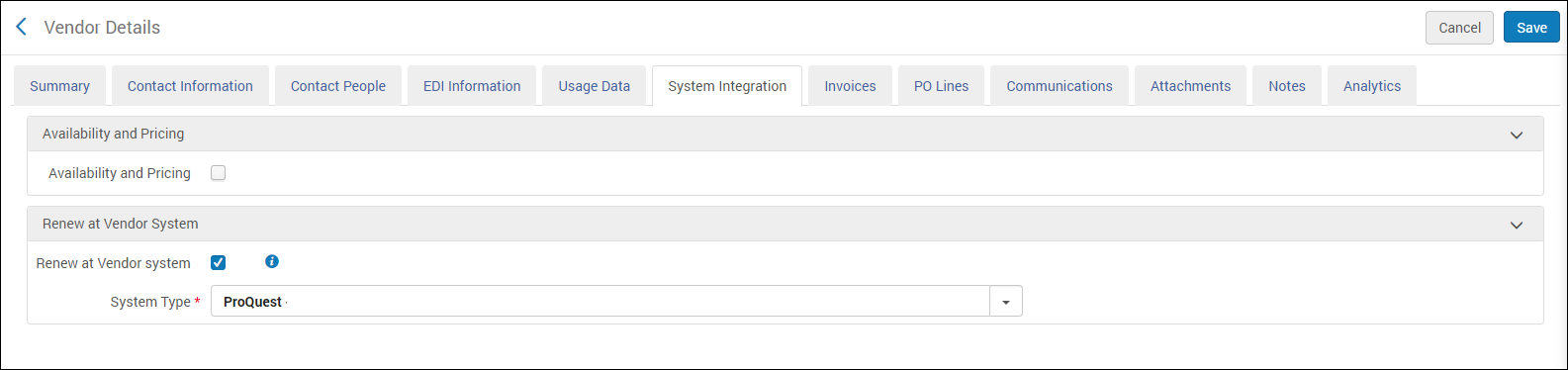 Detalles del proveedor > Integración del sistema
- Select Save. From this point onward, a Renew at vendor system button is added to the Purchase Order Line Details page of all continuous PO lines associated with the vendor.
When you select this button, a ProQuest RenewMe form which includes the Alma PO line number opens (in a separate browser tab). Select Continue to progress to the RenewMe payment page. For more information on how to renew the subscription in ProQuest, see the RenewMe program site.
Cuando el proceso de renovación termina, la línea de orden de compra correspondiente de Alma se actualiza automáticamente con:- Detalles del título
- (Siguiente) Fecha de renovación
- Renewal Note - populated with the renewal information sent by the vendor.
This process can also be launched from the vendor's email notification, which is sent to your institution periodically.
El número de la línea de orden de compra correspondiente debe incluirse en el formulario de renovación del proveedor. Si falta el número de línea de la orden de compra, esta no se renueva en Alma.
If you are adding a new subscription on the vendor platform, and a new matching PO line in Alma, you must contact the vendor and give them the PO line number to associate with the subscription.
Page tags: article:topicproduct:almacontent:Documentationlang:englishRenewal DatePO Lines to Renewrenew PO linechange PO line vendoredit PO line renewalrenewal cyclemanual renewalrenewal reminder
