
Procesar reclamaciones
Esta página incluye enlaces a información para procesar reclamaciones en Alma. For a high level overview of the receiving stage for physical items with links to details for closing PO lines, post receiving and processing claims see Receiving Material. For information on the overall purchasing workflow see Purchasing Workflow. For an overview of working with acquisitions in Alma, including links to relevant sections such as Infrastructure, Renewals, Invoicing, etc., see Introduction to Acquisitions.
- Operador de compras
- Gerente de compras
Se crean reclamaciones para líneas de orden de compra cuando una orden no llega o no se activa en la fecha prevista. Claim notifications to vendors can be sent for electronic or physical PO lines, as explained below. En muchos casos, en una sola notificación se pueden combinar varias reclamaciones de un único proveedor.
The following diagram provides an overview of the processing of claims:

- An order appears as In Claim only after the PO Line - Claiming job has run. (The process must be marked as Active on the Monitor Job page – see Viewing Running Jobs).
- Las reclamaciones para los tipos de línea de orden de compra con la continuidad "Orden abierta" y el formato de inventario "Digital" no están disponibles actualmente en Alma. Esto no incluye el tipo de línea de orden de compra "Física - Orden abierta no monográfica" que tiene el tipo de continuidad "Continua" y se procesa en el mecanismo de reclamación.
Ejemplares en reclamación en la lista de tareas de la línea de orden de compra
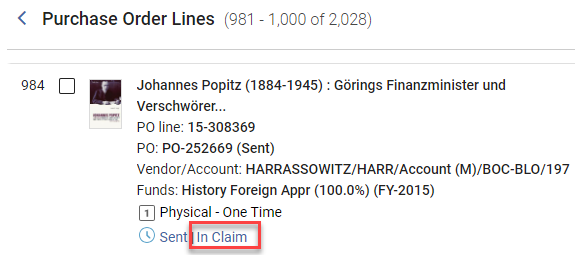
When one or more items in a PO line are in claim, the In Claim link appears beside the current workflow step (status) of the PO line in task list. For the criteria used to mark an item as in claim see Criteria for Marking PO Lines as In Claim.
In addition, for physical items, the Items in Claim section appears in the Details pane, below the Ordered Items section, and lists each of the items in the PO line that is in claim, along with its expected receiving date.
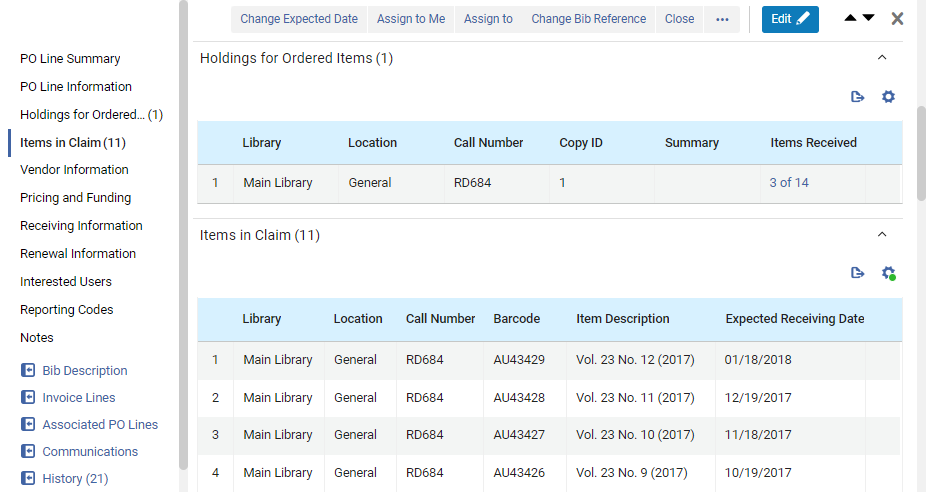
Para órdenes físicas únicas, la lista muestra todos los ejemplares vencidos y no recibidos enlazados a esta línea de orden de compra. Select the barcode of an item in the Ordered Items section to open the item in the Physical Item Editor.(New for February 2026) Select this link to view the holdings record in a sliding panel.
It is also possible to receive a specific item in the Items in Claims section of the PO line by selecting Receive from the row actions menu. Cuando efectúa la operación de recepción en una línea de orden de compra, aparece un cuadro de diálogo que le permite actualizar la información de recepción. See also Modifying Physical Item Information.
Para líneas de orden de compra físicas y continuas, la reclamación se basa en los patrones de predicción, si están activados. Para órdenes físicas continuas, la lista muestra todos los ejemplares vencidos y no recibidos que están bajo las existencias enlazadas a esta línea de orden de compra, en base al patrón de predicción. If there are items in claim, the link in the Holdings for Ordered Items section, under Items Received, opens the List of Items page in a sliding panel. In the row actions of an item, select View to open it in the Physical Item Editor. When a continuous PO line is in claim but no actual items are in claim, as when the PO line is waiting for renewal, the Items In Claim section is empty. For additional information about the criteria for determining which items are in claim, see Criteria for Marking PO Lines as In Claim, below.
Ver una lista de líneas de orden de compra En reclamación
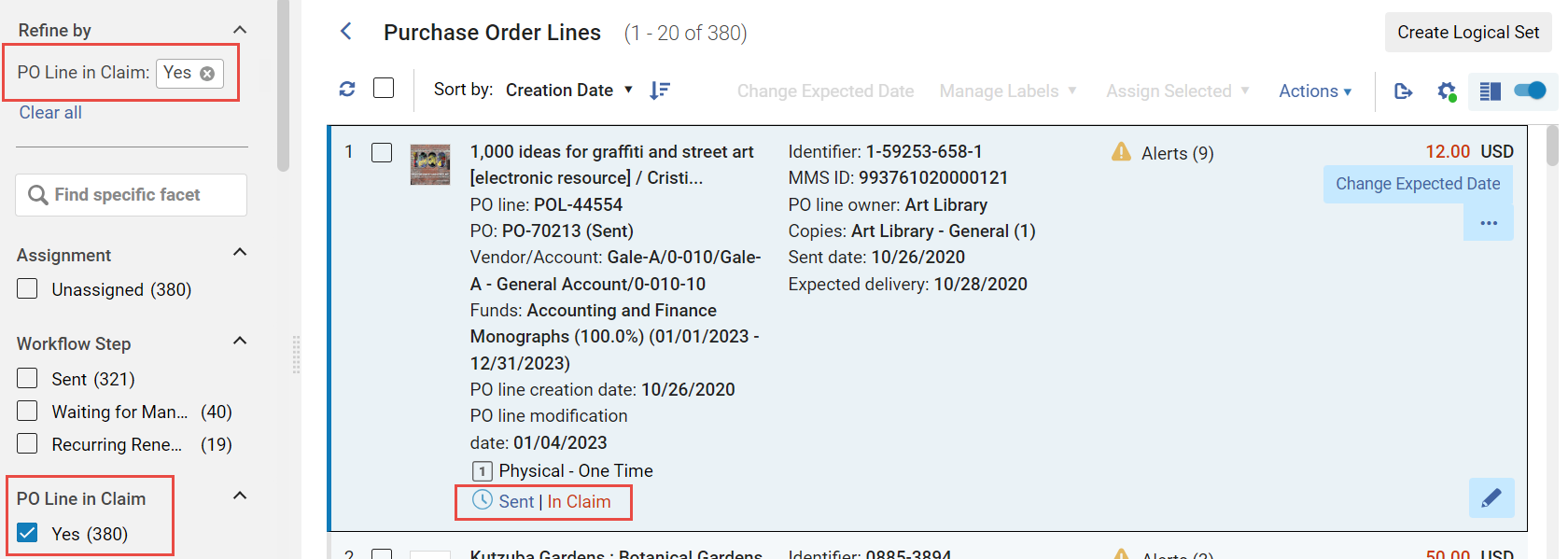
Se puede abrir una lista de líneas de orden de compra vencidas al filtrar la lista de líneas de orden de compra en la lista de tareas a fin de mostrar solo las que están en reclamación. Puede abrir la lista de tareas con este filtro activado, o activar el filtro desde las facetas en cualquier momento que la lista de tareas esté abierta.
- Navigate to Acquisitions > Purchase Order Lines > Claim.
- In the persistent menu, in the Tasks list, select Order Lines > Claim(see Tasks in the Task List).
- In the Facets, under PO Line in Claim, select Yes. (For additional information about working with the facets, see New Layout 2022.)
- In the row or Details pane of a PO line that is In Claim, select the In Claim link.
Criteria for Marking PO Lines as In Claim
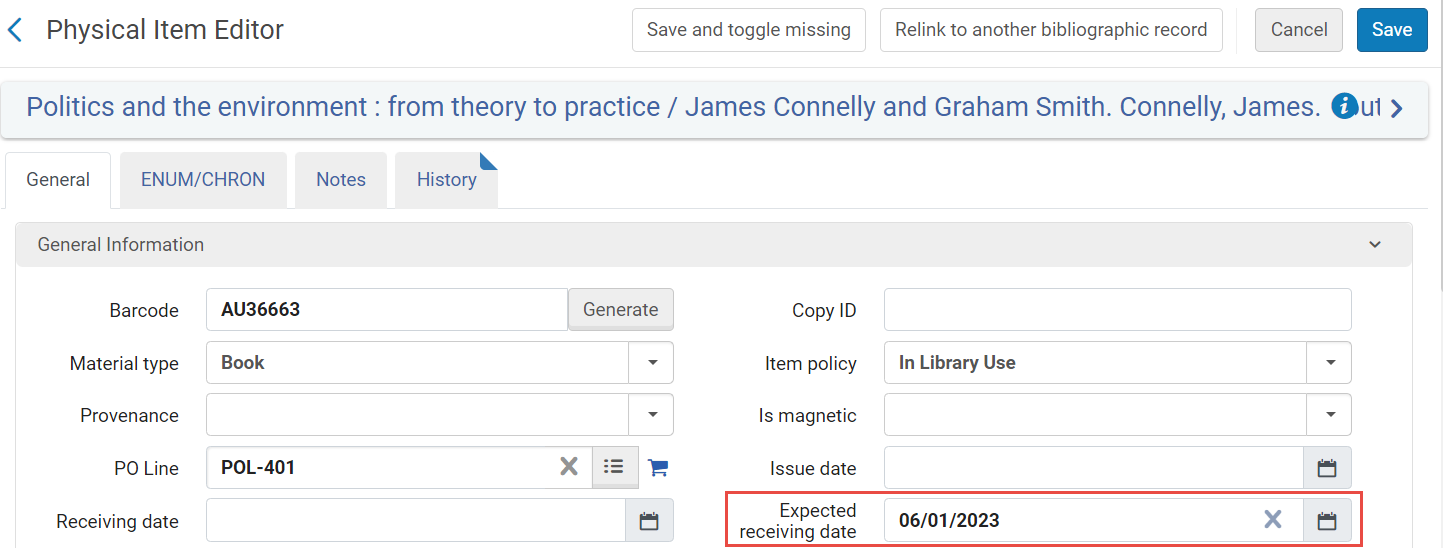
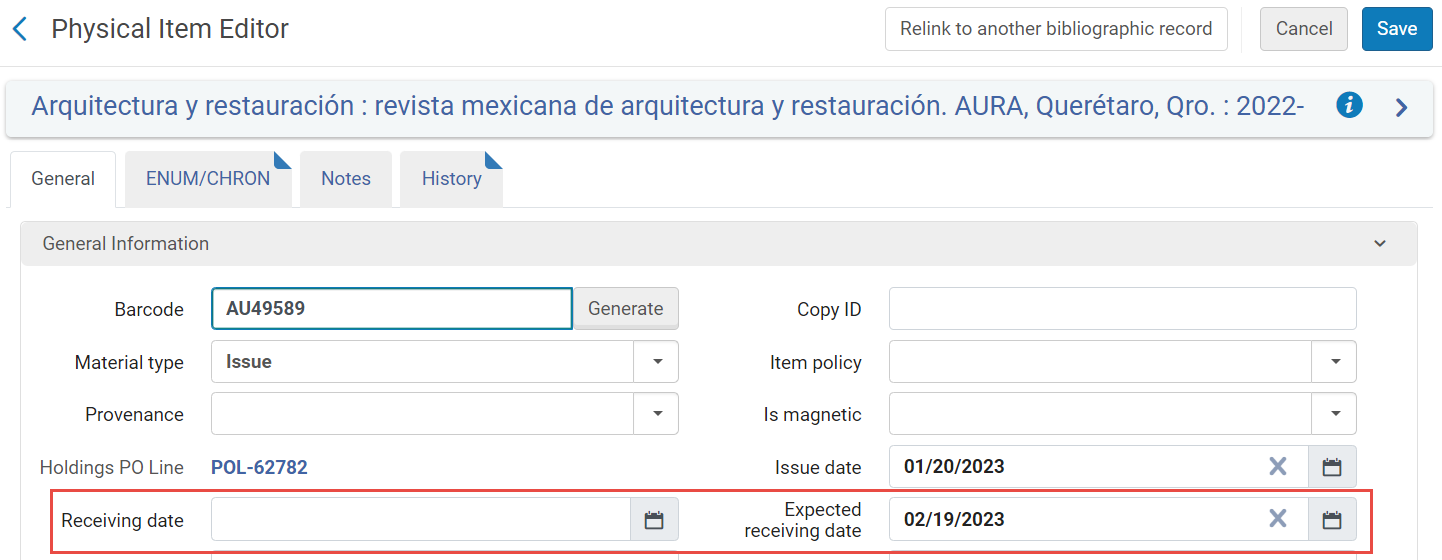
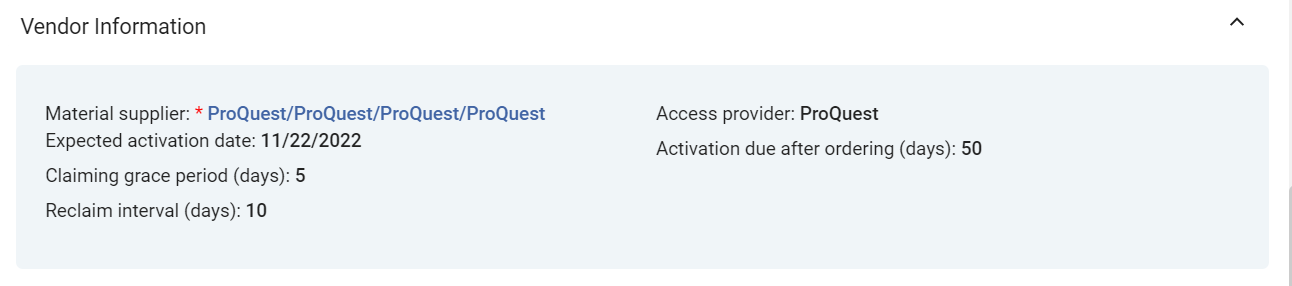
Several fields from the PO line are used by Alma to determine when a PO line is marked as In Claim. These fields appear in the Vendor Information section of the Details pane (see Manually Creating a PO Line). The expected receiving date that is calculated appears in the Expected receiving date field of the item information.
| Tipo de línea de orden de compra | Configuración de las reclamaciones |
|---|---|
| Para líneas de orden de compra de única vez |
Alternative Ways of Specifying the Expected Receiving Date of an Item in the PO LIne's Vendor Information Section
|
| Para líneas de orden de compra físicas y continuas |
When a continuous PO line does not have any expected items and the Expected receiving date is in the past, Alma marks the PO line as In Claim based on the Expected Receiving date+ grace period on the PO line. Si el intervalo de reclamación está configurado, la fecha de reclamación se recalcula cada vez que la línea de orden de compra se marca como En reclamación, según la fecha de reclamación, más el intervalo de reclamación en la línea de orden de compra. Cuando una línea de orden de compra CO está en reclamación con información de reclamación, cambiar la fecha de recepción esperada en el editor de ejemplares no elimina la línea de orden de compra de la reclamación y no recalcula las fechas de reclamación.
The fields associated with the item are (see Prediction Patterns and Updating Item-Level Information):
|
| Para líneas de orden de compra electrónicas (tanto únicas como continuas) |
Alma calculates claim dates as described above for physical PO lines, except that the Expected activation settings are used instead of the Expected receipt settings. When the Expected activation date+Claiming grace period arrives, and the PO line (either one-time or continuous) is still not activated, the PO line is marked as In Claim .
Example: If the vendor is configured with Expected activation > Days after ordering=5 and Claiming grace period=2, then if the electronic resource is ordered on April 20, it is expected to be activated by the end of April 27 (April 20 + 5 days + 2 days grace = April 27), and the PO line is marked as In Claim on April 28.
|



Notificaciones de correo electrónico enviadas por correo electrónico/EDI
Se envía automáticamente una notificación de reclamación al proveedor solo la primera vez que esta línea de orden de compra se marca como En reclamación. Si, luego, un Operador actualiza la fecha de recepción prevista de la línea de orden de compra y esta se marca como En reclamación nuevamente después de la nueva fecha, no se envía otra notificación.
A notification is automatically sent to the vendor using email when all of the below take place:
- The vendor has a defined email addresses (see Managing Vendors)
- If the email Claims Letter is enabled (see Enabling/Disabling Letters)
- If the relevant claim parameters is set to Y (see Configuring Other Settings):
- auto_claim parameter for physical one-time PO line
- auto_claim_co for physical continuous PO line
- auto_claim_electronic for electronic PO line
For all PO line types, if EDI Claim Letters are enabled, then for vendors that use EDI and have enabled EDI claims, a notification is sent using EDI instead of email (Claims must be checked on the EDI Information tab of the vendor; see Electronic Data Interchange (EDI)).
De lo contrario, no se envía una notificación automáticamente (correo electrónico y EDI). You can send a notification manually using email (see Communicating with Vendors).
When a claim letter is sent for a given month, and the item is never received, if the following month's item also goes into claim, a claim letter can be sent with details for both months. To enable this option, set the claim_continuous_item_level parameter to true(see Combined Email Claim Notifications below).
Alerts Generated
Cuando vence la línea de orden de compra, se genera una de las siguientes alertas:
- Overdue PO line – The PO line was not received/activated within the expected number of days after placing the order or by the expected receipt/activation date.
- Open claims exist for this PO line – The PO line was marked as In Claim. Para las líneas de orden de compra físicas y únicas (o cualquier línea de orden de compra para los proveedores compatibles con reclamaciones EDI), se envía automáticamente un correo electrónico al proveedor preguntando por la entrega con retraso del pedido. This automatic email is sent only once per claimed item to the vendor. Note that even if the In Claim indication is removed from a PO line, this alert remains until the claim is closed. Subsequent communication with the vendor takes place using the Communications section of the PO line's Details pane (see Communicating with Vendors).
- <x> items were received out of <y> ordered – For one-time physical PO lines: How many items have been received out of the total number ordered. To see a list of all the items in the PO line: In the PO Line Summary section, select the Alerts link to open a list of the alerts attached to the PO line. For this alert, select Go To Manage Items in receiving. The Received Items List page opens in the sliding panel and displays the list. (Tenga en cuenta que, para ello, debe estar en el departamento correcto).
- This POL has subscription interval of <Subscription interval> - at least 1 item did not arrive in this time frame – For continuous physical PO lines: The number of days that have passed since an item was received for this PO line is greater than the subscription interval. For example, if the PO line's subscription interval is 30 days, then every 30 days an item should be received. If for more than 30 days no item was received, the PO line is set to In Claim with this alert.
- Electronic resource was not activated – For electronic PO lines: The PO line's electronic resource has not yet been activated. To open the PO line in the Electronic Resource Activation Task List page, where you can activate the resource: In the PO Line Summary section, select the Sent link. (Note that you must be within the correct department to do this.) The Electronic Resource Activation Task List page opens in a sliding panel. For additional information, see Activating Electronic Resources and the Activation Task List.
Updating Claim Dates
Puede editar o actualizar las fechas de las líneas de orden de compra vencidas. En ciertos casos, también se puede reenlazar, cerrar o cancelar una línea de orden de compra vencida, o bien activar una línea de orden de compra electrónica vencida. Most of these actions remove the In Claim indication, either immediately or after the PO Line - Claiming job runs.
Para obtener más información, consulte las siguientes secciones:
- Editing PO Line Information
- Updating Dates(below)
- Relinking PO Lines
- Canceling PO Lines
- Activating Electronic Resources
- Closing PO Lines
Updating Dates
Puede introducir una nueva fecha prevista de llegada o una fecha de activación prevista del proveedor. Cuando la misma fecha prevista se aplique a múltiples líneas de orden de compra, la nueva fecha puede introducirse de forma global para todas las líneas de orden de compra aplicables. Cuando se introduce una fecha futura:
- Se elimina cualquier alerta de reclamación aplicada a las líneas de orden de compra.
- Las líneas de orden de compra ya no aparecen como En reclamación en la lista de tareas.
- The PO lines no longer appear in the task list when the Order lines with claims link is selected in the task list (see Tasks in the Task List).
- Seleccionar si actualizar las fechas de manera global o individual:
- To update the expected dates for multiple PO lines that are in claim and appear in the current appear in the task list: Select the check boxes for all PO lines for which you want to update the date (you can select PO lines from different pages in the list); the total number of selected PO lines appears above the task list. Then, in the Actions menu, select Change Expected Date. After running this bulk action, information displays at the top of the page showing the results, including the number of successes and failures.
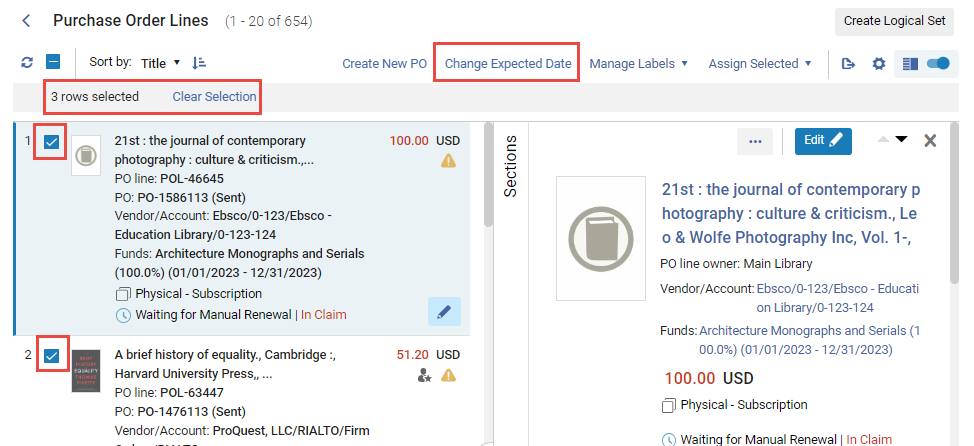
- To update the expected date for an individual PO line in the task list, select Change expected date in the row actions list (or update the date by editing the PO line – see Editing a PO Line in Review).
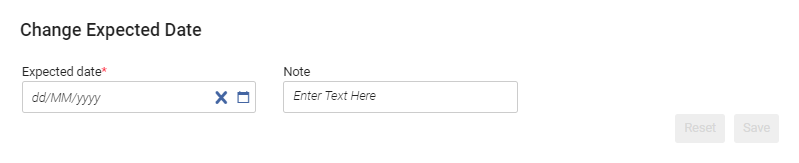 Change Expected Date dialog box
- To update the expected dates for multiple PO lines that are in claim and appear in the current appear in the task list: Select the check boxes for all PO lines for which you want to update the date (you can select PO lines from different pages in the list); the total number of selected PO lines appears above the task list. Then, in the Actions menu, select Change Expected Date. After running this bulk action, information displays at the top of the page showing the results, including the number of successes and failures.
- Under Expected date, select a new date in the future.
- Optionally, enter any notes in the Note area.
- Select Save. Se actualiza la fecha prevista y se eliminan las alertas de reclamación y la indicación En reclamación de las líneas de orden de compra.
Notificaciones de reclamaciones combinadas en correo electrónico
When the PO Line - Claiming job runs, it checks if there are multiple claims from a single vendor. If there are, and the claim notification is going to be sent by email, Alma combines the notifications for all of the claims from that vendor into a single claim letter, the PO Line Aggregated Claim Letter. Los ejemplares físicos y electrónicos se pueden incluir en una sola notificación de este tipo.
Las notificaciones de reclamaciones que se envían por EDI no se pueden combinar y siempre se envían individualmente por cada línea de la orden de compra.
Los siguientes parámetros del cliente pueden afectar la combinación de notificaciones de reclamaciones. The values of these parameters can be modified in the Mapping Table page (Configuration > Acquisitions > General > Other Settings); see Configuring Other Settings (Acquisitions).
| Parámetro del cliente | Efecto en la combinación de notificaciones de reclamaciones |
|---|---|
| claim_aggregated_letter |
Controla si se incluyen múltiples reclamaciones en una sola notificación:
If the claim_aggregated_letter Customer Parameter is set to TRUE, but the PO Line Aggregated Claim Letter letter is disabled, no claim letter is sent to the vendor. |
| acq_use_vendor_account_email |
Controla si las notificaciones se combinan por registro del proveedor o por cuenta del proveedor:
|
| claim_continuous_item_level |
For continuous orders, controls whether missing items for which a claim letter was already sent are included in new claim notifications. Por ejemplo, si el fascículo de mayo de un periódico no se ha recibido para su fecha de reclamación, y tampoco se recibieron los fascículos de marzo y abril, este parámetro controla si marzo y abril se incluyen en la notificación de reclamación para el fascículo de mayo.
|
Page tags: article:topicproduct:almacontent:Documentationlang:englishClaiming grace periodExpected receipt after orderingExpected receipt dateSubscription intervalclaimsclaim PO linemissing orderclaim missing itemReceiving dateExpected receiving dateOverdue PO lineOpen claims exist for this PO lineNo item was receivedElectronic resource was not activated
