
Creating a Lending Request
Questa pagina fornisce una panoramica sulla creazione di richieste di prestito in Alma, inclusa l'aggiunta manuale o da una ricerca. For more information on resource sharing including locating items for resource sharing, working with resource sharing partners, managing borrowing and lending requests and contributing to the resource sharing directory, see Resource Sharing.
Le richieste di prestito tramite condivisione delle risorse (RS) sono richieste per prendere in prestito libri o altri materiali dalla Sua istituzione da parte di altre biblioteche tramite prestito interbibliotecario (ILL). These requests are usually transmitted digitally to the lending library, and appear in Alma's Lending Requests page (Fulfillment > Resource Sharing > Lending Requests).
For information about handling existing lending requests, see Managing Lending Requests.
If you need to create lending requests in Alma directly – for example, if you receive a request over the phone or by email – you can do so from the Lending Requests page, either manually or from a search, as explained below. Una volta creata la nuova richiesta, può compilare i campi pertinenti come richiesto. If the request was created from the results of a search, some of the fields are filled in by the system.
Adding a Lending Request Manually
È possibile creare manualmente una richiesta di prestito per la condivisione delle risorse inserendo le informazioni sulla risorsa in un modulo di richiesta di prestito vuoto.
To add a lending request manually:
-
On the Lending Requests page (Fulfillment > Resource Sharing > Lending Requests), select Create Request > Manually and then select the type of resource – Book or Article. A blank Resource Sharing Lending Request form opens in a sliding panel.
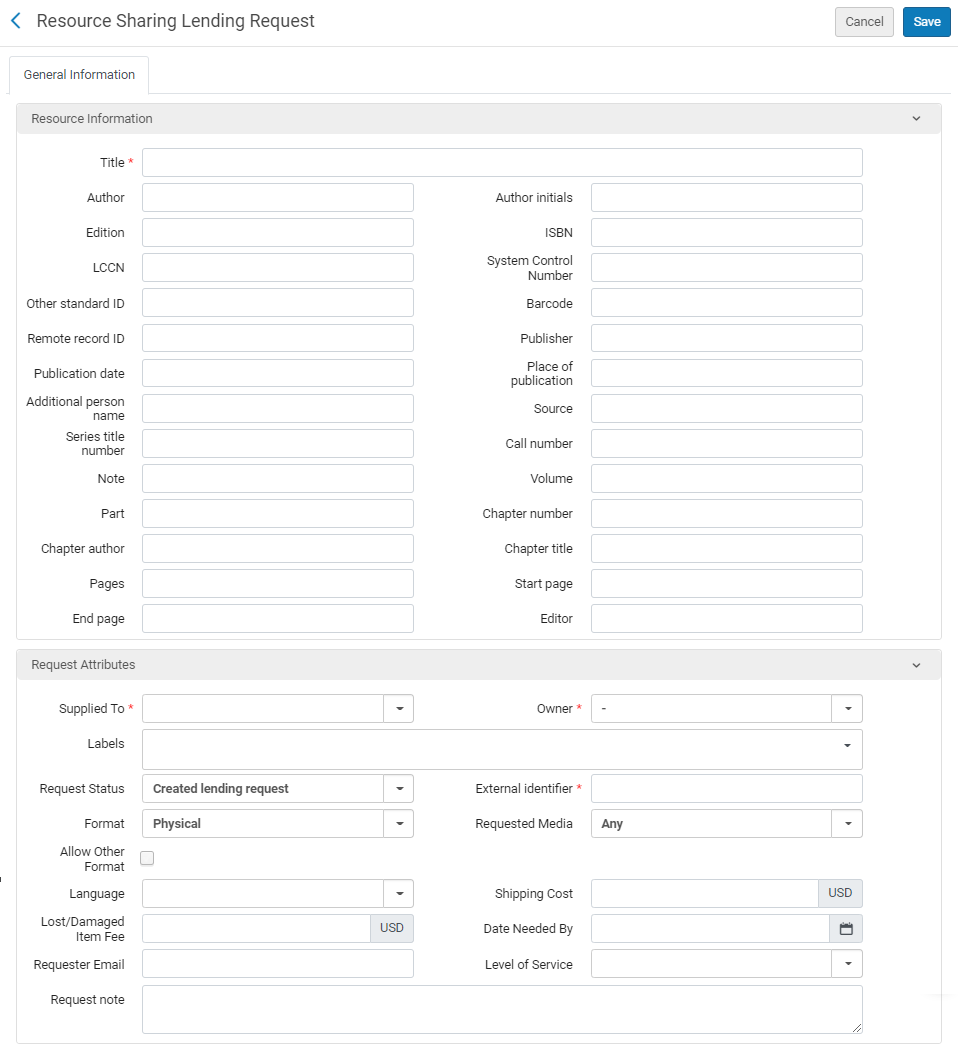
Pagina di richiesta di prestito per condivisione risorse (Libro)
- Nell'area Informazioni sulla risorsa, immetta le informazioni nel campo appropriato. For more information on these fields, see Adding a New Book or Journal Article.
- In the Request Attributes area, enter the required information in the relevant fields, as described in Lending Request Attribute Fields, below.
- Seleziona Salva. La richiesta di prestito è stata creata e la pagina si chiude.
Adding a Lending Request From a Search
You can create a resource-sharing lending request by searching your institution's repository and copying the bibliographic record of the required resource from it.
-
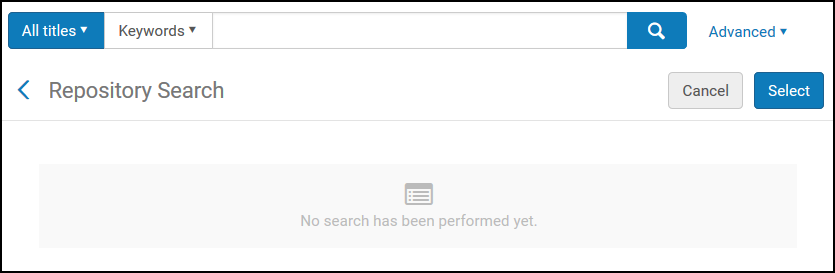
On the Lending Requests page (Fulfillment > Resource Sharing > Lending Requests), select Create Request > From Search. La pagina di ricerca Archivio si apre in un pannello a scomparsa.
-
Search for the item (see Searching in Alma).
Nella casella Trova è possibile selezionare solo Tutti i titoli.
-
Select the checkbox of the required item, and then select Select. The Request Attributes section of the Resource Sharing Lending Request page opens.
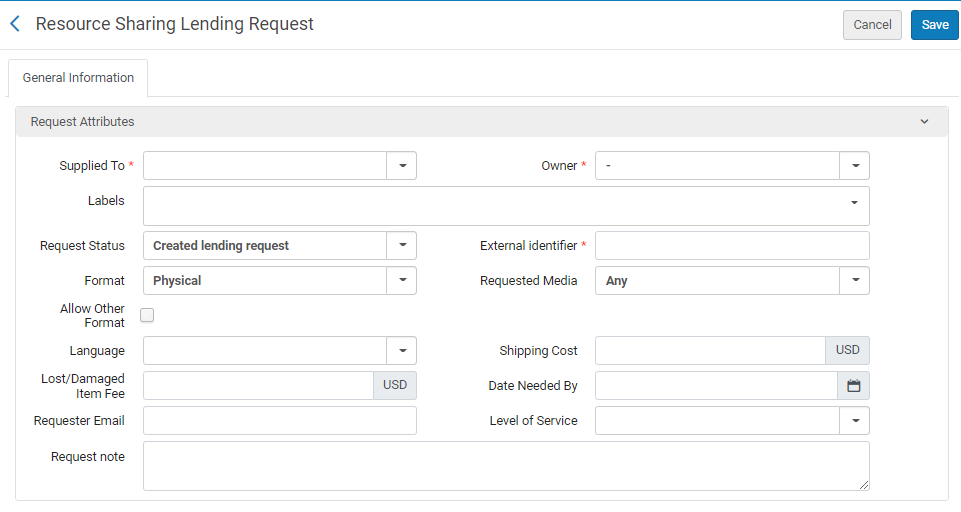
- Inserisca o modifichi le informazioni della richiesta, come descritto nella tabella seguente:
Campi attributo della richiesta di prestito Campo Descrizione Fornito a (Obbligatorio) Select the specific integration profile, configured on the Resource Sharing Partner List page in Fulfillment Configuration (see Resource Sharing Partners). Owner (Required)
Selezionare la biblioteca di condivisione risorse a cui è assegnato l'operatore. Se la richiesta è creata automaticamente, come con un messaggio NCIP, il proprietario è impostato dal parametro del partner NCIP. Per un messaggio ISO, il valore è impostato sul simbolo ISO configurato nella biblioteca di condivisione delle risorse. Etichette Aggiungere una o più etichette – identificativo di una sola parola – alla richiesta. Selezioni il campo Etichette per vedere un elenco delle etichette esistenti. Selezioni una delle etichette per allegarla alla richiesta, oppure inizi a digitare per crearne una nuova.
See also Managing Labels for general information on managing labels in Alma.
Status richiesta Selezioni lo stato della richiesta. Scelga tra le seguenti opzioni: - In Esecuzione
- Annulla risposta
- Richiesta di prestito in entrata creata
- Danneggiato
- Scaduto
- Controllo del prestatore
- Localizzazione fallita
- Smarrito
- Overdue request – The request's due date arrived.
- Ricevuto dal partner
- Richiesta del richiedente rifiutata
- richiesta completata – La richiesta è stata consegnata o è stata annullata prima di raggiungere lo scaffale delle prenotazioni.
- Restituito dal partner
- Invia digitalmente
- Invia fisicamente
- Verrà fornito
Identificativo esterno (Obbligatorio) Inserisca la stringa identificativa fornita dal sistema esterno. Formato Nella lista a discesa Formato, selezioni il Formato della richiesta: - Digitale
- Fisico
- Fisico da non restituire
Media richiesto Il tipo di supporto in cui desidera che la richiesta venga fornita. The values that display in the drop-down field are those configured with a value of True on the Requested Media Definition Mapping Table page (see Configuring Requested Media Definitions).
When a request is submitted with a requested media type that was added to the out-of-the-box options (see Configuring Additional Requested Media) and the request is sent to an ISO partner, the partner receives the requested media information in the Request Note field.
Consenti Altro Formato Se il formato richiesto non è disponibile, questo indica se l'utente è disposto a ricevere la copia in un altro formato. Lingua Questa è la lingua richiesta dall'utente nella Richiesta di prestito in uscita. Status Copyright Riflette lo stato del copyright del mutuatario (se il mutuatario supporta gli stati del copyright). Il valore del mutuatario sarà automaticamente inserito per la richiesta ISO. Costo di spedizione Inserisca un costo di spedizione per la richiesta. La Valuta visualizzata è la Valuta default dell'istituzione.
If a shipping cost lender rule is configured, it is applied to the shipping cost of the request (see Configuring Shipping Cost Lender Rules).
Data necessaria entro Selezionare la data in cui è necessaria la copia dalla finestra di dialogo Calendario. Nota della richiesta Inserisca una nota per la richiesta. See also Active and Inactive Notes. E-mail del richiedente Inserisca un indirizzo email se la risorsa richiesta è digitale. La risorsa verrà consegnata a questo indirizzo email. Livello di servizio La velocità di spedizione richiesta. To configure the available options, see Configuring Levels of Service. - Seleziona Salva. La nuova richiesta di prestito è stata creata e la pagina si chiude.
