
Ricerca in Alma
Searching Alma is available from the persistent search box located at the top of every page [the persistent search box does not appear at the top of the Portfolio List page; this is a known issue]. You can also save search queries and reuse them at any time (see Saving and Reusing Search Queries).
Also see Secondary Search.
Opzioni di ricerca
A seconda dei tuoi Ruoli utente, puoi Ricerca molti elementi nell'Archivio di Alma, tra cui:
- Metadata records compiled by Ex Libris or local to your institution or collaborative network (see Metadata Management and Inventory). Questi record includono:
- Local inventory— Including holdings for physical items, electronic portfolios, and digital representations and files.
- Bibliographic titles— Including top-level collections, physical titles, electronic collections, and portfolio titles, and digital titles.
- record di autorità
The results appear on the page; see Repository Search Results, below. - A seconda del Suo Ruolo, può anche cercare:
- Patron requests— The results appear on the Resource Request Monitoring page (see Requests in Alma).
- Courses— The results appear on the Courses page (see Managing Courses).
- Deposits— The results appear on the Deposits page (see Deposit).
- Users— The results appear in the Find and Manage Users page (see Managing Users).
- Acquisitions information— Including PO lines, funds, invoices, vendors, and licenses (see Acquisitions). I risultati appaiono nella pagina delle acquisizioni pertinenti.
- Reading lists— The results appear in the Reading Lists Task List page (see Managing Reading Lists).
- Reading list citations— The results appear in the Edit Citations page (see Managing Citations).
- Borrowing Requests— The results appear in the Borrowing Resource Sharing task list.
- Lending Requests— The results appear in the Lending Resource Sharing task list.
- If your institution is working with Esploro, you can search for research assets, deposits, and files, and for researchers; see Searching in Esploro.
Il campo ricercabile dipende dal tipo di ricerca. For example, when you search All Titles, the searchable fields are based on metadata that is common to all record formats, but do not include fields that are specific to physical, electronic, or digital inventory. You can search on these specific fields when searching the relevant format (Physical Titles, etc.).
Searching Physical Titles, Items, and Holdings indices with a permanent physical location equals "empty" does not work because it cannot retrieve real results since a holdings record cannot be created without "852$c". Si consiglia di non utilizzarlo.
In the persistent search, when searching for Physical Items by the beginning of a barcode as well as Local Control Field 009, we recommend using the “Contains exact phrase starting with” option instead of “Start with” search because it does not return the desired result. È necessario utilizzare almeno due caratteri. Ad esempio, cerca i caratteri iniziali "7L" o "Z0" e non solo "7" o "Z".
Ogni copia fisica, portfolio/collezione elettronico e file digitale è indicizzato con i metadati bibliografici a cui è collegato, oltre ai dati specifici del suo Inventory (istituzione/rete). See Search Indexes for more information. La ricerca è identica indipendentemente dal Formato dei record del catalogo (ad esempio, MARC21, BIBFRAME o Dublin Core).
La Barra di ricerca Le offre i seguenti metodi di ricerca:
- Simple Search – Search using a single search field (see Performing a Simple Search).
- Advanced Search – Create search criteria, including search conditions, to refine your search (see Performing an Advanced Search). La ricerca avanzata non è disponibile per citazione, richiesta, richiesta di prestito in uscita, richiesta di prestito, fondo, fornitore e fattura.
Solo gli Indice semplici a testo libero possono essere attivo per Ricerca semplice, mentre gli Indice complessi, rigidi o a valore fisso, come quelli Definisci nelle Tabella di codici, sono supportati solo per Ricerca avanzata.
When searching for a call number like I106.4 /4 that ends with a number preceded by a slash, the system ignores the slash and number, such as /4 in this example, and returns search results for I106.4. Questo è un problema noto. Questo accade solo quando c'è una cifra dopo la barra. A search for I106.4 /E, for example, returns the correct set of results. Per risolvere questo problema, utilizzare l'Indice Tipo numero di collocazione Permanente e criteri simili all'esempio seguente:

Performing a Simple Search
La barra di ricerca appare in cima a ogni pagina. Questo strumento fornisce inizialmente un'interfaccia di Ricerca semplice per la ricerca nell'Archivio (libri, articoli, autorità e così via) e in altre aree di Alma (linee di ordine d'acquisto, fornitori e così via). For a list of the keyword indexes searched during a repository search, see Search Indexes. La ricerca default è una ricerca Archivio per Tutti i Titoli.
Users can quickly select the type of search (entity type) by starting to type the name in the Search field, for example "Electronic collection", and having it auto-complete in the field.
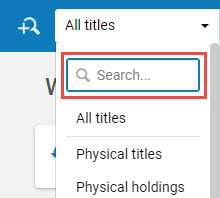
To rerun a simple repository search, see Rerunning a Previous Search.
- Selezioni il Tipo di ricerca dall'elenco a discesa Lista. (Si noti che questa è una lista fissa di opzioni e non può essere modificata).

Menu a tendina delle opzioni di ricerca persistente Gli utenti con i seguenti ruoli possono eseguire ciascun tipo di ricerca.User Roles for Search Types
Tipo ricerca Ruolo utente Tutti i Titoli
Titoli fisiciCopie fisicheCopie fisicheTitoli ElettroniciPortfolio elettroniciPacchetto elettronicoTitoli DigitaliFile DigitaliAssegnazione collezioneAuthoritiesTutto Linee d’ordine Gestore Fattura, operatore Fattura, operatore Fattura Esteso, Responsabile degli Acquisti, Operatore degli Acquisti, Responsabile trial, operatore trial Fatture Responsabile Fatture, Operatore Fatture, Operatore Fatture Esteso, Responsabile Acquisti, Operatore Acquisti Fornitori Gestore Fornitori Fondi Fondo Manager, Fondo-Registro visualizzatore, Registro Manager, Gestore Acquisti, Operatore Acquisti Configura Licenze Responsabile delle Licenze, Operatore degli Acquisti, Gestore degli Acquisti Richieste
Richiesta di prestito in uscita
Richiesta di prestito
Operatore di ricezione, Operatore di ricezione limitato, Responsabile del Banco di circolazione, Operatore del Banco di circolazione, Responsabile dei servizi di evasione, Operatore dei servizi di evasione, Operatore delle richieste, Operatore del work order, Operatore dell'Inventory digitale (solo richieste) Utente Utente Manager, Utente Amministratore, Banco di circolazione operatore, Banco di circolazione Limited, Banco di circolazione Manager, Servizi Services operatore, Servizi Services Manager Reading List CitazioniCorsiCourse Reserves operatore, Course Reserves Manager, Servizi Services operatore, Servizi Services Manager Depositi Manager del deposito, Operatore del deposito, Operatore del deposito esteso, Amministratore generale del sistema Richiesta di prestito in uscita (condivisione delle risorse) Responsabile Servizi Servizi,Servizi Servizi operatore (ambito biblioteca condivisione risorse) Richiesta di prestito (Resource Sharing) Responsabile Servizi Servizi,Servizi Servizi operatore (ambito biblioteca condivisione risorse) Opere Tutto Available only if BIBFRAME support is enabled. For more information, see BIBFRAME support. - Selezioni il campo su cui effettuare la ricerca nella seconda lista a discesa, oppure selezioni Parola chiave o Tutti (a seconda della selezione nella prima lista a discesa) per una ricerca generale su più campi. Può selezionare il nome del campo default e inserire parte o tutto il nome di un campo per filtrare la lista dei campi. For more information, see Searchable Fields; for PO lines, see PO Line Search Fields; for vendors, see Vendor Search Fields; for reading lists, see Reading List Search Fields; for citations, see Citation Search Fields (Simple Search Only). To configure the available search fields, see Configuring What Search Indexes Are Available.
- Inserisca una stringa di ricerca nella casella di testo.To jump to this text field on any page that does not have any other kind of search box, press /(forward slash) on your keyboard.Regarding the search string:
- Articles (such as the,a,an) in your search are ignored.
Leading articles are not ignored when 'Title' is selected from the second drop-down list for All titles, Physical titles, or Electronic titles search types.
- La parola "AND" non viene trattata come un Operatore booleano (la Ricerca semplice associa implicitamente "AND" a tutti i termini).
- I caratteri speciali, come trattino, lineetta, barra e così via, trovano stringhe sia con che senza i caratteri speciali. Ad esempio, la ricerca di a-b trova i record che includono a-b o ab. Spaces separate search terms, so searching for a<space>b finds records that include both a and b anywhere (not as an exact phrase), but does not return ab. For additional special characters, see Searching for Special Characters. L'eccezione a questa regola è la ricerca del codice/nome del corso o del codice/nome della lista di lettura. See Reading List Search Fields and Citation Search Fields (Simple Search Only).
- All variants of apostrophe characters are normalized to the standard ASCII apostrophe \u0027 in various textual fields such as Subject and Title. Ciò significa che, se un testo in un record bibliografico contiene uno dei seguenti caratteri apostrofo UNICODE, il testo può essere recuperato cercando con il carattere apostrofo originale o con quello standard ASCII \u0027:Nota che questa funzionalità è supportata solo per la lingua di ricerca default configurata per il tuo sistema.
- \u02BB - MODIFIER LETTER TURNED COMMA
- \u02BC - MODIFIER LETTER APOSTROPHE
- \u02B9 - MODIFIER LETTER PRIME
- \u2018 - SINGLE QUOTATION MARK
- To use the asterisk ( * ) wildcard character in your search string, place it at the end of the search string. Asterisk may be used at the end of the string with Contains Keywords and Not Contains Keywords.
- L'asterisco non è supportato quando la stringa contiene un carattere speciale, ad esempio trattino (-), punto, virgolette o virgolette doppie, parentesi, barra o spazio, ad esempio: $a (Aleph)003858461UCD01-Aleph.
- Il punto interrogativo (?) non è supportato come carattere jolly.
- L'asterisco è applicabile per trovare tutti gli Inventory. For example, using asterisk as a keyword to search for ALL titles finds all the resources in Alma.
- When using an asterisk instead of the entire search string, it is recommended using "Title is not Empty" or "MMS ID > 0" to find all records in the repository in an efficient way.Note: Using an asterisk is not recommended, because it is less efficient and more time consuming.
- Alma does not break numbers and letters into separate tokens. For example: The indexing in the new version of Solr does not split the values. As a result, searching, for example, for SCR does not return 202408SCR. Note that when searching for CJK characters (if search language configuration is enabled by Ex Libris as described below), partial results are found. For example, when searching for 20240229, Alma returns results that include CJK characters, such as 年度寄贈20240229.
- Searching numbers in the "Keywords" (All) field, Alma does not split by hyphens (-), with the exception of ISSN and ISBN.
- È possibile inserire una ricerca per frase racchiudendo la frase di ricerca tra virgolette doppie. This can be done for all search entities and index types that have the option to use phrase search in Alma's advanced search such as titles and portfolios searches.Se aggiungi altro testo nella casella di Ricerca prima o dopo un Set di parole racchiuse tra virgolette doppie, il testo tra virgolette non verrà trattato come una Ricerca per frase. La funzionalità di ricerca per frasi è limitata a una singola frase racchiusa tra virgolette doppie.Quando si utilizza la funzionalità di ricerca per frase, le parole contiene frase precedono i termini di ricerca nei risultati per indicare il tipo di ricerca eseguita. La lista delle ricerche recenti mostra le virgolette nei punti in cui Lei ha effettuato una ricerca di frase nella casella Ricerca semplice. When you enter a simple search with quotation marks and subsequently switch to the advanced search function, Alma automatically selects the Contains Phrase option.
- Alma trova i caratteri con segni diacritici quando esegui una Ricerca utilizzando i caratteri standard inglesi.Se l'Utente nella Sua istituzione effettua una ricerca utilizzando caratteri con segni diacritici, si assicuri che Ex Libris abbia configurato le ricerche in modo che restituiscano corrispondenze per segni diacritici. La configurazione della lingua di ricerca è disponibile per il tedesco, il norvegese, il danese, lo svedese, il coreano, il cinese e il TSVCC di Hong Kong.
- Contact Ex Libris to enable the following enhanced search options:
- Ricerca in cinese tradizionale/Kanji o cinese semplificato/Kanji e restituzione risultati sia in cinese tradizionale/Kanji che in cinese semplificato/Kanji.
- Ricerca in Hangul (coreano) e restituzione i risultati sia in Hangul che in Hanja.
- Ricerca in Hiragana (giapponese) e restituzione i risultati sia in Hiragana che in Katakana.
- Un amministratore può configurare diverse copie aggiuntive riguardanti la Ricerca. For more information, see Configuring Search.
- Alma salva le ultime 10 ricerche nello storico delle ricerche per Titolo o Entità di Inventario. Questa lista è salvata a tempo indeterminato. Attualmente non c'è modo di cancellare la Lista (se non effettuando nuove ricerche).
- Optionally select the initial results tab using the search scope drop-down list to the left of the magnifying glass:
 Institution,
 Community, or
 Network (when available). Si noti che la ricerca nell'istituzione non è un'opzione quando si cercano le autorità se la vostra istituzione non gestisce le autorità a livello locale. For more information on these options, see Institution, Community, and Network Tabs.
- Select the magnifying glass
 or press Return or Enter on the keyboard to perform the search. Le copie che corrispondono alla Sua ricerca appaiono sulla pagina.For locations with RFID (see RFID Support), select the RFID read icon to enter content (barcode), and select the magnifying glass.Users can erase entire text content in search fields by selecting an "X" rather than selecting the text and deleting it. Questa funzionalità è abilitata solo per la UI di nuova generazione.
 Icona di lettura RFIDLa ricerca di copie fisiche quando l'RFID è Abilitato mostra lo stato di sicurezza quando è disponibile. Il campo contiene 'Checked Out' o 'Disponibile'. Il termine "prestato" indica che la copia è in prestito e può lasciare la biblioteca. Una copia disponibile non può uscire dalla biblioteca.
- Per ulteriori informazioni sui risultati, consulta:
- Order lines —Searching for PO Lines
- Invoices —Searching for Invoices
- Requests —Resource Request Monitoring
- Borrowing Requests —Managing Resource Sharing Borrowing Requests
- Lending Requests —Managing Resource Sharing Lending Requests
- Vendors —Managing Vendors
- Licenses —Managing Licenses and Amendments
- Users —Managing Users
- Deposits —Approving Deposits
- Market —Searching the Rialto Marketplace
- All other results (repository): Repository Search Results
- To perform an advanced search, see Performing an Advanced Search.
- To save your search, see Saving and Reusing Search Queries.
- Per ulteriori informazioni sui risultati, consulta:
- Articles (such as the,a,an) in your search are ignored.
Performing an Advanced Search
La Ricerca avanzata supporta una ricerca più potente e raffinata, includendo più campi e campi di ricerca di altri tipi di risorsa. For example, when searching physical titles, you can search for a bibliographic title in a particular holdings location. See Performing a Simple Search for search information that pertains to both types of searches.
To rerun an advanced repository search, see Rerunning a Previous Search.
Ricerca in Alma
Use one of the following procedures to perform an advanced search, depending on the type of the search you are performing.
- La ricerca avanzata non è disponibile per citazione, richiesta, richiesta di prestito in uscita, richiesta di prestito, fondo, fornitore e fattura.
- OR is not available for advanced searches for licenses, and reading lists.
- When search results are displayed, if Advanced search was used, the + on the Advanced Search icon turns green:
 . Select the icon to display your advanced search and to modify it, if needed.
- Select the type of search that supports an advanced search.
- In the persistent search box, select
 Advanced. The persistent search box expands to include the option to add additional rows of search criteria (additional fields and values).
- You can also access the advanced search by selecting the search term in the query header.

In the new UX, you can select the Advanced Search icon in the query header to access the advanced search.
- For All Titles and electronic resources searches, select the repository to search: local (Institution Zone), Alma (Community Zone), or your collaborative network (Network Zone).
- Select the search indexes you want to search on. For information on combining multiple search indexes in the same search, see the new Advanced Search or the Classic Advanced Search.
- Select the match type in the comparison drop-down box. Comparators vary depending on the field you select. Typical match types include Contains Keywords(words in any order, separated by spaces, disregarding all punctuation including quotes),Contains Phrase(the phrase entered is searched in its entirety),Is Empty(see Searching for Items Without Specific Information),Starts With(also known as a "left anchored" or "left match" search),Equals,Not Equals,Greater Than,Greater Than or Equal To,Less Than,Less Than or Equal To,Not In,Not Contains Keywords,Not Contains Phrase,Is Not Empty, and Contains exact phrase starting with(see Search for an Exact Phrase).
- Currently, there is a known issue with conditions for Electronic Collection field searches:Not Contains,Is Not Empty, and Not Equals are not available for:CDI Search Rights,CDI Fulltext Rights,CDI Fulltext Link,CDI Types,CDI Newspapers,CDI Collection ID.
- Seleziona gli indici di ricerca su cui desideri effettuare la ricerca. When searching using multiple search rules for the Library (Holdings) and the Permanent physical location indexes. In order to search for multiple values in these indexes, add a single search rule and use multi-select to select all desired values.
- Currently there is a known issue when doing a Contains Keywords search where the value contains a period (.). In this case, Alma matches the value if you search using the complete value, a search term matching the start of the value up to the first period (with or without the first period), or search that does not include a period. For example, if the value is aaa.bbb.ccc, searching for:
- aaa.bbb.cccmatches
- aaa bbb cccmatches(no periods in search)
- bbbmatches(no periods in search)
- aaa.matches(matches the value up to and including the first period)
- aaa.bbbdoes not match(search includes a period but is not the full value)
- bbb.cccdoes not match(search includes a period but is not the full value)
- The Starts With search does not work as expected with special characters (for example dash (-), period, quote or double quote, parentheses, slash, or space). The Contains Keywords search should be used instead in such cases. For example, instead of Starts With"Hallermann –Streiff syndrome", use Contains Keywords"Hallermann Streiff syndrome".
The Starts With operator, when used for parts of strings, works only if what follows after the string is a stop character (such as "." or "_"), or a character of a different type (letter or number). For example, when searching for a holdings record that has the following info in $852: "0_ |b CPSLO_MAIN |c stacks |h E184.M5 |i M5496 2018",starts with "E" retrieves the record because "E" is a letter followed by digits, but starts with "E1" or "E18" does not retrieve the record, because "E1" is followed by "84", and "1" is a digit, and "84" are also digits.
The Starts with operator is more useful for entire words and for title search than for call numbers and call number string parts (because when searching for 'E184', you get results where E184 is located in $h and also in $i, and you may not necessary need that). If accurate call number ranges are important, the recommended best practice is to use the range operators <, >, <=, >=. When using range operators, search for entire phrase and not for phrase parts (for example, search for E184, and not for E1, nor for E18).
- For institutions that have the CJK (Chinese, Hong Kong, or Korean) searching setup, there is a known issue that searches do not work properly when the Starts With and Contains Phrase operators are used and the search terms contain punctuation characters.
- The Not clauses may be counterintuitive. For example, for Title search, if a title has holdings in library A and library B, and the title search contains the clause Holdings - Not in - Library A, the title is returned by this search because there is at least one Holdings Record for the title, that is not in library A (you might have expected that it would not be returned because the title has a Holdings Record in library A).
- For information on enabling repository searches to include matches to non-preferred terms in any associated authority records, see Non-Preferred Terms in Repository Search.
- For searching call numbers, see Searching for an Exact Phrase below.
- Depending on the match type you select, enter or select the full or partial value(s) in the last field in the row. This field may be a text field to enter free text, a drop-down list, or a calendar selection tool. For certain drop-down lists, such as library and permanent physical location, you can select multiple matching values (see the example for Library above).
- Select Search or press Return on your keyboard. The results of an advanced search appear below the advanced search form. You can edit the advanced search and run a new search from the results page. Your current search logic appears at the top of the results.
Tutte le ricerche di Titolo e di autorità standard estraggono il testo dal sottocampo di un campo secondo l'ordine alfabetico del sottocampo.
The New Advanced Search
Searches that moved to the new Alma UI support a more powerful search query builder.
To work with these searches:
Searching for Library code in Physical holdings/Library field is not supported. In Simple search, Library code can be searched as Keywords. In Advanced search, Library name appears in a drop-down for Library/Library(Holdings) field.
| Opzione | Descrizione |
|---|---|
|
To add additional search condition |
|
| To add a group of search conditions | Select |
|
To change the relationship between groups of search conditions |
Baseline conditions default to an AND relationship, meaning that each condition must be true to retrieve the searched item. Quando si aggiunge un gruppo di condizioni, è possibile cambiare la relazione all'interno del gruppo in OR. In this case, the search item is retrieved when either of these conditions is true. Select any Boolean operator between the conditions. Parameters for AND and OR appear at the top of the list. Select a parameter to select this type of relationship. To stop displaying these parameters, select the Boolean operator again.
While it is permissible to include multiple Boolean Operators, when many Boolean operators are selected, slower performance is likely to result. Thus, each search query should include no more than 200 Boolean operators. |
| To remove a search condition | Select the X right of the search condition to remove it from the query. |
The Classic Advanced Search

The search starts with a single row. Each row contains a search field drop-down list (you can enter text to filter the options), a comparison drop-down list, a search criteria text box/selection list, and some icons. La logica di ricerca corrente viene visualizzata nella parte superiore dei risultati. For example, when searching electronic titles, the fields in each row are grouped into title, electronic collection, and electronic portfolio fields. To configure the available search fields, see Configuring What Search Indexes Are Available.
- To add additional rows, select the duplicate row icon or add row icon. For information, see Searchable Fields. By default, each row represents additional search criteria that must also match (AND).
- Select OR in any row (other than the first) to change the combination type to OR.Implied parentheses are added around all search rows connected by ANDs.
- To remove a row (other than the first), select the delete row icon.
Searching for an Exact Phrase
The Contains exact phrase starting with operator is available under for Physical Titles and Holdings searches with the following indexes:
- Numero di classe decimale Dewey
- Altro numero di classificazione
- Altro numero sistema
- Permanent call number (holdings)
- Collocazione LC
- Collocazioni locali
- NLM-type Call Number Note: When searching for call numbers, it is possible to search by permanent call number without specifying the type, except when searching by a call number range. When searching by call number range, you must add to the advanced search conditions the "Permanent call number type" condition. Otherwise you might not get the correct results. Permanent call number is not indexed for keywords search.
The search value Exact phrase starting with operator for the "Heading Information" index refers to the first (approximately) 55 characters of the search term. It is not a permanent number, as the system's internal, calculated search query contains more information based on the other parameters specified in the Heading Information search component.
In this case, a phrase is a block of contiguous non-space characters. For example, a call number E184.M5 M5496 2018 contains the three phrases E184.M5 and M5496 and 2018. Use Contains exact phrase starting with to search for terms that occur at the startof any of these phrases. You can search using a minimum of two characters and up to 15 characters.
For example, consider the record that contains the call number E184.M5 M5496 2018 in the relevant index. The below searches using Contains exact phrase starting with returns this record:
- Search for E184.M5 or E184.M or E184., etc.
- Search for M5496 or M549 for M54, etc.
- Search for 2018 or 201, etc.
By default, a phrase does not contain space characters. However, you can ask Ex Libris to configure your institution so that space is considered to be part of your phrases. In this case, any space within the search string is considered to be part of the string. In this case, the below searches using Contains exact phrase starting with returns this record:
- Search for E184.M5 M5496 2(note that this search string contains 15 characters, which is the maximum length of search string for this operator)
- Cercate E184.M5 M5496
- Cercate M5496 2018
- After asking Ex Libris to enable (or disable) this alternative feature, Ex Libris must perform a full re-indexing for your institution.
- I campi nell'elenco a discesa possono essere raggruppati in base all'Entità a cui si applicano.
- This alternative feature, when enabled, does not apply to the Other System Number index.
- The Equal operator does not support special characters in call numbers.
Search Fields
Most of the fields are self-explanatory. See the following table for additional information. For a list of search indexes for BIBFRAME, MARC, and non-MARC bibliographic tag mappings, see Search Indexes.
| Opzione | Descrizione | ||||||||||||
|---|---|---|---|---|---|---|---|---|---|---|---|---|---|
|
Access Rights (Electronic Portfolios)
|
The search index for Access Rights (Electronic Portfolios) is NOT supported. Users are to refrain from using this index. Updates or changes will be communicated as they become available.
|
||||||||||||
|
Activation Date (electronic collections, portfolios)
|
Locate electronic resources based on the date on which they were activated.
|
||||||||||||
|
Cerca
|
||||||||||||
|
Select the inventory management group to which this resource is restricted. See the list below for a comparative description of the available for advanced search options:
The selectable criteria vary depending on how the available settings are defined.
View the video below to see a demonstration of how this advanced search capability is implemented.
For more information, see Search Results with Restricted Access. For information on restricting availability for electronic resources, see Configuring Distributed Access to Electronic Resources.
For more information about searching for electronic resources by inventory management groups, see the Search by Available For Groups video (4:11 mins).
|
||||||||||||
| Nota di rilegatura | Search the 563 $a | ||||||||||||
| Livello breve | Select a specific brief level to search for. For more information, see Working with Brief Record Levels. | ||||||||||||
| Collection (Digital titles) | In questo caso, qualsiasi spazio all'interno della stringa di ricerca è considerato parte della stringa. | ||||||||||||
| Tipo accesso collezione | Select Current or Perpetual. | ||||||||||||
| Dati relativi al contenuto | Search the 580 $a, 773 $t | ||||||||||||
| Contributed By (for electronic collections and electronic portfolios) | Use in the Community Zone tab to locate electronic resources that were contributed. | ||||||||||||
| Copertura in uso | Select Only Loca l, Global AND Local, Global OR Local, or Only Global. Locate electronic resources based on the type of coverage used. |
||||||||||||
| Localizzazione corrente | Quando abilitato, gli spazi vengono conteggiati nel limite di lunghezza da 2 a 15 caratteri. | ||||||||||||
| Date Information Override | Select No or Yes | ||||||||||||
| DOI - Identificativo oggetto digitale | Stored in $a of the 024 if $2 contains doi. | ||||||||||||
|
Free (Electronic Collection) Free (Service) |
La maggior parte dei campi sono autoesplicativi. It is possible to search for electronic collections whose Free (service) or Free (electronic collection) is not defined using the Is Empty qualifying option. Note that when an electronic collection is not set as Free or Not Free but all of its services are set to Free, the Is free? parameter on the Additional tab of the Electronic Collection Editor is identified as Free; and if there is at least one service that is defined as Not Free, the electronic collection is shown as Not Free. |
||||||||||||
| Policy generale di ritenzione | Ulteriori informazioni per la Ricerca avanzata | ||||||||||||
|
Opzione |
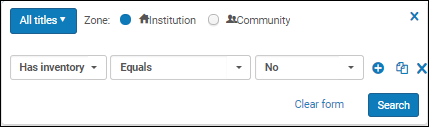
Select No or Yes to search for bibliographic titles without or with inventory.
Note that searching "Has Inventory = No" shows results with Related inventory. This is expected. |
||||||||||||
| Has Items | Select No or Yes to search for holdings without items or holdings with items, respectively. Data di attivazione (collezioni elettroniche, portfolios) A complete result can be achieved in the Holdings search. |
||||||||||||
| Con informazioni di copertura locale | Vocabolario authority Entrambe le opzioni includono i seguenti tipi di Indice: |
||||||||||||
| Tutti i Titoli | Select No or Yes to search for bibliographic records with or without purchase orders. Searching "Has Orders=Yes" retrieves only bibliographic records that have a PO Line linked to them. Relinking a PO Line to another bibliographic record impacts which records are retrieved.
File digitali |
||||||||||||
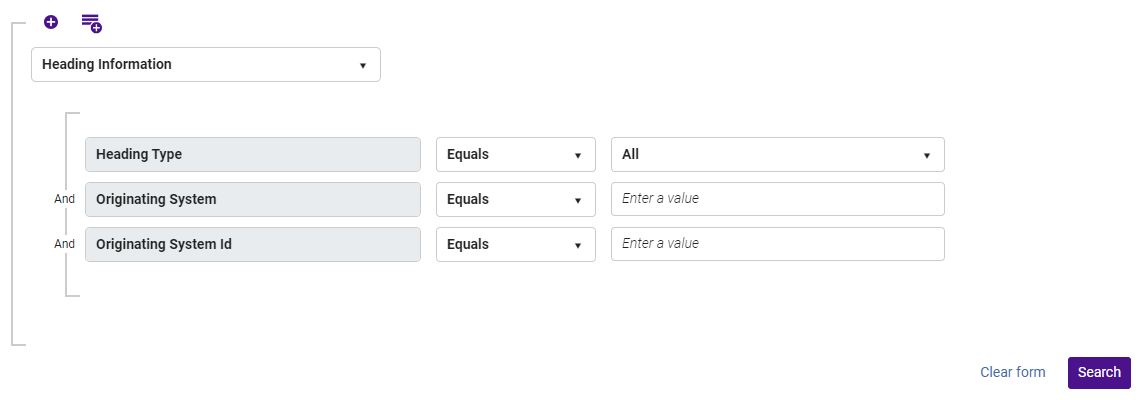
| Heading Information | ID dell'autorità: $0 For details, see Browsing Bibliographic Headings. Once the results are in the repository search, you can create a set that would include all these results, and work with the set as usual. In addition, users can search for bibliographic records based on their heading information linked to a specific authority record. When All is selected in the Heading Type drop-down menu, users are prompted to specify the authority record's Originating System and Originating System Id. This functionality enables users to retrieve all bibliographic records with headings linked to the specified authority record, irrespective of the heading type.
Disponibile esplicitamente per gruppo (portfolio) |
||||||||||||
| Collezione disponibile per il gruppo (collezioni elettroniche) | Collezione disponibile esplicitamente per il gruppo (collezioni elettroniche) When this index (for All Titles searches) is used in advanced searches from the Institution tab, all bibliographic records that are linked to the Community Zone or Network Zone appear. |
||||||||||||
| Is Local (for local electronic collections and local portfolios) | Select No or Yes. Locate locally managed electronic resources. |
||||||||||||
| ISNI -International Standard Name Identifier | May be stored in $0 of various fields, especially the 1XX, 6XX, and 7XX. | ||||||||||||
| PID Copia | Search the internal, system-generated ID for the item. | ||||||||||||
| Lingua di catalogazione | Use this to locate records based on the language that you select from the drop-down list. Note that the language is cataloged as a three-letter abbreviation. Disponibile esplicitamente per gruppo - Localizza Risorse esplicitamente disponibile per gruppi di Campus o istituzioni. This is sourced from the MARC 21/KORMARC 040 $b and the UNIMARC/CNMARC 100 $a, positions 22-24. |
||||||||||||
| Istituzione collegata | Use this for retrieving bibliographic records that are linked either to the Community Zone or to the Network Zone (member institutions). The options are Community or Network. | ||||||||||||
| Data di creazione MMS | Available when doing an Authorities Advanced Search. You may find this helpful when working with the Authority Control Task List. | ||||||||||||
| Data Modifica | From the MMS record's modification date column. | ||||||||||||
| Open Access | Search the 506 for a match of the following: 506 0_ $f Accesso online illimitato $2 stelle |
||||||||||||
|
Numero di controllo OCLC (019a) (In costruzione)
Numero di controllo OCLC (035a)
Numero di controllo OCLC (035a+z)
Numero di controllo OCLC (035z)
|
With these indexes, you can locate specific OCLC numbers.
These fields are indexed based on the presence of one of the following prefixes and only the number is indexed: ocm, ocn, on, or (OCoLC). So, for example, 035 $$a (OCoLC)ocm232354470 is indexed as 232354470. Ricerca il 563 $a
These indexes are available for MARC 21, KORMARC, UNIMARC (except for 019), and CNMARC (except for 019).
|
||||||||||||
| ORCID - ID aperto ricercatore e contributore | This ID may be stored in $0 of various fields, especially the 1XX, 6XX, and 7XX. | ||||||||||||
| Lavorare con i livelli di registrazione breve | Collezione (Titolo Digitale) This is sourced from the MARC 21/KORMARC 040 $a and (under construction) the UNIMARC/CNMARC 801 $b, when the second indicator is 0. |
||||||||||||
| Sistema di origine | Search the name of the system from which the item was imported into Alma. | ||||||||||||
| Dati relativi al contenuto | Search the record ID created in the system from which the item was imported. | ||||||||||||
| Altro numero di classificazione | Search any classification number from a scheme not covered by one of the other number fields. | ||||||||||||
| Altro numero sistema | Search the 035 fields. When the 035 contains a prefix, the 035 is indexed with and without the prefix. As a result, searching for the other system number with or without the prefix returns a successful match. Localizzazione corrente
By default, Alma removes the trailing zeros from system nuumbers. To have the trailing zeros retained, contact Ex Libris support. Note that this is only possible when there are exactly 7 trailing zeros. |
||||||||||||
| Peer reviewed | Search the 500 for a match of the following: 500 __ $a Referee/Peer-revisione |
||||||||||||
| Ha inventario (Tutti i titoli) | Select Current or Perpetual. | ||||||||||||
| L'Inventory ha Ricerca avanzata. | Nota che cercare "Ha Inventory = No" mostra risultati con Related Inventory. | ||||||||||||
| ID fornitore (collezione elettronica) Provider Name (Electronic Collection) |
L'Indice nella Ricerca Fisica per titolo si riferisce ai Titoli Fisici che hanno almeno un record di possesso che soddisfa la condizione. Le raccolte della Community Zone possono includere il nome e l'ID della raccolta del fornitore, così come il nome e l'ID della raccolta Alma. Once a provider name and ID are defined for a Community Zone collection, they become searchable in the Community Zone, Institution, and Network tabs.
|
||||||||||||
| Codice di provenienza | Ha ordini=Sì indice utilizzato nella ricerca avanzata | ||||||||||||
| Ha ordine - Ricerca avanzata | Select which registry/record format to search (DC=Dublin Core). | ||||||||||||
| Tipo di risorsa | This index is constructed from existing bibliographic fields such as the LDR and 008. It supplements, but does not replace, the existing Material Type field. See The Resource Type Field. | ||||||||||||
| RINNOVO_PROVA | Whether the MMS record must be synchronized with an external catalog such as OCLC WorldCat. | ||||||||||||
| Biblioteca temporanea | Search based on the actual physical location of the item. | ||||||||||||
| Localizzazione fisica temporanea | Search for items identified in the system's temporary location field regardless of whether the item is currently in the temporary location (that is, even when Item is in temporary location=No). | ||||||||||||
|
URL |
When searching for Electronic titles or Electronic portfolios, URL is an option under Electronic Collection and Electronic Portfolio. With this option, you can search for URLs in order to maintain their accuracy.
|

The following Dublin Core (DC) fields are available as conditions for the Alma advanced search:
- dc:contributor
- dc:coverage
- dc:creator
- dc:date
- dc:description
- dc:Formato
- dc:identifier
- dc:language
- dc:publisher
- dc:relazione
- dc:rights
- dc:source
- dc:subject
- dc:title
- dc:type
Alma supports RDA fields and subfields for systems that use RDA. Si noti che la lingua è 'Modulo di catalogazione' come abbreviazione di tre comunicazioni.
| Campo | Descrizione |
|---|---|
| Bibliografico | |
| 028 | Publisher Number (R) |
| 264 | Production, Publication, Distribution, Manufacture, and Copyright Notice (R) |
| 336 | Content Type (R) |
| 337 | Media Type (R) |
| 338 | Carrier Type (R) |
| 340 | Physical Medium (R) |
| 344 | Sound Characteristics (R) |
| 345 | Projection Characteristics of Moving Image (R) |
| 346 | Video Characteristics (R) |
| 347 | Digital File Characteristics (R) |
| 377 | Associated Language (R) |
| 380 | Form of Work (R) |
| 381 | Other Distinguishing Characteristics of Work or Expression (R) |
| 382 | Medium of Performance (R) |
| 383 | Numeric Designation of Musical Work (R) |
| 384 | Key (R) |
| Authority | |
| 046 | Special Coded Dates (R) |
| 336 | Content type (R) |
| 368 | Other Attributes of Person or Corporate Body (R) |
| 370 | Associated Place (R) |
| 371 | Address (R) |
| 372 | Field of Activity (R) |
| 373 | Associated Group (R) |
| 374 | Occupation (R) |
| 376 | Family Information (R) |
| 378 | Fuller Form of Personal Name (NR) |
| 377 | Associated Language (R) |
| 380 | Form of Work (R) |
| 381 | Other Distinguishing Characteristics of Work or Expression (R) |
| 382 | Medium of Performance (R) |
| 383 | Numeric Designation of Musical Work (R) |
| 384 | Key (R) |
| Partecipazioni | |
| 337 | Media Type (R) |
| 338 | Carrier Type (R) |
Searching for Titles by Call Number Range
The range operators <, >, <=, >= are available in the Advanced search when searching for Titles (All Titles, Physical Titles, Electronic Titles, Digital Titles). These operators can be used to search within the below bib call number indexes.
When searching with the permanent call number criteria, a permanent call number type must be provided. When using the Item call number type criteria, an Item call number type must be provided
Valore del campo 035 del record This sort is done based on a unique identifier taken from the first occurrence of the call number field.
| Indice | (OCoLC)556677 | (OCoLC)556677 | Trova il record |
|---|---|---|---|
| (OCoLC)556677 | 556.677 | ||
| Trova il record | (OCoLC)556677 | (NMC)556677 | Non trova il record |
| Per default, Alma rimuove gli zeri finali dai numeri di sistema. | 084 a,b | Si noti che questo è possibile solo quando ci sono esattamente 7 zeri finali. | Si noti che questo è possibile solo quando ci sono esattamente 7 zeri finali. |
| Collocazione LC | Cerca tra i 500 i seguenti risultati: | 680 a | 680 a |
| UDC | 080 a,b | 675 a | 675 a |
| Numero di classificazione CLC | ID fornitore (collezione elettronica) | ||
| Numero di classificazione CAS | 692 a | ||
| Numero di Classificazione RUC | 694 a | ||
| Altro numero di classificazione interna | 696 a |
These operators add the ability to search for ranges of call numbers on bibliographic record level. This can be useful, for example, if you want to find all titles belonging to a specific subject or range of subjects. For example, you can search for a range of call numbers across the Dewey Decimal Class Number index:
The below title was retrieved in this search, because its Dewey Decimal Class Number (displayed in 082 field $$ a), is included in the specified range.
Questo indice è costruito da campi bibliografici esistenti come LDR e 008.
Watch the Search for Titles by Call Number Range video (1:45 minutes).
Order-Line Search Fields
When searching for order lines (PO lines), you can enter the following additional criteria (some of these are described in Manually Creating a PO Line):
When the format of the PO line reference number breaks the search (for example, containing a forward slash), contact the Alma support team for setting a system customer parameter. Thereafter, the PO line reference searches use 'contains' instead of 'equals' as the search type.
- Access provider (advanced only) — Matches the access provider's code.
- Acquisition method (advanced only) — Select from the list.
- Additional PO line reference — Enter the other PO line number.
- Alert (advanced only)
- Assigned User (advanced only)
- Assignment (advanced only) – Note: When Assigned to me is selected, and the query is then saved as a logical set (see Saving and Reusing Search Queries, below), the user who saved the logical set is saved as the value for Assignment in the query. If a different user makes use of the logical set, the original user is still used as the value for this field.
- Author name
- Cancellation restriction (advanced only) — Whether the PO line can be canceled,Yes or No.
- Creation Date (advanced only)
- Codice fondo
- Nome fondo
- Import job ID — This ID exists if the PO line was imported by a job.
- Interested users (advanced only) — Whether the PO line has interested users,Yes or No.
- dc:contributore
- License code (advanced only)
- ID MMS
- dc:creatore dc:date You can find the code in the Physical Material Type code table.
- Owning Library — In an institution with multiple libraries, limit the search to an individual library.
- dc:identifier
- PO Line in Claim (advanced only) — Whether the PO line is in claim,Yes or No.
- PO line type — Select the primary type of the PO line (see Enabling/Disabling PO Line Types).
- dc:relazione
- dc:diritti
- Physical location name — Based on the ordered item's current physical location.
- dc:soggetto
- dc:Titolo
- editore
- Receiving notes
- Renewal Date (advanced only) – Note: When Renewal Date is selected, and the query is then saved as a logical set (see Saving and Reusing Search Queries, below), the value of this field at the time the logical set is saved is retained as the value for Renewal Date in the query. Le tipologie bibliografiche, di autorità e di holding appaiono sotto le sottovoci nella tabella sottostante. Ad esempio, se il valore selezionato fosse precedente a oggi, verranno trovate le Linee d'ordine (POL) la cui data di rinnovo è antecedente alla data in cui è stata salvata e restituita, indipendentemente da quando viene eseguita la ricerca.
- Codice di report — Primario codice di report.
- Rush (advanced only) — Whether this was marked as a rush order,Yes or No.
- Codice report secondario
- Sent Date (advanced only)
- SIP ID — This ID exists if the PO line was imported by a job. See Configuring Search Indexes.
- Standard number — See Search Indexes.
- Tipo di media (R)
- 338
- Tipo vettore (R)
- 340
- Vendor code — Finds all PO lines whose vendor code contains the search string.
- Vendor code - Equals — Finds all PO lines whose vendor code exactly matches the search string.
- Vendor invoice number — Finds all PO lines whose vendor invoice number contains the search string (The vendor invoice number is sent from the vendor if the PO Line is generated by EOD.)
- Vendor name — Finds all PO lines whose vendor name contains the search string.
- Vendor name - Equals — Finds all PO lines whose vendor name exactly matches the search string.
- Workflow — A workflow step or PO line status Note that i​​​​​n the advanced search, there is a drop down that lists all the possible search values. In the simple search, you can enter the search value manually, and in order to get results, you should use one of the following search terms:
- INREVIEW
- 346
- AUTO_PACKAGING
- READY
- SENT
- CLOSED
- CANCELLED
- WAITING_FOR_MANUAL_RENEWAL
- 377
- Lingua associata (R)
- 380
- RENEWAL_TRIAL
- DEFERRED
- TUTTO
When searching for PO lines, the search list is ordered alphabetically to help you find the search value quickly, while the most used fields are displayed in the recent history.
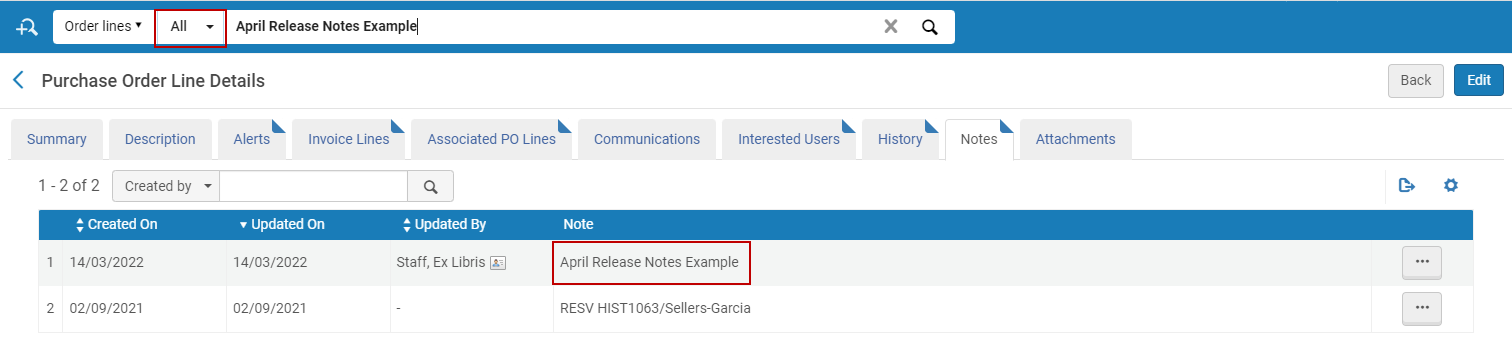
The All index can be used to search PO lines by their internal notes. Mezzo di esecuzione (R) 383
Authority

Tipo di contenuto (R)
Vendor Search Fields
When searching for vendors, you can enter the following additional criteria (some of these are described in Managing Vendors):
- 371
- Nome Interfaccia
- Libraries — Note that this returns all vendors associated with the library that you enter (by name or part of the name), as well as all vendors associated with the institution itself (since a vendor that serves the institution also serves the library).
- Settore di attività (R)
- SUSHI Account Name — For more information, see Managing SUSHI Accounts.
Reading List Search Fields
When search for reading lists, you can enter the following additional criteria (for descriptions, see Managing Reading Lists):
- All — Searches for reading lists that match any criteria. When performing a search, you must insert the full code, exact value, or include a wildcard (*) for the search to be successful. Searching for part of the code without a wildcard results in no found records. Altre caratteristiche distintive del lavoro o dell'espressione (R)Search by All does not include results by reading list ID.
- 383 Designazione numerica dell'opera musicale (R)
- Course — The course code or name.To find reading lists without an associated course, search for EXLIBRIS_DEFAULT_COURSE.
- List ID — The reading list ID.
- Tipo di media (R)
- Owner — The primary ID or name of any of the reading list owners.
- (Advanced only) Course Start/End Date — The course start or end date.
Citation Search Fields (Simple Search Only)
When searching for citations, you can enter the following additional criteria (for descriptions, see Managing Citations):
- Keyword (default selection) – When selected, this option searches the following citations' metadata fields for a match:
- Additional Person Name, Author, Book Author, Book Title, Chapter Author
- Chapter Title, Citation ID, DOI, Edition, Editor
- ISBN, ISSN, Issue, Journal Title, LCCN
- MMS ID, OCLC Number, Pages, Place of Publication, Publication Date
- Publisher, Resource Note, Source, Title, and Volume
Keyword searches for citations do not support the use of Boolean operators (such as AND or OR), and if these operators are specified, they are treated as keywords.
When special characters (such as hyphen, dash, slash, and so forth) are specified as search terms, the search returns results that both include and exclude the special characters.
- Indice
- Campo MARC 21
- Campo UNIMARC
- Creatore: il nome dell'autore della citazione. Note: Additional person names are not included in the search.
- ISBN/ISSN
- ID MMS
- Nome Reading List
- 082 a,b 092 a,b
Altro numero di classificazione
When searching for resource sharing requests (borrowing or lending), you can enter the following additional criteria:
- 686 a, 69X
- 686 a, 69X
- Collocazione LC
- 050 a,b 055 a,b 090 a,b
- 680 a
- 680 a
- UDC
- LCCN
- 675 a
- Numero OCLC
- Altro ID Standard
- PMID
- ID record remoto
- Requester (for borrowing requests)
- titolo
- User Identifier (for borrowing requests)
Users Search Fields
- Birth date — Supports a moving range of days
A moving range of days, such as Is Within the Last (days),Is Older Than (days), Is Within the Next (days) search operators can get a numeric value input (1 - 2,500,000) to define the time range (where 1 represents "today").
- Campus
- Create date — Supports a moving range of days
- Numero di telefono
- Since phone numbers are encrypted upon save, a phone search is an exact match search (for example, if country code is entered in the phone number, use it when searching) on numeric values only (any non-numeric values, for example, hyphens, spaces or brackets, do not affect the search).
- The phone number field is considered protected data and can only be searched using the exact phone number index. It is not included in the "All" user search.
- Expiration date — Supports a moving range of days
- Fine/fee total sum — Searches fines/fees with an Active status
- First name
- Has block type
- Identificativi
- Categoria processo
- Last activity date — Supports a moving range of days
- Last name
- Middle name
- nota
- Primary identifier — Search for the full ID when it contains numbers and letters
- Creazione manuale di una Linea d'ordine (POL)
- Roles and Scopes (New for February)— Searches role and scope with the following conditions:
- Searching by role must include a selected scope. You can use the All option to indicate that the role should be searched for with any scope.
- Scope can include multiple values, e.g., Role Equals Circulation Desk Operator AND Scope Equals (Law OR Main OR Theology).
- Metodo di acquisto (solo avanzato) — Selezionare dalla Lista. If you select this option, you get the complement group (as if adding NOT to the entire search criteria). For example, if you select Role Not Equals Circulation Desk Operator AND User Group Equals Staff, you get a list of all the Staff users that do not have a Circulation Desk Operator role.
- Statistical category — If more than 1000 statistical categories exist, an auto-complete option appears after the user types in the first three characters. Se esistono meno di 1000 categorie statistiche, appare un elenco a discesa che può essere gestito. For details, see User Details Configuration.)
- Gruppo utente
This feature is not deployed to sandbox environments; it is available only in production environments.
Course Search Fields
When searching for courses, you can enter the following additional criteria (for descriptions, see Managing Courses):
- Codice Corso
- Course Code (include Section)
- Course End Date
- ID MMS
- Nome del corso
- Course Notes
- Course Start Date
- Instructor Name
- Searchable Id
- Sezione
- Anno
Unlike other searches, a search for course code or course name a) also searches for special characters, and b) is limited to a search string of 40 characters, regardless of the size of the entity being searched.
Riga d'ordine in reclamo (solo avanzata) — Indica se la riga d'ordine è in reclamo, Sì o No. For example if the search code is "134001" and you search for "13400", the item is returned.This is not the case when searching with All.
Searching for Items Without Specific Information
You can search for the absence of a field (for records that contain a specific field that is not populated). Numero identificativo PO — Inserisca il numero dell'ordine di acquisto (PO), se presente. Select the Is Empty option after selecting the desired field. See the table below for a sample list of conditions with this option.
| All Titles (Not Present) | Holdings (Not Present) | Physical Items (Not Present) |
|---|---|---|
| Collocazione LC | Tipo collocazione permanente | Numero di inventario |
| Numero di classe decimale Dewey | Localizzazione fisica permanente | Nota pubblica |
| UDC | Biblioteca | Nota sui servizi |
| Per default, Alma rimuove gli zeri finali dai numeri di sistema. | Suffisso del numero di collocazione | Nota interna 1 |
| Additional publication year | Riepilogo delle Holdings | Nota interna 2 |
| Lingua | Holdings note | Nota interna 3 |
| LC control number | Numero di sequenza copia | |
| ISBN | Linea PO | |
| ISSN | copia numero di collocazione | |
| Collegamento ISSN | copia numero di collocazione tipo | |
| Indici di Ricerca | Data di Creazione | |
| Government document number | Biblioteca corrente | |
| Numero bibliografico nazionale | Currently location | |
| Numero dell'editore | Data Restituzione dalla Localizzazione temporanea | |
| Numero standard | Data di ricevimento prevista | |
| Other system number | dati d'inventario | |
| Note | È magnetico | |
| Nota locale | Policy Copia | |
| MMS SIP ID (a number assigned to a set of records affected by a job) | Tipo di materiale | |
| Descrizione fisica | Data Modifica | |
| Country of publication | Data di esposizione | |
| Modulo Genere | Seq sullo scaffale | |
| Editore localizzazione di biblioteca | Pronto | |
| Inviato | CHIUSO | |
| Annullato | IN ATTESA DI RINNOVO MANUALE | |
| RINNOVO CICLICO | ||
| In attesa di fattura | ||
| trial | ||
| RINNOVO_PROVA | ||
| Differito | ||
| Relatore |
For example, to find physical items without barcodes:
- Open Advanced Search.
- L'Indice All può essere utilizzato per cercare le linee d'ordine (PO) in base alla loro Nota interna.
- For the field to search, select Physical Item > Barcode.
- Select Is Empty from the condition drop-down list.
- Dal menu a tendina Search Modulo di catalogazione profilo, selezioni uno dei profili di ricerca predefiniti. The search results display all the physical items without barcodes.
Work Search
The Works search capability enhances user accessibility to linked instances and related works. It enables users to search for works directly, in addition to the current capability of searching instances across all titles.
This functionality is only available if BIBFRAME support is enabled. For more information, see BIBFRAME support.
The Works search capability replicates existing search indexes that are relevant for works. Previously, work records could only be viewed through the linked instances. Nome Interfaccia
The Work search displays results similar to other repository searches with minor variations to the results details, sections, actions, facets and customizations.
- In Alma's persistent search box, select Works in the search type drop menu. Type the search content in the text field. The Works search results are displayed.
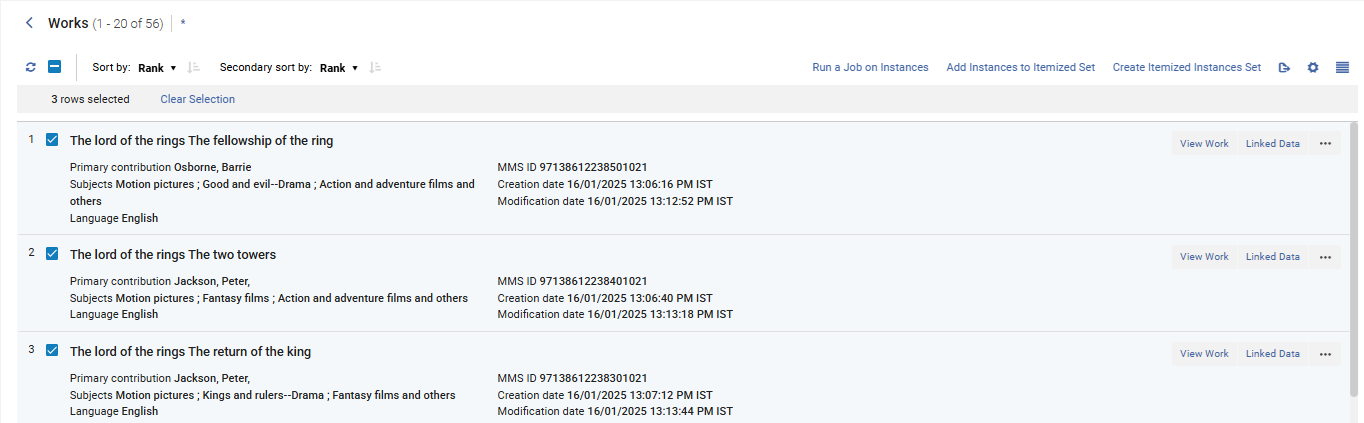 Works Search
The Works search displays results similar to other repository searches, for example, MMS ID, Creation date, Subjects and so forth. However, a few fields and buttons are displayed to reflect the Works search, such as,Instances,View Work and Linked Data. La ricerca di una parte del codice senza un carattere jolly non restituisce alcun record. The search index drop menu indicates indexes that are an attribute from a linked "instance" with parentheses, for example Edition (Instance).
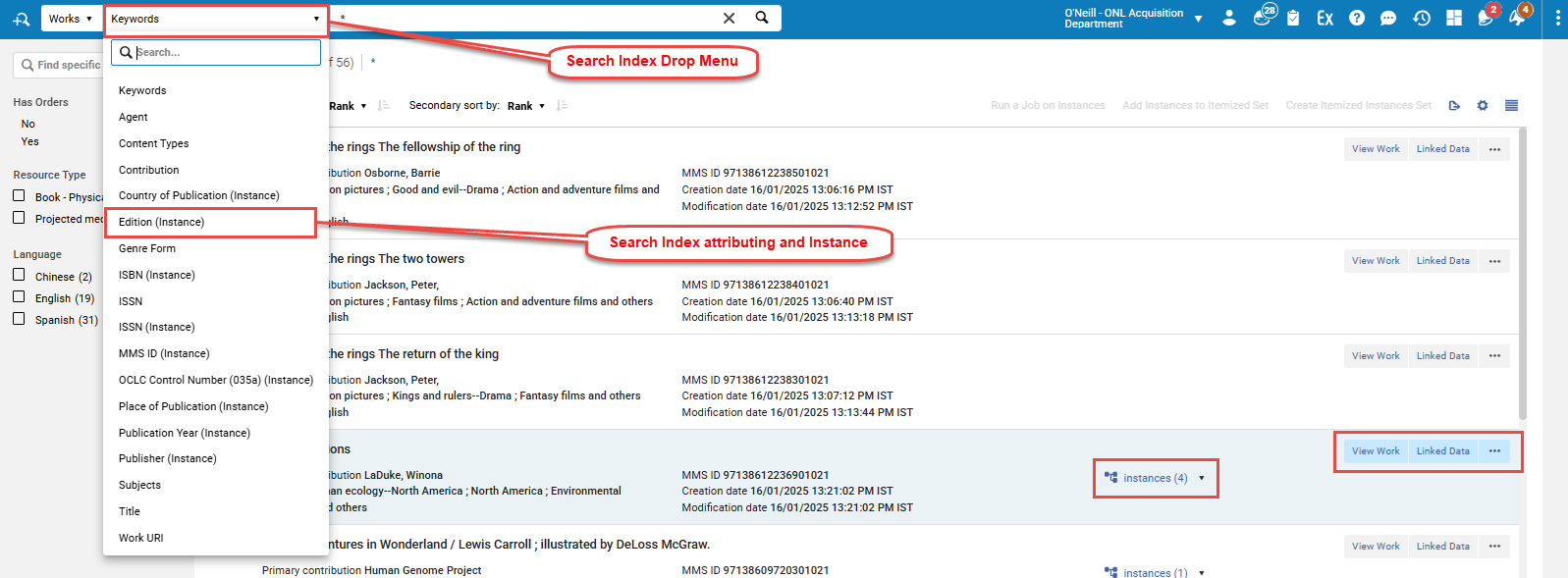
View Work:
In the results screen, users have the ability to view instances from the Works by selecting the Instances quick link ( ). Additionally, further details regarding the Work can be viewed by selecting a record.
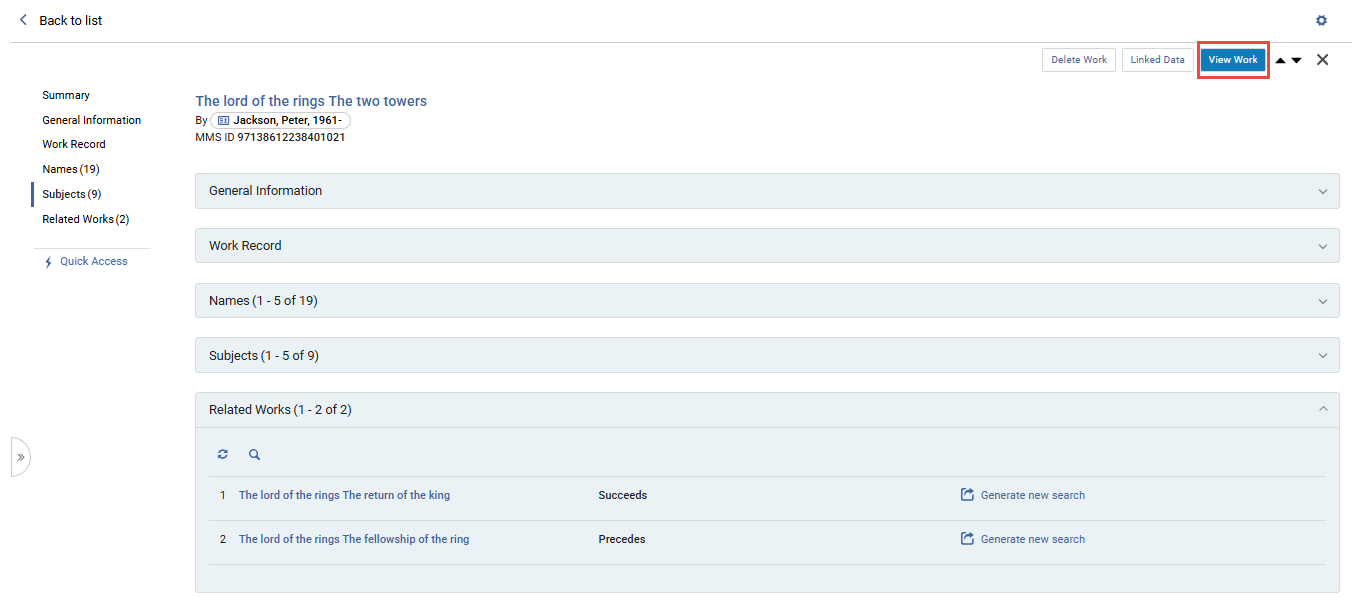
Linked Data:
Selecting the Linked Data button displays similar information on all linked entities in the Repository search.
Sections — Work Search
The sections displayed in a Works search slightly differ from other Alma searches. The following sections are displayed for a Works search result:
- Summary — see Summary.
- General Information — see General Information.
- Nome persona aggiuntiva, autore, libro autore, titolo libro, capitolo autore See Bibliographic Record Section.
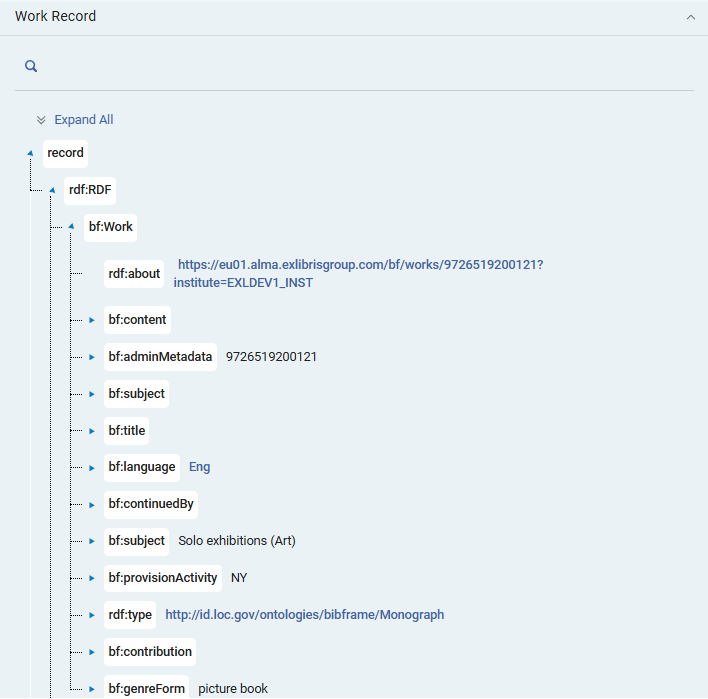 Editore, nota Risorse, Fonte, Titolo e Volume
The BIBFRAME work and instance record view within the persistent searches (All Titles and Works) are displayed by default in a tree view, providing a view that is more focused on the content of the record and a less technical RDF/XML view. Users can still view the XML view within a separate section that can be added to the details display as part of the section's customization tool. The section is labeled as work RDF/XML in the work search and Instance RDF/XML within the All Titles customization tool. For more information on display customization in Alma, see New Layout.
- Contributors — see Contributors.
- Subjects — see Subjects.
- Instances — displays a list of related instances attributed to the Work record (similar to the Inventory > Holdings section). The list includes a count of instances linked to the work. To streamline the workflow, you can perform actions on the instances listed in the section that would usually be done from the all titles search.
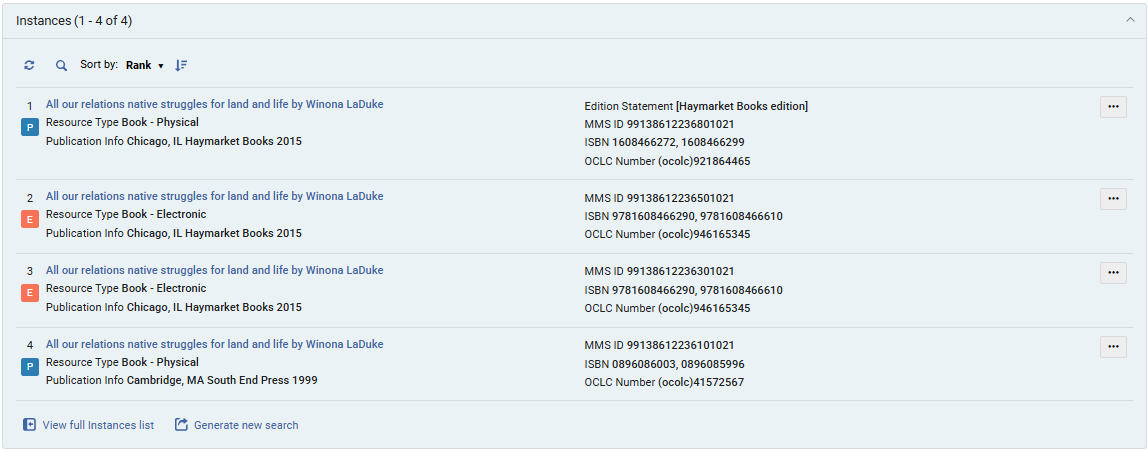 Sezione istanza
- Related Works — displays a list of related titles and types of relations to the Work record, enabling a quick and seamless navigation as needed.
 Related Work Section
Rerunning a Previous Search
- Select the text box and select a previous search from the drop-down list that appears. All recent repository searches appear when All Titles is selected as your search type; otherwise, only recent searches for the selected type appear. Campus
- Crea data: supporta un intervallo mobile di giorni
Searching for Special Characters
Quando si utilizza la Ricerca nell'Archivio Alma (o durante la ricerca di Utenti, Richieste d'acquisto e richieste di servizi), è possibile cercare caratteri speciali e caratteri con diacritici. Il campo del numero di telefono è considerato un dato protetto e può essere Ricerca solo utilizzando l'Indice esatto del numero di telefono. Per la maggior parte di queste lingue, Alma utilizza l'implementazione standard per gestire i caratteri speciali.
For specific information on each language, see Search Configurations for Different Languages.
- La gestione dei caratteri speciali da parte di Alma è rilevante solo per la ricerca nella Institution Zone.
- Only one language for special characters search can be defined.
Normalization for these languages is specific to text fields such as title and author. Normalization, however, is not done for numeric fields or fields that contain a normalized value such as a call number.
La ricerca per ruolo deve includere un ambito selezionato.
Special symbols are characters, such as @, &, !, that are not alphabetic or numeric. In some types of searches, like "Keywords" simple search or "Contains Keywords" operator for the different indexes, special symbols are omitted from the inputted search term.
Special symbols are treated as fully independent characters for repository search, browse bibliographic headings/F3, and sort, and they are not substituted with words. For example, if you have a record in your inventory titled "Crime and Punishment",all Titles where (Title contains keywords "Crime & Punishment") does not return "Crime and Punishment", because "&" is not substituted by the word "and".
On the other hand, if you have the record "War and Peace" in your inventory, then All Titles where (Title contains keywords "War & Peace") is translated in the Alma search engine to All Titles where (Title contains keywords "War Peace"), and does return the record "War and Peace", because its title contains all the words in the search term.All Titles where (Title starts with "War & Peace") or All Titles where (Title equals "War & Peace") does not return the record, as its title is not equal nor starts with "War Peace".
Repository Search Results
Alma's repository search is gradually being upgraded with new UI concepts, resulting in faster, simpler searches and streamlined workflows. Some search types are still in the classic search UI.
- For reference to the new UI search results, continue below.
- For reference to Alma's Classic Repository Search Results, see Alma's Classic Repository Search.
Codice corso (include Sezione)
Search results display information according to the type of resource chosen for your search. You can configure the information and actions that appear for each result; for more information see Display Configuration.
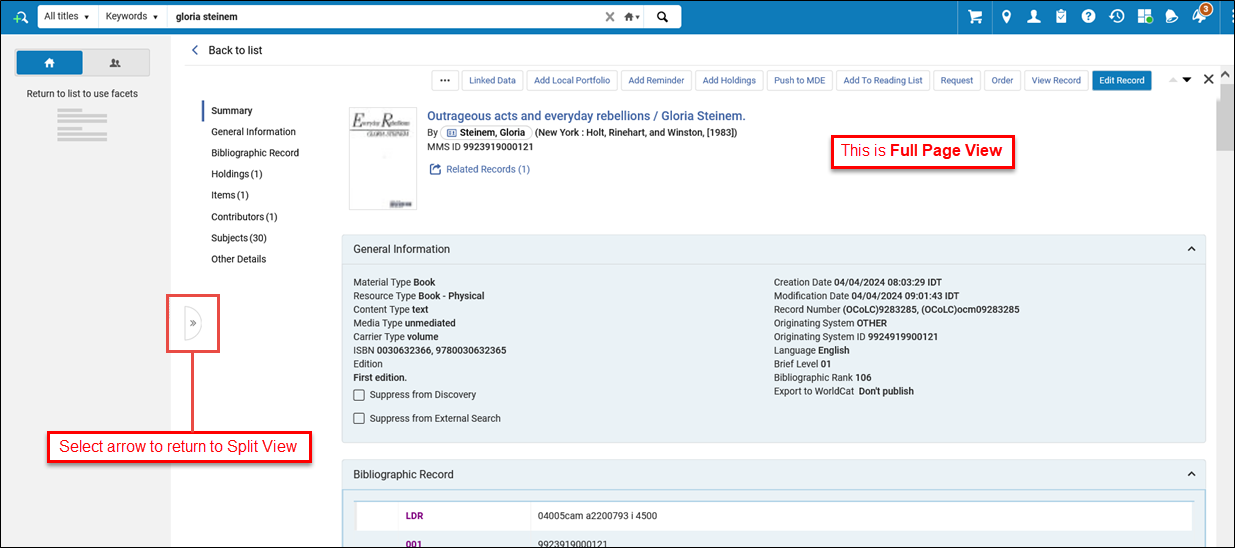
Alma's new UX aims to keep users in context, minimize the need to leave the screen to check information or perform tasks, and improve navigation and efficiency. Offre quindi all'Utente una selezione di possibili visualizzazioni, consentendo a ciascuno di scegliere la visualizzazione più comoda per loro nello svolgimento dei propri compiti. Many resources and operations are integrated directly into the search page via the details side-pane, and users can easily switch between different views of the search results:
- List View: Provides a brief view, with expandable inventory "tabs" for easy scanning while scrolling.
- Table View: Displays limited information in a convenient table for easy comparison.
- Split View: Shows search results (in either list or table view) and the details side-pane side by side.
- Visualizzazione a pagina intera: visualizza solo il pannello dei dettagli, offrendo più spazio per i dettagli.
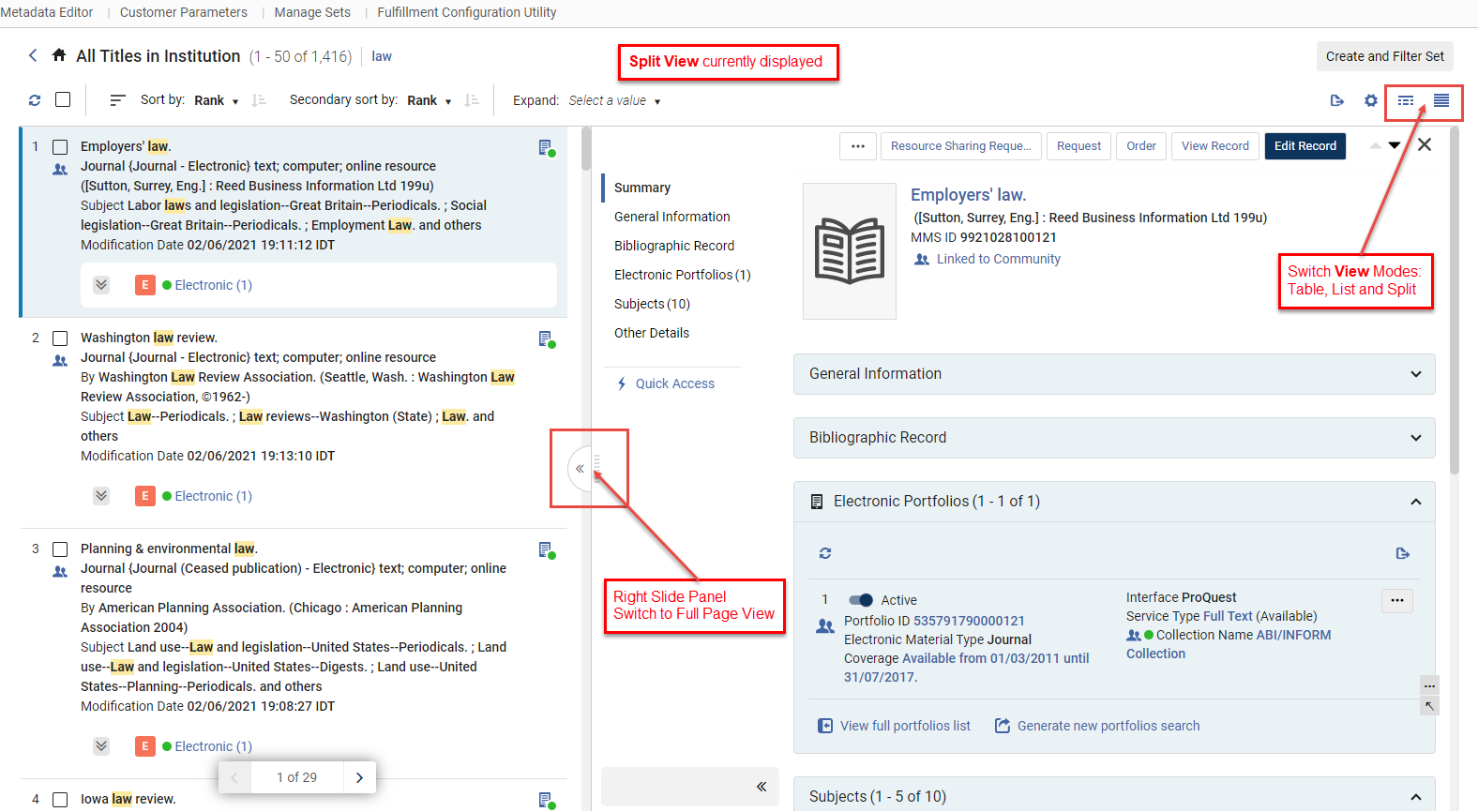
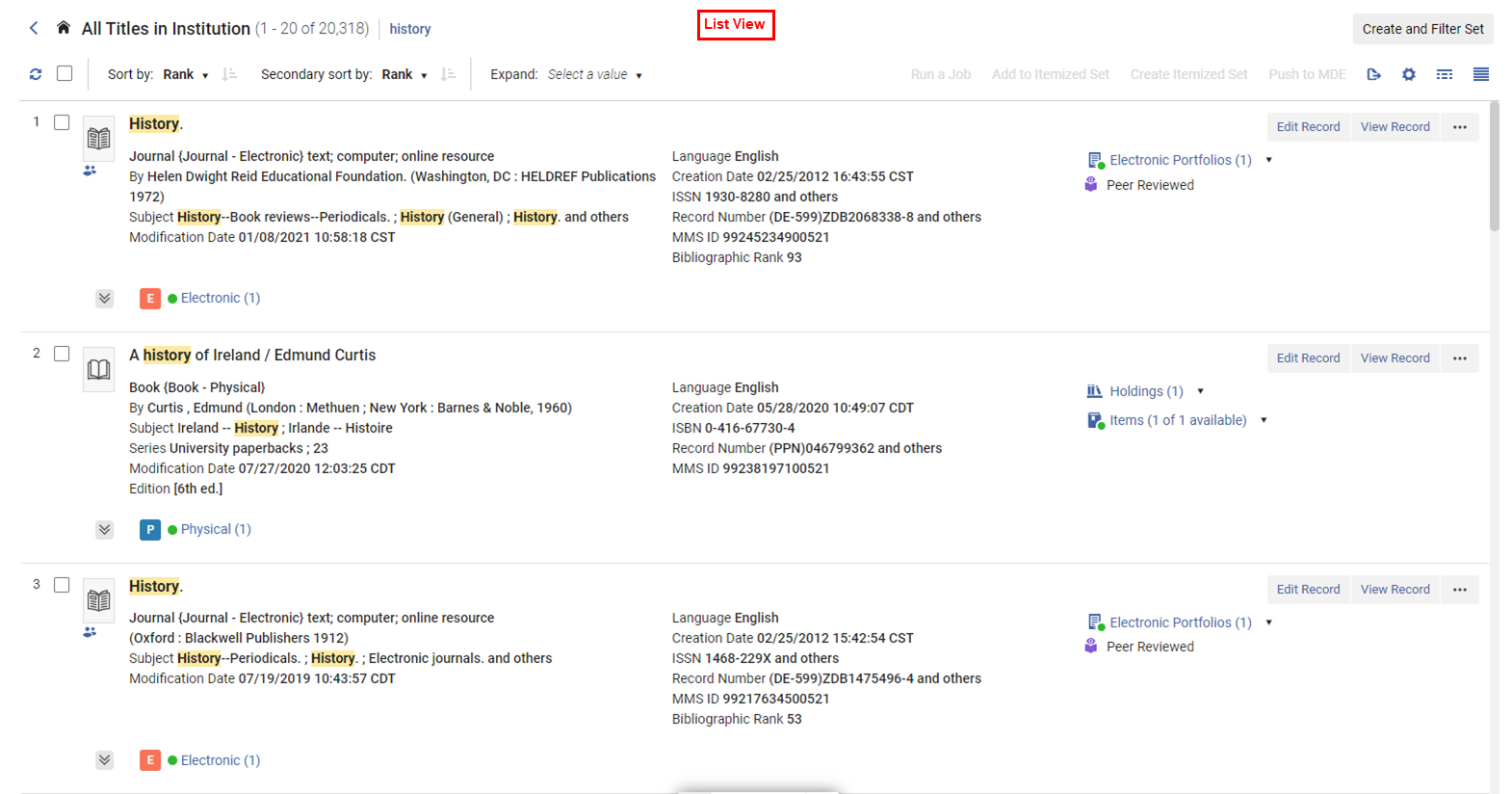
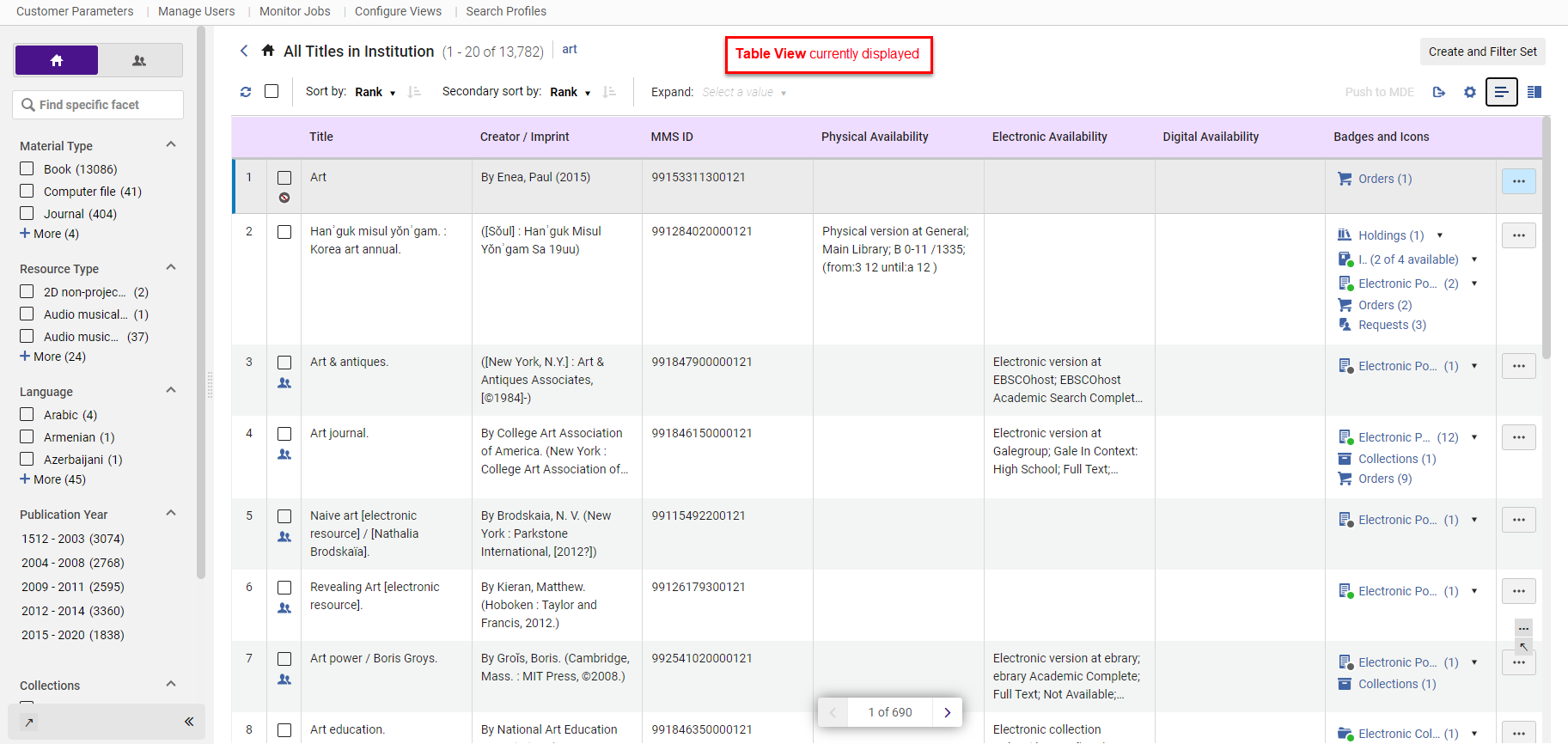
biblioteca
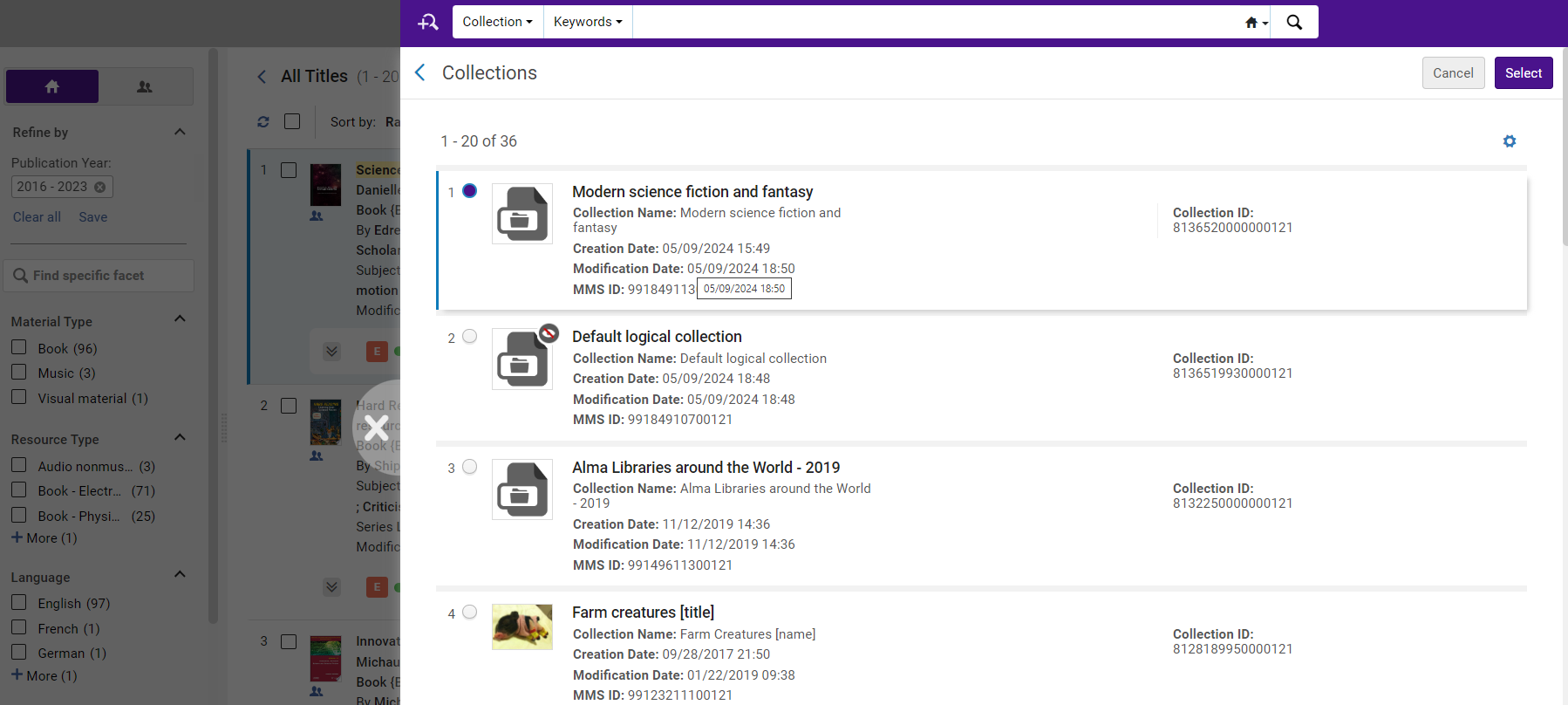
To keep users in context and minimize the need to navigate away, many actions open the relevant pages in a sliding panel. This allows users to perform more complex operations without navigating away and losing search context, as a "side quest" - seamlessly returning to the list of resources to continue their main work once they are done.
The sliding panel is used in various workflows such as editing an item, placing an order, adding a title to a collection, and so forth.
Visualizza configurazione
The display of search results can be configured at both the user and institution levels. For more information on user level customizations, see Customizing the Display in Alma.
Gli amministratori possono stabilire i default istituzionali, eliminando la necessità per i singoli utenti di configurare la loro visualizzazione con dati rilevanti per l'intera istituzione. Gli utenti, a loro volta, hanno la flessibilità di adattare queste preferenze alle loro esigenze specifiche, migliorando l'efficienza e l'usabilità.
copia numero di collocazione
- Sections: Reorder or hide sections in the details pane to prioritize the most relevant information.
- Actions: Reorder or hide actions for quick access to primary actions with a single click, and easy access to other commonly used actions.
- Record: personalizzi quali campi della lista dei risultati vengono visualizzati e il loro posizionamento, assicurando un facile accesso alle informazioni essenziali per le Sue attività.The fields in the first column are always displayed, fields in the second column are hidden if the list view is narrow
- Faccette: riordini o nasconda Faccette per garantire che gli strumenti utili per il Suo lavoro siano facilmente accessibili.
- Table: Customize which of the available metadata fields are displayed as table columns in the table view and where, to make working with the table more efficient.
Numero standard
The inventory tabs can be expanded to display up to five entries. Altro numero di sistema
-
Recognize tabs that are color-coded by inventory type.
-
Select a tab to view a specific type of inventory (for example, physical holdings), or the collections the title belongs to. If you select a different tab later, the first one closes before opening the new one.
-
Select the Expand all button
 to view all types of inventory and collections associated with the title at the same time. Tipo di materiale
-
Perform actions in each tab's table, according to its type (e.g. activate an electronic portfolio, remove a title from a collection, etc.).
Data di esposizione
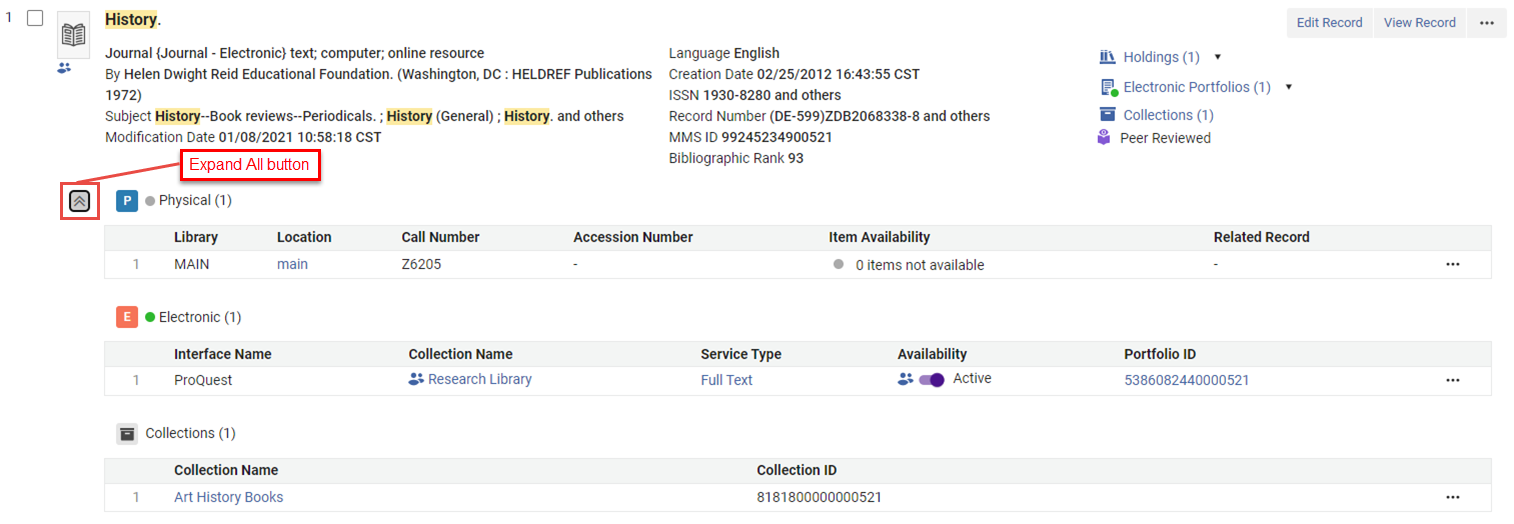
Additionally, you can use the Expand table action to expand the tabs for all results in your search. È possibile selezionare:
-
Tipo di materiale
-
Pezzi
-
Tipo di supporto
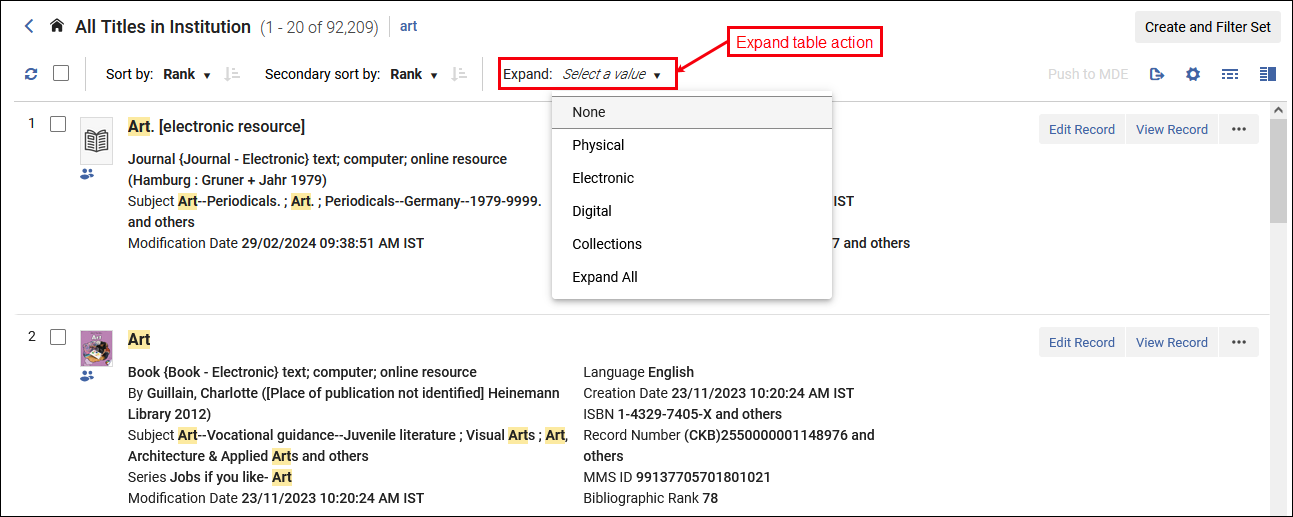
The options available in the Expand table action vary depending on which scope you are searching in (for example, Institution, Network, or Community). Alma remembers your setting across sessions for each search type and scope.
When you select Expand All, the search results are displayed first and then loads the expanded tabs gradually. This sequence enables you to start reviewing the results right away while the tabs finish loading.
Tabs are available in the Record view only; they are not available in the Table view. When you open the Split view, the tabs automatically close. If you select a tab or the Expand all button, Alma closes the right pane to expand the tabs.
Saving and Reusing Search Queries
You can save repository searches for later use by creating a logical set. Abilita gli Utenti a Ricerca direttamente le opere, oltre alla capacità attuale di Ricerca istanze in tutti i Titoli. When you save a query (set), you are saving a set of search criteria that can be reused - whether manually or in automated processes. https://knowledge.exlibrisgroup.com/Alma/Product_Documentation/010Alma_Online_Help_(English)/Metadata_Management/005Introduction_to_Metadata_Management/BIBFRAME_Support Al contrario, un set specificato è una collezione fissa di elementi che possono essere stati immessi manualmente, caricati da un file o il risultato di una Ricerca precedente (ma non più associati ai termini della ricerca). Ora è abilitato l'accesso diretto alle opere.
For more information about sets, see Managing Search Queries and Sets.
- After performing a search, select Create and Filter Set on the search results.The Logical Set Details pop-up appears.Logical Set Details Pop-Up
- Follow the procedure in Creating Logical Sets- except step 8, entering the search parameters, since this is the search query you are saving.
- For titles, holdings and authority records, you can also filter the set using an indication rule - see Filtering Sets.
Performing a Search Using a Saved Query
To run a saved query; on the Manage Sets page (Administration > Manage Jobs and Sets > Manage Sets), locate the saved query (logical set) and select Content in the row actions list. See Managing Search Queries and Sets.
Itemized Sets in Search Results
I set specificati sono liste fisse: ogni volta che controlli il loro contenuto o li usi, il contenuto è lo stesso. You can use selected search results to create a new itemized set, or add to an existing set's content. For more information, see Creating Itemized Sets on the Manage Sets Page.
Per i membri dei consorzi, le azioni di set specificati sono disponibili solo quando si effettua una ricerca nell'ambito dell'istituzione (non nell'ambito della rete o combinato).
Creazione un set specificato
Sezioni — Ricerca di lavoro
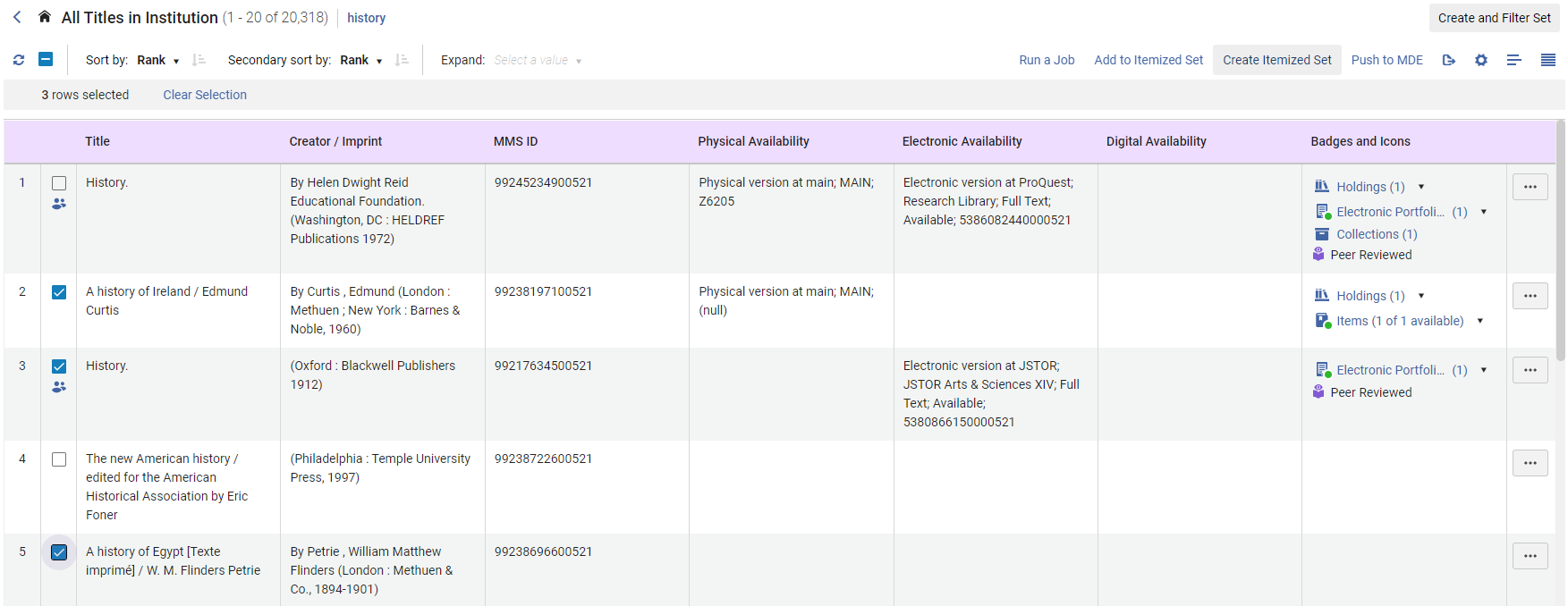
- Select the records you want to include in the set by checking the checkbox next to the record - a counter shows the number of selected records.
- From the bulk action buttons, select Create Itemized Set to open the Itemized Set Details pop-up.
- Fill in the set information and Save.
 Introduzione alla nuova esperienza di Ricerca per titolo
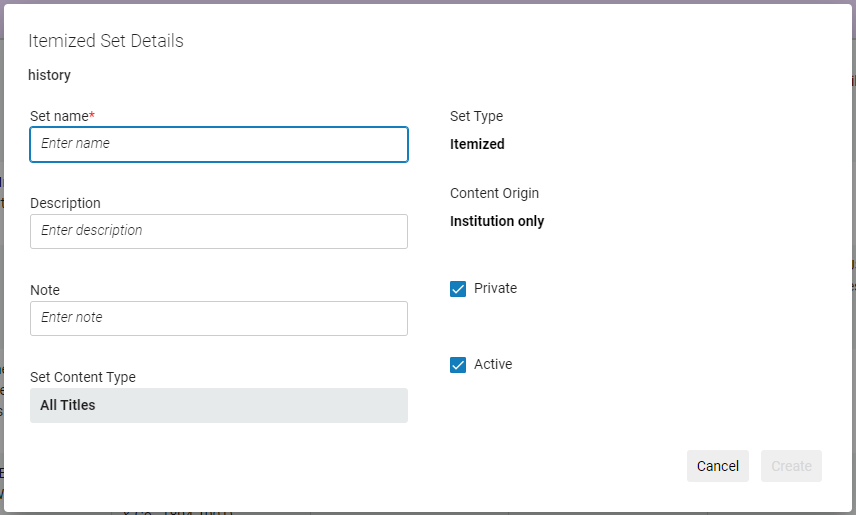 Itemized Set Details Pop-Up
L’aggiunta al set specificato
Ricerca di lavoro - Sezione dei record di lavoro
- Select the records you want to include in the set by selecting the checkbox next to the record. A counter displays the number of selected records.
- From the bulk action button, select Add to Itemized Set to open a sliding panel with the list of relevant itemized sets according to the search type.
- Locate the desired set. Search and filters are available.
- Seleziona un set per aggiungere i record.
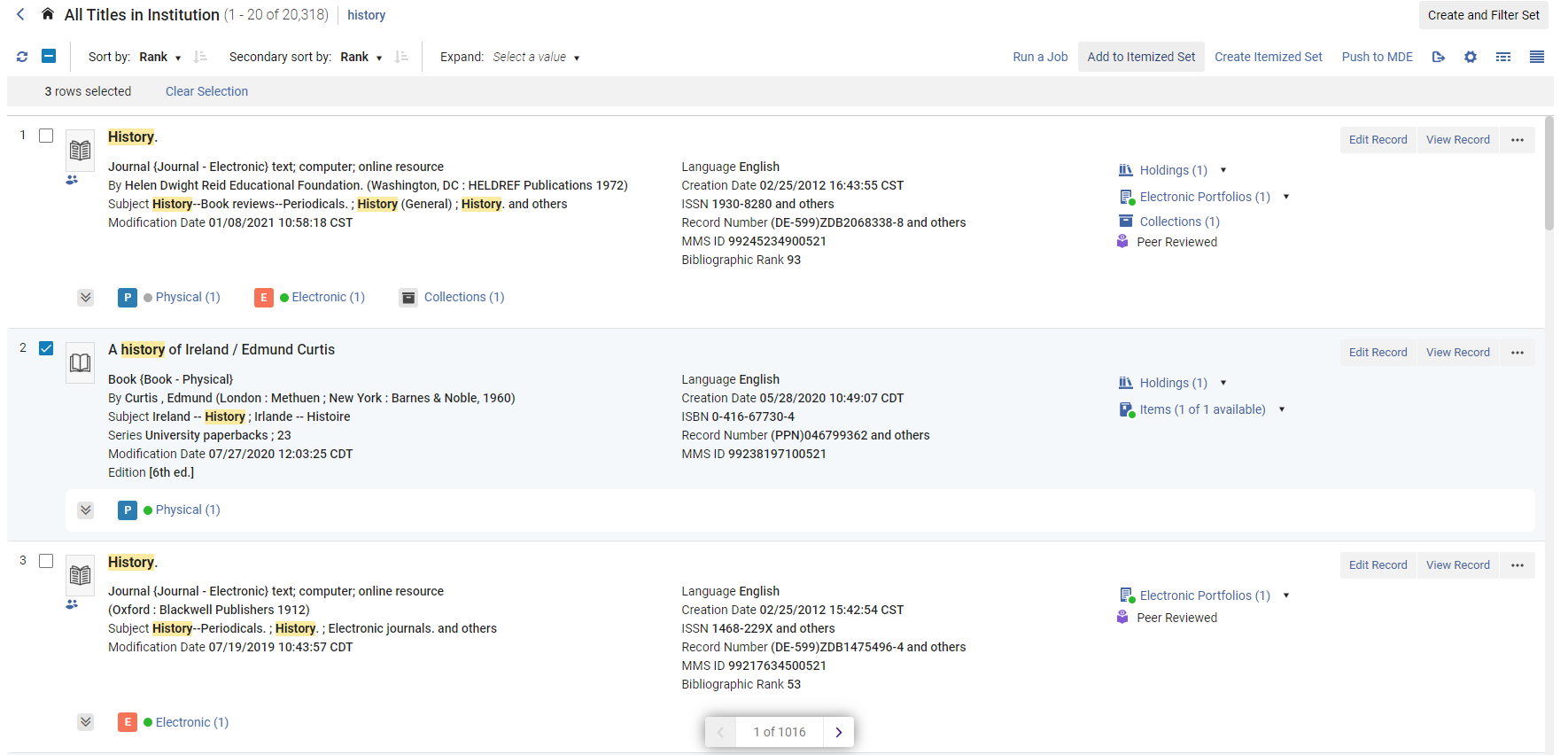 Azioni collettive nella vista lista - Aggiungi al set specificato
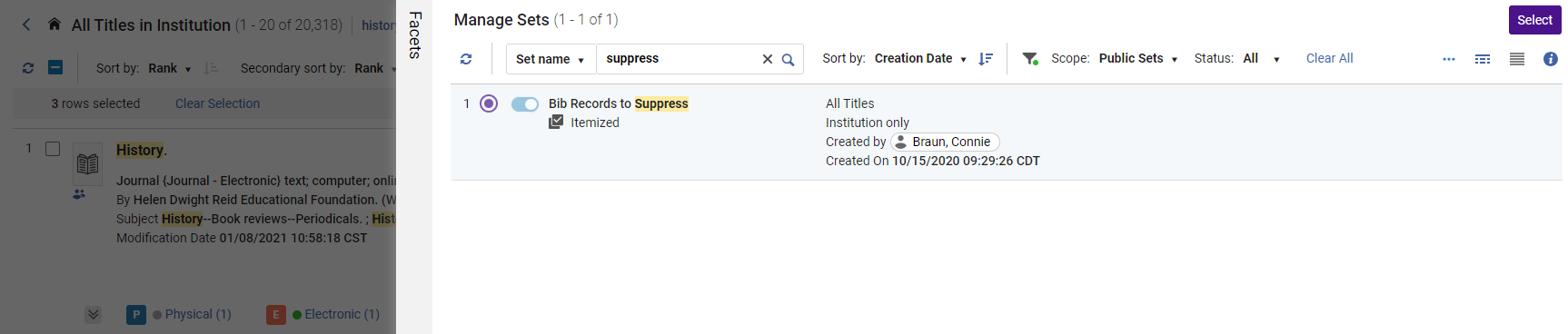 Aggiungi al set specificato - Pannello a scomparsa
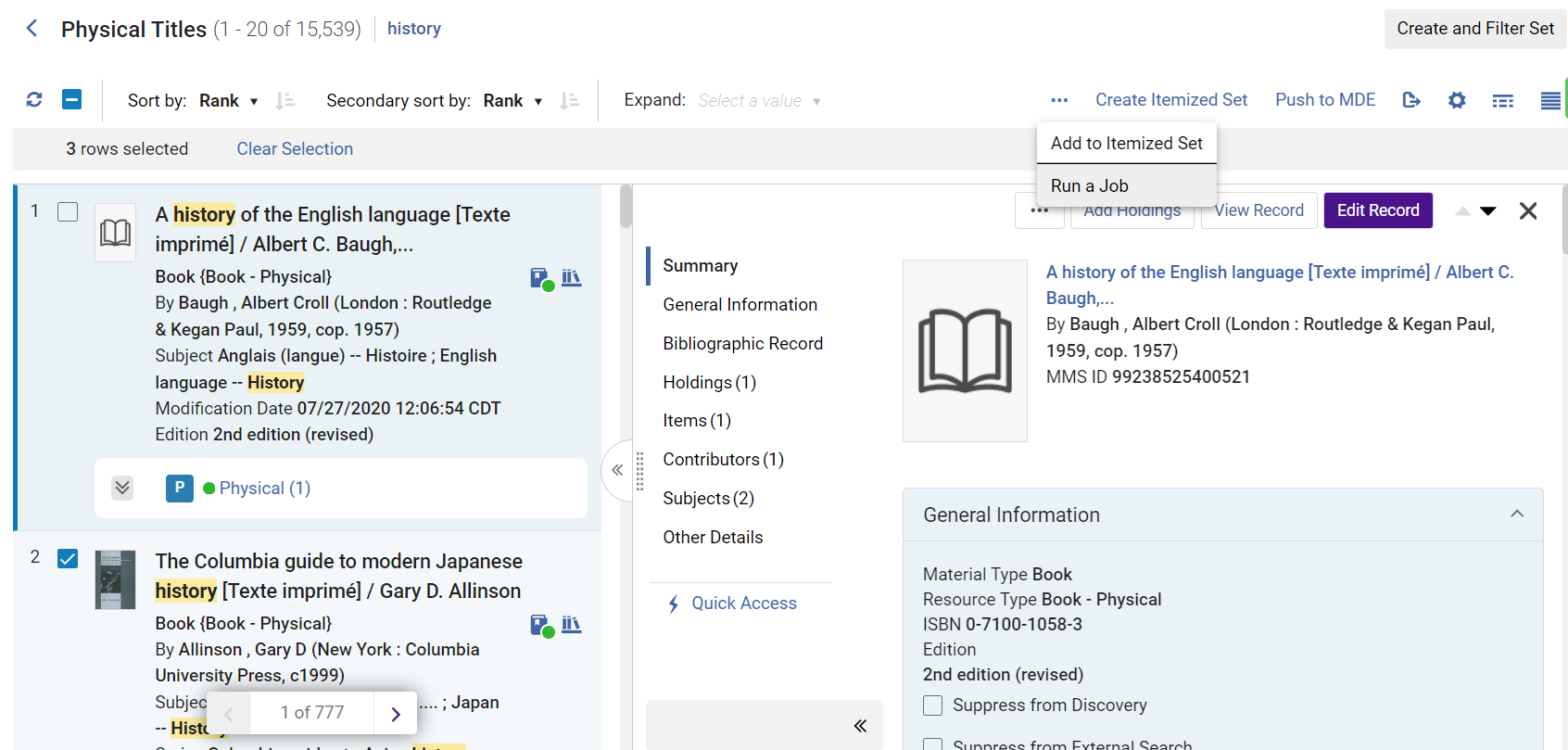
Run a Job on Selected Search Results
If you have the permissions, you can run a manual job on selected results. Introduzione alla nuova esperienza di Ricerca per titolo
Istanze — visualizza un elenco di istanze correlate attribuite al record di lavoro (simile alla sezione Inventory > Holdings).
Select the records you want to run the job on by selecting the checkbox next to the record/s. On some New Generation (NG) search results pages that support logical sets, the Select All option lets you select all results across all the results pages. A counter displays the number of selected records.
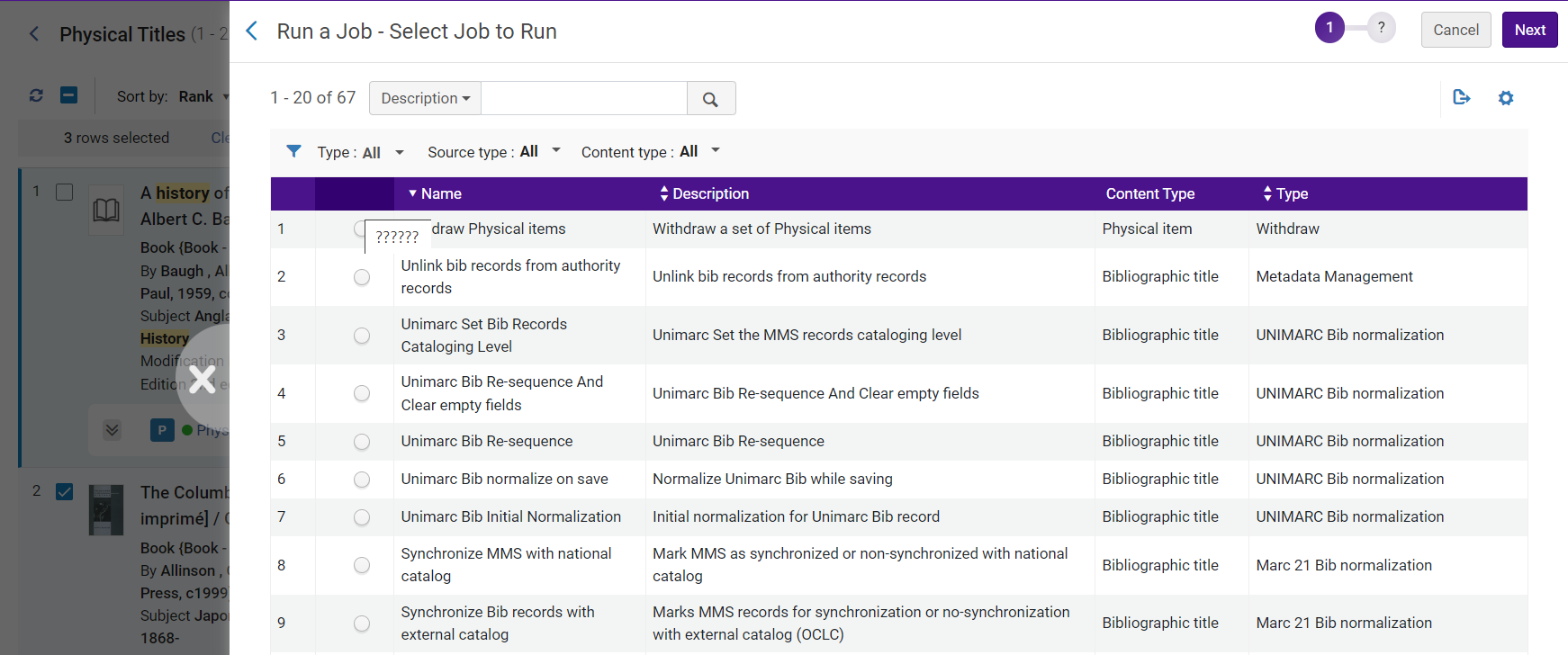
From the row actions button, select Run a Job to open a sliding panel with the list of jobs you are allowed to run on the type of records in your search type.
Selezionare il processo e immettere i parametri per eseguire il processo sui record selezionati.
Ripetere una ricerca precedente
The Export button that appears at the top of the page for all search types provides the option to export search results to an Excel file. The columns of information in the Excel file vary depending on the search type that you have used. You can choose to export only the visible fields in the list / table view, or all of the possible display fields (including those currently hidden).
For more information, see Export to Excel.
Sorting Search Results
By default, search results are sorted according to an internal ranking mechanism that is based on Apache Solr; for more information, see http://www.solrtutorial.com/solr-search-relevancy.html. I fattori di classificazione includono:
- Term Frequency- The higher the term frequency in the document, the higher the document score.
- Inverse Document Frequency- The rarer a term is across all documents in the index, the higher its contribution to the score.
- Coordination Factor- The more query terms found in a document, the higher its score.
- Field Length- The more words a field contains, the lower its score. La normalizzazione per queste lingue è specifica per campi di testo come titolo e autore.
Per alcuni tipi di ricerca, è possibile modificare l'ordinamento utilizzando l'elenco a discesa Ordina per e Ordina per secondario, utilizzando le seguenti opzioni (dove Asc=crescente e Desc=decrescente):
- Classifica
- Titolo – Asc
- Titolo – Desc
- Creatore – asc
- Creatore – Desc
- Data di pubblicazione - Asc
- Data di pubblicazione - Disc
- Titolo uniforme – Asc
- Uniform Title – Desc
- Series – Asc
- Series – Desc
Queste opzioni sono disponibili per i tipi di ricerca:
- Tutti i Titoli
- Titoli fisici
- Copie fisiche
- Titoli Elettronici
- Collezioni elettroniche (Ordina per solo)
- Portfolio elettronici (Ordina per solo titoli)
- Titoli Digitali
- Collezioni (solo Ordina per)
The sort order for holdings displayed within a single search result is configured by the sort_library_by_relevance customer parameter (see sort_library_by_relevance), and by the sorting selected by the user in the Holdings section (see Holdings Section).
Filtering Search Results
You can filter search results using the facets in the left pane of the search results. The available facets depend on the type of search and the items in the search results. Some facets include a count of records in parentheses next to the facet entry.
Faccette
The Facets panel helps you filter the search results to only see results that meet selected conditions. The facets enable you to:
- Select multiple values to include in the search results
- Exclude a value from the search results
- Cerca nelle Faccette - L'utente può facilmente e rapidamente trovare il valore che desidera su Faccetta
- Save Facets - users who commonly filter their search results in a specific way can now save this, so it automatically applies to future searches of the same type. The saved facets can be cleared when the user wants to see the unfiltered search results.
For more information, see Facets.
| Tipo ricerca | Faccette fornite |
|---|---|
| Title Searches (all types) | Material type (see Material Types in Search Results) |
| Resource Type (see The Resource Type Field) | |
|
La visualizzazione dei risultati della ricerca può essere configurata sia a livello utente che a livello istituzione. The Language Facets currently take the language name from the MARC Code List for Languages. |
|
| Publication year: The user can select a range suggested by Alma, or manually enter a year or a range to facet to. | |
| Collezioni | |
| Record format (facet displays only when an institution has more than one record format activated in the Active Registry). | |
|
copia fisica
|
Library Scope - limits the scope of physical search results to specific libraries. This reduces the need to define the library in the Advanced search or to use facets for every search, for users that only work with physical resources of specific libraries.
The library scope is a persistent filter that applies to all physical searches (items, holdings and titles).
When you select Save Query to create a set from the search results limited to specific libraries, the set is saved and does not change, even if you change the libraries selection in the future.
See also Library Scope (LS).
|
| Espansione delle schede | |
| Titoli Elettronici | Espansione delle schede |
| Titoli Digitali | Tipo conservazione |
| Representation Entity Type | |
| Espansione delle schede | |
|
Holding fisiche
|
Library Scope — limits the scope of physical search results to specific libraries. This reduces the need to define the library in the Advanced search or to use facets for every search for users who only work with physical resources of specific libraries.
The library scope is a persistent filter that applies to all physical searches (items, holdings and titles).
When you select Save Query to create a set from the search results limited to specific libraries, the set is saved and does not change, even if you change the libraries' selection in the future.
See also Library Scope (LS).
|
| Biblioteca | |
| Localizzazione | |
| numero di collocazione Tipo |
Ricerca secondaria
Some pages include a secondary search that enables you to search the current task list for items that meet certain criteria (see New Layout).
Repository Search Labels
To manage repository search labels, you must have an Administrator or Manager role.
To manage inventory search labels, you must have an Administrator, Manager, or the relevant Inventory Operator role (Physical Inventory Operator can manage Physical Holdings search labels).
Users without these roles can search, view and facet labels, but cannot add or remove them.
To enable repository search labels for Operator roles, contact Ex Libris support.
In the repository search, institutions can now add local labels to records (currently available for Title and Holdings searches). These labels can be used for searching, faceting, and viewing search results. Adding labels can only be done for local records in the institution level. Adding labels for Community and Network records is not supported.
Adding Labels
Labels can be added in bulk (multiple record selection) or by single record selection in the search results. Adding by bulk is represented in the List View whereas the single selection is done in Split View.
- Run a repository search.
- Select the desired search result record(s) - (See below:a. Bulk selection,b. Single selection):
Bulk selection
- In the search results (List View), select one or more desired search result record(s) that you wish to mark with the label. Once a record is selected, the Manage Labels(
 ) button is enabled. Continue with step 3.Manage Labels button enabled in Table View search results
Single selection
- In the search results (Split View), the record selected displays the Add Labels(
 ) button in the screen's right pane. Upon selecting the Add Labels button, the Manage Labels pop-up screen is displayed.
- In the Enter Label text box, type a desired label or select one from the drop menu (if a label was previously added), for example,Test.
- Selezionare Applica. The label is added and displayed alongside the navigation and smart links. See Viewing Labels for visual representation.Dopo aver eseguito una ricerca, seleziona Crea e filtra set nei risultati della ricerca. Step 3 and onward are continued procedures for Bulk selection.
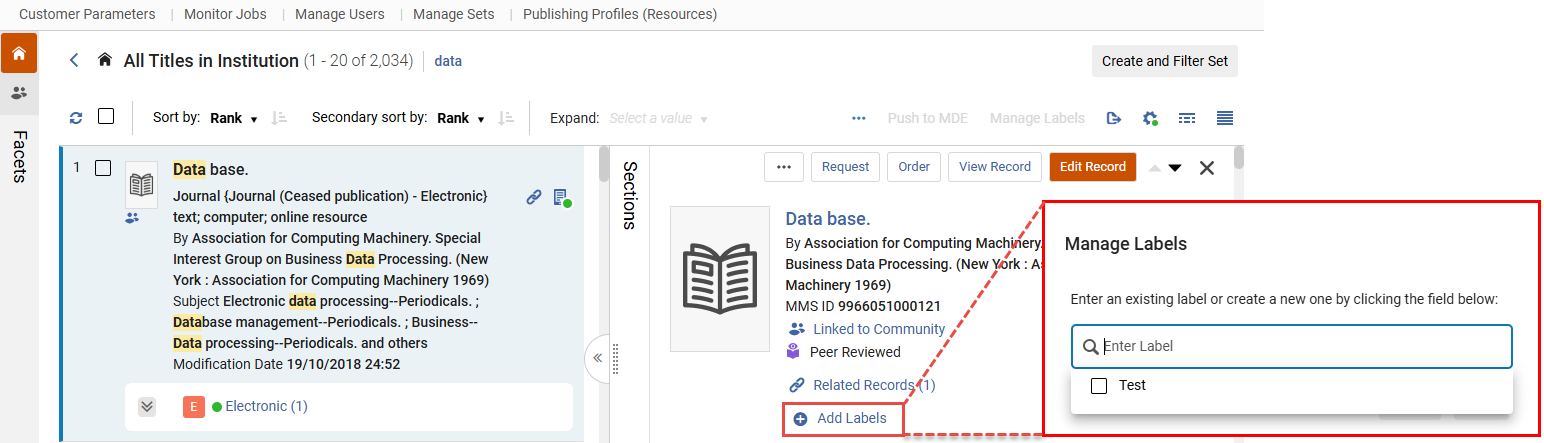 Add Label - Single Selection
- In the search results (List View), select one or more desired search result record(s) that you wish to mark with the label. Once a record is selected, the Manage Labels(
- Select Manage Labels.
- In the Manage Labels window, verify the Add Labels radio button is selected.
- In the Enter Label text box, type a desired label, for example,Test.
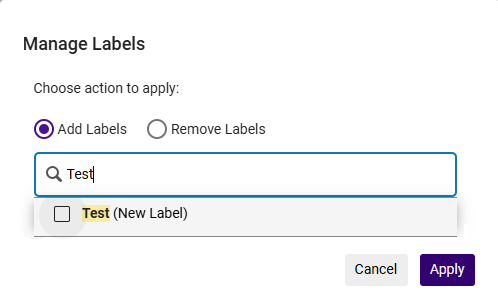 Manage Labels Window
- Selezionare Applica. The label (in List View) is added and displayed alongside with the navigation and smart links. See Viewing Labels for visual representation.
Removing Labels
Labels can be removed in bulk (multiple record selection) or by single record selection in the search results. Removing by bulk is represented in the List View whereas the single selection is done in Split View.
- Run a repository search.
- Select the desired search result record(s) — (See below:a. Bulk selection,b. Single selection):
Bulk selection
- In the search results (List View), select one or more desired search result record(s) that are marked with the label you want to remove. Once a record is selected, the Manage Labels() button is enabled.
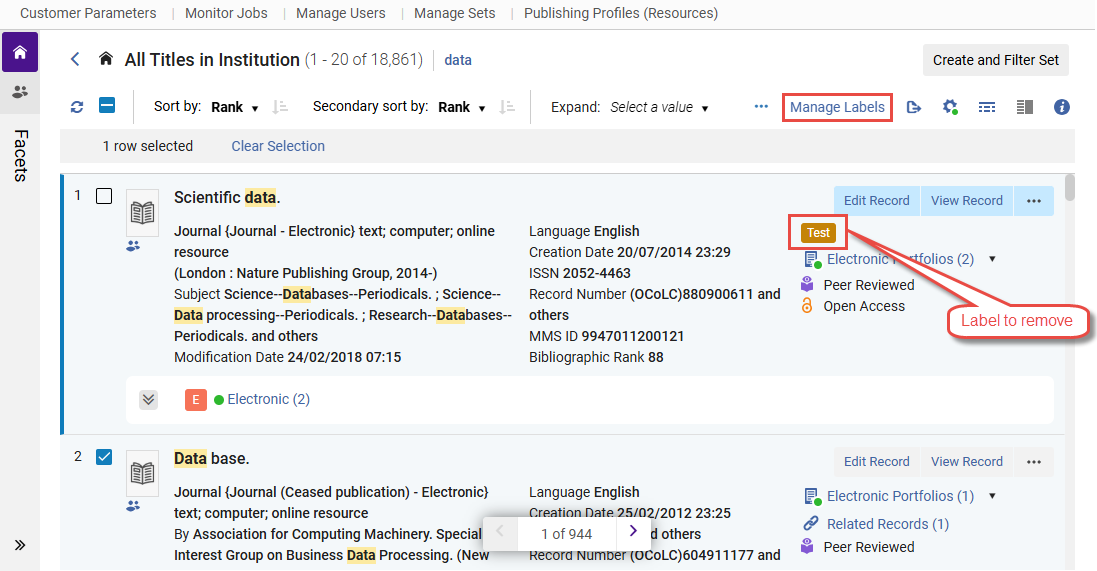 Search results displaying records marked with label to remove
Single selection
- In the search results (Split View), the record selected displays the label (for example,
 ) in the screen's right pane. Upon selecting the label or the edit icon (
 ), the Manage Labels pop-up screen is displayed.
- Select the X alongside the label you want to remove (
 ).
- Selezionare Applica. The label is removed.This concludes the steps for removing a label for Single selection in Split View. Step 3 onwards are continued procedures for Bulk selection.
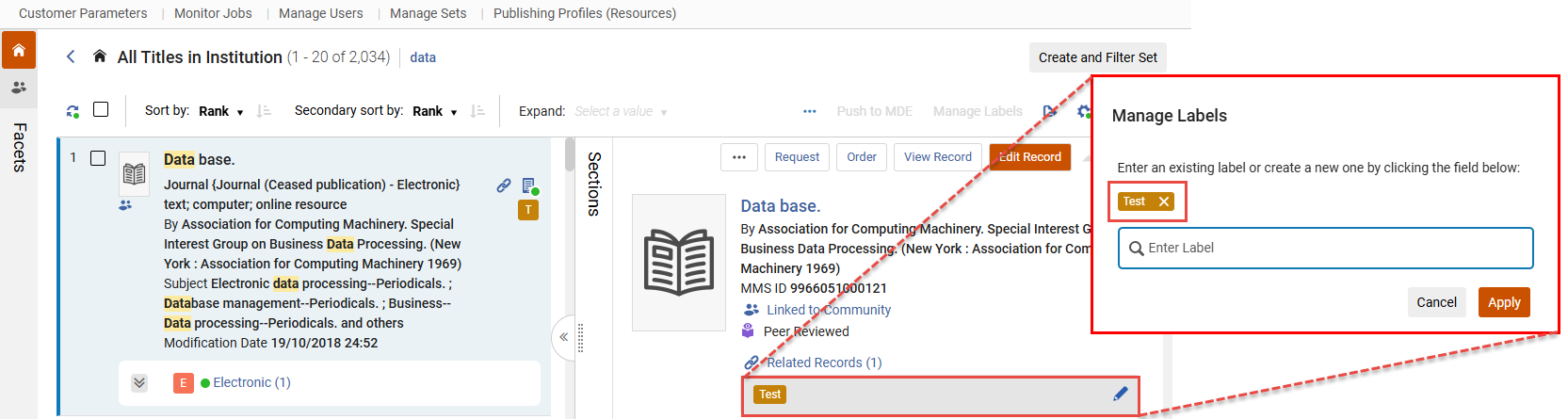 Remove Label - Single Selection
- Select the X alongside the label you want to remove (
- In the search results (List View), select one or more desired search result record(s) that are marked with the label you want to remove. Once a record is selected, the Manage Labels(
- Select Manage Labels.
- In the Manage Labels window, verify the Remove Labels radio button is selected.
- In the Enter Label text box, from the drop menu select the label to remove, for example,Test.
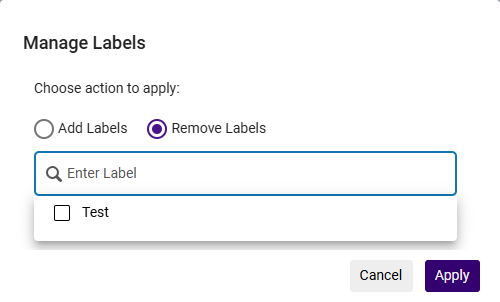 Manage Labels Window
- Selezionare Applica. The label is removed from all views (List, Split and so forth).
Viewing Labels
Aggiunta al set specificato Below are visual representations of the labels displayed in the different views.
List View:
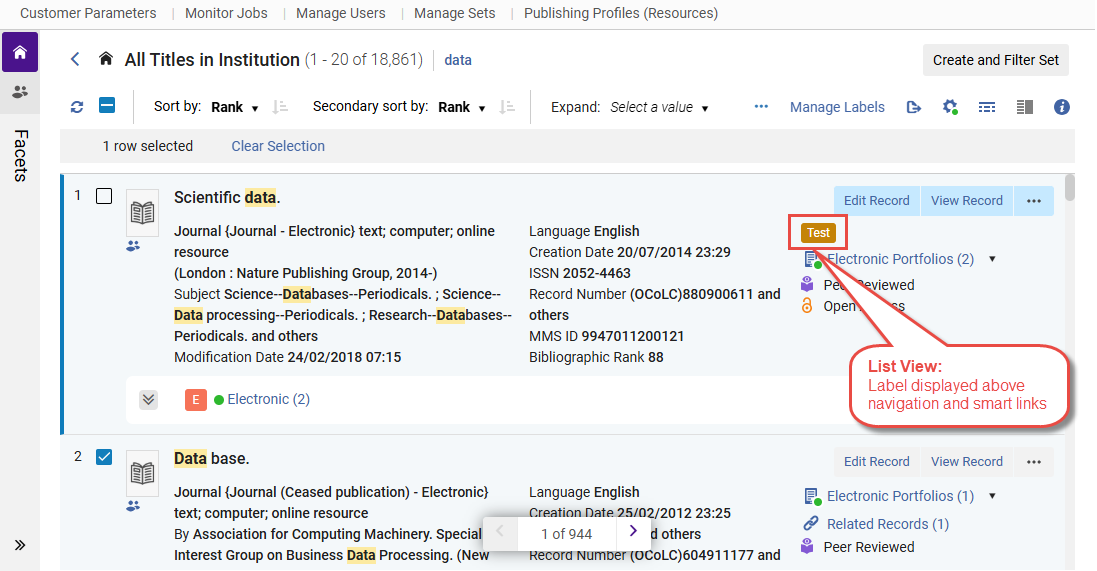
Split View:
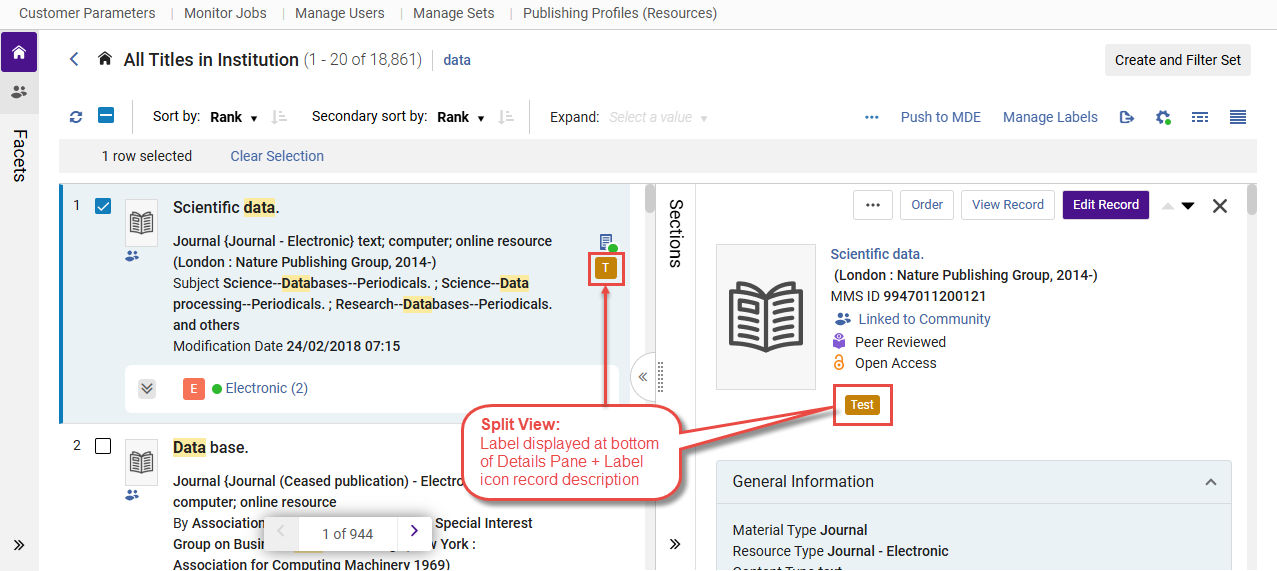
Table View:
Localizza il Set desiderato.
- In the search results screen, select the icon (
 ) for Table View.
- Select the gear icon (
 ) to customize the view.
- Under Institution Customization, select Table customization.
- Scroll down the list and select Local Labels.
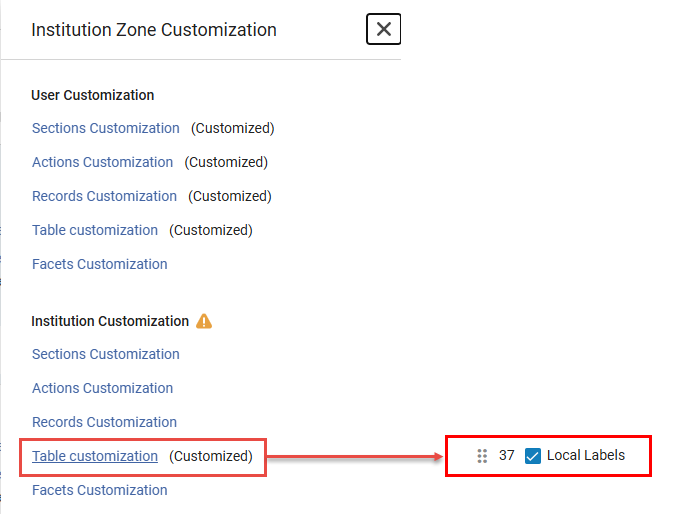 Table View Customization - Local Labels selected
- Selezionare Applica. The Local Labels column is displayed in Table View.
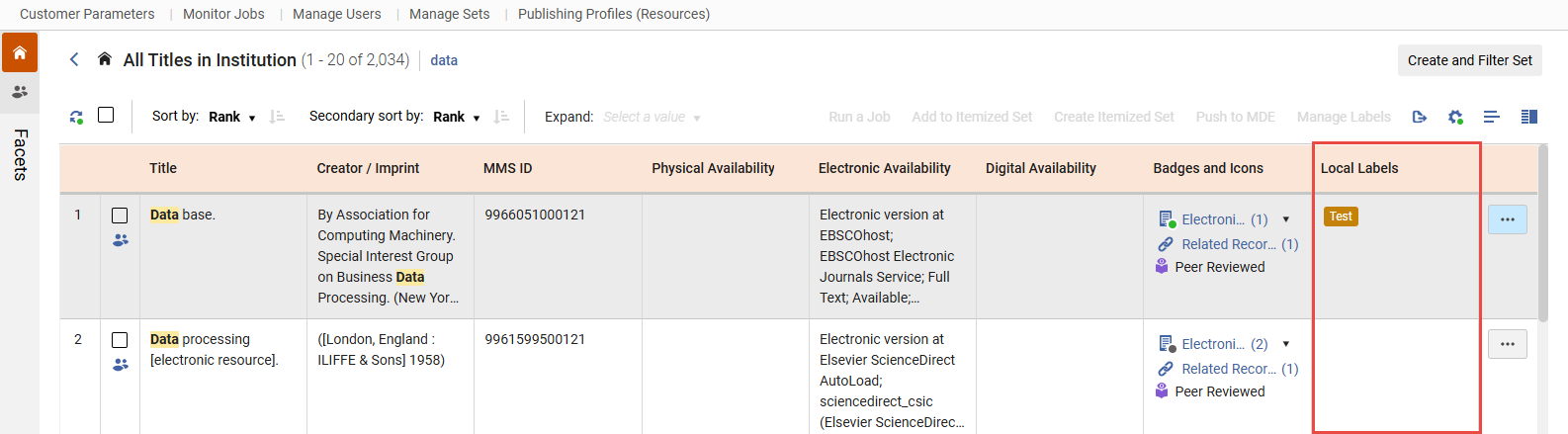 Local Labels Column - Table View
Miniature nei risultati di ricerca
Alma attempts to display a thumbnail image for titles (either for digital titles only, or for all title types - see Customizing the Thumbnail Display). Se il Titolo ha un file digitale, appare una thumbnail di quel file. If the title has no digital inventory, Alma attempts to acquire a thumbnail image of the cover using the title's ISSN/ISBN/LCCN. Se non è disponibile alcuna thumbnail, appare un'immagine generica del Tipo di materiale (Monografia, video, musica e così via).
Institution, Community, and Network Search Scopes
The results from your institution appear in the Institution scope. The Community scope includes results for records in the Community Zone; these are records that are available to all Alma institutions (see Introduction to Resource Management).

If your institution is a member of a collaborative network working with a Network Zone, the Network scope is also available for relevant search types, such as All Titles and Electronic Titles. The Network scope includes results from your Network Zone. For more information regarding the Network scope, see Repository Search in Collaborative Network.

You can ask Ex Libris to enable a feature that enables you to display electronic resources available to your institution from your Network Zone in the Institution tab; see Combining Institution and Network Zone Search Results.
Some bulk actions are not available when searching in a combined scope.
Search Result Icons
Esportazione dei risultati della ricerca Linked records are updated when their target records (in the Community Zone or in the Network Zone) are updated.
| Scheda | Icona | Record Condition | Select to Open the Item In | |||||||
|---|---|---|---|---|---|---|---|---|---|---|
| Istituzione | Record is not found in search results | NOT defined in the institution | N/D | |||||||
| Restricted by an inventory management group | N/D | |||||||||
| Icona | Unlinked | N/D | ||||||||

|
Record is suppressed, or digital representation is inactive. When a record is suppressed, only the Library staff can see it. The record does not appear in the Primo search results, and students cannot see and cannot request it. For details, see Suppressing Alma Records from Primo. The following table describes what to use in the repository search for suppressed holdings and content.
|
N/D | ||||||||

|
Revisione tra pari Quando si esegue una Ricerca di tutti i Titoli, Titoli elettronici, portafogli elettronici, collezione elettronica, Titoli Fisici, copie fisiche, Titoli digitali, file digitali o collezioni, questa icona appare per i record bibliografici MARC 21 Community Zone che contengono quanto segue: 500 __ $a Referee/Peer-revisione |
N/D | ||||||||

|
Open Access Quando si esegue una ricerca All Titolo, Titolo Elettronico, portafogli elettronici o collezione elettronica, questa icona appare per i record bibliografici MARC 21 3 che contengono quanto segue: 506 0_ $f Accesso online illimitato $2 stelle |
N/D | ||||||||

|
Collegato a un record della Community Zone. | Scheda Community | ||||||||

|
Collegato a un record della Network Zone | Titoli fisici | ||||||||

|
Assegnata a conservazione. Portfolio elettronici (Ordina per solo titoli) | N/D | ||||||||

|
The record was created or enhanced with the help of AI. | N/D | ||||||||
| Area della Community | Record is not found in search results | Ricerca in Alma | N/D | |||||||
|
|
Revisione tra pari Quando si esegue una Ricerca di tutti i Titoli, Titoli elettronici, portafogli elettronici, collezione elettronica, Titoli Fisici, copie fisiche, Titoli digitali, file digitali o collezioni, questa icona appare per i record bibliografici MARC 21 che contengono quanto segue: 500 __ $a Referee/Peer-revisione |
N/D | ||||||||
|
|
Open Access Quando si esegue una ricerca All Titolo, Titolo Elettronico, portafogli elettronici o collezione elettronica, questa icona appare per i record bibliografici MARC 21 che contengono quanto segue: 506 0_ $f Accesso online illimitato $2 stelle |
N/D | ||||||||
| Icona | Collegato a un record della Network Zone Faccette fornite Restricted by an inventory management group |
N/D | ||||||||

|
Collegato a un record della Network Zone Faccette fornite Ricerca per titolo faccette Faccette fornite Ricerca per titolo (tutti i tipi) Note: This icon also appears if an institution record is linked to the above Network Zone record. |
Titoli fisici | ||||||||

|
Collegato a un record presso l'istituzione The icon is black  if the collection is active but the portfolios in the collection are not. For electronic collections of type 'Database', this icon always appears black in the Community tab, since a database does not have portfolios. The correct indication for electronic collections of type 'Database' is in the Institution tab. |
Scheda Rete | ||||||||
| Collegato a un record della Network Zone Faccette fornite Collegato a un record presso l'istituzione Area della Community |
Whichever link was added last. | |||||||||
|
|
The record was created or enhanced with the help of AI. | N/D | ||||||||
| Network | Record is not found in search results | NOT defined in the Network Zone | N/D | |||||||
|
|
Revisione tra pari When performing an All titles, Electronic titles, Electronic portfolios, Electronic collection, Physical titles, Physical items, Digital titles, Digital files, or Collections search, this icon appears for Community Zone MARC 21 bibliographic records that contain the following: 500 __ $a Referee/Peer-revisione |
N/D | ||||||||
|
|
Open Access Quando si esegue una ricerca All Titolo, Titolo Elettronico, portafogli elettronici o collezione elettronica, questa icona appare per i record bibliografici MARC 21 3 che contengono quanto segue: 506 0_ $f Accesso online illimitato $2 stelle |
N/D | ||||||||
| Nessuna icona | Collegato a un record nella Network Zone Titoli Elettronici Ricerca per titolo faccette |
N/D | ||||||||

|
Collegato a un record della Community Zone | Scheda Community | ||||||||

|
Collegato a un record presso l'istituzione | Scheda Rete | ||||||||
|
|
Assegnata a conservazione. Per selezionare un ambito, selezioni il banner LS per aprire la lista delle biblioteche, selezioni la biblioteca desiderata e clicchi su Applica. In the case of network zone records, the retention policy is determined based on the configuration specified in the Network Zone table. When attempting to delete a bibliographic record that is linked to the Community Zone, the removal of the linked record from the local institution is restricted based on the specific configuration set by that institution. Il campo di estensione locale non può essere utilizzato come campo di conservazione. Un campo utilizzato nella Institution Zone senza essere un'estensione locale può essere utilizzato come campo di conservazione. |
N/D | ||||||||
|
|
The record was created or enhanced with the help of AI. | N/D |
Viewing Inventory and Collection Information
In title search results, inventory and other information appear in sections in the details pane, as well as tabs below each search result in the list view. These can include:
-
Physical inventory
-
Electronic inventory
-
Inventario Digitale
-
Collections the title belongs to
-
Held by (consortium members only; see Repository Search when Using a Network Zone for more information)
In the list view, each tab displays an icon, the tab name, and the number of results associated with the tab in parentheses. Inventory tabs are color-coded to help users scan the results quickly. If a title does not contain a specific type of inventory or is not a part of a collection, the corresponding tab does not appear.
All the record's information is available in all the title searches that are relevant for it. L'utente senza questo ruolo può cercare, visualizzare e etichettare le etichette, ma non può aggiungerle o rimuoverle. Physical, electronic, and digital title searches offer search options based on data specific to their inventory type.
For details on what information is included on each tab, see the Search Results Tabs table below.
Features dependent on specific inventory information (such as Library scope in the Physical Titles search or the Usage type facet in the Digital Titles search) remain exclusive to their respective searches.
Alma displays navigation smart links on the right side of the screen in search results. These links provide quick access to information related to the record, such as holdings, items, portfolios, and so on. For more information on smart links, see Using Navigation Links.
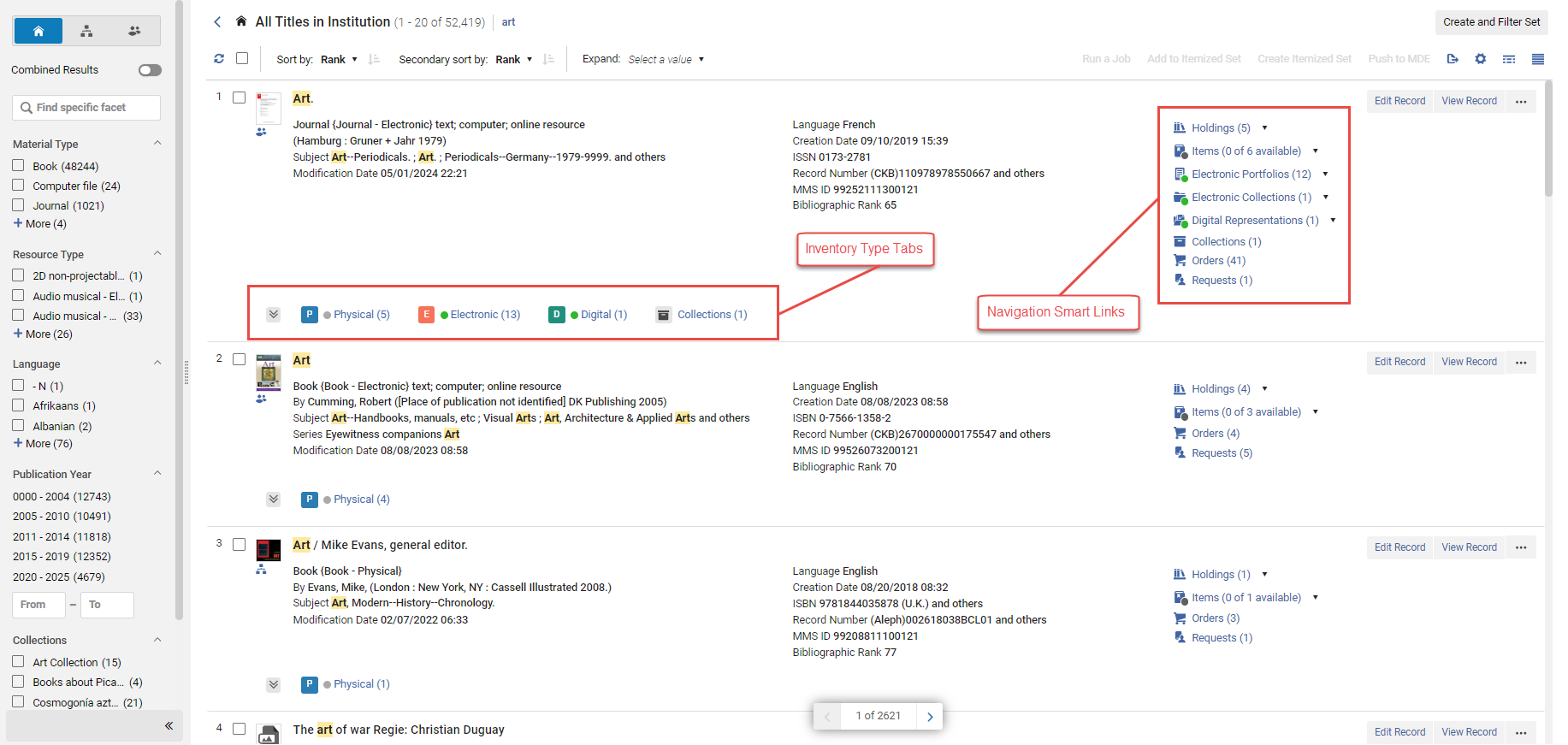
| Scheda | Descrizione |
|---|---|
|
Fisico
|
Displays title holdings information.
A green dot appears in the tab header if there are holdings and at least one of the holdings has an item in place. A gray dot appears if there are holdings but none of them has an item in place. The number that appears next to the Physical tab header identifies the number of holdings records in that tab. The number displayed is a combination of both real holdings and "virtual" holdings, which represent items in a temporary location.
Nei risultati della Ricerca (Lista vista), seleziona uno o più record dei risultati di Ricerca che desideri contrassegnare con l'etichetta. If the holdings record includes 866, the summary holdings information will be displayed instead of the availability based on items' chronology and/or enumeration.
Pulsante Gestisci etichette
Pulsante Aggiungi Etichette
In the absence of these conditions, a gray dot appears for Item Availability.
Aggiungi etichetta - selezione singola
|
| Elettronico | Displays information for electronic portfolios and electronic collections. A green dot appears in the tab header if there is inventory and at least one of the resources is active. A gray dot appears if there is inventory but none of the resource is active. For electronic portfolios, the table includes:
For electronic collections, the table includes:
|
|
Digitale
|
Modifica icona
The digital representation table includes:
|
| Collezioni | Rimuovi etichetta per selezione singola nella vista divisa Rimuova etichetta - Selezione singola This tab also displays a row action button, which allows users to remove the title from the collection or replace the collection (depending on their assigned roles). |
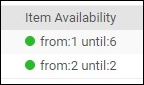

Using Navigation Links
Alma displays navigation smart links on the right side of the screen in search results. These links provide quick access to information related to the record, such as holdings, items, portfolios, and so on, and enable navigating to Alma pages relevant to it.
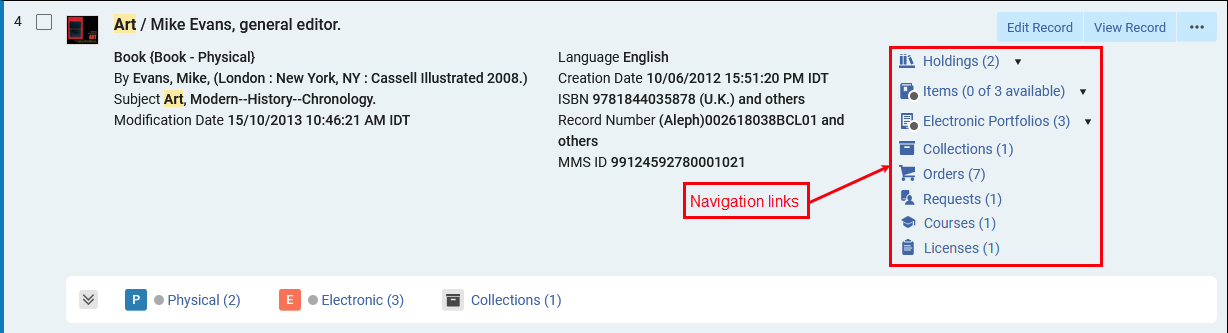
The navigation links can include both standard hyperlinks and smart links. Standard hyperlinks perform a single action (for example, open a list of orders, courses, licenses, or requests in a sliding panel, or the Collections section in the details pane), depending on the user's roles and privileges - if a user doesn't have the privileges required to perform the action, the navigation link appears as a read-only icon. The display of the links can be customized from the gear icon () and selecting Records Customization. In Badges and Icons (Third column), select the links to hide or display. These links also appear in the Table view ( ). The link counters are included in search exports to Excel, enabling users to easily identify records with related entities in their exported files.
Smart links can perform multiple actions for a specific entity (for example, open its section in the details pane, the full list in a sliding panel, or navigate to a new search). Smart links work in one of two ways:
-
Selecting the link takes you to your favorite resource (such as a section in the right pane or a full list in a sliding panel). Etichetta visualizzata nella Vista Divisa
-
Selecting the arrow icon next to the smart link opens a navigation window, which offers all actions available for that smart link. From this window, you can select a link to perform the action or star an action to set it as the favorite (single-click) action for this smart link.
The following image shows the arrow icon and the resulting navigation window that appears when you select it.
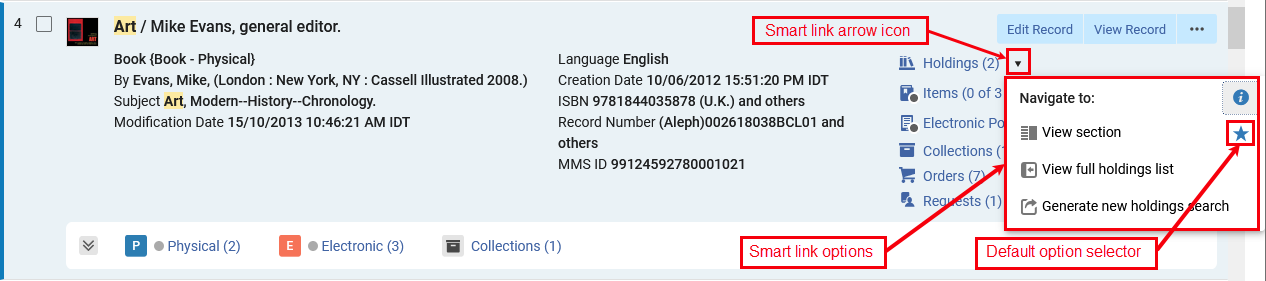
The navigation window can offer the following actions for smart links:
-
View section— Open the details pane and navigate to the relevant section (Holdings, Items, Electronic Portfolios, or Electronic Collections).
-
View full list— Open the full list of items, holdings, electronic portfolios or electronic collections in a sliding panel.
-
Generate a new search— Navigates to a new search for the relevant entities by the bibliographic record's MMS ID.
The star icon specifies the default action used for that smart link. In the example above, the View section action is selected, so the Holdings section appears whenever you select the Holdings link from a search result. La colonna Etichette Locali è visualizzata nella Vista Tabella.
Smart links are available in List View and Table View. Colonna etichette locali visualizzata nella vista tabella Selecting a navigation icon takes you to the default action set for that link.
Performing Record Actions on the Repository Search Results Page
Miniature nei risultati di ricerca
These actions appear as row actions in the list view and table view, and in the selected search result's details pane when in split view or full view. For more information, see The Details Pane.
| Tipo ricerca | Azione | Descrizione |
|---|---|---|
| All Titles, Physical Titles, Electronic Titles, Digital Titles | The results for a titles search include bibliographic records that may have physical, electronic, and/or digital inventory, and the actions for each record vary according to the record type. Unique actions available only in specific context are listed below. | |
| Edit Record | Modificate il record bibliografico. Opens the MD Editor (see Working with Records). Search results include records that may be locked due to another staff member editing the record. Locked records appear in the search results without any indication of being locked. A message that the record is locked appears only when you open the record in the MD Editor. Select Edit Record from the search results to open the record in the MD Editor. Locked By Notation This notation indicates that there is an open draft for the record and that someone other than you is working on it. This record cannot be edited until the operator that has it locked does a Release or Save and Release in the MD Editor or the setting for the working_copy_lock_timeout parameter has expired. The default setting for working_copy_lock_timeout is one hour. See working_copy_lock_timeout for more information. |
|
| View Record | Il record è stato creato o migliorato con l'aiuto dell'intelligenza artificiale. | |
| N/D | Avviare un ordine di acquisto. Opens the PO Line Owner and Type page in a sliding panel (see Creating PO Lines). | |
| Richiesta | Initiate a fulfillment request on the title. Opens the Create Request page in a sliding panel (see Creating a Request). From the Create Request page, you can select a Physical titles request such as Move temporarily or Patron digitization request from the Request Type drop-down list. |
|
| Richiesta di condivisione delle risorse | Initiate a resource sharing borrowing request on the title. Opens the Resource Sharing Borrowing Request page (see Adding a Resource Sharing Borrowing Task from a Search). This action appears only if you have one of the roles Fulfillment Services Operator or Fulfillment Services Manager in the scope of the resource sharing library. | |
| Il record non è stato trovato nei risultati della ricerca. | Initiate a resource request for this title. Opens the Create Request page in a slidin panel (see Creating a Request). | |
| Add to Reading List | Quando un record viene escluso, solo il personale della biblioteca può vederlo. Il record non appare nei risultati di Ricerca di Primo e gli studenti non possono vederlo né richiederlo. See Managing Reading Lists for more information. | |
| Invia a MDE | Use this option to push the record to Metadata Editor to reference and work with it there. See Pushing Records to Metadata Editor. | |
| Aggiungi holding | Select to add new holdings. The MD Editor opens and you can add a new holdings record related to the bibliographic record from which you selected this option. Il record bibliografico allegato non si apre, quindi non è necessario eseguire ulteriori passaggi per rilasciare il record bibliografico al termine della creazione del nuovo record di holding. | |
|
Visualizzalo |
Icona_revisionata_da_pari_02.png Revisione tra pari To view more than a maximum of 25 entries, enable the enable_view_it_show_all_results customer parameter to show all entries. With this parameter enabled, the View It feature provides a Show All link to display all the resources. For more information regarding the Alma Link Resolver Electronic Services page, see Link Resolver for Institutions Using Distributed Electronic Resources. To enable direct linking to electronic services via Alma Link Resolver Electronic Services, see Configuring Direct Linking. |
|
|
Collegato a un record della Community Zone. |
Aggiungi un titolo a una collezione This action appears only if you have collections configured. For more information refer to Managing Collections. |
|
| Icona Assegnata a conservazione | Create and edit reminders for the bibliographic record by entering the following pieces of information:
For more information, see Working with Reminders. |
|
| Aggiungi rappresentazione | Area della Community Il record non è stato trovato nei risultati della ricerca. For more information, see Managing Digital Resources. | |
| Rilascia Assegnazione | Release the bibliographic record if it is assigned to another staff user. If you want to remove all bibliographic record assignments for a particular staff user, see MD Editor Menu and Toolbar Options. This action appears only if you have the role Catalog Manager. | |
| Aggiungi portfolio locale | Open_Access_Icon_02.png | |
| Open Access | Use this option to open the title in Primo's Full Display page. 506 0_ $f Accesso online illimitato $2 stelle |
|
| Display Services Page | Use this option to open the title in Primo's Services page. Limitato da un gruppo di gestione dell'inventario |
|
| Dati Collegati | View linked data such as URI information generated from linked authority records in a sliding panel. See Using Linked Data from the Repository Search Results below for more information. | |
| nota: | View BIBFRAME instance records enabling users to navigate to the details page of the linked work within a sliding panel. In the sliding panel users have the ability to view instances and further details regarding the Work. | |
| copia fisica | Physical Publishing Information | View publishing information by the record's physical inventory. Opens the Publishing Information page with the following information (available explicitly for General System, Repository, and Catalog Administrators, and Deposit Managers):
Learn about debugging publishing information in the Debugging Publishing Information video (1:52 mins). |
| Titoli Elettronici | Icona di indicazione AI | View publishing information by the record's electronic inventory. Opens the Publishing Information page that provides the following information (available explicitly for General System, Repository, and Catalog Administrators):
Learn about debugging publishing information in the Debugging Publishing Information video (1:52 mins). If the institution is publishing at the campus/symbol level, in addition to the record ID you also need to specify the campus/symbol for which you want to see the publishing information. |
| Titoli Digitali | Digital Publishing Information | View publishing information by the record's digital inventory. Opens the Publishing Information page that provides the following information (Available explicitly for General System, Repository, and Catalog Administrators, and Deposit Managers):
Learn about debugging publishing information in the Debugging Publishing Information video (1:52 mins). If the institution is publishing at the campus/symbol level, in addition to the record ID you'll also need to specify the campus/symbol for which you want to see the publishing information. |
|
Community Search Scope |
The community search scope is available in the All Titles and Electronic Titles searches. |
|
|
Edit Record |
Open the community record in the Metadata Editor to edit the community record itself or add local extension fields to it. See Community Zone Contribution Guidelines and Contributing to the Community Zone – Bibliographic Records for more details on editing community records. |
|
|
Invia a MDE |
Use this option to push the record to Metadata Editor to reference and work with it there. See Pushing Records to Metadata Editor. |
|
|
Icona di indicazione AI |
Il record è stato creato o migliorato con l'aiuto dell'intelligenza artificiale. |
|
|
N/D |
Avviare un ordine di acquisto. Opens the PO Line Owner and Type page (see Creating PO Lines). When you place orders for electronic resources (from bibliographic-/title-level search results) that contain multiple URLs (856 $u fields), Alma creates a portfolio for each URL. |
|
|
Richiesta di condivisione delle risorse |
Initiate a resource sharing borrowing request on the title. Opens the Resource Sharing Borrowing Request page (see Adding a Resource Sharing Borrowing Task from a Search). This action only appears if you have one of the roles Fulfillment Services Operator or Fulfillment Services Manager in the scope of the resource sharing library. |
|
|
Link |
Create new local record linked to the existing community record. |
|
|
Copia nel catalogo |
Copy the community record to a new local record without linking the records, or unlink local record from the community record. |
|
|
Copia su Network |
Copy the community record to a new network record without linking the records, or unlink network record from the community record. |
|
|
Aggiungi portfolio locale |
La tabella Copie Fisiche include: |
|
|
Network Search Scope (consortia members) |
The network search scope is available for members of consortia with a shared catalog, in the All Titles and Electronic Titles searches. |
|
|
Edit Record |
Open the network record in the Metadata Editor to edit the network record itself or add local extension fields to it. |
|
|
Invia a MDE |
Use this option to push the record to Metadata Editor to reference and work with it there. See Pushing Records to Metadata Editor. |
|
|
Icona di indicazione AI |
Il record è stato creato o migliorato con l'aiuto dell'intelligenza artificiale. |
|
|
N/D |
Avviare un ordine di acquisto. Opens the PO Line Owner and Type page (see Creating PO Lines). When you place orders for electronic resources (from bibliographic-/title-level search results) that contain multiple URLs (856 $u fields), Alma creates a portfolio for each URL. |
|
|
Richiesta di condivisione delle risorse |
Initiate a resource sharing borrowing request on the title. Opens the Resource Sharing Borrowing Request page (see Adding a Resource Sharing Borrowing Task from a Search). This action only appears if you have one of the roles Fulfillment Services Operator or Fulfillment Services Manager in the scope of the resource sharing library. |
|
|
Link |
Create new local record linked to the existing network record. |
|
|
Copia nel catalogo |
Copy the network record to a new local record without linking the records, or unlink local record from the network record. |
|
|
Icona Assegnata a conservazione |
Create and edit reminders for the bibliographic record by entering the following pieces of information:
For more information, see Working with Reminders. |
|
|
Aggiungi portfolio locale |
La tabella Copie Fisiche include: |
|
|
Dati Collegati |
View linked data such as URI information generated from linked authority records in a sliding panel. See Using Linked Data from the Repository Search Results below for more information. |
|
| Numero di accessione | Aggiungi copia | Create a new physical item for the holdings record, opening the item editor in the sliding pane that opens on top of the current page. |
| Aggiungi copia dal template | Add one or more physical items for the holdings record, using a template. | |
| View Holdings | View the record in the sliding pane that opens on top of the current page. | |
| View Title | Opens the details pane of the holdings' bibliographic record in the sliding pane that opens on top of the current page. | |
| Edit Holdings | Edit the record in the Metadata Editor. | |
| Invia a MDE | Pushes the selected record the the Metadata Editor in order to work with it later. | |
| Relink | Move the holdings record from one bibliographic record to another bibliographic record. | |
| Visualizza la copia | Opens the list of items for the record in the sliding pane that opens on top of the current page. | |
| Associate a PO Line | Associates a PO line to the record. | |
| Add New Holdings | Opens a new holdings record for the bibliographic record of the selected holdings record. | |
| Delete Holdings | Deletes the record. | |
The Details Pane
The Details pane displays information about the currently selected record, and provides a number of convenient features for processing the record and its inventory. It is divided into sections for enhanced navigation and usability, appearing when relevant and collapsible by the user - sections are further described below.
|
Sections: |
Details Pane Sections
|
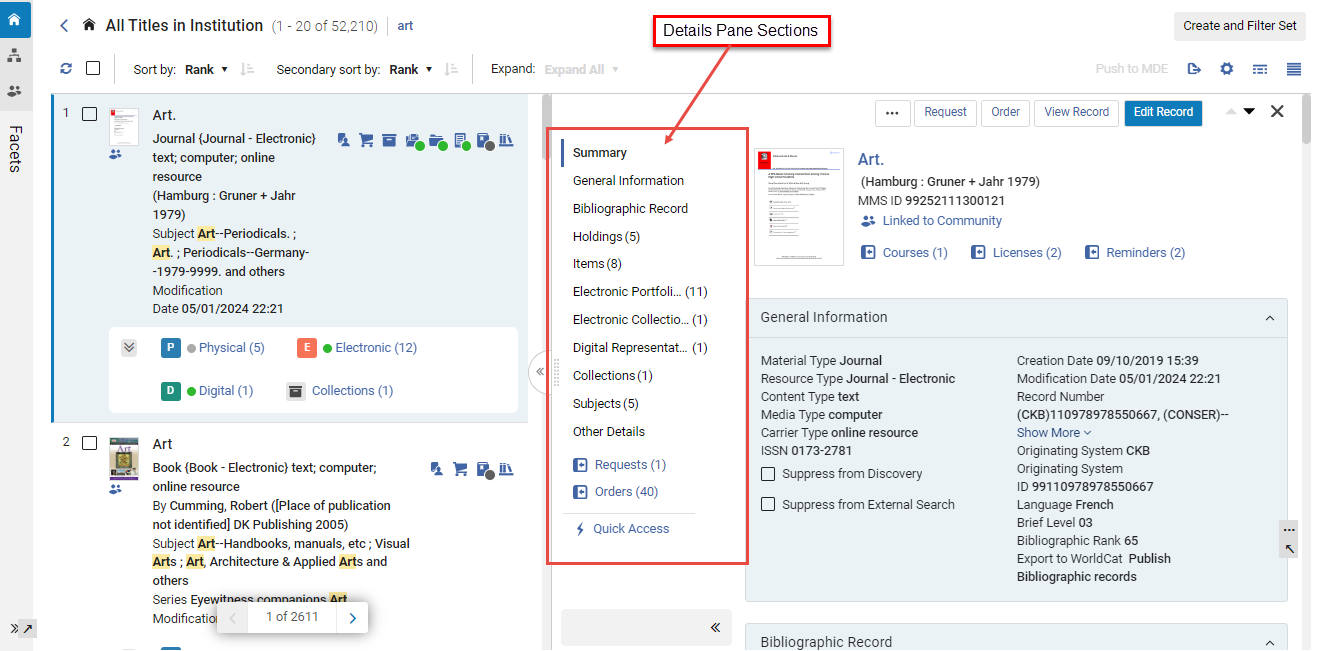
Performing Actions
Users can perform a series of actions directly from the details pane toolbar.
Stato = copia a scaffale (per almeno una copia) Not all actions appear for all users.
For detailed information on the actions, see Performing Record Actions on the Repository Search Results Page.
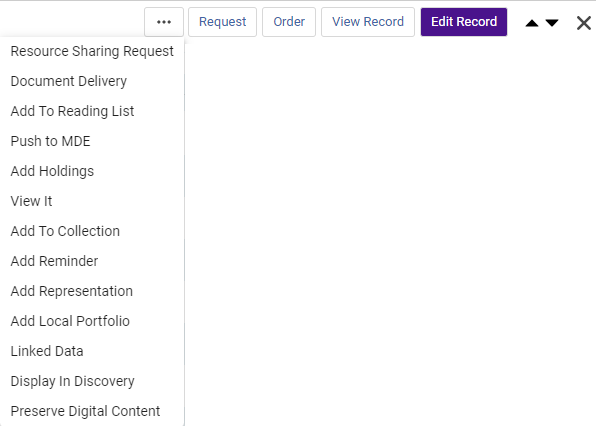
Nome Interfaccia
Users can seamlessly navigate between bibliographic records of search result items by utilizing the Previous ( ) and Next (
 ) buttons in the toolbar - in both the split view and the full view.
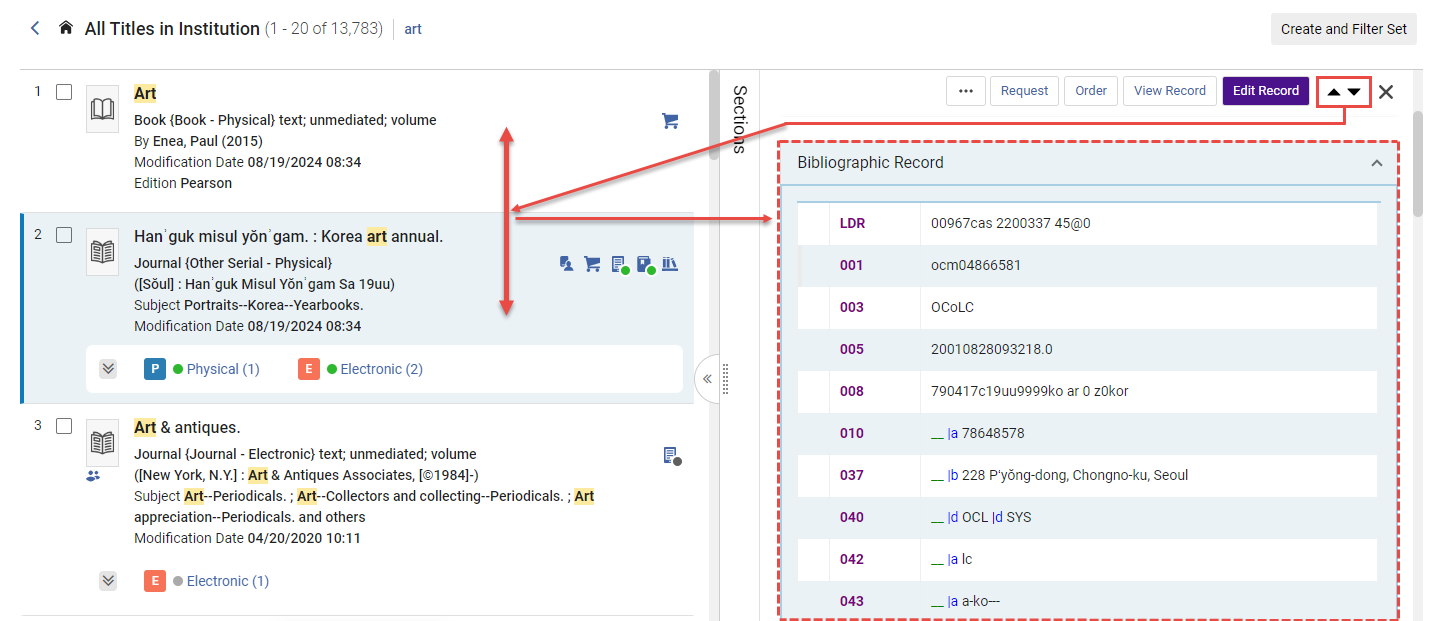
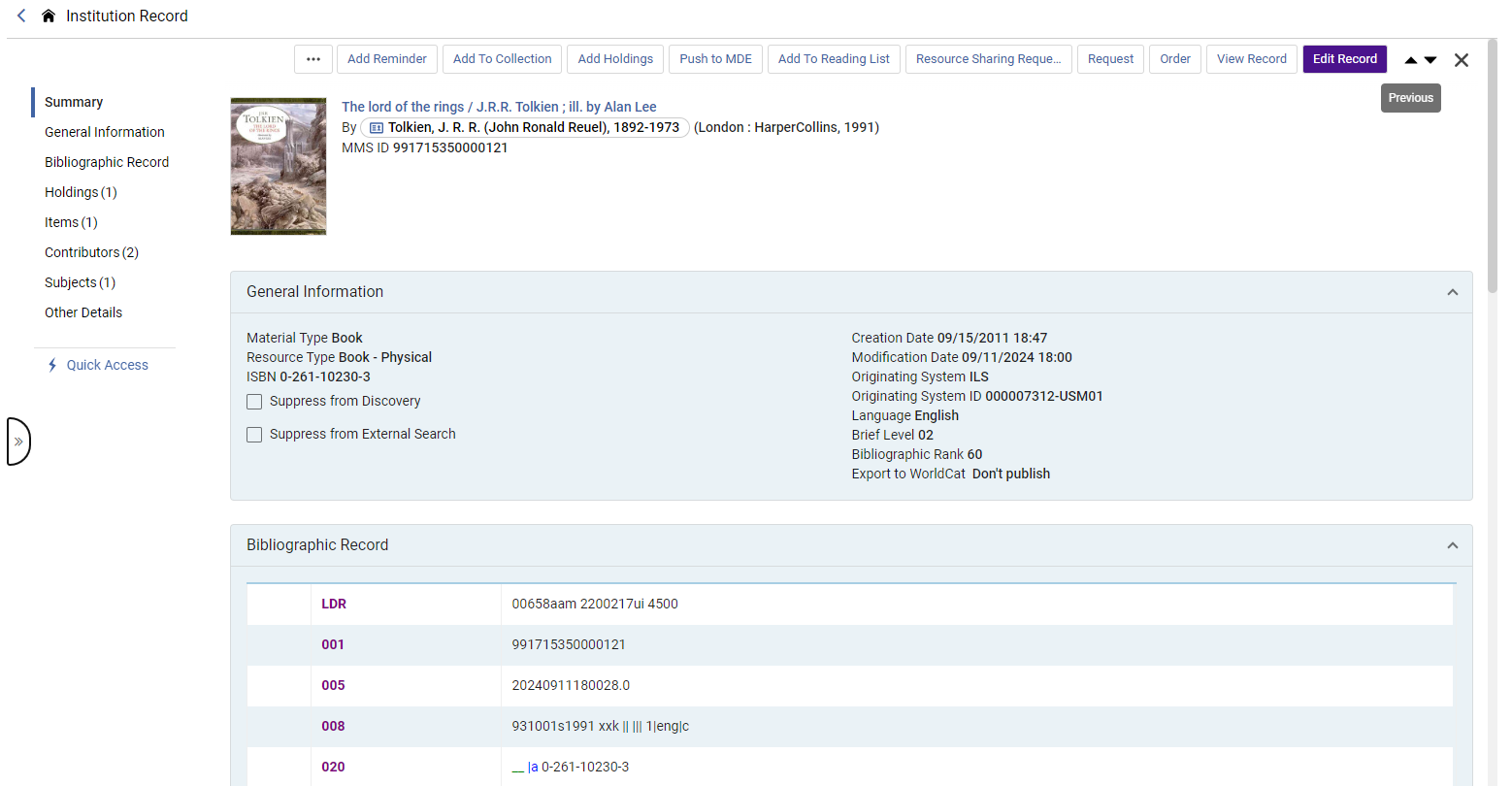
Metadata Sections
Riepilogo
Include il titolo del record, il creatore, i dati di pubblicazione e le informazioni sull'ID MMS, insieme a collegamenti a record, corsi e licenze correlati (se applicabile).
Un pulsante di azione di riga, che consente all'Utente di eseguire azioni sulla rappresentazione digitale (a seconda del ruolo assegnato).
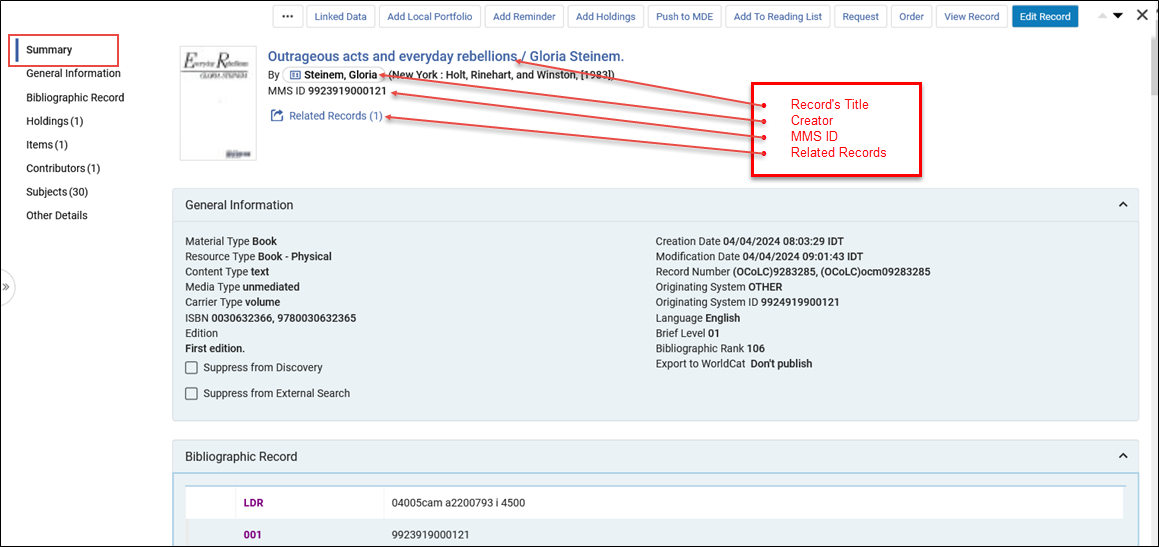
Informazioni generali
The General Information section includes essential metadata that librarians may need to access easily.
Librarians with the appropriate roles and privileges can suppress the record using the checkboxes in this section. For more information, see Suppress from Discovery.
Bibliographic Record
Visualizza il record bibliografico completo, permettendo ai bibliotecari di sottoporlo a revisione direttamente dai risultati della ricerca. Con la comoda navigazione tramite le frecce su/giù tra i record, i bibliotecari possono facilmente confrontare i risultati della ricerca e identificare il record corretto su cui lavorare.
The Bibliographic Records are color-coded for easy review of fields and subfields.
The RDF/XML section is disabled by default. For users who use BIBFRAME and prefer the RDF/XML view, the section can be enabled from the customization wheel > User Customization > Sections Customization > select Instance RDF/XML.
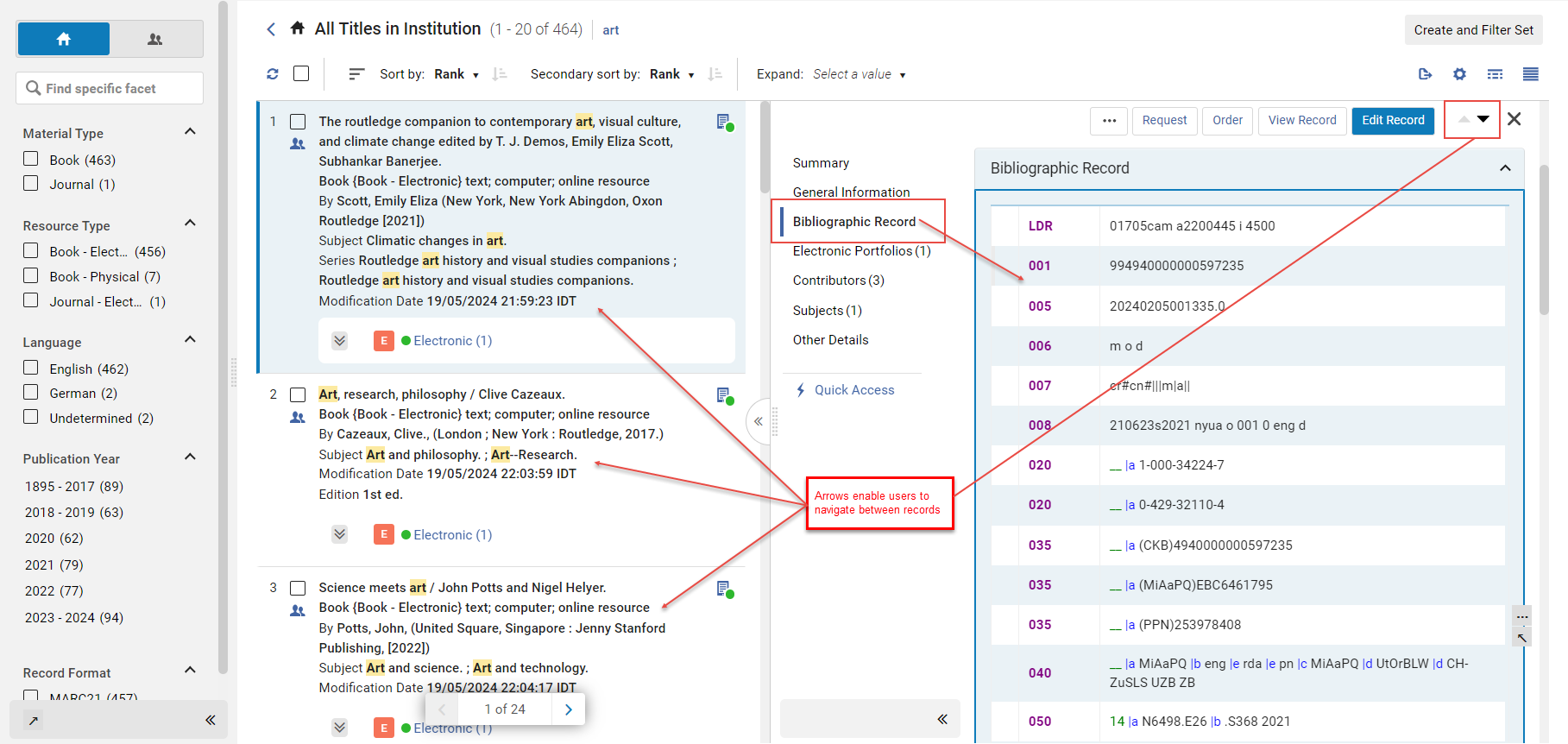
Sezioni inventario
Le sezioni dell'inventario mostrano il record, permettendo ai bibliotecari di eseguire una revisione e di eseguire azioni direttamente dalla ricerca. Queste sezioni includono:
- Una Lista di Inventory per tipo (holdings, copia, portfogli elettronici, collezione elettronica, rappresentazioni), che mostra il conteggio delle entità per ogni tipo associato al record.
- The first five entities of each type, with pagination to navigate the rest if applicable.
- Capacità di ricerca e navigazione.
- Funzionalità Esporta in Excel.
- La possibilità di eseguire azioni sulle righe dell'Inventory direttamente dalla ricerca per titolo.
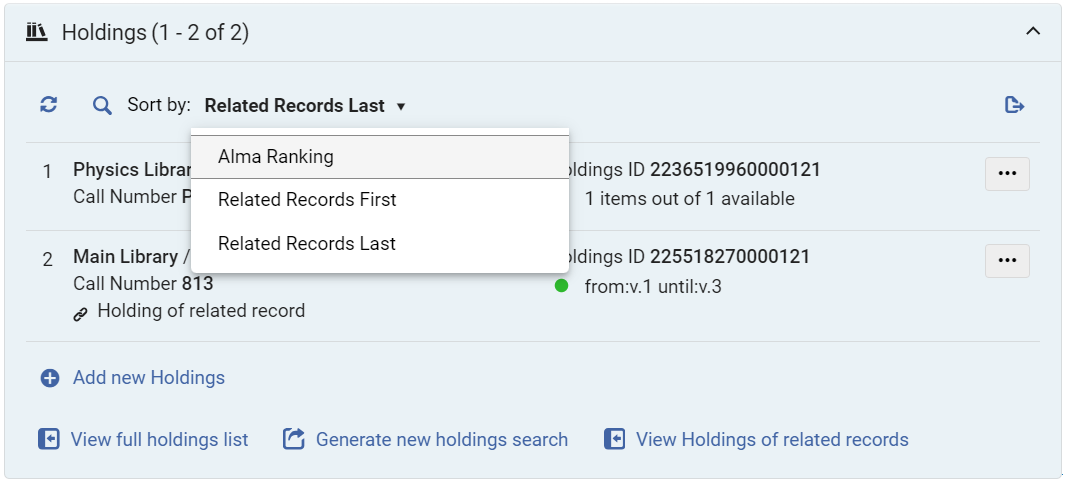
Holdings
The Holdings section includes a list of all the title's Holdings records as well as the option to:
- Search by
:
- numero di collocazione
- Biblioteca
- Localizzazione
- Sort the holdings (a preference remembered for both the holdings section and the holdings tab in the list of results) by:
- Alma Ranking
- Related Records First
- Related Records Last
- Export the holdings to Excel
— For more information, see Export to Excel.
- Add a new holdings record — Opens the Metadata Editor with a new Holdings record.
- View the full holdings list in a sliding panel
- Generate a new holdings search by the bib record's MMS ID
The following actions are available from the row actions button, according to the user's roles and privileges () - for more information on these actions, see Working with Holdings Records:
- Edit— Edit the holdings on the MD Editor page.
- View Holdings— Open the full holdings details, enabling the user to view the metadata record and related items.
- Relink— Relink the holdings record to a bibliographic record in the MD Editor in split view.
- View Items— View the items that are associated with the holdings record on the List of Items page. For more information, see Working with the List of Items.
- Push to MDE— Push the holdings to the MD Editor page in order to work with it later.
- Associate a PO Line— Associate a PO line with the holdings.
- Add Item— Add a physical item to this holdings record. For more information, see Adding a Physical Item to an Existing Title.
- Add Item from Template— Add item records from a template. For more information, see Working with Item Templates.
- Delete— Delete empty holdings records. Queste azioni appaiono come azioni di riga nella vista Lista e nella vista Tabella, e nel riquadro dei dettagli del risultato di ricerca selezionato quando si è in vista divisa o vista completa. Note: You cannot delete Holdings records that contain items.
Copie
The Items section includes a list of all items of the bibliographic record as well as the option to:
- Search by
:
- Codice a barre
- numero di collocazione
- Descrizione
- Sort the items in ascending/descending order by:
- Library/Location
- Descrizione
- Localizzazione temporanea
- Stato
- Tipo processo
- Data di Rrcezione
- Export the items to Excel
— For more information, see Export to Excel.
- Select the Barcode to open the physical item editor in a sliding panel in view/edit mode according to the user's permissions.
- Select the location to view the holdings record in a sliding panel.
- View the full items list in a sliding panel.
- Generate a new items search by the bib record's MMS ID.
The following actions are available from the row actions button, according to the user's roles and privileges () - for more information on these actions, see Working with Items:
- Edit Item— Edit the item in the Physical Item Editor sliding panel.
- Duplicate— Duplicate the item using the Physical Item Editor sliding panel.
- Change Location— Submit a permanent or temporary move item request.
- Work Order— Create a work order for the item. For more information, see Creating a Work Order Request.
- Withdraw— Delete the item - if this is the last item of the holdings record, you are prompted to decide how to treat the holdings and bibliographic record (if it has no other inventory) before confirming.
- Toggle Missing Status— Toggle the item between Item in place and Missing.
- View Holdings— Open the full holdings details, enabling the user to view the metadata record and related items.
- View holdings' items list— View the List of Items that belong to the same holdings record as this item.
Electronic Portfolios
The Electronic Portfolios section contains the following information:
- Indication of the electronic portfolio availability based on portfolio and service status, indicating whether it's accessible to patrons.This availability is also added to the Excel created when exporting the electronic portfolio.
- Select the Active/Inactive status toggle to update the status (if you don't have permissions, the toggle is view-only).
- Select Portfolio ID to open the Electronic Portfolio Editor in view/edit mode according to the user's permissions. For more information, see Editing a Portfolio Using the Electronic Portfolio Editor.
- Select Service Type to open the Electronic Service Editor in view/edit mode according to the user's permissions. For more information, see Modifying an Electronic Service.
- Select Collection Name to open the Electronic Collection Editor in view/edit mode according to the user's permissions. For more information, see Modifying an Electronic Collection.
- Export the portfolios to Excel
— For more information, see Export to Excel.
- Add a Local Portfolio to the title.
- View the full portfolios list in a sliding panel.
- Generate a new portfolios search by the bib record's MMS ID.
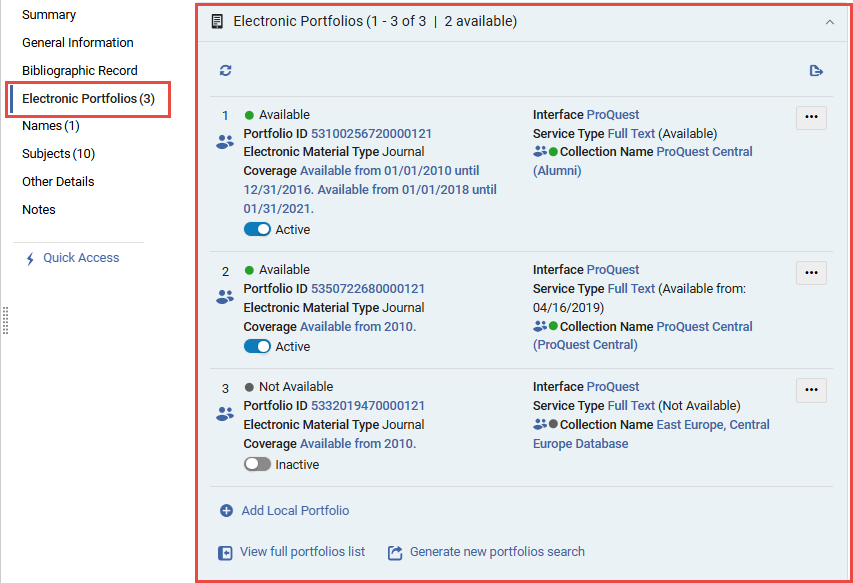
The following actions are available from the row actions button, according to the user's roles and privileges () - for more information on these actions, see Managing Electronic Resources:
- Edit Portfolio— Opens the Electronic Portfolio Editor to edit the portfolio record. For more information, see Editing a Portfolio Using the Electronic Portfolio Editor.
- Link to Community— Link the portfolio to the Community Zone. For more information, see Link to Community.
- Create E-Activation Task— Create an electronic activation task for the resource. For more information, see Create E-Activation Task.
- Order / Additional Order— Open the PO Line Owner and Type page to initiate a purchase order (see Creating PO Lines). Ciò include la possibilità di ordinare un portafoglio da una collezione elettronica già attivata localmente. For more information, see Order.
- Test Access— Test the access to an electronic portfolio. For more information, see Test Access.
- Delete Portfolio— Delete a local portfolio or a portfolio that is linked to the Community Zone. If this is the last portfolio on the bibliographic record, you are prompted to decide how to treat it if it has no other inventory before confirming.
- Report To Ex Libris— Send a portfolio update, add, remove, or coverage request to Ex Libris. For more information, see Report To Ex Libris.
- Make Available/Not Available— Activate or Deactivate the portfolio (this can also be done using the portfolio status toggle).
Electronic Collections
The Electronic Collections section contains the following information:
- Select Collection ID to open the Electronic Collection Editor in view/edit mode according to the user's permissions. For more information, see Modifying an Electronic Collection.
- Select Service Type to open the Electronic Service Editor in view/edit mode according to the user's permissions. For more information, see Modifying an Electronic Service.
- Select Portfolio List to view the collection's portfolio list in a sliding panel (for collections that contain electronic portfolios).
- Export the electronic collections to Excel
— For more information, see Export to Excel.
- Generate a new electronic collections search by the bib record's MMS ID.
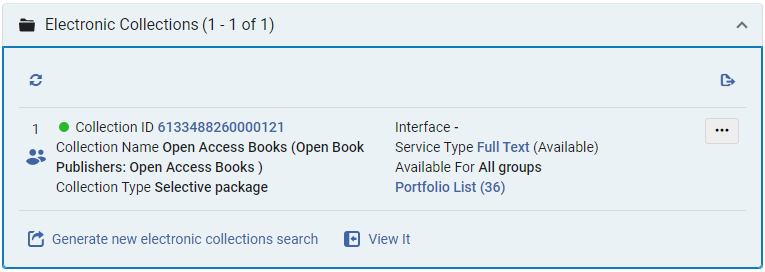
The following actions are available from the row actions button, depending on the collection type and according to the user's roles and privileges (). For more information on these actions, see Managing Electronic Resources:
- Edit Electronic Collection— Opens the Electronic Collection Editor to edit the portfolio record. For more information, see Modifying an Electronic Collection.
- Edit Service— Opens the Electronic Service Editor. For more information, see Modifying an Electronic Service.
- Create E-Activation Task— Create an electronic activation task for the resource. For more information, see Create E-Activation Task.
- Order / Additional Order— Open the PO Line Owner and Type page to initiate a purchase order (see Creating PO Lines).
- Delete Electronic Collection— Delete the electronic collection. If this is the last electronic collection on the bibliographic record, you are prompted to decide how to treat it if it has no other inventory before confirming. If the collection has portfolios, this triggers a portfolios deletion background process.
- Publishing Information— View the publishing information for the collection in a sliding panel.
- Edit Full Text Portfolios— Opens the Service Editor Portfolios tab in a sliding panel.
- Report To Ex Libris— Send a portfolio update, add, remove, or coverage request to Ex Libris. For more information, see Report To Ex Libris.
Rappresentazioni digitali
The Representations section contains the following information:
- Select the Representation ID to open the Digital Representation Resource Editor in a sliding panel.
- Select Viewer to open the representation in a digital viewer in a new browser tab.
- Select Files to display the files of the representation in the Digital Representation Resource Editor in a sliding panel.
- Export the representations to Excel
— For more information, see Export to Excel.
- Select Add representation to open the Representation Details page in a sliding panel.
- Select View full representations list to display the representations in the Digital Resource Editor's Representations tab in a sliding panel.
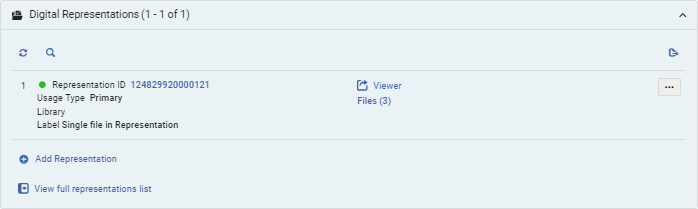
For more information, see Editing Representation Metadata and Content
The following actions are available from the row actions button, depending on the collection type and according to the user's roles and privileges ():
- Edit — open the Digital Representation Resource Editor in edit mode.
- View — open the Digital Representation Resource Editor in view mode.
Collezioni
Valore ultima pubblicazione The Collections section contains the following information:
- Select Collection ID to open the Collection Resource Editor in a sliding panel.
- Export the collections to Excel
— For more information, see Export to Excel.
- Whether the collection is a logical collection (where the title list is managed automatically).
- Add to collection — opens the list of collections in a sliding panel. Select a collection to add the title to it.
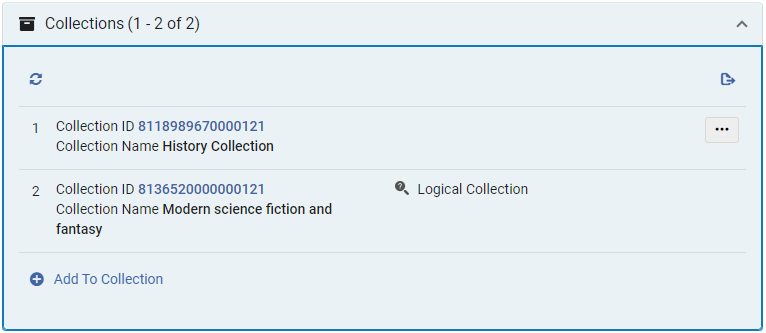
For collections that are not logical collections, the following actions are available from the row actions button according to the user's roles and privileges ():
- Linee guida per i contributi alla Community Zone
- Replace — opens the collections search in a sliding panel, to select a collection to move the title to.
Enhanced Navigation and Linked Open Data Sections
The Linked Open Data and navigation features in the titles search aim to help librarians easily access related information in external resources or their own catalog, such as linked authority records, information on Names, other titles on the same subjects, etc.
Ricerca in Alma
Quando si lavora in una rete, la navigazione e i Linked Open Data sono derivati in base alla posizione del record, in modo che:
- Per i record di rete, le informazioni sui record di autorità collegati provengono dalla rete e le ricerche di record collegati allo stesso collaboratore o soggetto vengono effettuate nel catalogo di rete.
- For local records maintained by the member, the information on linked authority records comes from the local catalog, and searches for records linked to the same name or subject are done in the institution's catalog as well.
Creazione Linee PO
La Ricerca per titolo utilizza le intestazioni bibliografiche del creatore e dei nomi per visualizzare chiaramente le informazioni per il bibliotecario, tra cui:
- Una scheda informativa contenente dati collegati da Risorse esterne, quando disponibile.
- Richiesta di condivisione delle risorse
- Information on linked authority records and headings, if they exist, selecting Search Heading opens the linked authority record in a sliding panel.
- Easy navigation to search the catalog for more resources connected to the Names index:
- If the bibliographic heading is linked to an authority record, the search returns bibliographic records with headings linked to the same authority record.
- If the bibliographic heading is not linked to an authority record, the search returns bibliographic records with headings of the same type and vocabulary, containing the same text.
- Search Name— triggers a Names equals search on the normalized value of the bibliographic heading, in the "Names" index.
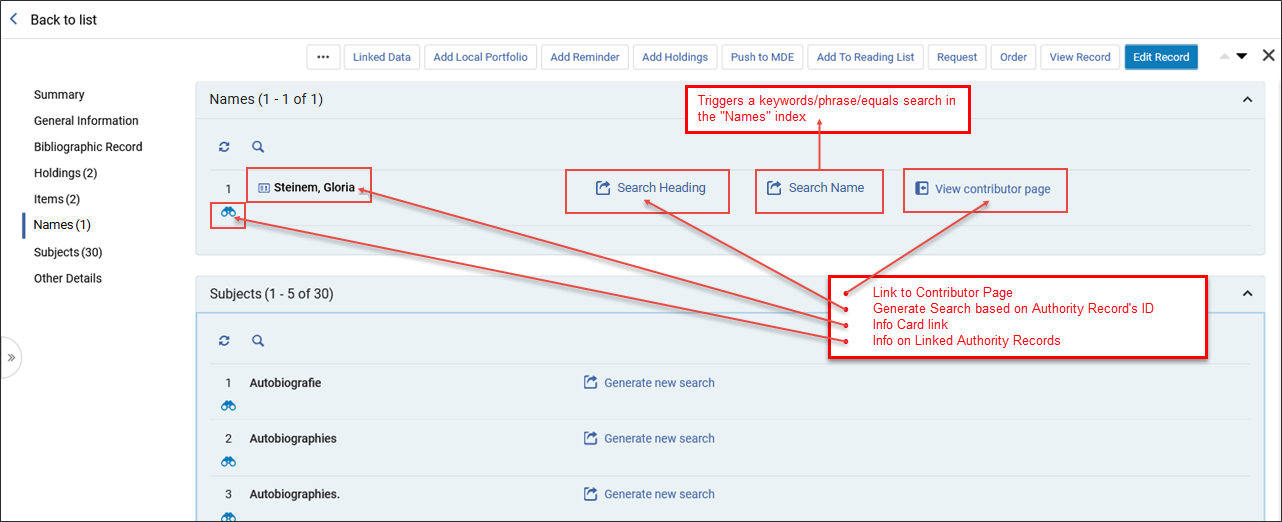
|
Linked Data Info Card La scheda informativa sui Linked Data fornisce ulteriori informazioni su una persona. Combina i dati del Name authority della Library o0f Congress e di Wikidata. If an info card is available (determined by the linked authority record), the contributor's name includes an additional oval and card icon (
Network Ambiti di ricerca (membri del consorzio)
Info cards and Names pages are only shown if the record is linked to an authority for which Alma has relevant information to display. The Info Card link is displayed in the following scenarios:
ÂIn future releases, this will be expanded to other vocabularies. Visualizza Record
The link to the Linked Data Info Card works the same from the Summary section and the Names section. When selecting the card icon a popup window appears displaying information pertaining to the heading, taken from Wikidata and LCNAMES. Users are presented with a link to Wikidata within the Linked Data Info Card. Upon selecting the Wikidata link, a new tab in the browser opens with the relevant Wikidata entry. Scheda informativa Linked Data visualizzata
Crei e modifichi i promemoria per il record bibliografico inserendo le seguenti informazioni:
The Search Heading link can be accessed from:
Info Card - Names Section - Search Heading
View Contributor Page When available, the Contributor Page displays detailed information from both external resources and the local catalog. Possedimenti fisici Il link Visualizza pagina del collaboratore viene visualizzato nei seguenti scenari:
The Contributor Page link can be accessed from the N ames section.
Invia a MDE
From the Contributor Page, users can:
Pagina dei collaboratori
|
 ). Users can select the name to view a popup window with the information obtained from LC Name Authority and Wikidata. Altrimenti, viene visualizzato il testo semplice.
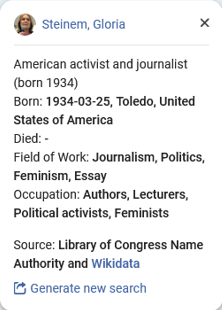
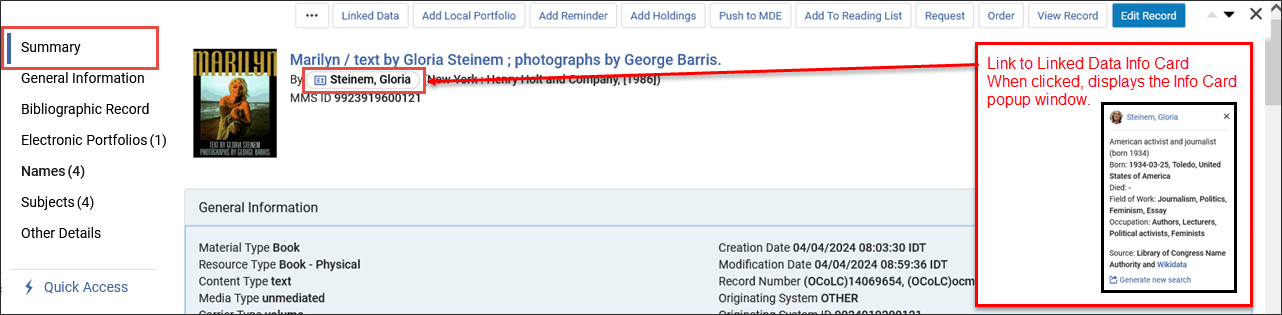
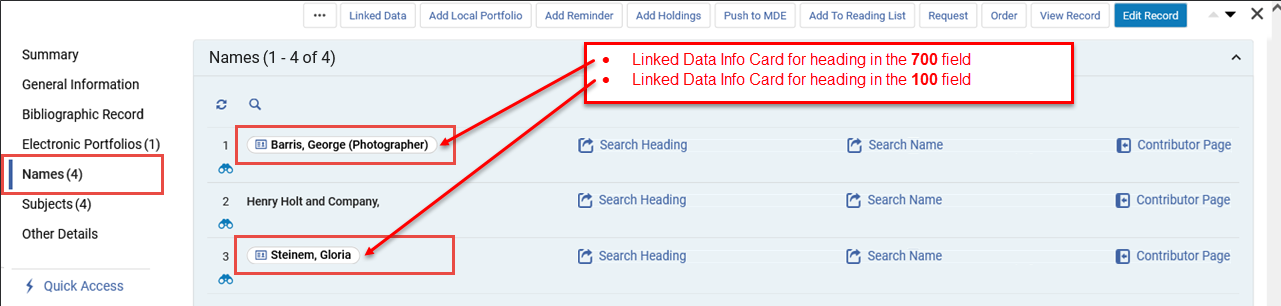
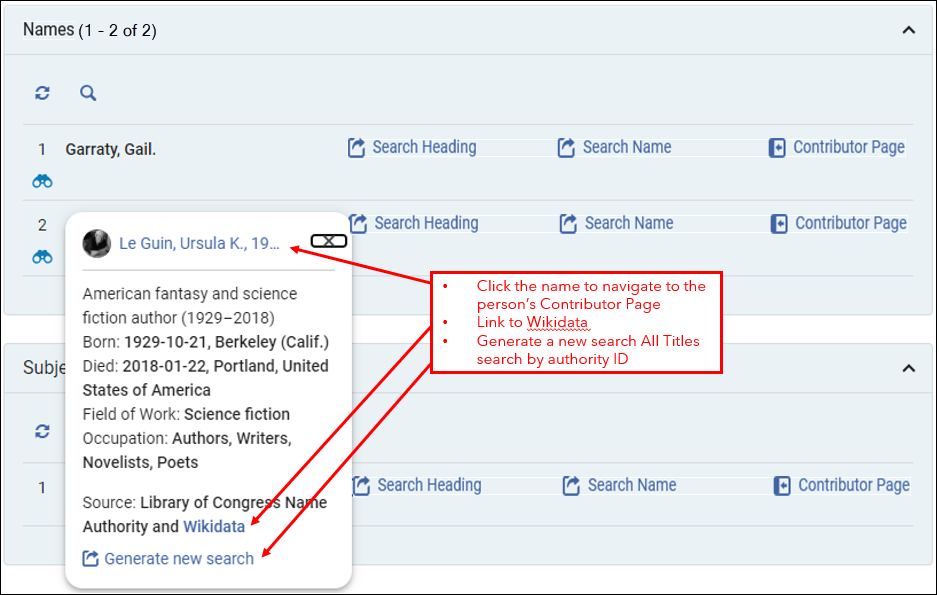
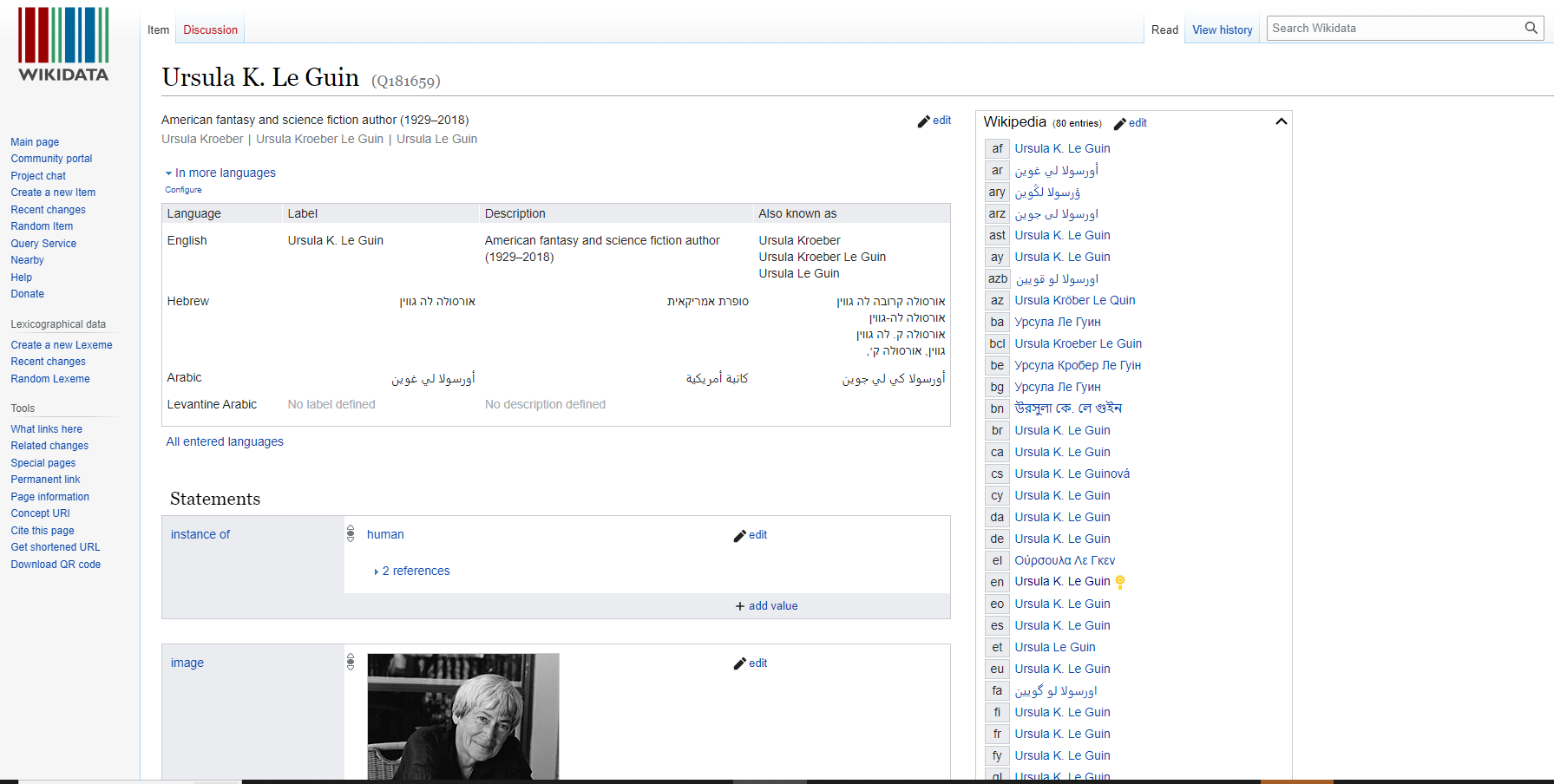
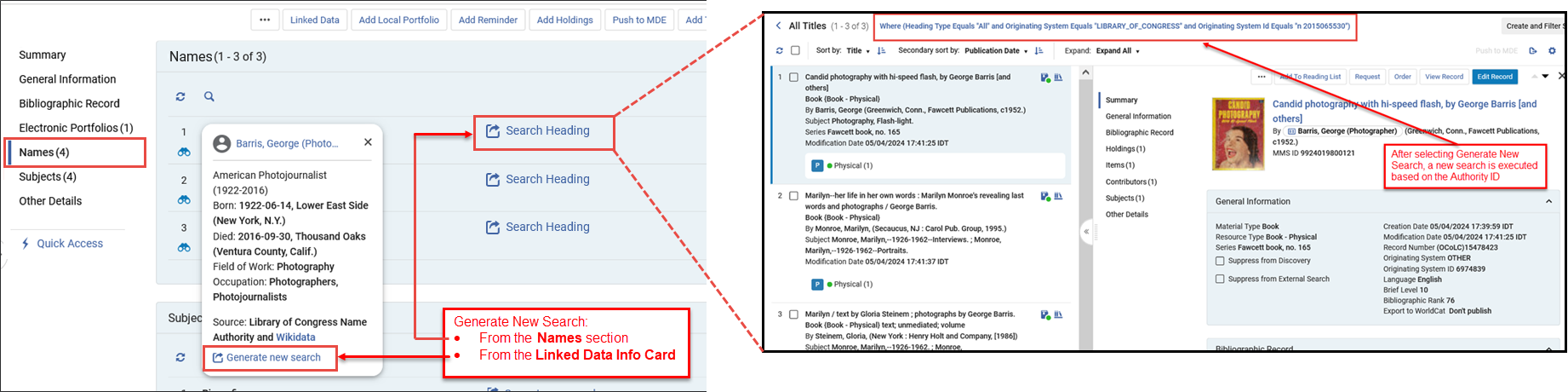
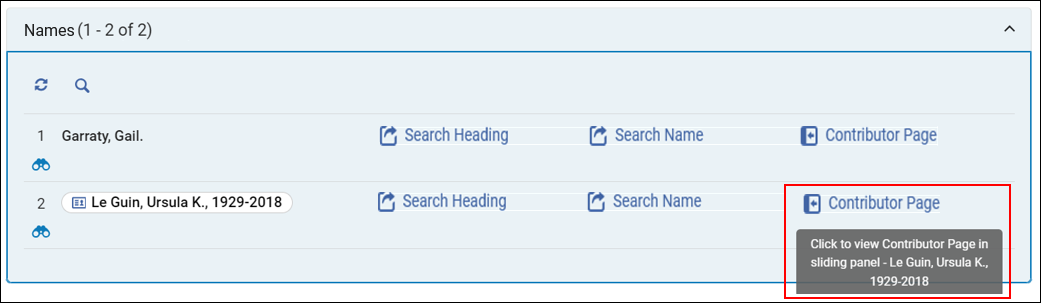
 ) button to exit the full Contributor Page and return to the search results.
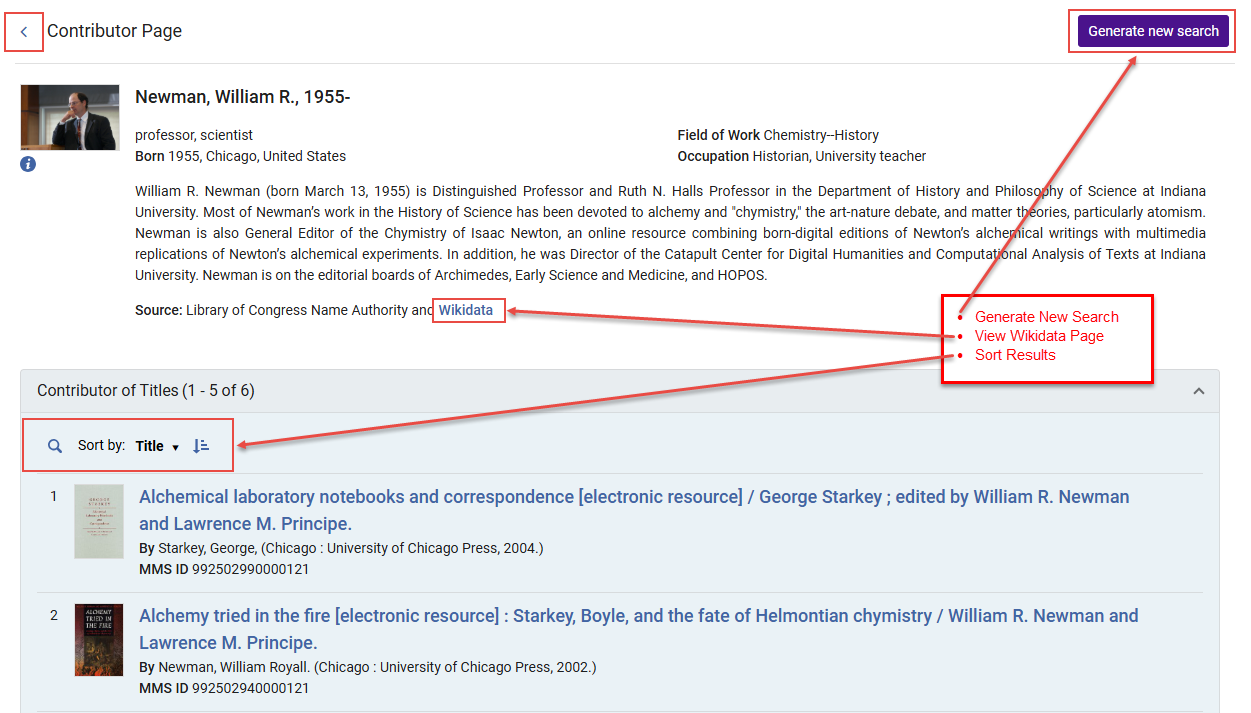
Notes Section
The Notes section enables catalogers to quickly review notes in all types of Title (All, Physical, Electronic, Digital), as well as Physical Holdings search results, assisting users to identify records requiring attention, without needing to open the Metadata Editor. Only users with cataloging privileges can see the Notes section. Users without these privileges cannot see an indication that there are notes. They also cannot see the notes in the customization of records, tables, and sections.
Behavior for Consortia and Community Zone institutions:
Consortia
- When a note is added to a Network Zone (NZ) record by a member or NZ staff, it is visible and manageable across institutions in the NZ search scope. Both the NZ institution and other member institutions display a note indication when searching in the network scope, and the notes section is accessible.
Community
- For institutions not defined as Community Zone (CZ) contributors, the notes indication and section are not displayed. When a user adds notes to CZ records, other users within the same institution, as well as users from other institutions, can view these notes when searching in the community zone scope.
For more information on existing Notes functionality in the Metadata Editor, see Navigating the Metadata Editor Page.
Ricerca in Alma
- Note display with details (creator, date, and content)
- Sorting by date added, date updated, and note (in ascending or descending order)
- Opzioni di ricerca per creatore, aggiornante e contenuto delle nota
- Le funzionalità aggiuntive includono l'aggiornamento, l'esportazione in Excel, le opzioni di layout (lista o nota) e la paginazione (fino a cinque note per pagina)
- Only notes that the user has permission to view in the MetadataEditor are visible in the search results. If a record is locked for editing or the user lacks access to open it in the Metadata Editor, the notes section is not displayed.
Users with existing permissions to delete notes also have the ability to update them. If a note is updated, the update date and updating cataloger are presented in the notes section and the Metadata Editor.
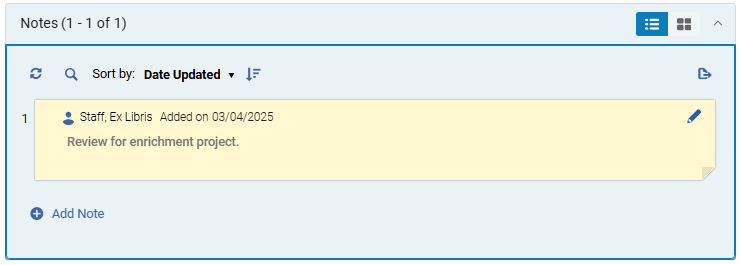
Ricerca in Alma
The right pane includes a new section for subjects, clearly displaying subject bibliographic headings, including:
- Informazioni sui record di autorità completamente o parzialmente collegati, se esistenti – cliccando sull’ icona del binocolo si apre il record di autorità collegato in un pannello a scomparsa.
- Sezioni del riquadro dettagli
- Search Heading— triggers a search in the Heading Information search index:
- If the bibliographic heading is linked to an authority record, the search returns bibliographic records with headings linked to the same authority record.
- If the bibliographic heading is not linked to an authority record, the search returns bibliographic records with headings of the same type and vocabulary, containing the same text.
- Search Subject— triggers a Subjects equals search on the normalized value of the bibliographic heading, in the Subjects index.
- Search Heading— triggers a search in the Heading Information search index:

Altri dettagli
The Other Details section contains the following information:
These fields are included in the search export to Excel. For more information, see Export to Excel.
- Number of Loans
- Number of In House Uses — Number of times item has been scanned in without it being in process or on loan.
- Year-To-Date Loans — Completed Loans. This only concerns loans for the current year.
- Completed Requests — Number of times this item has been requested.
- Link Resolver Usage (Access) — Counter that indicates how many times patrons accessed electronic services.
- Link Resolver Usage (Appearance) — Counter that indicates how many times patrons were shown electronic service.
- Last Loan Date
- Last In House Use Date
- Corsi
- Configura Licenze
- Ordini
- Record in relazione
- Promemoria
- Richieste
- Publishing Information according to inventory type
- Publishing Information for Physical Inventory
- Publishing Information for Electronic Inventory
- Publishing Information for Digital Inventory
- Publishing Information for Collection Inventory
Informazioni generali
The Quick Access module gives you quicker access to specific actions, fields or sections inside the details pane.
For more information, see Quick Access Module.
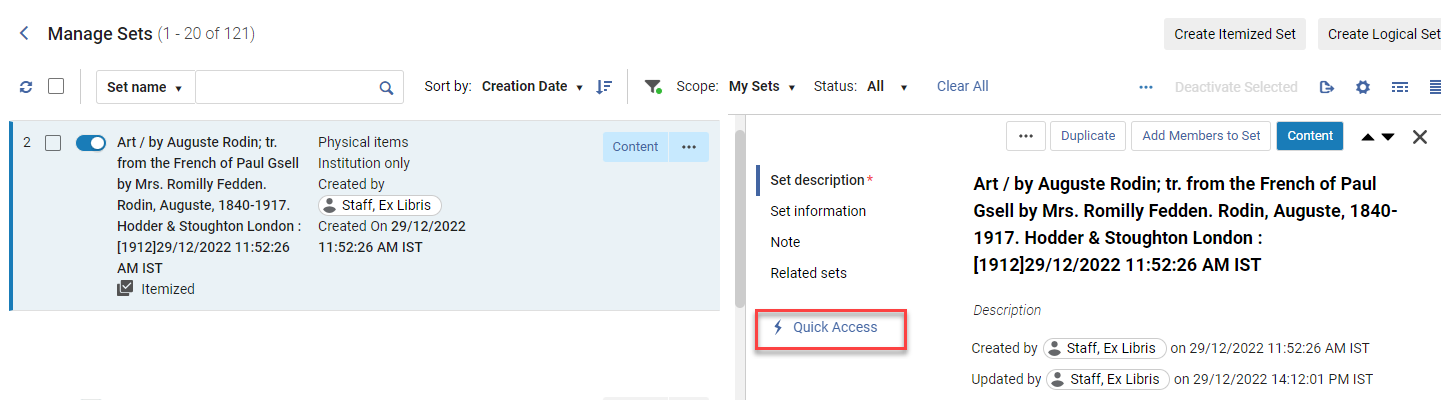
The Resource Type Field
The Resource Type field is constructed based on existing bibliographic fields such as the LDR and 008 or dc:type or dcterms:type fields, in the case of Dublin Core. The Resource Type field supplements (but does not replace) the Material Type field.
I Record bibliografici sono codificati a colori per una facile revisione di campo e sottocampo. La sezione RDF/XML è disabilitata per impostazione predefinita. As a result, it is a useful means of constructing detailed reports.
For details regarding the Resource Type field and the criteria for its creation, see the following tables:
- Rules Used to Create the Resource Type Field – MARC 21/KORMARC and UNIMARC
- Rules Used to Create the Resource Type Field – CNMARC
- Rules Used to Create the Resource Type Field – Dublin Core
The order of these tables is specific to how the rules are processed from beginning to end for creating the Resource Type field. As soon as a condition is met, the table is no longer consulted. As a result, if a bibliographic record meets conditions of more than one resource type, the first one appearing in the table is used.
After a record is saved or indexed, the Resource Type field information appears in the search results.
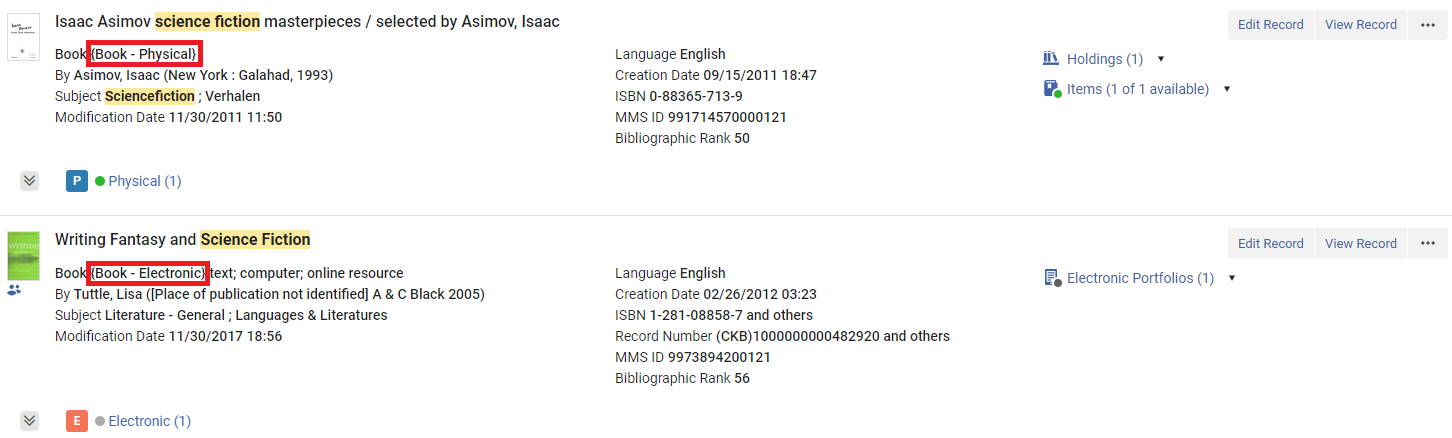
La possibilità di eseguire azioni sulle righe dell'Inventory direttamente dalla Ricerca per titolo.
| Tipo di risorsa | Modifica le informazioni dell'autorità locale. | Autorità (tab comunità) |
|---|---|---|
|
The following notation is used in this table:
|
||
| Libro – Fisico | Posizione LDR 06 = a AND LDR pos. 7 = m AND 008 pos. 23 != a,b,c,o,f,q,s | Posizione LDR 6 = a AND LDR pos. 7 = m |
| Libro – Elettronico | Posizione LDR 06 = a AND LDR pos. 7 = m AND 008 pos. 23 = o,q,s | Posizione LDR 6 = l AND LDR pos. 7 = m |
| Altro materiale - Formato elettronico | Posizione LDR 06 = m | Posizione LDR 6 = l |
|
Gestione delle risorse elettroniche |
Posizione LDR 06 = e AND LDR pos. 7 = m,s AND 008 pos. 29 = a AND 008 pos. 25 != e |
|
|
La sezione Holdings. |
Posizione LDR 06 = e AND LDR pos. 7 = m,s AND 008 pos. 29 = b AND 008 pos. 25 != e |
|
| Tipo di contenuto | Posizione LDR 06 = e AND LDR pos. 7 = m,s AND 008 pos. 29 != a,b,c,o,f,q,s AND 008 pos. 25 != e | Posizione LDR 6 = e, f AND LDR pos. 7 = m |
|
Gestione delle risorse elettroniche |
Posizione LDR 06 = e AND LDR pos. 7 = m,s AND 008 pos. 29 = c AND 008 pos. 25 != e |
|
| Codice a barre | Posizione LDR 06 = !e AND 008 pos. 23 = a,b,c | Posizione LDR 6 = a AND 106 $a = t |
| Materiali misti | Posizione LDR 06 = p AND LDR pos. 7 = c | |
| Braille Book – Physical | Posizione LDR 06 = a AND LDR pos. 7 = m AND 008 pos. 23 = f | Posizione LDR 6 = a, b AND LDR pos. 7 = m AND 106 $a/0 = f |
| Braille seriale – Fisico | Posizione LDR 06 = a AND LDR pos. 7 = i,s AND 008 pos. 23 = f | Posizione LDR 6 = a, b AND LDR pos. 7 = s AND 106 $a/0 = f |
| Mappa Braille – Fisica | Posizione LDR 06 = e AND LDR pos. 7 = m AND 008 pos. 29 = f | Posizione LDR 6 = e, f AND LDR pos. 7 = m AND 106 $a/0 = f |
| Musica Braille – Fisica | Posizione LDR 06 = c AND LDR pos. 7 = m AND 008 pos. 23 = f | Posizione LDR 6 = c, d AND LDR pos. 7 = m AND 106 $a/0 = f |
| Atlante – fisico | Posizione LDR 06 = e AND LDR pos. 7 = m AND 008 pos. 29 != a,b,c,o,f,q,s AND 008 pos. 25 = e | Posizione LDR 6 = e, f AND 121 $a/8 = c |
| Risultati ricerca titoli fisici: | Posizione LDR 06 = e AND LDR pos. 7 = m AND 008 pos. 29 = o,s,q AND 008 pos. 25 = e | Posizione LDR 6 = e, f AND 121 $a/8 = c AND 106 $a/0 = s |
| Risultati della ricerca digitale per titolo (istituzione tab): | Posizione LDR 06 = e AND LDR pos. 7 = m,s AND 008 pos. 29 = a AND 008 pos. 25 = e | |
| Elenco risultati ricerca file digitali | Posizione LDR 06 = e AND LDR pos. 7 = m,s AND 008 pos. 29 = b AND 008 pos. 25 = e | |
| Portfolio elettronici | Posizione LDR 06 = e AND LDR pos. 7 = m,s AND 008 pos. 29 = c AND 008 pos. 25 = e | |
| Risultati della collezione (parziale) | Posizione LDR 06 = e AND LDR pos. 7 = m AND 008 pos. 29 = o,s,q AND 008 pos. 25 != e | (LDR pos. 6 l AND 120 $a/0 = a,b) OR (LDR pos. 6 = e, f AND 106 $a/0 = s) |
| Newspaper – Physical | Posizione LDR 06 = a AND LDR pos. 7 = i,s AND 008 pos. 06 != d AND 008 pos. 21 = n AND 008 pos. 23 != a,b,c,o,f,q,s | Posizione LDR 6 = a AND LDR pos. 7 = s and 110 $a/0 = c |
| Newspaper (Ceased publication) – Physical | Posizione LDR 06 = a AND LDR pos. 7 = i,s AND 008 pos. 06 = d AND 008 pos. 21 = n AND 008 pos. 23 != a,b,c,f,o,q,s | |
| Newspaper – Electronic | Posizione LDR 06 = a AND LDR pos. 7 = i,s AND 008 pos. 06 != d AND 008 pos. 21 = n AND 008 pos. 23 = o,q,s | Posizione LDR 6 = l AND LDR pos. 7 = s and 110 $a/0 = c |
| Newspaper (Ceased publication) – Electronic | Posizione LDR 06 = a AND LDR pos. 7 = i,s AND 008 pos. 06 = d AND 008 pos. 21 = n AND 008 pos. 23 = o,q,s | |
| Rivista – Fisico | Posizione LDR 06 = a AND LDR pos. 7 = i,s AND 008 pos. 06 != d AND 008 pos. Tipo di risorsa 23 != a,b,c,o,f,q,s | Posizione LDR 6 = a AND LDR pos. 7 = s |
| Journal (Ceased publication) – Physical | Posizione LDR 06 = a AND LDR pos. 7 = i,s AND 008 pos. 06 = d AND 008 pos. 21 = p AND 008 pos. 23 != a,b,c,o,f,q,s | |
| Journal – Electronic | Posizione LDR 06 = a AND LDR pos. 7 = i,s AND 008 pos. 06 != d AND 008 pos. 21 = p AND 008 pos. 23 = o,q,s | Posizione LDR 6 = l AND LDR pos. 7 = s |
| Journal (Ceased publication) – Electronic | Posizione LDR 06 = a AND LDR pos. 7 = i,s AND 008 pos. 06 = d AND 008 pos. 21 = p AND 008 pos. 23 = o,q,s | |
| Posizione LDR 06 = e E LDR pos. 7 = m,s E 008 pos. 29 = c E 008 pos. 25 != e | Posizione LDR 06 = a AND LDR pos. 7 = i,s AND 008 pos. 06 != d AND 008 pos. 21 != n,p AND 008 pos. 23 != a,b,c,o,f,q,s | Posizione LDR 6 = a AND LDR pos. 7 = s and 110 $a/0 = b, e |
| Posizione LDR 06 = f E LDR pos. 7 = a | Posizione LDR 06 = a AND LDR pos. 7 = i,s AND 008 pos. 06 = d AND 008 pos. 21 != n,p AND 008 pos. 23 != a,b,c,o,f,q,s | |
| Posizione LDR 06 = o E LDR pos. 7 = a | Posizione LDR 06 = a AND LDR pos. 7 = i,s AND 008 pos. 06 != d AND 008 pos. 21 != n,p AND 008 pos. 23 = o,q,s | Posizione LDR 6 = l AND LDR pos. 7 = s and 110 $a/0 = b, e |
| Posizione LDR 6 = e, f E 121 $a/8 = c E 106 $a/0 = s | Posizione LDR 06 = a AND LDR pos. 7 = i,s AND 008 pos. 06 = d AND 008 pos. 21 != n,p AND 008 pos. 23 = o,q,s | |
| Serial component part – Physical | Posizione LDR 06 = a AND LDR pos. 7 = b AND 008 pos. 23 != a,b,c,o,f,q,s | |
| Serial component part – Electronic | Posizione LDR 06 = a AND LDR pos. 7 = b AND 008 pos. 23 = o,f,q,s | |
| Manoscritti - Formato fisico | Manoscritti di musica e testo: Posizione LDR 06 = d,t AND LDR pos. 7 = m AND 008 pos. 23 != a,b,c,o,f,q,s Manoscritti cartografici: Posizione LDR 06 = f AND LDR pos. 7 = m AND 008 pos. 29 != a,b,c,o,f,q,s |
Music and text manuscripts: Posizione LDR 6 = b |
| Manoscritti - Formato elettronico | Manoscritti di musica e testo: Posizione LDR 06 = d,t AND LDR pos. 7 = m AND 008 pos. 23 = o,s,q Manoscritti cartografici: Posizione LDR 06 = f AND LDR pos. 7 = m AND 008 pos. 29 = o,s,q |
Elimina collezione elettronica — Elimina la collezione elettronica. Posizione LDR 6 = b AND LDR pos. 7 = m and 106 $a/0 = s |
| L'interfaccia utente di Alma | Posizione LDR 06 = c AND LDR pos. 7 = m AND 008 pos. 23 != a,b,c,o,f,q,s | Posizione LDR 6 = c |
| Posizione LDR 06 = a E pos. LDR 7 = b E 008 pos. 23 = o,f,q,s | Posizione LDR 06 = c AND LDR pos. 7 = m AND 008 pos. 23 = o,q,s | Posizione LDR 6 = c and 106 $a/0 = s |
| Audio musical – Fisico | Posizione LDR 06 = j AND LDR pos. 7 = m AND 008 pos. 23 != a,b,c,o,f,q,s | Posizione LDR 6 = j |
| Audio musical – Elettronico | Posizione LDR 06 = j AND LDR pos. 7 = m AND 008 pos. 23 = o,q,s | Posizione LDR 6 = j and 106 $a/0 = s |
| Audio nonmusical – Physical | Posizione LDR 06 = i AND LDR pos. 7 = m AND 008 pos. 23 != a,b,c,o,f,q,s | Posizione LDR 6 = i |
| Combina i dati di Name authority e Wikidata di Library of Congress. | Posizione LDR 06 = i AND LDR pos. 7 = m AND 008 pos. 23 = o,q,s | Posizione LDR 6 = i and 106 $a/0 = s |
| Projected medium – Physical | Posizione LDR 06 = g AND LDR pos. 7 = m AND 008 pos. 33 = d,f,i,m,p,s,t,v AND 008 pos. 29 != a,b,c,o,f,q,s | Posizione LDR 6 = g |
| Projected medium – Electronic | Posizione LDR 06 = g AND LDR pos. 7 = m AND 008 pos. 33 = d,f,i,m,p,s,t,v AND 008 pos. 29 = o,s,q | Posizione LDR 6 = g and 106 $a/0 = s |
| Grafico 2D non proiettabile – Fisico | Posizione LDR 06 = k AND LDR pos. 7 = m AND 008 pos. 33 = a,c,i,k,l,n,o AND 008 pos. 29 != a,b,c,o,f,q,s | Posizione LDR 6 = k |
| 2D non-projectable graphic – Electronic | Posizione LDR 06 = k AND LDR pos. 7 = m AND 008 pos. 33 = a,c,i,k,l,n,o AND 008 pos. 29 = o,q,s | Posizione LDR 6 = k AND 106 $a/0 = s |
| Kit - Fisico | Posizione LDR 06 = o AND 008 pos. 33 = b AND 008 pos. 29 != a,b,c,o,f,q,s | Posizione LDR 6 = m |
| Artefatto 3D – Formato fisico | Posizione LDR 06 = r AND 008 pos. 33 = r,w AND 008 pos. 29 != o,q,s | Posizione LDR 6 = r |
| Assegnazione collezione | Posizione LDR 06 = a AND LDR pos. 7 = c | |
| Musica – Parte componente | Posizione LDR 06 = c,d,j AND LDR pos. 7 = a | |
| Sezioni di soggetti nella Ricerca per titolo | Posizione LDR 06 = e AND LDR pos. 7 = a | |
|
Manoscritto – Parte componente |
Manoscritti cartografici:
Posizione LDR 06 = f AND LDR pos. 7 = a
|
|
| Projected media – Component Part | Posizione LDR 06 = g AND LDR pos. 7 =a | |
| Richiesta completata — Numero di volte che questa copia è stata richiesta. | Posizione LDR 06 = i AND LDR pos. 7 = a | |
| Grafico 2D non proiettabile - Parte componente | Posizione LDR 06 = k AND LDR pos. 7 = a | |
| Processo di pubblicazione delle informazioni secondo la tipologia di inventario | Posizione LDR 06 = o AND LDR pos. 7 = a | |
| Informazioni di Publishing per l'inventario collezioni | Posizione LDR 06 = a AND LDR pos. 7 = a AND 008 pos. 23 != a,b,c,o,f,q,s | |
| Il modulo Accesso rapido consente di accedere più rapidamente ad azioni, campi o sezioni specifiche all'interno del riquadro dei dettagli. | Posizione LDR 06 = a AND LDR pos. 7 = a AND 008 pos. 23 = o,q,s | |
| Modulo di Accesso Rapido | Posizione LDR 7 = a | |
| Non definito | Il campo Tipo di risorsa è costruito sulla base di campi bibliografici esistenti come LDR e 008 o dc:type o dcterms:type, nel caso di Dublin Core. Il campo Tipo di risorsa integra (ma non sostituisce) il campo Tipo di materiale. | Il campo Tipo di risorsa è ricercabile, disponibile come faccetta e viene estratto in Analytics. Il campo Tipo di risorsa integra (ma non sostituisce) il campo Tipo di materiale. |
| Tipo di risorsa | CNMARC |
|---|---|
|
In questa tabella viene utilizzata la seguente notazione:
|
|
| Microforme | ha 130 |
| Rare – Physical | Posizione LDR 09 = r |
| 2D non-projectable graphic – Electronic | Posizione LDR 06 = k AND LDR pos. 7 = m AND has 135 |
| Grafico 2D non proiettabile – Fisico | Posizione LDR 06 = k AND LDR pos. 7 = m |
| Atlante – Elettronico | Posizione LDR 06 = e AND LDR pos. 7 = m AND 124$b = a AND has 135 |
| Atlante – fisico | Posizione LDR 06 = e AND LDR pos. 7 = m AND 124$b = a AND 106$a = r |
| Risultati della collezione (parziale) | Posizione LDR 06 = e AND LDR pos. 7 = m AND has 135 |
| Tipo di contenuto | Posizione LDR 06 = e AND LDR pos. 7 = m AND 106$a = d,r |
| Audio musical – Elettronico | Posizione LDR 06 = j AND LDR pos. 7 = m AND has 135 |
| Audio musical – Fisico | Posizione LDR 06 = j AND LDR pos. 7 = m AND has 125 |
| Combina i dati di Name authority e Wikidata di Library of Congress. | Posizione LDR 06 = i AND LDR pos. 7 = m AND has 135 |
| Audio nonmusical – Physical | Posizione LDR 06 = i AND LDR pos. 7 = m AND has 125 |
| Manoscritti - Formato elettronico | Manoscritti di musica e testo: Posizione LDR 06 = b,d AND LDR pos. 7 = m AND has 135 |
| Manoscritti - Formato fisico | Manoscritti di musica e testo: Posizione LDR 06 = b,d AND LDR pos. 7 = m AND 106$a = h |
| Libro – Elettronico | Posizione LDR 06 = a AND LDR pos. 7 = m AND has 135 |
| Libro – Fisico | Posizione LDR 06 = a AND LDR pos. 7 = m AND 106$a = d,g,j,r |
| Manoscritti - Formato elettronico | Manoscritti cartografici: Posizione LDR 06 = f AND LDR pos. 7 = m AND has 135 |
| Manoscritti - Formato fisico | Manoscritti cartografici: Posizione LDR 06 = f AND LDR pos. 7 = m |
| Posizione LDR 06 = a E pos. LDR 7 = b E 008 pos. 23 = o,f,q,s | Posizione LDR 06 = c AND LDR pos. 7 = m AND 125 pos. 0 = a,b,c,d,e,g,m,u,x,z AND has 135 |
| L'interfaccia utente di Alma | Posizione LDR 06 = c AND LDR pos. 7 = m AND 125 pos. 0 = a,b,c,d,e,g,m,u,x,z |
| Projected medium – Electronic | Posizione LDR 06 = g AND LDR pos. 7 = m AND has 135 |
| Projected medium – Physical | Posizione LDR 06 = g AND LDR pos. 7 = m |
| Rare – Physical | Posizione LDR 06 = v AND LDR pos. 7 = m |
| Rubbing – Physical | Posizione LDR 06 = u AND LDR pos. 7 = m |
| Journal – Electronic | Posizione LDR 06 = a AND LDR pos. 7 = s AND 110 pos. 0 = a AND has 135 |
| Rivista – Fisico | Posizione LDR 06 = a AND LDR pos. 7 = s AND 110 pos. 0 = a |
| Newspaper – Electronic | Posizione LDR 06 = a AND LDR pos. 7 = s AND 110 pos. 0 = c AND has 135 |
| Newspaper – Physical | Posizione LDR 06 = a AND LDR pos. 7 = s AND 106$a = e |
| Posizione LDR 06 = o E LDR pos. 7 = a | Posizione LDR 06 = a AND LDR pos. 7 = s AND 110 pos. 0 = z AND has 135 |
| Assegnazione collezione | Posizione LDR 06 = a AND LDR pos. 7 = s AND 110 pos. 0 = z AND 106$a = d,r |
| Artefatto 3D – Formato fisico | Posizione LDR 06 = r |
| Altro materiale - Formato elettronico | Posizione LDR 06 = l |
| Posizione LDR 06 = a E pos. LDR 7 = c | Posizione LDR 06 = a AND LDR pos. 7 = c |
| Modulo di Accesso Rapido | Posizione LDR 7 = a |
| Non definito | Il campo Tipo di risorsa è costruito sulla base di campi bibliografici esistenti come LDR e 008 o dc:type o dcterms:type, nel caso di Dublin Core. Il campo Tipo di risorsa integra (ma non sostituisce) il campo Tipo di materiale. |
| Tipo di risorsa | Dublin Core |
|---|---|
| Libro Digitale | Testo |
| Computer file – Digitale Questo è il tipo di risorsa default quando dc:type o dcterms:type esistono ma non corrispondono alla mappatura. |
Set di dati / Software |
| Rivista Digitale | |
| Map Digital | |
| Materiale misto – Digitale | Evento / Risorsa interattiva / Risorsa interattiva / Servizio |
| Musica – digitale | Audio |
| Materiale visivo – digitale | Immagine / Immagine in movimento / Immagine in movimento / Fermo immagine / Fermo immagine |
| Artefatto 3D – Formato digitale | Oggetto fisico / Oggetto fisico |
|
Se nel record non esiste alcun dc:type o dcterms:type, non viene visualizzato alcun tipo di risorsa o faccetta.
|
|
Material Types in Search Results
The following bibliographic material types are identified in Alma's search results:
- Libri
- Giornali
- File del computer
- Mappe
- Registrazione musicale
- Materiali visivi
- Materiali misti
Bibliographic material types are identified using the MARC 21 format for bibliographic data (described in the Scope of the Bibliographic Format table and the Fields that Identify the Bibliographic Material Type table, both below).
| Ambito del formato bibliografico |
|---|
|
Il formato MARC 21 per i dati bibliografici è un supporto per le informazioni bibliografiche relative a materiali testuali stampati e manoscritti, file informatici, mappe, musica, riviste, materiali visivi e materiali misti. I dati bibliografici comunemente includono il titolo, i nomi, il soggetto, la nota, i dati di pubblicazione e le informazioni sulla descrizione fisica di una copia. The Alma Bibliographic Formats described below are built according to the official Bibliographic Formats in MARC as described at https://www.loc.gov/marc/bibliograph...e/bdintro.html. Il formato bibliografico contiene elementi di dati per i seguenti tipi di materiale:
|
Questi tipi di materiale sono identificati dai campi bibliografici evidenziati nella tabella "Campi che identificano la Tipologia di materiale bibliografico" riportata di seguito.
| Posizione 6 dell'LDR | Posizione 7 dell'LDR | Materiale bibliografico di Alma | Alma tipo di materiale Term |
|---|---|---|---|
| A | a c d m | BK | Libro |
| t | BK | Libro | |
| A | b i s | CR | Rivista |
| c d i j | MU | Musica | |
| e f | MP | Mappa | |
| g k r o | VM | Materiale visivo | |
| m | CF | File del computer | |
| p | MX | Materiale misto | |
| <Default> | BK | Libro |
Page tags: article:topicproduct:almacontent:Documentationlang:englishleft anchored searchleft match search
