
Distribute Credits or Discounts
You can distribute credit or discount amounts among invoice line item segments, or you can distribute discount rates (percentages) among invoice line items. If you enter a credit or discount amount, you can specify whether you want it equally distributed across all segments or distributed according to the quantity received in each segment. If you enter a discount rate, this percentage is applied to all line items equally.
Note:
Credits and discounts must be distributed one at a time.
To distribute credits or discounts among the line item segments on an open invoice
-
Find the invoice you want to edit, and open it in the Invoice workform.
-
Select ACTIONS > Distribute Credits/Discounts.
-
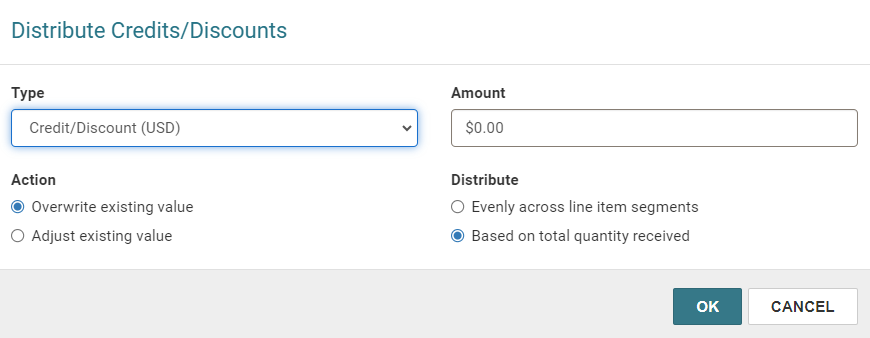
Select one of the following credit or discount types:
If you want to Do this Distribute a discount rate across all line item segments equally -
Select Discount (%)
Distribute a credit or discount amount -
Select Credit/Discount (USD)
-
Select one of the following under Action:
-
Overwrite existing value— replace the existing credit or discount.
-
Adjust existing value— add the amount to the existing credit or discount.
-
-
Select one of the following under Distribute:
- Evenly across line item segments— distribute the credit or discount evenly across all line item segments.
-
Based on total quantity received— apply the credits or discounts based on the total quantity in the segments.
-
Type the credit/discount amount or the discount percentage to distribute in the Amount box.
-
-
Type the credit/discount amount or the discount percentage to distribute in the Amount box.
-
Select OK.
The Distribute Credits/Discounts dialog appears.
To manually adjust credits or discounts, go to the Invoice Line Item workform > Segments view > Totals table, and edit a row. For more information, see Edit an Invoice Line Item.
