
Configure Type of Material Rules Table
You can configure TOMs in the Type of Material Rules table available in Polaris System Administration (web-based). The table is configurable only at the system level.
To learn how to access and configure tables in Polaris System Administration (web-based), see Configuring Administrative Settings and Tables.
If you have the Modify type of material rules table permission, when you open the Type of Material Rules table, you can perform the following actions:
Polaris automatically assigns the appropriate TOM to bibliographic records based on the configured TOM rules. For more details, see Assigning Custom TOMs.
Because TOM rules are used across multiple Polaris services and applications, any updates to the table are not fully applied until the overnight synchronization and indexing processes complete and the relevant services are restarted. The list of required steps is available in Required Steps for TOM Changes.
Add New TOM Rules
To add a new TOM rule
-
In the Type of Material Rules table, select Insert
 .
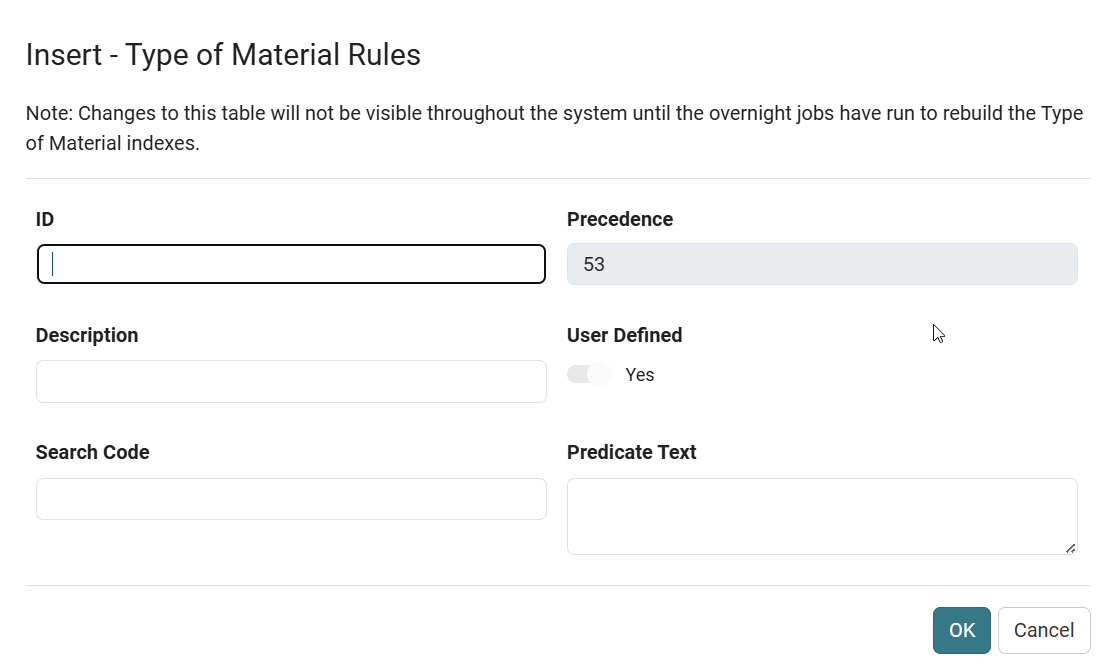
.The Type of Material Rules dialog appears.
-
Enter the ID, Description, Search Code, and Predicate Text. When you add TOM rules, specific validation constraints apply. For more details, see TOMs Validation and Constraints.
MARC Expression Language (MEL) defines all TOM logic for Polaris defaults and custom TOMs. MEL is a compact boolean predicate language that evaluates MARC 21 records for TOM classification, faceting, searching, and display behavior. For more information, see MARC Expression Language (MEL).
-
Select OK.
For changes to take full effect, follow the steps listed in Required Steps for TOM Changes.
Customize Existing TOM Rules
To customize an existing TOM rule
-
In the Type of Material Rules table, select the rule you want to modify, and select Edit
 .
.The Type of Material Rules dialog appears.
-
Modify the data in the desired fields. When you change TOM rules, specific validation constraints apply. For more details, see TOMs Validation and Constraints.
-
Select OK.
For changes to take full effect, follow the steps listed in Required Steps for TOM Changes.
Reorder TOM Precedence
To reorder TOM precedence
-
In the Type of Material Rules table, select the rule you want to move, and select Move Item Up
 or Move Item Down
  .
.Polaris assigns the matching TOM with the highest precedence, so ensure that custom TOMs are placed near the top of the list.
For changes to take full effect, follow the steps listed in Required Steps for TOM Changes.
Delete Custom TOM Rules
To delete a custom TOM rule
-
In the Type of Material Rules table, select the rule you want to delete,
-
Select Delete
 .
.For changes to take full effect, follow the steps listed in Required Steps for TOM Changes.
Deletion constraints
-
Polaris default TOMs can't be deleted.
-
You can delete a custom TOM only if it is not in use, e.g., if no active records reference it.
TOMs Validation and Constraints
-
TOM IDs 0–63:
-
Reserved for Polaris default TOMs.
-
Libraries can modify precedence, description, and predicate text.
-
-
TOM IDs 64–127:
-
Available for custom TOM definitions.
-
Libraries can modify all fields.
-
-
Search codes must be unique to support Z39.50 searches.
-
Duplicate detection is performed on the search code to prevent duplicate predicate text where possible.
-
Basic validation is performed on the predicate text format. Validation is asynchronous, and messages may appear with a slight delay after clicking OK.
Assigning Custom TOMs
Polaris automatically assigns the appropriate TOM to bibliographic records based on the configured TOM rules. Each rule consists of predicate text that is evaluated against bibliographic data. When multiple rules match, Polaris applies the TOM with the highest precedence.
This behavior applies consistently across the system, including but not limited to:
-
Displaying the correct TOM in PowerPAC, MobilePAC (MPAC), and Leap.
-
Returning the correct TOM ID based on rule evaluation and precedence for bibliographic records in PAPI responses.
For changes to take full effect, the processes listed in Required Steps for TOM Changes must be completed.
