
Refund Payments Made Through Comprise Gateway
To refund credit card payments that were made through the Comprise payments gateway, the following are required:
- The Comprise SmartPAY credit card payments gateway is configured in Polaris Administration.
- Staff members who refund payments have the permission, Circulation/Fines: Allow refunds.
- The library has a license for integrated credit card payments through Comprise.
- A SmartTerminal is connected to the workstation.
To refund one or more payments made through Comprise
- Open the Patron Record workform for the patron to whom you are refunding the credit card payment.
- Select the Account tab.
- On the Account tab, select View > Transaction Summary.
The Transaction Summary view appears.
- Select the checkboxes next to the Comprise credit card payments you want to refund.
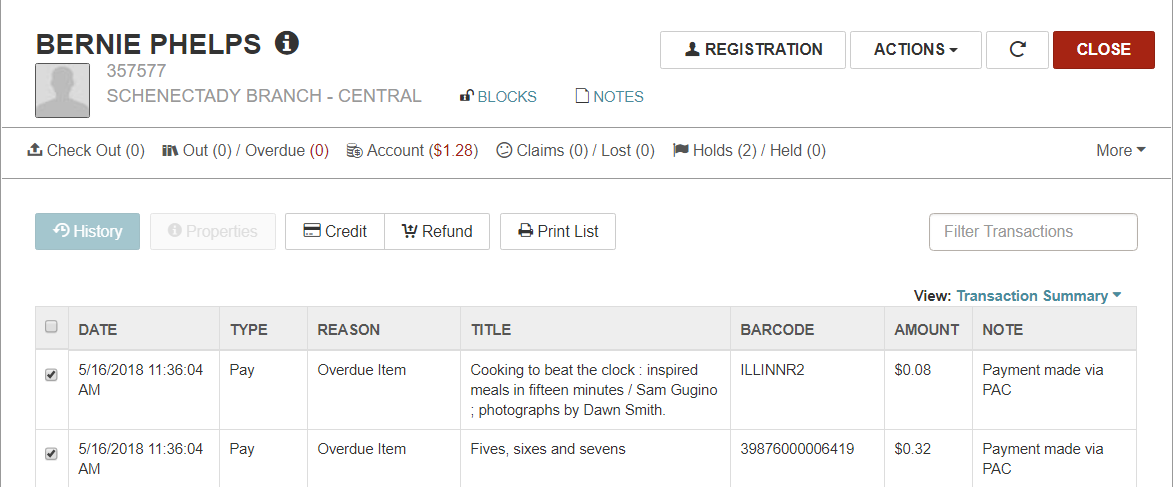
- Select the Refund button.
The area below the button bar expands.
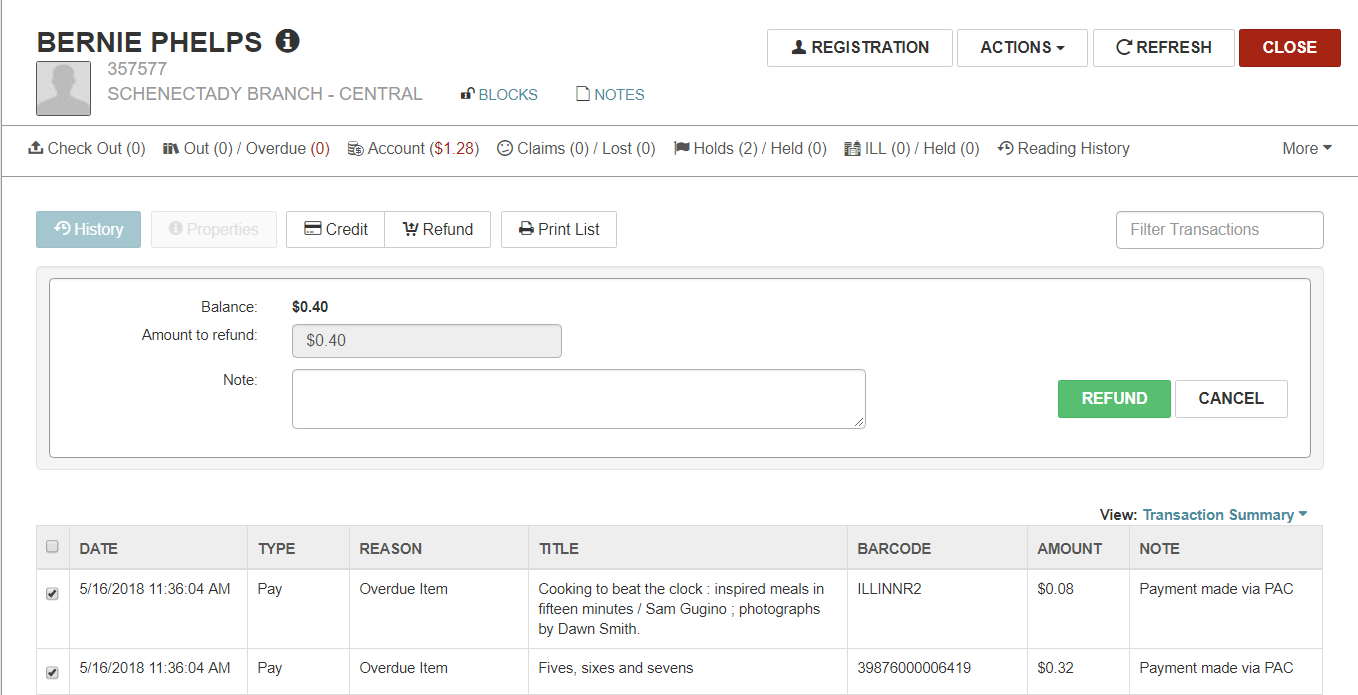
- If you are refunding a single credit card payment, you can enter an amount less than the amount paid to issue a partial refund.
Note:
When refunding multiple payments, you cannot change the amount to refund.
- (Optional) Type a note about the refund transaction in the Note field. If a note is entered in this field, it appears in the ILSStoreOrder.
- Select REFUND.
- The Credit Card Refund Message box appears with the following message: Patron's card has been credited and account is updated successfully.
- Select OK to close the message box.
When the refund is complete, a 6083 Patron Accounting refund transaction is recorded, and the transaction appears in the Transaction Summary view. To see the transaction, refresh the Transaction Summary view.
