
Using the Bulk Update Option
Polaris System Administration (web-based) allows you to edit table rows by bulk. In the Settings and Tables section, some tables display a Bulk Update button:
To update table rows by bulk
-
On the Tables tab of the Settings and Tables page, select the Bulk Update option in the table you want to edit.
-
A new window appears, displaying the table row fields you can include in the selection for bulk editing. The fields are divided into two sections:
1. Identify Rows: filtering table row fields (e.g., Branch, Collection, Patron Code, etc.) and their corresponding values used to mark the table rows you want to edit.
2. Update Fields: editable table row fields (e.g., Fine Amount, Maximum in Item Limit, etc.) you can mark for update and enter their new values.
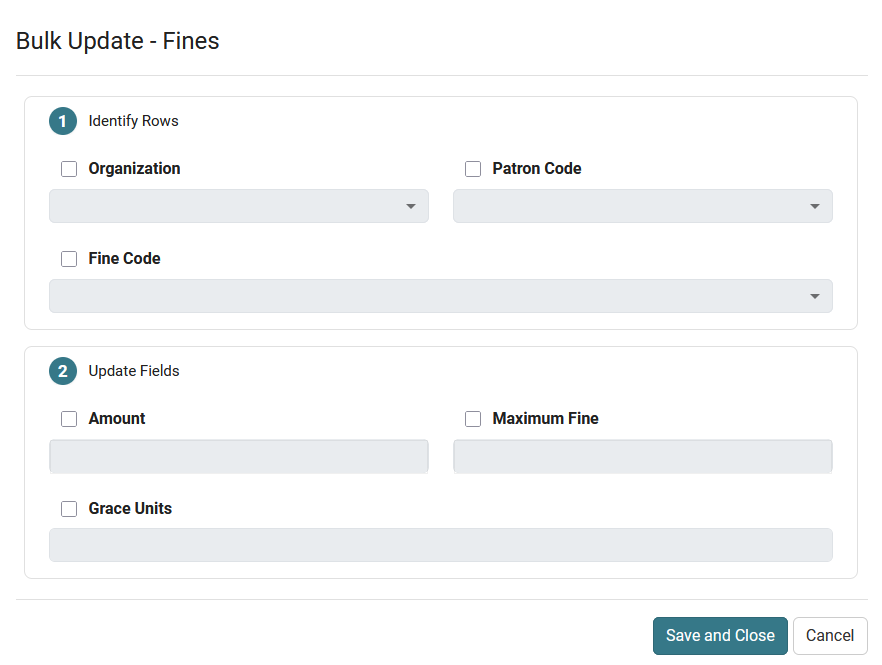
-
Select Save and Close, and a dialogue box displays the number of rows affected by edits. From here, you can either cancel or confirm the bulk update.
Tables Supporting Bulk Update
Tables with the Bulk Update functionality:
-
Fines
-
Floating: Collection Limits
-
Floating: Material Type Limits
-
Floating: Material Types
-
Floating: To Branch
-
Item Statistical Class Codes
-
Loan Periods
-
Material Type Loan Limit Blocks
-
Patron / Material Type Loan Limit Blocks
-
Patron Statistical Class Codes
-
Shelf Locations
