
Create a record set from the report preview screen
When you preview the report output for certain types of list reports, you have the option to create a record set from the report output.
Tip:
Creating a record set from report output is useful if you want to make changes to all the records at once using the bulk change process in Leap or in the Polaris staff client.
The table below lists the types of reports that support this feature and the type of record set the system creates for each report.
| Report type | Type of record set created |
|---|---|
|
Patron record set |
|
Bibliographic record set |
| Item list report | Item record set |
| Authority list report | Authority record set |
To create a record set that contains all records in the report output
- Preview a report.
-
Select the Create [record type] record set from report results now checkbox.
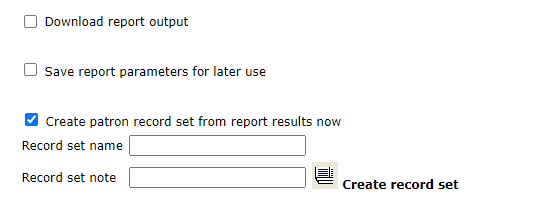
- In the Record set name box, enter a name for the record set.
- (Optional) In the Record set note box, enter note text. The note is saved in the new record set.
-
Select Create record set
 .
.The system creates the record set. You can find the new record set in Leap or in the Polaris staff client by searching for its name.
