
Create a record set from a saved or scheduled report
You can create a record set from report output when you run a saved report or when the system runs a scheduled report.
Tip:
Creating a record set from report output is useful if you want to make changes to all the records at once using the bulk change process in Leap or in the Polaris staff client.
The table below lists the types of reports that support this feature and the type of record set the system creates for each report.
| Report type | Type of record set created |
|---|---|
|
Patron record set |
|
Bibliographic record set |
| Item list report | Item record set |
| Authority list report | Authority record set |
To configure SimplyReports to create record sets when a saved or scheduled report runs
- Create a new report or edit an existing saved report.
-
Do one of the following:
- If you are creating a new report, configure report parameters and select Submit to view the report preview screen.
- If you are editing a saved report, configure report parameters if desired and select Continue to view the report preview screen.
-
Do one of the following:
-
If you are creating a new report:
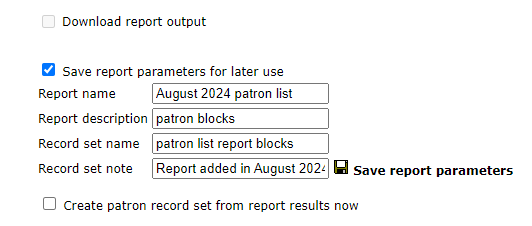
- Select the Save report parameters for later use checkbox.
- In the Report name box, enter a name for the report .
- In the Report description box, enter a description of the report.
-
If you are editing a saved report:
- Verify that the Save report parameters for later use checkbox is selected.
- (Optional) Edit the report name or report description.
-
If you are creating a new report:
-
In the Record set name box, enter a name for the record set that the system creates when the report runs.
Notes:
- If you don't specify a record set name, the system does not create a record set when the report runs.
- When the system creates the new record set, it appends a date and time stamp to the record set name you provide. This ensures that each time the report runs, the record set that the system creates has a unique name.
- (Optional) In the Record set note box, enter note text. The note is saved in the new record set.
-
Select Save report parameters.
SimplyReports saves the report configuration. The system creates a record set each time the report is run, whether you manually run the saved report or the report runs automatically based on a schedule you configure. For information about scheduling saved reports to run automatically, see Schedule saved reports.
