
A-Z eJournal List and eBook Search
- For information on the deep link that enables you to link to the SFX A-Z List and eBook Search with two additional parameters, refer to the EL Commons Web site http://www.exlibrisgroup.org.
- For general information regarding the A-Z List and eBook Search, refer to the SFX General User’s Guide.
Advanced Customization: HTML Template Files and Header Files
- templates/azlist_ver3/head.tmpl
- templates/azlist_ver3/browse_detail.tmpl
- templates/azlist_ver3/table_view.tmpl
- templates/azlist_ver3/detail_view.tmpl
- templates/azlist_ver3/set_detail.tmpl
- templates/azlist_ver3/openurl.tmpl
- templates/azlist_ver3/openurl_filtered.tmpl
- templates/azlist_ver3/title_head.tmpl
- templates/azlist_ver3/navigation_bar.css.tmpl
- templates/azlist_ver3/info_button.tmpl
- templates/azlist_ver3/navigation_go_button.tmpl
|
templates/azlist_ver3/category.tmpl templates/azlist_ver3/locate_browse.tmpl templates/azlist_ver3/locate_set.tmpl templates/azlist_ver3/title_browse.tmpl templates/azlist_ver3/title_set.tmpl |
- az_mobile.tmpl
- mobile_info_button.tmpl
|
<TMPL_VAR NAME='MESSAGE("AZ Main","Result->DisplayingRelatedJournal")' ESCAPE=HTML /> |
Where to Customize and What to Customize
- The Search form features and settings, as well as the data elements included among the search results, are all configured in:
- For the A-Z eJournal list – SFX Admin Center > Setup & Administration > Configuration > A-Z List
- For the eBook Search – SFX Admin Center > Setup & Administration > Configuration > eBook Search
- All interface text is defined in the SFX Admin Center > Setup & Administration > Configuration > Translations & Display > AZ Main tab.
- Images displayed in the SFX A-Z List are, by default, saved in the templates/img/azlist_ver3 directory.
- The headers in the A-Z title tab are defined in the /config/headers directory. For each header set, a configuration file exists that defines each header and the characters that are filed under that header.
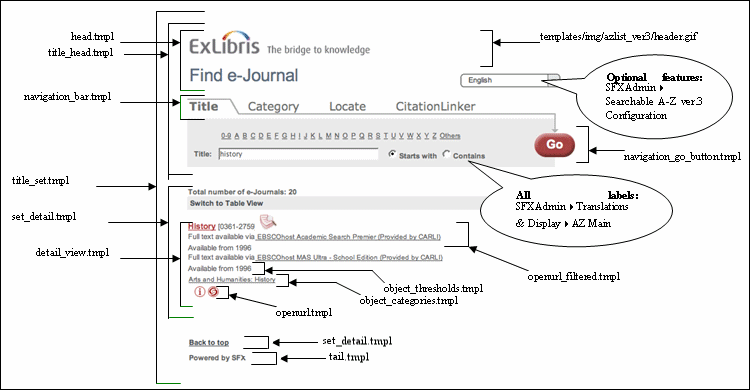
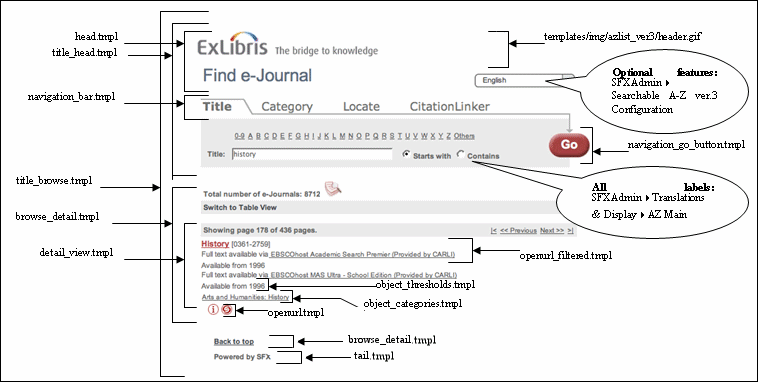
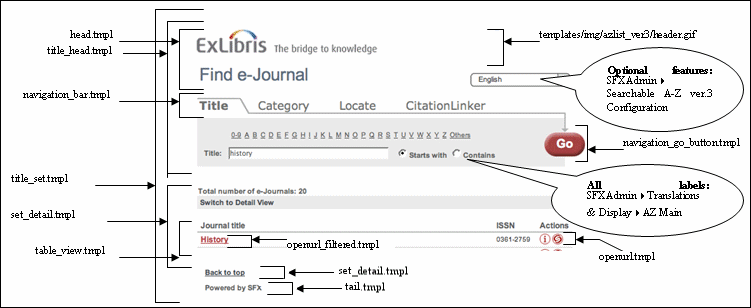
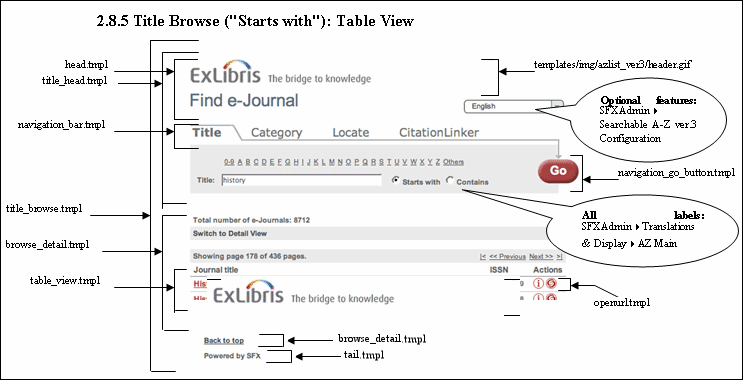
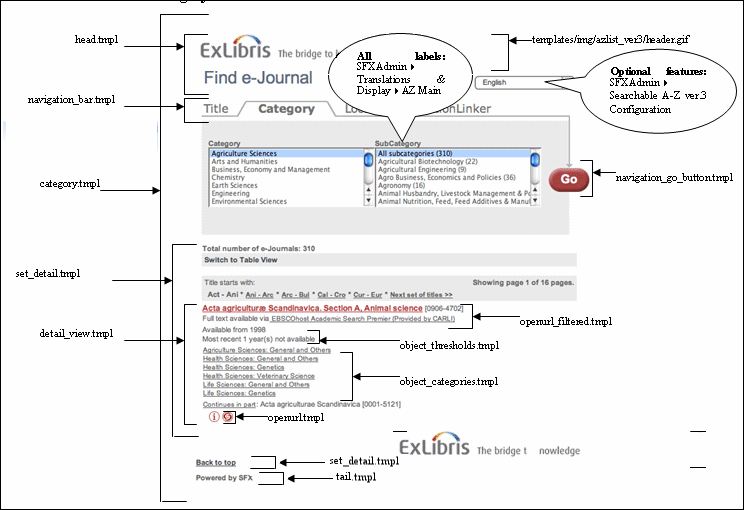
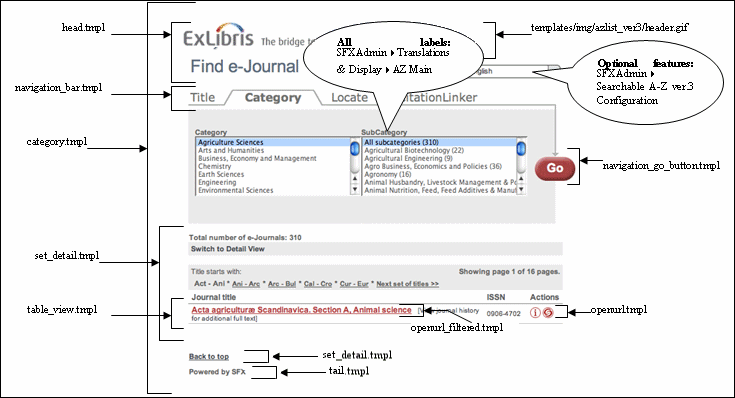
- Other elements are controlled by the template (.tmpl) files. The files identified in the diagrams below are in the templates/azlist_ver3 directory.
- The banner image in the A-Z and eBook search mobile interface is listed in the templates/azlist_ver3/az_mobile.tmpl file. Replace the image img/azlist_ver3/logo_sfx.png. The recommended image size is 213 pixels (width) and 52 pixels (height).
Title Search ("Starts with"): Detail View
Title Browse ("Starts with"): Detail View
Title Search ("Starts with"): Table View
Title Browse ("Starts with"): Table View
Category: Detail View
Category: Table View
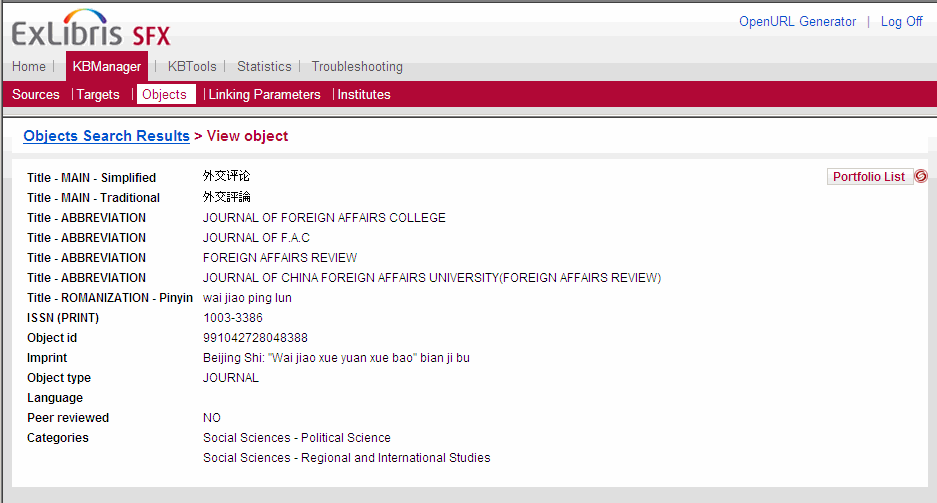
Simplified Chinese and Traditional Chinese Titles
|
Title - MAIN - Simplified |

|
|
Title - MAIN - Traditional |

|
|
Title - ROMANIZATION - Pinyin |
a ba ke ji |
|
Object ID |
1000000000256408 |
|
Object type |
JOURNAL |
|
Language |
Chinese |
|
Peer reviewed |
NO |
Mainland China
- A-Z Searching – When the country chosen in the default A-Z profile is China and the A-Z List contains both Latin and Chinese journal titles, it is recommended to display both Latin and Pinyin headers in the A-Z List.
When both headers display, an additional Pinyin check box displays. Every time a Pinyin search term is typed, the Pinyin check box should be selected to indicate that Pinyin is used. This is required to distinguish between Latin and Chinese titles. The result set corresponds to the check box choice and contains either Pinyin or Latin titles.
The default state of the Pinyin check box (selected or cleared) can be defined in the A-Z Configuration section of the SFX Admin Center.
A search of Chinese titles can be performed on both the Simplified and Traditional titles.
- Display of Search Results – When a Chinese search term is entered—in either Simplified or Traditional Chinese—the results are displayed in Simplified Chinese if the Simplified Chinese title exists in the SFX KnowledgeBase.
- Sorting – When the country chosen is China, the Chinese titles in the A-Z List are sorted according to Pinyin.
Taiwan
- Display of Search Results – When Taiwan is the country chosen and a Chinese search term is entered in either Simplified or Traditional Chinese, the results are displayed in Traditional Chinese if the Traditional Chinese title exists in the SFX KnowledgeBase.
- Sorting – Chinese titles in the A-Z List are sorted by stroke sequence.
Korea
- Searching – When the country chosen is Korea and the A-Z List contains Chinese titles, the Limit search to Chinese titles check box needs to be selected when searching Chinese titles. This is needed to distinguish between Chinese journals and Korean journals with Chinese characters in the title.
- Sorting – When the country chosen is Korea and a search term is entered in either Hangul or Hanja, the results of the Korean titles are sorted by Hangul.
Japan
- Display of Search Results – When the country chosen is Japan and the A-Z List contains Japanese as well as Latin titles, it is recommended that both Latin and the two Hiragana headers in the SFX A-Z List be displayed.
- Searching – It is possible to use Hiragana, Katakana, Kanji, and Latin scripts in a search.
The title search term is used without transliteration being performed.
- Sorting – The sorting of search results, as well as the grouping into headers for Japanese titles, is performed using normalized Katakana/Hiragana titles.
The main title in the SFX KnowledgeBase is used for sorting and can contain either Hiragana or Katakana characters. The Katakana characters are converted to Hiragana during the A-Z index build.
Limitations in the Current CJK A-Z List Implementation
- Journals in the SFX KnowledgeBase that are missing required title information for display or sorting are not included in the A-Z List.
- For CJK journal objects, the A-Z List does not currently support searching based on non-CJK titles.
Removing the CitationLinker Tab from the A-Z List
- In the SFX Admin Center > Setup & Administration > Configuration > A-Z List > DISPLAY Section, select the Hide CitationLinker Tab check box.
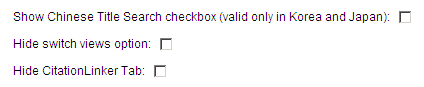
When this option is selected, the A-Z List displays as follows:
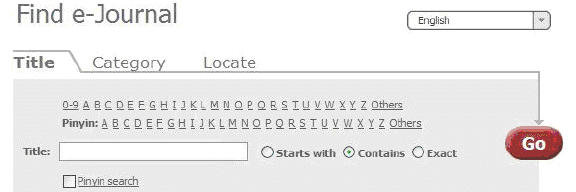
- Change the wording of the text displayed to the user when a search returns no results. By default, the text provides a link to the CitationLinker tab with the message:
Sorry, your request returned no records. You can use CitationLinker to start a new search here.
- Go to the SFX Admin Center > Setup & Administration > Configuration > Translations & Display>AZ Main tab.
- For each language used in the A-Z List, edit the following elements:
- Remove the link from the Result->NoResult->Message element.
- Delete the contents of the Result->NoResult->LinkToCitationLinkerLabel.

- Remove the link from the message text and change it to the following:
Sorry, your request returned no records.
A-Z List Browser Toolbar
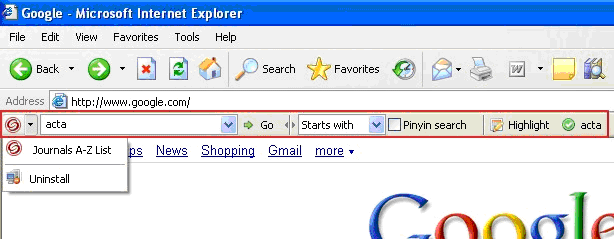
- A search box to perform an A-Z List title search using one of the following search types:
- Starts with
- Contains
- Exact
- The Pinyin/Chinese check box (presented only if needed)
- A link to the library home page and/or the A-Z List of the library by clicking the SFX logo
Implementing the A-Z List Browser Toolbar
- Connect to the SFX server and log on as the instance user.
- Enter cn.
- Enter vi ctx_object.config.
- At the end of the file, add the following lines:
|
Section "azlist" enable_toolbar "Y" EndSection |
- Enter wq to save the file and exit.
- Go to the SFX Admin Center > Setup & Administration > Configuration > A-Z List section of the instance.
- Define the links in the toolbar. This can be done in the default profile or any other A-Z List profile.
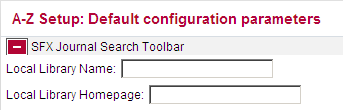
- Configure the following parameters for the SFX Journal Search Toolbar:
- Local Library Name – Enter the link name.
- Local Library Homepage – Enter the link URL.
- Save your changes.
Installing the A-Z List Browser Toolbar
|
<SFX_AZ_URL>?param_perform_value=toolbar&action=install |
|
<html> <head> <title>Test A-Z toolbar</title></head> <body> To install the A-Z toolbar, please click <a href="https://il-sfx01:3210/lr_3/az?param_perform_value=toolbar&action=install">here</a> </body> </html> |
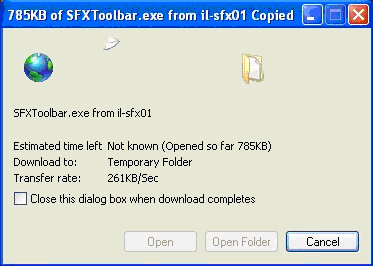
- Click the link to display the following dialog box:
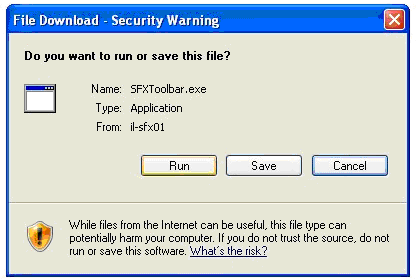
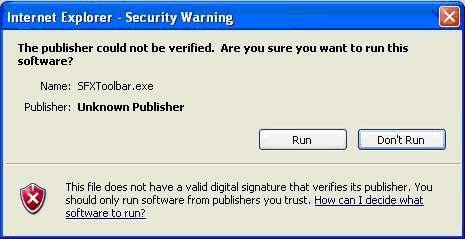
- Click Run to run the file or Save to save the file and double-click it later at the saved location. The following dialog box displays:
- When the following dialog box displays, click Run.
- Click Install to start the installation process.
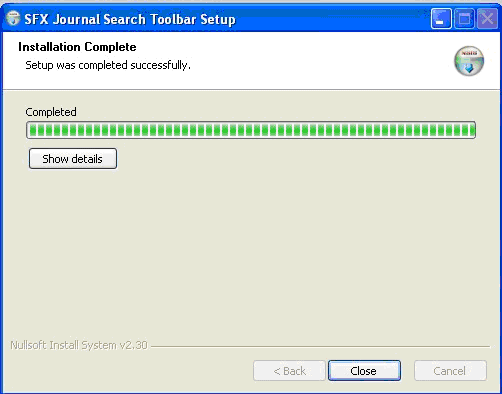
- Restart the browser when the following message displays:


Removing the A-Z List Browser Toolbar
- Click the SFX logo.
- Select Uninstall.
- Restart the browser to complete the toolbar uninstall process.
Automatically Updating the A-Z List Toolbar
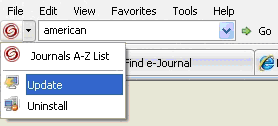
Solr Index Configuration
|
Section "solr_startup_params" active "N" (...) Section |
|
Section "solr_startup_params" (...) check_memory "Y" Section |
|
# Specify how many objects will be processed in each bulk # Bigger bulks may be faster but will consume more memory Section build_params bulk_size 1000 EndSection |
- Log on as sfxglb41.
- Type crontab -e.
- Add the following line after the existing tasks:
<scheduling time/date/frequency> tcsh -c 'source ~sfxglb41/.cshrc; /exlibris/sfx_ver/sfx4_1/sfxglb41/admin/init_scripts/solr_daemon.pl'
|
- Save and exit the file.
0 * * * * tcsh -c 'source ~sfxglb41/.cshrc; /exlibris/sfx_ver/sfx4_1/sfxglb41/admin/init_scripts/solr_daemon.pl'
|
Solr Index Configuration
|
Section "solr_startup_params" active "N" (...) Section |
|
Section "solr_startup_params" (...) check_memory "Y" Section |
|
# Specify how many objects will be processed in each bulk # Bigger bulks may be faster but will consume more memory Section build_params bulk_size 1000 EndSection |
- Log on as sfxglb41.
- Type crontab -e.
- Add the following line after the existing tasks:
<scheduling time/date/frequency> tcsh -c 'source ~sfxglb41/.cshrc; /exlibris/sfx_ver/sfx4_1/sfxglb41/admin/init_scripts/solr_daemon.pl'
|
- Save and exit the file.
0 * * * * tcsh -c 'source ~sfxglb41/.cshrc; /exlibris/sfx_ver/sfx4_1/sfxglb41/admin/init_scripts/solr_daemon.pl'
|
