
User Administration
Overview of User Administration
The purpose of the User Administration module is to provide a facility for the SFX system administrators to create and delete users and manage the different access rights of SFX Admin Center users.
Adding a New User/Specifying Access Rights
If you are a system administrator, you can add a new user to the SFX Admin Center and configure permissions for this user.
- Click SFXAdmin Users under Setup & Administration > Administration. The SFXAdmin Users: List of users screen displays.
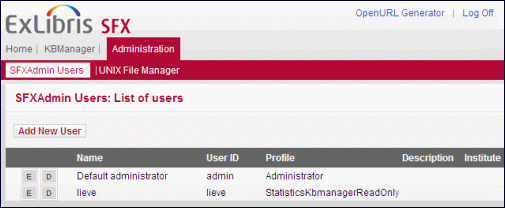
- Click the Add New User button.
- Specify the following information for each user:
- Name
- User ID
- Password – must be at least 6 characters and include at least one number and one letter.
- Profile
- Description (optional)
- Click Submit to save the new user.
The new user’s profile is saved to the USERS table in the database.
Description of User Profiles
There are predefined profiles that are set in SFX. These include the following:
| Predefined Profiles | Description |
|---|---|
| StatisticsOnly | Provides access to Statistics, OpenURL generator, and the Customer Center logon page |
| StatisticsKbmanagerReadOnly | Provides read-only access to KBManager, access to Statistics, OpenURL generator, and the Customer Center logon page |
| StatisticsKbmanagerWrite | Provides access to KBManager, KBUpdate reports, Statistics, OpenURL generator, and the Customer Center logon page |
| StatisticsKbmanagerKBTools | Provides access to KBManager, KBUpdate reports, KBTools, the Troubleshooting section, and Statistics |
| Administrator | Provides access to all sections |
| AdministratorLight | Provides access to the light administration interface |
These predefined profiles are set in a file called user_permissions.config. This file is located in the /config directory on your SFX server. You can change the access to any modules for any of these profiles by editing the user_permissions.config file.
Module Definitions
The user_permissions.config file contains definitions for all the predefined profiles listed and provides the ability to define custom profiles. The following table contains a list of SFX module definitions:
Custom Profile
There is another profile (in addition to the predefined profiles) in the
No (N) is the default access to all of the modules set in the custom profile.
|
Section “Custom”
KBMANAGER.WRITE "N" KBMANAGER.READ "N" DATALOADER.WRITE "N" STATISTICS.READ "N" CITATIONSFORMS.READ "N" LOOKUP.READ "N" EXPORT.READ "N" ADMIN.WRITE "N" THRESHOLD.WRITE "N" TARGET_MATCHER.WRITE "N" DEBUGGING.WRITE "N" KB_REPORTS.WRITE "N" SFXHELP.WRITE "N" CATEGORY.WRITE "N" AZ.WRITE "N" INSTITUTE.WRITE "N" CUSTOM.WRITE "N" GOOGLE_SCHOLAR.WRITE "N" MSN_SCHOLAR.WRITE "N" CRM_SI_CREATION.WRITE "N" MULTILANGUAGE.WRITE "N" EndSection |
Edit the “Custom” section of the
Configuring Customer Contributions
You can configure SFX to allow customer contribution for a specific profile. When editing a profile, the following is displayed:
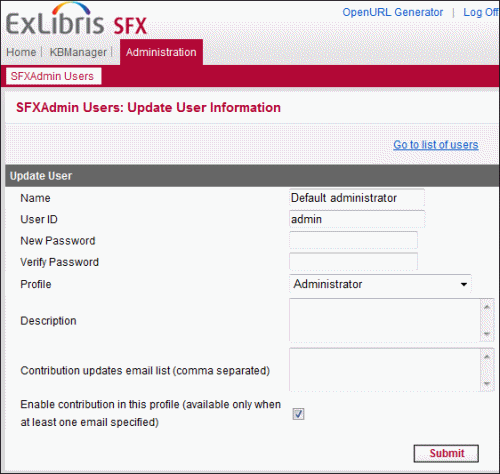
To configure customer contribution, enter an e-mail address in the Contribution updates email list field to receive reports of contribution updates and select the Enable contribution in this profile checkbox.
For more information concerning customer contributions, see the Customer Contributions section of the SFX General User’s Guide.
