
Recoger de la estantería
The requests operator uses the Pick Up Requested Resources page when picking up an item from the stacks
En esta página se describe cómo recoger un ejemplar de su ubicación en las pilas, incluida la impresión de un comprobante, la actualización de la fecha de caducidad, la conversión a recursos compartidos y las acciones masivas, como la cancelación o la impresión de comprobantes para todos los ejemplares. For the requests workflow starting from the different ways a request can enter into the Alma system through to scanning and final processing, see Resource Requests Workflow. For links to all the main fulfillment documentation pages see Fulfillment.
Para recoger un ejemplar de su ubicación en las estanterías, se debe ostentar el siguiente rol:
- Operador de solicitudes
To convert a request to be a resource-sharing borrowing request, you must have the following role:
-
Administrador de servicios al usuario (Ex Libris también puede habilitar esto para el rol de Operador de servicios al usuario o el rol de Operador de solicitudes).
Este rol debe estar en el alcance de una biblioteca de recursos compartidos.
Descripción general
Recogida se refiere a cuando el personal recoge ejemplares físicos de estanterías en las pilas de la biblioteca. If an item is picked up because of a request by a patron, the item is then transferred to the hold shelf (see Managing the Hold Shelf).
Cuando una solicitud de reserva se crea y el recurso que cumple la solicitud no está disponible en el lugar de recogida seleccionado, Alma vincula un recurso a la solicitud usando parámetros adicionales del siguiente modo:
- Alma intenta localizar un recurso perteneciente a otra biblioteca en el mismo campus que el lugar de recogida.
- Si no se encuentra ningún recurso en el mismo campus, existe más de un recurso en diferentes ubicaciones del campus o, si no se ha definido ningún campus, Alma comprueba las Reglas de tiempo de tránsito para buscar una copia que sea la más cercana a la ubicación de recogida requerida. If a rule exists for a resource and the Use for Hold Request Pickup Calculation checkbox is selected, Alma uses the configured transit time to find the available copy that is closest to the required pickup location. See Adding a Transit Time Rule.
- If more than one resource has a transit-time rule, then the resource with the shortest transit time is selected.(New for February 2026) The transit time can be configured at the location level.
- Si hay más de un mostrador de circulación, entonces la lista de recogida se crea de forma aleatoria en uno de los mostradores.
Esta sección describe las opciones de tarea disponibles para el Operador de solicitudes al recoger un ejemplar de las pilas.
Learn how to export a list of pickup from shelf items in the Export List of Pick from Shelf Items video (2:23 min).
Información de la lista de recogida
La siguiente información aparece en la lista de recogida de un ejemplar:
- ISBN or ISSN
- Edition
- Description
- Imprint – The place of publication, publisher, and date of publication
- Author
- Start time
- End time
If there are items to be picked up from a shelf in the stacks, a Requests Operator's Tasks list on the Alma home page contains a Requests - pick up from shelf task, which links to the Pick Up from Shelf page.
Recoger ejemplares en la estantería
To pick up items at the shelf:
-
On the Pick Up Requested Resources page (Fulfillment > Resource Requests > Pick From Shelf), in the list of current requests, identify the requested items you need to pick up.
The Pick From Shelf option appears only when you are at a circulation desk; see Library/Desk Selector in The Persistent Menu.
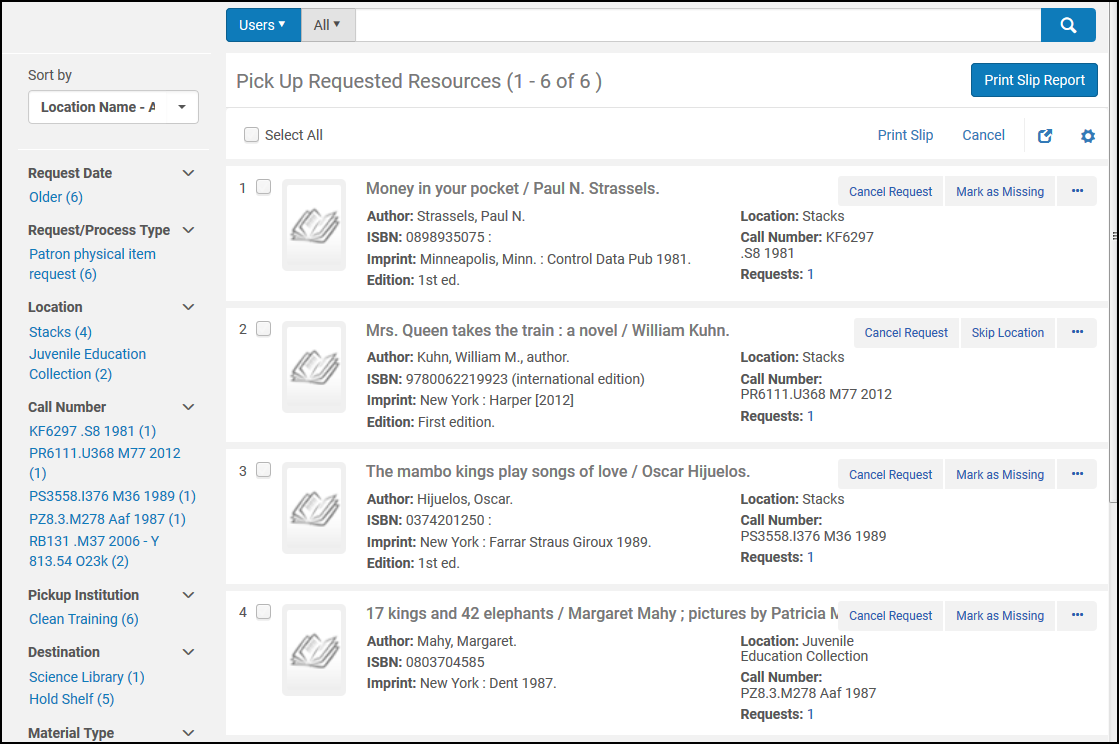
To filter the list so that you can find requests from your location or that meet other criteria, use the facets on the left side of the page. Las facetas que aparecen dependen de las características de las solicitudes. Las facetas posibles incluyen:
- Request Date – Date on which the request was made
- Request/Process Type – The request type
- Location – The location where the request items are shelved
- Call Number – Call number of the item
- Pickup Institution – Institution where the patron will pick up the item or to which the item will be moved
- Destination – Location where the patron will pick up the item or to which the item will be moved
- Material Type – Requested material type
- Request Printed – Requests for which a slip has been printed
- Request Reported – Requests which are included in a Slip Report (that is,Print Slip Report was selected for these requests)
-
Seleccionar de entre las siguientes opciones:
- Print slip – Prints a call slip for the item that can subsequently be attached to the item by the Requests Operator. Si ha seleccionado varios ejemplares, añade todos los comprobantes en un solo PDF para poder imprimirlos juntos. In a notification that appears, select Quick Printing if you would like to open the printing window immediately when the letter is generated, overriding the Print dialog. From there you can send the created PDF to a designated printer or save it to a file.
Then the item's barcode is scanned (see Scanning Items), and the call slip is placed with the item. You can also select Print slip from the Print slip drop-down list and select Execute. Imprimir comprobante utiliza la Carta de comprobante de solicitud de recursos. For more information, see Configuring Alma Letters. Si un comprobante se imprime al recoger un ejemplar de la estantería se puede reutilizar cuando se coloque el ejemplar en la estantería de reservas. Sin embargo, se puede elegir imprimir comprobantes adicionales si fuese necesario (por ejemplo, si se perdió el comprobante original) seleccionando Imprimir comprobante debajo del ejemplar pertinente.
- Print Slip Report – Creates either an XML or Excel report that contains a detailed list of resources that need to be picked up. It can be used instead of printing separate call slips for each request. El informe se puede enviar a una impresora, al correo electrónico de un usuario o se puede mostrar en la pantalla. La carta de correo electrónico es la Carta de informe de impresión de recogida completa. Dado que el informe de Excel se envía como un fichero adjunto al correo electrónico, al enviar el informe de impresión de comprobantes a una impresora solo se imprimirá el correo electrónico; la función para enviar el propio informe de Excel a la impresora no está disponible. This link opens the following dialog box, which allows you to specify the format type of the report and the report's destination:
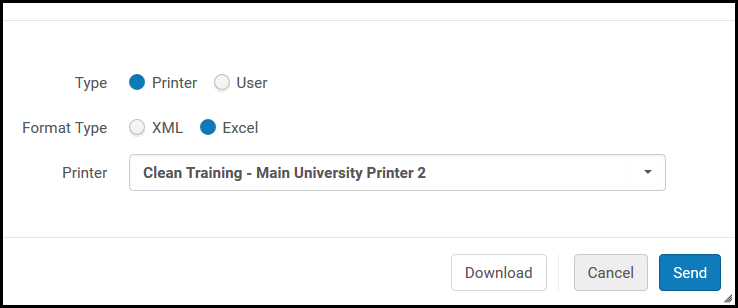
For title requests submitted using Alma/Primo, barcodes from all titles –both preferred and non-preferred –are included in the print slip report.
Choose one of the following destination types in the Type field and select Send:
- Printer – The Excel report is sent to the printer destination selected from the Printer drop-down list.
- User – The report is attached to the Print Slip Report Letter that is sent to the email address of the user specified in the User field. For more information on customizing the Print Slip Report Letter, see Configuring Alma Letters.
- If you prefer to view the report on the screen, select Download instead of Send.
- Edit – Opens the Create Request page, where you can edit the request (see Creating a Request).
- Cancel Request – Cancels the request. In the Confirm Request Cancellation box that opens, do the following:
- From the Cancellation reason drop-down list, select a reason for the cancellation. For additional information about the options in this list, as well as information about customizing the list for your institution, see Configuring Request Cancellation Reasons.
- Under Note, enter a cancellation note as needed.
- To send a cancellation notification to the patron, select Notify user. La carta de notificación que se envía es la Carta de solicitud de cancelación completa. For information about configuring the notification, see Configuring Alma Letters.
- Select Confirm.
- Update Expiry – Changes the expiry date for the request. Select the expiration date box, select a new date and select Save.
Si se supera la fecha de vigencia y no se recoge un ejemplar de la estantería, se marcará como extraviado. The Requests - Handle Expiration Step job tries to locate the item at another location, and if it cannot, it cancels the request for the item. To manually change the item's missing status, you can toggle the item status from Item not in place to Item in place on the List of Items page (see Working with the List of Items).
-
Skip Location – The request will be deactivated from the current location and attempted to be fulfilled by another location.
Omitir ubicación no puede funcionar a través de registros MMS.
- Manual Skip Location - If the Skip Location action is available (the request can be fulfilled by at least one other location that the request has not been previously assigned to), a Manual Skip Location action now displays in addition to the Skip Location action. La acción manual sugiere una lista de ubicaciones alternativas por las cuales se puede realizar la solicitud, presentadas en el siguiente orden:
- Holdings in remote storage with the Prefer Over Other Locations check box selected (see Adding a Remote Storage Facility).
- Existencias cuya biblioteca propietaria coincida con la biblioteca de recogida solicitada.
- Existencias en el mismo campus.
- En todas las demás existencias que puedan realizar la solicitud, pero que no estén en este campus o, en el caso de que no se haya definido ningún campus, las ubicaciones serán ordenadas por su tiempo de tránsito hasta el lugar de recogida, si se ha definido una regla de tiempo de tránsito entre la biblioteca del lugar de recogida y la biblioteca de la existencia y si la regla admite el Cálculo de recogida de la solicitud de reserva.
- Holdings in remote storage that do not have the Prefer Over Other Locations check box selected.
- Existencias que se asignaron y modificaron previamente por la acción Omitir ubicación.
-
The same logic will be automatically applied if the Skip Location action is used, automatically selecting the first location as per the sorting method described above.
-
Mark as Missing – This action marks all items under the holding as missing.
-
Convert to Resource Sharing – Convert the request to a resource sharing borrowing request. Si hay varias solicitudes agregadas a una única solicitud, todas estas solicitudes se convierten con esta acción.
Esta acción tendrá éxito si:
- The request is a Hold or General Hold request (request for holding without item)
- The workflow step is Not Activated,Pickup-From Shelf, or Waiting for Remote Storage.
-
El usuario tiene el rol de Gestor de servicios al usuario (Ex Libris también puede habilitar esto para el rol de Operador de servicios al usuario).
Este rol debe estar en el alcance de una biblioteca de recursos compartidos.
- The request's Date Needed By has not passed.
- El lugar de recogida solicitado es compatible con las solicitudes de intercambio de recursos.
- View Title in Search - Opens a repository search for the item.
- Print slip – Prints a call slip for the item that can subsequently be attached to the item by the Requests Operator. Si ha seleccionado varios ejemplares, añade todos los comprobantes en un solo PDF para poder imprimirlos juntos. In a notification that appears, select Quick Printing if you would like to open the printing window immediately when the letter is generated, overriding the Print dialog. From there you can send the created PDF to a designated printer or save it to a file.
Cancelar todos los ejemplares
To cancel or print call slips for all of the items:
- Select Select all.
- From the Execute drop-down list, choose either Cancel or Print slip.
- Select Execute.
Imprimir comprobantes para todos los ejemplares
To cancel or print call slips for all of the items:
- Select Select all.
- From the Execute drop-down list, choose either Cancel or Print slip.
- Select Execute.
Los ejemplares se pueden ordenar por signatura o por el nombre de la ubicación. The Sort by drop-down box shows the options for sorting by call number and location name in either ascending or descending sequences.
If one or more request notes exist, they are displayed aggregated together with a "|" (pipe symbol) in between each request. Only notes for active requests that are being picked by the current circulation desk whose status is "pickup from shelf" are displayed. Las notas de la solicitud activa se presentan en la página Recoger recursos solicitados sin orden específico. Si hace clic en el enlace para la cola de solicitudes, se muestran todas las solicitudes junto con una nueva columna que muestra las notas de la solicitud.
Watch the Request Notes in Pick from Shelf List video (0:48 min.).
