
Supervisión de solicitudes de recursos
Requests and work orders can be managed from the Resource Requests Monitoring page.
This page describes how to view the list of requests including filtering them and general handling/management such as editing or cancelling requests, updating the expiry date, printing a call slip, etc. For the requests workflow starting from the different ways a request can enter into the Alma system through to scanning and final processing, see Resource Requests Workflow.
For links to all the main fulfillment documentation pages see Fulfillment.
Para gestionar las solicitudes, se debe desempeñar uno de los siguientes roles:
- Gestor/Operador de Servicios al usuario – Ver solicitudes de cualquier mostrador de la biblioteca
- Operador de solicitudes – visualiza solicitudes que están asignadas a su mostrador/es
Requests and work orders that have been created and are pending or completed can be viewed and handled on the Resource Request Monitoring page (Fulfillment > Resource Requests > Monitor Requests & Item Processes). If you use the persistent search box to search for requests (see Searching in Alma), the results are also presented in this page. The page provides updated information on the various types of resource requests, and their progression within Alma. Puede filtrar la lista de solicitudes, como se explica a continuación. También puede realizar acciones en solicitudes individuales desde sus acciones de fila. For more information on requests, see Requests in Alma.
For more information, see Filling and Monitoring Physical Item Requests (1:41 min).
- When searching for a request in the persistent search box by Request ID, requests are located according to their ID value.
- It is not possible to search for requests by their External Identifier value. The External Identifier value of requests corresponds to their Internal Identifier value on the Resource Sharing Borrowing Requests page (see Managing Resource Sharing Borrowing Requests).
- For information on searching using special characters/diacritics, see Searching for Special Characters.
- For information on reports about completed requests, see Requests.
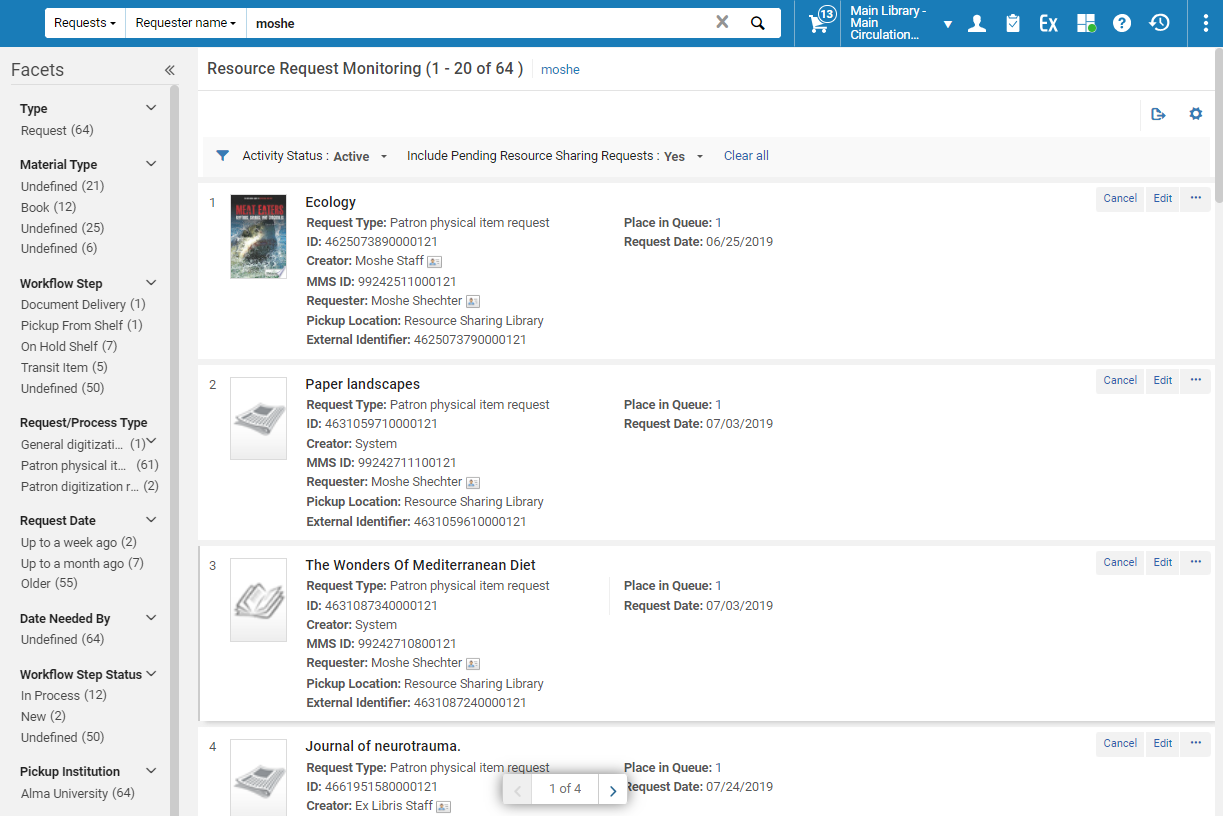
Filtrar la lista de solicitudes
Puede filtrar por Estado de actividad "Activo" y "Completado" y "Todas" (que mostrará tanto las solicitudes Activas como las Completadas).
Actualmente, las solicitudes que fueron rechazadas mientras aún estaban en proceso, no pueden ser vistas en la Supervisión de solicitudes de recursos. Estas solicitudes pueden encontrarse en Analytics utilizando el filtro "Marcador de solicitud activa" = SÍ y "Estado de la solicitud" = Rechazada. Para eliminar estos casos, debe escanear el código de barras del ejemplar. Esto completará la solicitud, y después podrá verla en Supervisión de solicitudes de recursos, con el Estado de actividad "Completada" o "Todas".
Las facetas disponibles son las siguientes:
| Faceta | Descripción |
|---|---|
| Detalles dla reserva | The request type, either a process (In Process) or a request (Request). |
| LCCN | Tipo de material especificado en la solicitud. Options are: Audiobook, Audio cassette, Book, Compact Disc, Flash Card, Bound Issue, Issue, DVD, and Other. |
| Paso de flujo de trabajo | Nombre de la actividad en curso. Options are: Await Approval, Deposit Item, Digital Inventory, Digitization, Digitize Item, Document Delivery, Hold Shelf Processing, In Process, On Hold Shelf, Pickup FromShelf,Requested, Transit Item, Undefined, and waiting for Remote. |
| Tipo de solicitud/proceso | Tipos de solicitud/proceso. Las opciones son:
Requests :Booking Request,Patron Electronic Digitization Request,General Hold Request,Library Electronic Digitization Request,Patron Physical Item Request,Patron Digitization Request, as well as any configured work order type requests (see Configuring Work Order Types). Processes:Binding,Move Permanently,Move Temporarily,Ship Digitally,Ship Digitally From Electronic,Ship Physically,Restore Item,Transit forReshelving,Long Term Digital Loan Request, as well as any configured work order type process (see Configuring Work Order Types). |
| Fecha de reserva | Solo para solicitudes activas La fecha en la que se realizó la solicitud. Las opciones son:
|
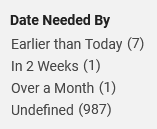
| Fecha en la que se necesita | La fecha en que se necesita el ejemplar. Options are: Earlier Than Today, In 2 Weeks, Over a Month, and Undefined.
The facet for Date Needed By enables users to filter for requests according to a date specified by the patron on the request or indication when the resource is needed by. This enables users to filter for requests where the needed-by date is;Earlier Than Today(past), In the Next Two Weeks, in Over a Month from now, or was Undefined by the patron.
|
| Estado de los pasos del flujo de trabajo |
Estado del proceso en curso. Options are: New, Temp Storage, In Process, Physical Processing, Copy Cataloging, and Finish, and any configured work order type statuses (see Adding a Work Order Type Status). A Workflow Step Status of In Process indicates that the item is undergoing Hold Shelf Processing, in preparation for being placed on the hold shelf. If a request is canceled while the item is In Process, the item is transferred to the expired hold shelf (see Managing Expired Hold Shelf Items). |
| Institución de recogida | La institución de recogida en la que se solicita la recogida de ejemplares. |
| Localización de recogida | Biblioteca en la que se solicita la recogida del ejemplar. Options are the institution's libraries and any configured work order departments (see Configuring Work Order Departments). Home/office delivery requests are indicated by the Home Delivery and Office Delivery facets. |
| Propietario | La biblioteca cuyo ejemplar está vinculado a la solicitud. Once an item is scanned in for the request to be put on the hold shelf, the owning library will appear. Before the item is scanned in, the request owner will show as Undefined. Esto es válido tanto para las solicitudes a nivel de título como a nivel de ejemplar. |
Gestión de procesos y solicitudes
To navigate processes and requests:
- Navigate to the Resource Request Monitoring page (Fulfillment > Resource Requests > Monitor Requests & Item Processes)
- Seleccione una de las siguientes opciones en el menú de acciones para el ejemplar solicitado que corresponda:
- View Audit Trail – Open the Request Processing Audit Trail page to display a list of actions taken on the requested item.On the Request Processing Audit Trail page, values that may appear in the Action column are:
- Estantería de reservas
- Procesamiento de la estantería de reservas
- En Proceso
- Digitalizar ejemplar
- Ejemplar de depósito
- Entrega de documentos
- Recoger de la estantería
- En espera de autorización
- Ejemplar en tránsito
- Esperando almacenamiento remoto
- Edit – Open the Create Request page to edit the request. See Creating a Work Order Request.
- Cancel – Cancel the request. In the Confirm Request Cancellation box that opens, do the following:
- From the Cancellation reason drop-down list, select a reason for the cancellation. For additional information about the options in this list and information about customizing the list for your institution, see Configuring Request Cancellation Reasons.
- Under Note, enter a cancellation note as needed.
- To send a cancellation notification to the requester, select Notify user. La carta de notificación que se envía es la Carta de solicitud de cancelación completa. For information about configuring the notification, see Configuring Alma Letters.
- Select Confirm
- Update Expiry – Update the expiry date for the request (see the description in Pickup at Shelf).
- Mark as Missing – Update the requested item is missing. Select Yes on the resulting Mark as Missing page.
- View Title In Search – Display the title in the context of the repository search screen.
- Print Slip – Print a call slip for the requested item. Para solicitudes de reserva, esta opción solo aparece si la fecha actual se encuentra entre la hora de inicio y la hora de finalización de la solicitud. The print slip uses the Ful Resource Request Slip Letter. See Pickup at Shelf.
- Move to Task List- Display the page representing the workflow step of the request. For instance, if this request's workflow step is currently On Hold Shelf, display the Active Hold Shelf Items page. Esta opción no aparece cuando el paso del flujo de trabajo es uno de los siguientes:
- TransitItem
- AwaitApproval
- Comunicación con almacenamiento remoto
- Procesamiento de la estantería de reservas
- WaitingForRemoteStorage
- Convert to Resource Sharing – Convert the request to a resource sharing borrowing request. Si hay varias solicitudes agregadas a una única solicitud, todas estas solicitudes se convierten con esta acción.For more information about converting hold requests to resource sharing borrowing requests, see the Automatic Conversion of Hold Requests to Resource Sharing Requests video (6:07 min).
Esta opción es relevante para lo siguiente:
- The request is a Hold or General Hold request (request for holding without item)
- The workflow step is Not Activated, Pickup-From Shelf, or Waiting for Remote Storage. Los ejemplares con el paso de flujo de trabajo Solicitud comunicada a almacenamiento no muestran la opción Convertir en recurso compartido.
- El usuario tiene el rol de Gestor/Operador de servicios al usuario Téngase en cuenta que el rol con este privilegio debe tener un alcance al nivel de la institución.
- The request's Date Needed By has not passed.
- El lugar de recogida solicitado es compatible con las solicitudes de intercambio de recursos.
- El lugar de recogida solicitado es una biblioteca, no una entrega a domicilio ni una institución remota.
- View Audit Trail – Open the Request Processing Audit Trail page to display a list of actions taken on the requested item.
When an item receives multiple requests, the item is listed only once in the tasks list, but the number of requests for the item is indicated in the Place in Queue field. El número de comprobantes impresos es el mismo que el de solicitudes. For more information, see The Request Queue. The value of the Place in Queue: link indicates the place of the request in the queue, as follows:
- 0 – No other requests are in the queue ahead of this one. La solicitud está activa; el ejemplar está siendo recogido de la estantería o se encuentra en la estantería de reservas.
- <other number> – The number of requests for the item in the queue, including this one. For example, if Place in Queue = 3, this request is third in line to be processed by the system. Las solicitudes que están por delante de esta tienen una prioridad mayor o tienen la misma prioridad pero se colocaron en un momento anterior al de esta solicitud.
Si hay varios ejemplares que pueden registrarse con la solicitud y cada uno tiene una cola diferente, aparece el valor de la cola más larga (es decir, el número mostrado se basa en el ejemplar que está menos disponible). Hay situaciones en las que las solicitudes se registran de acuerdo con el orden en que se recibió la solicitud, y otras que se registran de acuerdo con la prioridad de la solicitud. For details, see Request Priority.
Las solicitudes de préstamo de recursos compartidos con varios ejemplares enumerarán cada ejemplar por separado. Por el contrario, la lista de solicitudes de Mi Cuenta Primo solo muestra una línea con un ejemplar por solicitud. Esto es porque Primo solo muestra la solicitud de recursos compartidos, sin importar cuántos ejemplares se han enviado para cumplir la solicitud, mientras que Alma muestra al operador todos los ejemplares que hay en la estantería o en tránsito. For more information, see Resource Sharing Requests with Multiple Items.
