
Crear una solicitud desde la institución
Requests can be created for users within your institution, including item-level requests, title-level requests, work order requests, general hold requests and requests for non-cataloged serial items.
This page describes how operators can create requests in the institution, including physical, electronic, work order requests, digitization requests, etc. It also includes information on converting a hold request to a resource sharing request, creating requests for non-cataloged serial items, supporting personal delivery for requests, etc. For a detailed overview of the different types of requests, the pages in Alma from which requests can be accessed, the request queue, resource sharing requests and request jobs see Requests in Alma.
For a full overview of the requests workflow starting from the different ways a request can enter into the Alma system through to scanning and final processing, see Resource Requests Workflow.
For links to all the main fulfillment documentation pages see Fulfillment.
Descripción general sobre creación de solicitudes
An operator creates a request by searching for titles or items in the institution (see Searching in Alma), and then creating a request for a title or item as described on this page. You can also move requests from one circulation desk to another using the Transfer Requests option (see Transfer Requests).
The type of request that you can create, and its limitations, depend on whether the title/item is physical or electronic, whether the titles have holdings and if these are monograph or serial, the policies of the item (see Configuring Item Policies), the fulfillment unit that services the request (see Configuring Policies), and the institution (see Configuring Terms of Use).
For more information on requests, see Requests in Alma.
Creating a Request
Para crear una solicitud, debe tener uno de los siguientes roles:
- Operador de solicitudes
- Operador de servicios al usuario
For information on creating digitized request, see Digitized Fulfillment (3:49 min). This also include information on checking if a digitization request exists, and how to upload a file to a citation if needed.
After locating a specific title or item in the institution's repository, you can create a request for it.
Se puede solicitar un ejemplar perteneciente a un registro bibliográfico que ya se encuentra en préstamo a un usuario solicitante. To do so, ensure that the enable_request_during_loan_for_different_policy value is true in the Customer Parameters Mapping Table (see Configuring Other Settings). If the items do not have different policies, you cannot place the request for the second item belonging to the same bibliographic record.
Campos actualizados automáticamente por Alma para las solicitudes enviadas
Para las solicitudes enviadas, los siguientes campos se actualizan automáticamente:
Los campos Paso del flujo de trabajo, Fecha del proceso y Gestionado por solo se asignan si la solicitud está activada. Si la solicitud permanece en la cola, estos campos no se asignan.
-
Workflow step – The workflow step is updated according to the information that was entered for the user configuration and patron privileges - see Resource Request Workflow.
- Process date – The date that the workflow step was activated.
- Status – Alma assigns the Active status.
- Request date – The current date.
-
Managed by – The library and circulation desk that are processing (managing) the current workflow step. This field indicates to which desk the request's action is currently assigned. Su significado depende de la acción en curso. Por ejemplo:
- Si la solicitud aún no está activa (está en cola y a la espera de que haya un ejemplar disponible), no hay departamento gestor.
- Si la solicitud está en una lista de "Recoger de la estantería", el departamento gestor es el mostrador asignado.
- Si la solicitud está en tránsito, el departamento gestor es el mostrador en el que se escaneó por última vez y desde el que se pone en tránsito.
- Si la solicitud está en una estantería de reservas, el departamento gestor es el mostrador de la estantería de reservas.
- Expiry date – The date on which the request expires
- Place in queue – The number of requests for the item (see Handling Processes and Requests)
Cuando un usuario realiza una solicitud, Alma comprueba los ejemplares solicitados para determinar si se pueden solicitar. If a title level request is placed, then all of the title's items are checked. Si se realiza una solicitud de un ejemplar concreto, se comprueba dicho ejemplar.
Si uno o varios de los ejemplares no se pueden solicitar, Alma muestra un mensaje con los motivos de la sanción:
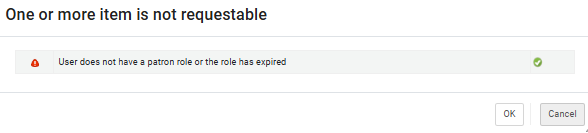
Puede permitir ignorar las sanciones si dispone de los privilegios necesarios.
If you see the One or more item is not requestable message, it means that some or all items under this title are blocked from being requested by the selected patron.
Si solo algunos de los ejemplares están sancionados, el título seguirá estando disponible para su solicitud, y al seleccionar Aceptar se podrá realizar la solicitud. El formulario de solicitud se muestra con las opciones de solicitud disponibles, calculadas únicamente a partir de los ejemplares que se pueden solicitar.
Si todos los ejemplares están sancionados, no se podrá enviar la solicitud. Al hacer clic en Aceptar, se abrirá un formulario de solicitud que no se puede enviar.
If you have the Override Blocks privilege, you will see an Override button. Al hacer clic en este botón, se ignorarán las sanciones. El formulario de solicitud se muestra con las opciones de solicitud disponibles, calculadas a partir de todos los ejemplares del título, incluidos aquellos que, de otro modo, no se considerarían solicitables.
Creating Requests for Physical Titles or Items
Para solicitudes de nivel de ejemplar y solicitudes de nivel de título con un solo ejemplar, Alma puede ser configurada para marcar el ejemplar solicitado como no disponible. The item being requested is marked as Item not Available and will have a Process status of Requested. In such cases, if you release or cancel the request, the item's Status becomes Item in Place. Para activar esta funcionalidad, contactar con el Soporte de Ex Libris.
El propósito de esta funcionalidad es marcar un ejemplar como no disponible una vez que se realiza una solicitud sobre ellos y no vincular un ejemplar a una solicitud o impedir que se siga solicitando. Activating this mapping table does not prevent additional requests to be placed once a request exists on a physical item.
You can also place a request on both the title and item level from the PO line (see Manually Creating a PO Line).
To create a request for a physical title/item:
If you select a serial item, the Description field is displayed, enabling you to select the exact issue. The option All appears if some of the items were not labeled with an Enum or Chron. Select All to indicate all items (including those without descriptions)
- Search for a physical title/item (see Searching in Alma).
- In the search results, select Request from the row actions list. Aparece la página de Crear solicitud.
- The Request type drop-down list is automatically filled per the last request. Seleccione un tipo diferente si es necesario.
- Rellene la información tal y como se describe a continuación para los distintos tipos de solicitud.
- General Hold Request - Appears only when placing a request for a holding that contains no items. For details on creating a general hold request, see Creating a General Hold Request. Aparecen los siguientes campos:
- Holding – Select a holding for the item. See Creating a Non-Cataloged Serial Item Request.
- Manual Description – Enter a description. See Creating a Non-Cataloged Serial Item Request.
- General Digitization Request- Appears only when placing a request for a holding that contains no items. For details on creating a general digitization request, see Creating a General Digitization Request.
- Booking request- Reserve resources for a patron during a specified time frame. For prerequisites and conditions for creating booking requests, see Creating Booking Requests.
- Crear solicitud:
- Solicitante - Busca o selecciona un usuario.
- Override Booking Policies – Ignore the following booking policies: future limit, maximum allowed booking length, and back-to-back bookings by the same user.
- Note – This field is limited to 1000 characters.
- Date Range – The date range for the request. Solo puede insertar fechas futuras.
- Pickup At – Destination for pickup. This field includes the locations specified by the Pick Up Location policy defined in the Request Terms of Use. Las opciones de la lista desplegable son mostradas en orden alfabético, de acuerdo al nombre de la ubicación. Cambiar el lugar de recogida de una solicitud que ya está en la estantería de reservas requiere escanear de nuevo el ejemplar para iniciar el proceso de mover el ejemplar a la nueva ubicación de recogida.
- Atributos de solicitud adicionales:
- Material Type – Select the desired material type from the available types.
- Crear solicitud:
- Move permanently/temporarily – Permanently or temporarily change the location of a physical title or item. Cuando se mueve un título, todos los ejemplares asociados con el título se mueven.
- Crear solicitud:
- Note – This field is limited to 1000 characters.
- To – Select a library from the drop-down list.
- Atributos de solicitud adicionales:
- Destination Locations – Where to deliver the copies.
- Call Number Type – Select from the drop-down list. See also call_number_type in Configuring Other Settings.
- Call Number – Enter the call number.
- Item Policy – The item's override policy for loan rules. For more information, see Configuring Item Policies.
- Manual Priority – Manually override the automatically calculated priority. See Request Priority for details.
- Due Back – When the items are due back. This displays for Move temporarily items only.
- Crear solicitud:
- Patron digitization request – Create a digital copy (in full or in part) of a physical/electronic title or item on behalf of a patron. La solicitud de digitalización genera una solicitud de movimiento temporal para mover el ejemplar al departamento de digitalización. Tras la digitalización, se genera otra solicitud para devolver el ejemplar a su ubicación permanente.
- Crear solicitud:
- Solicitante - Busca o selecciona un usuario.
- Note – This field is limited to 1000 characters.
- Partial Digitization – Select to indicate that the request is for only part of the item, not the entire item. Al seleccionar esta casilla de verificación, se muestran campos adicionales para añadir más información, como el volumen y el fascículo.
- Managing Department – Select a digitization department. Si solo hay un departamento disponible para gestionar la solicitud, el campo Departamento de gestión se rellenará automáticamente con ese departamento. Cuando se realiza una solicitud desde Primo, el usuario no selecciona el departamento de gestión. In this case, Alma selects the department at the library for the requested item.(New for February 2026) If a library has multiple digitization departments, Alma automatically selects one that is a circulation desk and has a reshelf relation with the item's location.
Calculate Digitization Fee – Show the digitization fee that applies to this request, if any has been configured. Esto no aplica la cuota a la solicitud. La cuota se aplica cuando la solicitud está completada o autorizada. Si hay ejemplares con diferentes políticas de cuota que pueden ser usadas para rellenar la solicitud, el cálculo de la cuota puede cambiar cuando la digitalización esté terminada.
For more information about configuring and using digitization request fees, see the Digitization Request Fees video (4:02 min).
- Copyright Declaration Signed by Patron – Select this checkbox to indicate that the patron selected his or her agreement with the copyright when submitting the request.
- Atributos de solicitud adicionales:
- Material Type – Select the desired material type from the available types.
- Date Needed By – Select the date by which the request is needed.
- Manual Priority – Manually override the automatically calculated priority. See Request Priority for details.
- Crear solicitud:
- Patron physical item request – Create a request to loan a physical title or item to a patron.
- Crear solicitud:
- Solicitante - Busca o selecciona un usuario.
- Note – This field is limited to 1000 characters.
- Pickup At – Destination for pickup. This field includes the locations specified by the Pick Up Location policy defined in the Request Terms of Use. Las opciones de la lista desplegable son mostradas en orden alfabético, de acuerdo al nombre de la ubicación.
Override On Shelf Request Policy – Override the configured fulfillment policy that determines where you can pick up resources. Esto permite solicitar cualquier lugar de recogida. Cambiar el lugar de recogida de una solicitud que ya está en la estantería de reservas requiere escanear de nuevo el ejemplar para iniciar el proceso de mover el ejemplar a la nueva ubicación de recogida.
The Override On Shelf Request Policy button is only displayed and enabled for users with role of Fulfillment Services Manager.
- Cuando hay múltiples copias disponibles que pueden cumplir solicitudes a nivel de título, Alma elige un ejemplar apropiado según los criterios siguientes:
- La copia seleccionada es una de las disponibles.
- An item whose location is the same as the request's pickup location receives the highest priority to fulfill the request. You can enable a physical item request to be delivered to a user's home or office. Para obtener más información, consulte Crear solicitudes de entrega personal.
- Por defecto, un ejemplar en instalaciones del almacén remoto recibe la prioridad más baja para satisfacer la solicitud. En estos casos, se registra una solicitud para un ejemplar de almacén remoto solo si no se encuentra ningún otro ejemplar. You can configure remote storage locations to take priority over non-remote storage locations by selecting the Prefer over other locations setting when configuring remote storage locations (see Adding a Remote Storage Facility).
- Cuando múltiples ejemplares en la misma ubicación son localizados para una solicitud, se elige un ejemplar al azar.
- Atributos de solicitud adicionales:
- Material Type – Select the desired material type from the available types.
- Date Needed By – Select the date by which the request is needed.
- Loan Period – The amount of time the user has before having to return the item.
- Manual Priority – Manually override the automatically calculated priority. See Request Priority for details.
- Crear solicitud:
- General Hold Request - Appears only when placing a request for a holding that contains no items. For details on creating a general hold request, see Creating a General Hold Request. Aparecen los siguientes campos:
- Staff digitization request – Create a digital copy (in full or in part) of a physical title or item on behalf of a staff member. La solicitud de digitalización genera una solicitud de movimiento temporal para mover el ejemplar al departamento de digitalización. Tras la digitalización, se genera otra solicitud para devolver el ejemplar a su ubicación permanente.
- Crear solicitud:
- Note – This field is limited to 1000 characters.
- Partial Digitization – Select to indicate that the request is for only part of the item, not the entire item. Seleccionar esta casilla de verificación causa que campos adicionales añadan más información, como volumen y fascículo.
- Managing Department – Select a digitization department. Si solo hay un departamento disponible para gestionar la solicitud, el campo Departamento de gestión se rellenará automáticamente con ese departamento.
- Copyright Attributes: These fields are used to record intended usage information. If copyright approval is required by the digitization rules, an approval task appears on the Approval Requests List page; see Digitization Processing.
- Volumen - Volumen de la solicitud
- Issue – Issue for the request.
- Número de estudiantes – El número de estudiantes que utilizan el material digitalizado.
- Number of Copies for Students – The number of copies per student.
- Number of Copies per Staf – The number of copies per staff member.
- Total de páginas del recurso – Total de páginas del ejemplar requerido.
- Required Chapters – Chapter numbers needed for the request. Este es un texto libre para que el Departamento de digitalización tenga en cuenta qué capítulos necesitan escanearse. Los capítulos requeridos deben estar separados por una coma o se debe insertar un rango de capítulos (1,2,5 o 1-3 o 1,3,5-6). If you use the Total Copyright Number of Chapters parameter in the Digitization and copyrights rules, this field must be populated.
- Total Chapters Count – Total number of chapters that are required. Este es un campo numérico. It is automatically filled after populating the Required Chapters field.
- Required Pages – Two sets of fields for From and To pages that are digitized.
- Total Required Pages – This field is prefilled automatically.
- Copyright Percentage – This field is prefilled automatically.
- Includes image(s) – Whether the pages to digitize include images.
- Fecha disponible desde / Fecha disponible hasta – El rango de fechas en el que están disponibles las copias.
- Nota 1/Nota 2/Nota 3 - Notas privadas, si las hubiera.
- Atributos de solicitud adicionales:
- Material Type – Select the desired material type from the available types.
- Date Needed By – Select the date by which the request is needed.
- Manual Priority – Manually override the automatically calculated priority. See Request Priority for details.
- Crear solicitud:
-
Select Submit. The request is created with a unique identification number and processed (see Resource Requests). Una solicitud terminada aparece en la página de Supervisión de solicitudes de recurso con la siguiente información:
- Workflow Step: Pickup from shelf
- Process Status: New
- Managed by Library: The library where the available inventory is located
- Managed by Desk: The circulation desk where the available inventory is located
A patron receives notification that an item is ready for pickup from the hold shelf after the Hold Shelf Processing status is complete. See Managing the Hold Shelf for details. For details on the resource request workflow, see Resource Requests Workflow. For a digitization request, the request appears on the In Process Items page (see Digitizing Items). For more information, see Digitization Processing.
Crear solicitudes para títulos electrónicos
En algunos casos, quizá desee crear un fichero digital basado en un artículo, capítulo de libro, etc., accesible electrónicamente. Esto puede suceder, por ejemplo, para dar servicio a usuarios que no pueden acceder a la biblioteca.
To create a request for an electronic title:
- Search for an electronic title (see Searching in Alma).
- In the search results select Document Delivery from the row actions list. Aparece la página de Crear solicitud.
- From the Request type drop-down list select the type of request and fill in the information as described for the various request types below.
- Patron electronic item request - Create a digital copy (in full or in part) of an electronic resource on behalf of a patron.
- Crear solicitud:
- Solicitante - Busca o selecciona un usuario.
- Parte a digitalizar - Campo de texto libre para información además de los campos bajo la casilla de verificación de Digitalización parcial.
- Partial Digitization - Select to indicate that the request is for only part of the item, not the entire item. Seleccionar esta casilla de verificación causa que campos adicionales añadan más información, como volumen y fascículo.
- Managing Department - Select a digitization department. Si solo hay un departamento disponible para gestionar la solicitud, el campo Departamento de gestión se rellenará automáticamente con ese departamento.
- Atributos de solicitud adicionales:
- Date Needed By – Select the date by which the request is needed.
- Crear solicitud:
- Staff electronic digitization request – Create a digital copy (in full or in part) of an electronic item on behalf of a staff member.
- Crear solicitud:
- Note – This field is limited to 1000 characters.
- Partial Digitization – Select to indicate that the request is for only part of the item, not the entire item. Seleccionar esta casilla de verificación causa que campos adicionales añadan más información, como volumen y fascículo.
- Managing Department – Select a digitization department. Si solo hay un departamento disponible para gestionar la solicitud, el campo Departamento de gestión se rellenará automáticamente con ese departamento.
- Copyright Attributes: These fields are used to record intended usage information. If copyright approval is required by the digitization rules, an approval task appears on the Approval Requests List page; see Digitization Processing.
- Volumen - Volumen de la solicitud
- Issue – Issue for the request.
- Número de estudiantes – El número de estudiantes que utilizan el material digitalizado.
- Number of Copies for Students – The number of copies per student.
- Number of Copies per Staff – The number of copies per staff member.
- Total de páginas del recurso – Total de páginas del ejemplar requerido.
- Required Chapters – Chapter numbers needed for the request. Este es un texto libre para que el Departamento de digitalización tenga en cuenta qué capítulos necesitan escanearse. Los capítulos requeridos deben estar separados por una coma o se debe insertar un rango de capítulos (1,2,5 o 1-3 o 1,3,5-6). If you use the Total Copyright Number of Chapters parameter in the Digitization and copyrights rules, this field must be populated.
- Total Chapters Count – Total number of chapters that are required. Este es un campo numérico.
- Required Pages – Two sets of fields for From and To pages that are digitized.
- Total Required Pages – This field is prefilled automatically.
- Copyright Percentage – This field is prefilled automatically.
- Includes image(s) – Whether the pages to digitize include images.
- Fecha disponible desde / Fecha disponible hasta – El rango de fechas en el que están disponibles las copias.
- Nota 1/Nota 2/Nota 3 - Notas privadas, si las hubiera.
- Atributos de solicitud adicionales:
- Date Needed By – Select the date by which the request is needed.
- Crear solicitud:
- Patron electronic item request - Create a digital copy (in full or in part) of an electronic resource on behalf of a patron.
-
Select Submit. The request is created with a unique identification number and processed (see Resource Requests). Una solicitud terminada aparece en la página de Supervisión de solicitudes de recurso con la siguiente información:
- Workflow Step: Pickup from shelf
- Process Status: New
- Managed by Department: The department where the electronic item is located
For a digitization request, the request appears on the In Process Items page (see Digitizing Items). For more information, see Digitization Processing.
Crear una solicitud de préstamo digital a largo plazo
Los miembros del personal pueden crear una solicitud en nombre de un usuario para acceder a una representación digital a través de préstamos digitales a largo plazo. For more information, see Long Term Digital Loans.
Creating a Work Order Request
Para crear una solicitud, se debe tener el siguiente rol:
- Operador de servicios al usuario
- Operador/Gerente de escritorio de circulación
- Operador de solicitudes
Una orden de trabajo indica que un proceso necesita ser ejecutado sobre un ejemplar físico. Work order types are created on the Work Order Types page, accessible from the General Configuration menu (see Configuring Work Order Types).
You can monitor the progress of work orders on the Resource Request Monitoring page (Fulfillment > Resource Requests > Monitor Requests & Item Processes).
To create a work order request:
- From a physical item search (see Searching in Alma), select Work Order from the row actions list. The Work Order option appears only when searching for physical items. Se abre la página de Colocar ejemplar en proceso.
-
In the Process Type drop-down list, select a work order.
The displayed work orders are created on the Work Order Types page, accessible from the General Configuration menu (see Configuring Work Order Types).
- In the Do not pick from shelf field:
- If you want to create a work order for an item on the pickup shelf, do not select Do not pick from shelf.
- If you want to create a work order for an item which already exists at the circulation desk, select Do not pick from shelf. These items do not appear on the Pick Up Requested Resources page (Fulfillment > Resource Requests > Pick From Shelf).
- Enter a note in the Note field, as needed. Esto añade la nota directamente a la solicitud de orden de trabajo. For adding notes to work orders in process, see Adding a Note to a Work Order in Process).
- Select a destination for the work order from the Managing Department field. Las opciones en este campo son los departamentos asociados con el tipo de orden de trabajo seleccionado.
- Select Submit to submit the work order.
También se puede crear una orden de trabajo de una de las siguientes formas:
- Scan an item's barcode on the Scan In Items page when scanning an item, and select Work Order from the row actions list to open the Create Request page. Seguir los pasos 2 a 6 en el procedimiento de arriba.
- Scan an item at a work order department (you must be at a work order department; see Library/Desk Selector in The Persistent Menu). You then select the item's status in the Set status to field. For details on creating item statuses, see Adding a Work Order Type Status.
- Select Work Order from the row actions list for an item on the List of Items page, which appears when selecting Items for a physical titles search result. For details on the List of Items page, see Working with the List of Items.
To create a work order for a set of physical items, define and run the Create Physical Item Work Orders job.
For details on scanning items, see Scanning Items.
For an in-depth overview of work orders, see Physical Inventory - Defining and managing work orders in Alma.
Creating a General Hold Request
Para crear una solicitud de reserva general, se debe tener el siguiente rol:
- Operador de servicios al usuario
- Operador de solicitudes
Se crea una solicitud de reserva general cuando se solicita una existencia que no tiene ejemplares. Cuando el ejemplar es añadido/insertado en Alma, se coloca en la estantería de reservas hasta que es recogido por el usuario solicitante.
Para evitar o cambiar opciones de solicitudes de reserva general para usuarios finales y personalizar la etiqueta en la pestaña Get It, haga las siguientes configuraciones respectivamente:
- Add rules for general hold requests on the Discovery Interface Display Logic page (Configuration Menu > Fulfillment > Discovery Interface Display Logic > Display Logic Rules). For more information, see Configuring Display Logic Rules.
- Customize the label for the c.uresolver.getit2.request.noItems parameter on the Discovery Interface Labels Code Table page (Configuration Menu > Discovery > Display Configuration > Labels) or AlmaRequestAnyItem under Request options Labels in Primo VE. For more information, see Configuring Labels.
To create a general hold request:
- Search for a title and locate a result that has a holding but no items.
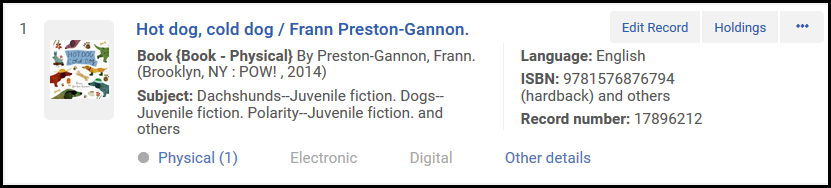
- Select Request. Aparece la página de Crear solicitud.
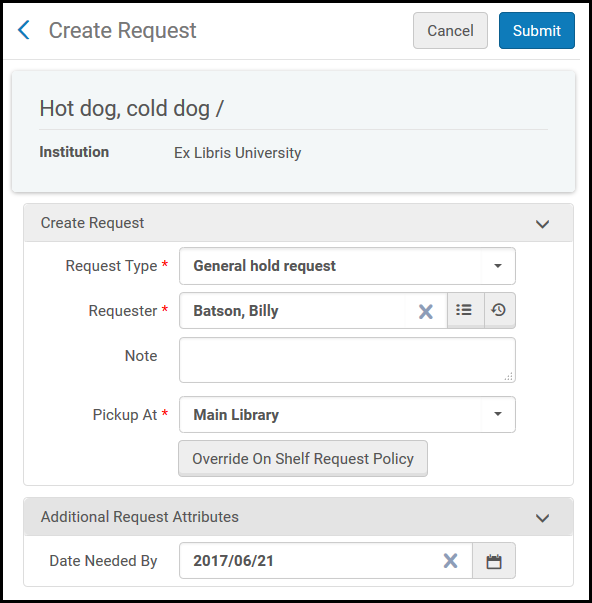
- In the Request/Process Type field, select General hold request. La página se actualiza.
- In the Requester field, select the user that is requesting the item.Para registros de varias partes, hay un campo obligatorio de "Existencias". One of the following fields needs to be filled; Chapter/Article Title, Chapter/Article Author, From, To, Volume, Issue, Part, Publication Date, Manual Description
- In the Pickup at field, select a location for the item to be picked up when it becomes available – this is the place where the Hold Request is created.
-
If the record you are requesting is serial and the holdings record includes a summary field, you'll need to enter information on the specific issue required. This can be done by filling in one of the descriptive fields (volume, issue, part, chapter/article title, etc.) or the manual description.
-
In the Additional Request Attributes section, you can select Date Needed By for a date by which the item is needed (if the request is not fulfilled by that time, it is canceled).
Esta sección no es obligatoria.
-
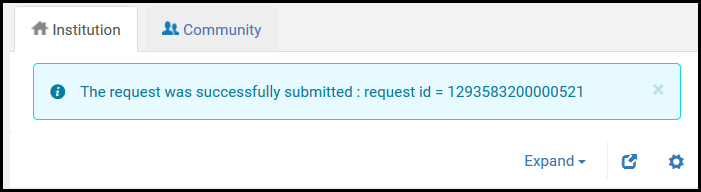
Select Submit. Un mensaje de confirmación aparece en la parte superior de la página, indicando que la solicitud fue enviada con éxito.
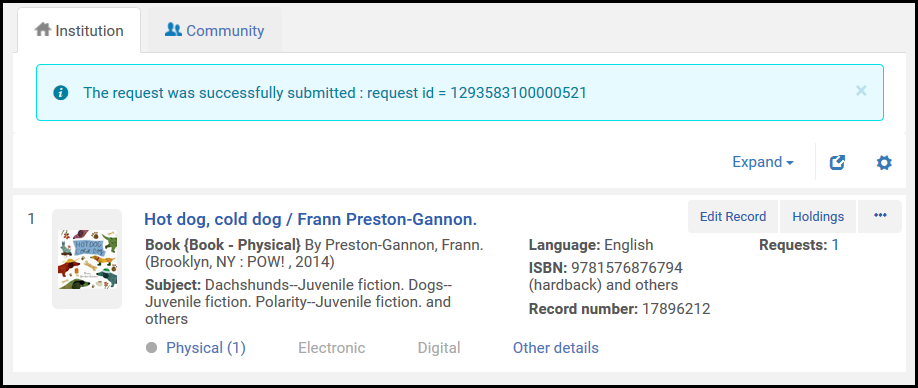
On the Resource Request Monitoring page (Fulfillment > Resource Requests > Monitor Requests & Item Processes), search for the request using the request ID displayed with the confirmation message. Aparece la solicitud con los siguientes valores:
- Paso del Flujo de trabajo = Recoger de la estantería
- Tipo de solicitud = Solicitud de reserva general
If you've entered descriptive fields, they appear as part of the manual description, to help librarians locate the required issue. Esta sección no es obligatoria.
- Crear un ejemplar y escanearlo en Alma de la siguiente manera:
- Ensure your location is the library that is managing the hold request (specified in the Managed by: value on the Resource Request Monitoring page; see Library/Desk Selector in The Persistent Menu).
- On the Scan In Items page (Fulfillment > Resource Requests > Scan In Items) select Create Item. Aparecerá el cuadro de diálogo Tipo de existencias.
- Select Existing and select Choose. The Quick Cataloging page appears.
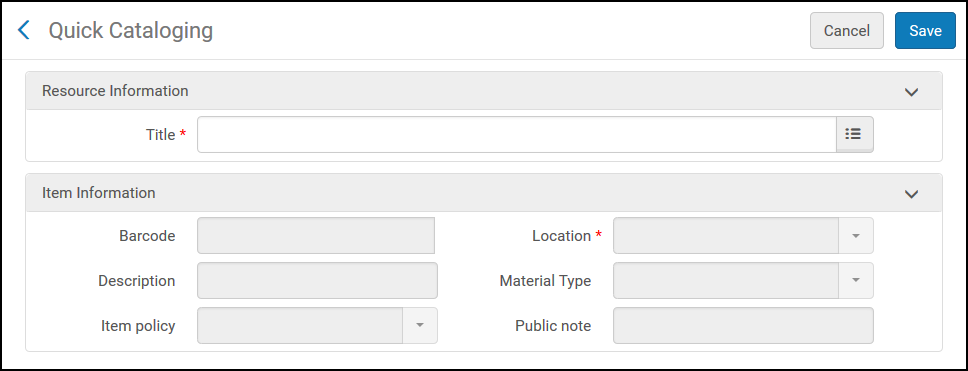
In the Title field, search for the title for which you created the General Hold Request. Seleccionar el título al que el nuevo ejemplar debe estar enlazado y completar la información pertinente del ejemplar.
The Library and Location fields are populated automatically with the library/location where the item is to be placed on the hold shelf. The barcode in step 9b is to be used.
- Select Save. Se crea el ejemplar.
The item is placed on the hold shelf of the specified library (if our location is indeed that library - otherwise the item is created with a transit request to the pickup library), and the item's Destination value on the Scan In Items page is On Hold Shelf. If the requested holding is a serial, a pop-up is displayed to indicate that the item may fulfill an existing request. The librarian can attach the new item to the request by selecting “Attach to request” in the row actions (as long as the item can indeed fulfill the request).
Se creará una orden de trabajo de Servicios técnicos de adquisición.
The work order creation mentioned above is not always the case since the general hold request has many variances depending on the workflow selected.
Creating a General Digitization Request
Para crear una solicitud de digitalización general, se debe tener la siguiente función:
- Operador de servicios al usuario
- Operador de solicitudes
Se crea una solicitud de digitalización general cuando se solicita una existencia que no tiene ejemplares. When the item is added/inserted into Alma, the request is set to Pickup from Shelf status. Una vez que se encuentra la copia exacta y escaneada, la solicitud sigue el flujo normal de una solicitud de digitalización.
For information on placing requests on issues that haven't been cataloged yet, see requesting non-cataloged serial items.
Para evitar o cambiar opciones de solicitudes de digitalización general para usuarios finales y personalizar la etiqueta en la pestaña Get It, haga las siguientes configuraciones respectivamente:
- Add rules for general digitization requests on the Discovery Interface Display Logic page (Configuration Menu > Fulfillment > Discovery Interface Display Logic > Display Logic Rules). For more information, see Configuring Display Logic Rules.
- Customize the label for the c.uresolver.getit2.digitize.noItems parameter on the Discovery Interface Labels Code Table page (Configuration Menu > Fulfillment > Discovery Interface Display Logic > Labels)or AlmaGeneralDigitization under Request options Labels in Primo VE. For more information, see Configuring Labels.
To create a general digitization request:
- Search for a title and locate a result that has a holding but no items.

- Select Request. Aparece la página de Crear solicitud.
- In the Request/Process Type field, select General digitization request. La página se actualiza.
- In the Requester field, select the user that is requesting the item.
- In the Part to Digitize field, enter the specific sections to be digitized.
- If the record you are requesting is serial, you'll need to enter information on the specific issue required. This can be done by filling in one of the descriptive fields (volume, issue, part, etc.) or the manual description.
- In the Managing Department field, select the department/desk that handles the digitization.
- In the Additional Request Attributes section, you can select Date Needed By to enter a date by which the item is needed (if the request is not fulfilled by then, it is canceled).
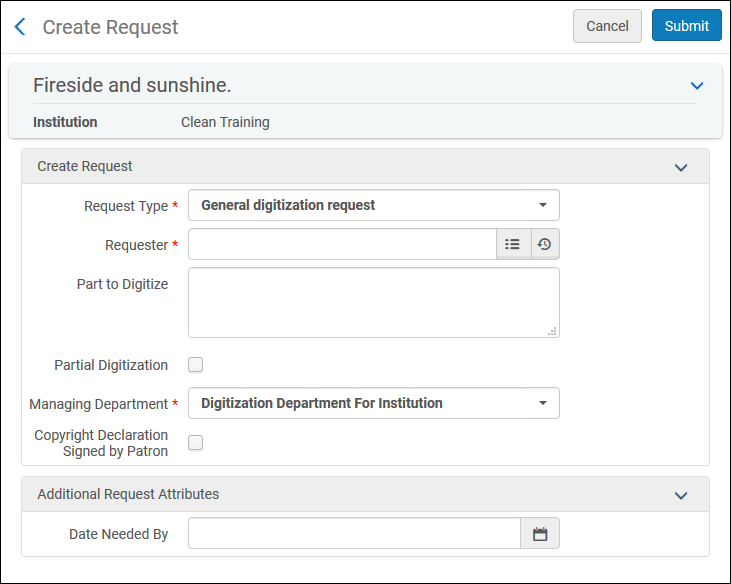
- Select Submit. A confirmation message appears at the top of the page, indicating that the request was successfully submitted.
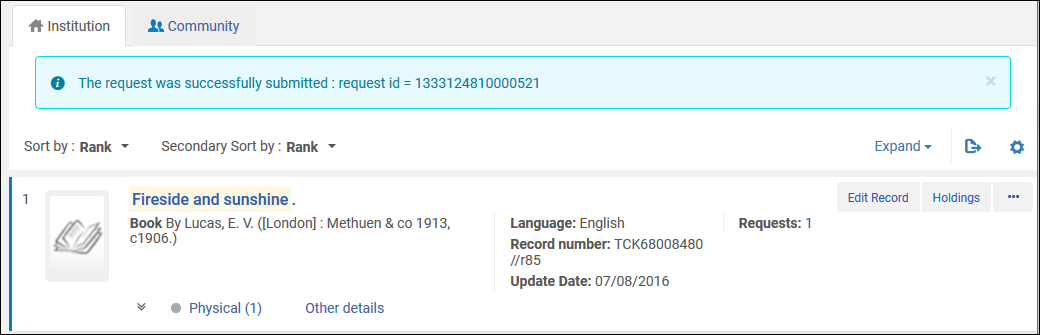
- On the Resource Request Monitoring page (Fulfillment > Resource Requests > Monitor Requests & Item Processes), search for the request using the request ID displayed with the confirmation message. Aparece la solicitud con los siguientes valores:
- Paso del Flujo de trabajo = Recoger de la estantería
- Tipo de solicitud = Solicitud de digitalización general
Si ha introducido la descripción manual, el volumen, fascículo, la parte o fecha de publicación, aparecen como parte de la descripción manual para ayudar a los bibliotecarios a ubicar el fascículo requerido.
- Fulfill the request: The general digitization request can be fulfilled in two ways (For more information, see:Digitizing Items):
- You can upload a file and send it without cataloging the item in Alma, using the Deliver Digital Documents page.
- Puede crear un ejemplar y escanearlo en Alma para adjuntarlo a la solicitud y procesar la solicitud de digitalización en un mostrador/departamento como se describe a continuación:
- Ensure your location is the library that is managing the digitization request (specified in the Managed by: value on the Resource Request Monitoring page; see Library/Desk Selector in The Persistent Menu).
- On the Scan In Items page (Fulfillment > Resource Requests > Scan In Items), enter a barcode in the Scan item barcode field and select Create Item. Aparecerá el cuadro de diálogo Tipo de existencias.
- Select Existing and select Choose. Aparecerá la página de Catalogación rápida. Select the title to which the new item should be linked, and fill in the relevant item information.
In the Title field, search for the title for which you created the General Digitization Request.
The Library and Location fields are populated automatically with the library/location where the item is to be placed on the hold shelf.
- Select Save. Se crea el ejemplar.
El ejemplar se coloca en tránsito en el departamento de digitalización y se activa el flujo de trabajo estándar para completar la solicitud de digitalización. If the requested holding is a serial, a pop-up is displayed to indicate that the item may fulfill an existing request. The librarian can attach the new item to the request by selecting Attach to request in the row actions.
(New for February 2026) You can assign a digitization priority level to a location (seeConfiguring Physical Locations).
Convertir automáticamente una Solicitud de reserva en una Solicitud de recursos compartidos
Para configurar políticas y Términos de uso de modo que se permitan conversiones automáticas, se debe tener uno de los siguientes roles:
- Administrador general del sistema
- Administrador de servicios al usuario
Para brindar un mejor servicio a los usuarios, las solicitudes incumplidas de reserva y de digitalización del usuario pueden ser convertidas en solicitudes de recursos compartidos. If the request has Automatically Convert to Resource Sharing set to true, and the request is going to be canceled due to execution of either of the jobs, Requests - Handle Expiration Step or Requests - Recalculate After Inventory Update, the request is converted.
Antes de la conversión, se efectúan las siguientes validaciones:
- El lugar de recogida es una biblioteca (no un mostrador de circulación) o entrega personal.
- La biblioteca de recursos compartidos necesita tener una relación de Entregar a con el lugar de recogida.
- Hay una ubicación por defecto para la biblioteca de recursos compartidos.
- La fecha que se necesita no puede estar en el pasado.
Si alguna de estas no es verdadera, la solicitud no se convertirá.
A cancelation letter with the reason Converted to Resource Sharing Request is sent to the patron when a hold request is converted to a resource sharing request. Existing requests are canceled with the cancelation reason Converted to Resource Sharing Request.
The status of new requests is Created borrowing request.
To set a policy for converting:
- On the Terms of Use and Policies table (Configuration Menu > Fulfillment > Physical Fulfillment > Terms of Use and Policies), select Add a Terms of Use.
- Select Request and select Next.
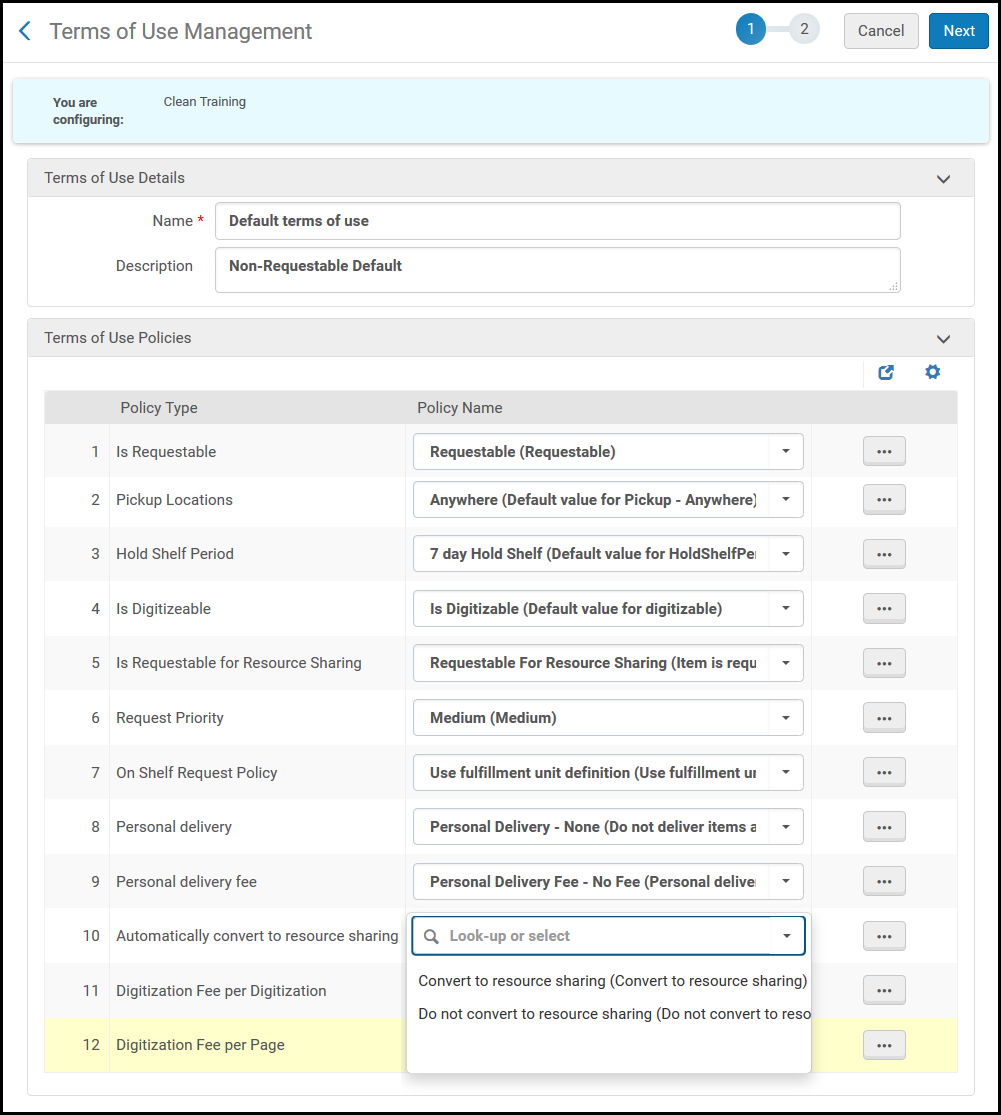
- From the drop-down box next to Automatically convert to resource sharing, select Convert to resource sharing, and select Next.
- Confirm the settings for this policy and select Save.
La política es activada solo si alguna de las tareas arriba mencionadas está activa y determina que una solicitud de reserva debe ser cancelada debido al vencimiento de un inventario físico existente y coincidente que puede satisfacer la solicitud.
Convertir manualmente una solicitud en una solicitud de recursos compartidos
You can manually convert a request to a resource sharing request from the search results - see Handling Processes and Requests for more information. You can also manually convert a request to a resource sharing request from the Pick Up Requested Resources and Resource Request Monitoring pages - see Pages for Managing Requests for more information.
Creating a Request for a Non-Cataloged Serial Item
Para crear solicitudes para ejemplares de publicación seriada no catalogados, se debe tener uno de los siguientes roles:
- Operador de servicios al usuario Administrador de servicios al usuario
- Operador de solicitudes
Cuando existe en la biblioteca un ejemplar de publicación seriada, pero aún no está catalogado en Alma, se puede igualmente crear una solicitud para el ejemplar; tras añadir el ejemplar al repositorio, se puede adjuntar el ejemplar a la solicitud.
Al crear la solicitud, se debe añadir manualmente una descripción. Al añadir el ejemplar al repositorio, se debe usar la misma descripción.
To create a request for a non-cataloged serial item when there are no items in the inventory:
- Search for a physical title or item of a serial item that is not in the inventory (see Searching in Alma).
- Select Request from the row actions list. Aparece la página de Crear solicitud.
- In the Request Type field, select General hold request.
- In the Requester field, select a requesting patron.
- In the Holding field, select a holding for the item.
- In the Manual Description field or one of the descriptive fields (volume, issue, part, etc.), enter a description for the request to identify the specific issue required.
- Select Submit. A confirmation message appears on the search results page.
To create a request for a non-cataloged serial item when there are items in the inventory:
- Search for a physical title or item of a serial item that is in the inventory (see Searching in Alma).
- Select Request from the row actions list. Aparece la página de Crear solicitud.
- In the Request Type field, select a request or process type other than Booking. The page refreshes.
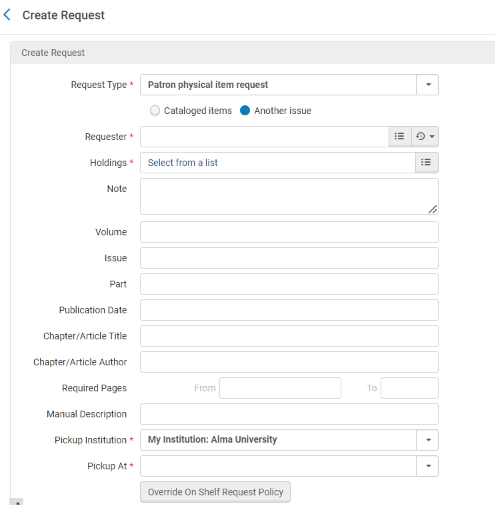
- Under the Request Type field, select Another issue. Note that for Primo VE, the Request other issue button only displays when an item is requestable. Alma randomly picks an item to evaluate for this purpose, since Alma assumes that all items are equally requestable or non-requestable.
- In the Requester field, select a requesting patron.
- In the Holding field, select a holding for the item.
- In the Manual Description field or one of the descriptive fields (volume, issue, part, etc.), enter a description for the request to identify the specific issue required.
- Select Submit. A confirmation message appears on the search results page.
To create an item and attach it to a request:
If a cataloged item is found that fits the request, it can be scanned in and attached to the request. Cuando se escanea un ejemplar de las existencias solicitadas, se notifica al operador que hay solicitudes que puede realizar, visualizar y adjuntar al ejemplar.
It is also possible to fulfill the request without scanning/adding an item, by uploading a file and sending it using the Deliver Digital Documents page (For more information, see:Digitizing Items).
Si el ejemplar requerido todavía no está catalogado, se puede agregar a Alma:
- On the Scan In Items Page (Fulfillment > Resource Requests > Scan In Items), select Create Item and select Existing in the resulting dialog box. Aparecerá la página de Catalogación rápida.
- In the Title field, browse for the relevant title. The Library and Location fields enable you to select the existing holdings of the title.
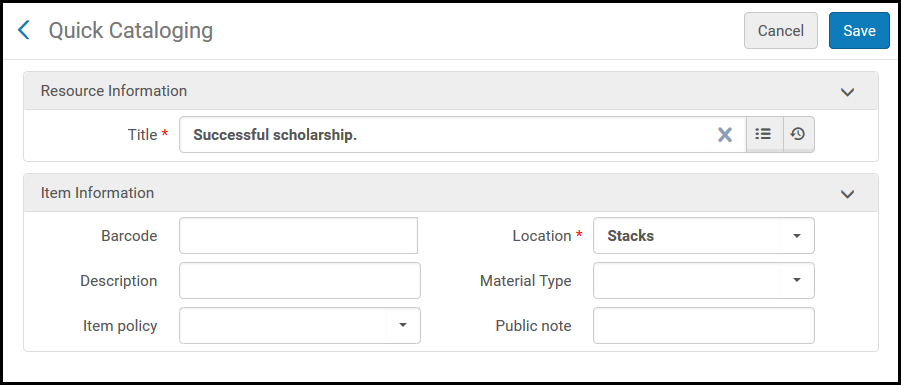
- In the Barcode field, enter a barcode for the item.
- In the Description field, enter the description of the issue you're cataloging.
- Optionally add a material type, item policy, and/or public note (see Configuring Item Display for Primo VE).
-
Select Save. El ejemplar aparece en la página de Escanear ejemplares.
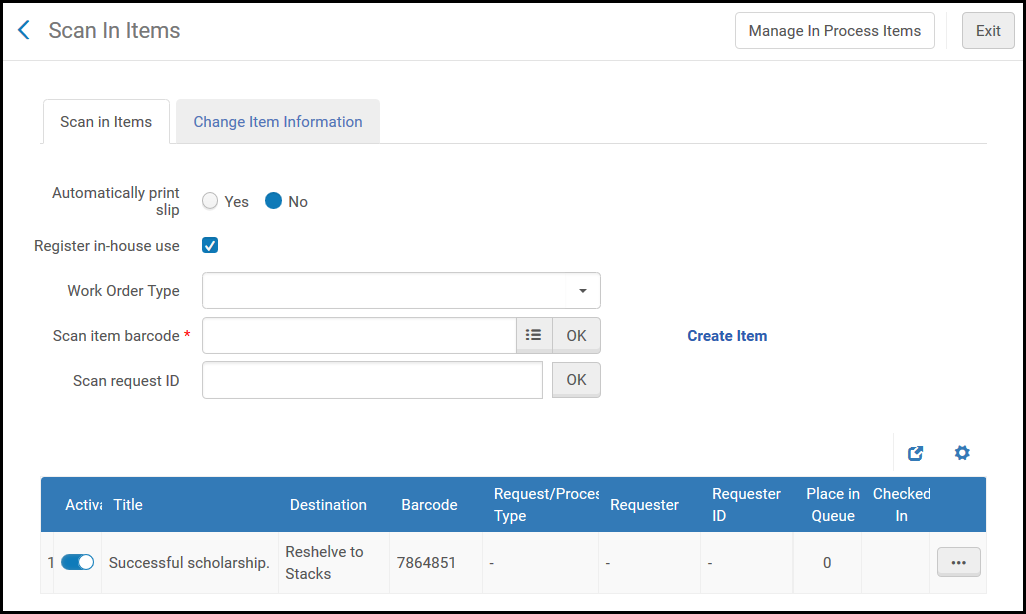
Se creará una orden de trabajo de Servicios técnicos de adquisición. Tenga en cuenta que solo se crea en el caso de crear un nuevo registro bibliográfico.
- Select Work Order from the row actions list for an item on the List of Items page, which appears when selecting Items for a physical titles search result. For details on the List of Items page, see Working with the List of Items.
- Select Attach to Request from the row actions list. A dialog box appears, where you select the request's title to attach.
- Select the checkbox for the title, and select Attach. La página de Escanear ejemplares muestra el ejemplar escaneado. The item's destination (for Patron physical item requests) is the request destination (the item's pickup location).
Supporting Personal Delivery for Requests
Para configurar Alma para que admita la entrega personal para las solicitudes, se debe tener uno de los siguientes roles:
- Administrador general del sistema
- Administrador de servicios al usuario
Alma admite la entrega personal de ejemplares físicos solicitados en el domicilio o la oficina de un usuario. When an item is scanned in at a desk that can fulfill such a request (according to the configuration detailed below), the item is automatically checked out to the patron, and a Ful Personal Delivery Letter as well as a Loan Receipt Letter are sent to the patron. Si el préstamo no se activa (por ejemplo, debido a una sanción del usuario), el ejemplar permanece en el estante de reservas.
No se puede solicitar la entrega personal a través de la Red de servicios al usuario automatizada.
To enable and use this functionality, the Fulfillment Unit rules must be configured in addition to TOUs (see Configuring Physical Fulfillment).
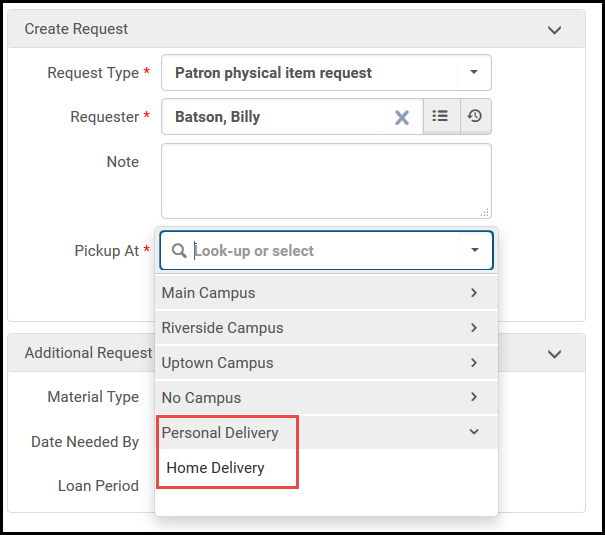
Para activar y usar esta funcionalidad, debe configurarse lo siguiente:
- The Supports personal delivery option must be configured at a circulation desk that can loan the item (can perform checkout for the location). Este mostrador de circulación también debe tener un estante de reservas para mantener el ejemplar si falla el préstamo. For more information, see Adding a Circulation Desk. Si hay más de un mostrador de circulación, entonces la lista de recogida se crea de forma aleatoria en uno de los mostradores.
- A Personal delivery request policy must be attached to the terms of use to allow personal delivery of items. In addition, you can configure a Personal delivery fee request policy to include delivery fees. For more information, see Configuring Terms of Use.
- No debe haber sanciones de usuario impidiendo la entrega en domicilio/oficina. Si hay sanciones de usuario, el ejemplar es enviado a la estantería de reservas. Si las sanciones son eliminadas, el usuario puede entonces recibir el ejemplar de la estantería de reservas.
- Addresses with types Home or Office must be configured in the requesting user's User Details record. For more information, see Managing User Contact Information. In addition, the institution can configure additional address types for personal delivery locations. For more information, see Configuring Additional Personal Delivery Locations.
- Para que la entrega personal se realice cuando se escanea un ejemplar en el mostrador de otra biblioteca, esta debe permitir que otras bibliotecas gestionen la entrega personal. Esto también requiere la capacidad de la biblioteca de escaneo para gestionar la entrega personal (tener un mostrador de circulación principal que admita la entrega personal) y tener una relación con el propietario del ejemplar. See Editing a Library.
Un ejemplar que se retira de un estante para cumplir una solicitud de entrega personal se pone en tránsito en un mostrador configurado para admitir la entrega personal. Si el mostrador en el que el ejemplar es escaneado no admite entrega personal, el ejemplar es transferido a un mostrador de la biblioteca propietaria del ejemplar que sí admite entrega personal.
For more information about configuring home/office personal delivery, see the Home and Office Delivery video (7:52 min).
