
Digitization Processing
Approving/Rejecting a Request for Digitization
Para aprobar las solicitudes de digitalización se deberá tener el siguiente rol:
- Administrador de servicios al usuario
This page describes how to work with digital files including the basic workflow, delivering digitized items to patrons, attaching digitized items to send to a patron, etc. It also describes the managing of digitization using the Actions menu for cancelling requests, changing physical requests to electronic and vice versa, using View it for the Alma Link Resolver, etc. For a full overview of the requests workflow starting from the different ways a request can enter into the Alma system through to scanning and final processing, see Resource Requests Workflow.
For links to all the main fulfillment documentation pages see Fulfillment.
Para gestionar la digitalización de un ejemplar se deberá tener el siguiente rol:
- Operador de órdenes de trabajo
- Administrador de servicios al usuario
A patron or staff member can request the creation of a digital file for any physical or electronic item (see Creating a Request).
Physical items are transferred from their library location to the digitization department (see Configuring Digitization Departments), where they are scanned and digital files are created. Los ejemplares electrónicos se digitalizan al ubicarlos en el repositorio y guardarlos en formato digital.
El archivo digital se entrega a uno de los siguientes:
- Institución – La institución posee y gestiona el archivo digital como parte del repositorio. El acceso al archivo se controla mediante derechos de acceso.
- Usuario – El usuario recibe el archivo digital o un enlace al archivo digital en un correo electrónico.
Se puede solicitar la digitalización de todo el ejemplar, un capítulo, un rango de páginas o un artículo dentro del ejemplar.
For more information, see Digitization Request (2:13 min.).
Digitization Department Workflow for a Physical Item
A continuación se puede ver una ilustración del flujo de trabajo típico de un departamento de digitalización, tras haberse solicitado la digitalización del ejemplar. Se empieza con la llegada del ejemplar al departamento de digitalización, mediante la creación de su archivo digital y la entrega del archivo digital.
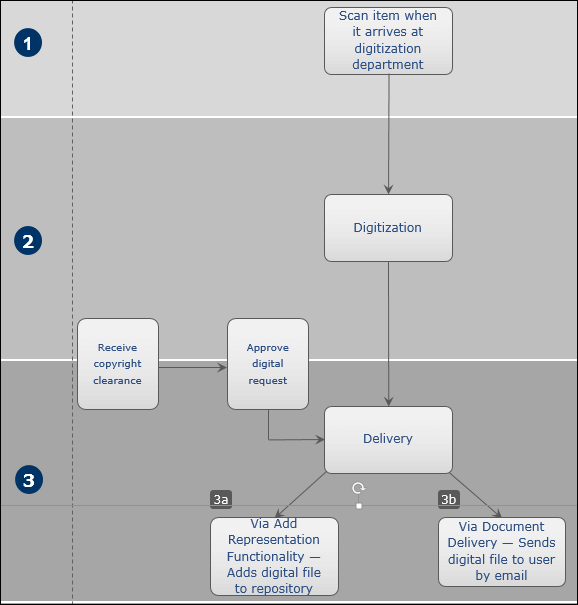
A continuación se detalla una descripción de los pasos a seguir dentro de este flujo de trabajo (los números se corresponden con los números del diagrama):
-
The workflow commences when the requested physical item arrives at the digitization department and its barcode is scanned (see Scanning Items). The item acquires the status Digitization. For information on requests to digitize physical items, see Creating a Request.
Upon arrival of the physical item, the digitization request is sent for review to determine whether there are elements that require special attention based on the review rules preconfigured by an administrator (see Configuring Digitization and Copyright Rules). Estas incluyen:
- Autorización de derechos de autor – En caso necesario, la biblioteca recibe una licencia de derechos de autor (por ejemplo, del Centro de servicios de autorización de derechos de autor) para reutilizar contenidos protegidos por derechos de autor.
- Aprobación – La solicitud se aprueba y el proceso de digitalización continúa.
- Rechazo – Se rechaza la solicitud. Se especifica la razón del rechazo.
- La aprobación de una solicitud de digitalización puede tener lugar en cualquier punto del flujo de trabajo de digitalización, pero debe realizarse antes de la etapa de Entrega. For details on approving/rejecting a request, see Approving/Rejecting a Request for Digitization.
- La notificación al solicitante no se envía hasta que la solicitud se aprueba.
- The item is digitized (see Digitizing Items).
- The request proceeds to the delivery stage (see Delivery of Digitized Items). La entrega se gestiona de una de las siguientes maneras:
- By the Add Digital Representation functionality (see Adding a Representation). El archivo digital se puede buscar en la aplicación Primo.
- By the Document Delivery – Attachment – An email is sent to the requesting patron with the digital file as an attachment (see Attaching Digitized Items to Be Sent to a Patron).
- By the Document Delivery – Link – An email is sent to the requesting patron with a link to download the digital file (see Attaching Digitized Items to Be Sent to a Patron).
The delivery method is defined by preset rules (see Configuring Digitization and Copyright Rules).
For more information, see Digitization Requests Flow.
Approving/Rejecting a Request for Digitization
Para aprobar las solicitudes de digitalización se deberá tener el siguiente rol:
- Administrador de servicios al usuario
You must approve or reject digitization requests when digitization and copyright rules determine that approval is required (see Configuring Digitization and Copyright Rules) or when a copyright approval task is specifically requested, such as for a citation (see Adding Citations to a Reading List).
Las solicitudes de digitalización se pueden aprobar en cualquier momento del flujo de trabajo de digitalización, pero la entrega no se puede completar hasta que se otorgue la aprobación.
You approve or reject digitization requests on the Approval Requests List page (Fulfillment > Resource Requests > Approval Requests List). You can also view this page by selecting the task Requests - Digitization - need approval in the Tasks List in the persistent menu ( see Tasks in the Tasks List) or after selecting Save and Manage Approval on the Edit Reading List Citation page (see Managing Citations).
To filter citations by relevance, use the Creation date filter. El rango mostrado por defecto son las solicitudes del año más reciente.
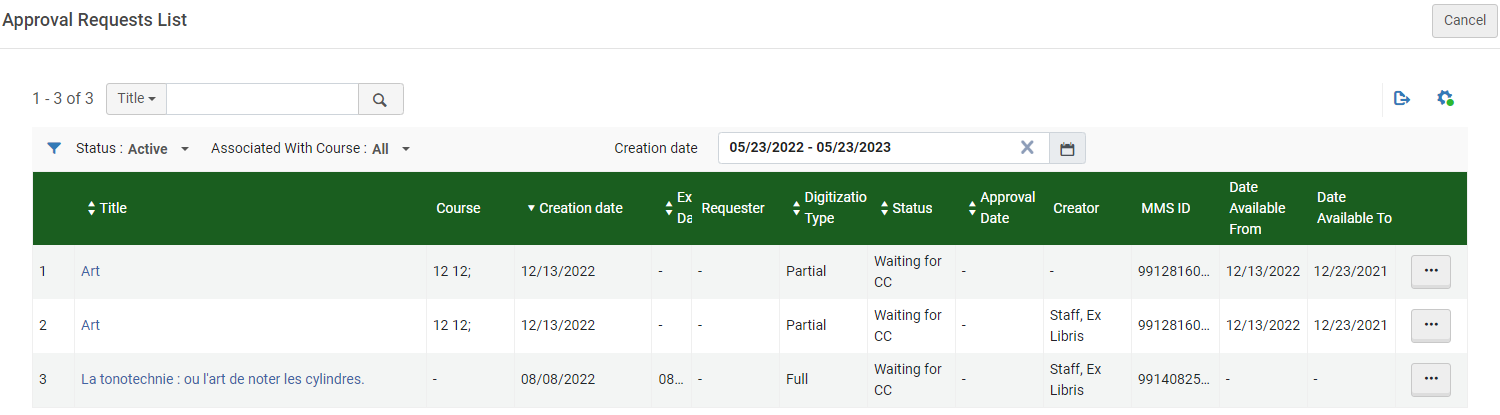
Se pueden realizar las siguientes acciones en esta página:
-
Filter the requests- In addition to the Status and Associated With Course filters, you can select Filter by this Record from the row actions list in a request row to view only requests for that record, including all other requests for the same MMS ID, ISBN (ISBN/10 or ISBN/13 are both returned), or ISSN/Volume/Issue. En el último caso aparecerán los ejemplares sin fascículo pero con el mismo ISSN y volumen, o sin volumen y sin fascículo pero con el mismo ISSN.
When entering this page after selecting Save and Manage Approval on the Edit Reading List Citation page,Filter by this Record is selected by default.
- Update the request's expiration date - Select Update Expiry from the row actions list to open the Update Expiration Date dialog box. Change the request expiration date and select Save. Esta acción solo será posible si la solicitud ya tiene una fecha límite.
- Approve or reject the request - See below.
-
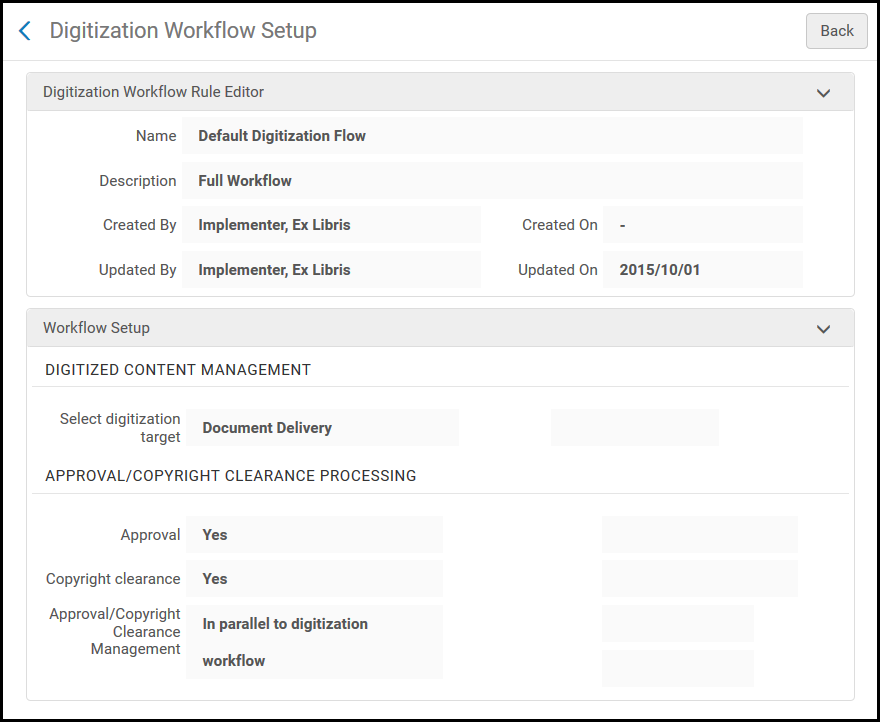
View relevant digitization and copyright rule - To view the digitization and copyright rule that resulted in this request requiring manual approval (instead of being automatically approved or rejected), select View Rule from the row actions list. Aparecerá una versión de lectura de la página Configuración del flujo de trabajo de digitalización, que contendrá información sobre la regla que ha causado la aprobación manual de esta solicitud.
For a video on how to find and monitor requests, as well as how to fulfill them, see Digitization Request Management (4:24 min.).
To approve/reject a request for digitization:
- On the Approval Requests List page, select View or Work on from the row actions list of the item you want to approve. The Approval Requests List page appears, displaying details of the item.
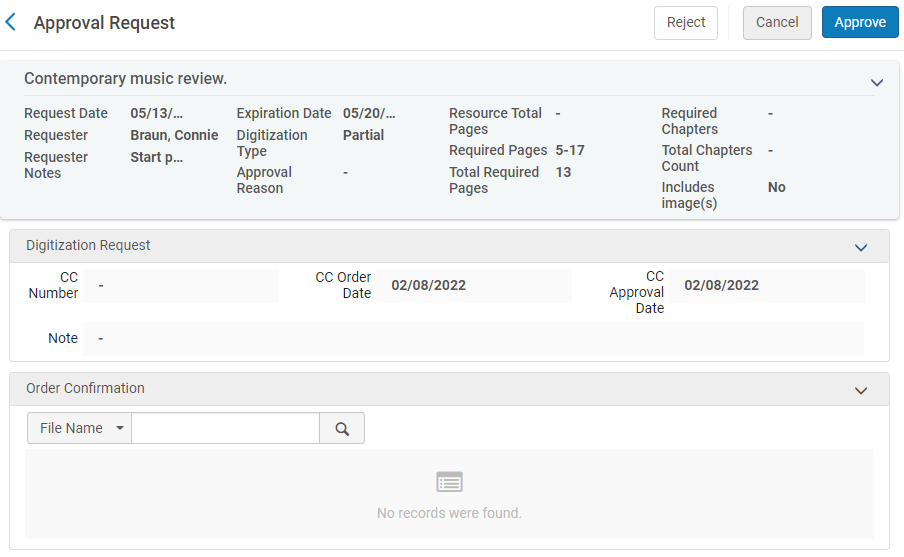
- If you selected Work On, you can modify the necessary fields, as described in the following table:
Cambios de la solicitud de aprobación
Sección Nombre Descripción Solicitud de digitalización
These fields are mandatory if the request requires copyright clearance.
Número CC El número del centro de autorización de derechos de autor. El número indica que la biblioteca tiene licencia para utilizar el contenido protegido por derechos de autor. Fecha del pedido de CC La fecha en que se pidió la autorización de derechos de autor Fecha de aprobación de CC La fecha en que se aprobó la autorización de derechos de autor Nota Notas de usuarios Order Confirmation
(not mandatory)Optionally, the library can attach a copyright confirmation (e.g. CCC confirmation) in the Order Confirmation section. Note that if you select Cancel after adding an attachment, the attachment remains and can be worked on later. After the attachment is uploaded, you can select Actions in the row of an attachment to:
- Edit – Edit the attachment, including uploading a different file
- Delete – Delete the attachment
- Download – Download the file
- Aprobar o rechazar la solicitud de digitalización:
- Select Approve to approve the digitization request. On the Approve the Request page, select a reason from the Reason drop-down list, enter any notes in the Notes field, and select Submit. La lista de razones son:
- Automático
- Cubierto por la licencia
- Licencia Creative Commons
- Se ha obtenido permiso directo
- Excepción legal
- Acceso abierto
- Otro
- Agotado
- Prepublicación
- Licencia principal
- Autodeclarado
- Select Reject to reject the request. On the Rejection Request page, select a reason from the Reason drop-down list, enter any notes in the Notes field, and select Submit. The approver's decisions are saved for the digital file. La lista de razones son:
- Otro
- Rechazado por el gestor
- Rechazado por CCC
Si se rechaza la solicitud, no se creará el archivo digital y se notificará al solicitante que se ha rechazado la solicitud. The rejection email only sends 254 characters in the body of the email, but you can manually enter more.
- Select Approve to approve the digitization request. On the Approve the Request page, select a reason from the Reason drop-down list, enter any notes in the Notes field, and select Submit. La lista de razones son:
Digitizing Items
To start the digitization process, ensure that you are at the digitization department that currently holds the item; see Library/Desk Selector in The Persistent Menu.
Digitization is configured on the In Process Items page (Fulfillment > Resource Requests > Manage In Process Items). You can also view this page by selecting one of the following tasks the Tasks List in the persistent menu ( see Tasks in the Tasks List):
- Ítems - depósito
- Ítems - digitalización
- Ítems - entrega de documentos
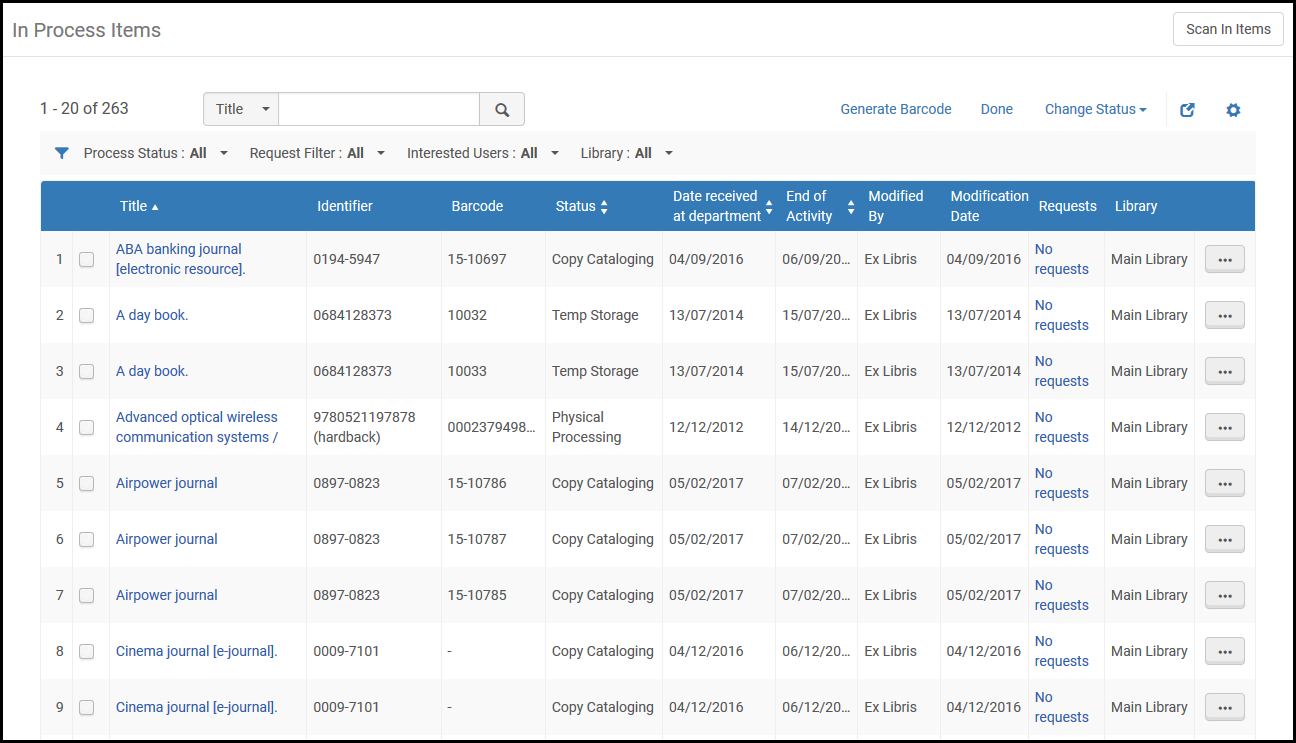
The In Process Items page can also be accessed on the Scan In Items page (Fulfillment > Resource Requests > Scan In Items) by selecting Manage In Process Items. For details on the Scan In Items page, see Scanning Items.
La página Ejemplares en proceso muestra solicitudes de digitalización de usuarios y/o personal. The type of request appears in the Status column.
To digitize physical items:
-
From the In Process Items page, locate an item with the Digitization status.
An item has this status after: a) it has a digitization request attached to it and b) it is then scanned in at the digitization department.
- Select Next Step from the row actions for the item. The status changes to Digital Inventory or Document Delivery depending on the digitization configuration (see Configuring Digitization and Copyright Rules).
Next Step appears only when the current status is Digitization.
For details on delivery of digitized items, see Delivery of Digitized Items.
No es necesario crear un ejemplar cuando maneje una digitalización o digitalice otra solicitud de fascículo. Sin embargo, si no se crea un ejemplar ni se anexa a la solicitud, no se aplican los términos de uso como, por ejemplo, las cuotas de digitalización (que se aplican según el ejemplar).
Las cuotas se aplican de la siguiente manera:
- If the request is attached to an item, use the item's terms of use, as is currently done in the digitization task list.
- If the request is attached to a holding with items, use the first item that has an is digitizable = true policy. Si no se pueden digitalizar los ejemplares, los términos de uso de la digitalización no son relevantes, incluida la cuota.
- Para solicitudes generales de digitalización donde no existen ejemplares, no se añaden las cuotas de digitalización a menos que el operador cree un ejemplar y lo adjunte a la solicitud.
Delivering Digitized Items to the Patron
After digitizing items (see Digitizing Items), you send the digital file to the requester or add it to the inventory of the institution. Before performing digitization delivery, ensure that you are at a digitization department; see Library/Desk Selector in The Persistent Menu.
Si no entrega el fichero a través de Alma, sino que lo entrega externamente, puede eliminar la solicitud de la lista de tareas cancelando la solicitud. In this case, clear the Notify User check box.
Delivery of digitized items is configured on the In Process Items page (Fulfillment > Resource Requests > Manage In Process Items).
The In Process Items page can also be accessed on the Scan In Items page (Fulfillment > Resource Requests > Scan In Items) by selecting Go To Manage Department Items. For details on the Scan In Items page, see Scanning Items.
Hay dos formas de entregar ejemplares digitalizados al usuario, según se describen a continuación. Observe que la segunda forma que usa la página de Entrega de documentos es un flujo alternativo más eficiente.
Delivering Digitized Items Using the Task List
Delivery of digitized items is configured on the In Process Items page (Fulfillment > Resource Requests > Manage In Process Items).
For items with a status of Digital Inventory, select Add digital inventory from the row actions list to open the Representation Details page (see Adding a Representation).
Los ejemplares con estado de Entrega de documento podrán enviarse como adjuntos de correo electrónico o enlaces, dependiendo de cómo se hayan configurado las Reglas de digitalización y derechos de autor.
-
For items waiting for an attachment-based document delivery, select Attach documents from the row actions list to open the Attachments page and attach digitized items to be sent as attachments to the requesting patron (see Attaching Digitized Items To Be Sent To a Patron).
-
For items waiting for a link-based document delivery, select Upload documents from the row actions list to upload digitized items to be sent as links to the requesting patron (see Attaching Digitized Items To Be Sent To a Patron).
For more information on links in Alma document delivery, see the More Information About Digitization Requests - Document Delivery Using Links video (12:23 min.).
Adjuntar los documentos a enviar al usuario solicitante en la página de Adjuntos. The Attachments page is visible when you select Attach Documents from the row actions for an item on the In Process Items page.
- To add an attachment, select Browse in the File name field and select a file. Add a URL and/or note, if required, and select AddAttachment. El adjunto aparece en la lista de adjuntos de la pestaña Adjuntos.
- To edit an attachment, select Edit from the row actions list for the attachment that you want to update, modify the File name,URL, and Notes fields as required, and select Save Attachment.
- To delete an attachment, select Delete from the row actions list for the attachment that you want to delete and select Confirm in the Confirmation Message pop-up window.
- To download a file, select Download from the row actions list for the file that you want to download, specify the folder to which you want to save the file, and select OK.
- Click Refresh to see the upload status of your file.
- Click Done to complete the digitization process.
Si la solicitud de digitalización necesita aprobación, los correos electrónicos de notificación descritos a continuación se enviarán solamente tras la aprobación de la solicitud.
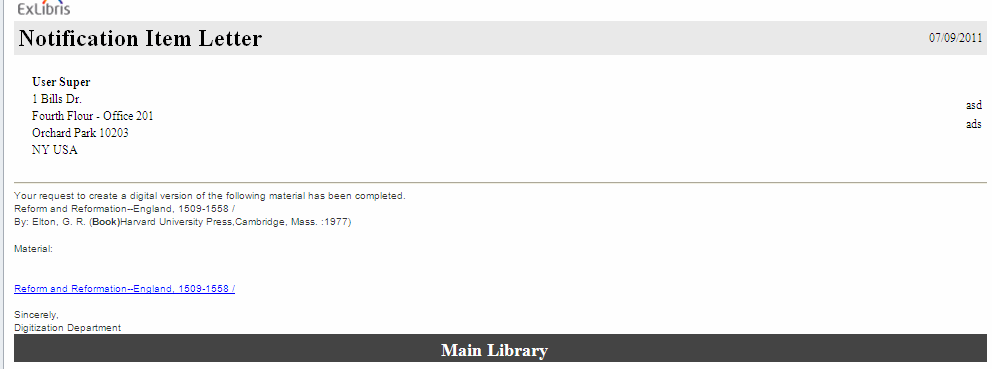
- If the delivery method is Attach Documents - Attachment, the patron receives the digital file as an email attachment. An example of the Ful Digitization Notification Item letter follows.
-
If the delivery method is Attach Documents - Link, the patron receives a link to download the file in an email. Utilizar este método reducirá el tamaño del correo electrónico y permitirá gestionar más recursos digitales en una única solicitud. An example of the Document Delivery Notification Letter follows.
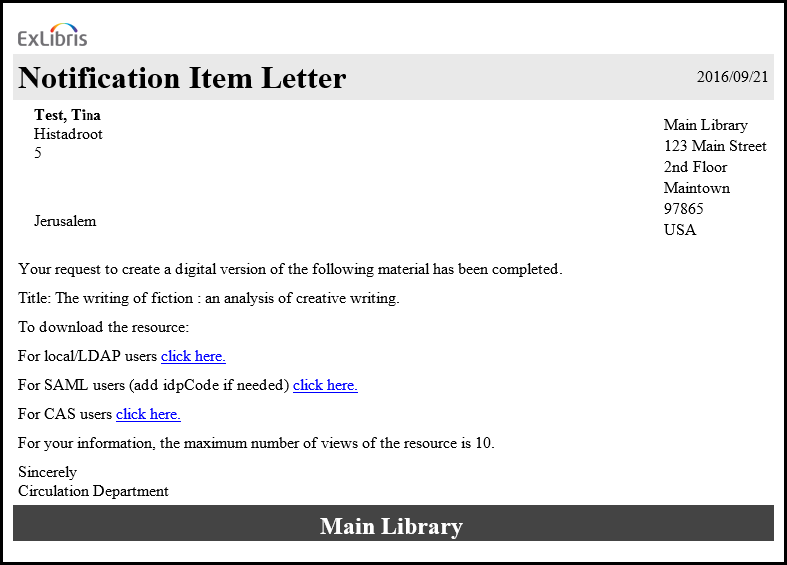
El administrador de la biblioteca debe configurar el correo electrónico para que incluya solamente la opción de inicio de sesión relevante para su institución (local/LDAP, SAML o CAS). When selecting the relevant select here link, the patron will first be required to log in using the standard Alma/Primo credentials. Tras iniciar la sesión correctamente, el usuario tendrá acceso a los ficheros digitalizados que estén guardados en la carpeta de almacenamiento de documentos. Téngase en cuenta que el acceso quedará limitado a la cantidad de veces configurada en la regla de digitalización y derechos de autor, y que los archivos se eliminarán automáticamente del lugar de almacenamiento tras el número de días configurado. This value is defined in the document_delivery_cleanup_days parameter. See Configuring Other Settings.
-
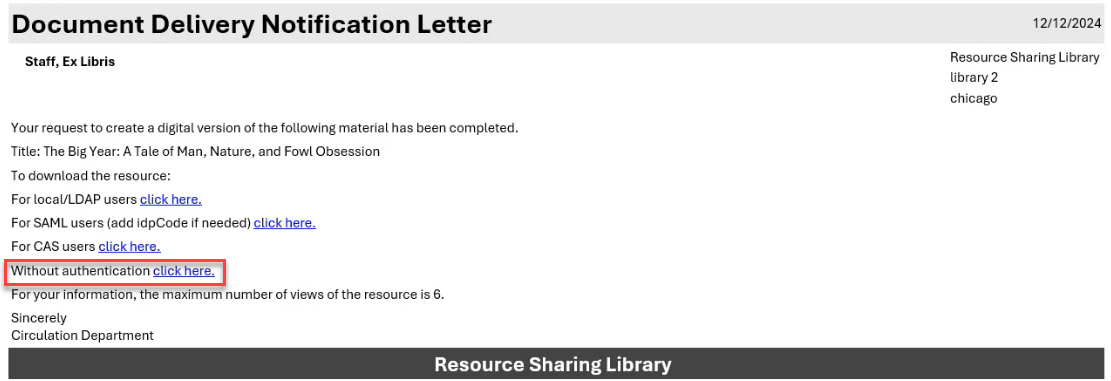
Las bibliotecas pueden incluir un enlace en el correo electrónico de la Carta de notificación de entrega de documentos que no requiera autenticación. Digital requests that are not subject to copyright restrictions can be accessed without first authenticating. Este enlace puede proporcionar acceso tanto a recursos gestionados localmente (del lado del prestatario) como remotamente (del lado del prestamista).
When the parameter rs_no_authentication_document_delivery(Configuration > Fulfillment > General > Other Settings) is set to true(default false), and the label without_authentication(Configuration > General > Letters > Letters Configuration > Document Delivery Notification Letter) is enabled, the Without authentication link is included in the Document Delivery Notification Letter and does not require user authentication when opening the link.
- If the delivery method is Digital Inventory (representation), the digital file is made available in the repository under the same title (items attached to the same bib record) as the physical item, and can then be requested by a patron.
El límite de tamaño de los ficheros es de 25 MB tanto para las solicitudes de digitalización de enlaces como de ficheros adjuntos. Aparecerá un mensaje si se ha alcanzado el límite de tamaño total del fichero digital. Si el material digitalizado se envía como un fichero adjunto a un correo electrónico, puede haber otras limitaciones relacionadas con el correo electrónico.
Delivering Digitized Items Using the Document Delivery Page
An alternative, streamlined flow allows you to upload and deliver from anywhere. Los usuarios con los siguientes roles pueden acceder a este proceso:
- Operador de servicios al usuario
- Gerente de servicios al usuario
- Operador de solicitudes
- Gerente del mostrador de circulación
- Operador del mostrador de circulación
- Operador del mostrador de circulación - Limitado
- Operador de órdenes de trabajo
All digital documents can be delivered on the Document Delivery page (Fulfillment > Resource Requests > Deliver Digital Documents) without needing to work through the complete Pick from Shelf workflow. Este proceso no se aplica a la adición de representaciones. After entering the request ID, you can view the item's information (in the summary tab), and add as many files as necessary and up to one URL. Once the files are added and you select Done, Alma verifies the sending parameters based on the digitization rules in Digitization and Copyright Rules, and sends an email to the patron. If there is an attachment and you have selected a file over 25MB, a warning is displayed. Si los ficheros se entregan al usuario por medio de un enlace, no hay límite en el tamaño del fichero. Los ficheros temporales de sistema no se pueden añadir como adjuntos. If Shipping Terms of Use were configured for the library, then you can select the relevant option from the Shipping Terms of Use drop down list (see Configuring Shipping Terms of Use). Los términos de uso se incluirán en el mensaje Enviado si se utiliza la comunicación de igual a igual basada en ISO, o en el correo electrónico, si el tipo de socio es Correo electrónico.
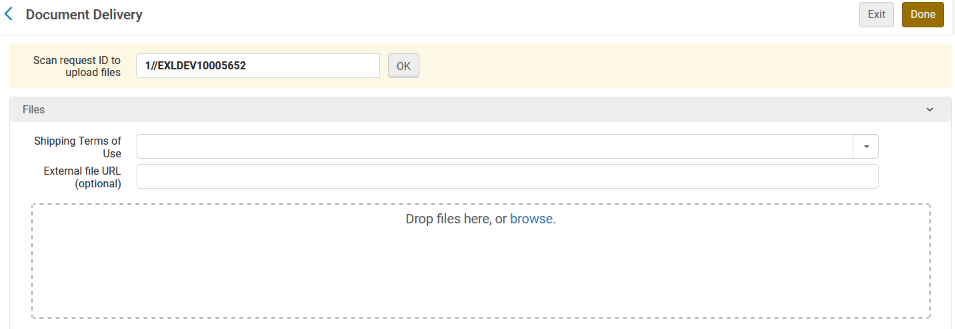
An Alma borrower that receives the Shipped message with a communicated terms of use will notice a note about the terms of use attached to the borrower request. El contenido digital, incluso si se comparte a través de Rapid ILL o a través de Alma como un enlace, no se reenviará automáticamente al usuario. En su lugar, se requerirá la mediación del personal para que el usuario pueda acceder al fichero.
To configure the digital shipping terms of use see Configuring Digital Shipping Terms of Use. For receiving of digitally sent requests in peer to peer resource sharing see Peer to Peer Resource Sharing.
Managing the Digitization Requests for Actions
You can also choose from the following options on the Actions menu:
- Edit – The In Process Items: Request Management page appears.
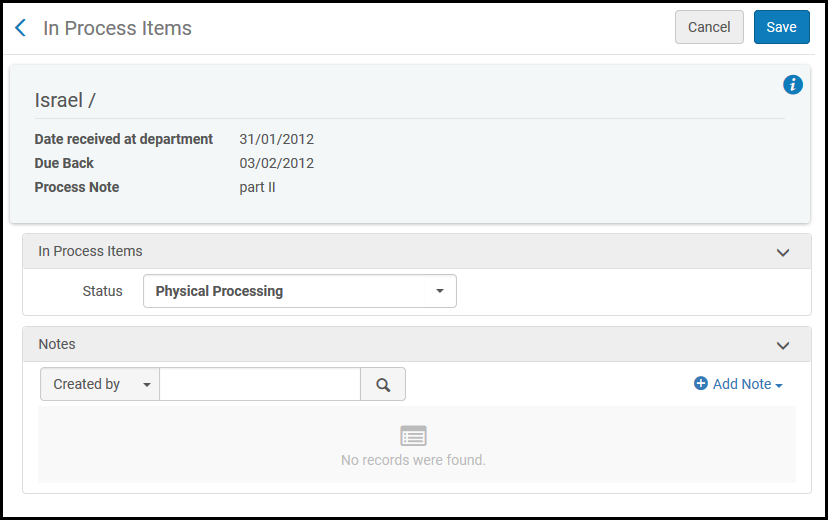 Ejemplares en proceso: página Gestión de solicitudes
- Optionally, in the Status field, select a status from the drop-down list. También se puede ver o añadir una nota.
- To add a note, select Add Note and type your note. La nota se muestra en la lista de notas de la página.
- To edit a note, select Edit from the row actions list for the note that you want to update, modify the note on the Edit Note page, and select Save.
- To delete a note, select Delete from the row actions list for the note that you want to delete and select Confirm in the Confirmation Message pop-up window.
- To locate a note in the list of notes, enter the text for which you want to search in the Find box and select the field –Created by,Updated by, or Note – in which you want to search for this text.
- Cancel request – The Confirm Request Cancellation page appears.
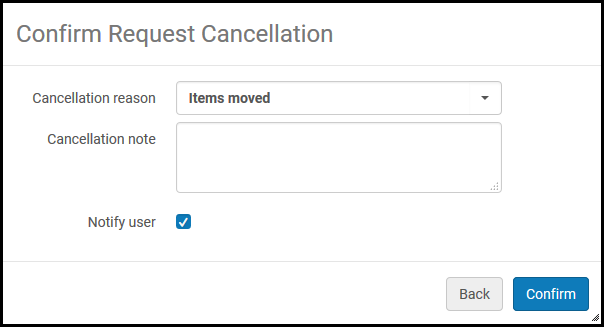 Página Confirmar solicitud de cancelación
- In the Cancellation reason field, select a reason for cancellation from the drop-down list. Para personalizar las razones de cancelación, es necesario ponerse en contacto con el soporte de Ex Libris.
- In the Cancellation note field, add a note on the cancellation as needed.
- Select the Notify User check box to have a notification of the cancellation sent to the user.
- Select Confirm.
- Change to Electronic Digitization – Change the request from being a request to digitize a physical resource to a request to digitize an electronic resource. Solo se puede cambiar cuando hay un ejemplar electrónico en el inventario que pueda satisfacer la solicitud.
- Change to Physical Digitization – Change the request from being a request to digitize an electronic resource to a request to digitize a physical resource. Solo se puede cambiar cuando hay un ejemplar físico en el inventario que pueda satisfacer la solicitud.
- View it – The UResolver Screen (Alma Link Resolver) page appears, displaying resources for the item. Esta opción solo aparece si el artículo se ha configurado para digitalización electrónica.
Attaching Digitized Items to Be Sent to a Patron
Adjuntar los documentos a enviar al usuario solicitante en la página de Adjuntos. The Attachments page is visible when you select Attach Documents from the row actions for an item on the In Process Items page.
- To add an attachment, select Browse in the File name field and select a file. Add a URL and/or note, if required, and select AddAttachment. El adjunto aparece en la lista de adjuntos de la pestaña Adjuntos.
- To edit an attachment, select Edit from the row actions list for the attachment that you want to update, modify the File name,URL, and Notes fields as required, and select Save Attachment.
- To delete an attachment, select Delete from the row actions list for the attachment that you want to delete and select Confirm in the Confirmation Message pop-up window.
- To download a file, select Download from the row actions list for the file that you want to download, specify the folder to which you want to save the file, and select OK.
- Click Refresh to see the upload status of your file.
- Click Done to complete the digitization process.
Si la solicitud de digitalización necesita aprobación, los correos electrónicos de notificación descritos a continuación se enviarán solamente tras la aprobación de la solicitud.
-
If the delivery method is Attach Documents - Attachment, the patron receives the digital file as an email attachment. An example of the Ful Digitization Notification Item letter follows.
- If the delivery method is Attach Documents - Link, the patron receives a link to download the file in an email. Utilizar este método reducirá el tamaño del correo electrónico y permitirá gestionar más recursos digitales en una única solicitud. An example of the Document Delivery Notification Letter follows.Carta de notificación - Enlace de documento
El administrador de la biblioteca debe configurar el correo electrónico para que incluya solamente la opción de inicio de sesión relevante para su institución (local/LDAP, SAML o CAS).
When selecting in the relevant select here link, the patron will first be required to log in using the standard Alma/Primo credentials. Tras iniciar la sesión correctamente, el usuario tendrá acceso a los archivos digitalizados almacenados en la carpeta de almacenamiento de documentos. Téngase en cuenta que el acceso quedará limitado a la cantidad de veces configurada en la regla de digitalización y derechos de autor, y que los archivos se eliminarán automáticamente del lugar de almacenamiento tras el número de días configurado. This value is defined in the document_delivery_cleanup_days parameter. See Configuring Other Settings.
- If the delivery method is Digital Inventory (representation), the digital file is made available in the repository under the same title (items attached to the same bib record) as the physical item, and can then be requested by a patron.
For both link digitization requests and attachment digitization requests, the file size limit is 25 MB. Aparecerá un mensaje si se ha alcanzado el límite de tamaño de archivo digital total. Podrán existir otras limitaciones relacionadas con los correos electrónicos si se envían los materiales digitalizados con adjuntos de correo electrónico.
