
Configuring Remote Storage Facilities
This page describes how to configure remote storage within the institution. For links to all the main fulfillment documentation pages see Fulfillment.
Para configurar instalaciones de almacenamiento remoto se debe tener uno de los siguientes roles:
- Administrador general del sistema
Las bibliotecas pueden tener instalaciones de almacenamiento remoto en donde almacenan algunos de sus recursos. Los usuarios no tienen acceso físico directo a estas ubicaciones de almacenamiento remotas. En cambio, el usuario debe solicitar un ejemplar que está en una instalación de almacenamiento remoto. El ejemplar solicitado se envía a una ubicación de donde puede ser recogido por el usuario. For more information, see Requests to Remote Storage Facilities.
Se ha de definir qué instalación de almacenamiento remoto existe dentro de la institución. Cuando e añade una ubicación física a una biblioteca, se puede especificar que la ubicación tiene una instalación de almacenamiento remoto. For details, see Configuring Physical Locations.
You configure the remote storage facilities from the Remote Storage List page (Configuration Menu > Fulfillment > Locations > Remote Storage) or (General System Administrator only) (Configuration Menu > General > Locations > Remote Storage)
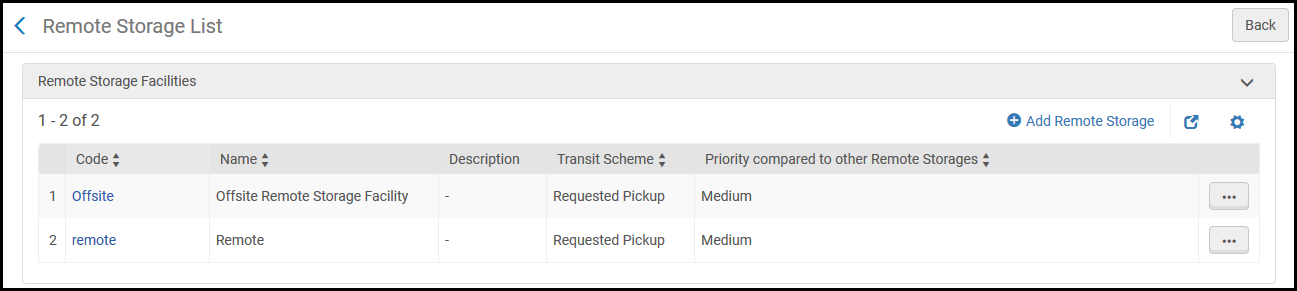
Las instalaciones de almacenamiento remoto se pueden configurar solo a nivel institucional. Select the required institution from the Configuring filter on the Configuration page.
Se pueden efectuar las siguientes acciones en esta página:
- Add a Remote Storage Facility (see Adding a Remote Storage Facility)
- Edit a Remote Storage Facility (see Editing Remote Storage Facility Details)
- Delete a Remote Storage Facility (Delete in the row actions list)
For information on how items requested from a location with "remote storage" checked are added to the xml file that Alma uses to communicate with third-party inventory products, see the Developer Network.
Adding a Remote Storage Facility
Se puede añadir una nueva una instalación de almacenamiento remoto a la institución. After you add a remote storage facility, the facility will be included in the Remote storage drop-down list when you add a physical location to one of the institution's libraries. For details, see Configuring Physical Locations.
-
On the Remote Storage List page (Configuration Menu > Fulfillment > Locations > Remote Storage), select Add Remote Storage. Aparece el cuadro de diálogo Añadir almacenamiento remoto.
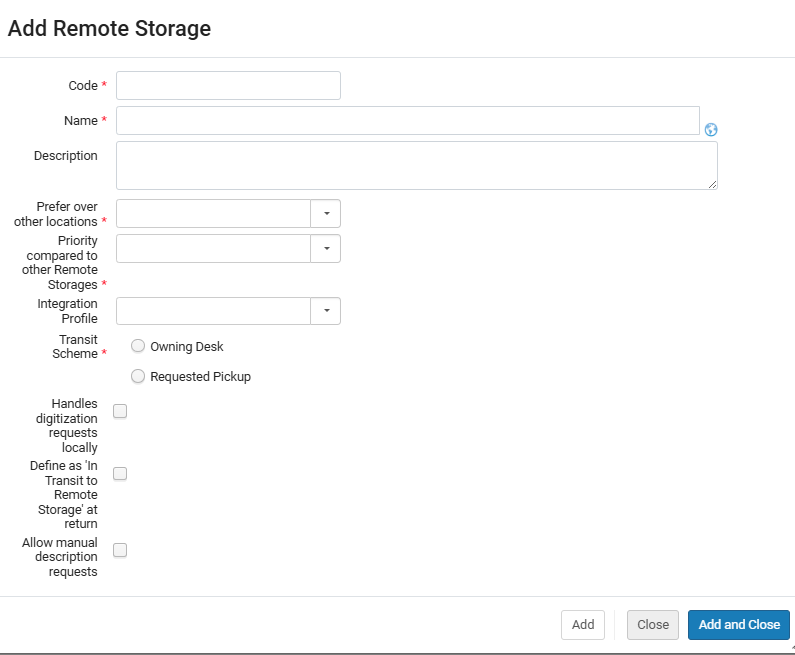
- Introducir un código (requerido), nombre (requerido) y descripción (opcional) para la nueva instalación de almacenamiento remoto.
- In the Prefer over other locations drop-down list, select from the following options:
- Set as last option- When you select this option, the remote storage location will only be selected if there are no other available holdings.
- Do not prefer over other locations - When you select this option, the remote storage items are considered like any other item for prioritization purposes.
- Prefer over other locations - When you select this option, Alma will select the remote storage location as the preferred holding.
For details on the Resource Request Monitoring page, see Managing Requests and Work Orders.
- Select a priority for the storage facility from the Priority compared to other remote storages drop-down list. Supongamos que un usuario solicita un título específico y que el título existe en más de un centro de almacenamiento remoto. En ese caso, el sistema coloca la solicitud en el centro de almacenamiento remoto con la máxima prioridad.
- Select an integration profile for the storage facility from the Integration profile drop-down list. Si un sistema de almacenamiento remoto es gestionado por un sistema que no sea Alma, Alma utiliza el perfil de integración específica para comunicarse con el otro sistema. For information on configuring a remote storage system profile, see Requests to Remote Storage Facilities.
- Seleccionar el esquema de tránsito para la instalación de almacenamiento remoto. El esquema de tránsito define la ubicación a la que hay que enviar un ejemplar solicitado desde la instalación de almacenamiento remoto para ser recogido por el usuario solicitante:
- Owning desk – The item is transferred to the owning desk of the facility that supplies the request, and the item is sent from there to the pickup location.
- Requested pickup – The item is sent directly to the requested pickup location.
- Select the Handles digitization requests locally check box if you want the remote storage facility to digitize requested items.
-
Select the Define as In Transit to Remote Storage at return check box to set the item process type to In Transit to Remote Storage when returning an item. Esta opción se usa al trabajar con ejemplares cuyas ubicaciones están conectadas al almacenamiento remoto. When the item is returned to an ASRS, a message is sent indicating that the item is in place; the item's status then changes to Item in Place and the In Transit to Remote Storage process type is removed.
Si no se selecciona esta opción, Alma indica que el ejemplar está en su lugar aún antes de que el ejemplar haya regresado a la ubicación de almacenamiento remoto.
Esta opción está disponible solo para una ASRS que soporta mensajes IR.
- Allow Manual Description Requests is selected by default. Si la casilla no está seleccionada, las solicitudes con descripciones manuales no se podrán introducir para almacenamiento remoto. En este caso, la opción de Descripción manual no aparecerá en el formulario de solicitud.
- Select Add and Close to close the dialog box. La nueva instalación de almacenamiento remoto aparece en la parte inferior de la lista de instalaciones de almacenamiento remoto en la página Lista de almacenamiento remoto.
Editing Remote Storage Facility Details
Se pueden editar detalles de cualquier instalación de almacenamiento remoto.
-
On the Remote Storage List page (Configuration Menu > Fulfillment > Locations > Remote Storage), select Edit in the row actions list for the specific remote storage facility record whose information you want to update. Aparece la página Editar instalación de almacenamiento remoto.
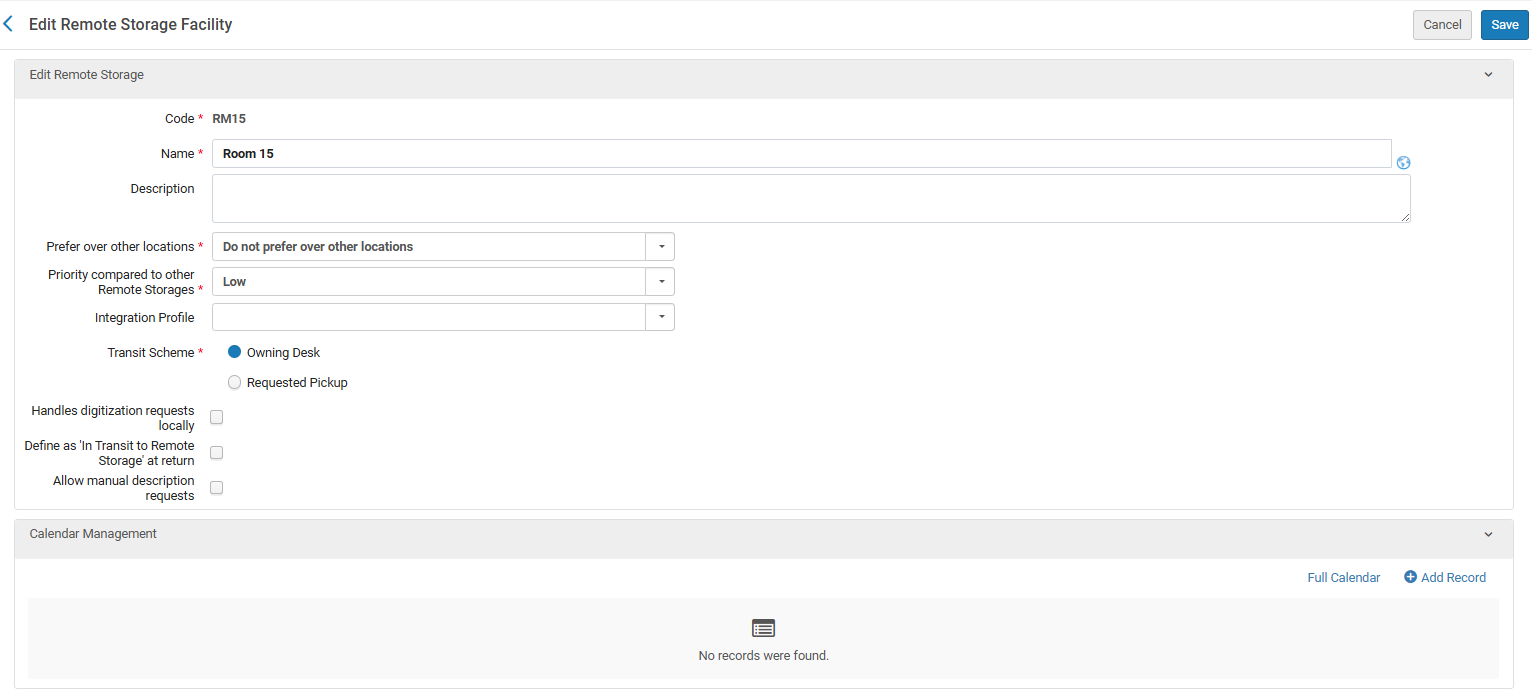
- In the Edit Remote Storage section, edit the details as required. See Adding a Remote Storage Facility for details.
-
In the Calendar Management section, select Full Calendar and Add Record, as needed, to edit the details that define when the remote storage facility is open and closed. For details, see Adding/Editing Calendar Details.
When adding a record of type Event, you can define the hours that a shuttle leaves the remote storage facility to bring items to the library.
- Select Save to store your changes to the remote storage facility details.
