
Editing a Borrowing Request
Questa pagina fornisce una panoramica sulla modifica della Richiesta di prestito in uscita in Alma, inclusa la modifica nel riquadro dei dettagli o nel modulo di richiesta completo e la gestione dei partner nella tab rota.
For more information on resource sharing including locating items for resource sharing, working with resource sharing partners, managing borrowing and lending requests and contributing to the resource sharing directory, see Resource Sharing.
Quando una Richiesta di prestito in uscita appare nell'elenco delle attività Richiesta di prestito in uscita, può visualizzarne i dettagli e, se il suo stato attuale consente la modifica, può modificarla secondo necessità. Se una riga di richiesta ha un pulsante Modifica , è attualmente modificabile. Se invece è presente un pulsante Visualizza , puoi aprirlo per visualizzarne i dettagli, ma non puoi modificarli.
Visualizzazione appare se lo stato della richiesta è uno dei seguenti:
- Copia restituita al partner
- richiesta completata - La richiesta è stata consegnata o annullata prima di raggiungere lo scaffale prenotazioni.
- Invia digitalmente
- Annullato dal partner
- Annullamento richiesto
Otherwise,Edit appears.
This page only relates to requests that can currently be edited. (Editing refers to adding or modifying the parameters of a borrowing request, such as bibliographic information or information about the request. Notes, labels, and attachments can always be added to requests.)
Some of the parameters of a borrowing request can be edited in the Details pane, and some editing actions can be performed from the More actions ( ) menu in the task list. Se necessario, può accedere a tutti i parametri modificabili aprendo la richiesta nella pagina Servizi interbibliotecari Richiesta di prestito in uscita.
For information about searching for specific borrowing requests and working with the Borrowing Requests task list, see Managing Resource Sharing Borrowing Requests.
Editing a Borrowing Request in the Details Pane
Nel riquadro Dettagli è possibile visualizzare molti dettagli su una Richiesta di prestito in uscita esistente e modificare alcune parti della richiesta.
To edit an existing borrowing request in the Details pane:
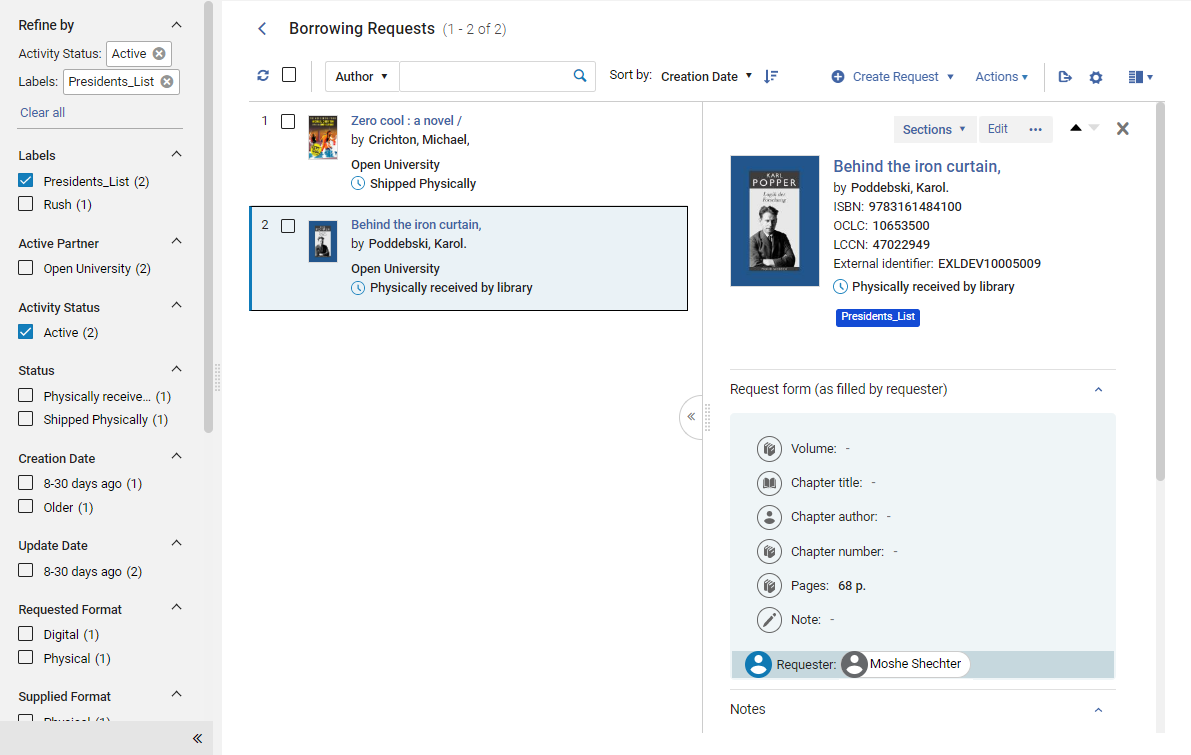
- In the Borrowing Requests page (Fulfillment > Resource Sharing > Borrowing Requests), in the task list, select the request. Il riquadro Dettagli si apre.
- Edit any of the fields in the Request form and Request costs sections, as required. Selezioni Salva in ogni regione dopo aver modificato il campo che contiene.
Opening the Full Request Form for Editing
È possibile accedere all'intero modulo Richiesta di prestito in uscita per modificarlo secondo necessità.
To edit the full borrowing request form:
- On the Borrowing Requests page (Fulfillment > Resource Sharing > Borrowing Requests), locate the request you want to edit.
- In the request's row, select Edit(or, select the row, and then, in the Details pane, select Edit). The Resource Sharing Borrowing Request page opens in a sliding panel, with the General Information tab selected.
- Modifichi il campo secondo necessità. For a description of the fields, see the Resource Information Fields table in Adding a New Book or Journal Article and the Borrowing-Request Attribute Field table in Creating a Borrowing Request.
- On the Rota tab, modify the list of partners in the request's rota as required. For additional information, see Managing Partners in a Request's Rota below.
- On the Parameters tab, modify parameters as needed. The parameters displayed are those selected for the partner during the partner configuration process (see Resource Sharing Partners).
-
On the Notes tab, add and edit notes as needed. For more information about this tab, see Notes Tab.
Notes can be added to all borrowing requests, including those with a status of Request Completed.
-
On the Attachments tab, add and edit attachments as needed. For more information about this tab, see Attachments Tab.
Attachments can be added to all borrowing requests, including those with a status of Request Completed.
- Select Save to save your changes and close the form.
Managing Partners in a Request's Rota Tab
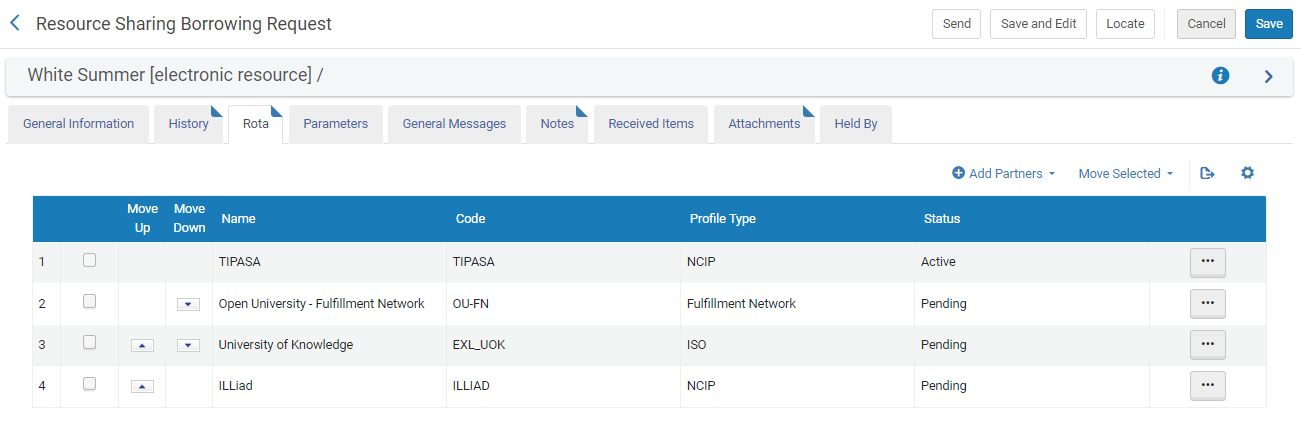
È possibile modificare la Lista dei partner in una Rota di Richiesta di prestito in uscita cambiando l'Ordine di priorità, aggiungendo o rimuovendo partner specifici e annullando o rifiutando il partner attivo. Queste azioni vengono eseguite nella Rota tab della Richiesta di prestito in uscita, in cui viene mostrata la Lista dei partner nella rota corrente.
If you add an ARTEmail partner to the rota list, you may also have to add parameters for the partner in the Parameters tab.
Adding Partners to the Rota
È possibile aggiungere manualmente i partner al Rota nella tab.
To add partners to the rota:
- Selezioni Aggiungi partner. A partner-selection box opens.
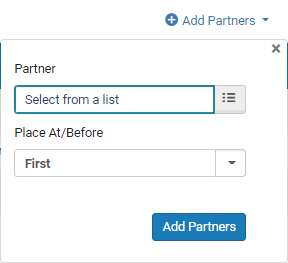
- Sotto Partner, selezioni Seleziona da un elenco. Si apre la pagina Lista dei partner della Biblioteca, visualizzando la Lista dei partner della Biblioteca disponibili.
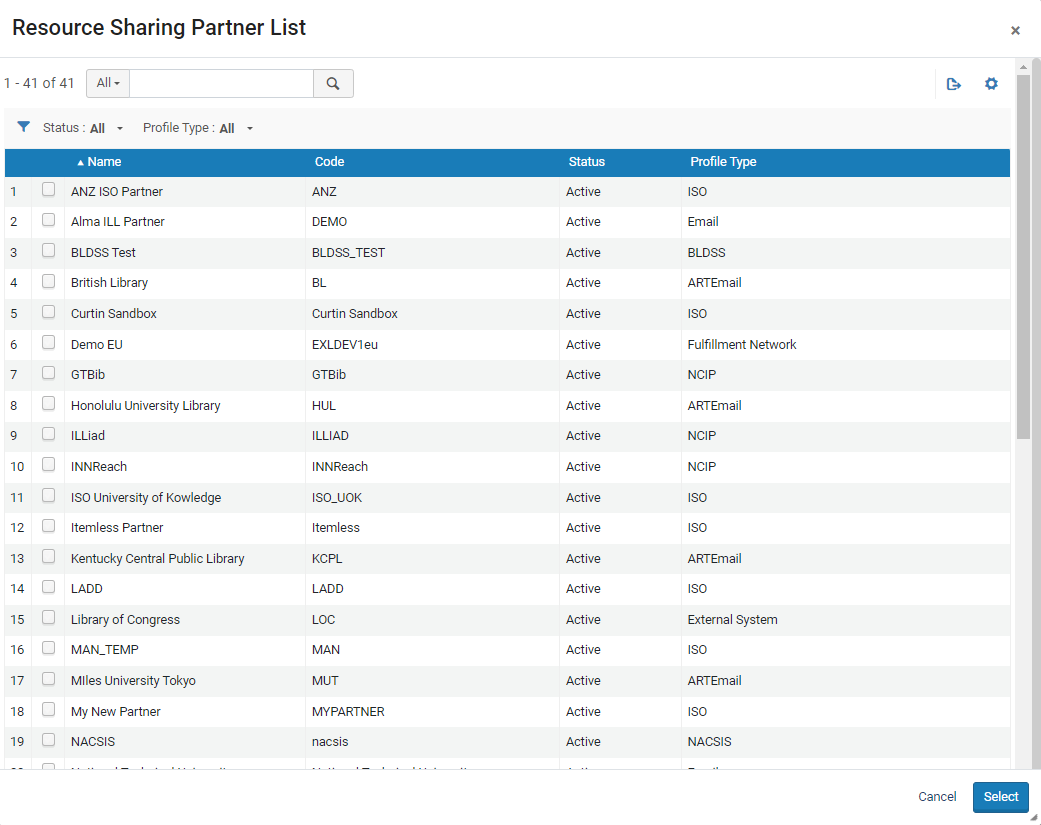
- Select the checkboxes of the partners that you want to add to the rota, and then select Select. The selected partners are added to the Partner field.
- In the Place At/Before dropdown list, select the priority level at which you want the partners to be placed in the partner list, as follows:
- First- Place the selected partners at the top of the list.
- Last- Place the selected partners at the bottom of the list.
- Partner name: Place the selected partners above this partner (whose name is already in the list).
- Select Add partners. The selected partners are added to the list in the Rota tab.
Modifying the Rota Order
È possibile modificare l'ordine di priorità dei partner in sospeso in qualsiasi momento. A Pending partner can only be moved to the top of the list, replacing the Active partner, when the request is in either Created Borrowing Request or Ready to Be Sent status. Under all other circumstances, rota partners must be in Pending status to be repositioned.
I partner possono essere spostati su e giù nella Lista individualmente o in gruppi.
To move individual partners up or down in the list:
- Utilizzare le frecce Sposta Su e Sposta Giù.
- Selezioni le caselle di controllo dei partner che desidera spostare.
- Seleziona Sposta selezionati. Si apre una casella di selezione del posizionamento.
- In the Place At/Before field, select the priority level at which you want the partners to be placed, as follows:
- First- Place the selected partners at the top of the list.
- Last- Place the selected partners at the bottom of the list.
- Partner name: Place the selected partners above this partner (whose name is already in the list).
- Seleziona Sposta selezionati. I partner selezionati sono stati spostati.
Eliminating a Partner from the Rota
Un partner può essere eliminato dal turno in diversi modi: rimuovendolo, rifiutandolo o annullandolo.
Removing a Partner from the List
Se un partner non è attualmente il partner attivo, sia perché è in sospeso o perché in precedenza era il partner attivo ed è stato annullato o ha rifiutato la richiesta, il partner può essere semplicemente eliminato dalla lista.
To delete a rota partner:
- From the row actions, select Remove for the partner.
Rejection By a Partner
Se un partner era precedentemente il partner attivo, ma ha rifiutato la richiesta, viene eliminato dalla lista. Rimane comunque visibile nella Lista, con lo stato Rifiutato, a meno che non venga rimosso manualmente.
In alcuni casi, il rifiuto di una Richiesta di prestito in uscita da parte del partner viene registrato automaticamente in Alma. In other cases, the active partner informs you that it is rejecting the request, and you must manually change its rota status to Rejected.
The 'Reject' action should be used only when the borrower has received a confirmation from the lender that the request has been rejected on the lender's side, for example, in a case where an email was sent from the lender, and the borrowing request needs to be manually updated regarding this. If the borrower would like to initiate a cancellation of the request, then the Cancel action should be used instead.
The active partner can also be rejected from the row actions of the borrowing request in the Borrowing Requests page (Fulfillment > Resource Sharing > Borrowing Requests), in the row actions of the request; see Managing Borrowing Requests.
Per contrassegnare manualmente una Richiesta di prestito in uscita come Rifiutata nella Rota tab:
- From the row actions of the active partner, select Reject. Si apre la casella Rifiuta richiesta .
- Seleziona un motivo del rifiuto.
- Optionally, enter an Internal note and/or a Note to partner, and select Notify user as required.
- Selezionare OK. Il partner attivo viene rifiutato e viene attivato il partner successivo nella rotazione, se disponibile. Se ha inserito una nota per il partner, la nota verrà inviata al partner. Se ha selezionato Notifica Utente, una notifica del rifiuto viene inviata all'Utente.
Cancelling an Active Partner
When a partner is the active partner, you can manually cancel that partner if you do not want to borrow the requested item from it. Se lo fai, il partner viene eliminato dalla rotazione, ma rimane visibile nella Lista con lo stato Annullato, a meno che non venga rimosso manualmente.
Partners can be cancelled only if cancellation is enabled in the partner's workflow profile. Se non lo è, l'opzione non appare nelle azioni di riga del partner.
To cancel the active partner:
-
From the row actions of the active partner, select Cancel. Si apre una finestra Annulla richiesta.
You can also cancel the active partner by selecting Cancel Partner from the options at the top of the page. The Cancel Partner option does not appear if the partner has not enabled cancellation in its workflow profile.
- Selezioni un motivo di annullamento.
- Facoltativamente, inserisca una nota di annullamento.
- Selezionare Conferma. The active partner is cancelled, a cancellation message is sent to it, and the next partner on the rota is activated, if available.If the partner is an email partner, the Ful Cancel Email Letter is sent to the partner (see Configuring Alma Letters); if the partner is an ISO partner, an ISO message is sent.
