
Creating a Borrowing Request
Questa pagina fornisce una panoramica sulla creazione delle Richieste di prestito in uscita in Alma, inclusa la creazione manuale delle Richieste di prestito in uscita, da Ricerche o da fonti esterne, nonché la visualizzazione delle Risorse (bibliografiche) locali per una Richiesta di prestito in uscita e la modifica delle Richieste di prestito in uscita. For more information on resource sharing including locating items for resource sharing, working with resource sharing partners, managing borrowing and lending requests and contributing to the resource sharing directory, see Resource Sharing.
Resource Sharing (RS) Le richieste di prestito in uscita sono effettuate tramite Alma per prendere in prestito libri o altri materiali da biblioteche che non fanno parte dell'istituzione tramite prestito interbibliotecario (ILL). Tali richieste vengono trasmesse digitalmente alla biblioteca prestante e la maggior parte della loro gestione, fino all'arrivo della risorsa richiesta alla biblioteca richiedente, avviene solitamente in modo automatico, così che il personale della biblioteca debba intervenire solo nei casi che richiedono una gestione speciale.
Una nuova Richiesta di prestito in uscita può essere creata in diversi modi. Se la Sua istituzione utilizza il sistema Primo Discovery, gli utenti possono utilizzare tale sistema per creare una Richiesta di prestito in uscita in modo indipendente. Nella maggior parte dei casi, queste richieste di prestito in uscita non richiedono alcuna gestione da parte del personale della biblioteca prima di essere inviate alla biblioteca prestante. For information about handling existing borrowing requests, see Managing Borrowing Requests.
Se ha bisogno di creare direttamente una Richiesta di prestito in uscita in Alma, ci sono due strade principali per farlo:
- Locating the resource through the Alma search mechanism, and creating a borrowing request from the bibliographic record (More actions
 > Resource sharing request); see Searching in Alma
- Creazione di una nuova richiesta nella pagina RS Richiesta di prestito in uscita, come spiegato di seguito.
Una volta creata la nuova richiesta, può compilare i campi pertinenti come richiesto. If the request was created from the results of a search, some of the fields are filled in by the system. Inoltre, se nel sistema è attivo un profilo d'integrazione, alcuni campi potrebbero essere compilati automaticamente.
Creating a New Borrowing Request
È possibile creare una Richiesta di prestito in uscita inserendo manualmente le informazioni sulla risorsa oppure effettuando una ricerca e selezionando la risorsa dai risultati della ricerca. La ricerca può essere effettuata nel patrimonio della Sua istituzione, all'interno della rete o della comunità a cui appartiene la Sua istituzione, oppure in fonti esterne, come la British Library o la Biblioteca del Congresso.
Manually Adding a Borrowing Request
È possibile creare manualmente una Richiesta di prestito in uscita inserendo le informazioni sulla risorsa in un modulo vuoto di Richiesta di prestito in uscita.
To add a borrowing request manually:
- On the Borrowing Requests page (Fulfillment > Resource Sharing > Borrowing Requests), select Create Request > Manually and then select the type of resource –Book or Article. A blank Resource Sharing Borrowing Request form opens in a sliding panel.
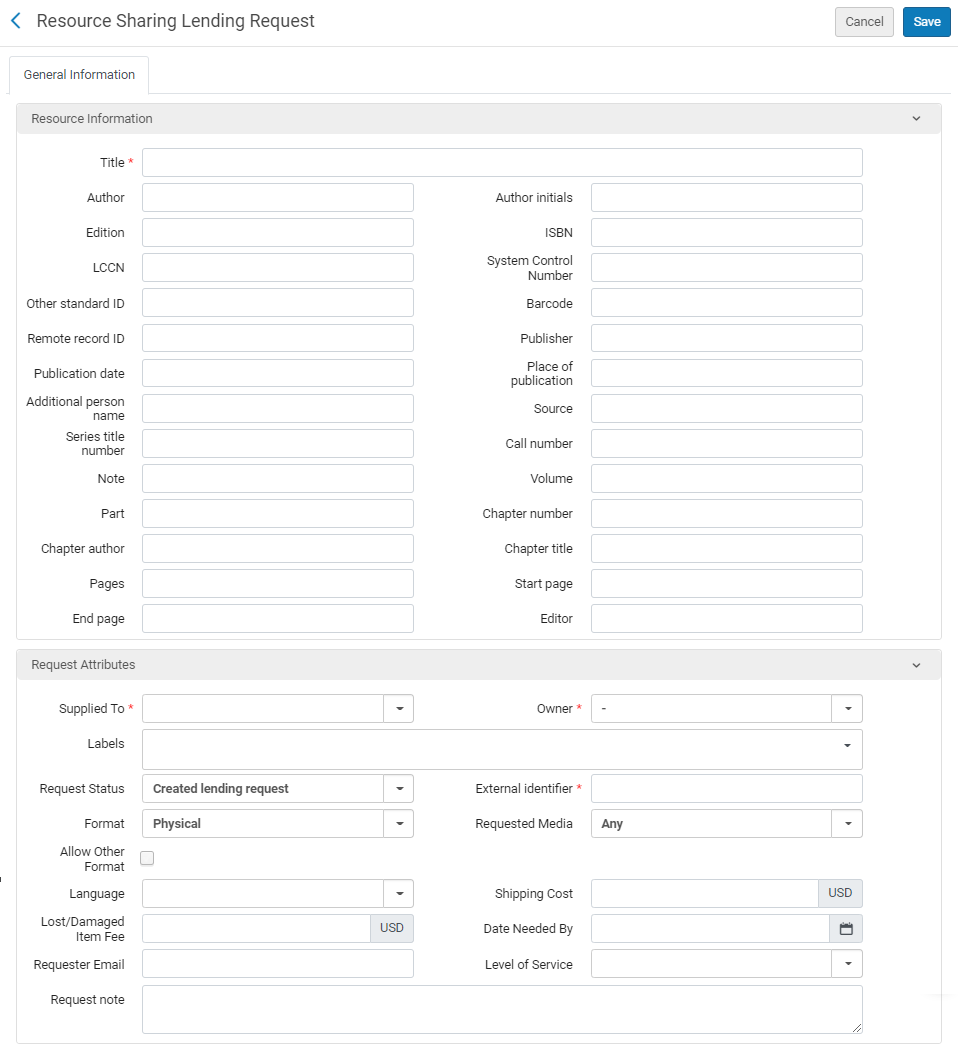 Resource Sharing Borrowing Request Page (Book)
- Nell'area Informazioni sulla risorsa, immetta le informazioni nel campo appropriato. For more information on these fields, see Adding a New Book or Journal Article.
If an augmentation-integration profile is active, and you fill in the PMID and/or the DOI fields, and then save the request, the following fields are auto-populated. Se li ha compilati manualmente prima di salvare la richiesta, essi vengono sovrascritti. Note that once these fields are auto-populated, they cannot be edited.
- Titolo dell'articolo\capitolo
- Rivista titolo
- Autore
- Volume
- fascicolo
- ISSN
- Pagine
- Pagina iniziale
- Pagina finale
- Data pubblicazione
For articles, if the Article\Chapter title field is not filled in, the Article\Chapter title is copied from the Journal title.
- In the Request Attribute area, enter the required information in the relevant fields, as described below.
Borrowing-Request Attribute Fields Campo Descrizione Specific Edition Only Checking this check box implies that the user wants the specified edition only, and no other.
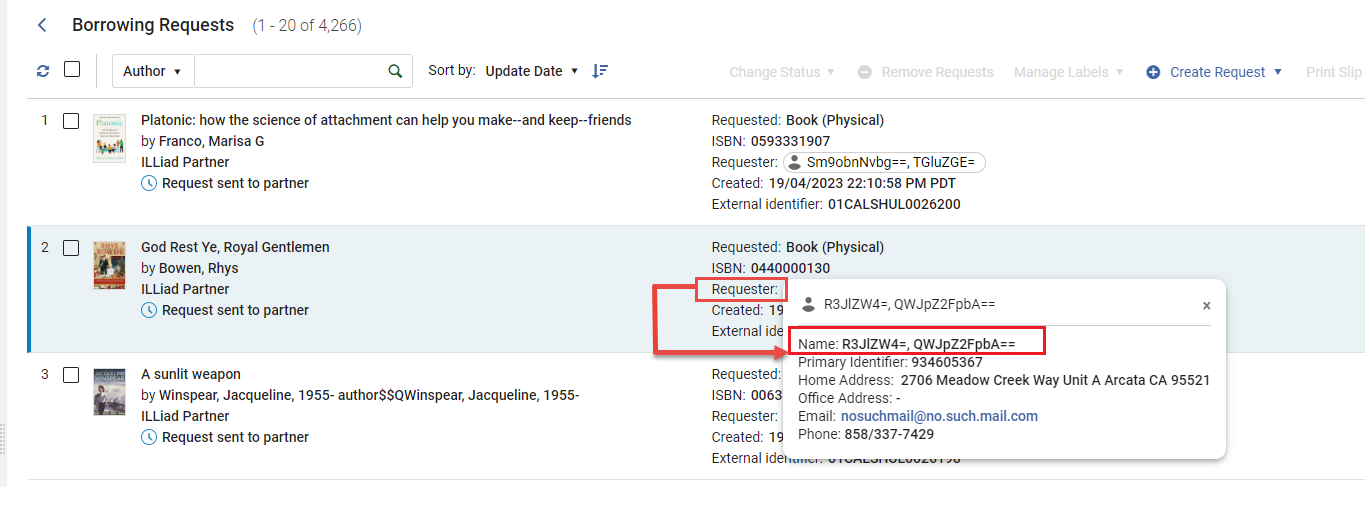
Requester (Required) L'Utente che richiede la copia. When creating a request from a citation, this value is pre-filled by the citation_rs_default_requester parameter; see Configuring Other Settings.
Il campo Proprietario cambia a seconda dell'utente selezionato qui; vedere la nota di seguito.
The user that is defined in this field becomes linkable (name appears in blue) in the Borrowing Requests task list. Quando l'Utente visualizza la Richiesta di prestito nell'elenco delle attività in uscita e seleziona il nome nel campo richiedente , viene indirizzato ai dettagli dell'Utente dove può apportare le modifiche necessarie.
Etichette Aggiungere una o più etichette – identificativo di una sola parola – alla richiesta.
Selezioni il campo Etichette per vedere un elenco delle etichette esistenti. Selezioni una delle etichette per allegarla alla richiesta, oppure inizi a digitare per crearne una nuova.
For additional information about labels, see New Layout 2022.
Proprietario La biblioteca ILL responsabile della richiesta. The displayed libraries are configured as resource sharing libraries in the General Configuration menu (see Managing an Institution and Its Libraries). - When creating a request from a citation, this value is pre-filled by the citation_rs_default_owner parameter; see Configuring Other Settings.
- Se si seleziona un richiedente assegnato a una biblioteca di condivisione delle risorse, la biblioteca appare in questo campo. Se al richiedente è assegnata più di una biblioteca di condivisione delle risorse, selezionane una. If the user is not assigned to a resource sharing library, the Owner is the value configured in ill_item_creation_lib_code(see Configuring Other Settings). To assign a resource sharing library to a user, see Quick User Management Page Fields. You can create relationships between resource sharing libraries to enable the libraries to supply items for each other (see Configuring Fulfillment Services Between Libraries Within an Institution).
Status richiesta The status of the request; see Request Status. formato richiesto Format of the requested item –Digital,Physical, or Physical non-returnable.
For more information about sending resource sharing items directly to a patron, see the Inter-Library Loans Personal Delivery video (10:51 min.).
Media richiesto Il tipo di supporto in cui desidera che la richiesta venga fornita. The values that display in the drop-down field are those configured with a value of True on the Requested Media Definition Mapping Table page (see Configuring Requested Media Definitions). When a request is submitted with a requested media type that was added to the out-of-the-box options (see Configuring Additional Requested Media) and the request is sent to an ISO partner, the partner receives the requested media information in the Request Note field.
Consenti altri formati Se il formato richiesto non è disponibile, l'utente è disposto a ricevere la copia in un altro formato? Partner The first partner configured in a request's rota (see Requests in Alma). Select Add Partners to add a partner to the request's rota, and select Add Rotas to add a rota template (group of partners). For details on adding partners, see To add partners below. For details on adding rota templates, see To add rota below. - For details on configuring partners, see Resource Sharing Partners.
- For details on configuring rota templates, see Configuring Rota Templates.
Localizzazione creazione copia Viene visualizzato solo quando si seleziona un partner non NCIP. La Localizzazione di biblioteca in cui deve essere creata la copia temporanea. Identificativo Esterno La stringa identificativa fornita dal sistema esterno. L'identificativo viene inviato al partner. - Quando viene selezionato un partner NCIP o ISO, è possibile inserire manualmente un valore
- Quando si seleziona un partner ARTEmail, viene generato automaticamente un valore. Il formato per questo valore è determinato dal parametro rs_external_id_prefix. See Configuring Other Settings for details.
Dopo aver creato la richiesta, viene visualizzato un valore identificativo interno per la richiesta di prestito in uscita di tutti i tipi di stato, compresi quelli annullati o rifiutati. Quando non è presente alcun identificativo esterno (ad esempio per una richiesta annullata o rifiutata), è possibile cercare una richiesta tramite l'identificativo interno della richiesta.
This value corresponds to the External Identifier value when the request displays on the Resource Sharing Lending Requests Task List page (see Managing Resource Sharing Lending Requests).
Metodo di invio preferito Il metodo preferito per l'invio della copia: - Ariel
- Fax
- FTP
- Odyssey
Date Needed By Una data entro cui la copia deve essere consegnata. Se la copia non viene consegnata entro tale data, la richiesta sarà annullata. If date needed by is enabled on RS requests, the requests will also be affected. I clienti che desiderano impedire l'annullamento automatico delle richieste non più necessarie dagli utenti possono rimuovere il campo dal modulo di richiesta.
Luogo di Consegna Localizzazione della biblioteca a cui consegnare la copia. Appare quando il partner ARTEmail della richiesta supporta l'aggiunta di un indirizzo. Scelga tra:
Deliver to library – Delivers to the library indicated in the Pickup at field.
You can create relationships between libraries to enable the libraries to deliver items to each other (see Configuring Fulfillment Relationships).
- Alternative address – Delivers to the address indicated in the Alternative address field. If the Format value is Digital, this field contains an email address. The Alternative address option displays only if rs_support_add_service is set to True on the Customer Parameters Mapping Table (see Configuring Other Settings).
Luogo di ritiro richiesto The libraries appearing in this field are configured with the Deliver to option on the Organizational Units Relations Setup page (see Configuring Fulfillment Relationships). If personal delivery is configured for the specified patron, the Personal Delivery option displays with the Home Address and/or Work Address sub-options, as configured on the patron's User Details page (see Adding User Contact Information).
When creating a request from a citation, this value is pre-filled by the citation_rs_default_requested_pickup_location parameter; see Configuring Other Settings. When pre-filled,For Reading-Room Use Only is selected by default.
Questo campo è obbligatorio anche quando si effettua una Richiesta di prestito digitale in uscita.
Solo per uso in sala di lettura Se limitare l'accesso a una Sala lettura. Quando selezionato, il campo Luogo di ritiro effettivo appare e l'articolo ricevuto è disponibile dalla Localizzazione di biblioteca effettiva. When creating a request from a citation,Actual Pickup Location is pre-filled by the citation_rs_default_actual_pickup_location parameter; see Configuring Other Settings.
See the Restricting Resource Requests to a Reading Room video (2:02 min.) for details about library-level invoices.
Costo di spedizione Un costo di spedizione per la richiesta. La Valuta è la default Valuta dell'istituzione. If a shipping cost borrower rule is configured, it is applied to the shipping cost of the request (see Configuring Shipping Cost Borrower Rules).
Il costo di spedizione viene popolato con il valore inviato nel messaggio Invia dal prestatore o tramite l'operazione di ricezione nella parte di prestito (eseguendo le regole).
Fondo La richiesta di prestito in uscita può essere assegnata a un fondo. Sono disponibili come opzioni per l'assegnazione a una richiesta solo i Fondi associati al tipo di Fondo Condivisione Risorse . For more information, see Borrowing Requests Associated with Funds.
Attualmente, è necessario aggiungere il Fondo-Registro visualizzatore Ruolo a qualsiasi operatore che desideri utilizzare questa funzionalità. Questo verrà risolto in una prossima versione.
Costo della richiesta del patrono The patron request cost is the resource sharing request fee defined in the relevant policy (see Adding Fulfillment Policies). A questo punto può essere ignorato modificando il valore.
La Valuta è la default Valuta dell'istituzione.
Quando si inserisce un valore in questo campo e successivamente viene effettuato il pagamento, il campo viene disabilitato per ulteriori inserimenti.
Costo per Utente ricevuto The patron receive cost is the resource sharing receive fee defined in the relevant policy (see Adding Fulfillment Policies). A questo punto può essere ignorato modificando il valore.
La Valuta è la default Valuta dell'istituzione.
Quando si inserisce un valore in questo campo e successivamente viene effettuato il pagamento, il campo viene disabilitato per ulteriori inserimenti.
Indirizzo alternativo Appears only when the Delivery location value is Alternative address.
When the Format value is Physical, the available options are postal addresses. Select Use different address to display the Postal address fields and configure a new address.
When the Format value is Digital, the available options are email addresses. Select Use different email to display the Email address field and configure a new email address.
Disponibile a pagare Se l'utente è disposto a pagare per la copia Accetta i termini del copyright Selezionare per indicare che l'utente ha accettato i termini del copyright.
Necessita di informazioni sull'utente Se sono necessarie ulteriori informazioni sull’utente Nota della richiesta Inserisca eventuali note, se necessario.
When a request is submitted with a requested media type that was added to the out-of-the-box options (see Configuring Additional Requested Media) and the request is sent to an ISO partner, the partner receives the requested media information in this field. See also Active and Inactive Notes.
Nota Richiedente Qualsiasi nota speciale aggiunta dal richiedente. Tariffa massima La multa più alta che l'utente è disposto a pagare. Livello di servizio La velocità di spedizione richiesta. To configure the available options, see Configuring Levels of Service. For a description of the fields' display in Primo, see Citation Linker.
- Se hai scelto un Partner ARTEmail, configura i parametri nella tab Parametri . The parameters displayed are those selected for the partner during the partner configuration process (see Resource Sharing Partners).
-
To add partners to a request's rota:
-
Select Add Partners to add individual partners to the request's rota. Viene visualizzata la pagina Elenco dei partner della Biblioteca con l'elenco dei partner della Biblioteca disponibili.
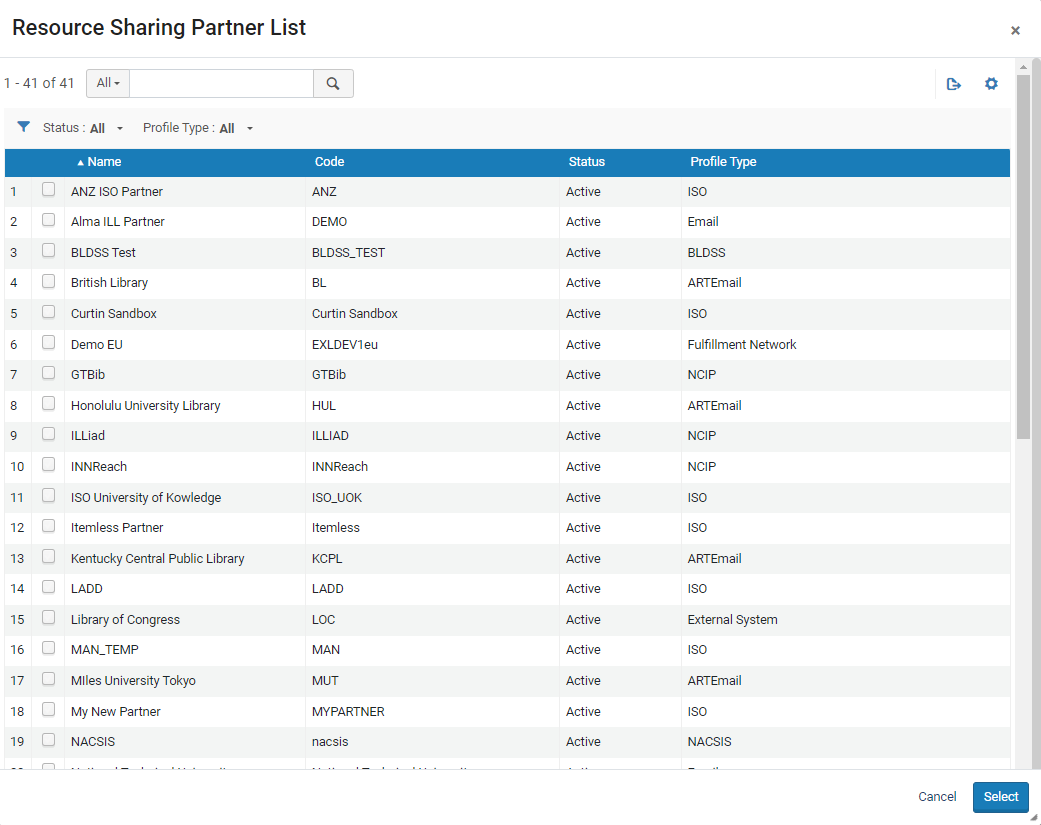
-
Select the check box of the partner(s) to add to the request's rota, and select Select.
If you select a partner with which you associated a locate profile, the request displays on the Resource Sharing Borrowing Request page with a Locate Resource link. Selezioni il link per inviare una richiesta di localizzazione risorsa per la Richiesta di prestito in uscita. Alma searches the request's partners to verify that they have the resource. Partners that do not have the resource are removed from the request's rota. For details on associating a partner with a locate profile, see the procedure in Resource Sharing Partners.
-
- To add rota templates: You can configure rotas to be used either in the order in which they are listed (Ordered) or in a random order (Non-ordered), using Fulfillment Configuration (see Configuring Rota Templates).
Select Add Rotas to add rota templates to a request. "La pagina dei Template Rota appare con la Lista dei Template Rota disponibile."
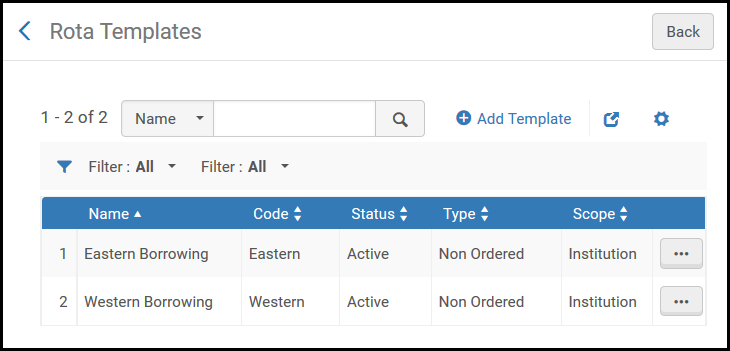
- Select the check boxes of the rota templates to add to the request, and select Select. Alma invia la richiesta ai singoli Partner nella Lista finché la richiesta non viene soddisfatta.
- Selezionare una delle seguenti:
- Save to save the request and close the form
- Locate to save the request, close the form, and initiate the process of locating a lender;Locate only appears if partners and/or rota are attached to the request
- Send to send a request message to the partner according to the selected parameters;Send only appears if there is an active partner to which the request can be sent, and the Automatically activate locate profile option is not selected when configuring a resource sharing library (see Configuring Parameters of a Resource Sharing Library)
- Save and Edit to save the request, keep the form open, and add tabs to it in which you can add more details to the request (see Editing a Borrowing Request)
- If a locally held resource matches the resource that you requested, a warning message appears when you try to save the resource-sharing borrowing request; see Viewing Local Resources for a Borrowing Request below.
- La copia viene aggiunta all'inventario nel Formato default record. Per configurare il sistema affinché supporti più formati record (come UNIMARC) o per configurare il formato default, contatti l'assistenza Ex Libris.
- Se una Richiesta di prestito in uscita viene inviata a un partner di prestito peer-to-peer ISO o NCIP che ha disattivato la propria biblioteca di condivisione delle risorse per il prestito, lo stato della richiesta di prestito sarà impostato su Richiesta del mutuatario rifiutata. La Richiesta di prestito in uscita avrà quindi il suo stato modificato in Rifiutato dal partner. For more information on inactivating a resource sharing library, see Configuring Parameters of a Resource Sharing Library.
- By default, an expired patron can create a borrowing request. This can by changed by setting the check_for_expired_account parameter to true. For more information, see Configuring Other Settings (User Management). When a request is created for the expired patron, an override warning is displayed to the user.
When a resource sharing request is placed, the requesting patron's resource-sharing library is validated before the request can continue. If a warning message appears stating Patron does not have resource sharing privileges, and the patron's resource-sharing library is not the predefined resource-sharing library, it is recommended that you do one of the following to ensure that Alma checks the appropriate policy for the resource sharing library in use, or uses the library/institution's default terms of use:
- Configure a Resource Sharing Borrowing Request rule for the specified resource sharing library (see Configuring Fulfillment Units, Policies, and Terms of Use)
- Modify the Allow Resource Sharing Requesting Policy of the library and/or institution default terms of use (see Adding Fulfillment Policies)
To attach a rota to a request based on configured rota assignment rules, select the Recalculate Rota Assignment link to attach the rota to the request according to the configured rules. For details on configuring rules for a rota, see Configuring Rota Assignment Rules.
Adding a Borrowing Request From a Search
Puoi creare una nuova attività di prestito RS copiando il record bibliografico delle Risorse (bibliografiche) richieste dall'elenco della tua istituzione, rete o Archivio della comunità. Quando lo fai, puoi sia salvarti lo sforzo di digitare manualmente le informazioni bibliografiche sia assicurarti di avere le informazioni corrette sulla copia.
To add a borrowing request from a search:
-
On the Borrowing Requests page (Fulfillment > Resource Sharing > Borrowing Requests), select Create Request > From Search. Si apre una pagina di Ricerca dell’Archivio in un Pannello a scomparsa.
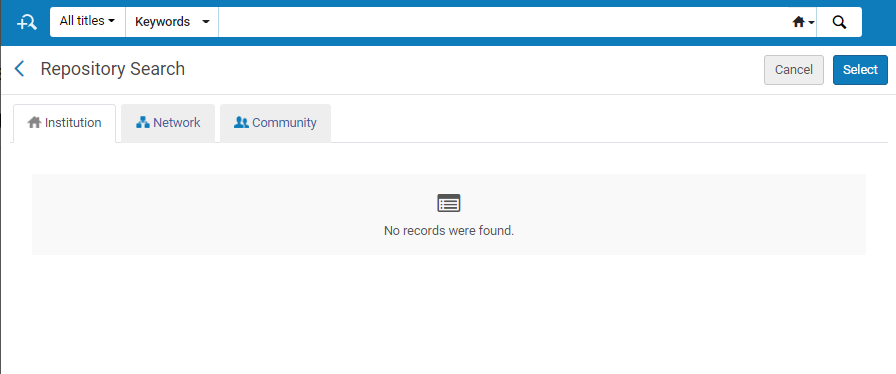
-
Search for the item (see Searching in Alma).
- Nella casella Trova è possibile selezionare solo Tutti i titoli.
- When adding a borrowing request from a search in the Network Zone, the repository search page displays the Held by field. Il valore di questo campo indica la localizzazione della biblioteca nella rete che contiene la risorsa specificata.
-
Select the checkbox of the required item, and then select Select. The Request Attributes section of the Resource Sharing Borrowing Request page opens in the sliding panel.
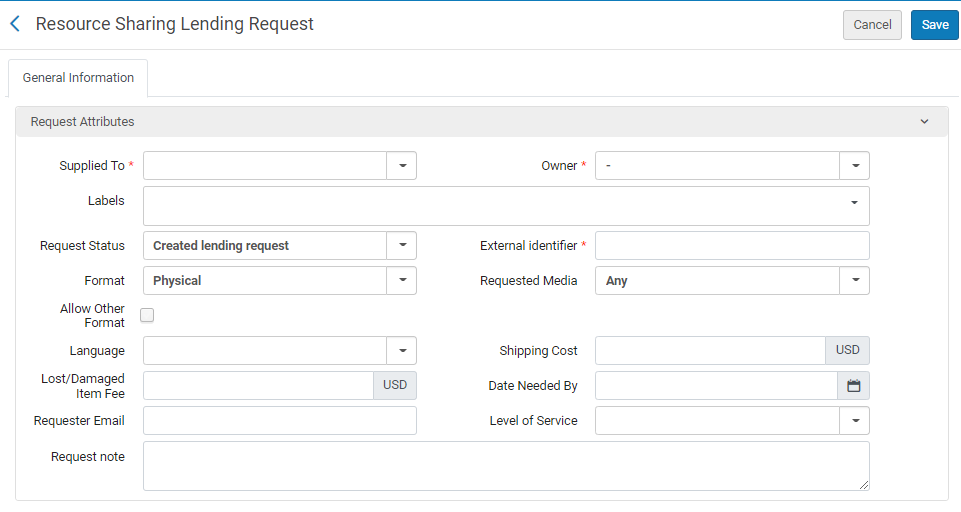
-
Inserisca o modifichi le informazioni della richiesta, come descritto nella tabella seguente:
Borrowing Request Attribute Fields
Campo Descrizione Richiedente L'utente che richiede il titolo. Etichette Aggiungere una o più etichette – identificativo di una sola parola – alla richiesta. Selezioni il campo Etichette per vedere un elenco delle etichette esistenti. Selezioni una delle etichette per allegarla alla richiesta, oppure inizi a digitare per crearne una nuova.
For additional information about labels, see New Layout 2022.
Status richiesta Selezioni lo stato della richiesta. Scegli tra i seguenti:
- Annullato dallo staff
- Richiesta di prestito in uscita creata
- Dichiarato perso dal partner
- Ricevuta in formato digitale dalla biblioteca
- Scaduto
- Ottenuto esternamente
- Controllo del prestatore
- Copia prestata all'utente
- Localizzazione fallita
- Localizzazione in esecuzione
- Rinnovo utente mediato
- Overdue request – The request's due date arrived.
- In attesa approvazione
- Ricevuto fisicamente dalla biblioteca
- Pronto per l'invio
- Richiamato dal partner
- Ricevuto – non per prestito
- Rifiutato dal partner
- Richiesta di rinnovo non accettata
- Rinnovo richiesto
- Rinnovato dal partner
- Segnalata copia danneggiata al partner
- Segnala copia smarrita al partner
- Richiesta accettata
- richiesta completata – La richiesta è stata consegnata o è stata annullata prima di raggiungere lo scaffale delle prenotazioni.
- Richiesta inviata al partner
- Restituito dall'utente
- Copia restituita al partner
- Spedito in formato digitale
- Spedito fisicamente
- In attesa della risposta di cancellazione
- Verrà fornito
The value of this field is displayed as the Request Status on the Resource Sharing Borrowing Requests page.
formato richiesto Seleziona il formato della richiesta: - Digitale
- Fisico
- Fisico da non restituire
Media richiesto Il tipo di supporto in cui desidera che la richiesta venga fornita. The values that display in the drop-down field are those configured with a value of True on the Requested Media Definition Mapping Table page (see Configuring Requested Media Definitions).
When a request is submitted with a requested media type that was added to the out-of-the-box options (see Configuring Additional Requested Media) and the request is sent to an ISO partner, the partner receives the requested media information in the Request Note field.
Consenti altri formati Selezionare la casella di controllo per indicare che, se il formato richiesto non è disponibile, l'utente è disposto a ricevere la copia in un altro formato. Metodo di invio preferito Seleziona il metodo preferito per l'invio della copia. Scegli tra le seguenti opzioni: - Ariel
- Fax
- FTP
- Odyssey
Data necessaria entro Select the date on which the item is needed from the Calendar dialog box. Luogo di Consegna Localizzazione di biblioteca a cui la copia deve essere consegnata. Visualizzato quando il partner ARTEmail della richiesta consente l'aggiunta di un indirizzo.
Scelga tra:
- Deliver to library – Delivers to the library indicated in the Pickup at field.
You can create relationships between libraries to enable the libraries to deliver items to each other (see Configuring Fulfillment Relationships).
- Alternative address – Delivers to the address indicated in the Alternative address field. If the Format value is Digital, this field contains an email address. The Alternative address option displays only if rs_support_add_service is set to True on the Customer Parameters Mapping Table (see Configuring Other Settings).
Luogo di ritiro richiesto Seleziona una Localizzazione di biblioteca per il ritiro della copia. The default value is the value selected in the Default Pickup Location field on the Organization Unit Details page (see Configuring Fulfillment Relationships). The values displayed in the drop down list are the libraries that are configured with the Deliver to option on the Organizational Units Relations Setup page (see Configuring Fulfillment Relationships).
If personal delivery is configured for the specified patron, the Personal Delivery option displays with the Home Address and/or Work Address sub-options, as configured on the patron's User Details page (see Adding User Contact Information).
Si noti che questo campo è obbligatorio anche quando si effettua una Richiesta di prestito digitale in uscita.
Status Copyright Selezioni uno stato di copyright oppure selezioni Calcola stato di copyright a destra del menu a discesa
Selecting Calculate Copyright Status automatically activates the digitization and copyright rules (see Configuring Digitization and Copyright Rules) and applies the calculated value to the request. Il valore calcolato viene ignorato da questa pagina.
Nota che le stesse regole di digitalizzazione e copyright vengono applicate automaticamente anche quando viene effettuata una richiesta digitale da parte di Primo. In entrambi i casi, se le regole stabiliscono che è necessaria l'approvazione manuale del copyright, la richiesta non può essere inviata alla Biblioteca fornitrice.
This Copyrights Status option appears only if rs_borrower_copyright_management is set to True on the Customer Parameters Mapping Table (see Configuring Other Settings).
If the request is set to No copyright restriction, the request is sent with Copyright compliance set to US:CCL.
If the request is set to Copyright approved, the request is sent with Copyright compliance set to US:CCG.
A request that is set to Copyright not approved cannot be sent.
Questo campo è applicabile solo alle richieste in formato digitale.
Costo di spedizione Inserisca un costo di spedizione per la richiesta. La Valuta visualizzata è la Valuta default dell'istituzione.
If a shipping cost borrower rule is configured, it is applied to the shipping cost of the request (see Configuring Shipping Cost Borrower Rules).
Fondo La Richiesta di prestito in uscita può essere assegnata a un Fondo di Acquisizioni. Saranno disponibili come opzioni solo i Fondi attivi dei Servizi interbibliotecari consentiti per l'uso dalla Biblioteca dei Servizi Interbibliotecari attiva. For more information, see Assigning Borrowing Requests to Funds. Disponibile a pagare Selezionare per indicare che il patrono è disposto a pagare per la copia. Accetta i termini del copyright Selezionare per indicare che l'utente ha accettato i termini del copyright. Necessita di informazioni sull'utente Seleziona per indicare che sono necessarie ulteriori informazioni sull'utente. Nota della richiesta Inserisca una nota per la richiesta. Quando si modifica una richiesta, questo campo contiene una nota per l'Invia copia, come inviata ad Alma dal sistema originario NCIP nella nota di spedizione del messaggio NCIP. La nota di spedizione viene visualizzata nel seguente formato:
||Shipping Note||<text of shipping note>||Shipping Note||
La nota di Invia viene utilizzata dagli implementatori NCIP, come OCLC Navigator, per aggiornare il sistema biblioteca con informazioni aggiuntive sulle copia Invia, come informazioni sulle Risorse (bibliografiche) stesse, sul richiedente e sulle Localizzazione di biblioteca da cui è richiesta e dove deve essere ritirata.
When a request is submitted with a requested media type that was added to the out-of-the-box options (see Configuring Additional Requested Media) and the request is sent to an ISO partner, the partner receives the requested media information in this field.
Tariffa massima La tariffa massima che l'utente che ha preso in prestito è disponibile a pagare per la copia. - Select Add Partners to add a partner to the request's rota. See To add partners above.
- Select Add Rotas to add a rota template (group of partners). See To add rota above.
- Selezionare una delle seguenti:
- Locate to save the request, close the form, and initiate the process of locating a lender;Locate only appears if partners and/or rota are attached to the request
- Send to save the request, close the form, and send a message to the partner according to the selected parameters;Send appears only if there is an active partner to which the request can be sent, and the Automatically activate locate profile option is not selected when configuring a resource sharing library (see Configuring Parameters of a Resource Sharing Library)
- Save and Edit to save the request, keep the form open, and add tabs to it in which you can add more details to the request (see Editing a Borrowing Request)
- Save to save the request and close the form
If a locally held resource matches the resource that you requested, a warning message appears when you try to save the resource-sharing borrowing request; see Viewing Local Resources for a Borrowing Request below.
Se una Richiesta di prestito in uscita viene inviata a un partner di prestito peer-to-peer ISO o NCIP che ha disattivato la propria biblioteca di condivisione delle risorse per il prestito, lo stato della richiesta di prestito sarà impostato su Richiesta del mutuatario rifiutata. La Richiesta di prestito in uscita avrà quindi il suo stato modificato in Rifiutato dal partner. For more information on inactivating a resource sharing library, see Configuring Parameters of a Resource Sharing Library.
Adding a Request From an External Resource
Puoi creare una Richiesta di prestito in uscita per una Risorse (bibliografiche) catalogata in un Sistema esterno (cioè, al di fuori di Alma e dell'istituzione corrente). Utilizzando questa funzionalità, puoi utilizzare i record esistenti per descrivere la Risorse (bibliografiche) richiesta usando un record di catalogo di un'altra istituzione, invece di dover digitare manualmente la descrizione della richiesta. È possibile cercare risorse utilizzando un profilo di ricerca esterno.
For more information about adding a request from an external resource, see the Creating a Borrowing Request Using External Resources video (3:41 min.).
To add a borrowing request from an external search:
-
On the Borrowing Requests page (Fulfillment > Resource Sharing > Borrowing Requests), select Create Request > From External Resource. La pagina di ricerca risorse esterne si apre in un pannello a scomparsa.
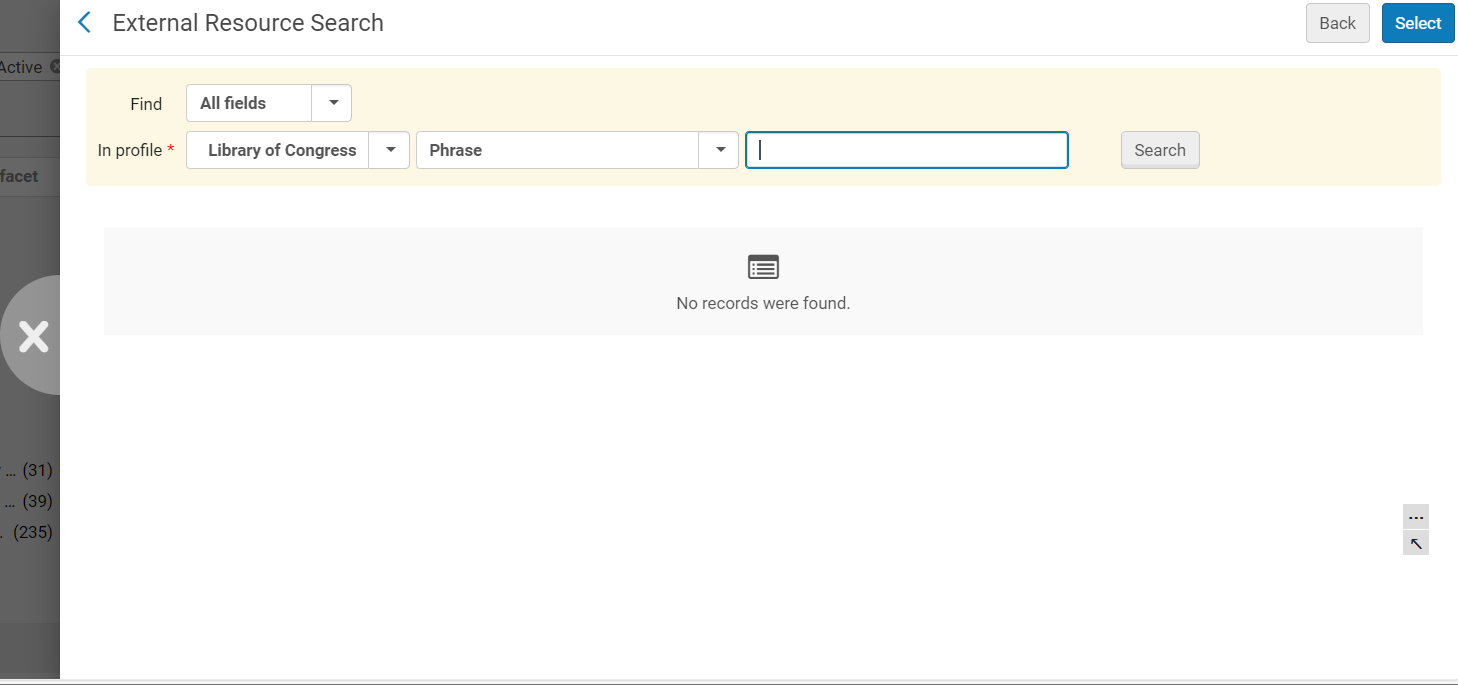
Pagina di ricerca risorse esterne
- In the Find field, select the fields of each catalog record to include in the search:All fields, or just ISBN or ISSN.
-
In the In profile field, select the external profile by which the criteria is to be searched.
The displayed list of profiles includes the external search profiles configured on the External Search Profile List page; see Configuring External Search Profiles.
- If you selected All fields in the Find field, in the next field, select whether you want to search for an exact phrase or keywords. Se hai selezionato ISBN o ISSN, questo campo non è disponibile.
- Dal menu a tendina Search Modulo di catalogazione profilo, selezioni uno dei profili di ricerca predefiniti. The search is performed, and the results display on the page.
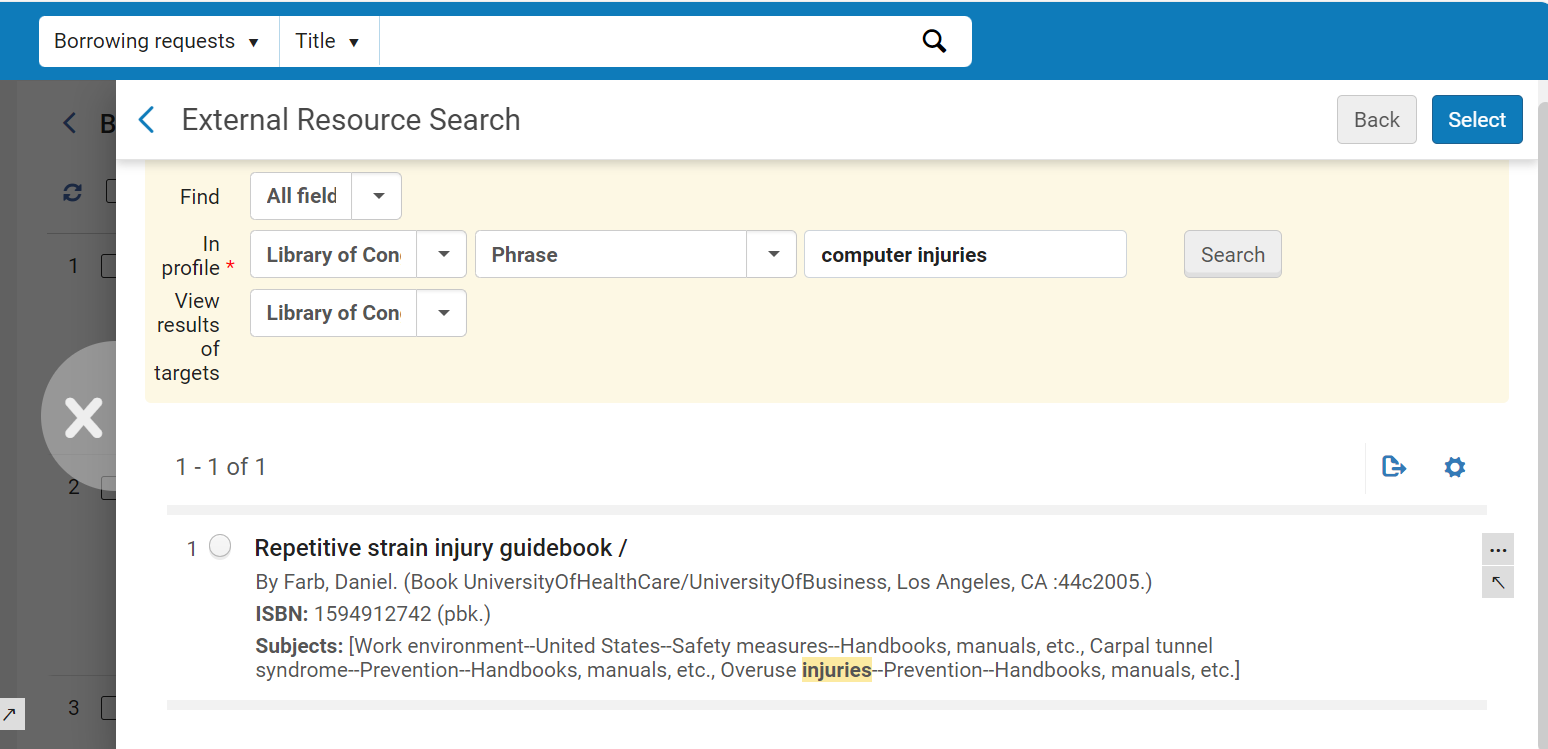 Pagina di ricerca risorse esterne – Risultati di ricerca
- Select the resource from which you want to create a borrowing request, and then select Select. Nel Pannello a scomparsa viene visualizzata la pagina Richiesta di prestito in uscita Servizi interbibliotecari.
- Configure the fields on both the General Information and Parameters tabs, as explained above.
- Selezionare una delle seguenti:
- Save to save the request and close the form
- Locate to save the request, close the form, and initiate the process of locating a lender;Locate only appears if partners and/or rota are attached to the request
- Send to save the request, close the form, and send a message to the partner according to the selected parameters; Send appears only if there is an active partner to which the request can be sent, and the Automatically activate locate profile option is not selected when configuring a resource sharing library (see Configuring Parameters of a Resource Sharing Library)
- Save and Edit to save the request, keep the form open, and add tabs to it in which you can add more details to the request (see Editing a Borrowing Request)
If a locally held resource matches the resource that you requested, a warning message appears when you try to save the resource-sharing borrowing request; see Viewing Local Resources for a Borrowing Request below.
Se una Richiesta di prestito in uscita viene inviata a un partner di prestito peer-to-peer ISO o NCIP che ha disattivato la propria biblioteca di condivisione delle risorse per il prestito, lo stato della richiesta di prestito sarà impostato su Richiesta del mutuatario rifiutata. La Richiesta di prestito in uscita avrà quindi il suo stato modificato in Rifiutato dal partner. For more information on inactivating a resource sharing library, see Configuring Parameters of a Resource Sharing Library.
Viewing Local Resources for a Borrowing Request
Se esistono Risorse (bibliografiche) locali ma si sta creando comunque una richiesta di Servizi interbibliotecari, quando si salva la richiesta appare un messaggio di avviso di proprietà autonoma. Puoi vista le risorse locali da questo messaggio di avviso. If you choose to do so, you can then decide to place a local hold request on the matching local resource, in which case the resource-sharing borrowing request you were creating is not created, or to create the borrowing request in any case.
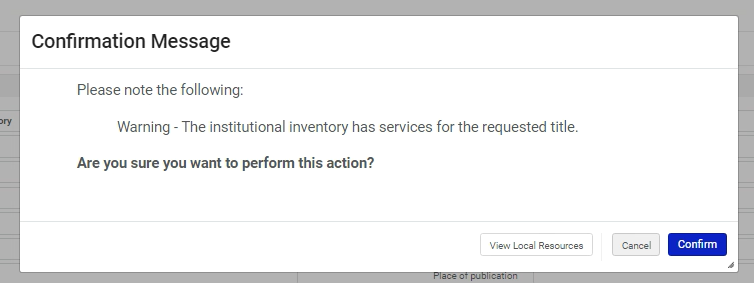
Quando appare questo messaggio, se sei sicuro di voler creare la Richiesta di prestito in uscita, seleziona Conferma. Il messaggio di attenzione si chiude e la richiesta viene creata. Altrimenti, effettuare le seguenti operazioni:
To view matching local resources before confirming the borrowing request:
-
Selezionare Visualizza risorse locali. Si apre un elenco delle risorse locali.
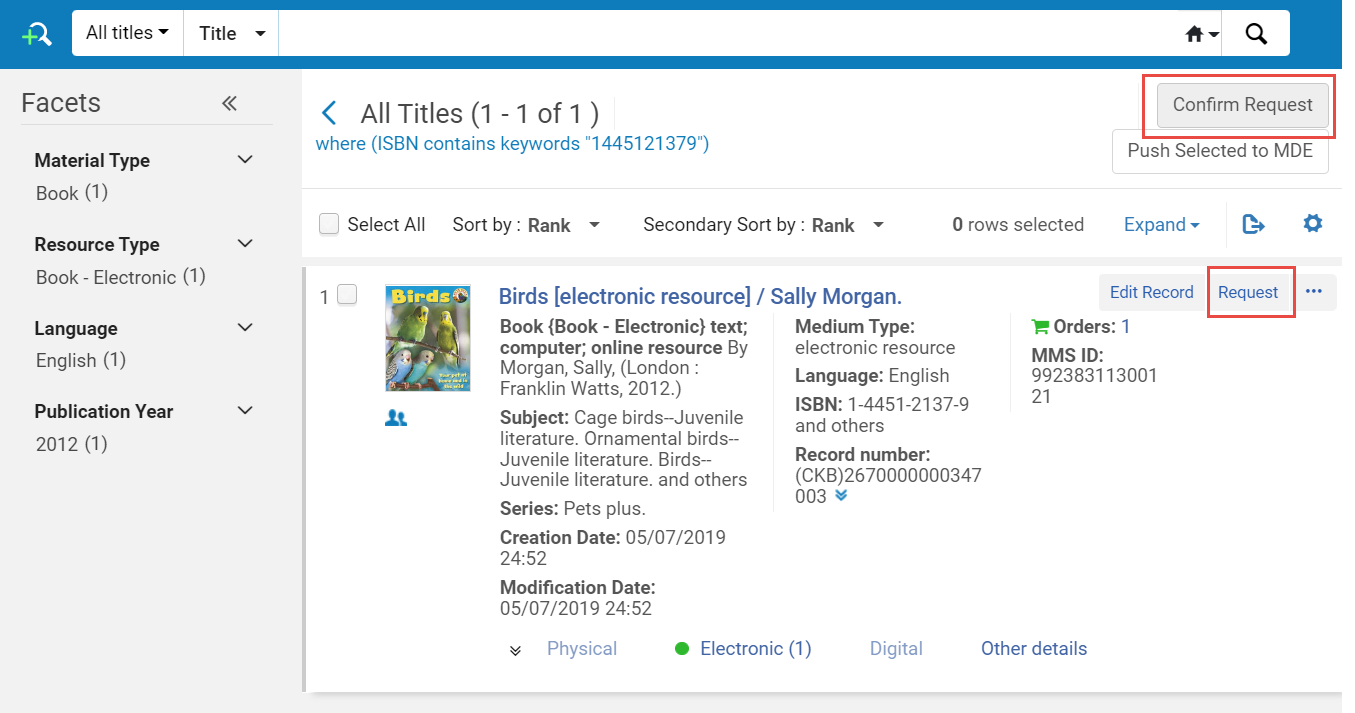
- Effettua una delle seguenti operazioni:
- Per annullare la Richiesta di prestito in uscita e creare invece una richiesta di prenotazione locale, selezioni richiesta. A Create Request form opens. Selezionare Invia per creare la richiesta di prenotazione locale.
- Per continuare con la creazione della Richiesta di prestito in uscita anziché effettuare una richiesta di prenotazione locale, selezionare Conferma richiesta. La richiesta di prestito in uscita ILL è stata creata.
